

Epson printers that stop printing black ink on Windows in 2026 can usually be fixed by checking Windows’ printer queue and spooler, confirming the Epson driver and default-printer settings, then running Epson’s nozzle check, head cleaning, and, only if necessary, Power Cleaning. The temptation is to blame the cartridge immediately, but that is often the expensive answer to the wrong problem. The real failure usually sits at the boundary between Windows’ print pipeline and the inkjet hardware’s least glamorous component: the print head. Fixing it means moving carefully from software to mechanics, not stabbing at random settings until the page looks normal again.
When color prints cleanly but black text fades, streaks, or disappears, the printer is sending a very specific signal. It is not simply “broken.” It is telling you that the path for black output has failed somewhere between the Windows print job, the Epson driver, the queue, the spooler, the printer firmware, the ink supply, and the black nozzles themselves.
That distinction matters because modern home and small-office printing is no longer just a mechanical act. Windows has its own print system, its own device defaults, its own queue behavior, and its own driver assumptions. Epson’s inkjet hardware, meanwhile, has maintenance routines designed to diagnose and clear physical blockages that Windows cannot see.
The wrong response is to begin with the most invasive fix. Replacing cartridges, repeatedly running deep cleaning cycles, or reinstalling everything may eventually change something, but it wastes ink, time, and patience. The right response is a sequence: first prove Windows is actually sending the right job to the right device, then prove the printer’s black channel can physically put ink on paper.
That is why this problem feels so maddening. The printer can appear online, the color portions of a document can look normal, and Windows can report no obvious error. Yet the black text, the very thing most people print most often, is missing. The failure is narrow enough to be confusing but common enough to be fixable.
Open the Get Help app, run the printer troubleshooter if it is offered, and follow the prompts. If Windows fixes the issue, resist the urge to keep “optimizing.” A working printer is not made better by another round of experimental settings.
If the troubleshooter does not solve the problem, it has still done something useful. It has lowered the odds that the failure is a simple Windows configuration issue, and it lets you move through the remaining checks with more confidence. Troubleshooting is not only about finding the fix; it is about eliminating false suspects.
This is especially important on systems where multiple printers, print-to-PDF devices, virtual queues, or old Epson entries remain installed. Windows can quietly send output to the wrong destination or preserve stale queue state long after the user assumes a job is gone. Before touching ink, make sure the operating system is not lying about where the document is going.
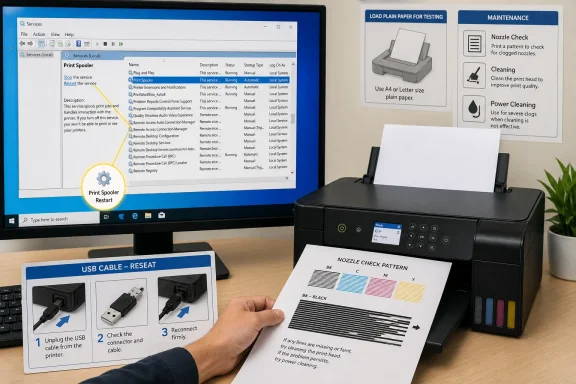
While the printer is unplugged, check the connection. If it is a USB model, reseat the cable at both ends and avoid questionable hubs while testing. A cable that is barely connected can create intermittent behavior that looks more mysterious than it is.
For networked printers, make sure the device is on the same network as the Windows PC and that the printer has not silently moved to another IP address after a router restart. Home networking is good at creating problems that masquerade as printer problems. The printer may be healthy, the ink may be full, and the job may still be going nowhere useful.
The point is not that every black-ink issue is caused by a cable. It is that power and connection checks cost nothing, consume no ink, and cannot make the print head worse. In a good troubleshooting sequence, the low-risk fixes earn their place at the front.
On Windows 11, open Settings, go to Bluetooth & devices, then Printers & scanners, select the Epson printer, and set it as the default if needed. On Windows 10, open Settings, go to Devices, then Printers & scanners, select the Epson, and open its queue. From there, the Printer menu can expose whether printing is paused, whether the printer is marked offline, or whether it needs to be set as default.
If the Set as default option is missing, look for the setting that allows Windows to manage the default printer and turn it off temporarily. That feature is convenient for mobile users who move between locations, but it can become a source of confusion during troubleshooting. For this repair, you want one known printer, one known queue, and one known test document.
Also check the queue for “Pause Printing” and “Use Printer Offline.” These toggles are the kind of small interface details that cause disproportionately large frustration. A printer can be powered on, connected, and perfectly capable of printing while Windows refuses to send the job in the expected way.
Open the Epson queue and cancel anything that is stuck, duplicated, paused, or obviously stale. If the queue clears cleanly, send a simple test page with black text only. Do not use a complicated document with images, tables, unusual fonts, or application-specific formatting until the basic path works.
If a job refuses to cancel, stop fighting the queue window. That is usually the moment to restart the Print Spooler, the Windows service responsible for managing print jobs. Press Windows key + R, type
For stubborn cases, stop the Print Spooler service, open
This step matters even when the symptom is missing black ink because software failures do not always present honestly. Partial output, repeated jobs, corrupted jobs, and stalled queues can overlap with hardware symptoms. You do not want to run aggressive print-head cleaning because Windows was choking on a bad queue entry.
Load plain paper before running the test. Open the Epson printer utility from the Epson icon in the Windows taskbar; if it is hidden, use the up arrow in the system tray to reveal it. Run Nozzle Check and inspect the printed pattern rather than relying on vibes from a normal document.
A clean pattern means the nozzles are likely clear, and you should look again at drivers, application print settings, grayscale options, or the document itself. A broken pattern means the printer needs maintenance. That is when standard Cleaning, often called head cleaning, becomes appropriate.
Head cleaning should be treated as a targeted repair, not a ritual. Run Cleaning, then run the nozzle check again. If the black lines return cleanly, stop there. More cleaning is not better; it consumes ink and can fill maintenance pads over time.
The reason the black channel is often the one users notice first is simple: black text is unforgiving. A slightly weak color channel may hide inside a photo or chart, but black text exposes every missing nozzle as a gap, streak, or gray wash. The page becomes a diagnostic report whether the user wanted one or not.
Power Cleaning exists for stubborn clogs, especially on EcoTank and other inkjet models where dried ink can resist ordinary cleaning. It moves more ink through the system and is designed to clear blockages that standard Cleaning cannot. That power comes at a cost: it uses substantially more ink.
Before running Power Cleaning, make sure the printer has enough ink and no active errors. Do not turn the printer off during the cycle. When the process finishes, run another nozzle check rather than guessing from a normal printout.
If gaps remain after Power Cleaning, Epson’s guidance commonly calls for turning the printer off and waiting at least 12 hours before trying again or reassessing. That rest period is not superstition. Dried ink can soften over time, and repeatedly hammering the print head with cleaning cycles in one sitting can waste ink without improving the result.
This is where impatience becomes expensive. Users understandably want the printer fixed now, especially if a school form, tax document, shipping label, or work packet is due. But aggressive repeated cleaning can burn through ink faster than the problem warrants. The smart move is to let the chemistry work before assuming the printer is dead.
Download the current Epson driver and utility package from Epson’s official support channel for the exact printer model. Match it to the version of Windows installed on the PC. Avoid random driver sites, bundle installers, and “driver updater” utilities that create more risk than they remove.
Reinstalling the Epson software can restore the maintenance utility, repair device communication, and replace corrupted driver components. It can also help when the printer works from one application but not another, or when Windows sees the device but the Epson-specific controls are missing. That matters because the nozzle check and cleaning tools are often easiest to access through Epson’s own utility.
This is also a good moment to remove duplicate Epson entries that no longer correspond to the printer you use. Windows systems that have survived years of upgrades often accumulate ghost printers, old queues, and driver packages from devices that are no longer present. Simpler is better: one current Epson package, one active printer entry, one default queue.
But replacing ink too early is a common mistake because it skips the diagnostic value of the nozzle check. If Windows is blocked, a new cartridge changes nothing. If the black nozzle is clogged, a new cartridge may still fail to print until the head is cleared. If the driver is wrong, the printer may remain erratic no matter how fresh the ink is.
Check the printer’s ink level indicators, but do not treat software estimates as perfect measurements. Inspect the cartridge or tank condition according to the printer model’s instructions. Make sure cartridges are genuine or known-good, installed correctly, and not visibly leaking or damaged.
If the nozzle check stays broken after reasonable cleaning and rest, then ink age and cartridge condition move up the suspect list. At that point, contacting Epson support or replacing the relevant ink supply becomes rational rather than desperate. The difference is that you have now ruled out the cheap software fixes and the standard maintenance path.
This is why many users encounter the black-ink problem after a long gap between print jobs. The printer was fine the last time it was used, sat idle for weeks or months, then failed when needed most. That timeline points strongly toward clogged nozzles rather than a sudden Windows catastrophe.
Preventing the recurrence is less dramatic than fixing it. Print a small page periodically, keep the printer powered down properly using its power button, and avoid unplugging it while it is active. Many inkjets perform maintenance routines when shut down correctly, and cutting power at the wall can interfere with that behavior.
For households that print rarely, the economics of inkjet ownership deserve a sober look. Inkjet printers are excellent when they are used often enough to stay healthy. If the device only wakes up for emergency forms twice a year, a laser printer may be less frustrating for black-and-white documents.
That does not mean Windows 11 “breaks Epson printers” as a rule. It means older printer setups deserve cleanup. If a machine has carried forward drivers from Windows 7, Windows 8.1, or early Windows 10 days, reinstalling the current Epson package is not busywork. It is basic maintenance.
Administrators know this pattern well. Print infrastructure is rarely loved until it fails, and then it becomes urgent. The same applies at home: nobody wants to think about the spooler, the driver package, or the default queue until a black-and-white document prints as a ghost.
The broader Windows lesson is that printing remains a legacy-heavy subsystem living inside a modern security and reliability agenda. Microsoft wants a cleaner print stack; users want old hardware to keep working; vendors want their utilities installed; attackers have historically loved print services. The result is a system that works most days and becomes surprisingly complex when it does not.
Run the Windows troubleshooter, restart the printer, confirm the connection, check default status, clear the queue, and restart the spooler. Then run Epson’s nozzle check and standard head cleaning. Escalate to Power Cleaning only after ordinary cleaning fails, and respect the wait period before repeating stronger measures.
That order protects the user from two bad outcomes. The first is wasting ink on a software problem. The second is reinstalling drivers forever when the print head is physically clogged. Each step is meant to answer a specific question before the next step begins.
It also gives IT helpers a cleaner script. Whether supporting a family member, a small office, or a fleet of lightly managed desktops, the sequence creates evidence. Is the printer online? Is the queue clear? Does the nozzle check pass? Has standard cleaning been tried? Has Power Cleaning been overused? Those answers matter more than hunches.
 The Black-Ink Failure Is a Two-System Problem
When color prints cleanly but black text fades, streaks, or disappears, the printer is sending a very specific signal. It is not simply “broken.” It is telling you that the path for black output has failed somewhere between the Windows print job, the Epson driver, the queue, the spooler, the printer firmware, the ink supply, and the black nozzles themselves.That distinction matters because modern home and small-office printing is no longer just a mechanical act. Windows has its own print system, its own device defaults, its own queue behavior, and its own driver assumptions. Epson’s inkjet hardware, meanwhile, has maintenance routines designed to diagnose and clear physical blockages that Windows cannot see.
The wrong response is to begin with the most invasive fix. Replacing cartridges, repeatedly running deep cleaning cycles, or reinstalling everything may eventually change something, but it wastes ink, time, and patience. The right response is a sequence: first prove Windows is actually sending the right job to the right device, then prove the printer’s black channel can physically put ink on paper.
That is why this problem feels so maddening. The printer can appear online, the color portions of a document can look normal, and Windows can report no obvious error. Yet the black text, the very thing most people print most often, is missing. The failure is narrow enough to be confusing but common enough to be fixable.
Windows Deserves the First Blame, Even When the Ink Looks Guilty
The safest first move is to let Windows inspect itself. Microsoft’s current guidance for Windows 11 and Windows 10 points users toward the automated printer troubleshooter through the Get Help app, and that recommendation is not just boilerplate. The troubleshooter can catch the mundane failures that look like printer defects from the outside: stalled jobs, connection errors, offline status, or configuration drift.Open the Get Help app, run the printer troubleshooter if it is offered, and follow the prompts. If Windows fixes the issue, resist the urge to keep “optimizing.” A working printer is not made better by another round of experimental settings.
If the troubleshooter does not solve the problem, it has still done something useful. It has lowered the odds that the failure is a simple Windows configuration issue, and it lets you move through the remaining checks with more confidence. Troubleshooting is not only about finding the fix; it is about eliminating false suspects.
This is especially important on systems where multiple printers, print-to-PDF devices, virtual queues, or old Epson entries remain installed. Windows can quietly send output to the wrong destination or preserve stale queue state long after the user assumes a job is gone. Before touching ink, make sure the operating system is not lying about where the document is going.
A Full Power Cycle Still Fixes More Than It Should
The humble power cycle survives because printers are still tiny computers attached to tiny fluid systems. Turn the Epson off, unplug it, wait at least 30 seconds, plug it back in, and turn it on again. That pause gives the device time to clear transient internal states that a quick button press may not fully reset.While the printer is unplugged, check the connection. If it is a USB model, reseat the cable at both ends and avoid questionable hubs while testing. A cable that is barely connected can create intermittent behavior that looks more mysterious than it is.
For networked printers, make sure the device is on the same network as the Windows PC and that the printer has not silently moved to another IP address after a router restart. Home networking is good at creating problems that masquerade as printer problems. The printer may be healthy, the ink may be full, and the job may still be going nowhere useful.
The point is not that every black-ink issue is caused by a cable. It is that power and connection checks cost nothing, consume no ink, and cannot make the print head worse. In a good troubleshooting sequence, the low-risk fixes earn their place at the front.
The Default Printer Setting Is a Small Switch With Outsized Consequences
Windows’ default printer behavior can be helpful until it is not. If the wrong device is set as default, or if Windows is allowed to manage the default printer based on recent use, a document may go to a different queue than the one you think you are testing. That can lead users into troubleshooting the Epson while Windows is quietly aiming elsewhere.On Windows 11, open Settings, go to Bluetooth & devices, then Printers & scanners, select the Epson printer, and set it as the default if needed. On Windows 10, open Settings, go to Devices, then Printers & scanners, select the Epson, and open its queue. From there, the Printer menu can expose whether printing is paused, whether the printer is marked offline, or whether it needs to be set as default.
If the Set as default option is missing, look for the setting that allows Windows to manage the default printer and turn it off temporarily. That feature is convenient for mobile users who move between locations, but it can become a source of confusion during troubleshooting. For this repair, you want one known printer, one known queue, and one known test document.
Also check the queue for “Pause Printing” and “Use Printer Offline.” These toggles are the kind of small interface details that cause disproportionately large frustration. A printer can be powered on, connected, and perfectly capable of printing while Windows refuses to send the job in the expected way.
A Jammed Queue Can Make a Good Printer Look Sick
A stuck print job is one of the classic Windows printer failures because it contaminates every job behind it. The user sees the newest document fail and assumes the new job is the problem. In reality, an older job at the front of the queue may be blocking the entire line.Open the Epson queue and cancel anything that is stuck, duplicated, paused, or obviously stale. If the queue clears cleanly, send a simple test page with black text only. Do not use a complicated document with images, tables, unusual fonts, or application-specific formatting until the basic path works.
If a job refuses to cancel, stop fighting the queue window. That is usually the moment to restart the Print Spooler, the Windows service responsible for managing print jobs. Press Windows key + R, type
services.msc, press Enter, find Print Spooler, right-click it, and choose Restart.For stubborn cases, stop the Print Spooler service, open
C:\Windows\System32\spool\PRINTERS, and delete the files inside that folder without deleting the folder itself. Then start the Print Spooler again. This clears the software backlog and gives the Epson a clean job stream.This step matters even when the symptom is missing black ink because software failures do not always present honestly. Partial output, repeated jobs, corrupted jobs, and stalled queues can overlap with hardware symptoms. You do not want to run aggressive print-head cleaning because Windows was choking on a bad queue entry.
Epson’s Nozzle Check Separates Software Trouble From Ink Trouble
Once Windows is clean, the investigation moves to the printer. Epson’s nozzle check is the pivot point because it answers the question Windows cannot: can the printer physically fire ink through the black nozzles? If the nozzle pattern shows broken lines, missing segments, or absent black output, the problem is no longer primarily a Windows mystery.Load plain paper before running the test. Open the Epson printer utility from the Epson icon in the Windows taskbar; if it is hidden, use the up arrow in the system tray to reveal it. Run Nozzle Check and inspect the printed pattern rather than relying on vibes from a normal document.
A clean pattern means the nozzles are likely clear, and you should look again at drivers, application print settings, grayscale options, or the document itself. A broken pattern means the printer needs maintenance. That is when standard Cleaning, often called head cleaning, becomes appropriate.
Head cleaning should be treated as a targeted repair, not a ritual. Run Cleaning, then run the nozzle check again. If the black lines return cleanly, stop there. More cleaning is not better; it consumes ink and can fill maintenance pads over time.
The reason the black channel is often the one users notice first is simple: black text is unforgiving. A slightly weak color channel may hide inside a photo or chart, but black text exposes every missing nozzle as a gap, streak, or gray wash. The page becomes a diagnostic report whether the user wanted one or not.
Power Cleaning Is the Sledgehammer, Not the Starting Tool
If standard Cleaning improves the pattern but does not fully restore it, repeat the nozzle check and cleaning cycle within Epson’s recommended limits for the model. Many Epson guides advise several standard cleanings before escalating, and some models specify waiting periods if quality does not improve. The broad principle is consistent: do not jump immediately to the strongest cleaning routine.Power Cleaning exists for stubborn clogs, especially on EcoTank and other inkjet models where dried ink can resist ordinary cleaning. It moves more ink through the system and is designed to clear blockages that standard Cleaning cannot. That power comes at a cost: it uses substantially more ink.
Before running Power Cleaning, make sure the printer has enough ink and no active errors. Do not turn the printer off during the cycle. When the process finishes, run another nozzle check rather than guessing from a normal printout.
If gaps remain after Power Cleaning, Epson’s guidance commonly calls for turning the printer off and waiting at least 12 hours before trying again or reassessing. That rest period is not superstition. Dried ink can soften over time, and repeatedly hammering the print head with cleaning cycles in one sitting can waste ink without improving the result.
This is where impatience becomes expensive. Users understandably want the printer fixed now, especially if a school form, tax document, shipping label, or work packet is due. But aggressive repeated cleaning can burn through ink faster than the problem warrants. The smart move is to let the chemistry work before assuming the printer is dead.
Drivers Are the Boring Fix That Still Matters in 2026
A current Epson driver will not unclog dried ink, but it can fix print-quality and not-printing problems that masquerade as hardware faults. Windows printing has been evolving, and driver policy has become more visible as Microsoft pushes toward cleaner, more secure print architecture. For users, the practical lesson is simple: old printer software can become the weak link.Download the current Epson driver and utility package from Epson’s official support channel for the exact printer model. Match it to the version of Windows installed on the PC. Avoid random driver sites, bundle installers, and “driver updater” utilities that create more risk than they remove.
Reinstalling the Epson software can restore the maintenance utility, repair device communication, and replace corrupted driver components. It can also help when the printer works from one application but not another, or when Windows sees the device but the Epson-specific controls are missing. That matters because the nozzle check and cleaning tools are often easiest to access through Epson’s own utility.
This is also a good moment to remove duplicate Epson entries that no longer correspond to the printer you use. Windows systems that have survived years of upgrades often accumulate ghost printers, old queues, and driver packages from devices that are no longer present. Simpler is better: one current Epson package, one active printer entry, one default queue.
The Ink Cartridge Is Not Innocent, But It Should Testify Last
Ink can absolutely be the culprit. A cartridge may be empty, dried, improperly seated, incompatible, expired, or unable to feed properly. On tank-based models, low ink, air in the line, or old ink can also cause poor black output.But replacing ink too early is a common mistake because it skips the diagnostic value of the nozzle check. If Windows is blocked, a new cartridge changes nothing. If the black nozzle is clogged, a new cartridge may still fail to print until the head is cleared. If the driver is wrong, the printer may remain erratic no matter how fresh the ink is.
Check the printer’s ink level indicators, but do not treat software estimates as perfect measurements. Inspect the cartridge or tank condition according to the printer model’s instructions. Make sure cartridges are genuine or known-good, installed correctly, and not visibly leaking or damaged.
If the nozzle check stays broken after reasonable cleaning and rest, then ink age and cartridge condition move up the suspect list. At that point, contacting Epson support or replacing the relevant ink supply becomes rational rather than desperate. The difference is that you have now ruled out the cheap software fixes and the standard maintenance path.
The Printer’s Downtime May Be the Hidden Cause
Inkjet printers dislike neglect. Leave one unused long enough and the print head can dry, especially in warm rooms, dusty spaces, or low-humidity environments. The printer may look ready from the outside, but the microscopic ink channels can be partially blocked.This is why many users encounter the black-ink problem after a long gap between print jobs. The printer was fine the last time it was used, sat idle for weeks or months, then failed when needed most. That timeline points strongly toward clogged nozzles rather than a sudden Windows catastrophe.
Preventing the recurrence is less dramatic than fixing it. Print a small page periodically, keep the printer powered down properly using its power button, and avoid unplugging it while it is active. Many inkjets perform maintenance routines when shut down correctly, and cutting power at the wall can interfere with that behavior.
For households that print rarely, the economics of inkjet ownership deserve a sober look. Inkjet printers are excellent when they are used often enough to stay healthy. If the device only wakes up for emergency forms twice a year, a laser printer may be less frustrating for black-and-white documents.
Windows 10’s Clock Makes Printer Hygiene More Urgent
The year matters because Windows 10 is in its final stretch of mainstream consumer life, and many users are moving hardware, drivers, and peripherals across upgrade boundaries. Printers are especially vulnerable during those transitions because they sit at the intersection of old driver models, vendor utilities, and operating-system changes. A printer that behaved for years can become flaky after a PC refresh, feature update, or migration to Windows 11.That does not mean Windows 11 “breaks Epson printers” as a rule. It means older printer setups deserve cleanup. If a machine has carried forward drivers from Windows 7, Windows 8.1, or early Windows 10 days, reinstalling the current Epson package is not busywork. It is basic maintenance.
Administrators know this pattern well. Print infrastructure is rarely loved until it fails, and then it becomes urgent. The same applies at home: nobody wants to think about the spooler, the driver package, or the default queue until a black-and-white document prints as a ghost.
The broader Windows lesson is that printing remains a legacy-heavy subsystem living inside a modern security and reliability agenda. Microsoft wants a cleaner print stack; users want old hardware to keep working; vendors want their utilities installed; attackers have historically loved print services. The result is a system that works most days and becomes surprisingly complex when it does not.
The Safe Repair Order Is the Real Fix
The best way to solve Epson black-ink failure is not one magic setting. It is the order of operations. Start with the parts that are reversible and free, then move toward the parts that consume ink or require replacement.Run the Windows troubleshooter, restart the printer, confirm the connection, check default status, clear the queue, and restart the spooler. Then run Epson’s nozzle check and standard head cleaning. Escalate to Power Cleaning only after ordinary cleaning fails, and respect the wait period before repeating stronger measures.
That order protects the user from two bad outcomes. The first is wasting ink on a software problem. The second is reinstalling drivers forever when the print head is physically clogged. Each step is meant to answer a specific question before the next step begins.
It also gives IT helpers a cleaner script. Whether supporting a family member, a small office, or a fleet of lightly managed desktops, the sequence creates evidence. Is the printer online? Is the queue clear? Does the nozzle check pass? Has standard cleaning been tried? Has Power Cleaning been overused? Those answers matter more than hunches.
The Eight Fixes That Actually Earn Their Place
By the time the black channel disappears, most users are already irritated. The job is late, the printer is making cheerful noises, and the page is useless. The repair path below is the compressed version of the argument: do the least destructive things first, then escalate only when the evidence points toward the print head or ink supply.- Run the Windows printer troubleshooter through the Get Help app before changing Epson hardware or ink settings.
- Power-cycle the printer, unplug it for at least 30 seconds, and check the USB or network connection before assuming a cartridge failure.
- Confirm the Epson printer is online, not paused, not set to offline mode, and selected as the default printer in Windows.
- Clear stuck print jobs and restart the Print Spooler if the queue refuses to empty normally.
- Use Epson’s Nozzle Check first, then run standard Cleaning only if the printed pattern shows gaps or missing black lines.
- Reserve Power Cleaning for stubborn clogs, make sure enough ink is available, and wait at least 12 hours afterward if the pattern still does not recover.
References
- Primary source: Technobezz
Published: 2026-06-02T14:38:16.180991
Epson Printer Not Printing Black Ink on Windows? 8 Ways to Fix It (2026) | Technobezz
You hit print on an important document, the page rolls out, and the black text is faded, streaky, or completely missing while the color sections look fine.www.technobezz.com - Official source: support.microsoft.com
Fix printer connection and printing problems in Windows | Microsoft Support
Learn ways to fix common printing problems in Windows 10.support.microsoft.com - Related coverage: files.support.epson.com
- Official source: learn.microsoft.com
The new printer status is Offline - Windows Server | Microsoft Learn
Provides a solution to an issue where the new printer status is Offline after you delete a print queue and then restart a Windows-based computer.learn.microsoft.com - Official source: microsoft.com
Windows Help & Support: Find Quick Answers & Helpful Resources | Microsoft Windows
Find the Windows help and support you need. From account setup to device support, search for quick answers and helpful resources so you can get the most out of Windows.www.microsoft.com - Related coverage: windowscentral.com
Microsoft was wrong: Windows 11 is not ending support for legacy printer drivers after all | Windows Central
"If your printer works today, it will continue to work" Microsoft says as it issues correction around plans to end support for legacy printer drivers.www.windowscentral.com
- Related coverage: support2.epson.net
- Related coverage: computerworld.com
How to fix Windows 10 and 11 printing problems – Computerworld
Although Windows 10 and 11 are generally stable, printer issues do occur from time to time. Here are some tips to work around typical Windows print gotchas. www.computerworld.com
- Related coverage: tomshardware.com
Microsoft clarifies Windows 11 printer driver policy — support for legacy printers is not ending | Tom's Hardware
Your old printer lives to print another day.www.tomshardware.com - Related coverage: epson.co.uk
FAQ Article Page | Epson United Kingdom
www.epson.co.uk
- Related coverage: onewebcare.com
How to Use Printer Troubleshooter in Windows 11 and 10
Learn how to run the printer troubleshooter on Windows 11 and 10. Step-by-step fixes for printers not working, offline errors, and stuck print jobs.onewebcare.com - Related coverage: techradar.com
Scared your printer will stop working with Windows 11? Don't be — here's what you need to know about Microsoft's support plans | TechRadar
Microsoft hasn't just dropped support for loads of printerswww.techradar.com - Related coverage: itpro.com
Most common Windows 11 problems and how to fix them | IT Pro
The most common Windows 11 problems that users encounter, from upgrades to Wi-Fiwww.itpro.com
