

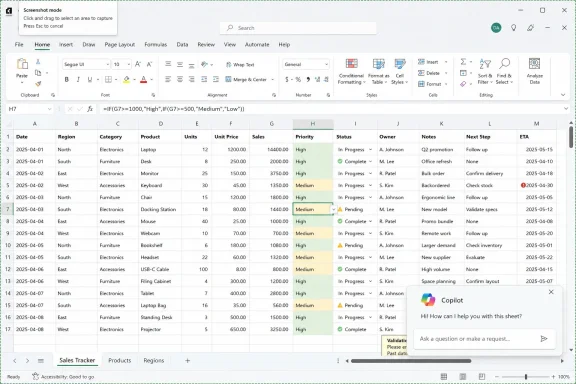
Microsoft is rolling out a floating Copilot button in Excel for Microsoft 365 users in May 2026, placing the AI assistant inside the spreadsheet canvas where some users say it blocks cells, screenshots, and even scrollbar access. The controversy is not that Copilot exists in Excel; Microsoft has been building toward that for years. The problem is that the button has crossed a line from feature discovery into workspace occupation. For an application whose value rests on precision, density, and user control, that is a surprisingly expensive inch of screen real estate.
The new Excel Copilot entry point is not just another ribbon icon. It is a floating control that sits near the bottom-right of the workbook area, following the modern software fashion of putting an assistant button directly over the document surface. In Word, PowerPoint, and web apps, that may feel like a tolerable compromise. In Excel, it lands in the middle of a very different social contract.
A spreadsheet is not a blank page. It is a grid where every pixel can represent a number, a label, a formula, a validation marker, a scroll target, or the edge of a carefully framed screenshot. Excel users are not merely “viewing content”; they are navigating a dense interface in which small positional changes can matter.
That is why the backlash has been sharper than the usual grumbling about Microsoft promoting Copilot. According to reporting from Windows Central and Neowin, users have complained that the floating button is visually disruptive, overlaps worksheet data, interferes with screenshots used for validation, and does not provide an obvious user-level way to remove it entirely. Right-clicking the button can dock it to the side, but docking is not the same thing as hiding.
Microsoft’s likely argument is easy to infer: Copilot needs to be discoverable, consistent, and available at the moment of work. The company has been standardizing Copilot access across Microsoft 365 apps, including a bottom-right icon and contextual entry points. But the very consistency that helps Microsoft market Copilot as a platform-wide layer also exposes a design failure: Excel is not just another canvas.
The ribbon can be crowded, yes. It can be intimidating to new users and maddening to veterans who remember exactly where an old command used to live. But it is at least architecturally honest: commands live in command space, and data lives in data space.
The floating Copilot button breaks that division. It takes a feature that many users view as optional, promotional, or even unwanted and moves it from the control surface into the work surface. That changes the emotional temperature of the feature immediately. A button in the ribbon says, “I am available.” A button over your cells says, “I am present.”
That distinction matters because Excel is one of Microsoft’s most professionally consequential applications. It is used for finance models, production schedules, research logs, audits, invoices, clinical trackers, classroom gradebooks, compliance evidence, and a thousand internal workflows that never make it into a glossy Microsoft demo. Many of those workflows depend on repeatability and visual consistency.
A persistent overlay inside the workbook is therefore not a cosmetic flourish. It is an intervention in the workspace. If it appears in screenshots, blocks a cell, obscures a validation note, or interferes with a scrollbar, it is no longer merely a gateway to AI. It has become part of the spreadsheet’s operational environment.
Copilot in Excel can be genuinely useful. Natural-language assistance for formulas, table creation, data summaries, and exploratory analysis is a reasonable fit for a program that has always punished casual users with a steep learning curve. Anyone who has watched a capable professional lose half an afternoon to nested formulas can understand why Microsoft sees Excel as prime territory for AI assistance.
But useful features still need consentful design. A spreadsheet user who wants Copilot should be able to summon it quickly. A spreadsheet user who does not want Copilot should be able to make it disappear. That should be the entire controversy, and the fact that it is not tells us something about Microsoft’s current posture.
The company is treating Copilot not as a tool inside Office, but as a new layer above Office. That subtle shift explains why the button feels harder to escape than older feature prompts. The AI assistant is being positioned less like spell check and more like the Start button: a persistent affordance Microsoft wants users to recognize, understand, and eventually rely on.
The trouble is that Excel users already rely on something else: Excel. When the assistant’s visibility competes with the spreadsheet’s visibility, the assistant is no longer helping the product. It is competing with it.
Some organizations have embraced Microsoft 365 Copilot aggressively. Others are piloting it cautiously. Many are still working through data access, sensitivity labels, retention policies, auditability, and whether the productivity gains justify the licensing costs. In that environment, a persistent Copilot entry point can make the deployment conversation feel backward: the interface arrives first, and the policy debate follows.
That matters because Copilot is not just a calculator with a friendlier face. In Microsoft 365, its value depends on what it can see, what it can reason over, and what it can generate from organizational data. Even when permissions are respected, users and administrators need clarity about which data is being used, which experiences are enabled, and which accounts or licenses unlock which capabilities.
A floating button that cannot be hidden at the user level risks flattening those distinctions. It makes Copilot feel universal even when the underlying entitlements, privacy settings, and admin controls may be more complicated. That is a recipe for help-desk tickets, internal confusion, and the familiar enterprise refrain: “Why did this appear, and who approved it?”
Microsoft has tools for administrators, and there are reports of tenant-level or policy-based ways to alter Copilot pinning behavior in some environments. But that does not fully solve the user-experience problem. If the only clean way to remove an unwanted overlay is to ask IT, the design has already converted a personal workspace preference into an administrative burden.
That makes the Excel decision especially strange. If the company has learned that aggressive AI placement can hurt sentiment in Windows, why repeat a version of the same mistake in Office? The answer may be organizational momentum. Copilot is not a side feature for Microsoft; it is the company’s organizing thesis for the next generation of productivity software.
When a feature becomes that strategically important, product teams can start optimizing for exposure rather than fit. The metric becomes whether users see Copilot, launch Copilot, and understand that Copilot is available. Those are legitimate product goals, but they are not the same as making Excel better.
Excel’s design problem is unusually unforgiving because the application is already a compromise between power and clutter. Microsoft has to serve spreadsheet beginners, financial analysts, accountants, data workers, project managers, educators, and developers abusing workbooks as lightweight databases. Every permanent interface element taxes all of those users, including the ones who will never use it.
That is the difference between an assistant and an advertisement. An assistant waits until it is needed. An advertisement insists on being seen.
That history includes Edge prompts, OneDrive integration pressure, Microsoft account nudges, Teams bundling debates, Windows 11 hardware requirements, and the shifting visibility of Copilot itself. Not all of those are equivalent, and some have defensible security or platform rationales. But to the user on the receiving end, they rhyme.
The Excel button lands in that broader pattern. A person who does not want Copilot sees it anyway. A person who tries to move it finds docking instead of disappearance. A person who works in a managed environment may discover that the decision lives somewhere in admin policy rather than personal preference.
That sequence turns a minor interface complaint into a referendum on control. Users do not merely ask, “Why is this button here?” They ask, “Why does Microsoft get to decide that this button matters more than my worksheet?”
For a company trying to convince customers to trust AI with more of their work, that is a dangerous place to be. Trust in AI is not built only by model quality, privacy promises, or enterprise compliance documentation. It is built through mundane interactions that prove the software respects the user’s intent.
But docking does not address the core objection. The complaint is not simply that the button is in the wrong location. It is that the button is mandatory in a space users regard as theirs.
A docked Copilot affordance can still visually intrude. It can still signal that the assistant is permanently present. It can still interfere with workflows that depend on clean screenshots or edge-of-window interactions. Most importantly, it still withholds the most obvious user preference: hide this.
Software companies often underestimate the symbolic power of a simple off switch. A toggle is not just a settings item; it is a promise that the user remains in charge. In professional software, that promise matters even when most users leave the default unchanged.
Microsoft already understands this in other contexts. Excel is full of preferences, ribbon customizations, add-in controls, calculation settings, display options, and view modes. The application’s power comes partly from the fact that users can bend it to match workflows Microsoft could never fully anticipate. A non-hideable assistant button is out of character with that tradition.
But a good Excel Copilot should behave like an expert colleague, not a pop-up mascot. It should appear when summoned, suggest help when the context is strong, and retreat when dismissed. It should not presume that every workbook is an invitation.
There are obvious design alternatives. Microsoft could put Copilot back in the ribbon by default while allowing users to pin the floating control if they want it. It could make the floating button hideable per app. It could hide the button automatically during screenshot or presentation modes. It could expose a clear tenant policy and a matching user preference, with administrators deciding whether users may override it.
The company could also make Copilot contextual without making it omnipresent. Selection-based prompts, formula-bar assistance, right-click actions, and command-palette access would all respect the grid more than a persistent overlay. The goal should be to reduce the distance between intent and assistance, not to brand the corner of every workbook.
The irony is that Microsoft has already done the hard part. It has made Copilot visible. Everyone knows the company wants AI in Office. The next challenge is not awareness; it is restraint.
 Microsoft Put the Assistant Where the Work Actually Happens
The new Excel Copilot entry point is not just another ribbon icon. It is a floating control that sits near the bottom-right of the workbook area, following the modern software fashion of putting an assistant button directly over the document surface. In Word, PowerPoint, and web apps, that may feel like a tolerable compromise. In Excel, it lands in the middle of a very different social contract.A spreadsheet is not a blank page. It is a grid where every pixel can represent a number, a label, a formula, a validation marker, a scroll target, or the edge of a carefully framed screenshot. Excel users are not merely “viewing content”; they are navigating a dense interface in which small positional changes can matter.
That is why the backlash has been sharper than the usual grumbling about Microsoft promoting Copilot. According to reporting from Windows Central and Neowin, users have complained that the floating button is visually disruptive, overlaps worksheet data, interferes with screenshots used for validation, and does not provide an obvious user-level way to remove it entirely. Right-clicking the button can dock it to the side, but docking is not the same thing as hiding.
Microsoft’s likely argument is easy to infer: Copilot needs to be discoverable, consistent, and available at the moment of work. The company has been standardizing Copilot access across Microsoft 365 apps, including a bottom-right icon and contextual entry points. But the very consistency that helps Microsoft market Copilot as a platform-wide layer also exposes a design failure: Excel is not just another canvas.
The Ribbon Was Annoying, But It Knew Its Place
Excel has survived decades of interface churn because its core model is stubbornly conservative. Toolbars became ribbons, ribbons became simplified ribbons, collaboration indicators appeared, comments modernized, and cloud file controls multiplied. Through all of that, the grid remained sacred territory.The ribbon can be crowded, yes. It can be intimidating to new users and maddening to veterans who remember exactly where an old command used to live. But it is at least architecturally honest: commands live in command space, and data lives in data space.
The floating Copilot button breaks that division. It takes a feature that many users view as optional, promotional, or even unwanted and moves it from the control surface into the work surface. That changes the emotional temperature of the feature immediately. A button in the ribbon says, “I am available.” A button over your cells says, “I am present.”
That distinction matters because Excel is one of Microsoft’s most professionally consequential applications. It is used for finance models, production schedules, research logs, audits, invoices, clinical trackers, classroom gradebooks, compliance evidence, and a thousand internal workflows that never make it into a glossy Microsoft demo. Many of those workflows depend on repeatability and visual consistency.
A persistent overlay inside the workbook is therefore not a cosmetic flourish. It is an intervention in the workspace. If it appears in screenshots, blocks a cell, obscures a validation note, or interferes with a scrollbar, it is no longer merely a gateway to AI. It has become part of the spreadsheet’s operational environment.
Excel Users Are Not Anti-AI; They Are Anti-Surprise
The easiest way to misread this backlash is to frame it as another culture-war skirmish over artificial intelligence. Some users undoubtedly dislike Copilot on principle. Others may be worried about privacy, licensing, accuracy, or the general sense that Microsoft is trying to turn every application into an AI delivery vehicle. But the more interesting complaint is narrower and more practical: people want control over the interface they use to do exacting work.Copilot in Excel can be genuinely useful. Natural-language assistance for formulas, table creation, data summaries, and exploratory analysis is a reasonable fit for a program that has always punished casual users with a steep learning curve. Anyone who has watched a capable professional lose half an afternoon to nested formulas can understand why Microsoft sees Excel as prime territory for AI assistance.
But useful features still need consentful design. A spreadsheet user who wants Copilot should be able to summon it quickly. A spreadsheet user who does not want Copilot should be able to make it disappear. That should be the entire controversy, and the fact that it is not tells us something about Microsoft’s current posture.
The company is treating Copilot not as a tool inside Office, but as a new layer above Office. That subtle shift explains why the button feels harder to escape than older feature prompts. The AI assistant is being positioned less like spell check and more like the Start button: a persistent affordance Microsoft wants users to recognize, understand, and eventually rely on.
The trouble is that Excel users already rely on something else: Excel. When the assistant’s visibility competes with the spreadsheet’s visibility, the assistant is no longer helping the product. It is competing with it.
The Enterprise Problem Is Bigger Than a Button
For home users, the floating Copilot button is an irritation. For enterprises, it is a governance smell. IT departments have spent years trying to standardize Microsoft 365 behavior across managed devices, license tiers, tenant policies, privacy boundaries, and user training. A highly visible AI control that appears in the work surface before organizations have decided how they want employees to use it creates friction that is both technical and political.Some organizations have embraced Microsoft 365 Copilot aggressively. Others are piloting it cautiously. Many are still working through data access, sensitivity labels, retention policies, auditability, and whether the productivity gains justify the licensing costs. In that environment, a persistent Copilot entry point can make the deployment conversation feel backward: the interface arrives first, and the policy debate follows.
That matters because Copilot is not just a calculator with a friendlier face. In Microsoft 365, its value depends on what it can see, what it can reason over, and what it can generate from organizational data. Even when permissions are respected, users and administrators need clarity about which data is being used, which experiences are enabled, and which accounts or licenses unlock which capabilities.
A floating button that cannot be hidden at the user level risks flattening those distinctions. It makes Copilot feel universal even when the underlying entitlements, privacy settings, and admin controls may be more complicated. That is a recipe for help-desk tickets, internal confusion, and the familiar enterprise refrain: “Why did this appear, and who approved it?”
Microsoft has tools for administrators, and there are reports of tenant-level or policy-based ways to alter Copilot pinning behavior in some environments. But that does not fully solve the user-experience problem. If the only clean way to remove an unwanted overlay is to ask IT, the design has already converted a personal workspace preference into an administrative burden.
Microsoft Keeps Learning the Same Lesson in Public
This is not the first time Microsoft has discovered that users dislike being cornered by its strategic priorities. Windows 11’s Copilot integration produced similar tension, with buttons, menu entries, and promotional surfaces appearing faster than many users felt the feature had earned. Microsoft has more recently signaled a willingness to reduce unnecessary Copilot entry points in parts of Windows, an apparent acknowledgment that saturation can backfire.That makes the Excel decision especially strange. If the company has learned that aggressive AI placement can hurt sentiment in Windows, why repeat a version of the same mistake in Office? The answer may be organizational momentum. Copilot is not a side feature for Microsoft; it is the company’s organizing thesis for the next generation of productivity software.
When a feature becomes that strategically important, product teams can start optimizing for exposure rather than fit. The metric becomes whether users see Copilot, launch Copilot, and understand that Copilot is available. Those are legitimate product goals, but they are not the same as making Excel better.
Excel’s design problem is unusually unforgiving because the application is already a compromise between power and clutter. Microsoft has to serve spreadsheet beginners, financial analysts, accountants, data workers, project managers, educators, and developers abusing workbooks as lightweight databases. Every permanent interface element taxes all of those users, including the ones who will never use it.
That is the difference between an assistant and an advertisement. An assistant waits until it is needed. An advertisement insists on being seen.
A Small Overlay Exposes a Large Trust Deficit
The anger around the floating button is amplified by years of accumulated distrust. Microsoft users have grown accustomed to features that arrive through updates, reappear after removal, or require policy changes to suppress. Even when the company has reasonable product arguments, it is operating against a history of nudges that felt less like choice and more like choreography.That history includes Edge prompts, OneDrive integration pressure, Microsoft account nudges, Teams bundling debates, Windows 11 hardware requirements, and the shifting visibility of Copilot itself. Not all of those are equivalent, and some have defensible security or platform rationales. But to the user on the receiving end, they rhyme.
The Excel button lands in that broader pattern. A person who does not want Copilot sees it anyway. A person who tries to move it finds docking instead of disappearance. A person who works in a managed environment may discover that the decision lives somewhere in admin policy rather than personal preference.
That sequence turns a minor interface complaint into a referendum on control. Users do not merely ask, “Why is this button here?” They ask, “Why does Microsoft get to decide that this button matters more than my worksheet?”
For a company trying to convince customers to trust AI with more of their work, that is a dangerous place to be. Trust in AI is not built only by model quality, privacy promises, or enterprise compliance documentation. It is built through mundane interactions that prove the software respects the user’s intent.
The Docking Option Is a Compromise That Misses the Complaint
Microsoft’s partial answer appears to be docking. Right-clicking the floating Copilot control can move it to the side, where it behaves more like a collapsed launcher for the Copilot pane. That may reduce the obstruction, and for some users it will be enough.But docking does not address the core objection. The complaint is not simply that the button is in the wrong location. It is that the button is mandatory in a space users regard as theirs.
A docked Copilot affordance can still visually intrude. It can still signal that the assistant is permanently present. It can still interfere with workflows that depend on clean screenshots or edge-of-window interactions. Most importantly, it still withholds the most obvious user preference: hide this.
Software companies often underestimate the symbolic power of a simple off switch. A toggle is not just a settings item; it is a promise that the user remains in charge. In professional software, that promise matters even when most users leave the default unchanged.
Microsoft already understands this in other contexts. Excel is full of preferences, ribbon customizations, add-in controls, calculation settings, display options, and view modes. The application’s power comes partly from the fact that users can bend it to match workflows Microsoft could never fully anticipate. A non-hideable assistant button is out of character with that tradition.
Copilot Needs Better Product Manners
The deeper issue is not whether Copilot belongs in Excel. It does. If Microsoft can make generative AI reliable, auditable, and contextually aware inside spreadsheets, it could reduce one of the longest-running productivity gaps in business computing: the distance between what users need from data and what they know how to ask Excel to do.But a good Excel Copilot should behave like an expert colleague, not a pop-up mascot. It should appear when summoned, suggest help when the context is strong, and retreat when dismissed. It should not presume that every workbook is an invitation.
There are obvious design alternatives. Microsoft could put Copilot back in the ribbon by default while allowing users to pin the floating control if they want it. It could make the floating button hideable per app. It could hide the button automatically during screenshot or presentation modes. It could expose a clear tenant policy and a matching user preference, with administrators deciding whether users may override it.
The company could also make Copilot contextual without making it omnipresent. Selection-based prompts, formula-bar assistance, right-click actions, and command-palette access would all respect the grid more than a persistent overlay. The goal should be to reduce the distance between intent and assistance, not to brand the corner of every workbook.
The irony is that Microsoft has already done the hard part. It has made Copilot visible. Everyone knows the company wants AI in Office. The next challenge is not awareness; it is restraint.
The Spreadsheet Crowd Has Already Rendered Its Verdict
The concrete lessons from this rollout are not complicated, which is why the controversy feels so avoidable. Excel users are not asking Microsoft to abandon Copilot. They are asking the company to stop treating the worksheet as promotional real estate.- The floating Copilot button is appearing inside the Excel workbook surface, where users report that it can obscure data and disrupt established workflows.
- Docking the button may reduce the annoyance, but it does not satisfy users who want a full hide or disable option.
- The backlash is strongest because Excel is a dense, precision-oriented workspace where overlays carry more practical cost than they would in many other apps.
- Enterprise administrators face a separate problem because visible AI entry points can arrive before an organization has settled licensing, governance, and user-training policies.
- Microsoft’s broader Copilot strategy will be judged not only by what the assistant can do, but by whether users feel free to decline it.
References
- Primary source: Windows Central
Published: Mon, 18 May 2026 09:10:35 GMT
"Atrocious implementation": Microsoft's unremovable Copilot button is driving Excel users crazy with forced AI in spreadsheets | Windows Central
Excel users want Microsoft to let them hide the new, unremovable floating Copilot button, which gets in the way of data.www.windowscentral.com - Related coverage: windowsreport.com
Microsoft Faces Backlash Over New Floating Copilot Button in Excel
Microsoft is facing criticism after adding a floating Copilot button inside Excel worksheets that users cannot fully disable. windowsreport.com
- Related coverage: windowsnews.ai
Excel Copilot's Persistent Floating Button Irks Users—Here's Why the Backlash Is Growing - Windows News
Excel’s new Copilot floating button can’t be turned off and covers spreadsheet data. Users are demanding a simple disable option as Microsoft pushes AI...windowsnews.ai - Official source: learn.microsoft.com
How to disable the new copilot floating icon in Excel? - Microsoft Q&A
Just opened excel today and it had awful floating icon for copilot. I have the ability to dock it/undock it, but not to remove it. I went to file>options, but could not find a tab for copilot to disable it. Help! This thing is going to drive me crazy.learn.microsoft.com - Related coverage: ebisuda.net
ExcelシートにMicrosoftが追加した消せないCopilotボタンにユーザーが激怒──コンテンツを遮断する設計に世界中から批判噴出 | ebisuda.net
MicrosoftがExcelのシート内に組み込んだCopilotボタンが「データを遮断し完全に無効化できない」として世界中のユーザーから強い反発を受けている。www.ebisuda.net
- Related coverage: howtogeek.com
How to Turn Off the Insert Options Floating Button in Excel
Excel includes a feature that allows you to quickly apply some basic formatting to inserted rows, columns, or cells in your worksheet. www.howtogeek.com
- Related coverage: windowsforum.com
Excel Copilot Floating Button: Users Complain It Can’t Be Fully Hidden | Windows Forum
Microsoft is rolling out a new Excel interface change in Microsoft 365 that places a floating Copilot button in the bottom-right corner of worksheets, and...windowsforum.com - Official source: support.microsoft.com
Get started with Copilot in Excel | Microsoft Support
Use Copilot in Excel to analyze data, generate formulas, create charts, and more.support.microsoft.com - Related coverage: pcgamer.com
Microsoft launches Copilot AI function in Excel, but warns not to use it in 'any task requiring accuracy or reproducibility' | PC Gamer
You can have Copilot generate your formulas in Excel now, but it doesn't sound ready for prime time.www.pcgamer.com - Official source: cdn-dynmedia-1.microsoft.com
- Official source: microsoft.com
</rdf:Alt> </dc:title> <dc:description> <rdf:Alt> <rdf:li xml:lang="x-default"/> </rdf:Alt> </dc:description> <dc:creator> <rdf:Seq> <rdf:li>Lukas V
</rdf:Alt> </dc:description> <dc:creator> <rdf:Seq> <rdf:li>Lukas Velushwww.microsoft.com
