
Microsoft Excel’s dynamic array functions, available in modern Excel releases including Microsoft 365, Excel 2021, Excel 2024, and Excel for the web, let one formula return expandable ranges of results instead of forcing users to copy formulas manually across rows and columns. That sounds like a formula feature, but it is really a workflow change. The spreadsheet stops being a grid of repeated instructions and starts behaving more like a small, reactive data system. For Windows users and IT teams living in Excel every day, that is not cosmetic modernization; it is a quiet redesign of how office data work gets done.
For decades, Excel taught users a simple mental model: one formula lives in one cell and returns one answer. If you needed the same logic for 10,000 rows, you copied it 10,000 times. If you needed a unique list, you ran a command. If you needed a filtered extract, you clicked through the ribbon, copied visible rows, pasted them somewhere else, and hoped nobody changed the source data five minutes later.
Dynamic arrays break that pattern. A formula can now return a range of values that spills into neighboring cells, expanding and contracting as the source data changes. The formula still lives in a single cell, but its output is no longer trapped there.
That distinction matters because it changes the role of the worksheet. Instead of building a workbook out of thousands of duplicated formulas, users can define a pipeline: filter this table, sort the result, remove duplicates, return matching records, stack quarterly tables, and let the sheet update itself. The grid remains familiar, but the logic becomes more declarative.
The How-To Geek piece gets the important part right: functions such as FILTER, SORTBY, UNIQUE, XLOOKUP, VSTACK, and HSTACK are not just conveniences. They replace whole categories of brittle spreadsheet ritual. The payoff is less manual copying, fewer hidden helper columns, and fewer workbooks where nobody remembers which range was last refreshed.
Dynamic arrays make array logic normal. You type the formula, press Enter, and Excel spills the result into the required space. That sounds small until you remember how much spreadsheet work exists because array logic used to be too awkward for everyday users.
This is where Microsoft’s change is more profound than the function list suggests. FILTER and UNIQUE are useful functions, but the real story is that Excel’s calculation engine now expects formulas to return multiple values. Existing and newer functions can participate in that model, and the spill range becomes a visible object in the worksheet rather than a hidden trick.
There are still rules. A spill range needs open cells, and if something blocks the output, Excel throws a #SPILL! error rather than silently overwriting data. Dynamic array formulas also do not spill inside Excel tables, which means the practical design pattern is often to keep structured source data in tables and place dynamic formulas just outside them.
That limitation is not a deal-breaker, but it is a clue. Modern Excel design increasingly separates source tables from output views. The table is the durable store; the spilled formula is the live report.
The old workflow treated filtering as an interface action. You clicked the filter dropdown, selected a region or status, and then exported or copied the visible results. The new workflow treats filtering as a formula relationship. The output is no longer a snapshot; it is a live view.
A formula such as
That is why FILTER is so important for small dashboards and operational workbooks. It allows ordinary users to build controlled report surfaces without learning Power Query, VBA, or SQL. The function does not merely save clicks; it reduces the number of stale extracts floating around an organization.
For IT pros, this matters because stale extracts are a governance problem disguised as convenience. A copied range loses lineage. A FILTER output keeps the relationship visible in the formula bar.
SORTBY is a more modern answer because it sorts one array according to another explicitly referenced array. In a structured table, that means a formula can say: return this table, ordered by the MonthlySales field descending. It does not have to care whether MonthlySales is currently the fifth column, seventh column, or somewhere else entirely.
That shift from column positions to named references is one of the subtle ways dynamic arrays reward better spreadsheet architecture. Workbooks become less dependent on visual layout and more dependent on semantic structure. The spreadsheet is still a grid, but the formulas are no longer pretending that grid position is a reliable business concept.
This is especially useful in shared workbooks, where the person maintaining the report is often not the person who created it. A formula using
SORTBY also complements FILTER naturally. A workbook can first isolate the relevant records and then order them by the metric that matters. The result feels more like a query than a traditional worksheet formula, which is precisely the point.
UNIQUE changes the default. Point it at a column, and it returns the distinct values as a live spill range. When the source table gains a new department, the department list updates. When a value disappears from the source, it disappears from the generated list.
This is not glamorous, but it is foundational. Clean dimension lists are the raw material for dropdowns, summaries, validation rules, and dashboards. If they are stale, the workbook gradually becomes untrustworthy.
The practical elegance of UNIQUE is that it turns cleanup into an ongoing relationship instead of a periodic task. That is the dynamic array philosophy in miniature. You do not cleanse data once and hope people remember the ritual next month; you encode the cleanup as part of the workbook.
Combined with SORT, SORTBY, or FILTER, UNIQUE becomes more than a deduplication tool. It becomes a way to build small data models directly on the sheet. A formula can create a live list of departments for one region, sort that list, and feed it into another calculation layer.
In the dynamic array era, however, XLOOKUP’s more interesting trait is that it can return multiple adjacent columns. Give it a lookup value, a lookup array, and a multi-column return array, and the result can spill horizontally across the worksheet. A single formula can retrieve an employee’s name, department, region, and sales figure as a record rather than as separate lookups.
That changes workbook design. Instead of writing one lookup formula per returned field, users can define the lookup once and let Excel return the record. The output is easier to audit because the retrieval logic is centralized.
It also reduces a common source of spreadsheet defects: one lookup formula being updated while its neighbors are not. Anyone who has inherited a workbook with five slightly different lookup formulas across a row knows how quickly this becomes a silent error factory.
XLOOKUP’s fit with dynamic arrays is a reminder that Microsoft’s spreadsheet modernization is not limited to brand-new functions. The best modern Excel workflows come from combining older spreadsheet instincts with a calculation engine that now handles arrays as first-class outputs.
But not every consolidation problem deserves Power Query. Sometimes a user has three quarterly tables with the same structure and simply wants one continuous dataset. Sometimes two small lists need to sit side by side for a dashboard. Sometimes the overhead of launching another tool is more than the job requires.
VSTACK and HSTACK occupy that middle ground. VSTACK appends arrays vertically, while HSTACK combines them horizontally. In plain terms, they let formulas assemble larger datasets from smaller blocks.
The How-To Geek example of stacking quarterly employee metrics is exactly the kind of task where this shines. A formula such as
That is not a replacement for a governed data pipeline, but it is a meaningful improvement over manual copy-paste consolidation. In the real world, many spreadsheet problems are too small for enterprise tooling but too repetitive to leave manual. VSTACK and HSTACK give Excel users a cleaner answer for that gap.
That is not an argument against dynamic arrays. It is an argument for treating them as design elements rather than tricks. The formula cell that owns a spill range should be placed intentionally, labeled clearly, and protected when necessary.
There is also a compatibility consideration. Dynamic arrays are available in modern Excel versions, but organizations with older Office builds or mixed environments may still encounter workbooks that do not behave consistently everywhere. The more advanced the formula stack, the more important it becomes to know who will open the workbook and on which version.
For administrators, this is part of a broader Office modernization story. Excel is no longer just a desktop spreadsheet application with a few cloud features bolted on. It is a continuously evolving calculation platform, and Microsoft 365 users often receive capabilities before perpetual-license or older-channel users see them.
That creates the familiar enterprise tension. New features can reduce risk by eliminating manual work, but they can also introduce support issues when files move across versions, channels, and devices. The answer is not to avoid dynamic arrays; it is to document dependencies the same way teams document macros, add-ins, or Power Query connections.
That is a different style of spreadsheet from the traditional “formula carpet,” where every row contains copied logic and every column exists because an intermediate step had to live somewhere. Dynamic arrays let authors collapse those helper areas into formulas that describe the transformation directly.
This does not mean every formula should become a monster. A single-cell pipeline that nobody can understand is not progress. Excel’s LET function, named tables, and sensible staging areas still matter because maintainability matters.
But the direction is clear. Modern Excel rewards authors who think in terms of data flow: source, transform, output. That is closer to how databases, BI tools, and programming environments work, even though the user remains inside a familiar worksheet.
For WindowsForum’s audience, this is where dynamic arrays become more than a productivity tip. They are part of the slow convergence between end-user computing and lightweight application development. The spreadsheet remains the world’s most successful low-code environment, and dynamic arrays make it less clumsy.
Dynamic arrays are the foundation that makes that composition feel natural. Once a formula can return many values, other functions can reshape, filter, stack, slice, and route those values. The worksheet becomes a canvas for transformations rather than a warehouse of duplicated formulas.
That is why the old “Excel versus real database” argument misses the point. Excel is not becoming SQL Server, and it should not be treated as one. But it is becoming much better at the kind of small-scale, iterative data work that millions of people actually do before data ever reaches a formal system.
This is also why spreadsheet literacy is changing. Knowing how to drag a formula down is no longer enough. The modern Excel user needs to understand spill ranges, structured references, array outputs, and how formula-driven views differ from static copies.
There is a generational divide here, but not necessarily an age-based one. Some longtime Excel experts will adopt dynamic arrays instantly because they solve problems those experts have wrestled with for years. Some newer users will still misuse them because the formulas look deceptively simple. The dividing line is not experience; it is whether the author understands the workbook as a system.
Excel’s dynamic array era is not about showing off clever formulas; it is about reducing the distance between a business question and a reliable, refreshable answer. The organizations that benefit most will not be the ones that cram the longest formulas into single cells, but the ones that use these functions to retire stale copies, expose data flow, and make everyday workbooks easier to trust as Microsoft keeps pushing Excel further into the role of a lightweight data platform.
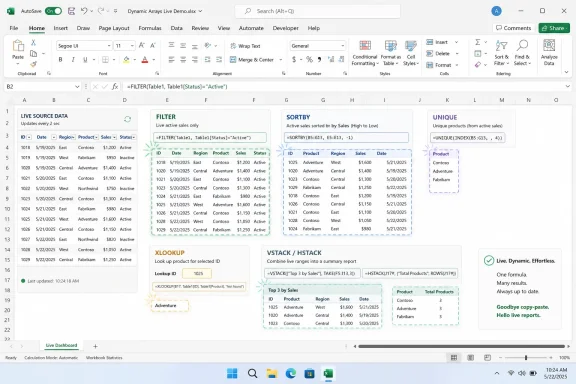 Excel’s Biggest Shift Was Not a New Function, but a New Calculation Model
For decades, Excel taught users a simple mental model: one formula lives in one cell and returns one answer. If you needed the same logic for 10,000 rows, you copied it 10,000 times. If you needed a unique list, you ran a command. If you needed a filtered extract, you clicked through the ribbon, copied visible rows, pasted them somewhere else, and hoped nobody changed the source data five minutes later.Dynamic arrays break that pattern. A formula can now return a range of values that spills into neighboring cells, expanding and contracting as the source data changes. The formula still lives in a single cell, but its output is no longer trapped there.
That distinction matters because it changes the role of the worksheet. Instead of building a workbook out of thousands of duplicated formulas, users can define a pipeline: filter this table, sort the result, remove duplicates, return matching records, stack quarterly tables, and let the sheet update itself. The grid remains familiar, but the logic becomes more declarative.
The How-To Geek piece gets the important part right: functions such as FILTER, SORTBY, UNIQUE, XLOOKUP, VSTACK, and HSTACK are not just conveniences. They replace whole categories of brittle spreadsheet ritual. The payoff is less manual copying, fewer hidden helper columns, and fewer workbooks where nobody remembers which range was last refreshed.
The End of Ctrl+Shift+Enter Is a Cultural Moment for Spreadsheet People
Older Excel users remember legacy array formulas as both powerful and hostile. They could do things ordinary formulas could not, but they required Ctrl+Shift+Enter, displayed with curly braces, and often punished anyone who tried to edit one cell in the output range. They were the kind of feature that separated spreadsheet specialists from everyone else.Dynamic arrays make array logic normal. You type the formula, press Enter, and Excel spills the result into the required space. That sounds small until you remember how much spreadsheet work exists because array logic used to be too awkward for everyday users.
This is where Microsoft’s change is more profound than the function list suggests. FILTER and UNIQUE are useful functions, but the real story is that Excel’s calculation engine now expects formulas to return multiple values. Existing and newer functions can participate in that model, and the spill range becomes a visible object in the worksheet rather than a hidden trick.
There are still rules. A spill range needs open cells, and if something blocks the output, Excel throws a #SPILL! error rather than silently overwriting data. Dynamic array formulas also do not spill inside Excel tables, which means the practical design pattern is often to keep structured source data in tables and place dynamic formulas just outside them.
That limitation is not a deal-breaker, but it is a clue. Modern Excel design increasingly separates source tables from output views. The table is the durable store; the spilled formula is the live report.
FILTER Turns the Worksheet Into a Live Query Surface
FILTER is the easiest dynamic array function to understand because it replaces something almost every Excel user has done manually. You have a table, you want only the rows matching a condition, and you do not want to keep repeating the same click-copy-paste routine.The old workflow treated filtering as an interface action. You clicked the filter dropdown, selected a region or status, and then exported or copied the visible results. The new workflow treats filtering as a formula relationship. The output is no longer a snapshot; it is a live view.
A formula such as
=FILTER(EmployeeMaster, EmployeeMaster[Region]=G2, "Region not found") says something quite different from a ribbon filter. It says the report area depends on the selected region, and that dependency remains alive as the table changes. Add a new employee in that region, and the output grows. Change the selection cell, and the whole extract reshapes.That is why FILTER is so important for small dashboards and operational workbooks. It allows ordinary users to build controlled report surfaces without learning Power Query, VBA, or SQL. The function does not merely save clicks; it reduces the number of stale extracts floating around an organization.
For IT pros, this matters because stale extracts are a governance problem disguised as convenience. A copied range loses lineage. A FILTER output keeps the relationship visible in the formula bar.
SORTBY Fixes the Fragility of Positional Thinking
Excel’s older sorting model is easy to use but dangerous in dashboards. Sort a range manually, and you have changed the data layout. Sort by a column number inside a formula, and you have embedded an assumption that may break when someone inserts a new field.SORTBY is a more modern answer because it sorts one array according to another explicitly referenced array. In a structured table, that means a formula can say: return this table, ordered by the MonthlySales field descending. It does not have to care whether MonthlySales is currently the fifth column, seventh column, or somewhere else entirely.
That shift from column positions to named references is one of the subtle ways dynamic arrays reward better spreadsheet architecture. Workbooks become less dependent on visual layout and more dependent on semantic structure. The spreadsheet is still a grid, but the formulas are no longer pretending that grid position is a reliable business concept.
This is especially useful in shared workbooks, where the person maintaining the report is often not the person who created it. A formula using
EmployeeMaster[MonthlySales] tells the next maintainer what the logic means. A formula using column index 6 merely tells them what the layout happened to be when the author wrote it.SORTBY also complements FILTER naturally. A workbook can first isolate the relevant records and then order them by the metric that matters. The result feels more like a query than a traditional worksheet formula, which is precisely the point.
UNIQUE Makes Dimension Lists Stop Going Stale
Every business spreadsheet eventually needs a clean list: departments, regions, product categories, cost centers, employee IDs, customer names. Historically, Excel users built those lists with Remove Duplicates, pivot tables, manual copying, or helper formulas that became harder to maintain than the data itself.UNIQUE changes the default. Point it at a column, and it returns the distinct values as a live spill range. When the source table gains a new department, the department list updates. When a value disappears from the source, it disappears from the generated list.
This is not glamorous, but it is foundational. Clean dimension lists are the raw material for dropdowns, summaries, validation rules, and dashboards. If they are stale, the workbook gradually becomes untrustworthy.
The practical elegance of UNIQUE is that it turns cleanup into an ongoing relationship instead of a periodic task. That is the dynamic array philosophy in miniature. You do not cleanse data once and hope people remember the ritual next month; you encode the cleanup as part of the workbook.
Combined with SORT, SORTBY, or FILTER, UNIQUE becomes more than a deduplication tool. It becomes a way to build small data models directly on the sheet. A formula can create a live list of departments for one region, sort that list, and feed it into another calculation layer.
XLOOKUP Becomes More Interesting When It Spills
XLOOKUP is often introduced as a better VLOOKUP, which is true but undersells it. The obvious advantages are familiar by now: it can look left or right, defaults to exact matching, and does not depend on hard-coded return column numbers in the same brittle way VLOOKUP does.In the dynamic array era, however, XLOOKUP’s more interesting trait is that it can return multiple adjacent columns. Give it a lookup value, a lookup array, and a multi-column return array, and the result can spill horizontally across the worksheet. A single formula can retrieve an employee’s name, department, region, and sales figure as a record rather than as separate lookups.
That changes workbook design. Instead of writing one lookup formula per returned field, users can define the lookup once and let Excel return the record. The output is easier to audit because the retrieval logic is centralized.
It also reduces a common source of spreadsheet defects: one lookup formula being updated while its neighbors are not. Anyone who has inherited a workbook with five slightly different lookup formulas across a row knows how quickly this becomes a silent error factory.
XLOOKUP’s fit with dynamic arrays is a reminder that Microsoft’s spreadsheet modernization is not limited to brand-new functions. The best modern Excel workflows come from combining older spreadsheet instincts with a calculation engine that now handles arrays as first-class outputs.
VSTACK and HSTACK Give Formula Users a Lightweight Alternative to Power Query
Power Query remains the better tool for serious extraction, transformation, and loading work. It has a dedicated editor, repeatable steps, data source connectors, and a clearer separation between preparation and analysis. For many corporate workflows, it should still be the first choice.But not every consolidation problem deserves Power Query. Sometimes a user has three quarterly tables with the same structure and simply wants one continuous dataset. Sometimes two small lists need to sit side by side for a dashboard. Sometimes the overhead of launching another tool is more than the job requires.
VSTACK and HSTACK occupy that middle ground. VSTACK appends arrays vertically, while HSTACK combines them horizontally. In plain terms, they let formulas assemble larger datasets from smaller blocks.
The How-To Geek example of stacking quarterly employee metrics is exactly the kind of task where this shines. A formula such as
=VSTACK(Q1_Master, Q2_Master, Q3_Master) creates a unified output that remains connected to the source tables. Add rows to the quarter tables, and the combined result can adjust.That is not a replacement for a governed data pipeline, but it is a meaningful improvement over manual copy-paste consolidation. In the real world, many spreadsheet problems are too small for enterprise tooling but too repetitive to leave manual. VSTACK and HSTACK give Excel users a cleaner answer for that gap.
The New Risk Is Not Complexity, but Invisible Sophistication
Dynamic arrays make spreadsheets cleaner, but they also make them more powerful in ways that may not be obvious to casual users. A single cell can now control a large visible output. Delete or overwrite the wrong formula cell, and an entire report disappears. Block the spill range, and the workbook may stop producing expected results.That is not an argument against dynamic arrays. It is an argument for treating them as design elements rather than tricks. The formula cell that owns a spill range should be placed intentionally, labeled clearly, and protected when necessary.
There is also a compatibility consideration. Dynamic arrays are available in modern Excel versions, but organizations with older Office builds or mixed environments may still encounter workbooks that do not behave consistently everywhere. The more advanced the formula stack, the more important it becomes to know who will open the workbook and on which version.
For administrators, this is part of a broader Office modernization story. Excel is no longer just a desktop spreadsheet application with a few cloud features bolted on. It is a continuously evolving calculation platform, and Microsoft 365 users often receive capabilities before perpetual-license or older-channel users see them.
That creates the familiar enterprise tension. New features can reduce risk by eliminating manual work, but they can also introduce support issues when files move across versions, channels, and devices. The answer is not to avoid dynamic arrays; it is to document dependencies the same way teams document macros, add-ins, or Power Query connections.
Better Spreadsheets Start Looking Less Like Spreadsheets
The most interesting consequence of dynamic arrays is aesthetic as much as technical. A well-designed workbook using FILTER, SORTBY, UNIQUE, XLOOKUP, and VSTACK often has fewer formulas visible across the grid. It may contain source tables, a small number of formula cells, and several spill ranges that act like views.That is a different style of spreadsheet from the traditional “formula carpet,” where every row contains copied logic and every column exists because an intermediate step had to live somewhere. Dynamic arrays let authors collapse those helper areas into formulas that describe the transformation directly.
This does not mean every formula should become a monster. A single-cell pipeline that nobody can understand is not progress. Excel’s LET function, named tables, and sensible staging areas still matter because maintainability matters.
But the direction is clear. Modern Excel rewards authors who think in terms of data flow: source, transform, output. That is closer to how databases, BI tools, and programming environments work, even though the user remains inside a familiar worksheet.
For WindowsForum’s audience, this is where dynamic arrays become more than a productivity tip. They are part of the slow convergence between end-user computing and lightweight application development. The spreadsheet remains the world’s most successful low-code environment, and dynamic arrays make it less clumsy.
The Spill Range Is Where Excel’s Future Is Showing
Microsoft has spent years adding higher-level functions to Excel: XLOOKUP, LET, LAMBDA, TEXTSPLIT, TAKE, DROP, CHOOSECOLS, TOROW, WRAPROWS, and more. Not all of them will matter to every user, but they share a direction. Excel is becoming more composable.Dynamic arrays are the foundation that makes that composition feel natural. Once a formula can return many values, other functions can reshape, filter, stack, slice, and route those values. The worksheet becomes a canvas for transformations rather than a warehouse of duplicated formulas.
That is why the old “Excel versus real database” argument misses the point. Excel is not becoming SQL Server, and it should not be treated as one. But it is becoming much better at the kind of small-scale, iterative data work that millions of people actually do before data ever reaches a formal system.
This is also why spreadsheet literacy is changing. Knowing how to drag a formula down is no longer enough. The modern Excel user needs to understand spill ranges, structured references, array outputs, and how formula-driven views differ from static copies.
There is a generational divide here, but not necessarily an age-based one. Some longtime Excel experts will adopt dynamic arrays instantly because they solve problems those experts have wrestled with for years. Some newer users will still misuse them because the formulas look deceptively simple. The dividing line is not experience; it is whether the author understands the workbook as a system.
The Workbook That Updates Itself Still Needs an Owner
The concrete lesson from this wave of Excel modernization is not that every workbook should be rebuilt overnight. It is that many long-standing spreadsheet habits now have better replacements. Manual extracts, duplicate-removal rituals, fragile VLOOKUP chains, and copy-pasted consolidation sheets should be treated as candidates for retirement.- A single dynamic array formula can replace hundreds or thousands of copied formulas when the goal is to return a variable-size result.
- FILTER is best understood as a live extract, not as a shortcut for the ribbon’s filtering interface.
- SORTBY and structured references make dashboards more resilient because they reduce dependence on physical column positions.
- UNIQUE turns recurring cleanup work into a formula relationship that updates as source data changes.
- XLOOKUP becomes more powerful in modern Excel because it can return whole records into spill ranges.
- VSTACK and HSTACK are practical tools for lightweight consolidation, but Power Query remains the better choice for governed data preparation.
Excel’s dynamic array era is not about showing off clever formulas; it is about reducing the distance between a business question and a reliable, refreshable answer. The organizations that benefit most will not be the ones that cram the longest formulas into single cells, but the ones that use these functions to retire stale copies, expose data flow, and make everyday workbooks easier to trust as Microsoft keeps pushing Excel further into the role of a lightweight data platform.
References
- Primary source: How-To Geek
Published: Tue, 02 Jun 2026 16:31:18 GMT
These modern Excel functions completely changed how I work with data
Functions like FILTER, SORTBY, UNIQUE, XLOOKUP, and VSTACK transform static grids into real-time data systems. www.howtogeek.com
- Official source: support.microsoft.com

Dynamic array formulas and spilled array behavior - Microsoft Support
Learn about how Excel's dynamic, and spilled array formulas behave.
support.microsoft.com
- Official source: learn.microsoft.com
Dynamic Array Functions FILTER and UNIQUE not working in Monthly Enterprise Channel - Microsoft Q&A
Hello I have an office 365 subscription, Monthly Enterprise Channel and I am trying to do some dynamic filtering and, according to Copilot my Filter and Unique functions are not actually present even though they do show up as formula options. I am up to…learn.microsoft.com - Official source: techcommunity.microsoft.com
Preview of Dynamic Arrays in Excel | Microsoft Community Hub
With dynamic arrays, you can write a single formula and get an array of values returned. One formula, many values. This will allow you to build more capable... techcommunity.microsoft.com
- Related coverage: softwareg.com.au
Microsoft Office 2024 Excel: Advanced Formulas and Functions Guide for
Microsoft Office 2024 Excel: Advanced Formulas and Functions Guide for Australian Businesses Excel remains the cornerstone of business data analysis in Australia — from small businesses managing their cash flow to enterprise finance teams running complex financial models. Yet most Excel users... softwareg.com.au
- Related coverage: mpug.com
- Related coverage: learnexcelnow.com
- Related coverage: bcti.com
