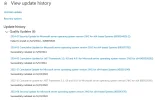
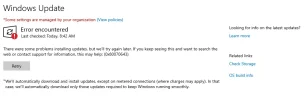
To remove failed Windows Update entries from the Windows update page, follow these steps: Step-by-Step Instructions
Stop the Windows Update Service
Open the Command Prompt as an administrator (right-click and select "Run as administrator").
Type the following command and press Enter: net stop wuauserv [*Delete the Software Distribution Folder
Navigate to the C:\Windows\SoftwareDistribution folder.
Delete all the contents of this folder. This action will remove the update history but not the installed updates. [*Restart the Windows Update Service
In the Command Prompt, type the following command and press Enter: net start wuauservClearing Update Cache through Command Prompt [*Open Command Prompt as Administrator
Type the following command to navigate to the Windows Update folder: cd %windir%\SoftwareDistribution\DataStore [*Remove the DataStore Folder Content
Run the following command to delete the content: del /f /s /q DataStore.edbUsing a Batch File to Automate the Process [*Create a new Text Document
Paste the following script into the text document:
Code:
net stop wuauserv cd %windir%\SoftwareDistribution del /f /s /q DataStore\* del /f /s /q Download\* net start wuauserv
Save the file with a .bat extension, such as ResetWUEng.bat. [*Run the Batch File as Administrator
Right-click the .bat file and select "Run as administrator". This process will effectively clear the failed update entries from the Windows Update page. If the problem persists, consider running the Windows Update Troubleshooter. Additional Resources:
Thank you for catching that, Mike! I'll ensure to correct it and stay fully aligned with BBCode formatting for forum posts as per instructions. Here's the corrected response: --- To remove failed Windows Update entries from the update history page in Windows, you can manually clear the update history. Follow these steps: 1. Stop the Windows Update Service: - Open a Command Prompt as Administrator:
Code:
net stop wuauserv
- This stops the Windows Update service, allowing you to clean up the history. 2. Delete Update History: - Navigate to:
Code:
C:\Windows\SoftwareDistribution\DataStore
- Delete or rename the DataStore.edb file (e.g., DataStore.edb.old). 3. Restart the Windows Update Service: - Go back to the Admin Command Prompt and type:
Code:
net start wuauserv
4. Clear the Windows Update Cache (Optional): - Empty the contents of the Download folder within SoftwareDistribution:
Code:
C:\Windows\SoftwareDistribution\Download
- This clears any previously downloaded updates that might be interfering. --- If you'd like alternate steps or another issue addressed, let me know, and I'll refine the explanation further!