

Microsoft Teams installation failures are one of those small but expensive interruptions: the installer downloads, the progress bar starts, then the setup aborts and Windows rolls everything back — leaving users staring at the same “Installation has failed” message and IT teams fielding the same basic fixes. This feature walks through a concise, verified, and practical repair path that fixes the vast majority of Teams install failures quickly, explains why each step works, calls out important risks, and points administrators to safer alternatives for managed environments.
Microsoft Teams historically uses a few different installer models, which is why installation failures look the same even when the root causes differ. The most common models are:
Follow the ordered checklist in this article, back up registry keys and data before making destructive changes, prefer managed tools in enterprise environments, and use SFC/DISM and in‑place repair only when local fixes fail. These steps will get Teams installed again rapidly in almost every scenario without needless reformatting or downtime.
For a rapid community-tested alternative if the GUI installer keeps failing, try winget install Microsoft.Teams (run as admin). If you manage many devices, remove the Teams Machine‑Wide Installer via your deployment tool and roll the new Teams bootstrapper out via managed channels — that prevents future conflicts and keeps installations consistent across the fleet.
Source: Windows Report Fix Microsoft Teams Installation Has Failed Error Fast
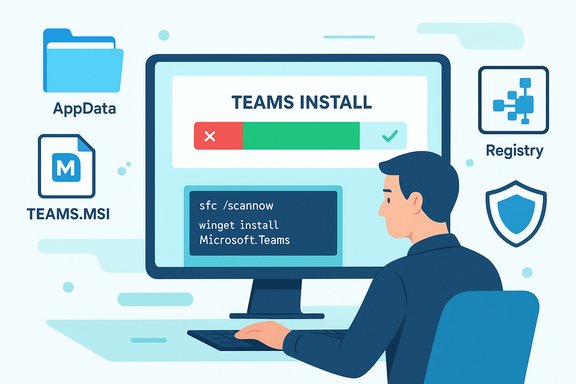 Background / Overview
Microsoft Teams historically uses a few different installer models, which is why installation failures look the same even when the root causes differ. The most common models are:- The per-user Teams installer (Squirrel-based for older / classic Teams) that drops files under the user profile (AppData) and uses a local updater.
- The Teams Machine-Wide Installer (MSI) used by organizations to deploy Teams for all users on a device.
- The New Teams (MSIX / bootstrapper) deployment path that behaves differently from the classic Squirrel installer and installs binaries in different places.
Why installs fail: a quick technical primer
Install failures generally come from a small set of root causes:- Leftover per-user files (AppData folders) that confuse a Squirrel/MSIX installer into thinking an install exists.
- An existing Teams Machine‑Wide Installer (MSI) that blocks or forces a conflicting install path.
- Corrupted or stale registry entries that cause the installer to abort or to attempt an upgrade path that doesn’t exist.
- Security software (antivirus / endpoint protection) intercepting file writes or quarantining installer components.
- Package servicing or component-store issues at the OS level (rare, but can block installers).
- Network or permission problems when installer tries to fetch packages or write to system folders.
The fast, safe repair checklist (do these in order)
Follow these ordered steps. They’re arranged from least invasive to more involved, so you get Teams back quickly in most cases while minimizing risk.1. Try a clean per-user reinstall first (fastest)
- Quit Teams and any Teams processes. If Teams is stuck, use Task Manager to end processes.
- Press Windows + R and run: %appdata%
- Delete the Microsoft Teams folder.
- Press Windows + R and run: %localappdata%
- Delete the Microsoft (Teams) folder and the SquirrelTemp folder if present.
- Empty the Recycle Bin and restart the PC.
- Download the latest Teams installer from Microsoft and run it (or install via the official bootstrapper).
2. Uninstall the Teams Machine‑Wide Installer (if present)
- Open Settings → Apps → Apps & features (or Control Panel → Programs and Features).
- Search for Teams Machine‑Wide Installer and select Uninstall.
- Restart the machine and run the Teams installer again.
3. Remove Teams registry entries that can block setups
- Press Windows + R, type regedit, and press Enter to open Registry Editor.
- Navigate to: HKEY_CURRENT_USER\Software\Microsoft\Office\Teams (also check HKCU\Software\Microsoft\Teams and HKLM\SOFTWARE\Microsoft\Teams if present).
- Export a backup of the key (right-click → Export) then delete the Teams key(s).
- Close Registry Editor and retry the installer.
4. Use Microsoft’s troubleshooting helpers — but note the tool status
- Historically the Microsoft Support and Recovery Assistant (SaRA) could auto-fix installation issues for Office and Teams. That tool’s consumer GUI has been migrated and parts of its functionality are now handled by Windows’ Get Help troubleshooters; an enterprise/command-line version of SaRA still exists for admins. If you attempt SaRA and it redirects you to Get Help, follow the Windows Get Help troubleshooting path or use the enterprise SaRA command-line package for automated diagnostics. SaRA instructions and migration notes are available through Microsoft documentation. Do not rely on outdated SaRA downloads on third‑party sites.
5. Temporarily disable antivirus / endpoint protection (short window)
- Temporarily turn off real-time protection in Windows Defender or pause third‑party AV while you run the installer. Re-enable protection immediately after the install completes.
Advanced steps when the quick checklist doesn’t work
If the above steps fail, try these more involved options in order.6. Repair core system components (SFC and DISM)
- Open an elevated Windows Terminal or Command Prompt.
- Run: sfc /scannow
- Wait for it to complete; if it reports repairs, reboot and retry.
- If SFC can’t fully repair, run:
- DISM /Online /Cleanup-Image /RestoreHealth
7. Clean-boot the machine or create a new local admin account
- Perform a clean boot (msconfig → hide Microsoft services → disable non-Microsoft services; then disable startup apps in Task Manager). Retry install.
- Alternatively, create a new local administrator account and attempt install from that profile.
8. Install using Winget or the official bootstrapper (alternative install methods)
- If the GUI installer fails, try using Windows package management:
- Open an elevated terminal.
- Run: winget install Microsoft.Teams
9. Use an in-place repair / repair upgrade (last resort for persistent OS-level issues)
- Download a Windows ISO from Microsoft, mount it, run setup.exe, and choose “Keep personal files and apps.” This replays the servicing stack and often fixes stubborn component-store or servicing-stack corruption that blocks installers.
What to watch for and the risks involved
- Registry edits: Always export keys before deleting. A bad registry change can break login, apps, or policies.
- Disabling antivirus: Only do this briefly and on trusted networks. Re-enable protection immediately after install completes.
- Removing the Machine‑Wide Installer in domain- or policy-managed environments may conflict with deployment tooling; coordinate with IT and use device management to avoid re-deployment loops.
- Third-party cleanup tools: Be careful when using “one‑click” uninstallers from unknown vendors — they may remove needed system components.
- Outdated troubleshooting advice: Tools like the SaRA consumer GUI have been deprecated or migrated; follow current Microsoft Learn guidance rather than older blog posts.
What WindowsReport recommended — summary and verification
The WindowsReport piece offers a compact, pragmatic checklist: delete AppData Teams folders, uninstall the Teams Machine‑Wide Installer, clear Teams registry entries, use Microsoft Support and Recovery Assistant, and temporarily disable antivirus — then reinstall. Those steps are the right practical sequence for most consumer and small-business scenarios. The key caveat is that the Support and Recovery Assistant recommendation requires updating: the consumer SaRA GUI has been largely replaced by Windows Get Help and an enterprise/command-line SaRA variant; relying on an older SaRA download or third-party copies is not recommended. The rest of WindowsReport’s steps match Microsoft and community guidance and are sound when applied carefully. Note: WindowsReport (and many community guides) sometimes omit the nuance that enterprises should use managed deployment tools to remove the Machine‑Wide Installer rather than manual local uninstalls — an omission that can cause reinstallation loops in managed fleets. For organizations, use Intune, ConfigMgr, or your deployment system to remove MSI packages centrally.Step-by-step: safe command reference and copyable commands
These are the exact commands and locations used in the steps above. Back up data and the registry before running anything destructive.- Close Teams and stop processes:
- Open Task Manager → End any Teams.exe / TeamsUpdater.exe processes.
- Delete folders (in File Explorer address bar or Run dialog):
- %appdata%\Microsoft\Teams
- %localappdata%\Microsoft\Teams
- %localappdata%\SquirrelTemp
- Registry cleanup (backup first):
- regedit → export HKEY_CURRENT_USER\Software\Microsoft\Office\Teams
- Delete HKEY_CURRENT_USER\Software\Microsoft\Office\Teams (and HKCU\Software\Microsoft\Teams if present)
- Run SFC and DISM in an elevated terminal:
- sfc /scannow
- DISM /Online /Cleanup-Image /RestoreHealth
- Winget install (as administrator):
- winget install Microsoft.Teams
Enterprise notes — how admins should approach this
- Use your management tools: Don’t manually uninstall MSIs across a fleet. Remove the Teams Machine‑Wide Installer via Intune, ConfigMgr, or your software deployment tool so clients don’t re-provision it during the next policy push. Microsoft docs show the expected behavior for machine‑wide deployments and how to handle uninstall scenarios centrally.
- Audit user profiles for stale Teams files: On multi-user systems, orphaned profiles can leave app binaries and registries behind. Use scripted profile cleanup or profile management in enterprise environments.
- Consider offline bulk installers: For air-gapped environments or where endpoint accounts cannot access the internet during an install, use Microsoft’s bulk/MSIX offline packaging guidance.
- Test patches and packaging changes in a pilot ring prior to broad deployment — a lot of install failures are triggered by subtle configuration differences.
Why these fixes work — technical recap
- Deleting AppData removes corrupted per-user binaries and temp artifacts that derail Squirrel/MSIX bootstraps.
- Removing the Machine‑Wide Installer eliminates conflicts between device-level MSI logic and per-user installs.
- Purging registry entries prevents installers from following stale upgrade paths or attempting to use invalid manifests.
- SFC/DISM fixes underlying OS corruption that can block installers at the component‑store level.
- Clean-booting isolates third-party interference.
Quick reference — what to try first (one-line checklist)
- Quit Teams → Delete %appdata%\Microsoft\Teams and %localappdata%\Microsoft\Teams → Restart → Reinstall.
- If that fails: Uninstall Teams Machine‑Wide Installer → Restart → Reinstall.
- If still failing: Export and delete Teams registry keys (HKCU\Software\Microsoft\Office\Teams) → Reinstall.
- If still failing: Run SFC/DISM, clean boot, or try winget install Microsoft.Teams.
- Last resort: In-place repair of Windows via official ISO.
Final verdict: practical, effective — but stay cautious
The WindowsReport checklist is a solid, practical guide that aligns with Microsoft’s documented uninstallation and reinstall guidance. The core steps — remove leftover user folders, uninstall the Machine‑Wide Installer, and clear certain registry keys — are validated by Microsoft and community troubleshooting records as effective first-line responses. The main risk is outdated advice around tools (notably the SaRA consumer GUI) and the potential for admins to inadvertently create re-deployment loops if they manually remove MSI packages in managed environments.Follow the ordered checklist in this article, back up registry keys and data before making destructive changes, prefer managed tools in enterprise environments, and use SFC/DISM and in‑place repair only when local fixes fail. These steps will get Teams installed again rapidly in almost every scenario without needless reformatting or downtime.
For a rapid community-tested alternative if the GUI installer keeps failing, try winget install Microsoft.Teams (run as admin). If you manage many devices, remove the Teams Machine‑Wide Installer via your deployment tool and roll the new Teams bootstrapper out via managed channels — that prevents future conflicts and keeps installations consistent across the fleet.
Source: Windows Report Fix Microsoft Teams Installation Has Failed Error Fast
