

Keeping firmware current is one of the single most important — and least visible — tasks for desktop and laptop fleet managers preparing for Windows 11 deployments, firmware-driven security features, and long-term platform stability. This article gives practical, repeatable methods for IT teams to discover BIOS/UEFI firmware versions on individual machines and at scale, explains the trade-offs of each approach, and outlines safe operational practices for inventorying and validating firmware updates across an enterprise environment.
Firmware — commonly called BIOS on older systems and UEFI on modern machines — is the low-level code that initializes hardware before the operating system loads. Although many people still refer to it as “BIOS,” modern Windows PCs use UEFI firmware and UEFI-specific features such as Secure Boot, UEFI capsule updates, and integration with modern management stacks.
For enterprise IT, firmware matters because:
Output fields:
To determine whether a device is using UEFI or legacy firmware, use one of these:
Important: WMIC is deprecated and is being removed from newer Windows versions; scripts that still use WMIC should be migrated to PowerShell
This approach supports scheduled collection, easy comparison over time, and integration with dashboards.
Treat firmware management with the same rigor as OS patching: automated discovery, controlled pilots, staged rollouts, and post-update verification. That discipline reduces risk, improves Windows 11 adoption rates, and keeps endpoint security posture consistently defensible.
Source: TechTarget How IT admins can check BIOS or UEFI versions in Windows 11 | TechTarget
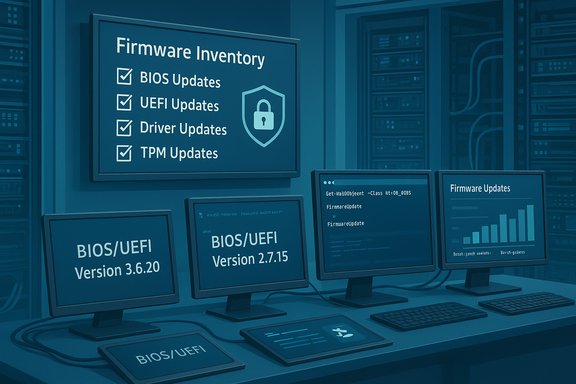 Background
Firmware — commonly called BIOS on older systems and UEFI on modern machines — is the low-level code that initializes hardware before the operating system loads. Although many people still refer to it as “BIOS,” modern Windows PCs use UEFI firmware and UEFI-specific features such as Secure Boot, UEFI capsule updates, and integration with modern management stacks.For enterprise IT, firmware matters because:
- Firmware controls security-critical boot components (Secure Boot, measured boot, TPM interactions).
- Firmware updates are often required for Windows 11 compatibility, mitigation of hardware-level vulnerabilities, or device stability.
- Firmware rollout and verification at scale require different tooling and processes than OS updates, and they must be coordinated with BitLocker/TPM policies, OEM guidance, and maintenance windows.
Quick single-machine checks (GUI and in-OS tools)
1) System Information (msinfo32) — the simplest authoritative view
Open the built-in System Information tool with Win + R → type msinfo32 → Enter. Under System Summary you’ll find:- BIOS Version/Date — contains the vendor string and the firmware version/date.
- BIOS Mode — shows UEFI or Legacy.
2) Windows Settings → Advanced Startup → UEFI Firmware Settings
If you need to enter UEFI firmware settings (for confirmation or manual inspection), go to Settings → System → Recovery → Advanced startup → Restart now → Troubleshoot → Advanced options → UEFI Firmware Settings → Restart. This boots the machine into its firmware setup UI.3) Device Manager → Firmware → System Firmware
Open Device Manager, expand the Firmware section, double-click System Firmware, and check the Firmware tab to see the reported firmware version. Not every PC exposes the same details here, but this is a useful GUI alternative.4) OEM utilities
Most major OEMs and motherboard vendors provide a Windows utility that reports firmware and can stage updates:- Dell, HP, Lenovo, ASUS, MSI, Gigabyte and others have vendor tools that show the installed firmware string and let you update via the vendor-provided package.
These utilities often include additional information such as update logs, support for bulk packaging, and vendor-specific version formats.
Command-line checks for helpdesk and automation
For scripting, remote checks, and quick command-line verification, use PowerShell and Windows command tools.1) PowerShell — recommended (modern and scriptable)
To query BIOS/UEFI firmware version and basic vendor data:
Code:
Get-CimInstance -ClassName Win32_BIOS | Select-Object Manufacturer, SMBIOSBIOSVersion, ReleaseDate, SerialNumber- SMBIOSBIOSVersion — the firmware version string you will compare against vendor release notes.
- Manufacturer and SerialNumber — useful to match against OEM support sites automatically.
Code:
Get-CimInstance -ClassName Win32_ComputerSystem | Select-Object Manufacturer, Model- Quick environment check (works on many Windows builds):
$env:firmware_type
This commonly returnsUEFIorLegacyon modern Windows environments. Note: this environment indicator is widely used in scripts but is not an exhaustive or formal API — cross-check with the methods below when precision is required. - Confirm via bootloader type (reliable fallback):
bcdedit /enum | findstr /i "path"
If the Windows Boot Loader path ends with\Windows\system32\winload.efithe system is booting in UEFI mode. If it ends withwinload.exe, the system is in legacy BIOS mode. - API-level option for programmatic detection (for scripted enterprise inventories):
Query Windows management objects or APIs that report firmware/boot type and cross-validate withmsinfo32output when possible.
2) WMIC — legacy (deprecated)
Historically many scripts usedwmic:wmic bios get smbiosbiosversionImportant: WMIC is deprecated and is being removed from newer Windows versions; scripts that still use WMIC should be migrated to PowerShell
Get-CimInstance or other supported management APIs. Relying on WMIC is not recommended for long-term automation.Remote inventory: collecting firmware data at scale
Enterprises need consistent, auditable firmware data across thousands of endpoints. Options fall into three categories: built-in Microsoft management, PowerShell remoting and WMI/CIM scripts, and OEM management tooling.A) Microsoft Endpoint Manager (Intune) and Configuration Manager (MECM/SCCM)
- Configuration Manager (MECM/SCCM) already collects BIOS/firmware information in Hardware Inventory and can be extended with custom inventory rules.
- Microsoft Intune / Endpoint Manager collects device hardware information; you can create reports or use Proactive Remediations (scripts run as remediation) to pull BIOS/UEFI details and export to logs or a management system.
B) PowerShell remoting and CIM sessions (recommended for flexible control)
A standard pattern:- Use
Invoke-CommandorGet-CimInstance -ComputerNamewith proper credentials and WinRM/CIM endpoints. - Collect
Win32_BIOSandWin32_ComputerSystemproperties. - Export to CSV for reporting.
Code:
$computers = Get-Content -Path C:\temp\computers.txt
Invoke-Command -ComputerName $computers -ScriptBlock { Get-CimInstance -ClassName Win32_BIOS | Select-Object PSComputerName, Manufacturer, SMBIOSBIOSVersion, ReleaseDate
} | Export-Csv -Path C:\temp\BIOS_Inventory.csv -NoTypeInformationC) OEM enterprise tools and APIs
Most major OEMs supply enterprise-grade tooling for firmware management:- Dell: tools for unified update packages and remote deployment.
- HP: BIOS Configuration Utility (BCU) and management suites.
- Lenovo: Vantage and enterprise update tooling.
Integrating vendor utilities into your patch pipeline (or using vendor-provided update catalogs for MECM/Intune) reduces risk and centralizes firmware approvals.
Automating validation and update verification
Inventory is only half the job — you must confirm updates applied correctly.- Maintain a canonical list of required firmware versions per model, pulled from vendor release notes and support sites.
- Compare installed SMBIOSBIOSVersion values from inventory CSVs against the canonical list; flag mismatches.
- Validate after update by re-running the same query (msinfo32 or
Get-CimInstance) and by checking OEM logs and update return codes. - For UEFI capsule updates, confirm the UEFI capsule setting is enabled on devices (some systems allow disabling capsule updates in firmware) and that the update applied after reboot; many vendors require a second reboot to finalize.
- Watch BitLocker/TMP interactions — firmware updates may modify TPM state or invoke recovery. Always suspend BitLocker protectors (when applicable and allowed by policy) before mass firmware updates and plan for recovery keys.
Recommended scripts and operational checklist
Use the following as a base template for a BIOS version collection and validation run:- Gather hosts into a list.
- Run remote PowerShell collection (example above).
- Compare
SMBIOSBIOSVersionagainst approved versions mapping (CSV or CMDB). - Generate automated remediation tickets for models outside the approved range.
- Stage vendor-specific update packages for pilot groups, then stagger rollout.
- Verify power backup (AC) for laptops/desktops during updates.
- Suspend BitLocker or ensure automated key escrow is available.
- Confirm vendor guidance for prerequisites (e.g., minimum firmware to support upgrade).
- Test updates on pilot hardware that represents the variety of models in production.
- Keep rollback and recovery procedures ready (vendor recovery USB, spare devices).
Common pitfalls and caveats (what trips up admins)
- Vendor version strings vary: different OEMs encode version + date in different formats. Scripts must parse strings carefully and treat the full string as the authoritative ID rather than assuming numeric progression.
- $env:firmware_type behavior: the
$env:firmware_typeenvironment value is convenient and widely supported, but it’s not a documented, standalone management API — treat it as a helpful indicator and cross-check againstmsinfo32or bootloader (bcdedit) when precision is required. - WMIC removal: WMIC is deprecated and may not be present on modern Windows 11 builds by default. Do not build new automation that depends on WMIC; migrate to
Get-CimInstanceand CIM-based queries. - Capsule updates and Windows Update: Some firmware updates are delivered via Windows Update or vendor integration with Windows Update services as UEFI capsule updates. These may be blocked by firmware settings (e.g., “UEFI Capsule Firmware Updates” disabled).
- BitLocker and TPM interactions: Firmware updates to TPM or to boot security may trigger BitLocker recovery. Always plan to suspend BitLocker for update windows or ensure key escrow and recovery procedures are robust.
Security and compliance considerations
- Firmware updates often fix critical vulnerabilities. Treat firmware as part of your security baselines and compliance assessments.
- Integrate firmware version checks into vulnerability scans and compliance reporting. A device that passes OS patching but runs old firmware may still be a high-risk endpoint.
- Enforce policy-driven firmware lifecycles: map device models to vendor support windows and end-of-support dates, and retire hardware that cannot be updated to required security baselines for your environment.
- Where possible, use signed vendor updates and verify cryptographic signatures; UEFI Secure Boot and authenticated update mechanisms mitigate risk of malicious firmware tampering.
Recommendations for enterprise admins — a concise plan
- Adopt PowerShell/CIM inventory as your baseline — migrate away from WMIC.
- Use msinfo32 for single-device verification and as a help-desk troubleshooting tool.
- Integrate firmware checks into SCCM/MECM and Intune reporting for continuous visibility.
- Create a mapping of model → approved firmware version and automate comparisons weekly.
- Pilot updates first on a representative sample (different models, BIOS modes, and OEM vendors).
- Coordinate firmware updates with BitLocker/TMP policy owners — suspend BitLocker or ensure recovery keys are accessible before firmware maintenance windows.
- Leverage vendor enterprise tools for critical model families and use vendor update catalogs where possible to simplify deployment.
- Document rollback and recovery paths and maintain spare devices for critical users.
How to confirm an update actually applied
After a vendor-recommended or staged firmware update:- Re-run the same inventory command used pre-update (for example
Get-CimInstance -ClassName Win32_BIOSor checkmsinfo32) and confirmSMBIOSBIOSVersionorBIOS Version/Datechanged to the expected string. - Check vendor-supplied update logs and Windows event logs for firmware update events.
- Validate system functionality — confirm Secure Boot state, TPM presence, and that critical devices initialize correctly.
- Re-enable BitLocker protections and confirm normal boot without recovery prompts.
Risk mitigation and final cautions
- Firmware updates can render a device unusable if interrupted or misapplied. Maintain power stability and follow vendor prerequisites precisely.
- Some firmware updates modify platform security settings and may require re-provisioning of security keys or re-enrollment into management tooling; plan for this.
- Do not rely on a single method to determine firmware status. Cross-validate
msinfo32, PowerShell CIM results, and OEM tools when discrepancies arise. - Flag any unusual or unparseable firmware version strings for manual review — vendor formatting differences can conceal important details.
Conclusion
Visibility into BIOS/UEFI versions is a foundational operational requirement for Windows 11 readiness, security compliance, and device lifecycle management. For individual troubleshooting, msinfo32, Device Manager, and vendor tools will usually suffice. For scale and automation, PowerShell CIM queries (Get-CimInstance Win32_BIOS) and integration with MECM/Intune and OEM enterprise tooling are the dependable approaches. Move away from legacy WMIC scripts, validate$env:firmware_type indicators with other checks, and always coordinate firmware rollouts with BitLocker/TPM and vendor guidance to avoid costly outages.Treat firmware management with the same rigor as OS patching: automated discovery, controlled pilots, staged rollouts, and post-update verification. That discipline reduces risk, improves Windows 11 adoption rates, and keeps endpoint security posture consistently defensible.
Source: TechTarget How IT admins can check BIOS or UEFI versions in Windows 11 | TechTarget
