

Windows 10 Education machines are still a common host for the same Bluetooth headphone headaches that frustrate home users and IT teams alike: devices that pair but play no audio, stereo collapsing to a low‑quality mono whenever the mic is used, or headsets that refuse to connect at all. These problems are rarely caused by a single bug; they arise from the interaction of headset firmware, the PC’s Bluetooth radio and drivers, Windows services and audio routing, and—crucially on Windows 10—legacy Bluetooth audio profile limitations. This feature explains what’s actually breaking, provides a practical, step‑by‑step repair plan you can follow on managed or personal Windows 10 Education machines, and evaluates the risks and tradeoffs of common workarounds.
Bluetooth audio on Windows depends on four moving parts: the headset firmware, the host radio and its firmware, the vendor drivers (chipset or OEM), and Windows’ audio/pairing stack. When any of these are misaligned—after an update, firmware change, or power policy tweak—pairing and audio routing can fail in ways that look identical to hardware faults. On Windows 10, a fundamental limitation persists: the legacy A2DP/HFP profile model forces a trade‑off between high‑quality stereo playback (A2DP) and hands‑free telephony (HFP), frequently leading to collapsed stereo or poor microphone quality during calls. Until the full LE Audio stack (LC3 + Isochronous Channels) is available end‑to‑end, many headsets will revert to those legacy behaviors on Windows 10.
Windows 11 introduced a number of LE Audio UI changes (the “Use LE Audio when available” toggle and “super wideband stereo” marketing), but those benefits only appear when the PC’s Bluetooth hardware, vendor drivers, and the headset firmware all advertise and support LE Audio. A Bluetooth 5.x radio by itself is not a guarantee. Expect pragmatic workarounds on Windows 10 Education until manufacturers publish explicit support for your exact OEM/adapter combination.
Caution: claims that “Bluetooth 5.x equals LE Audio” are misleading—firmware and driver exposure matter more than the nominal Bluetooth version. Flag any vendor marketing that promises LE Audio without explicit model‑level support or firmware requirements.
By following the triage and repair steps above and by keeping expectations aligned with the current Windows 10 audio stack, many of the “Bluetooth headphones not working on Windows 10” headaches become actionable IT tasks rather than mysterious hardware failures.
Source: Born2Invest https://born2invest.com/?b=style-338975112/
 Background / Overview
Bluetooth audio on Windows depends on four moving parts: the headset firmware, the host radio and its firmware, the vendor drivers (chipset or OEM), and Windows’ audio/pairing stack. When any of these are misaligned—after an update, firmware change, or power policy tweak—pairing and audio routing can fail in ways that look identical to hardware faults. On Windows 10, a fundamental limitation persists: the legacy A2DP/HFP profile model forces a trade‑off between high‑quality stereo playback (A2DP) and hands‑free telephony (HFP), frequently leading to collapsed stereo or poor microphone quality during calls. Until the full LE Audio stack (LC3 + Isochronous Channels) is available end‑to‑end, many headsets will revert to those legacy behaviors on Windows 10.Windows 11 introduced a number of LE Audio UI changes (the “Use LE Audio when available” toggle and “super wideband stereo” marketing), but those benefits only appear when the PC’s Bluetooth hardware, vendor drivers, and the headset firmware all advertise and support LE Audio. A Bluetooth 5.x radio by itself is not a guarantee. Expect pragmatic workarounds on Windows 10 Education until manufacturers publish explicit support for your exact OEM/adapter combination.
Symptoms: What users actually see
- The headset shows as connected in Settings → Bluetooth & devices but there is no audio output.
- Audio plays on the PC speakers while the headset remains connected (Windows doesn’t switch the default output).
- Stereo music collapses to mono or low quality once the microphone is used for calls.
- One earbud is silent or audio stutters and drops intermittently.
- The headset pairs successfully with phones but not with the Windows PC.
Quick triage — fixes you can try in 5–15 minutes
These quick checks resolve most transient issues and are safe to run on a managed Windows 10 Education laptop or desktop:- Confirm the headset is charged, powered on, and in pairing mode.
- Move the headset near the PC to rule out range/interference.
- Toggle Bluetooth Off → On from Quick Settings or Settings → Bluetooth & devices.
- Remove the device (Settings → Bluetooth & devices → select device → Remove device) and re‑pair it.
- Select the headset explicitly as Output under Settings → System → Sound.
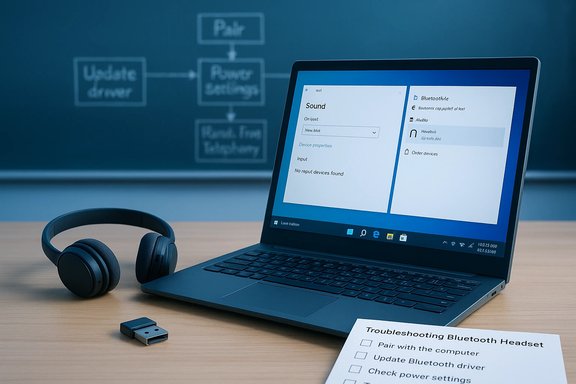
- Run the built‑in troubleshooters: Settings → System → Troubleshoot → Other troubleshooters → Bluetooth and Playing Audio.
Step‑by‑step troubleshooting: methodical and safe
When the quick triage doesn’t work, follow these steps in order. Test after each step so you can stop when the issue is resolved.1. Confirm Windows updates and vendor packages (10–30 minutes)
- Install all pending Windows Updates (Settings → Update & Security → Windows Update).
- Check the PC maker’s support site for Bluetooth and audio driver packages (Intel, Broadcom, Qualcomm, Realtek or OEM drivers). Prefer vendor drivers over generic Microsoft drivers.
- If the issue began immediately after an update, consider a driver roll‑back before uninstalling. Use Device Manager → Bluetooth adapter → Properties → Driver → Roll Back Driver if the option is available.
2. Device Manager: update, roll back, uninstall (10–30 minutes)
- Open Device Manager (Win + X → Device Manager).
- Expand Bluetooth and Sound, video and game controllers. Look for yellow warning icons.
- Update the Bluetooth adapter driver (right‑click → Update driver → Search automatically) or point Device Manager to a downloaded OEM package.
- If updating didn’t help and the problem started after a driver change, use Roll Back driver.
- If rollback isn’t available, try uninstalling the adapter and rebooting to let Windows re‑install the driver.
3. Power management and services (5–15 minutes)
- Open services.msc and restart the Bluetooth Support Service (bthserv). Confirm Windows Audio and Windows Audio Endpoint Builder are running.
- In Device Manager, double‑click your Bluetooth adapter → Power Management tab → uncheck Allow the computer to turn off this device to save power.
- For USB Bluetooth dongles, disable USB selective suspend in Power Options (Control Panel → Power Options → Change advanced power settings → USB settings → USB selective suspend setting → Disabled).
4. Sound routing and per‑app routing (5–10 minutes)
- Settings → System → Sound → Output: ensure the Bluetooth headset is selected explicitly.
- Under Advanced → App volume and device preferences, confirm apps are not routed to a different endpoint.
- Classic Sound Control Panel (mmsys.cpl) → Playback: show Disabled/Disconnected devices, set the headset as the Default Device if needed.
- In device Properties → Advanced, set a stable sample rate (2 channels, 16 bit, 48000 Hz) and disable Exclusive Mode.
5. When calls or recording fail: Hands‑Free Telephony checks (10–20 minutes)
Many headsets expose two endpoints: Headphones (A2DP) for stereo media and Hands‑Free (HFP) for voice. If the mic doesn’t register or is stuck at 0%:- Remove and re‑pair the device. Re‑pairing resets bonding keys and profile negotiation.
- Devices and Printers → right‑click the headset → Properties → Services: toggle Hands‑Free Telephony to test behavior.
- As a pragmatic workaround, uncheck Hands‑Free Telephony to force A2DP stereo for media, and use a separate mic for calls. This disables the headset mic system‑wide but restores music fidelity.
6. Reset, firmware updates, and vendor tools (10–30 minutes)
- Factory‑reset the headset according to the manufacturer’s instructions.
- Update the headset firmware via the vendor app (Bose, Sony, Jabra, etc..
- Update Bluetooth firmware/drivers from the PC vendor; some Bluetooth stacks expose LE Audio only after vendor firmware updates.
7. Advanced fixes: SFC/DISM, ghost devices, and pnputil (30–90 minutes)
- Run DISM /Online /Cleanup-Image /RestoreHealth and sfc /scannow from an elevated command prompt if system components appear corrupted.
- Device Manager → View → Show hidden devices: remove stale or greyed entries under Bluetooth and audio categories.
- For stubborn driver artifacts, pnputil can enumerate and remove driver packages—use with caution and a backup plan.
8. When onboard radios fail: try a modern USB dongle (10–30 minutes)
A reputable USB Bluetooth dongle can bypass an unreliable internal radio and often adds improved antenna/range and codec support (some dongles advertise aptX/AAC/LE Audio support). After inserting a dongle:- Disable the internal adapter in Device Manager to avoid conflicts.
- Pair the headset to the dongle and retest.
Practical workarounds and their trade‑offs
- Disable Hands‑Free Telephony: Restores A2DP stereo for music but disables the headset mic. Use a separate microphone for calls. Recommended when listening is the priority.
- Use wired audio for critical listening or low latency needs: Wired avoids Bluetooth codec and latency issues entirely.
- Use a vendor USB dongle or a certified LE Audio dongle: Can restore features on older PCs but adds cost and a hardware dependency.
- Keep a record of known‑good driver packages and restore points: This reduces risk when rolling back updates in enterprise environments.
Why LE Audio matters — and why Windows 10 users shouldn’t expect it yet
LE Audio (LC3 codec and Isochronous Channels) eliminates the A2DP/HFP compromise by allowing simultaneous high‑quality stereo media and wideband microphone audio. Microsoft has begun integrating LE Audio features into Windows 11, adding UI toggles to select LE Audio when available. However, full benefit requires alignment across:- Windows OS build and Bluetooth stack,
- Bluetooth chipset firmware and driver exposure of ISO channels,
- Headset firmware that implements LC3/LE Audio.
Caution: claims that “Bluetooth 5.x equals LE Audio” are misleading—firmware and driver exposure matter more than the nominal Bluetooth version. Flag any vendor marketing that promises LE Audio without explicit model‑level support or firmware requirements.
Enterprise and Windows 10 Education considerations
Managed Windows 10 Education installations typically have stricter update controls, group policies, and driver signing requirements. These constraints change how you troubleshoot:- Coordinate with IT before rolling back drivers or installing unsigned drivers; use official OEM packages.
- Use staged driver testing on a representative device pool before broad rollouts.
- Document and deploy a known‑good Bluetooth driver and headset firmware set in imaging or via Intune/WSUS.
- Consider device replacement or USB dongles on a lifecycle basis where legacy onboard radios no longer receive firmware updates.
Diagnostics checklist you can hand to your help desk
- Confirm headset works with a smartphone. If not, escalate to manufacturer firmware/support.
- On the PC: Toggle Bluetooth; remove and re‑pair the headset; explicitly select Output in Sound settings.
- Update or roll back the Bluetooth adapter driver (OEM first).
- Check Bluetooth Support Service; disable power save on the adapter.
- If mic causes stereo collapse, uncheck Hands‑Free Telephony temporarily and use a separate mic.
- If repeated disconnects occur, test with a quality USB Bluetooth dongle.
Risks, caveats, and unverifiable claims
- Driver rolls and firmware updates carry a small risk of introducing regressions. Always keep a fallback plan (system restore point, known‑good installer).
- Any claim that a specific Windows update has universally broken Bluetooth on all models is likely overstated. Behavior is model and driver dependent; verify per hardware ID and driver version. If you encounter vendor claims about LE Audio availability for your exact SKU, ask for model‑level release notes—marketing statements about “late‑2025 shipping” or similar are projections and should be treated as conditional until vendor firmware packages are published.
- If you must use aggressive driver purges (pnputil /delete-driver), document and keep offline installers. This is an advanced step for IT professionals only.
Final verdict and practical recommendations
Bluetooth headphone problems on Windows 10 Education are often solvable with methodical troubleshooting: start with basic pairing and routing checks, then update drivers, address power management and services, and escalate to firmware updates or dongles only when needed. The persistent stereo/mic trade‑off on Windows 10 is a product of the older A2DP/HFP model; full relief comes from LE Audio but that requires an end‑to‑end ecosystem update (OS build + driver + firmware). If immediate listening quality is the priority, disable Hands‑Free Telephony and use a separate mic; if call quality is the priority, prioritize headset firmware and vendor drivers and consider a USB dongle for older hardware. For managed education deployments, test drivers in a pilot group and maintain a documented rollback plan before mass deployment.By following the triage and repair steps above and by keeping expectations aligned with the current Windows 10 audio stack, many of the “Bluetooth headphones not working on Windows 10” headaches become actionable IT tasks rather than mysterious hardware failures.
Source: Born2Invest https://born2invest.com/?b=style-338975112/
