

Windows 11 users can usually fix a Bluetooth headset or speaker that shows as connected but plays no sound by selecting it as the active output device, re-enabling it in Sound settings, disabling audio enhancements, re-pairing it, and updating Bluetooth and audio drivers. The important point is that “connected” is not the same thing as “ready to carry audio.” Bluetooth pairing, Windows audio routing, app-specific output, driver state, and microphone mode all sit in separate layers, and any one of them can fail while the Settings app still looks reassuring. That is why this problem feels random: Windows is not lying, exactly, but it is often telling only half the truth.
The most misleading part of this Windows 11 problem is the word connected. A headset can be paired, authenticated, and visible to the Bluetooth stack while the Windows audio engine is still sending sound somewhere else. The radio link may be fine; the playback path may not be.
That distinction matters because many users attack the wrong layer first. They delete drivers, reset adapters, reinstall OEM utilities, or blame the headset when the actual issue is that Windows has quietly left the laptop speakers, HDMI monitor, USB dock, or virtual audio device as the default output. Windows 11 made output switching easier than old Control Panel-era Windows, but it also made the audio surface more fragmented.
The fastest first move is still the boring one: open the taskbar speaker flyout, expand the output picker, and choose the Bluetooth headset or speaker manually. Then go to Settings, System, Sound, and confirm the same device is selected under Output. If the device appears there but remains silent, open the older “More sound settings” panel, inspect the Playback tab, and make sure the Bluetooth device has not been disabled.
This is not just housekeeping. Windows can preserve a disabled or stale endpoint across reconnects, especially after driver updates, device migrations, docking changes, or repeated pairing attempts. If audio comes back after selecting or enabling the device, the pairing was never broken in the first place.
The practical route is to check both. In Settings, confirm that the Bluetooth device is the output device, that the master volume is up, and that the app you are testing is not routed elsewhere in Volume mixer. In the classic Playback tab, open the device properties and verify that “Device usage” is set to use the device rather than disable it.
Volume mixer deserves special suspicion. Windows 11 can route individual apps to different outputs, and some apps remember a previous device long after the headset has been disconnected. A media player, browser, game, or conferencing app can appear to play normally while its audio is being sent to a monitor output, a disconnected dock, or a virtual device installed by capture software.
This is where the problem becomes less “Bluetooth is broken” and more “Windows is being Windows.” The operating system’s flexibility is useful for streamers, gamers, meeting-heavy workers, and people with multiple displays. It is also a trap when a supposedly global audio change does not apply globally.
The key is to run the Bluetooth troubleshooter after confirming routing, not before. If Windows is simply playing to the wrong output, the troubleshooter may add noise rather than clarity. Once the Bluetooth device is definitely selected and enabled, an automated pass can catch a stuck service, a misreported endpoint, or a common configuration fault.
Audio enhancements are the next low-risk switch. In Settings, System, Sound, select the Bluetooth device and turn Audio enhancements off. Enhancement pipelines can involve vendor drivers, Windows spatial features, signal processing, or effects layers that behave badly with certain devices. Disabling them removes a variable without erasing pairings or changing hardware.
If the device remains silent, run the audio troubleshooter as well. Bluetooth audio occupies both worlds: it is a wireless peripheral and an audio endpoint. Treating it as only one of those things is how users end up cycling Bluetooth on and off for an hour while the Windows audio service remains the actual culprit.
A clean re-pair should be deliberate. Remove the headset or speaker from Settings, Bluetooth & devices. Turn Bluetooth off, wait briefly, then turn it back on. Put the accessory into pairing mode according to the manufacturer’s instructions, add it again, and wait for Windows to finish setting up the audio device before testing playback.
After reconnecting, inspect the format options. For stubborn devices, a conservative stereo format such as 2 channel, 16 bit, 48000 Hz is often a safer baseline than chasing the highest advertised quality. Windows audio format negotiation is normally invisible, but when it fails, it can produce exactly the kind of “connected but silent” behavior users describe.
This is also the point where cheap Bluetooth speakers and older headsets can expose their rough edges. Some devices advertise profiles inconsistently, especially if they include microphone-like functions, call buttons, or firmware that was mainly tested against phones. Windows is less forgiving than iOS or Android in some of those cases because it exposes the device through a more general-purpose audio stack.
Windows Update should be checked first, including optional driver updates where appropriate. Then Device Manager becomes relevant: update the Bluetooth adapter driver, update the main audio driver, and restart. For laptops, the OEM support app or support page may matter more than generic Windows Update because Bluetooth audio behavior often depends on platform-specific radio, audio DSP, and chipset integration.
Rollback is the underused option. If silence started right after a driver change, the older driver may be the more reliable one. Device Manager’s Roll Back Driver button is not always available, but when it is, it can be a cleaner move than piling another generic driver on top of a bad one.
Restarting Windows Audio and Windows Audio Endpoint Builder can also resolve a stuck state without rebooting the entire machine. That is not glamorous advice, but it fits the symptom. When the Bluetooth link survives and only playback disappears, the service managing endpoints may be the part that needs a nudge.
That behavior comes from a long-running Bluetooth compromise. Traditional Bluetooth headset audio has often had one path for high-quality stereo playback and another for hands-free voice. When the microphone becomes active, the device may switch into a lower-quality communications mode. On older or classic Bluetooth paths, that can mean mono audio, reduced fidelity, different endpoints, or app confusion.
Windows 11’s Bluetooth LE Audio support is meant to improve this, but it also adds another compatibility boundary. The PC must support LE Audio, the accessory must support it, the driver stack must expose it properly, and the Windows version must include the relevant controls. If the “Use LE Audio when available” toggle is missing, the hardware or driver stack may not support the feature even if the Bluetooth adapter sounds modern on paper.
On supported systems, Windows 11 can expose a “Format when microphone is active” control for Bluetooth LE Audio devices. That setting matters because it governs what happens during exactly the scenario that breaks calls and game chat. If audio vanishes or glitches only when the microphone activates, switching the mic-active format to a safer mono setting can be the difference between a premium headset that behaves like a brick and one that works reliably.
For newer systems, LE Audio promises better handling of voice scenarios, including stereo playback while the microphone is in use on supported hardware. That is a meaningful improvement for people who live in Teams, Discord, Slack huddles, browser calls, or multiplayer games. It is also the kind of improvement that makes the old Bluetooth headset compromise feel increasingly unacceptable.
But the transition period is messy. Some PCs support Bluetooth Low Energy for peripherals but not Bluetooth LE Audio for headphones. Some adapters may expose partial capability. Some headsets support LE Audio only after firmware updates. Some laptops depend on an integrated audio path that a random USB Bluetooth dongle cannot replicate.
That is why the absence of an LE Audio toggle is not a moral failing by the user. It is diagnostic information. If Windows does not show the feature, the fix is not to hunt for a hidden registry switch; it is to update the platform drivers, check OEM support, and accept that some hardware combinations will remain on classic Bluetooth behavior.
This matters most after re-pairing. Windows may assign a newly paired Bluetooth device a slightly different endpoint identity, while the app remembers the old one. From the user’s perspective, nothing changed: same headset, same PC, same app. From the app’s perspective, the previous output device may have vanished.
The cure is to test with one simple app first, then add complexity. Play system audio or a local media file before opening a meeting client. Then check the app’s output and input settings explicitly. If a browser-based call fails, test a desktop app; if a game fails, test Discord or Teams separately.
This staged approach is slower than toggling everything at once, but it produces useful evidence. If system audio works and only one app is silent, Windows Bluetooth is no longer the primary suspect. The fault has moved up the stack.
A better order starts with the least destructive actions and moves toward deeper changes only when the symptom survives. Select the output, check mute state, disable enhancements, run the targeted troubleshooters, re-pair the device, normalize the format, update drivers, then inspect microphone behavior. Each step tests a layer.
This order also reflects probability. Most “connected but no sound” cases are not caused by catastrophic Bluetooth failure. They are caused by routing, disabled endpoints, app-specific output, stale pairing state, or a driver/service mismatch after an update. Those are mundane causes, but mundane causes dominate real-world Windows support.
The one exception is repeated disconnecting or disappearing Bluetooth hardware. If the adapter itself vanishes, pairing fails broadly, or all Bluetooth devices become unstable, the problem has moved below audio. At that point, power management, chipset drivers, BIOS updates, USB controller behavior, or hardware failure deserve attention.
That chain explains why two people with the same visible symptom may need different fixes. One user changes the output device and is done. Another disables enhancements. Another has to remove and re-pair. Another must roll back a driver. Another discovers that audio only fails when a call activates the headset microphone.
For administrators, this is also a reminder that Bluetooth audio remains a support liability in managed environments. Headsets are now essential workplace hardware, but their behavior depends on more than Windows policy. Fleet consistency requires standardized devices, validated drivers, and clear user guidance for output selection and conferencing app settings.
For enthusiasts, the takeaway is sharper: Bluetooth’s convenience still hides ugly complexity. Windows 11 is better than earlier releases at surfacing audio devices, and LE Audio is a real step forward. But the platform is still negotiating between legacy profiles, modern audio expectations, and hardware that was not always built with PCs as the first-class target.
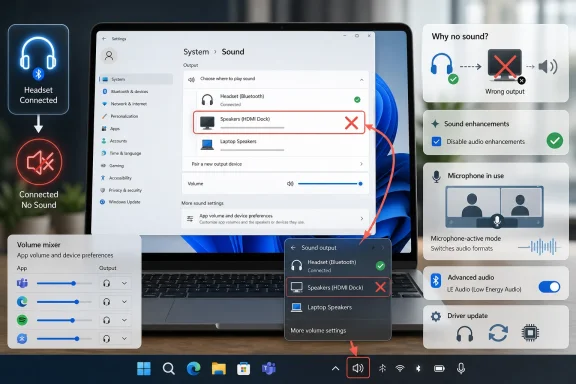 The Bluetooth Connection Is Usually Not the Failure
The most misleading part of this Windows 11 problem is the word connected. A headset can be paired, authenticated, and visible to the Bluetooth stack while the Windows audio engine is still sending sound somewhere else. The radio link may be fine; the playback path may not be.That distinction matters because many users attack the wrong layer first. They delete drivers, reset adapters, reinstall OEM utilities, or blame the headset when the actual issue is that Windows has quietly left the laptop speakers, HDMI monitor, USB dock, or virtual audio device as the default output. Windows 11 made output switching easier than old Control Panel-era Windows, but it also made the audio surface more fragmented.
The fastest first move is still the boring one: open the taskbar speaker flyout, expand the output picker, and choose the Bluetooth headset or speaker manually. Then go to Settings, System, Sound, and confirm the same device is selected under Output. If the device appears there but remains silent, open the older “More sound settings” panel, inspect the Playback tab, and make sure the Bluetooth device has not been disabled.
This is not just housekeeping. Windows can preserve a disabled or stale endpoint across reconnects, especially after driver updates, device migrations, docking changes, or repeated pairing attempts. If audio comes back after selecting or enabling the device, the pairing was never broken in the first place.
Windows 11 Still Has Two Audio Control Panels Living Under One Roof
Microsoft has spent years moving Windows audio controls into the modern Settings app, but the old Sound dialog remains the place where some consequential state is still visible. That split is one reason troubleshooting Bluetooth audio on Windows 11 feels more complicated than it should. The new interface shows the friendly device list; the old one often reveals whether Windows considers the endpoint usable.The practical route is to check both. In Settings, confirm that the Bluetooth device is the output device, that the master volume is up, and that the app you are testing is not routed elsewhere in Volume mixer. In the classic Playback tab, open the device properties and verify that “Device usage” is set to use the device rather than disable it.
Volume mixer deserves special suspicion. Windows 11 can route individual apps to different outputs, and some apps remember a previous device long after the headset has been disconnected. A media player, browser, game, or conferencing app can appear to play normally while its audio is being sent to a monitor output, a disconnected dock, or a virtual device installed by capture software.
This is where the problem becomes less “Bluetooth is broken” and more “Windows is being Windows.” The operating system’s flexibility is useful for streamers, gamers, meeting-heavy workers, and people with multiple displays. It is also a trap when a supposedly global audio change does not apply globally.
The Troubleshooter Is Not Magic, but It Is Now the Official First Escalation
Microsoft’s current guidance pushes Windows 11 users toward the Get Help app for automated Bluetooth troubleshooting. That will not satisfy anyone who remembers when troubleshooters mostly reset services and produced vague green checkmarks. Still, for this specific symptom, it is a reasonable second step because it exercises the right layer: connected device, audio endpoint, and basic service state.The key is to run the Bluetooth troubleshooter after confirming routing, not before. If Windows is simply playing to the wrong output, the troubleshooter may add noise rather than clarity. Once the Bluetooth device is definitely selected and enabled, an automated pass can catch a stuck service, a misreported endpoint, or a common configuration fault.
Audio enhancements are the next low-risk switch. In Settings, System, Sound, select the Bluetooth device and turn Audio enhancements off. Enhancement pipelines can involve vendor drivers, Windows spatial features, signal processing, or effects layers that behave badly with certain devices. Disabling them removes a variable without erasing pairings or changing hardware.
If the device remains silent, run the audio troubleshooter as well. Bluetooth audio occupies both worlds: it is a wireless peripheral and an audio endpoint. Treating it as only one of those things is how users end up cycling Bluetooth on and off for an hour while the Windows audio service remains the actual culprit.
Re-Pairing Works Best When It Is a Reset, Not a Ritual
Removing and re-pairing a Bluetooth headset is the folk remedy of Windows audio support, and it sometimes works for the wrong reasons. The useful part is not the ritual of clicking “Remove device.” The useful part is forcing Windows to rebuild the device relationship, rediscover its services, and expose fresh audio endpoints.A clean re-pair should be deliberate. Remove the headset or speaker from Settings, Bluetooth & devices. Turn Bluetooth off, wait briefly, then turn it back on. Put the accessory into pairing mode according to the manufacturer’s instructions, add it again, and wait for Windows to finish setting up the audio device before testing playback.
After reconnecting, inspect the format options. For stubborn devices, a conservative stereo format such as 2 channel, 16 bit, 48000 Hz is often a safer baseline than chasing the highest advertised quality. Windows audio format negotiation is normally invisible, but when it fails, it can produce exactly the kind of “connected but silent” behavior users describe.
This is also the point where cheap Bluetooth speakers and older headsets can expose their rough edges. Some devices advertise profiles inconsistently, especially if they include microphone-like functions, call buttons, or firmware that was mainly tested against phones. Windows is less forgiving than iOS or Android in some of those cases because it exposes the device through a more general-purpose audio stack.
Driver Updates Are the Fix When the Timeline Points at Windows Update
If the problem began immediately after a Windows update, OEM update, BIOS update, or driver package installation, the order of suspicion changes. At that point, the question is not whether Bluetooth works in the abstract. It is whether the current Bluetooth, audio, and chipset drivers agree about how the device should appear to Windows.Windows Update should be checked first, including optional driver updates where appropriate. Then Device Manager becomes relevant: update the Bluetooth adapter driver, update the main audio driver, and restart. For laptops, the OEM support app or support page may matter more than generic Windows Update because Bluetooth audio behavior often depends on platform-specific radio, audio DSP, and chipset integration.
Rollback is the underused option. If silence started right after a driver change, the older driver may be the more reliable one. Device Manager’s Roll Back Driver button is not always available, but when it is, it can be a cleaner move than piling another generic driver on top of a bad one.
Restarting Windows Audio and Windows Audio Endpoint Builder can also resolve a stuck state without rebooting the entire machine. That is not glamorous advice, but it fits the symptom. When the Bluetooth link survives and only playback disappears, the service managing endpoints may be the part that needs a nudge.
The Microphone Is Where Bluetooth Audio Gets Weird
The most interesting version of this problem is not when Bluetooth audio never works. It is when everything sounds fine until a call starts. Discord opens, Teams joins a meeting, Zoom grabs the microphone, a browser tab requests input, or a game enables chat, and suddenly the headset becomes muffled, switches mode, or goes silent.That behavior comes from a long-running Bluetooth compromise. Traditional Bluetooth headset audio has often had one path for high-quality stereo playback and another for hands-free voice. When the microphone becomes active, the device may switch into a lower-quality communications mode. On older or classic Bluetooth paths, that can mean mono audio, reduced fidelity, different endpoints, or app confusion.
Windows 11’s Bluetooth LE Audio support is meant to improve this, but it also adds another compatibility boundary. The PC must support LE Audio, the accessory must support it, the driver stack must expose it properly, and the Windows version must include the relevant controls. If the “Use LE Audio when available” toggle is missing, the hardware or driver stack may not support the feature even if the Bluetooth adapter sounds modern on paper.
On supported systems, Windows 11 can expose a “Format when microphone is active” control for Bluetooth LE Audio devices. That setting matters because it governs what happens during exactly the scenario that breaks calls and game chat. If audio vanishes or glitches only when the microphone activates, switching the mic-active format to a safer mono setting can be the difference between a premium headset that behaves like a brick and one that works reliably.
LE Audio Is a Fix, but Not Yet a Universal One
Bluetooth LE Audio is one of those Windows features that sounds like a simple upgrade until it meets the PC ecosystem. Microsoft can add support to Windows, but the experience still depends on silicon, firmware, drivers, headset implementation, and OEM validation. That is a lot of places for a “connected” device to become a silent one.For newer systems, LE Audio promises better handling of voice scenarios, including stereo playback while the microphone is in use on supported hardware. That is a meaningful improvement for people who live in Teams, Discord, Slack huddles, browser calls, or multiplayer games. It is also the kind of improvement that makes the old Bluetooth headset compromise feel increasingly unacceptable.
But the transition period is messy. Some PCs support Bluetooth Low Energy for peripherals but not Bluetooth LE Audio for headphones. Some adapters may expose partial capability. Some headsets support LE Audio only after firmware updates. Some laptops depend on an integrated audio path that a random USB Bluetooth dongle cannot replicate.
That is why the absence of an LE Audio toggle is not a moral failing by the user. It is diagnostic information. If Windows does not show the feature, the fix is not to hunt for a hidden registry switch; it is to update the platform drivers, check OEM support, and accept that some hardware combinations will remain on classic Bluetooth behavior.
Apps Can Override the Choice Windows Appears to Make
Even after Windows is configured correctly, individual applications can sabotage the result. Conferencing apps, games, browsers, DAWs, capture tools, and communication clients often maintain their own device selection. They may keep using “Default,” or they may cling to a specific endpoint that no longer maps cleanly to the headset.This matters most after re-pairing. Windows may assign a newly paired Bluetooth device a slightly different endpoint identity, while the app remembers the old one. From the user’s perspective, nothing changed: same headset, same PC, same app. From the app’s perspective, the previous output device may have vanished.
The cure is to test with one simple app first, then add complexity. Play system audio or a local media file before opening a meeting client. Then check the app’s output and input settings explicitly. If a browser-based call fails, test a desktop app; if a game fails, test Discord or Teams separately.
This staged approach is slower than toggling everything at once, but it produces useful evidence. If system audio works and only one app is silent, Windows Bluetooth is no longer the primary suspect. The fault has moved up the stack.
A Good Fix Order Prevents Self-Inflicted Damage
The temptation with Bluetooth problems is to escalate immediately. Users uninstall drivers, remove every paired device, reset network settings, flash headset firmware, or buy a new adapter. Sometimes that works, but it also destroys evidence and can introduce new faults.A better order starts with the least destructive actions and moves toward deeper changes only when the symptom survives. Select the output, check mute state, disable enhancements, run the targeted troubleshooters, re-pair the device, normalize the format, update drivers, then inspect microphone behavior. Each step tests a layer.
This order also reflects probability. Most “connected but no sound” cases are not caused by catastrophic Bluetooth failure. They are caused by routing, disabled endpoints, app-specific output, stale pairing state, or a driver/service mismatch after an update. Those are mundane causes, but mundane causes dominate real-world Windows support.
The one exception is repeated disconnecting or disappearing Bluetooth hardware. If the adapter itself vanishes, pairing fails broadly, or all Bluetooth devices become unstable, the problem has moved below audio. At that point, power management, chipset drivers, BIOS updates, USB controller behavior, or hardware failure deserve attention.
The Fix Is Less About Bluetooth Than About Trusting the Right Layer
The lesson for Windows 11 users is that Bluetooth audio is not a single switch. It is a chain. The accessory must pair, Windows must expose the endpoint, the audio engine must route to it, the app must choose it, and the microphone mode must not collapse the playback path.That chain explains why two people with the same visible symptom may need different fixes. One user changes the output device and is done. Another disables enhancements. Another has to remove and re-pair. Another must roll back a driver. Another discovers that audio only fails when a call activates the headset microphone.
For administrators, this is also a reminder that Bluetooth audio remains a support liability in managed environments. Headsets are now essential workplace hardware, but their behavior depends on more than Windows policy. Fleet consistency requires standardized devices, validated drivers, and clear user guidance for output selection and conferencing app settings.
For enthusiasts, the takeaway is sharper: Bluetooth’s convenience still hides ugly complexity. Windows 11 is better than earlier releases at surfacing audio devices, and LE Audio is a real step forward. But the platform is still negotiating between legacy profiles, modern audio expectations, and hardware that was not always built with PCs as the first-class target.
The Repair Path Windows 11 Users Should Actually Follow
The practical answer is not to try every fix in random order. Treat the symptom as a layered failure and move from visible routing to deeper platform state. If the headset says connected but stays silent, these are the moves that usually separate a quick fix from an afternoon of guesswork.- Select the Bluetooth headset or speaker from the taskbar output picker and confirm the same choice under Settings, System, Sound.
- Open the classic Playback device properties and make sure Windows has not disabled the Bluetooth audio endpoint.
- Turn off Audio enhancements for the Bluetooth device, then run the Bluetooth and audio troubleshooters if routing is already correct.
- Remove and re-pair the device only after the basic output and mute checks fail.
- Update Bluetooth, audio, and OEM platform drivers if the problem began after Windows Update or a vendor update.
- Check LE Audio and microphone-active format settings if sound fails only during calls, meetings, voice chat, or game chat.
References
- Primary source: Appuals
Published: Wed, 27 May 2026 05:51:06 GMT
How to Fix Bluetooth Connected but No Sound on Windows 11
Windows 11 can show a Bluetooth headset or speaker as connected and still play no sound. You may see the volume slider move, media continue playing, andappuals.com - Official source: support.microsoft.com
Configuring Bluetooth LE Audio quality settings on Windows 11 | Microsoft Support
Configuring Bluetooth LE Audio quality settings on Windows 11support.microsoft.com - Official source: learn.microsoft.com
Bluetooth Low Energy (LE) Audio - Windows drivers | Microsoft Learn
This article provides an overview of Bluetooth LE Audio introduced in Windows 11 version 22H2 (KB5026446).learn.microsoft.com - Related coverage: tomshardware.com
Microsoft announces super wideband stereo mode for Bluetooth LE devices — audio no longer downgrades to mono when microphone is used | Tom's Hardware
You will need a Bluetooth LE audio headset to use this feature.www.tomshardware.com - Official source: blogs.windows.com
Extending Bluetooth® LE Audio on Windows 11 with shared audio (preview)
[Updated 3/05] Shared audioblogs.windows.com - Related coverage: windowscentral.com
Windows 11 adds super wideband stereo Bluetooth audio | Windows Central
Windows 11 now supports super wideband stereo audio over Bluetooth LE Audio. The latest update eliminates audio drops during gaming and chats, revolutionizing how users experience sound across multiple platforms.www.windowscentral.com
- Related coverage: techradar.com
Windows 11 is finally fixing poor sound quality with Bluetooth headphones - and PC gamers will be particularly happy | TechRadar
Having in-game chat with a mic won't severely downgrade your audio quality, as it does currentlywww.techradar.com - Related coverage: pcgamer.com
Microsoft adds full stereo Bluetooth LE Audio for gaming to Windows 11 because mono with mics is so last century | PC Gamer
Redmond's gettin' with the times.www.pcgamer.com
