

Facebook password reset problems on Windows 10 or Windows 11 usually come down to one of four issues: Facebook cannot find the account, the reset email or code does not arrive, the reset page is stuck in a loop, or two-factor authentication blocks the sign-in after you change the password. Use Facebook’s built-in account recovery flow first, then address the specific failure shown on screen. These steps apply to personal Facebook accounts in Microsoft Edge, Google Chrome, and Firefox, plus the Facebook mobile app.
Do not rely on old reset links, saved browser tabs, or third-party “Facebook support” results. Open Facebook in a browser and select Forgot password? from the sign-in screen. This opens Facebook’s account-search and recovery process.
If the account has been taken over, do not continue through ordinary password reset screens. Use Facebook’s hacked account recovery option instead and complete the security steps it presents.
Try the following in this order:
If Facebook asks for the name of a friend as part of verification, enter that person’s full Facebook name. If the first friend does not work, try another friend Facebook would reasonably associate with the account.
If Facebook reports an Invalid Code, copy the complete numeric code from the most recent email and paste it into the code field. If it reports an Invalid Link, copy the complete link from the newest Facebook email and paste it into the browser address bar rather than opening an older message.
Some accounts may show an option to verify access by signing in to the email account listed by Facebook. Use that option only when it appears inside Facebook’s own recovery screen. Never enter your email password into a page reached through an unsolicited message or search advertisement.
For Firefox, select the menu button, then History > Clear recent history. Set the time range to Everything, select Cookies and site data and Temporary cached files and pages, then select Clear.
If the page still loops:
Use a previously recognized device and browser, then enter an old email address or phone number that was once associated with the account. Follow the options Facebook offers; the available steps can vary based on the account and its security history.
If you still control the old email account but have forgotten its password, recover the email account first. Access to that mailbox may be the fastest route back to Facebook.
If someone changed your email address or phone number without permission, treat this as a compromised-account problem. Select Facebook’s I was hacked recovery option and complete the guided security process. Facebook may request identity confirmation, and the exact method is determined by the on-screen flow.
Use one of the methods already configured for the account:
If you are still signed in to Facebook on another device, do not sign out. Use that session to review recovery information and two-factor authentication settings after securing the account.
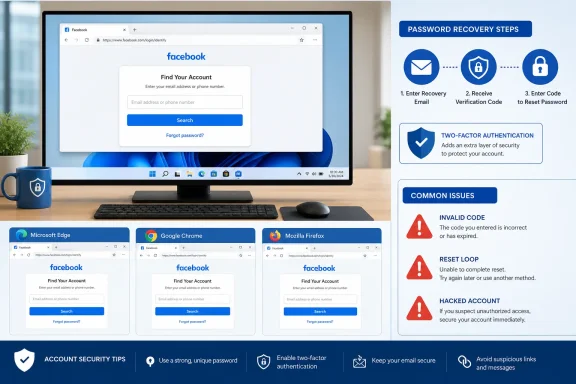 Start with Facebook’s account recovery flow
Do not rely on old reset links, saved browser tabs, or third-party “Facebook support” results. Open Facebook in a browser and select Forgot password? from the sign-in screen. This opens Facebook’s account-search and recovery process.- Enter one account detail at a time:
- Email address associated with the account.
- Confirmed mobile number.
- Full name.
- Facebook username, if you created one.
- Select Search.
- Choose the recovery option Facebook offers, such as an email reset link or a code.
- Enter the code or open the link, then create a new password.
If the account has been taken over, do not continue through ordinary password reset screens. Use Facebook’s hacked account recovery option instead and complete the security steps it presents.
If Facebook cannot find your account
“Account not found” does not necessarily mean the account was deleted. It usually means the information entered does not exactly match an email address, phone number, name, or username Facebook recognizes.Try the following in this order:
- Enter every email address you may have used, including old providers and work or school addresses.
- Enter each mobile number that may have been attached to the account. Use the complete number with the correct country code when Facebook requests it.
- Try name variations:
- A nickname.
- A former surname.
- A middle name omitted or included.
- The spelling used when you first created the account.
- Enter your Facebook username if you know it.
If Facebook asks for the name of a friend as part of verification, enter that person’s full Facebook name. If the first friend does not work, try another friend Facebook would reasonably associate with the account.
If the password reset email or code never arrives
First, confirm that you are checking the correct mailbox or phone. Facebook may display only a masked part of the destination, such as the last characters of an email address or phone number.- Check the Inbox, Spam, Junk, Promotions, and All Mail folders for every email account linked to Facebook.
- Search the mailbox for “Facebook” rather than waiting for a new message to appear.
- Confirm that the mailbox is not full and that you can receive other new messages.
- Return to Facebook and request one new reset email or code.
- Use only the newest code or link delivered.
If Facebook reports an Invalid Code, copy the complete numeric code from the most recent email and paste it into the code field. If it reports an Invalid Link, copy the complete link from the newest Facebook email and paste it into the browser address bar rather than opening an older message.
Some accounts may show an option to verify access by signing in to the email account listed by Facebook. Use that option only when it appears inside Facebook’s own recovery screen. Never enter your email password into a page reached through an unsolicited message or search advertisement.
Fix a reset page that loops, freezes, or returns to the login screen
A loop can be caused by stale Facebook cookies, blocked site data, a browser extension, or a network problem. Start with a private browsing session before deleting saved data.- In Microsoft Edge, select Settings and more > New InPrivate window.
- Open Facebook, select Forgot password?, and repeat the account search.
- If the reset works in InPrivate mode, close all Edge windows and clear Facebook’s stored site data in your normal browser profile.
- Select Settings and more > Settings > Privacy, search, and services.
- Under Clear browsing data, select Choose what to clear.
- Set Time range to All time.
- Select Cookies and other site data and Cached images and files.
- Leave Passwords unchecked unless you intentionally want to remove saved passwords.
- Select Clear now.
- Close Edge completely, reopen it, and retry Facebook recovery.
For Firefox, select the menu button, then History > Clear recent history. Set the time range to Everything, select Cookies and site data and Temporary cached files and pages, then select Clear.
If the page still loops:
- Try another supported browser, such as Edge, Chrome, or Firefox.
- Temporarily disable ad blockers, script blockers, privacy extensions, or VPN extensions for the recovery attempt.
- Check that the browser allows cookies and site data. Strict cookie or tracking settings can prevent sign-in pages from retaining the recovery session.
- Restart Windows and try again.
- Try a different trusted network, such as your home connection rather than public Wi-Fi.
If you no longer have the email address or phone number
Facebook generally needs an account identifier to begin recovery. Open its Account Recovery area from the Help Center and choose I can’t access the email or mobile number on my account.Use a previously recognized device and browser, then enter an old email address or phone number that was once associated with the account. Follow the options Facebook offers; the available steps can vary based on the account and its security history.
If you still control the old email account but have forgotten its password, recover the email account first. Access to that mailbox may be the fastest route back to Facebook.
If someone changed your email address or phone number without permission, treat this as a compromised-account problem. Select Facebook’s I was hacked recovery option and complete the guided security process. Facebook may request identity confirmation, and the exact method is determined by the on-screen flow.
A new password does not bypass two-factor authentication
Resetting the password proves only one part of your identity. If two-factor authentication is enabled, Facebook can still require a second confirmation before allowing access.Use one of the methods already configured for the account:
- A code from your authentication app.
- A code sent by text message.
- A saved recovery login code.
- A registered security key.
If you are still signed in to Facebook on another device, do not sign out. Use that session to review recovery information and two-factor authentication settings after securing the account.
Change the password from an existing Facebook session
If Facebook remains signed in on a Windows PC, phone, tablet, or another browser, change the password from inside the account instead of using the recovery flow.- Select your profile picture.
- Select Settings & privacy > Settings.
- Open Accounts Center.
- Select Password and security.
- Select Change password.
- Select the Facebook account.
- Enter the current password and a new, unique password.
- Save the change.
Secure the account after you get back in
After a successful reset, verify that the account is actually under your control.- In Accounts Center > Password and security, review and update the password.
- Check your email addresses and mobile numbers. Remove any contact method you do not recognize.
- Review two-factor authentication methods and remove unfamiliar authenticator apps, phone numbers, or security keys.
- Generate recovery login codes and store them somewhere offline and private. Each recovery code can be used once.
- Check active login sessions and sign out of devices or locations you do not recognize.
- Add a second recovery email address or mobile number that only you control.
References
- Primary source: Technobezz
Published: 2026-07-19T16:29:23.080000+00:00
Facebook Password Reset Not Working? How to Fix It | Technobezz
Facebook password reset not working? Fix missing codes, lookup errors, 2FA blocks, hacked accounts, and reset page glitches.www.technobezz.com
