

If printing suddenly stops, jobs freeze, or apps hang when you press Ctrl+P, the Print Spooler service may have crashed — this feature guide explains what the spooler does, why it fails, and how to restore reliable printing on Windows 10 and Windows 11 using safe, verifiable steps you can follow right now.
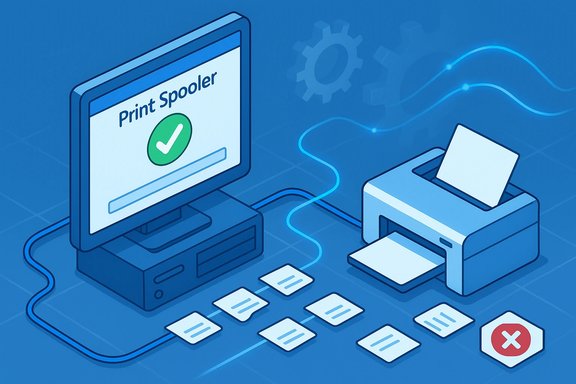
The Print Spooler is the Windows service that queues and manages print jobs between applications and your physical or networked printers. When the spooler crashes, printers appear offline, documents remain stuck in the queue, and most printing operations fail until the service is reset. Microsoft’s official troubleshooting article lays out the quick triage steps — clear the queue, update drivers, and restart the spooler — and these steps remain the recommended first line of defense. Print spooler failures typically stem from one or more of the following causes:
Keeping printers reliable requires both routine maintenance and an understanding of the Windows print stack. The Microsoft support workflow — clear the queue, update drivers, restart the service — remains the fastest path to recovery for most users, while pnputil, PrintBRM, and logging provide the controlled tools admins need for deeper fixes. Follow the verified steps above, test after each change, and treat security advisories seriously: the spooler is both indispensable and, historically, a high‑value target.
Source: Microsoft Support Fix print spooler service not running errors in Windows - Microsoft Support
 Background / Overview
The Print Spooler is the Windows service that queues and manages print jobs between applications and your physical or networked printers. When the spooler crashes, printers appear offline, documents remain stuck in the queue, and most printing operations fail until the service is reset. Microsoft’s official troubleshooting article lays out the quick triage steps — clear the queue, update drivers, and restart the spooler — and these steps remain the recommended first line of defense. Print spooler failures typically stem from one or more of the following causes:- Stuck or corrupted print jobs in the spool folder that block the queue.
- Conflicting, outdated, or corrupted printer drivers that cause the spooler to crash when a job is processed.
- Malware or exploit attempts historically targeting spooler functionality (notably PrintNightmare), prompting emergency mitigations.
- System file corruption or a service dependency failure (for example RPC-related issues).
Immediate triage (the “Get printing now” checklist)
When printing stops, act in this order. These are quick, low-risk actions that recover service in the majority of incidents.1. Cancel jobs from the printer queue (fast, non-destructive)
- Open Settings → Bluetooth & devices → Printers & scanners (or Settings → Devices → Printers & scanners on Windows 10).
- Select the affected printer → Open print queue.
- Right‑click each job → Cancel until the queue is empty.
Clearing stuck jobs often lets the spooler restart without leftover corruption. This is Microsoft’s first suggested step.
2. Restart the Print Spooler service (safe, reversible)
- Press Win + R → services.msc → Enter.
- Find Print Spooler, right‑click → Restart (or Stop then Start).
If Restart is unavailable, stopping the service before clearing spool files is the right approach (see the next section). This is the core reset step.
3. Clear the spool folder (when jobs won’t cancel)
- Stop the Print Spooler service (services.msc).
- Open File Explorer and go to C:\Windows\System32\spool\PRINTERS.
- Delete all files in that folder (these are queued jobs — not system binaries).
- Start the Print Spooler service again.
This removes corrupted job files that block the queue. Community and Microsoft guidance both document this as an effective fix. Back up the files first if you must preserve job data.
Step-by-step fixes (expanded and verified)
This section walks through safe, progressively deeper interventions. Perform each item in order and test printing after each step.Step A — Run Windows’ built-in Printer Troubleshooter
- Windows includes a Printer troubleshooter that scans common issues and can automate repairs. Access it via Settings → System → Troubleshoot → Other troubleshooters → Printer. Community guides often recommend beginning here to catch simple misconfigurations.
Step B — Stop spooler, clear spool files, then restart
- Why: ensures no corrupted or malformed job files remain.
- Exact sequence (admin required):
- services.msc → Stop Print Spooler.
- Delete files from C:\Windows\System32\spool\PRINTERS.
- Start Print Spooler.
- Tip: If you prefer commands, use an elevated PowerShell or CMD:
- net stop spooler
- (delete files)
- net start spooler
- Verification: Microsoft’s support doc and Windows community threads both list this as a primary remedy.
Step C — Remove conflicting or duplicate drivers
- Symptoms of driver conflicts: spooler crashes immediately when printing a job, service errors referencing a specific driver, or repeated crashes after driver updates.
- Tools and steps:
- Use Device Manager → Expand Print queues or Printers → Uninstall old or duplicate devices.
- Use Print Server Properties (Control Panel → Devices and Printers → Print server properties → Drivers tab) to remove old driver packages safely.
- Use PnPUtil to list and remove driver packages from the driver store: pnputil /enum-drivers and pnputil /delete-driver oem##.inf /uninstall. Microsoft documents pnputil as the supported command-line tool for driver management.
- Why PnPUtil: uninstalling only the device entry may leave the driver package in the store; pnputil removes the package cleanly. Use /force only when you understand the risk.
Step D — Reinstall the latest manufacturer driver
- Always prefer the OEM’s full-feature driver package for your model and OS (Windows 10 vs. Windows 11; x86/x64/ARM matters). Generic in-box drivers can work for basic printing but sometimes hide problematic behavior. Download and install the full driver from the manufacturer, then reboot and test.
Step E — Check dependencies and service recovery settings
- Print Spooler depends on RPC services; if RPC or DCOM services are stopped, the spooler will fail to start. In Services → Print Spooler → Dependencies you can confirm required services and ensure they are running. Community guidance emphasizes checking dependencies when the spooler won’t start.
- Set the service Recovery options to “Restart the Service” on first and second failures to reduce downtime from transient crashes.
Step F — Use Event Viewer and logging to identify root causes
- Open Event Viewer → Windows Logs → System and Applications and look for PrintService or Spooler errors. Event details often point to a specific driver, port, or DLL that caused the crash. Community troubleshooting playbooks rely on these logs to target the next steps.
Step G — System health checks (SFC and DISM)
- Run System File Checker and DISM to repair corrupted system files which could affect spooler components:
- Open elevated CMD: sfc /scannow
- DISM /Online /Cleanup-Image /RestoreHealth
- These are standard OS repair steps when service corruption is suspected.
Advanced recovery and enterprise scenarios
When the simple steps don’t work, or when you manage print servers and many clients, use controlled advanced tools and consider the security posture.Print Management and PrintBRM for servers
- On servers, use the Print Management console or the PrintBRM command-line tool (printbrm.exe) to export/import queues and drivers, or to perform large-scale repairs. PrintBRM lives in %windir%\System32\spool\tools and supports full export/import of drivers and queue configuration. This is Microsoft’s supported approach for print server migration and recovery.
Driver isolation and server best practices
- In server environments, ensure printers and their drivers are configured for driver isolation where supported. Using per-driver isolation reduces the risk that a buggy driver will crash the entire spooler process.
- Keep a clean driver store on print servers; remove legacy architectures you don’t use (e.g., 32-bit drivers on a 64-bit-only environment) to avoid accidental installs.
Bulk driver cleanup with PnPUtil scripting
- Administrators can script pnputil to enumerate and remove unwanted oem*.inf files. Test scripts on non-production machines first and keep a driver inventory before mass deletions. Microsoft’s PnPUtil documentation and examples show how to list (/enum-drivers), export, and remove packages safely.
Security considerations: why you cannot ignore Print Spooler history
The Print Spooler has been the target of critical remote‑code execution vulnerabilities (famously “PrintNightmare” — CVE‑2021‑34527 and related issues). Because the spooler runs with high privileges and can be exposed on servers, security authorities and Microsoft have advised targeted mitigations — including disabling the spooler on systems that do not require printing or blocking inbound spooler traffic via Group Policy. If you manage domain controllers or administrative workstations, follow published guidance to harden or, if necessary, disable the service. Disabling the spooler prevents printing entirely on the affected host, so balance security needs and printing requirements carefully. Practical security mitigations:- Patch promptly. Apply Microsoft updates that remediate spooler vulnerabilities.
- Where printing is not required, disable the Print Spooler service (Stop-Service Spooler; Set-Service Spooler -StartupType Disabled).
- If you must keep printing on servers, restrict inbound print connections via Group Policy (“Allow Print Spooler to accept client connections” → Disabled) and apply the OS and driver hardening recommendations.
Common pitfalls and safety tips
- Never delete files outside the spool directory when clearing print jobs. The correct folder is C:\Windows\System32\spool\PRINTERS; removing other files can break Windows. Confirm the path before deleting.
- When removing drivers, do not remove essential system drivers; use pnputil carefully and prefer testing on a secondary machine. Microsoft explicitly warns to verify a driver is not critical before deletion.
- Avoid unsigned drivers from third-party sites; unsigned or poorly coded drivers are a frequent cause of spooler instability. Community threads repeatedly flag unsigned drivers as a frequent root cause.
- If you’re in a managed environment, consult your IT policy before changing drivers or stopping services — group policies and device management systems may re-install drivers or roll back changes.
Troubleshooting checklist (quick reference)
- Cancel all jobs in the printer queue.
- Restart Print Spooler (services.msc).
- If still broken: Stop spooler → delete files in C:\Windows\System32\spool\PRINTERS → Start spooler.
- Update/reinstall OEM driver from the manufacturer site.
- Use pnputil to remove old driver packages from the driver store if duplicates persist.
- Run sfc /scannow and DISM /Online /Cleanup-Image /RestoreHealth.
- Check Event Viewer for spooler/printservice errors and act on the specific faulting module or driver.
When to escalate to the vendor or IT support
- If prints still fail after the above steps and Event Viewer points to a vendor DLL or a printer firmware issue, involve the printer manufacturer — firmware updates can fix protocol mismatches and device-side bugs.
- If the environment is a print server with many clients and driver complexity, escalate to your network/Windows server team to use PrintBRM or perform a controlled driver migration.
- If you detect evidence of suspicious behavior (unknown drivers installed, repeated spooler crashes coinciding with network indicators), treat it as a security incident and involve security operations — spooler exploits have been used as a foothold.
Windows 10 end-of-support note and why it matters for printing stability
Microsoft ended standard support for Windows 10 on October 14, 2025. Systems still running Windows 10 will no longer receive routine security and feature updates after that date unless enrolled in Extended Security Updates (ESU). This has practical implications for printing: older systems will miss driver and security updates that can stabilize and harden the print stack. Upgrading to Windows 11 or enrolling in ESU is strongly recommended for long-term reliability and security.Final analysis — strengths, risks, and recommendations
- Strengths of the established troubleshooting path:
- Quick wins: clearing the queue and restarting the spooler resolve most user-level issues in minutes.
- Proven toolset: Device Manager, Print Server Properties, pnputil, and PrintBRM are supported Microsoft tools for safe driver and server management.
- Security-aware: current guidance recognizes spooler vulnerabilities and provides mitigations that balance operational needs and risk.
- Potential risks and cautions:
- Removing drivers improperly or deleting the wrong system files can cause more harm than good; always verify paths and driver package names before removal.
- Disabling the Print Spooler as a security mitigation prevents all printing on the host — this may not be acceptable in production or user-facing systems.
- On older Windows 10 systems (post-October 14, 2025), missing security and driver updates increase exposure to both reliability and security problems. Plan upgrades or ESU enrollment accordingly.
- Recommendations (practical):
- Start simple, escalate methodically. Cancel queues → restart spooler → clear spool folder → update drivers → analyze logs.
- Use pnputil to maintain a clean driver store; script driver inventory before making changes.
- For servers, adopt PrintBRM for migration, driver isolation, and controlled imports/exports.
- Patch promptly and follow Microsoft/CISA guidance for spooler vulnerability mitigations if your environment exposes printers to untrusted networks.
Keeping printers reliable requires both routine maintenance and an understanding of the Windows print stack. The Microsoft support workflow — clear the queue, update drivers, restart the service — remains the fastest path to recovery for most users, while pnputil, PrintBRM, and logging provide the controlled tools admins need for deeper fixes. Follow the verified steps above, test after each change, and treat security advisories seriously: the spooler is both indispensable and, historically, a high‑value target.
Source: Microsoft Support Fix print spooler service not running errors in Windows - Microsoft Support
