

Personal Hotspot lets an iPhone, iPad, Android phone, Windows 11 PC, or supported Chromebook share its internet connection with another device. This guide covers setting up the hotspot, connecting Windows PCs and other devices, and fixing a hotspot that is missing, disabled, rejects its password, or connects without internet access.
Before changing hotspot settings, confirm that the device providing the connection can browse the web using its own cellular, Wi-Fi, or Ethernet connection.
The hotspot name is the iPhone or iPad device name. To change it, open Settings > General > About > Name, enter a new name, and tap Done. This also changes the name used by Bluetooth, AirDrop, and other Apple services.
For quick access, select the taskbar’s Quick Settings area and choose Mobile hotspot. If the button is not visible, use the next-page arrow. Right-click or press and hold Mobile hotspot, then select Go to Settings to configure it.
Windows 11 can also use Phone Link’s Instant Hotspot feature with supported Android phones. In Phone Link, open Settings > Features > Instant Hotspot, select Set up Instant Hotspot, and approve the request on the phone. This requires compatible Windows, Phone Link, Link to Windows, Bluetooth, Wi-Fi hardware, and phone software.
For a Pixel or similar Android phone, open Settings > Network & internet > Hotspot & tethering > Wi-Fi hotspot and turn on the hotspot. If it was already enabled, turn it off and back on.
For a Windows 11 hotspot provider, reopen Settings > Network & internet > Mobile hotspot and confirm that the correct source connection is selected. If you are sharing Wi-Fi, make sure that Windows itself remains connected to the original Wi-Fi network.
A disabled hotspot control on a work or school phone, tablet, Chromebook, or PC may be enforced by device management. Do not attempt to bypass management policy. Contact the organization that manages the device.
On iPhone or iPad, reset network settings through Settings > General > Transfer or Reset [device] > Reset > Reset Network Settings.
On Windows 11, use Settings > Network & internet > Advanced network settings > Network reset. Restart when Windows prompts you, then reconnect to Wi-Fi and test the hotspot again.
This uses the more widely compatible 2.4 GHz band and WPA2 Personal security. It can reduce hotspot performance and security compared with the default configuration, so turn it back off after testing if all devices can connect normally.
If available, set hotspot security to WPA2 or WPA2/WPA3-Personal for an older receiving device that cannot use newer security modes.
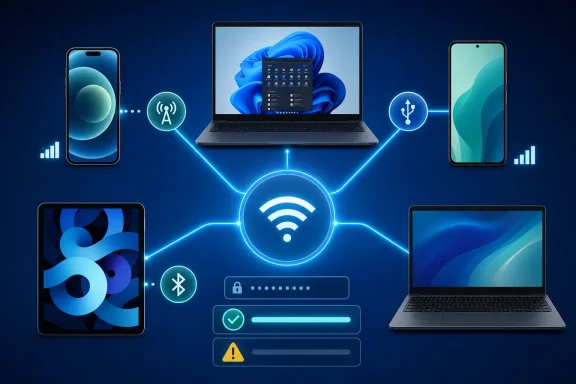 Check the connection you are actually sharing
Before changing hotspot settings, confirm that the device providing the connection can browse the web using its own cellular, Wi-Fi, or Ethernet connection.- iPhone or cellular iPad: Personal Hotspot shares cellular data only. Turn on Settings > Cellular > Cellular Data. Your carrier and cellular plan must support Personal Hotspot; some plans limit the feature, connected devices, or data use.
- Android phone or tablet: Most Android phones can share mobile data through Wi-Fi, Bluetooth, or USB. Carrier restrictions can still prevent tethering.
- Windows 11 PC: Mobile hotspot can share a Wi-Fi, Ethernet, or cellular connection through Wi-Fi or Bluetooth.
- Chromebook: Creating a hotspot requires a supported Chromebook with cellular capability, compatible hardware and firmware, hotspot support, and a mobile-data plan that includes tethering.
Set up Personal Hotspot on iPhone or cellular iPad
- Open Settings > Personal Hotspot. If it is not listed, open Settings > Cellular > Personal Hotspot instead.
- Turn on Allow Others to Join.
- Tap Wi-Fi Password to view or change the password.
Use at least eight ASCII characters. Avoid unusual symbols if an older laptop, game console, or smart device has trouble joining. - Keep the Personal Hotspot screen open while initially connecting another device.
- On the receiving device, open its Wi-Fi list, select the iPhone or iPad name, enter the displayed password, and connect.
The hotspot name is the iPhone or iPad device name. To change it, open Settings > General > About > Name, enter a new name, and tap Done. This also changes the name used by Bluetooth, AirDrop, and other Apple services.
Set up a hotspot on Android or Samsung Galaxy
Android menu names differ by manufacturer and Android version.Most Android phones
- Swipe down from the top of the screen to open Quick Settings.
- Tap Hotspot.
- If the tile is unavailable, tap Edit and add Hotspot to Quick Settings.
- To configure it, touch and hold Hotspot.
- Turn on Wi-Fi hotspot.
- Tap the hotspot name or password to change it. Some phones require Set up Wi-Fi hotspot first.
Samsung Galaxy phones and tablets
- Open Settings > Connections > Mobile Hotspot and Tethering > Mobile Hotspot.
- Turn on Mobile Hotspot.
- Use the network-name or configuration area to view or change the hotspot name, password, security type, and band.
Create a hotspot from a Windows 11 PC
Windows 11 can turn a connected PC into a Wi-Fi or Bluetooth hotspot. Wi-Fi is normally the faster choice.- Open Start > Settings > Network & internet > Mobile hotspot.
- Under Share my internet connection from, choose the connection to share.
- Under Share over, select Wi-Fi or Bluetooth.
- Expand Properties, then select Edit.
- Set the network name, password, and network band, then select Save.
- Turn on Mobile hotspot.
For quick access, select the taskbar’s Quick Settings area and choose Mobile hotspot. If the button is not visible, use the next-page arrow. Right-click or press and hold Mobile hotspot, then select Go to Settings to configure it.
Connect without repeatedly entering a password
Apple devices can use Instant Hotspot when the devices are nearby, Wi-Fi and Bluetooth are enabled, and they use the same Apple Account or eligible Family Sharing setup.- On a Mac, open the Wi-Fi menu and select the nearby iPhone or iPad.
- On an iPhone or iPad, open Settings > Wi-Fi and select the nearby hotspot.
- On the provider iPhone or iPad, enable family access through Settings > Personal Hotspot > Family Sharing.
Windows 11 can also use Phone Link’s Instant Hotspot feature with supported Android phones. In Phone Link, open Settings > Features > Instant Hotspot, select Set up Instant Hotspot, and approve the request on the phone. This requires compatible Windows, Phone Link, Link to Windows, Bluetooth, Wi-Fi hardware, and phone software.
Fix a hotspot that is missing, dimmed, or will not turn on
Start on the device providing the hotspot.- Turn mobile data on if the provider is a phone or cellular tablet.
- Turn the hotspot off, wait a few seconds, then turn it back on.
- Restart both the hotspot provider and the device attempting to join.
- Install available system updates on both devices.
- Temporarily disconnect a VPN on the provider and try again. Some VPN configurations interfere with local networking or sharing.
- Check that Airplane mode is off.
- Verify that the cellular plan permits tethering.
For a Pixel or similar Android phone, open Settings > Network & internet > Hotspot & tethering > Wi-Fi hotspot and turn on the hotspot. If it was already enabled, turn it off and back on.
For a Windows 11 hotspot provider, reopen Settings > Network & internet > Mobile hotspot and confirm that the correct source connection is selected. If you are sharing Wi-Fi, make sure that Windows itself remains connected to the original Wi-Fi network.
A disabled hotspot control on a work or school phone, tablet, Chromebook, or PC may be enforced by device management. Do not attempt to bypass management policy. Contact the organization that manages the device.
Fix “incorrect password” or a hotspot that connects without internet
If the receiving device says the password is wrong:- On the hotspot provider, open its hotspot settings and view the current password.
- On the receiving device, forget the saved hotspot network.
- In Windows 11, open Settings > Network & internet > Wi-Fi > Manage known networks, select the hotspot, then choose Forget.
- Search for the hotspot again and enter the current password exactly.
- If necessary, change the hotspot password to a new, simple temporary password, then reconnect every device using it.
- Test the provider’s internet connection directly.
- Turn off and reconnect the hotspot.
- Disconnect any VPN from the provider and receiver for testing.
- Confirm that the hotspot has not reached a carrier-imposed device limit or data restriction.
- Try one receiving device at a time. If one device works and another does not, the issue is usually the receiving device’s saved Wi-Fi profile, adapter, compatibility, or VPN configuration.
On iPhone or iPad, reset network settings through Settings > General > Transfer or Reset [device] > Reset > Reset Network Settings.
On Windows 11, use Settings > Network & internet > Advanced network settings > Network reset. Restart when Windows prompts you, then reconnect to Wi-Fi and test the hotspot again.
Fix compatibility problems with older devices
Use compatibility changes only when the hotspot is visible but an older PC, console, printer, tablet, or accessory cannot connect.iPhone or iPad
On supported iPhone models, open Settings > Personal Hotspot and turn on Maximize Compatibility.This uses the more widely compatible 2.4 GHz band and WPA2 Personal security. It can reduce hotspot performance and security compared with the default configuration, so turn it back off after testing if all devices can connect normally.
Samsung Galaxy
Open Settings > Connections > Mobile Hotspot and Tethering > Mobile Hotspot, then change the hotspot Band to 5 GHz or 2.4 GHz. For the broadest compatibility, use 2.4 GHz.If available, set hotspot security to WPA2 or WPA2/WPA3-Personal for an older receiving device that cannot use newer security modes.
Chromebook
Open Settings > Network > Hotspot and turn on Use 2.4GHz Wi-Fi to extend compatibility.Use USB or Bluetooth tethering instead of Wi-Fi
USB tethering is a useful workaround when Wi-Fi hotspot discovery or compatibility is failing.iPhone or iPad by USB
- Turn on Allow Others to Join in Personal Hotspot settings.
- On a Windows PC, install the current Apple Devices app or iTunes before connecting.
- Connect the iPhone or iPad to the computer with a data-capable USB cable.
- If Windows asks, select Allow.
- If the iPhone or iPad displays Trust This Computer?, tap Trust and enter the device passcode if requested.
Android by USB
- Connect the Android phone to the computer with a USB cable.
- Swipe down and touch and hold Hotspot.
- Turn on USB tethering.
Bluetooth tethering
Bluetooth is slower than Wi-Fi but can help when Wi-Fi is blocked or unreliable.- Pair the phone and receiving computer through Bluetooth settings.
- On the phone, enable Bluetooth tethering from its Hotspot or Mobile Hotspot and Tethering screen.
- On Windows 11, open Settings > Bluetooth & devices > Devices, expand the paired phone under Other devices, select Personal Area Network (PAN) > Join, choose Access Point, then select Connect.
References
- Primary source: Technobezz
Published: 2026-07-19T17:47:49.418000+00:00
How to Set Up and Fix Personal Hotspot | Technobezz
How to set up personal hotspot on iPhone, Android, Samsung, Windows, and Chromebook, plus fixes when it will not connect.www.technobezz.com
