

Windows 11 users whose USB ports stop detecting devices should first separate physical faults from software faults, then work through power management, Windows Update, Safe Mode, driver reinstall, and firmware settings before assuming the motherboard or port has failed. The practical lesson is that a “dead” USB port is often not dead at all. It may be sleeping, underpowered, misconfigured, or trapped behind a bad driver decision. That makes the humble USB port a revealing fault line in modern Windows troubleshooting: the failure looks simple, but the stack underneath it is anything but.
A USB failure invites the most expensive explanation first. A thumb drive does not appear, a webcam stays dark, a controller refuses to charge, and the mind jumps straight to broken hardware. That is sometimes right, especially on older laptops with worn connectors or desktops with abused front-panel ports, but it is a bad first assumption.
The smarter starting point is substitution. Try the device on another computer, try another cable, try another device in the same port, and bypass hubs or extension leads entirely. This is not glamorous troubleshooting, but it is the part that prevents an hour of driver surgery when the real culprit is a frayed cable or an unpowered hub sagging under load.
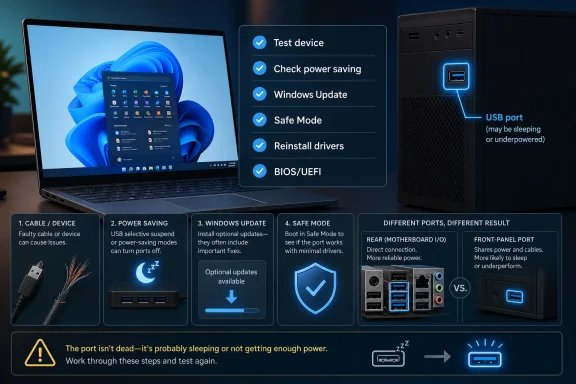
Windows 11 adds another wrinkle: not every port on a machine behaves the same way. Rear motherboard ports on a desktop often provide more reliable power and a more direct path to the chipset than front-panel ports wired through a case header. USB-C ports may support data, charging, display output, or only some of those functions depending on the system design.
That means “USB is broken” is rarely precise enough. The better question is whether one device, one cable, one hub, one physical connector, one controller, or the whole USB stack is failing. The fix depends on that distinction.
In practice, selective suspend can make a stubborn peripheral look dead. A scanner, audio interface, external drive, capture card, dock, or USB-to-serial adapter may not resume cleanly after Windows has parked it. The user sees a disappearing device; Windows sees a power policy doing what it was told.
This is where the familiar Device Manager fix still earns its keep. Under Universal Serial Bus controllers, the Power Management tab for USB Root Hub or Generic USB Hub devices may include the option to allow Windows to turn the device off to save power. Unchecking that box can stop the operating system from being quite so aggressive.
The broader setting lives in the active power plan, where USB selective suspend can be disabled for battery and plugged-in operation. Microsoft generally recommends selective suspend because it improves power efficiency, particularly on laptops, so this is not a setting to flatten casually across an enterprise fleet. But as a diagnostic step for a machine that keeps dropping USB devices, it is entirely reasonable.
The key is to treat the change as evidence gathering, not superstition. If a device becomes reliable only after selective suspend is disabled, the problem is likely in the interaction among the device firmware, its driver, the hub, and Windows power policy. That is different from a broken port, and it points toward driver, firmware, or device replacement decisions rather than motherboard panic.
That neglect can matter. USB behavior depends heavily on chipset drivers, host controller drivers, firmware, and the motherboard vendor’s implementation. If Windows has a generic driver that mostly works, the system may boot and function while still mishandling power states, wake events, docks, or particular high-bandwidth devices.
The route through Settings is straightforward: Windows Update, Advanced options, Optional updates, and then Driver updates if anything relevant is offered. Users should look for chipset, USB controller, firmware, BIOS, Thunderbolt, or dock-related updates. After installation, a real restart matters; USB controllers and chipset components are not always meaningfully refreshed by a quick sign-out or sleep cycle.
There is a tension here for IT pros. Optional drivers can fix hardware weirdness, but they can also introduce it. On managed devices, the safer move is usually to test driver updates on a small group before broad deployment, especially where docks, smart-card readers, industrial peripherals, medical devices, or point-of-sale hardware are involved.
For consumers, the calculation is simpler. If a USB subsystem is already unreliable, the risk of trying vendor-approved updates is usually worth taking. The important caveat is to prefer the PC maker’s support page for laptops and OEM desktops, and the motherboard vendor’s page for custom-built PCs, rather than random driver sites promising miracles.
If USB ports work reliably in Safe Mode, that is a clue. It suggests the hardware path is alive and the baseline Windows stack can enumerate the device. The culprit is more likely a third-party driver, endpoint security product, virtualization tool, device management agent, RGB utility, peripheral suite, or some other background service that hooks into device detection.
This is especially relevant on gaming PCs and workstations. Keyboard and mouse suites, headset utilities, capture-card packages, phone-sync tools, motherboard control panels, and USB security products all want a piece of the device stack. Most behave well. Some do not.
The troubleshooting burden then shifts from “fix USB” to “find the offender.” That is slower work: disable startup apps, remove recent driver packages, uninstall peripheral utilities, and check whether the problem began after a known software install. Safe Mode does not solve the problem by itself; it narrows the field.
If USB still fails in Safe Mode, the diagnosis moves in the other direction. That does not prove hardware failure, but it makes third-party software less likely. At that point, controller reinstall, chipset drivers, firmware settings, and physical inspection become more important.
External hard drives, capture cards, bus-powered hubs, portable monitors, audio interfaces, and some USB-C devices can draw enough power to expose weak ports and poor cabling. A device may spin up and vanish, connect and disconnect repeatedly, or throw a “USB Device Not Recognized” message that looks like a Windows problem but begins as an electrical one.
This is why rear desktop ports are worth testing. They are usually wired directly to the motherboard and may provide more stable power than front-panel connectors running through case wiring. It is also why USB 3.x ports, often marked in blue on older systems, can behave better with devices that need more bandwidth or power than older USB 2.0 ports can comfortably provide.
Powered hubs complicate the picture. A good powered hub can stabilize a setup with multiple demanding peripherals. A cheap or failing hub can become the problem while looking like the solution. The same is true of USB-C docks, where power delivery, display output, Ethernet, storage, and charging all converge in a single device that may need firmware updates of its own.
For administrators, this is a reminder that USB reliability is not just a Windows setting. It is part of workstation design. The cable, dock, hub, port choice, and device power budget all belong in the troubleshooting model.
The usual path is to expand Universal Serial Bus controllers, uninstall USB Root Hub, Generic USB Hub, and USB Host Controller entries, then restart. It is not elegant, and users should be prepared for temporary loss of input if they are using USB keyboards and mice on some systems. On laptops, the built-in keyboard and touchpad reduce that risk.
This fix is best understood as a reset of Windows’ view of the USB topology. It is not a replacement for the correct chipset package from the system or motherboard manufacturer. If the reinstall helps only temporarily, the underlying issue may still be a buggy driver, firmware problem, failing device, or power-state conflict.
The next step is more disciplined: identify the system manufacturer and model, then install the latest chipset, USB, motherboard, BIOS, dock, or Thunderbolt packages from the official support channel. On custom desktops, that usually means the motherboard vendor. On laptops, it usually means the OEM support page for the exact model.
This is where Windows troubleshooting becomes less universal and more vendor-specific. Two PCs can both run Windows 11 24H2 or 25H2 and still behave differently because their firmware, controllers, and OEM utilities are different. USB is standardized at the connector level, not at the total platform level.
A disabled controller or restrictive firmware setting can make ports vanish from Windows entirely. This is uncommon on a machine that was working normally yesterday, but it is not impossible after a BIOS update, CMOS reset, corporate policy change, or refurbisher misconfiguration. On desktops, front-panel USB may also fail because an internal header cable has loosened, which no Windows setting can repair.
Firmware menus vary wildly by manufacturer, which is why generic advice only goes so far. Users should look under sections such as Advanced, Configuration, Onboard Devices, USB Configuration, or Thunderbolt. If USB controllers are disabled, enabling them and saving the configuration may restore ports immediately.
There is a caution for security-minded environments. Thunderbolt and external device settings may be deliberately restricted to reduce attack surface. Re-enabling ports without understanding the policy can undermine device-control rules. In enterprise settings, firmware changes should be treated as configuration changes, not casual tinkering.
For IT teams, USB failures are more strategic. A flaky dock model can waste hundreds of support hours. A driver pushed too broadly can break smart-card authentication. A power policy meant to improve battery life can destabilize specialized peripherals used in labs, factories, classrooms, or clinics.
That is why the best enterprise response is not to write a giant “USB not working” script and hope. It is to classify the failure. Is it one device model, one laptop model, one dock firmware version, one Windows build, one driver package, one department, or one physical location? Patterns matter more than anecdotes.
Device control and security tooling add another layer. Some organizations intentionally block storage devices while allowing keyboards, mice, and approved peripherals. To the user, that can look like a broken USB port. To the administrator, it may be policy working as designed.
This is where communication matters. If Windows gives a vague failure and the organization gives no explanation, users will troubleshoot around policy. Clear messaging about blocked device classes, approved hubs, and supported docks prevents both confusion and shadow IT.
That sequence prevents two common mistakes. The first is overreacting: replacing parts before testing the cable, hub, or power draw. The second is underreacting: toggling one Windows setting and declaring victory when the real issue is a driver or dock firmware problem waiting to recur.
Windows 11’s USB stack is mature, but the ecosystem around it is messy. Cheap cables, multifunction docks, aggressive sleep states, vendor utilities, optional drivers, and firmware security settings all meet at the same port. When something breaks, the symptom is simple because the connector is simple. The cause rarely is.
 The Port Is Usually the Last Thing to Blame
A USB failure invites the most expensive explanation first. A thumb drive does not appear, a webcam stays dark, a controller refuses to charge, and the mind jumps straight to broken hardware. That is sometimes right, especially on older laptops with worn connectors or desktops with abused front-panel ports, but it is a bad first assumption.The smarter starting point is substitution. Try the device on another computer, try another cable, try another device in the same port, and bypass hubs or extension leads entirely. This is not glamorous troubleshooting, but it is the part that prevents an hour of driver surgery when the real culprit is a frayed cable or an unpowered hub sagging under load.
Windows 11 adds another wrinkle: not every port on a machine behaves the same way. Rear motherboard ports on a desktop often provide more reliable power and a more direct path to the chipset than front-panel ports wired through a case header. USB-C ports may support data, charging, display output, or only some of those functions depending on the system design.
That means “USB is broken” is rarely precise enough. The better question is whether one device, one cable, one hub, one physical connector, one controller, or the whole USB stack is failing. The fix depends on that distinction.
Windows Power Saving Can Look Like Hardware Failure
The most Windows-flavored cause of USB trouble is also one of the easiest to miss: power management. Windows can power down USB hubs and devices when it thinks they are idle, and USB selective suspend is designed to let individual ports enter a lower-power state without taking down the entire bus. On paper, that is a sensible battery-saving feature.In practice, selective suspend can make a stubborn peripheral look dead. A scanner, audio interface, external drive, capture card, dock, or USB-to-serial adapter may not resume cleanly after Windows has parked it. The user sees a disappearing device; Windows sees a power policy doing what it was told.
This is where the familiar Device Manager fix still earns its keep. Under Universal Serial Bus controllers, the Power Management tab for USB Root Hub or Generic USB Hub devices may include the option to allow Windows to turn the device off to save power. Unchecking that box can stop the operating system from being quite so aggressive.
The broader setting lives in the active power plan, where USB selective suspend can be disabled for battery and plugged-in operation. Microsoft generally recommends selective suspend because it improves power efficiency, particularly on laptops, so this is not a setting to flatten casually across an enterprise fleet. But as a diagnostic step for a machine that keeps dropping USB devices, it is entirely reasonable.
The key is to treat the change as evidence gathering, not superstition. If a device becomes reliable only after selective suspend is disabled, the problem is likely in the interaction among the device firmware, its driver, the hub, and Windows power policy. That is different from a broken port, and it points toward driver, firmware, or device replacement decisions rather than motherboard panic.
Optional Updates Are Where Some USB Fixes Hide
Windows Update has trained users to think in terms of Patch Tuesday and feature releases, but USB problems often live in the less glamorous bucket: optional driver, chipset, and firmware updates. These are exactly the updates many users never open because they are not pushed with the same urgency as security patches.That neglect can matter. USB behavior depends heavily on chipset drivers, host controller drivers, firmware, and the motherboard vendor’s implementation. If Windows has a generic driver that mostly works, the system may boot and function while still mishandling power states, wake events, docks, or particular high-bandwidth devices.
The route through Settings is straightforward: Windows Update, Advanced options, Optional updates, and then Driver updates if anything relevant is offered. Users should look for chipset, USB controller, firmware, BIOS, Thunderbolt, or dock-related updates. After installation, a real restart matters; USB controllers and chipset components are not always meaningfully refreshed by a quick sign-out or sleep cycle.
There is a tension here for IT pros. Optional drivers can fix hardware weirdness, but they can also introduce it. On managed devices, the safer move is usually to test driver updates on a small group before broad deployment, especially where docks, smart-card readers, industrial peripherals, medical devices, or point-of-sale hardware are involved.
For consumers, the calculation is simpler. If a USB subsystem is already unreliable, the risk of trying vendor-approved updates is usually worth taking. The important caveat is to prefer the PC maker’s support page for laptops and OEM desktops, and the motherboard vendor’s page for custom-built PCs, rather than random driver sites promising miracles.
Safe Mode Still Matters Because It Removes the Noise
Safe Mode can feel like a relic from another Windows era, but it remains one of the cleanest ways to separate core OS and hardware behavior from third-party interference. In Windows 11, booting through Advanced startup into Startup Settings and then Safe Mode loads a reduced environment with only essential drivers and services.If USB ports work reliably in Safe Mode, that is a clue. It suggests the hardware path is alive and the baseline Windows stack can enumerate the device. The culprit is more likely a third-party driver, endpoint security product, virtualization tool, device management agent, RGB utility, peripheral suite, or some other background service that hooks into device detection.
This is especially relevant on gaming PCs and workstations. Keyboard and mouse suites, headset utilities, capture-card packages, phone-sync tools, motherboard control panels, and USB security products all want a piece of the device stack. Most behave well. Some do not.
The troubleshooting burden then shifts from “fix USB” to “find the offender.” That is slower work: disable startup apps, remove recent driver packages, uninstall peripheral utilities, and check whether the problem began after a known software install. Safe Mode does not solve the problem by itself; it narrows the field.
If USB still fails in Safe Mode, the diagnosis moves in the other direction. That does not prove hardware failure, but it makes third-party software less likely. At that point, controller reinstall, chipset drivers, firmware settings, and physical inspection become more important.
Power-Hungry Devices Expose the Myth of a Universal Port
USB’s genius is that it made connection feel universal. Its curse is that users then expect every port to behave identically. They do not.External hard drives, capture cards, bus-powered hubs, portable monitors, audio interfaces, and some USB-C devices can draw enough power to expose weak ports and poor cabling. A device may spin up and vanish, connect and disconnect repeatedly, or throw a “USB Device Not Recognized” message that looks like a Windows problem but begins as an electrical one.
This is why rear desktop ports are worth testing. They are usually wired directly to the motherboard and may provide more stable power than front-panel connectors running through case wiring. It is also why USB 3.x ports, often marked in blue on older systems, can behave better with devices that need more bandwidth or power than older USB 2.0 ports can comfortably provide.
Powered hubs complicate the picture. A good powered hub can stabilize a setup with multiple demanding peripherals. A cheap or failing hub can become the problem while looking like the solution. The same is true of USB-C docks, where power delivery, display output, Ethernet, storage, and charging all converge in a single device that may need firmware updates of its own.
For administrators, this is a reminder that USB reliability is not just a Windows setting. It is part of workstation design. The cable, dock, hub, port choice, and device power budget all belong in the troubleshooting model.
Reinstalling Controllers Is Crude, but Sometimes Effective
The classic Device Manager ritual of uninstalling USB controllers and rebooting survives because it attacks a real failure mode. Windows can rebuild the USB controller and hub entries on restart, clearing stale enumeration states and forcing the operating system to rediscover the hardware.The usual path is to expand Universal Serial Bus controllers, uninstall USB Root Hub, Generic USB Hub, and USB Host Controller entries, then restart. It is not elegant, and users should be prepared for temporary loss of input if they are using USB keyboards and mice on some systems. On laptops, the built-in keyboard and touchpad reduce that risk.
This fix is best understood as a reset of Windows’ view of the USB topology. It is not a replacement for the correct chipset package from the system or motherboard manufacturer. If the reinstall helps only temporarily, the underlying issue may still be a buggy driver, firmware problem, failing device, or power-state conflict.
The next step is more disciplined: identify the system manufacturer and model, then install the latest chipset, USB, motherboard, BIOS, dock, or Thunderbolt packages from the official support channel. On custom desktops, that usually means the motherboard vendor. On laptops, it usually means the OEM support page for the exact model.
This is where Windows troubleshooting becomes less universal and more vendor-specific. Two PCs can both run Windows 11 24H2 or 25H2 and still behave differently because their firmware, controllers, and OEM utilities are different. USB is standardized at the connector level, not at the total platform level.
Firmware Settings Are the Forgotten Layer
When software fixes fail, BIOS and UEFI settings deserve attention before hardware replacement. USB controllers, legacy USB support, xHCI handoff, Thunderbolt security, USB charging behavior, and pre-boot USB support can all live in firmware menus depending on the system.A disabled controller or restrictive firmware setting can make ports vanish from Windows entirely. This is uncommon on a machine that was working normally yesterday, but it is not impossible after a BIOS update, CMOS reset, corporate policy change, or refurbisher misconfiguration. On desktops, front-panel USB may also fail because an internal header cable has loosened, which no Windows setting can repair.
Firmware menus vary wildly by manufacturer, which is why generic advice only goes so far. Users should look under sections such as Advanced, Configuration, Onboard Devices, USB Configuration, or Thunderbolt. If USB controllers are disabled, enabling them and saving the configuration may restore ports immediately.
There is a caution for security-minded environments. Thunderbolt and external device settings may be deliberately restricted to reduce attack surface. Re-enabling ports without understanding the policy can undermine device-control rules. In enterprise settings, firmware changes should be treated as configuration changes, not casual tinkering.
The Real Split Is Between Annoyance and Fleet Risk
For a home user, the problem is usually immediate and personal: the mouse does not work, the backup drive does not mount, the phone does not connect. The goal is to restore function quickly. A few practical tests and settings changes may be enough.For IT teams, USB failures are more strategic. A flaky dock model can waste hundreds of support hours. A driver pushed too broadly can break smart-card authentication. A power policy meant to improve battery life can destabilize specialized peripherals used in labs, factories, classrooms, or clinics.
That is why the best enterprise response is not to write a giant “USB not working” script and hope. It is to classify the failure. Is it one device model, one laptop model, one dock firmware version, one Windows build, one driver package, one department, or one physical location? Patterns matter more than anecdotes.
Device control and security tooling add another layer. Some organizations intentionally block storage devices while allowing keyboards, mice, and approved peripherals. To the user, that can look like a broken USB port. To the administrator, it may be policy working as designed.
This is where communication matters. If Windows gives a vague failure and the organization gives no explanation, users will troubleshoot around policy. Clear messaging about blocked device classes, approved hubs, and supported docks prevents both confusion and shadow IT.
The Fixes Work Best When They Become a Sequence
The value in the TweakTown-style checklist is not that any one fix is magic. It is that the order matters. Start with the physical layer, move through power and updates, isolate with Safe Mode, refresh controllers and vendor drivers, then inspect firmware and hardware.That sequence prevents two common mistakes. The first is overreacting: replacing parts before testing the cable, hub, or power draw. The second is underreacting: toggling one Windows setting and declaring victory when the real issue is a driver or dock firmware problem waiting to recur.
Windows 11’s USB stack is mature, but the ecosystem around it is messy. Cheap cables, multifunction docks, aggressive sleep states, vendor utilities, optional drivers, and firmware security settings all meet at the same port. When something breaks, the symptom is simple because the connector is simple. The cause rarely is.
The Windows 11 USB Playbook Is Boring for a Reason
The repair path for broken USB ports is not exciting, but it is practical because it follows the stack from outside to inside. A short version is enough for most users, provided they resist the urge to skip straight to the most dramatic explanation.- Test the USB device, cable, hub, and port separately before changing Windows settings.
- Disable USB power saving and selective suspend only as a targeted diagnostic step, especially on laptops where battery life matters.
- Check optional Windows driver updates and the PC maker’s support page for chipset, firmware, USB, dock, and motherboard updates.
- Use Safe Mode to determine whether third-party software or drivers are interfering with device detection.
- Reinstall USB controllers through Device Manager and then install the correct vendor drivers if the problem persists.
- Check BIOS or UEFI USB settings, and suspect physical hardware only after the software, power, and firmware layers have been tested.
References
- Primary source: TweakTown
Published: Thu, 28 May 2026 21:40:07 GMT
USB Ports Not Working in Windows 11? Try These Fixes
USB ports not working in Windows 11? These fixes can help resolve driver, power, hardware, and connection issues to get devices working again. www.tweaktown.com
- Related coverage: windowscentral.com
Microsoft rolls out Windows 11 KB5089573 update that makes your PC genuinely faster and more responsive | Windows Central
Windows 11 update KB5089573 is now generally available as Microsoft's non-security preview update for May, and is packing genuinely notable performance improvements.www.windowscentral.com - Official source: support.microsoft.com
Windows startup settings | Microsoft Support
Learn how to change Windows startup settings, including enabling Safe Mode.support.microsoft.com - Official source: learn.microsoft.com
USB ETW and Power Management - Windows drivers | Microsoft Learn
This article provides a brief overview about using Event Tracing for Windows (ETW) to examine USB selective suspend state and identifying system energy efficiency problems by using the Windows PowerCfg utility.learn.microsoft.com - Related coverage: itpro.com
How to boot into Windows 11 Safe Mode | IT Pro
Long-time Windows users will already be familiar with Windows 11 Safe Mode, but what exactly is it for and how do you boot your system into it?www.itpro.com
