

Windows can fail in ways that feel catastrophic, but a full reinstall is often a faster decision than it needs to be. The four built-in recovery tools most people should try first are System Restore, Startup Repair, System File Checker (SFC), and Reset this PC. The first three can often reverse the specific kind of damage that makes Windows unstable, while the last one offers a cleaner recovery path when the others run out of road.
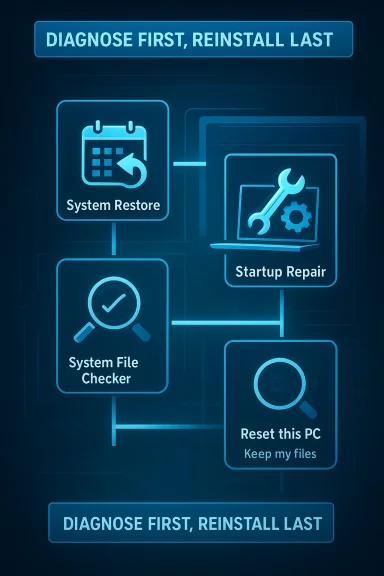
What makes these tools worth knowing is that they attack different layers of the operating system. System Restore rolls back configuration changes, Startup Repair targets boot problems, SFC repairs corrupted Windows files, and Reset this PC rebuilds the OS without forcing you into the nuclear option of a completely manual reinstall. Used in the right order, they can save hours of setup, app reinstalling, and profile rebuilding, which is exactly why so many users wish they had tried them before wiping the machine. The underlying logic is simple: diagnose first, reinstall last.
For years, Windows users have treated reinstalling the operating system as the default cure for serious trouble. That habit made some sense in older versions of Windows, when corrupted installs, bad drivers, and ugly registry breakage were harder to isolate and repair. But modern Windows has accumulated a surprisingly deep set of recovery features, many of which are already on the machine before any problem appears.
The catch is that these tools are usually invisible until something goes wrong. They live in the recovery environment, advanced startup menus, or administrative command prompts, so they are easy to forget when panic sets in. In practice, that means many users still jump straight to a reinstall even when the issue is limited to a damaged restore point, a boot configuration failure, or one corrupted system file.
Microsoft’s design has also changed over time. The company has increasingly favored self-healing and recovery workflows that preserve user data whenever possible. That includes options like automatic repair, restore points, and reset workflows that keep files intact. The result is a more layered repair model, but only if users know the layers exist and use them in the correct order.
The How-To Geek piece that inspired this discussion captures that frustration well: the author describes repeatedly reinstalling Windows after breaking their own test systems, only to realize that several built-in tools could have solved the problem sooner. That is a familiar lesson for power users and beginners alike. The more you install drivers, tweak settings, or experiment with updates, the more valuable these tools become.
The practical question, then, is not whether Windows can be fixed without a reinstall. It often can. The real question is how to choose the least destructive tool that still addresses the actual fault.
That also makes it valuable in enterprise-like home setups where the system itself matters more than any one app. If the machine is used for work, creative projects, or development, avoiding a reinstall can save not just time but also permissions, certificates, shell customizations, and app-specific preferences. That is the real cost of a wipe.
It is also only useful if restore points exist. If system protection was turned off, or if Windows never created a usable checkpoint, there may be nothing to go back to. That is why enabling it before trouble starts is a smart habit, not a luxury.
That distinction matters because startup failure does not automatically mean the whole install is ruined. Sometimes Windows is fine beneath the surface, and the issue is a broken handoff between firmware, boot manager, and the OS loader. Startup Repair exists precisely to address that handoff.
This is where Windows recovery has become more humane over the years. Instead of forcing users to memorize bootrec commands or rebuild BCD entries immediately, Microsoft gives them a guided repair option first. That does not guarantee success, but it lowers the barrier to trying.
A successful repair may take only a few minutes. An unsuccessful one still gives you important information, because it tells you the problem may be deeper than a simple boot configuration issue. Either way, it is a useful step before a wipe.
The value here is not just repair; it is targeted repair. Instead of reinstalling the whole OS because one core file is bad, SFC tries to restore the specific pieces that are damaged. That makes it an efficient middle ground between “ignore it” and “start over.”
That also makes it useful after other tools have already done their job. A restore point may roll back one mistake, but still leave behind file integrity issues. Running SFC afterward is a sensible second check, not overkill.
sfc /scannow
Let the scan finish completely. If it reports that it fixed issues, restart the PC and test again. If it reports that it could not fix everything, that is a clue that you may need deeper repair steps or a reset.
You usually lose installed apps and custom settings, even when personal files are preserved. That means you still pay a recovery tax: reinstalling software, restoring preferences, and setting everything up again. It is less work than a complete clean install, but it is still a meaningful interruption.
The decision is straightforward in theory but important in practice. If the system is unstable but your personal files are safe, keeping files is the best compromise. If the machine has been compromised, heavily shared, or is being handed off to someone else, removing everything may be the safer choice.
That is why a few minutes of restraint can save hours later. If the problem is fixable with a restore point or a file repair, jumping to a reset is just self-inflicted labor.
A targeted repair often preserves more of the user’s environment, which means less friction and fewer forgotten settings. That is why these tools are not just “nice to have.” They are a workflow upgrade.
That matters because most home users do not keep perfect backups, and many do not want to learn advanced recovery commands under stress. Built-in tools reduce the technical barrier and give them a realistic path to recovery.
These tools also help standardize troubleshooting. Help desks can start with a predictable sequence instead of immediately nuking a device. That can reduce imaging cycles, cut downtime, and preserve endpoint configuration where that matters.
That does not mean Windows is immune to serious failures. It means the operating system increasingly expects users to repair, not replace, when possible. That is a subtle but important shift.
This also affects how people evaluate Windows against alternatives. A platform that can recover from its own damage gracefully feels more mature than one that leaves users to reconstruct everything manually. That perception matters more than marketing.
The next frontier is likely better automation and clearer guidance. Users still need help choosing the right repair path, especially when the failure mode is ambiguous. Microsoft has already moved toward more guided recovery experiences, and that trend should continue if it wants Windows to remain approachable under stress.
A better Windows repair future would probably include smarter diagnostics, clearer event attribution, and more reliable recovery from bad updates. Until then, the best strategy is still the same: use the tools already in the box before you reach for the reinstall button.
If you have ever spent an evening reinstalling apps only to discover the original problem was a bad update or a corrupted system file, you already know why this matters. The next time Windows starts acting up, the smartest fix may already be installed on your PC.
Source: How-To Geek Stop reinstalling Windows. Try these 4 built-in tools first
What makes these tools worth knowing is that they attack different layers of the operating system. System Restore rolls back configuration changes, Startup Repair targets boot problems, SFC repairs corrupted Windows files, and Reset this PC rebuilds the OS without forcing you into the nuclear option of a completely manual reinstall. Used in the right order, they can save hours of setup, app reinstalling, and profile rebuilding, which is exactly why so many users wish they had tried them before wiping the machine. The underlying logic is simple: diagnose first, reinstall last.
 Background
For years, Windows users have treated reinstalling the operating system as the default cure for serious trouble. That habit made some sense in older versions of Windows, when corrupted installs, bad drivers, and ugly registry breakage were harder to isolate and repair. But modern Windows has accumulated a surprisingly deep set of recovery features, many of which are already on the machine before any problem appears.The catch is that these tools are usually invisible until something goes wrong. They live in the recovery environment, advanced startup menus, or administrative command prompts, so they are easy to forget when panic sets in. In practice, that means many users still jump straight to a reinstall even when the issue is limited to a damaged restore point, a boot configuration failure, or one corrupted system file.
Microsoft’s design has also changed over time. The company has increasingly favored self-healing and recovery workflows that preserve user data whenever possible. That includes options like automatic repair, restore points, and reset workflows that keep files intact. The result is a more layered repair model, but only if users know the layers exist and use them in the correct order.
The How-To Geek piece that inspired this discussion captures that frustration well: the author describes repeatedly reinstalling Windows after breaking their own test systems, only to realize that several built-in tools could have solved the problem sooner. That is a familiar lesson for power users and beginners alike. The more you install drivers, tweak settings, or experiment with updates, the more valuable these tools become.
The practical question, then, is not whether Windows can be fixed without a reinstall. It often can. The real question is how to choose the least destructive tool that still addresses the actual fault.
System Restore: the fastest rollback when a change went wrong
System Restore is the most beginner-friendly recovery option on the list, and it is usually the first tool worth trying after a bad change. It can roll the system back to an earlier restore point, which makes it ideal for undoing a broken driver, a faulty update, a bad registry tweak, or software that left the machine unstable. It does not touch personal files, which makes it feel far less risky than a reinstall.Why it matters
This is the classic “something changed and then Windows got weird” fix. If your PC was fine yesterday and started misbehaving right after an update, install, or configuration change, System Restore is a strong candidate. It often repairs the problem without forcing you to rebuild your environment from scratch.That also makes it valuable in enterprise-like home setups where the system itself matters more than any one app. If the machine is used for work, creative projects, or development, avoiding a reinstall can save not just time but also permissions, certificates, shell customizations, and app-specific preferences. That is the real cost of a wipe.
What it can and cannot do
System Restore is good at reversing system-level changes, but it is not a magic undo button for everything. It generally does not delete personal documents, photos, or media. It also does not behave like a full backup solution, because it is not intended to preserve every application or every user customization.It is also only useful if restore points exist. If system protection was turned off, or if Windows never created a usable checkpoint, there may be nothing to go back to. That is why enabling it before trouble starts is a smart habit, not a luxury.
How to approach it
- Open the Start menu and search for Create a restore point.
- In the System Protection tab, choose System Restore.
- Select a restore point from before the problem began.
- Confirm and let Windows perform the rollback.
- Restart and test whether the issue is gone.
Best use cases
- A bad driver install caused instability.
- A recent update broke a feature.
- A registry change damaged normal behavior.
- A new app installed shell hooks or services that went sideways.
- Windows now feels “off,” but you can still boot normally.
Startup Repair: the boot-failure fix most users overlook
If Windows will not boot, Startup Repair is one of the most valuable tools in the box. It is designed to diagnose and fix problems that stop the operating system from loading correctly, including corrupt boot data, missing system files, and some update-related startup failures. For many users, it is the difference between “the PC is dead” and “give it five minutes.”When Startup Repair is the right move
This tool matters most when the machine fails before the desktop appears. Restart loops, black screens during boot, and boot failures after a bad patch all fit this pattern. In that situation, reinstalling immediately is often overkill because the failure may be limited to the boot chain rather than the full operating system.That distinction matters because startup failure does not automatically mean the whole install is ruined. Sometimes Windows is fine beneath the surface, and the issue is a broken handoff between firmware, boot manager, and the OS loader. Startup Repair exists precisely to address that handoff.
How it works
Startup Repair runs a set of automated diagnostics from the Windows recovery environment. It checks for issues that prevent booting and attempts to fix them without requiring manual command-line work. That is useful because the average user is least equipped to troubleshoot when the PC is already in a broken state.This is where Windows recovery has become more humane over the years. Instead of forcing users to memorize bootrec commands or rebuild BCD entries immediately, Microsoft gives them a guided repair option first. That does not guarantee success, but it lowers the barrier to trying.
How to launch it
The common route is to hold Shift while selecting Restart, then go to Troubleshoot > Advanced options > Startup Repair. If Windows cannot boot normally, the recovery environment often appears automatically after several failed attempts. Once you are there, let the process complete and then retest.A successful repair may take only a few minutes. An unsuccessful one still gives you important information, because it tells you the problem may be deeper than a simple boot configuration issue. Either way, it is a useful step before a wipe.
What makes it valuable
- It helps when Windows never reaches the desktop.
- It may fix a bad update that broke startup.
- It avoids manual boot-file editing for many common failures.
- It preserves user files in most cases.
- It can identify whether the issue is deeper than a normal boot problem.
System File Checker: a quiet fix for invisible corruption
System File Checker, or SFC, is the tool that solves the frustrating class of problems where Windows is technically running, but something inside it is broken. Random crashes, strange glitches, missing features, and unexplained errors can all point to corrupted system files. SFC scans Windows’ protected files and replaces damaged copies with healthy ones.Why SFC is so important
This is the tool you use when the machine is not fully dead, but it is clearly not healthy either. It is especially useful when problems feel broad and non-specific. If a feature stops working, an app crashes for no obvious reason, or Windows behaves inconsistently across reboots, SFC is a low-effort first pass.The value here is not just repair; it is targeted repair. Instead of reinstalling the whole OS because one core file is bad, SFC tries to restore the specific pieces that are damaged. That makes it an efficient middle ground between “ignore it” and “start over.”
How SFC fits into the repair ladder
SFC is best viewed as a bridge between simple rollback and full reset. If System Restore cannot solve the issue, SFC can often address corruption that happened gradually or without a clear change event. It is especially helpful after crashes, forced shutdowns, or malware cleanup, where system files may have been altered or replaced.That also makes it useful after other tools have already done their job. A restore point may roll back one mistake, but still leave behind file integrity issues. Running SFC afterward is a sensible second check, not overkill.
How to run it
Open an elevated Command Prompt by searching for Command Prompt, right-clicking it, and choosing Run as administrator. Then enter:sfc /scannow
Let the scan finish completely. If it reports that it fixed issues, restart the PC and test again. If it reports that it could not fix everything, that is a clue that you may need deeper repair steps or a reset.
Practical interpretation
A clean SFC result does not guarantee that Windows is perfect, but it rules out one very common class of system damage. A repaired result often means the system was suffering from corruption rather than hardware failure or a truly broken install. That distinction can save a lot of time, because it tells you whether to keep troubleshooting software or start thinking about storage and memory.Reset this PC: the last resort that is still better than a manual reinstall
When the earlier tools fail, Reset this PC becomes the fallback that many users eventually need. It reinstalls Windows and gives the system a fresh start, but it can preserve personal files if you choose the “Keep my files” option. That makes it less destructive than a full wipe, even though it is still the most disruptive option on this list.Why it should come last
Resetting the PC is effective because it addresses a wide range of problems at once. If the operating system is deeply damaged, it can return the machine to a known-good state in a way that many targeted repairs cannot. But that broadness is exactly why it should come after the more surgical tools.You usually lose installed apps and custom settings, even when personal files are preserved. That means you still pay a recovery tax: reinstalling software, restoring preferences, and setting everything up again. It is less work than a complete clean install, but it is still a meaningful interruption.
“Keep my files” versus “Remove everything”
The Keep my files option is usually the right choice for most users who need to reset. It preserves documents and personal data while rebuilding Windows itself. The alternative, Remove everything, is more like starting from a blank machine.The decision is straightforward in theory but important in practice. If the system is unstable but your personal files are safe, keeping files is the best compromise. If the machine has been compromised, heavily shared, or is being handed off to someone else, removing everything may be the safer choice.
When a reset makes sense
- SFC did not resolve the corruption.
- Startup Repair could not fix boot issues.
- System Restore was unavailable or unsuccessful.
- Windows remains unstable after multiple attempts.
- You want a clean base without manually reinstalling everything from scratch.
Why it still beats panic reinstalling
Reset this PC has become one of the most pragmatic Windows tools because it shortens the recovery path. You do not need boot media, complex commands, or separate installation discs in many cases. For the average user, that lowers the threshold for repair and reduces the temptation to treat every severe problem as fatal.The order matters more than the tools themselves
One of the most useful lessons here is that these tools work best when used in sequence. If you pick them randomly, you may end up doing more work than necessary or skipping the easiest fix. The smartest approach is to move from least destructive to most disruptive.A sensible repair sequence
- Try System Restore if the issue began after a change.
- Use Startup Repair if Windows will not boot.
- Run SFC if Windows loads but acts corrupted or unstable.
- Use Reset this PC only if the others fail.
Why people skip ahead
Panic is the main reason users skip the early steps. When a system misbehaves, reinstalling feels decisive, while troubleshooting feels uncertain. The irony is that the “decisive” choice often creates more work, especially once app licensing, browser logins, Steam libraries, dev tools, and workspace settings come back into the picture.That is why a few minutes of restraint can save hours later. If the problem is fixable with a restore point or a file repair, jumping to a reset is just self-inflicted labor.
The hidden cost of reinstalling too soon
A reinstall is not just about the operating system. It also means redoing email, cloud sync, VPN profiles, printers, peripheral software, password managers, and account sign-ins. For consumers, that is tedious. For professionals and enthusiasts, it can be a full afternoon or more.A targeted repair often preserves more of the user’s environment, which means less friction and fewer forgotten settings. That is why these tools are not just “nice to have.” They are a workflow upgrade.
Enterprise and consumer impact are not the same
The value of these tools depends on who is using them. For a home user, the main advantage is convenience and time saved. For an IT department or small business, the stakes include productivity, support load, and the cost of reimaging endpoints.Consumer benefits
Consumers usually care most about speed and simplicity. If a PC starts acting strangely after an update or a driver install, System Restore or SFC can fix the issue without forcing a weekend-long rebuild. Even when Reset this PC is needed, preserving files can make the process much less painful.That matters because most home users do not keep perfect backups, and many do not want to learn advanced recovery commands under stress. Built-in tools reduce the technical barrier and give them a realistic path to recovery.
Enterprise implications
In business environments, the calculus is different. A reinstall can mean lost time, ticket escalation, and possibly a trip through device management workflows. Any built-in repair that keeps a machine operational longer is a net win, especially if the fault is transient or isolated.These tools also help standardize troubleshooting. Help desks can start with a predictable sequence instead of immediately nuking a device. That can reduce imaging cycles, cut downtime, and preserve endpoint configuration where that matters.
Why Microsoft benefits too
There is also a strategic layer here. The more self-healing Windows can appear, the less users feel the platform is fragile. Repair tools support the broader idea that Windows is a managed environment, not a disposable one. That is a meaningful message in a market where reliability shapes trust.Competitive implications: why built-in repair still matters in 2026
Windows is not the only platform that offers repair paths, but it is one of the few where the recovery culture still matters deeply to average users. macOS leans heavily on reinstallation and recovery mode, Linux distributions often depend on package management and community knowledge, and Windows has to serve both consumer simplicity and enterprise scale. That makes these built-in tools strategically important.The case against “just reinstall it”
Competing platforms often sell users on simplicity or resilience, but Windows has to prove it can recover from real-world messes without becoming a support burden. If the only answer were a wipe, the platform would feel brittle. Microsoft’s built-in tools help counter that perception by making repair part of the normal experience.That does not mean Windows is immune to serious failures. It means the operating system increasingly expects users to repair, not replace, when possible. That is a subtle but important shift.
The role of trust
Users trust an OS more when they believe mistakes are reversible. Restore points, boot repair, and file integrity checks create that trust. They reassure users that experimentation does not have to end in disaster, which is especially important on machines used by enthusiasts, students, and IT admins who tweak systems frequently.This also affects how people evaluate Windows against alternatives. A platform that can recover from its own damage gracefully feels more mature than one that leaves users to reconstruct everything manually. That perception matters more than marketing.
Where rivals can learn
Other operating systems already have recovery strengths, but Windows’ layered model is instructive. The best repair systems do not rely on a single catch-all fix. They offer a ladder of interventions, each aimed at a different failure mode. That is exactly the kind of approach that reduces downtime in the real world.Strengths and Opportunities
The biggest strength of Windows’ built-in recovery stack is that it gives users multiple chances to avoid a reinstall. It also creates a practical path from light-touch rollback to full reset without immediately discarding files, apps, and settings. For many users, that is the difference between a minor inconvenience and a full maintenance project.- System Restore can undo recent changes without affecting personal files.
- Startup Repair handles boot failures before the desktop loads.
- SFC targets hidden corruption in protected system files.
- Reset this PC offers a clean recovery path while keeping files in many cases.
- The tools form a logical escalation ladder instead of a single blunt instrument.
- They reduce reliance on third-party utilities for common failures.
- They can preserve productivity by avoiding unnecessary reinstall cycles.
Risks and Concerns
The main risk is false confidence. Users may assume one tool will solve every problem, when in reality each one has a narrow job. Another risk is that people may not have restore points enabled, which makes the most convenient fix unavailable when they need it most.- System Restore may not exist if protection was disabled.
- Startup Repair can fail on deeper hardware or storage problems.
- SFC may not fully repair heavily damaged systems.
- Reset this PC can still disrupt apps, settings, and workflows.
- Users may mistake a software issue for a hardware problem, or vice versa.
- Important files still need backups, even if reset options keep personal data.
- Recovery tools can mask recurring issues if the root cause is ignored.
Looking Ahead
Windows will likely keep expanding its repair model because the old reinstall-first mindset is too expensive for modern users. As systems become more interconnected with cloud accounts, encrypted storage, app stores, and device policies, the pain of starting over keeps rising. That makes built-in repair options more important, not less.The next frontier is likely better automation and clearer guidance. Users still need help choosing the right repair path, especially when the failure mode is ambiguous. Microsoft has already moved toward more guided recovery experiences, and that trend should continue if it wants Windows to remain approachable under stress.
A better Windows repair future would probably include smarter diagnostics, clearer event attribution, and more reliable recovery from bad updates. Until then, the best strategy is still the same: use the tools already in the box before you reach for the reinstall button.
- Keep System Restore enabled on the system drive.
- Learn how to reach Advanced Startup before an emergency.
- Use SFC when Windows behaves strangely but still boots.
- Treat Reset this PC as a fallback, not a reflex.
- Make backups so recovery choices stay flexible.
- Recheck the machine after a repair to confirm the issue is truly gone.
If you have ever spent an evening reinstalling apps only to discover the original problem was a bad update or a corrupted system file, you already know why this matters. The next time Windows starts acting up, the smartest fix may already be installed on your PC.
Source: How-To Geek Stop reinstalling Windows. Try these 4 built-in tools first
