Fix Windows Without Reinstall: Try System Restore, Startup Repair, SFC, Reset

  • Thread Author
Windows can fail in ways that feel catastrophic, but a full reinstall is often a faster decision than it needs to be. The four built-in recovery tools most people should try first are System Restore, Startup Repair, System File Checker (SFC), and Reset this PC. The first three can often reverse the specific kind of damage that makes Windows unstable, while the last one offers a cleaner recovery path when the others run out of road.
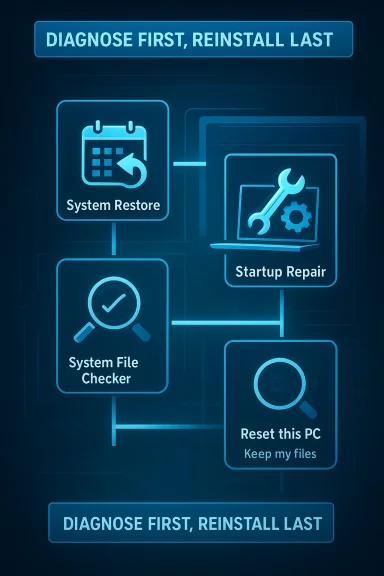
What makes these tools worth knowing is that they attack different layers of the operating system. System Restore rolls back configuration changes, Startup Repair targets boot problems, SFC repairs corrupted Windows files, and Reset this PC rebuilds the OS without forcing you into the nuclear option of a completely manual reinstall. Used in the right order, they can save hours of setup, app reinstalling, and profile rebuilding, which is exactly why so many users wish they had tried them before wiping the machine. The underlying logic is simple: diagnose first, reinstall last.
A digital visualization related to the article topic.Background​

For years, Windows users have treated reinstalling the operating system as the default cure for serious trouble. That habit made some sense in older versions of Windows, when corrupted installs, bad drivers, and ugly registry breakage were harder to isolate and repair. But modern Windows has accumulated a surprisingly deep set of recovery features, many of which are already on the machine before any problem appears.
The catch is that these tools are usually invisible until something goes wrong. They live in the recovery environment, advanced startup menus, or administrative command prompts, so they are easy to forget when panic sets in. In practice, that means many users still jump straight to a reinstall even when the issue is limited to a damaged restore point, a boot configuration failure, or one corrupted system file.
Microsoft’s design has also changed over time. The company has increasingly favored self-healing and recovery workflows that preserve user data whenever possible. That includes options like automatic repair, restore points, and reset workflows that keep files intact. The result is a more layered repair model, but only if users know the layers exist and use them in the correct order.
The How-To Geek piece that inspired this discussion captures that frustration well: the author describes repeatedly reinstalling Windows after breaking their own test systems, only to realize that several built-in tools could have solved the problem sooner. That is a familiar lesson for power users and beginners alike. The more you install drivers, tweak settings, or experiment with updates, the more valuable these tools become.
The practical question, then, is not whether Windows can be fixed without a reinstall. It often can. The real question is how to choose the least destructive tool that still addresses the actual fault.

System Restore: the fastest rollback when a change went wrong​

System Restore is the most beginner-friendly recovery option on the list, and it is usually the first tool worth trying after a bad change. It can roll the system back to an earlier restore point, which makes it ideal for undoing a broken driver, a faulty update, a bad registry tweak, or software that left the machine unstable. It does not touch personal files, which makes it feel far less risky than a reinstall.

Why it matters​

This is the classic “something changed and then Windows got weird” fix. If your PC was fine yesterday and started misbehaving right after an update, install, or configuration change, System Restore is a strong candidate. It often repairs the problem without forcing you to rebuild your environment from scratch.
That also makes it valuable in enterprise-like home setups where the system itself matters more than any one app. If the machine is used for work, creative projects, or development, avoiding a reinstall can save not just time but also permissions, certificates, shell customizations, and app-specific preferences. That is the real cost of a wipe.

What it can and cannot do​

System Restore is good at reversing system-level changes, but it is not a magic undo button for everything. It generally does not delete personal documents, photos, or media. It also does not behave like a full backup solution, because it is not intended to preserve every application or every user customization.
It is also only useful if restore points exist. If system protection was turned off, or if Windows never created a usable checkpoint, there may be nothing to go back to. That is why enabling it before trouble starts is a smart habit, not a luxury.

How to approach it​

  • Open the Start menu and search for Create a restore point.
  • In the System Protection tab, choose System Restore.
  • Select a restore point from before the problem began.
  • Confirm and let Windows perform the rollback.
  • Restart and test whether the issue is gone.
If the system drive shows protection as off, turn it on first so Windows can create restore points automatically. That step is small, but it changes System Restore from an afterthought into a genuine safety net.

Best use cases​

  • A bad driver install caused instability.
  • A recent update broke a feature.
  • A registry change damaged normal behavior.
  • A new app installed shell hooks or services that went sideways.
  • Windows now feels “off,” but you can still boot normally.

Startup Repair: the boot-failure fix most users overlook​

If Windows will not boot, Startup Repair is one of the most valuable tools in the box. It is designed to diagnose and fix problems that stop the operating system from loading correctly, including corrupt boot data, missing system files, and some update-related startup failures. For many users, it is the difference between “the PC is dead” and “give it five minutes.”

When Startup Repair is the right move​

This tool matters most when the machine fails before the desktop appears. Restart loops, black screens during boot, and boot failures after a bad patch all fit this pattern. In that situation, reinstalling immediately is often overkill because the failure may be limited to the boot chain rather than the full operating system.
That distinction matters because startup failure does not automatically mean the whole install is ruined. Sometimes Windows is fine beneath the surface, and the issue is a broken handoff between firmware, boot manager, and the OS loader. Startup Repair exists precisely to address that handoff.

How it works​

Startup Repair runs a set of automated diagnostics from the Windows recovery environment. It checks for issues that prevent booting and attempts to fix them without requiring manual command-line work. That is useful because the average user is least equipped to troubleshoot when the PC is already in a broken state.
This is where Windows recovery has become more humane over the years. Instead of forcing users to memorize bootrec commands or rebuild BCD entries immediately, Microsoft gives them a guided repair option first. That does not guarantee success, but it lowers the barrier to trying.

How to launch it​

The common route is to hold Shift while selecting Restart, then go to Troubleshoot > Advanced options > Startup Repair. If Windows cannot boot normally, the recovery environment often appears automatically after several failed attempts. Once you are there, let the process complete and then retest.
A successful repair may take only a few minutes. An unsuccessful one still gives you important information, because it tells you the problem may be deeper than a simple boot configuration issue. Either way, it is a useful step before a wipe.

What makes it valuable​

  • It helps when Windows never reaches the desktop.
  • It may fix a bad update that broke startup.
  • It avoids manual boot-file editing for many common failures.
  • It preserves user files in most cases.
  • It can identify whether the issue is deeper than a normal boot problem.

System File Checker: a quiet fix for invisible corruption​

System File Checker, or SFC, is the tool that solves the frustrating class of problems where Windows is technically running, but something inside it is broken. Random crashes, strange glitches, missing features, and unexplained errors can all point to corrupted system files. SFC scans Windows’ protected files and replaces damaged copies with healthy ones.

Why SFC is so important​

This is the tool you use when the machine is not fully dead, but it is clearly not healthy either. It is especially useful when problems feel broad and non-specific. If a feature stops working, an app crashes for no obvious reason, or Windows behaves inconsistently across reboots, SFC is a low-effort first pass.
The value here is not just repair; it is targeted repair. Instead of reinstalling the whole OS because one core file is bad, SFC tries to restore the specific pieces that are damaged. That makes it an efficient middle ground between “ignore it” and “start over.”

How SFC fits into the repair ladder​

SFC is best viewed as a bridge between simple rollback and full reset. If System Restore cannot solve the issue, SFC can often address corruption that happened gradually or without a clear change event. It is especially helpful after crashes, forced shutdowns, or malware cleanup, where system files may have been altered or replaced.
That also makes it useful after other tools have already done their job. A restore point may roll back one mistake, but still leave behind file integrity issues. Running SFC afterward is a sensible second check, not overkill.

How to run it​

Open an elevated Command Prompt by searching for Command Prompt, right-clicking it, and choosing Run as administrator. Then enter:
sfc /scannow
Let the scan finish completely. If it reports that it fixed issues, restart the PC and test again. If it reports that it could not fix everything, that is a clue that you may need deeper repair steps or a reset.

Practical interpretation​

A clean SFC result does not guarantee that Windows is perfect, but it rules out one very common class of system damage. A repaired result often means the system was suffering from corruption rather than hardware failure or a truly broken install. That distinction can save a lot of time, because it tells you whether to keep troubleshooting software or start thinking about storage and memory.

Reset this PC: the last resort that is still better than a manual reinstall​

When the earlier tools fail, Reset this PC becomes the fallback that many users eventually need. It reinstalls Windows and gives the system a fresh start, but it can preserve personal files if you choose the “Keep my files” option. That makes it less destructive than a full wipe, even though it is still the most disruptive option on this list.

Why it should come last​

Resetting the PC is effective because it addresses a wide range of problems at once. If the operating system is deeply damaged, it can return the machine to a known-good state in a way that many targeted repairs cannot. But that broadness is exactly why it should come after the more surgical tools.
You usually lose installed apps and custom settings, even when personal files are preserved. That means you still pay a recovery tax: reinstalling software, restoring preferences, and setting everything up again. It is less work than a complete clean install, but it is still a meaningful interruption.

“Keep my files” versus “Remove everything”​

The Keep my files option is usually the right choice for most users who need to reset. It preserves documents and personal data while rebuilding Windows itself. The alternative, Remove everything, is more like starting from a blank machine.
The decision is straightforward in theory but important in practice. If the system is unstable but your personal files are safe, keeping files is the best compromise. If the machine has been compromised, heavily shared, or is being handed off to someone else, removing everything may be the safer choice.

When a reset makes sense​

  • SFC did not resolve the corruption.
  • Startup Repair could not fix boot issues.
  • System Restore was unavailable or unsuccessful.
  • Windows remains unstable after multiple attempts.
  • You want a clean base without manually reinstalling everything from scratch.

Why it still beats panic reinstalling​

Reset this PC has become one of the most pragmatic Windows tools because it shortens the recovery path. You do not need boot media, complex commands, or separate installation discs in many cases. For the average user, that lowers the threshold for repair and reduces the temptation to treat every severe problem as fatal.

The order matters more than the tools themselves​

One of the most useful lessons here is that these tools work best when used in sequence. If you pick them randomly, you may end up doing more work than necessary or skipping the easiest fix. The smartest approach is to move from least destructive to most disruptive.

A sensible repair sequence​

  • Try System Restore if the issue began after a change.
  • Use Startup Repair if Windows will not boot.
  • Run SFC if Windows loads but acts corrupted or unstable.
  • Use Reset this PC only if the others fail.
That sequence is not a law, but it is a good default. It mirrors the way problems escalate: configuration changes, boot failures, file corruption, then broader system damage. Matching the tool to the layer of failure increases your odds of fixing the machine without unnecessary collateral damage.

Why people skip ahead​

Panic is the main reason users skip the early steps. When a system misbehaves, reinstalling feels decisive, while troubleshooting feels uncertain. The irony is that the “decisive” choice often creates more work, especially once app licensing, browser logins, Steam libraries, dev tools, and workspace settings come back into the picture.
That is why a few minutes of restraint can save hours later. If the problem is fixable with a restore point or a file repair, jumping to a reset is just self-inflicted labor.

The hidden cost of reinstalling too soon​

A reinstall is not just about the operating system. It also means redoing email, cloud sync, VPN profiles, printers, peripheral software, password managers, and account sign-ins. For consumers, that is tedious. For professionals and enthusiasts, it can be a full afternoon or more.
A targeted repair often preserves more of the user’s environment, which means less friction and fewer forgotten settings. That is why these tools are not just “nice to have.” They are a workflow upgrade.

Enterprise and consumer impact are not the same​

The value of these tools depends on who is using them. For a home user, the main advantage is convenience and time saved. For an IT department or small business, the stakes include productivity, support load, and the cost of reimaging endpoints.

Consumer benefits​

Consumers usually care most about speed and simplicity. If a PC starts acting strangely after an update or a driver install, System Restore or SFC can fix the issue without forcing a weekend-long rebuild. Even when Reset this PC is needed, preserving files can make the process much less painful.
That matters because most home users do not keep perfect backups, and many do not want to learn advanced recovery commands under stress. Built-in tools reduce the technical barrier and give them a realistic path to recovery.

Enterprise implications​

In business environments, the calculus is different. A reinstall can mean lost time, ticket escalation, and possibly a trip through device management workflows. Any built-in repair that keeps a machine operational longer is a net win, especially if the fault is transient or isolated.
These tools also help standardize troubleshooting. Help desks can start with a predictable sequence instead of immediately nuking a device. That can reduce imaging cycles, cut downtime, and preserve endpoint configuration where that matters.

Why Microsoft benefits too​

There is also a strategic layer here. The more self-healing Windows can appear, the less users feel the platform is fragile. Repair tools support the broader idea that Windows is a managed environment, not a disposable one. That is a meaningful message in a market where reliability shapes trust.

Competitive implications: why built-in repair still matters in 2026​

Windows is not the only platform that offers repair paths, but it is one of the few where the recovery culture still matters deeply to average users. macOS leans heavily on reinstallation and recovery mode, Linux distributions often depend on package management and community knowledge, and Windows has to serve both consumer simplicity and enterprise scale. That makes these built-in tools strategically important.

The case against “just reinstall it”​

Competing platforms often sell users on simplicity or resilience, but Windows has to prove it can recover from real-world messes without becoming a support burden. If the only answer were a wipe, the platform would feel brittle. Microsoft’s built-in tools help counter that perception by making repair part of the normal experience.
That does not mean Windows is immune to serious failures. It means the operating system increasingly expects users to repair, not replace, when possible. That is a subtle but important shift.

The role of trust​

Users trust an OS more when they believe mistakes are reversible. Restore points, boot repair, and file integrity checks create that trust. They reassure users that experimentation does not have to end in disaster, which is especially important on machines used by enthusiasts, students, and IT admins who tweak systems frequently.
This also affects how people evaluate Windows against alternatives. A platform that can recover from its own damage gracefully feels more mature than one that leaves users to reconstruct everything manually. That perception matters more than marketing.

Where rivals can learn​

Other operating systems already have recovery strengths, but Windows’ layered model is instructive. The best repair systems do not rely on a single catch-all fix. They offer a ladder of interventions, each aimed at a different failure mode. That is exactly the kind of approach that reduces downtime in the real world.

Strengths and Opportunities​

The biggest strength of Windows’ built-in recovery stack is that it gives users multiple chances to avoid a reinstall. It also creates a practical path from light-touch rollback to full reset without immediately discarding files, apps, and settings. For many users, that is the difference between a minor inconvenience and a full maintenance project.
  • System Restore can undo recent changes without affecting personal files.
  • Startup Repair handles boot failures before the desktop loads.
  • SFC targets hidden corruption in protected system files.
  • Reset this PC offers a clean recovery path while keeping files in many cases.
  • The tools form a logical escalation ladder instead of a single blunt instrument.
  • They reduce reliance on third-party utilities for common failures.
  • They can preserve productivity by avoiding unnecessary reinstall cycles.
These advantages are especially valuable because they scale across user types. A home user gets simplicity, an enthusiast gets control, and an IT team gets a standardized first-response toolkit. That mix is a rare strength, and it is one of Windows’ more underrated design wins.

Risks and Concerns​

The main risk is false confidence. Users may assume one tool will solve every problem, when in reality each one has a narrow job. Another risk is that people may not have restore points enabled, which makes the most convenient fix unavailable when they need it most.
  • System Restore may not exist if protection was disabled.
  • Startup Repair can fail on deeper hardware or storage problems.
  • SFC may not fully repair heavily damaged systems.
  • Reset this PC can still disrupt apps, settings, and workflows.
  • Users may mistake a software issue for a hardware problem, or vice versa.
  • Important files still need backups, even if reset options keep personal data.
  • Recovery tools can mask recurring issues if the root cause is ignored.
There is also a human factor. A machine that “works again” after a fix might still have an unstable driver, flaky storage, or recurring update conflict. That is why repair should be followed by observation, not blind relief. A successful fix is not always the same as a permanent one.

Looking Ahead​

Windows will likely keep expanding its repair model because the old reinstall-first mindset is too expensive for modern users. As systems become more interconnected with cloud accounts, encrypted storage, app stores, and device policies, the pain of starting over keeps rising. That makes built-in repair options more important, not less.
The next frontier is likely better automation and clearer guidance. Users still need help choosing the right repair path, especially when the failure mode is ambiguous. Microsoft has already moved toward more guided recovery experiences, and that trend should continue if it wants Windows to remain approachable under stress.
A better Windows repair future would probably include smarter diagnostics, clearer event attribution, and more reliable recovery from bad updates. Until then, the best strategy is still the same: use the tools already in the box before you reach for the reinstall button.
  • Keep System Restore enabled on the system drive.
  • Learn how to reach Advanced Startup before an emergency.
  • Use SFC when Windows behaves strangely but still boots.
  • Treat Reset this PC as a fallback, not a reflex.
  • Make backups so recovery choices stay flexible.
  • Recheck the machine after a repair to confirm the issue is truly gone.
The real lesson here is not that reinstalling Windows is wrong. Sometimes it is the right answer. The lesson is that Windows has matured enough that a reinstall should be a conclusion, not an opening move, and knowing these four tools changes the odds in your favor.
If you have ever spent an evening reinstalling apps only to discover the original problem was a bad update or a corrupted system file, you already know why this matters. The next time Windows starts acting up, the smartest fix may already be installed on your PC.

Source: How-To Geek Stop reinstalling Windows. Try these 4 built-in tools first
 

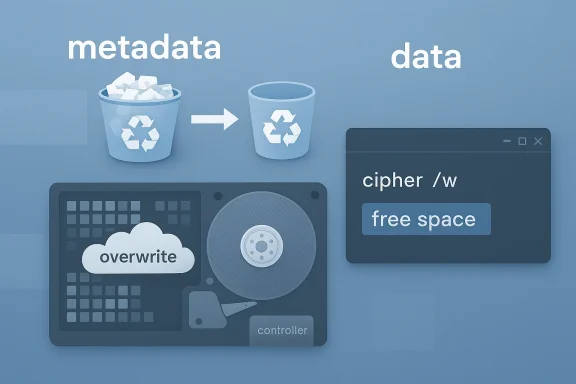
Illustration of copying metadata from a bucket to storage with “overwrite” and “free space” indicators.Deleting Isn’t Erasing on Windows: Why the Recycle Bin Is Only Half the Story​

When you empty the Recycle Bin in Windows 11, you are not necessarily erasing the underlying file data right away. In many cases, the operating system simply marks that space as available, which means recovery tools may still be able to find what you thought was gone. That’s why Microsoft still includes a built-in way to overwrite unused space, and why the difference between deleted and destroyed matters more than most users realize. The practical takeaway is simple: if a file is sensitive, you need to think beyond the trash can.

Background​

The idea that a file “disappears” when you delete it is one of the most persistent myths in personal computing. On Windows, deleting a file typically removes its reference in the file system, while the raw data remains on the disk until something else reuses that space. Microsoft’s own Windows File Recovery documentation says the space used by a deleted file is marked as free, and that the data may still exist and be recoverable until it is overwritten.
That behavior is not a bug. It is a design choice that makes storage operations fast, reduces unnecessary wear, and gives users a chance to recover files accidentally removed. The downside is obvious: a “deleted” file can still be recoverable with the right tools and enough access to the drive. Microsoft’s documentation on Windows File Recovery is blunt about the risk, advising users to minimize or avoid using the computer if they want the best chance of successful recovery, because ordinary activity may overwrite the free space.
This is the backdrop for the MakeUseOf tip making the rounds: Windows has long shipped a command that can overwrite unused disk space and reduce the odds of recovery. That command is cipher, better known for Encrypting File System work, but it also has a /w switch for wiping free space on an NTFS volume. Microsoft’s own command reference lists cipher /w:<directory> as a supported syntax on Windows 11 and Windows 10, and a separate Microsoft troubleshooting article explains that it overwrites deleted data on a volume.
The important nuance is that this is not the same thing as erasing active files. The command targets free space only. That means the scare headline is partly true and partly simplified: emptying the Recycle Bin does not securely erase data, but Windows also does not leave a file magically “present” in the normal sense. It leaves behind remnants until the storage medium is reused or deliberately cleaned.
There is also a bigger historical context. Windows has supported file encryption, file recovery, and disk sanitation tools for many years because enterprise environments needed them long before consumer SSDs became common. The modern conversation is really about how those older assumptions collide with today’s storage realities, especially on flash-based drives where internal controller behavior can make simple overwrite techniques less reliable. Microsoft’s own security guidance on SDelete warns that secure deletion is more complicated on NTFS than on a plain flat block device, and that overwriting patterns are only one piece of the puzzle.

What Windows Actually Does When You Delete a File​

The first thing to understand is that Windows file deletion is usually a metadata operation, not a physical destruction event. When you press Delete, or even when you empty the Recycle Bin, Windows marks the file’s space as available instead of immediately rewriting those sectors. Microsoft explicitly states that the data may still exist and can be recovered, which is why recovery utilities can often bring files back after deletion.
That behavior is normal on modern file systems. It is faster than zeroing out the storage area every time a file is removed, and it avoids turning routine file operations into slow disk-wipe events. It also explains why recovered files can sometimes look intact: the file system entry is gone, but the bytes underneath may still be sitting there until another write operation reuses them.

Why “free space” is not the same as “empty space”​

Free space in Windows means “available for new data,” not “cleaned of all old data.” That distinction matters because recovery software can scan the drive for leftover signatures, fragments, and directory metadata. Microsoft’s Windows File Recovery guidance directly warns that anything you do on the computer can overwrite that free space and reduce recovery odds.
This is why the usual advice after an accidental deletion is to stop using the drive as quickly as possible. Every browser cache write, update, sync operation, and temporary file can consume the very blocks that still hold your deleted document or photo. In other words, the system is not being careless; it is just optimized for performance rather than for immediate irreversible destruction.
  • Delete usually removes the file reference.
  • Empty Recycle Bin usually removes the last user-facing pointer.
  • Overwrite is what makes recovery difficult or impossible.
  • New writes are what eventually bury the old data.
  • TRIM on SSDs can accelerate the disappearance of blocks, but not always in a predictable way.

The user experience creates a false sense of finality​

Windows is designed to make deletion feel decisive, and for most day-to-day use that works fine. The interface removes the visible clutter and the file disappears from Explorer, which is enough for routine productivity. But from a security standpoint, visibility is not the same thing as deletion, and that gap is where data recovery lives.
That gap also explains a lot of consumer confusion. People assume that if a file no longer appears in a folder or in the Recycle Bin, it must have been physically destroyed. In reality, the operating system has often done the minimum necessary work to make the space reusable, not unrecoverable.

What cipher /w Actually Does​

Microsoft’s cipher command is best known as an NTFS and EFS utility, but its /w switch is the part that matters for secure cleanup. The command reference shows cipher /w:<directory> as valid syntax, and Microsoft’s troubleshooting article states that it can be used to overwrite deleted data on a volume.
The point of the command is not to erase files you still need. It overwrites free space on the volume that contains the specified directory, which means it targets residual data left behind by deleted files rather than current user files. That distinction is crucial: the wipe is aimed at what the file system considers unused space.

How the command is usually run​

The command is simple enough that it has become a popular hidden gem in Windows circles. The syntax Microsoft documents is straightforward, and the directory you specify is only used to identify the target volume. In practice, that means you can point it at a folder path and it will clean the free space on the drive that holds that folder.
  • Open an elevated terminal or command prompt.
  • Run cipher /w:<path>
  • Wait for the wipe to finish.
  • Avoid using the machine heavily while it runs.
  • Repeat only when there is a real need, not as a daily habit.
The idea that this is a “command-line secret” is a little overstated, but the command is genuinely underused. Microsoft documents it, yet most consumers never learn about it unless they are researching secure deletion or file recovery. That is why articles like the MakeUseOf piece can feel revelatory even though the functionality has existed for years.

What about the three-pass story?​

The MakeUseOf explanation describes multiple overwrite passes, but Microsoft’s official documentation does not present /w in that level of procedural detail. The safer claim is that it overwrites unused space to make recovery difficult, not that every implementation detail is guaranteed to match a particular folklore description. When a security feature has been around for years, internet explainers often compress or embellish the mechanism.
That does not make the command useless; it makes the distinction between documentation and commentary important. For publication-quality accuracy, the key fact is that cipher /w is a built-in Windows method for overwriting free space on NTFS volumes, not a magical incinerator for every trace of a file.

Why SSDs Change the Security Equation​

The article’s SSD warning is one of the most important parts, because modern storage makes simple deletion advice much less absolute. SSDs use wear leveling and controller-managed remapping, which means the physical location of data is abstracted away from Windows. Microsoft’s own SDelete documentation highlights that secure deletion is more complicated than just overwriting visible blocks, particularly when storage and file-system behavior do not line up perfectly.
That means a free-space wipe can reduce recoverability, but it does not necessarily guarantee the same result across every SSD model and firmware implementation. Some data may live in over-provisioned areas or remapped blocks that Windows cannot directly address. So while cipher /w is a sensible cleanup tool, it is not a substitute for vendor-specific secure erase functions when you are decommissioning a flash drive or handing over a device.

TRIM helps, but it is not a full sanitization plan​

TRIM changes the way SSDs handle deleted space, and that often improves the odds that old data is no longer practically recoverable. But “often” is the operative word. TRIM is a storage management hint, not a universal security guarantee, and it works in the background according to drive firmware and operating system support.
For consumers, that means ordinary deletion may vanish faster on an SSD than on an HDD, but not in a way that should be treated as strong sanitization. For enterprises, it means disk disposal policies should not rely on user habits or general-purpose tools alone. Hardware-specific erase or destruction processes remain the safer policy layer.
  • SSD controllers may relocate data internally.
  • Overwrite tools may not reach every remapped block.
  • TRIM can help, but it is not the same as secure disposal.
  • Vendor utilities can do a better job for retirement workflows.
  • Physical destruction is still the final word for highly sensitive assets.

The endurance issue matters too​

Another reason not to treat cipher /w as routine housekeeping on SSDs is endurance. SSDs have a finite number of write cycles, so hammering them with multi-pass overwrite jobs creates unnecessary wear. Even if one wipe is unlikely to “kill” a healthy drive, repeatedly using a free-space wipe as a hobby is not a wise maintenance practice.
That is the real operational lesson hidden inside the MakeUseOf tip: the command is useful when there is a genuine confidentiality reason, but it is not something you should run casually just because it exists. On SSDs, good security also means respecting the storage medium’s design constraints.

Enterprise vs Consumer: Different Stakes, Same Misconception​

For consumers, the biggest risk is embarrassment, identity exposure, or the accidental recovery of personal content. That includes tax documents, screenshots, downloaded statements, scanned IDs, and the kind of messy folders people assume are private just because they hit Delete. Microsoft’s guidance on Windows File Recovery confirms that deleted data can remain recoverable until overwritten, which is exactly why ordinary users are the main beneficiaries of better deletion hygiene.
For enterprises, the stakes are much higher. A retired laptop, a loaned desktop, or a contractor-returned SSD may still contain sensitive files, cached credentials, or project data. In those cases, secure erase policy is not a nice-to-have; it is a governance requirement that should be tied to asset lifecycle management.

Why policy beats habit​

Individual users can remember to run a command once in a while. Organizations cannot depend on that. A good enterprise policy needs clear steps for reassignment, refurbishment, storage retirement, and disposal, because security controls are only as strong as the weakest offboarding process.
That is why the existence of cipher /w is useful but incomplete. It provides a built-in mechanism for reducing recoverability on a volume, yet it does not replace a documented decommissioning checklist, drive inventory tracking, or SSD vendor erase procedures. Security teams should treat it as one tool in a broader chain of custody.
  • Personal devices need simple, repeatable guidance.
  • Business devices need formal sanitization workflows.
  • Disposal workflows should distinguish HDDs from SSDs.
  • Shared devices should be wiped before reassignment.
  • Compliance teams should verify rather than assume.

The trust problem is really a UX problem​

Windows has long optimized for convenience over explicit data lifecycle visibility. That makes sense for mainstream computing, but it creates a mental model gap for users who think the UI is describing the full security state. A file that has vanished from Explorer may still be recoverable, and a “cleanup” may be cosmetic unless it explicitly overwrites free space.
That is why articles about deletion often feel alarming: they force users to confront the difference between user interface deletion and storage-level destruction. Once you see that distinction, the operating system looks less deceptive and more like what it is — a compromise between speed, usability, and forensic residue.

How This Compares to Dedicated Secure-Deletion Tools​

Microsoft’s own SDelete documentation is a useful counterpoint because it shows the company has long supported a more explicit secure-deletion model through Sysinternals. SDelete can clean free space and securely overwrite files, and its documentation explains that file-system and NTFS behavior can complicate deletion in ways that require specialized handling.
That gives users a choice: a built-in command like cipher /w for straightforward free-space cleansing, or a dedicated utility when they want more control over passes, files, directories, and behavior. The existence of both tools tells you something important about Windows security philosophy: Microsoft expects different classes of user to need different levels of explicitness.

Built-in convenience versus advanced control​

cipher /w wins on accessibility because it is already on the machine and does not require extra downloads. SDelete wins on transparency and control because it exposes more options and documents more of what it is doing. For many users, that difference alone determines adoption.
There is also a trust dimension. Some users prefer Microsoft-native tools because they are already installed and less likely to be blocked by policy or endpoint controls. Others want the stronger reputation of a purpose-built utility that is explicit about its secure-erasure behavior. Both positions are reasonable, depending on the use case.
  • cipher /w is simpler to use.
  • SDelete offers finer-grained options.
  • Both are aimed at reducing recoverability.
  • Neither should be confused with routine file deletion.
  • Neither replaces hardware-aware disposal for highly sensitive data.

Why built-in often beats “best” in the real world​

The best tool on paper is not always the one that gets used. Built-in commands matter because they lower friction, eliminate procurement delays, and reduce the temptation to install random third-party software for a one-time task. That matters especially on managed devices where software approval can be slow.
In other words, the value of Windows’ hidden command is not just technical. It is operational. A native utility only helps if people can actually discover and trust it, and Microsoft’s documentation makes that possible even if it never advertises the feature loudly.

The Recovery Paradox​

What makes this topic so durable is the paradox at its core: Windows deletion helps recovery and harms privacy at the same time. The same design that lets you rescue a mistaken delete also leaves enough behind for forensic or malicious recovery in some situations. Microsoft’s Windows File Recovery guidance essentially admits this tradeoff by telling users not to keep working on the drive if they want the best recovery odds.
That paradox is not unique to Windows, but Windows makes it easy to forget. Because the Recycle Bin feels final enough for daily use, users underestimate the amount of evidence that may remain on the disk afterward. That is why a command like cipher /w exists: it closes the gap between ordinary deletion and the level of cleanup required for privacy-sensitive work.

Security and convenience are pulling in opposite directions​

The Windows file system experience is built around user confidence. You can delete, restore, and reorganize without needing to understand sectors, clusters, or free-space allocation. That is good product design for normal life, but it is also why “secure deletion” has to be a separate concept.
Once you recognize that separation, the rest of the advice becomes easier to evaluate. Don’t assume the Recycle Bin is sanitization. Don’t assume a deleted file is gone. And don’t assume a wipe command is the same across HDDs, SSDs, and mixed storage scenarios.
  • Recycle Bin is a convenience feature.
  • Secure deletion is a different workflow.
  • Recovery tools exploit leftover metadata and free space.
  • SSD architecture makes physical guarantees harder.
  • Lifecycle policy matters more than one-off reactions.

Why the headline lands so hard​

The MakeUseOf angle works because it gives the average user a shocking but useful rule of thumb: if the data matters, deletion alone is not enough. That is a compelling consumer-security message, and it is broadly correct. The headline is just more dramatic than the underlying technical reality, which is messier and more conditional.
The real lesson is not that Windows is broken. It is that modern file systems were optimized for speed, recoverability, and hardware abstraction long before casual data privacy became a daily concern. Secure deletion is therefore a deliberate extra step, not the default state of the platform.

Practical Guidance for Windows 11 Users​

If your goal is to reduce the chance of deleted data being recovered, the first step is to identify what kind of storage you are working with. For an older spinning hard drive, overwriting free space can be effective and is aligned with how file systems expose unused sectors. For an SSD, you need to be more cautious and may want to rely on vendor erase tools when the device is being retired.
If you are just trying to remove everyday clutter, you do not need to run a wipe command. The Recycle Bin and normal deletion are fine for most cases, and Windows’ own design assumes that accidental recovery is a feature, not a flaw. Save secure wiping for moments when confidentiality actually matters.

A sane decision tree​

The easiest way to think about it is to separate ordinary housekeeping from sensitive data handling. If the file was a browser cache, temporary export, or duplicate photo, standard deletion is enough. If the file contains personal records, finance data, medical scans, or work secrets, the deletion policy should be stronger.
  • Delete normally for low-risk clutter.
  • Empty the Recycle Bin when you want space back.
  • Stop using the drive if you need to recover a file.
  • Use recovery tools only when restoration is the goal.
  • Use cipher /w or a secure-erase workflow when confidentiality is the goal.

What not to do​

Do not confuse “secure” with “annoying.” A slow wipe is not automatically a better wipe. On SSDs, repeated overwrite passes can create wear without guaranteeing comprehensive sanitization of every internal remapped location. That is why storage-aware policy matters more than old-school intuition.
Also, do not make cipher /w a routine maintenance ritual. Running it occasionally for a real purpose is reasonable. Running it on autopilot just because it sounds protective is a poor tradeoff between time, wear, and operational complexity.
  • Use the right tool for the right drive.
  • Match the method to the data sensitivity.
  • Avoid unnecessary write-heavy maintenance on SSDs.
  • Treat disposal differently from day-to-day cleanup.
  • Verify vendor guidance before decommissioning hardware.

Strengths and Opportunities​

The best thing about this Windows command is that it gives users a native path to a problem that many people have only associated with paid utilities. It also helps close a major misunderstanding about what deletion actually means on modern storage. More importantly, it encourages better personal and enterprise hygiene without requiring extra software.
  • Built into Windows, so there is no download friction.
  • Useful for privacy-sensitive cleanup on conventional drives.
  • Backed by Microsoft documentation, which strengthens trust.
  • Helps educate users about deletion versus secure erase.
  • Can be used selectively, rather than as a daily maintenance task.
  • Works well as part of disposal workflows for older HDD-based systems.
  • Supports better security habits without adding complexity.

Risks and Concerns​

The biggest concern is overconfidence. Users may assume that any command labeled as a wipe is absolute, when in reality the effectiveness depends on the storage type, file-system behavior, and how the drive manages writes internally. That is especially risky on SSDs, where controller behavior can complicate host-side assumptions.
There is also a performance and wear concern if the command is used too frequently. Because it writes to free space, it can temporarily slow the machine and generate extra writes on flash storage. That makes it a poor candidate for routine “cleaning” unless there is a real confidentiality need.
  • SSD sanitization is not as straightforward as HDD cleanup.
  • Free-space wiping is not a guarantee against all recovery methods.
  • Frequent use can waste time and write cycles.
  • Users may misread the command’s scope and overtrust it.
  • Enterprise disposal needs more than one command.
  • Recovery and security goals can conflict, so the intent must be clear.

The misleading comfort of technical jargon​

“Overwrite” sounds final, and command-line tools can make that finality feel stronger than it is. But secure deletion lives in a world of file systems, controllers, logs, caches, and internal remapping. The more technical the language gets, the easier it is to assume certainty where only reduction exists.
That is why the safest editorial takeaway is cautious rather than absolutist. cipher /w is a useful built-in tool. It is not a universal eraser, and it should not be described as one.

Looking Ahead​

Windows is likely to keep supporting this kind of functionality because the tension it addresses is permanent. As long as file systems optimize for speed and convenience, there will be a need for separate tools that turn “free space” into something much closer to “unrecoverable space.” That need becomes even more obvious as people mix SSDs, cloud sync, local caches, and shared devices.
The more interesting question is whether Microsoft will surface these tools more clearly in the future. Right now, a lot of users discover cipher /w through articles, forum posts, or security guides rather than through Windows itself. A better user-facing story around secure deletion could reduce confusion and make the right behavior easier to follow.

What to watch next​

  • Whether Microsoft improves documentation and discoverability for secure deletion tools.
  • How SSD vendor utilities evolve around disposal and sanitization.
  • Whether Windows security guidance becomes more explicit about free space, recovery, and TRIM.
  • How enterprises codify decommissioning workflows for mixed-drive fleets.
  • Whether consumer-facing cleanup tools start distinguishing between housekeeping and secure erasure more clearly.
The deeper story here is not really about one command at all. It is about how Windows balances speed, convenience, and recoverability, and how that balance leaves room for misunderstanding until users learn the difference between deleting data and making it unrecoverable. Once you understand that distinction, the command stops sounding like a trick and starts looking like what it really is: a practical reminder that storage hygiene is a process, not a button.

Source: MakeUseOf Windows 11 doesn't really delete files until you run this command
 

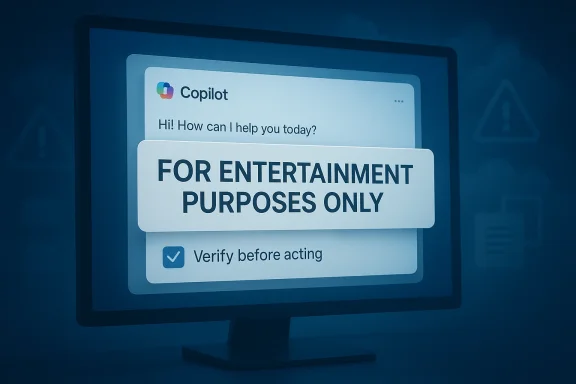
Microsoft’s Copilot terms have done something that many AI vendors still hesitate to do plainly: they say the quiet part out loud. Buried in the consumer terms is a warning that Copilot is for entertainment purposes only, may make mistakes, and should not be trusted for important advice. That wording has resurfaced because it cuts through the marketing gloss around AI assistants and puts the burden back on the user, where it arguably belongs. The result is a timely reminder that even Microsoft’s own AI pitch comes with a built-in trust warning.

A digital visualization related to the article topic.Overview​

Microsoft’s latest consumer Copilot terms, effective October 24, 2025, are not a sudden confession so much as a formalization of what the company has been saying in other places for some time. The wording is blunt, but the legal posture is familiar: AI output is probabilistic, can fail, and requires human judgment before it is treated as fact. Microsoft’s own transparency note says Copilot can make mistakes and explicitly encourages users to double-check facts before acting on its responses.
That distinction matters because Copilot now sits in a very different place than the toy-chatbot category many people still imagine. It is embedded in consumer subscriptions, offered across apps, and marketed as a productivity companion, which makes the “entertainment purposes only” phrasing sound jarring at first glance. But from Microsoft’s perspective, the warning is less about mocking the product and more about limiting liability while setting realistic expectations.
The wider significance is that Microsoft is acknowledging a basic truth of generative AI: helpful and trustworthy are not the same thing. A system can draft an email, summarize a document, or brainstorm ideas while still being unreliable on factual questions, legal consequences, financial decisions, or medical guidance. Microsoft’s own support guidance says users should check information from Copilot before making decisions or acting on it.
There is also a broader industry pattern here. Anthropic has similarly drawn hard lines around usage and liability in some regions and plans, and its terms have been read by users as a reminder that “professional” AI products still carry significant restrictions. The common denominator is not simply caution, but a recognition that AI vendors are trying to sell usefulness without promising correctness.

Why the wording matters​

The phrase “for entertainment purposes only” has become the headline-grabber because it sounds almost insulting when attached to a flagship AI assistant. Yet in legal and product terms, it performs a useful function: it prevents users from assuming the output has the reliability of a reference work, calculator, or regulated professional service. That may be awkward marketing, but it is honest product positioning.
What makes the wording especially interesting is the contrast with how Copilot is marketed elsewhere. Microsoft’s consumer pages present Copilot as a personal AI companion and bundle it into Microsoft 365 subscriptions, while the terms quietly insist that the user still needs to exercise judgment. That gap between brand language and legal language reflects the tension at the heart of modern AI products.

The liability reality​

The legal warning is not just a disclaimer; it is an admission of operational limits. Microsoft says it does not guarantee Copilot will operate as intended, notes that it may include advertising, and warns that some actions taken through Copilot remain the user’s responsibility. In plain English, that means the assistant can help, but the consequences still belong to you.
That structure is familiar across the AI market because vendors want the benefits of broad consumer adoption without exposing themselves to the fallout from wrong answers. The strongest warnings therefore tend to appear where the vendor most wants to avoid being treated like a professional adviser. That is not a sign of strength or weakness by itself; it is a sign that the technology is still being fenced off from high-stakes reliance.
  • The warning is a liability shield as much as a user notice.
  • It discourages blind reliance on generated answers.
  • It helps define Copilot as a general assistant, not a certified authority.
  • It reflects the reality that probabilistic systems can fail.
  • It places decision-making responsibility back on the user.

The Microsoft messaging problem​

Microsoft has spent years trying to position Copilot as a transformative productivity layer, but its own cautionary language keeps puncturing the fantasy that AI has become a dependable decision engine. The company’s transparency note says the models are probabilistic and can make mistakes, and its support pages explicitly tell users to verify facts before acting. That is a sensible stance, but it also exposes the gap between aspiration and operational maturity.
This is a classic platform problem. If the product message is “this will help you do more,” then the product disclaimer must also say “but not too much, and not without checking.” Microsoft can live with that contradiction because its customers increasingly expect it, but the contradiction still weakens the aura of effortless intelligence that AI vendors try to project.

Consumer trust versus product hype​

For consumers, the risk is not just bad answers but misplaced confidence. An assistant that sounds fluent and decisive can be more dangerous than one that obviously struggles, because users may not notice when it has crossed from summarizing to inventing. Microsoft’s own documentation repeatedly tries to slow that behavior down by advising human review.
That approach is wise, but it does create an awkward user experience. If the assistant is constantly framed as useful yet unreliable, the product becomes something you consult rather than trust. That may be enough for casual use, but it is a harder sell when Microsoft wants Copilot to be woven into the daily workflow of personal productivity.
  • Trust is central to adoption, but trustworthiness remains uneven.
  • The more fluent the model, the more likely users are to overestimate accuracy.
  • Microsoft’s own guidance encourages verification over assumption.
  • Consumer marketing and legal disclaimers are moving in different directions.
  • The product is useful, but the burden of judgment still sits with the user.

Enterprise versus consumer Copilot​

The consumer version of Copilot is the one drawing the current attention, but the larger business impact lies in the enterprise ecosystem around Microsoft 365 Copilot. Microsoft’s transparency note and support material make clear that the company wants customers to understand the system’s limitations, especially where sensitive data, compliance, and decision support are involved. That is not a cosmetic caution; it is a reminder that enterprise adoption depends on governance as much as features.
Consumer users may treat Copilot as a convenient chatbot for writing, planning, or exploring ideas. Enterprises, by contrast, have to consider records retention, regulated data, access controls, and the risk that a plausible but wrong answer could influence a business decision. Microsoft’s compliance and readiness guidance underscores that the product must be deployed with controls, not just enthusiasm.

Different stakes, different expectations​

In the consumer world, a mistake might be mildly embarrassing or merely inconvenient. In the enterprise world, a mistake can become a policy failure, a customer issue, or an audit problem. That means the same model behavior can be tolerated in one setting and unacceptable in another, even if the interface looks identical.
That is why the warning language is more than legal boilerplate. It helps separate casual, low-risk use from workflows where Copilot output must be treated as draft material rather than authoritative output. In effect, Microsoft is telling businesses that Copilot is a force multiplier, not an oracle.
  • Consumer use tolerates convenience errors better than enterprise use.
  • Enterprise deployment needs policy, auditability, and oversight.
  • Copilot output should be treated as draft content, not final truth.
  • High-stakes environments require controls beyond the chat box.
  • The same tool can be acceptable in one context and risky in another.

The competition is making the same bet​

Microsoft is not alone in warning users to be careful. Anthropic’s published terms and regional restrictions show a similar pattern: use limits, liability limits, and hard boundaries around what the product is for and who may use it. Even if the wording differs, the strategic logic is the same — sell AI as useful while preserving the right to say the user should not depend on it.
This matters because the AI market is no longer competing purely on model quality. It is competing on distribution, trust signals, brand safety, and how much risk the vendor is willing to absorb. When a major player like Microsoft publicly says “don’t rely on Copilot for important advice,” it normalizes a market-wide understanding that AI is still not a substitute for human responsibility.

Why rivals should care​

The competitive implication is subtle but important. If Microsoft can pair AI ubiquity with blunt warnings and still maintain adoption, other vendors may feel freer to do the same. That lowers the pressure to overpromise and may even make the market healthier, because users get more realistic expectations up front.
At the same time, the warnings can also become a feature of brand differentiation. Vendors that can credibly claim stronger guardrails, clearer governance, or better factual reliability may gain ground with cautious customers. In that sense, the disclaimers are not just defensive; they are part of the competitive architecture of AI products.
  • The AI market is competing on trust and governance, not just model quality.
  • Clear disclaimers may actually increase adoption by reducing false expectations.
  • Stronger guardrails can become a competitive advantage.
  • Vendor caution may help normalize human-in-the-loop workflows.
  • The race is increasingly about how safely AI is deployed, not just how impressively it talks.

The risk of anthropomorphizing assistants​

One of the more useful side effects of this controversy is that it pushes back against the habit of treating AI assistants like reliable digital companions. Microsoft’s wording makes clear that Copilot is a tool, not a counselor, friend, or expert witness. That sounds obvious, but product branding often blurs the line until the warnings become necessary again.
This matters because users often calibrate trust emotionally rather than technically. If the assistant sounds confident, uses natural language well, and remembers context, people will often infer competence where there may only be fluency. That is why Microsoft’s own guidance to check facts is so important: it is trying to interrupt a very human cognitive shortcut.

When helpful becomes hazardous​

The danger is not merely that Copilot can be wrong. The deeper problem is that it can be wrong in ways that appear polished, specific, and operationally plausible. A false answer written in a professional tone can be more persuasive than an obviously uncertain one, which is why AI safety messaging increasingly focuses on verification behavior.
That dynamic is particularly dangerous in areas like health, finance, employment, and legal analysis, where a good-sounding answer can cause real harm. Microsoft’s warnings do not solve that problem, but they at least acknowledge it. In a market full of polished demos, acknowledgment is a meaningful step.
  • Fluency is not the same as accuracy.
  • Users often trust systems that sound confident and coherent.
  • AI output can be persuasive even when it is wrong.
  • Verification is especially important in high-stakes domains.
  • Human judgment remains the essential safety layer.

What the Terms suggest about Microsoft’s strategy​

Microsoft’s consumer terms also hint at a broader strategy: keep Copilot broad, keep the legal disclaimers clear, and keep the user experience friction low enough that people still use it. The company wants enough caution to protect itself, but not so much that the assistant feels unusable. That balance is delicate, and the “entertainment” language is one way of walking the line.
It is also notable that Microsoft’s consumer terms have been revised and reorganized, with specific references to Copilot Actions, Copilot Labs, shopping experiences, and code of conduct concerns. That suggests the company is still actively shaping the product boundary as the feature set expands. The disclaimer is therefore not a one-off warning; it is part of a living governance model.

Governance as a product feature​

That governance model matters because Copilot is increasingly expected to do more than chat. As it expands into actions, shopping, and app-integrated assistance, the consequences of mistakes become more concrete. A typo in a draft is one thing; an incorrect action taken on the user’s behalf is another.
Microsoft’s choice to keep stressing responsibility suggests it knows the product’s center of gravity is shifting. The more action-oriented the assistant becomes, the less room there is for vague optimism. For users, that is a cue to treat Copilot as a capable interface layer rather than a trusted executive.
  • Copilot is moving from chat to action.
  • More capability means more exposure to errors.
  • Microsoft is using terms and transparency notes as governance tools.
  • The product boundary is still evolving.
  • Users should expect more features, but not more certainty.

Strengths and Opportunities​

The strongest argument for Microsoft’s approach is that it is unusually candid for a consumer AI product. Instead of pretending Copilot is infallible, Microsoft says plainly that it can make mistakes and should not be used as important advice. That honesty can improve long-term trust, even if it briefly undermines the polished image of AI magic.
There is also a real opportunity here for better AI literacy. If millions of users encounter a warning that encourages verification, the market may become less susceptible to hype and more comfortable with responsible use. That would be a healthy correction for an industry that still too often conflates impressive with reliable.
  • Microsoft is being more explicit than many competitors.
  • Clear warnings can support better user behavior.
  • The product still has strong value for drafting and brainstorming.
  • Stronger transparency may improve enterprise confidence.
  • The terms can help set realistic expectations for mainstream users.
  • Governance language may reduce the chance of overreliance.
  • Honest disclaimers can make the ecosystem more sustainable.

Risks and Concerns​

The biggest risk is that the disclaimer becomes a shield against accountability rather than a genuine guide to safe use. If users are told not to trust Copilot, but the product is still pushed into increasingly consequential workflows, the company may be creating a mismatch between product promise and product reality. That is a recipe for confusion, even if the legal language is airtight.
There is also the risk of normalization. If every AI vendor says “don’t rely on us,” users may stop reading the warning entirely, which defeats the purpose. Once that happens, the market slips back into the old pattern of enthusiastic adoption followed by expensive cleanup.
  • Overuse may outpace user caution.
  • Warnings can become background noise.
  • Marketing may still encourage excessive trust.
  • Wrong answers can cause real harm in medical, legal, or financial contexts.
  • Enterprise users may assume governance is stronger than it really is.
  • Public confidence in AI can erode if mistakes are too visible.
  • Liability language does not solve the accuracy problem.

Looking Ahead​

The next phase of the Copilot story will be less about whether Microsoft admits AI can be wrong and more about how well it manages that fact in practice. If the assistant keeps expanding into tasks that look operational rather than conversational, Microsoft will need stronger safeguards, clearer UX cues, and better workflow boundaries. The disclaimer is important, but it is only the first layer of defense.
For consumers, the lesson is straightforward: Copilot can be useful, but it should be treated as a starting point, not a final authority. For enterprises, the lesson is sharper: productivity gains are real, but only if they are paired with controls, validation, and accountability. In both cases, the winning posture is assisted judgment, not delegation.
  • Watch for new Copilot features that increase autonomy.
  • Expect more emphasis on human verification in product messaging.
  • Track whether Microsoft changes the wording again as features evolve.
  • Monitor enterprise guidance around compliance and data handling.
  • Pay attention to how rivals frame their own trust and liability language.
The real story here is not that Microsoft “caught” Copilot being untrustworthy. It is that the company has now made explicit what the whole industry already knows: AI assistants are useful precisely because they are not fully reliable. The mature response is not to abandon them, but to stop pretending that fluency equals truth.

Source: theregister.com Even Microsoft know Copilot can't be trusted
 

Back
Top