

Enterprise IT teams and power users managing Windows 11 fleets now have multiple, repeatable ways to reach a PC’s firmware settings — from in‑OS advanced startup flows and a one‑line shutdown command to the traditional hotkey windows that manufacturers still expose at POST — and building a clear, documented process for doing so is essential for security, compliance and troubleshooting. As a practical how‑to with governance context, this article unpacks the four common access paths to UEFI/BIOS on Windows 11 machines, explains the security and management implications, lists the most common vendor hotkeys and troubleshooting tips, and offers a short playbook IT can adopt to keep firmware configuration consistent across distributed endpoints. The roadmap below synthesizes the original TechTarget how‑to with authoritative technical detail and vendor guidance.
Modern business PCs boot with firmware that conforms to the Unified Extensible Firmware Interface (UEFI) standard rather than legacy BIOS. UEFI replaces many of the old BIOS limitations and provides a richer pre‑boot environment, Secure Boot controls and a standardized way to expose firmware‑level security features to the operating system. Windows 11 explicitly requires UEFI firmware and a Secure Boot‑capable platform as part of its minimum hardware requirements, and Microsoft also requires a Trusted Platform Module (TPM) version 2.0 on supported devices. These requirements are firm and documented by Microsoft. Intel and other platform vendors have moved the industry further toward UEFI by deprecating legacy BIOS/CSM support on modern platforms; Intel published guidance and advisories about removing legacy (CSM) support on new platforms and shifted platform validation toward UEFI‑only configurations in recent product generations. For IT teams that still encounter older devices, this transition matters: some features and boot flows used on legacy BIOS systems are no longer supported on many modern Intel systems. Why this matters for enterprise IT
Steps (summary):
Common behaviors:
This article synthesizes the TechTarget step‑by‑step guidance on hotkeys and Windows 11 firmware access with official vendor and Microsoft documentation to provide a practical, repeatable playbook for IT teams.
Source: TechTarget How to access Windows 11 BIOS configuration with hotkeys | TechTarget
 Background / Overview
Modern business PCs boot with firmware that conforms to the Unified Extensible Firmware Interface (UEFI) standard rather than legacy BIOS. UEFI replaces many of the old BIOS limitations and provides a richer pre‑boot environment, Secure Boot controls and a standardized way to expose firmware‑level security features to the operating system. Windows 11 explicitly requires UEFI firmware and a Secure Boot‑capable platform as part of its minimum hardware requirements, and Microsoft also requires a Trusted Platform Module (TPM) version 2.0 on supported devices. These requirements are firm and documented by Microsoft. Intel and other platform vendors have moved the industry further toward UEFI by deprecating legacy BIOS/CSM support on modern platforms; Intel published guidance and advisories about removing legacy (CSM) support on new platforms and shifted platform validation toward UEFI‑only configurations in recent product generations. For IT teams that still encounter older devices, this transition matters: some features and boot flows used on legacy BIOS systems are no longer supported on many modern Intel systems. Why this matters for enterprise IT- Firmware settings control critical features that affect the OS and platform security: Secure Boot, TPM enabling/provisioning, virtualization extensions, and boot device selection.
- Inconsistent firmware configuration is a governance risk: drift across devices can break compliance controls (BitLocker, Device Guard) and complicate remote troubleshooting.
- IT needs standardized, auditable procedures to enter firmware, make changes, and verify settings across model families and vendors.
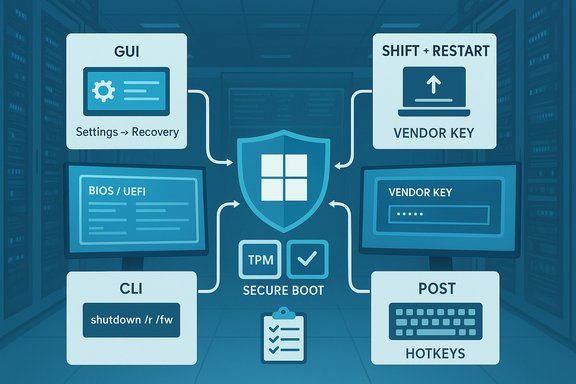
Four reliable ways to access UEFI/firmware on a Windows 11 PC
Windows 11 exposes multiple, supported routes to get into the firmware interface. Use whichever is most practical for the situation — in‑OS workflows for attended endpoints, command‑line or scripted flows for automation, and hotkeys for machines that can’t boot into Windows.1) From Windows Settings → Advanced startup (GUI)
This is the most obvious path for an end user or desktop admin working at the device.Steps (summary):
- Open Settings → System → Recovery.
- Under Advanced startup, click Restart now.
- When WinRE loads, choose Troubleshoot → Advanced options → UEFI Firmware Settings → Restart.
2) Shift + Restart (shortcut to Advanced startup)
If you want the same WinRE path but don’t want to navigate Settings, hold Shift while clicking Restart from the Windows Start menu power options. This launches the same Advanced startup environment and leads to Troubleshoot → Advanced options → UEFI Firmware Settings → Restart. It’s faster for power users and support staff who can talk a user through the single action remotely.3) Command line: shutdown to firmware (scriptable)
For scripted or remote workflows, Windows includes a built‑in switch in the shutdown command that tells the platform to restart into firmware on the next boot.- Typical command:
shutdown /r /fw /t 0
- /r — restart after shutdown
- /fw — instructs Windows to boot into the firmware interface on next boot
- /t 0 — zero seconds delay before action
4) Hotkey at POST (vendor/location specific)
The traditional method — pressing a manufacturer key during POST — still works for most desktops and many laptops. Hotkeys let you get into the firmware without Windows at all, which is crucial when the OS won’t boot.Common behaviors:
- You must press the key (or repeat it) while the vendor logo is visible. Timing windows are often tight.
- Some systems require holding a key while powering on; others require repeated tapping.
- Key assignments vary by vendor and model; never assume a single universal key.
Vendor hotkeys: practical cheat‑sheet (enterprise ready)
The following list covers typical keys on many current consumer and business lines. Because manufacturers change mappings by model, use this as a quick reference and keep vendor support pages or your machine inventory notes at hand.- Acer: F2 (notebooks), Del (desktops).
- Asus: F2 (many notebooks); Del on some older desktops.
- Dell: F2 to enter Setup; F12 often opens a one‑time boot menu.
- HP: Esc then F10 (press Esc at logo, then F10 for BIOS); some models allow F10 directly.
- Lenovo: F1 on some ThinkPads; many consumer models use F2 or Enter repeated.
- Surface (Microsoft): Hold Volume Up then press Power to enter UEFI.
- MSI: Delete (common on gaming desktops).
- Samsung / Toshiba: F2 (common on laptops).
- For locked corporate images, function keys may be remapped; confirm Fn lock state or test with an external USB keyboard when troubleshooting.
- Wireless keyboards may not register at POST; use a wired USB keyboard for firmware access in those cases.
Managing firmware access at scale: governance, automation and risks
Getting into UEFI is only half the story for enterprise IT. The follow‑through — how you change settings, record them, and enforce baselines — is what reduces drift and security exposure.Why a standard process is essential
- Security baseline enforcement — Secure Boot, TPM provisioning and virtualization settings must be set consistently to meet corporate compliance mandates (e.g., BitLocker key storage, Windows security baselines).
- Auditability — You need to prove devices are configured to policy; human ad‑hoc changes are hard to track.
- Recoverability and troubleshooting — When firmware settings are standardized, remote remediation and imaging are predictable.
Recommended practices
- Document model‑specific instructions in your IT knowledge base: hotkeys, UI screenshots, and locations of the Secure Boot/TPM toggles.
- Automate where possible: use remote management (Intel vPro AMT, vendor management tools) or orchestrated shutdown commands (shutdown /r /fw) from management servers to enter UEFI during maintenance windows.
- Use vendor management APIs and MDM profiles: Many OEMs expose firmware configuration and inventory APIs (or SCCM/Intune integration) for enterprise control; use them to scale configuration management.
- Harden access: enforce role separation when granting firmware password protections and avoid widely distributing firmware passwords in plain text.
Risks and mitigation
- Tampering: allowing unrestricted physical access to UEFI settings creates an attack surface; apply firmware passwords and physical security where appropriate.
- Human error: incorrect boot order or disabled security features can brick devices or expose data — use change control and backups before making firmware changes.
- Unsupported changes: toggling legacy/CSM settings or downgrading UEFI modes on validated platforms can break OEM update paths — validate on a lab device first.
Practical how‑to: step‑by‑step examples for common tasks
Example A — Entering UEFI to enable TPM and Secure Boot (GUI)
- Confirm OS recognizes the platform: Run tpm.msc and msinfo32 → check TPM and BIOS Mode.
- From Windows: Settings → System → Recovery → Advanced startup → Restart now.
- WinRE: Troubleshoot → Advanced options → UEFI Firmware Settings → Restart.
- In UEFI: Find Security → TPM/TPM Device → Enable / Activate; Boot → Secure Boot → set to Enabled (or Microsoft only).
- Save and Exit.
Example B — Scripted approach (remote maintenance window)
- From an elevated remote shell or management job:
shutdown /r /fw /t 0 - Once you have console/remote KVM access to the device’s pre‑boot console, apply required firmware changes.
- Reboot and verify in Windows with msinfo32 and tpm.msc.
Troubleshooting: when firmware access fails
Common failure scenarios and fix suggestions:- Hotkey doesn’t work:
- Use a wired USB keyboard (wireless/hid devices can be invisible at POST).
- Mind Fn / FnLock states — on some laptops the function keys require Fn to be toggled.
- Try repeated tapping instead of holding, or hold the key before pressing power depending on the vendor.
- Advanced startup won’t reach WinRE:
- WinRE can be corrupted or disabled. Use install media or the shutdown /r /o option to access recovery.
- If WinRE is unreliable, use the shutdown /r /fw /t 0 trick or boot from official installation media.
- Device doesn’t show TPM or Secure Boot:
- Some OEMs support firmware TPM (fTPM) or Intel PTT; the item may be called fTPM, PTT, or TPM in UEFI UI. Vendor guidance lists exact names.
- For MBR/legacy disk layout, Secure Boot may be unavailable; conversion to GPT using supported tools (MBR2GPT) is the supported path. Always backup first.
Checklist for IT teams before touching firmware
- Inventory and map: record make, model, firmware version and current UEFI settings (Secure Boot, TPM, Boot Mode).
- Backup: image critical devices and ensure BitLocker keys are escrowed or suspended when modifying boot configuration.
- Test: validate changes on a small set of machines representing each hardware family.
- Document: capture exact UEFI menu paths (screenshots help) and any vendor differences.
- Automate and audit: use scripts for entry (shutdown /r /fw) and MDM/vendor APIs where available; log and review all firmware changes.
Notable strengths and potential risks (critical analysis)
Strengths of the current model- UEFI + TPM + Secure Boot materially raises the platform security baseline and simplifies enforcement of disk encryption and virtualization‑based protections.
- Multiple supported ways to access firmware (GUI, keyboard, command) provide operational flexibility for remediation and automation.
- Industry push away from legacy BIOS reduces complexity: modern platforms are more uniform in how they expose security features.
- The fragmentation of UEFI UIs between vendors makes automated "one UI fits all" firmware changes impossible without vendor management tools; manual steps remain necessary for many settings.
- Legacy systems without TPM 2.0 or UEFI require special handling; pushing such systems to Windows 11 can lead to unsupported configurations or brittle workarounds.
- Physical access remains a fundamental threat. Firmware passwords and hardware controls are necessary to prevent local tampering.
- It’s often repeated that “Intel announced replacing BIOS with UEFI by 2020.” Intel did publish advisories and platform guidance deprecating legacy boot and CSM on recent platforms and has moved platform validation toward UEFI‑only models since 2020; vendors and OEM product lines reflect that change. This is a platform trend rather than a single hard cutover, and vendor documentation is the authoritative source for each product family.
Quick reference: commands and sequences
- GUI (Settings): Settings → System → Recovery → Advanced startup → Restart now → Troubleshoot → Advanced options → UEFI Firmware Settings → Restart.
- Shift + Restart: Hold Shift → Restart → Troubleshoot → Advanced options → UEFI Firmware Settings → Restart.
- Command line (immediate): shutdown /r /fw /t 0. (Microsoft shutdown command documents /fw parameter.
- POST hotkeys: Esc / Del / F1 / F2 / F10 / F12 depending on vendor — consult OEM support pages for specifics.
- Surface UEFI entry: Hold Volume Up and press Power while powered off to launch Surface UEFI.
Conclusion
Accessing and managing firmware settings on Windows 11 endpoints is no longer a niche technician task; it’s a governance and security control that needs consistent, documented procedures. Use the in‑OS Advanced startup path for helpdesk and user‑facing flows, rely on shutdown /r /fw for scripted and remote processes, and preserve the POST hotkey approach for pre‑boot troubleshooting or when the OS is unavailable. Combine these access methods with a measured governance plan — inventory, backups, vendor‑specific documentation and automation where possible — and firms will reduce drift, strengthen their secure‑boot posture, and shorten time‑to‑remediation during firmware‑level incidents. The technician’s toolkit is simple; the discipline is in the process.This article synthesizes the TechTarget step‑by‑step guidance on hotkeys and Windows 11 firmware access with official vendor and Microsoft documentation to provide a practical, repeatable playbook for IT teams.
Source: TechTarget How to access Windows 11 BIOS configuration with hotkeys | TechTarget
