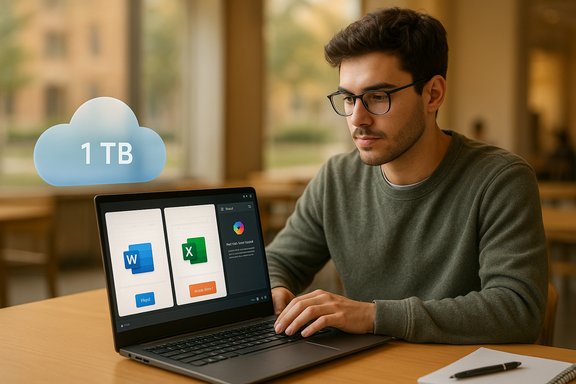
Microsoft’s latest student push makes a high-value productivity stack available to eligible college students at no cost for a full year: a free, 12‑month Microsoft 365 Personal subscription that includes Copilot’s AI features, 1 TB of OneDrive storage, and the desktop and web Office apps — but the details matter, deadlines differ in reporting, and students must verify eligibility, manage renewal settings, and protect sensitive data when using AI tools.
Microsoft announced a targeted education initiative that bundles Copilot‑enabled productivity into a free, 12‑month Microsoft 365 Personal subscription for verified college students in select markets. The company’s student landing page highlights the “Study smarter with Copilot and Microsoft 365” promotion and provides a live “Redeem free offer” flow where eligible students can confirm details for their market. Independent reporting and how‑to guides picked up the story and added practical step‑by‑step instructions and clarifications: reputable outlets confirm the core headline (a 12‑month Personal subscription with Copilot and 1 TB OneDrive for eligible students in the United States, the United Kingdom and Canada), but reporting differs on the exact claim deadline — some outlets cite October 31, 2025 for the U.S. while others report a November 30, 2025 cutoff. Because Microsoft’s live sign‑up UI is the definitive source for region‑specific deadlines, students should check the Microsoft Copilot student page during redemption.
Strengths of the offer for students:
Do not rely on secondary summaries for the redemption deadline — check Microsoft’s live Copilot for Students sign‑up flow during redemption and keep screenshots of success confirmation for your records. If you have sensitive research, consult campus IT before using consumer Copilot on that material. Used thoughtfully, this free year is a pragmatic, high‑value trial that can accelerate both your coursework and AI literacy; used carelessly, it can create privacy, billing, or academic integrity headaches.
Conclusion
Microsoft’s student promotion opens a generous window for eligible college students to experiment with AI‑augmented productivity across Word, Excel, PowerPoint and Outlook without immediate cost. The practical upside is large — an entire year of Copilot‑enabled Microsoft 365 Personal plus 1 TB of OneDrive — but the administrative and policy caveats are nontrivial: manage renewals, respect academic integrity, opt out of training if required, and verify the live sign‑up details for your region. Redeem if you qualify, protect your privacy, and use the year to build real skills with AI‑enhanced productivity tools.
Source: Analytics Insight How to Get Microsoft 365 Personal With Copilot Free for One Year
 Background
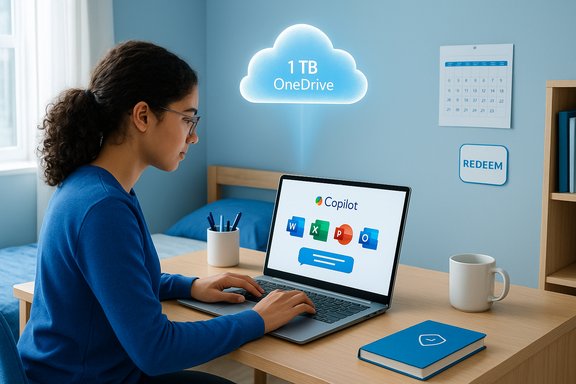
Microsoft announced a targeted education initiative that bundles Copilot‑enabled productivity into a free, 12‑month Microsoft 365 Personal subscription for verified college students in select markets. The company’s student landing page highlights the “Study smarter with Copilot and Microsoft 365” promotion and provides a live “Redeem free offer” flow where eligible students can confirm details for their market. Independent reporting and how‑to guides picked up the story and added practical step‑by‑step instructions and clarifications: reputable outlets confirm the core headline (a 12‑month Personal subscription with Copilot and 1 TB OneDrive for eligible students in the United States, the United Kingdom and Canada), but reporting differs on the exact claim deadline — some outlets cite October 31, 2025 for the U.S. while others report a November 30, 2025 cutoff. Because Microsoft’s live sign‑up UI is the definitive source for region‑specific deadlines, students should check the Microsoft Copilot student page during redemption. What the free year includes — verified
The promotional student subscription mirrors the consumer Microsoft 365 Personal plan and adds Copilot where supported. Core inclusions you can expect after successful redemption are:- Microsoft 365 Personal subscription for 12 months (one user).
- Copilot integrated across supported Office apps (Word, Excel, PowerPoint, Outlook, OneNote and the Copilot app) with in‑app assistance for drafting, summarization, slide generation, and exploratory data analysis. Feature availability is platform and region dependent.
- 1 TB (1,000 GB) of OneDrive cloud storage tied to the Personal seat.
- Access to consumer creative/utility extras bundled with Personal (Designer, Clipchamp enhancements, Microsoft Defender consumer protections where included).
Who is eligible — the fine print (what students must know)
Eligibility standards are tight but broadly consistent across Microsoft messaging and independent coverage:- Must be a currently enrolled college or university student (undergraduate or postgraduate) at an accredited institution that Microsoft recognizes as valid for education promotions. Community‑college students are typically included if they can verify enrollment.
- Verification may accept a valid school email (for example .edu or institution domain), student ID, class schedule, acceptance letter, or other dated institutional documentation. The exact items accepted are shown in the live verification flow.
- The promotion is available only in the United States, the United Kingdom and Canada — again check the live Microsoft Copilot for Students landing page for the definitive availability statement in your market.
Step‑by‑step: how to claim the free year (practical checklist)
This is the practical flow to claim Microsoft 365 Personal with Copilot based on Microsoft’s sign‑up UI and verified how‑to reporting:- Open a browser and go to Microsoft’s Copilot for Students / AI for Students landing page and find the “Study smarter with Copilot and Microsoft 365” section.
- Click the Redeem free offer or Redeem now button and sign in with the Microsoft account you want to use (Outlook/Hotmail/Live/personal Microsoft account). If you don’t have an account, create one ahead of time.
- Complete the academic verification flow: use your school email for instant verification if supported, or upload proof documents (student ID, schedule, acceptance letter). Have clear scans or screenshots ready in case instant verification fails.
- Follow the activation/confirmation steps shown and watch for a confirmation email (Microsoft typically communicates activation instructions within 24 hours, but high demand can introduce delays up to 24–48 hours). Check spam/junk folders.
- If the sign‑up flow requests a payment method (common for promotional flows to enable auto‑renew), add it only if you plan to keep the service or as required — but immediately inspect the renewal price and cancellation policy. If you do not intend to pay after the free year, disable recurring billing in Microsoft Account → Services & subscriptions.
Troubleshooting and common pitfalls
- Verification email didn’t arrive: check spam/junk and retry the flow; some users report delays of up to 48 hours at peak demand.
- Payment method requested unexpectedly: this is a standard precaution for promotional sign‑ups. Adding a payment method does not mean you’ll be charged during the free year — but it does enable automatic renewal unless you turn that off. Confirm the price and renewal policy during signup.
- Feature not visible in an app: Copilot rollouts are phased by region and device. Some features (for example, Copilot Vision on Windows) initially appear in a limited market. Confirm what’s enabled for your account and device on the Microsoft Copilot availability pages.
- Copilot in Excel doesn’t activate: Excel Copilot requires AutoSave to be enabled and the file saved to OneDrive or SharePoint. If you are working with local unsaved Excel files, Copilot features won’t work until the file is in OneDrive with AutoSave on. This is an important operational caveat for data workflows.
Privacy, training data, and academic integrity — responsible use guidance
Giving an AI assistant access to your documents and prompts has tradeoffs. Students should do the following immediately after activation:- Review Copilot privacy and training settings in your Microsoft account and opt out of model training if you want to exclude your conversational data from being used to improve models. Consumer Copilot interactions may be used for model training unless the user opts out.
- Avoid pasting personally identifiable information or sensitive research data into prompts. For regulated or confidential coursework, prefer institutionally managed tenants or consult campus legal/IT counsel. The consumer Personal seat does not provide the same contractual protections as a tenant‑managed Education seat.
- Follow your school’s AI policies. Generative output is a valuable drafting and revision tool but could run afoul of academic integrity rules if submitted without proper attribution or if guidelines prohibit AI assistance. Faculty and campus IT are already updating policies; students should clarify acceptable use for each assignment.
Post‑promo options and money management
- Microsoft typically converts promotional subscriptions to paid plans automatically unless canceled. Confirm the posted post‑promo price during sign‑up and look for student continuation discounts that Microsoft sometimes offers after promotional windows. Some outlets reported a 50% continuation discount in earlier announcements; verify what applies to your account at renewal time.
- If you don’t want to pay after the free year: disable recurring billing immediately after activation and add a calendar reminder to revisit the account close to the end of the term. This turns a one‑year trial into a genuine free year if you cancel in time.
The strategic context — why Microsoft is doing this
This promotion is a classic product‑adoption play: by giving students hands‑on exposure to Copilot inside the apps they already use, Microsoft accelerates familiarity and long‑term retention. Students who learn to rely on Copilot‑enhanced Word, Excel, and PowerPoint are more likely to continue using Microsoft tools in graduate school and the workplace, which supports future conversion to paid consumer tiers and enterprise adoption as those students enter the workforce. The move also aligns with Microsoft’s public commitments to AI education and skilling programs announced in high‑profile policy forums.Strengths of the offer for students:
- Immediate productivity gain: Copilot speeds drafting, research and presentation work, and Excel’s natural‑language assistance can save hours on data tasks.
- Substantial cloud storage: 1 TB OneDrive removes the need to juggle multiple consumer cloud services for coursework and large media projects.
- Hands‑on AI experience: Using Copilot in real assignments helps students learn to use generative AI responsibly — a workplace skill increasingly in demand.
Risks and what to watch out for
- Renewal and billing surprises. Promotional flows typically request a payment method; subscriptions auto‑renew by default. Students who don’t monitor billing settings can be charged unexpectedly. Create a calendar reminder and confirm renewal settings immediately.
- Privacy and model training exposure. Consumer Copilot interactions may be used to train models unless you opt out. For sensitive research or regulated data, a personal seat may not be sufficient.
- Feature variability. Not all Copilot features are available everywhere on day one. If an instructor requires a specific Copilot capability, verify it on the Microsoft availability pages and test it on your device in advance.
- Academic integrity. Universities are rapidly updating policies around AI use. Misuse of Copilot to produce assignments without disclosure can lead to academic sanctions. Use Copilot as a drafting tool and follow disclosure guidance from your faculty.
Conflicting deadline reports — a cautionary note
Several outlets have reported different sign‑up deadlines. Major coverage tied to Microsoft’s announcement cited an October 31, 2025 redemption cutoff for the U.S., while other how‑to guides and tech sites report November 30, 2025 as the claim deadline. Microsoft’s student landing page itself emphasizes the live “Redeem free offer” flow as the authoritative sign‑up experience and does not present a single global expiry that applies to every market. Because reporting diverges, treat any published deadline from secondary outlets as provisional — the live Microsoft Copilot for Students sign‑up UI is the definitive source for the deadline that applies to you. If you’re eligible and want the free year, redeem promptly and keep the confirmation receipt.Practical checklist (copy‑and‑paste)
- Visit the Microsoft Copilot for Students page and click Redeem free offer.
- Sign in with or create a Microsoft Account.
- Prepare proof of enrollment: valid school email, student ID, class schedule, or acceptance letter.
- Add a payment method only if required; immediately check renewal price and disable recurring billing if you plan to cancel after 12 months.
- After activation: review Copilot privacy/training controls and opt out if you don’t want your prompts used for model training.
- Confirm Copilot feature availability for your device (e.g., Copilot Vision availability or Excel AutoSave requirements).
- Create a calendar reminder 10–14 days before the promo ends to decide on renewal.
Final verdict — is it worth claiming?
For eligible students, this is a compelling value proposition: a year of Microsoft 365 Personal with integrated Copilot and 1 TB of OneDrive storage is a meaningful boost to productivity and portfolio work, and it provides a risk‑managed way to learn modern AI‑augmented workflows. That said, the promotion must be treated as an evaluation period: verify your eligibility, claim the offer early if you want it, and take immediate steps to manage privacy and renewal settings so the free year stays free.Do not rely on secondary summaries for the redemption deadline — check Microsoft’s live Copilot for Students sign‑up flow during redemption and keep screenshots of success confirmation for your records. If you have sensitive research, consult campus IT before using consumer Copilot on that material. Used thoughtfully, this free year is a pragmatic, high‑value trial that can accelerate both your coursework and AI literacy; used carelessly, it can create privacy, billing, or academic integrity headaches.
Conclusion
Microsoft’s student promotion opens a generous window for eligible college students to experiment with AI‑augmented productivity across Word, Excel, PowerPoint and Outlook without immediate cost. The practical upside is large — an entire year of Copilot‑enabled Microsoft 365 Personal plus 1 TB of OneDrive — but the administrative and policy caveats are nontrivial: manage renewals, respect academic integrity, opt out of training if required, and verify the live sign‑up details for your region. Redeem if you qualify, protect your privacy, and use the year to build real skills with AI‑enhanced productivity tools.
Source: Analytics Insight How to Get Microsoft 365 Personal With Copilot Free for One Year