

Microsoft’s latest student push hands eligible college and university students a full year of Microsoft 365 Personal — including the integrated Copilot AI assistant and 1 TB of OneDrive storage — at no cost for a limited time, a move that dramatically lowers the barrier to AI-augmented productivity for students while raising important questions about data governance, regional feature rollouts, and post-promo renewal mechanics.
Microsoft has advertised a “Study smarter with Copilot and Microsoft 365” promotion that lets verified college students unlock the consumer Microsoft 365 Personal plan free for 12 months. The plan bundles the familiar desktop and web Office apps (Word, Excel, PowerPoint, Outlook, OneNote), the Copilot AI layer inside supported apps, and 1 TB (1,000 GB) of OneDrive cloud storage. Microsoft’s student landing page highlights study-focused Copilot features such as Deep Research, Vision, Podcasts, and media generation tools, and surfaces a live “Redeem free offer” flow where eligible students can verify enrollment and claim the promotional seat. This promotion is time-limited and has been reported with slightly different claim windows across outlets and community threads; students should treat the live Microsoft sign-up flow as authoritative for the regional cutoff and available features. Independent coverage confirms the headline (a 12‑month Personal subscription with Copilot and 1 TB OneDrive for eligible students in select markets), but the precise timing and post‑promo pricing mechanics vary by report.
Microsoft’s student promotion is more than a marketing giveaway; it’s a strategic push to make Copilot the default productivity layer for the next generation of knowledge workers. That is beneficial for learners but requires deliberate stewardship — students must balance convenience against privacy and academic policy, and institutions should update governance and guidance to reflect the rapid uptake of AI tools in daily coursework.
Source: Hindustan Times College students can now claim Microsoft 365 Personal full access for free for one year: Here’s how
 Background / Overview
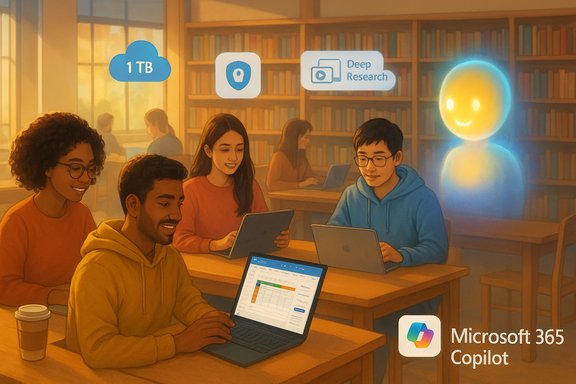
Microsoft has advertised a “Study smarter with Copilot and Microsoft 365” promotion that lets verified college students unlock the consumer Microsoft 365 Personal plan free for 12 months. The plan bundles the familiar desktop and web Office apps (Word, Excel, PowerPoint, Outlook, OneNote), the Copilot AI layer inside supported apps, and 1 TB (1,000 GB) of OneDrive cloud storage. Microsoft’s student landing page highlights study-focused Copilot features such as Deep Research, Vision, Podcasts, and media generation tools, and surfaces a live “Redeem free offer” flow where eligible students can verify enrollment and claim the promotional seat. This promotion is time-limited and has been reported with slightly different claim windows across outlets and community threads; students should treat the live Microsoft sign-up flow as authoritative for the regional cutoff and available features. Independent coverage confirms the headline (a 12‑month Personal subscription with Copilot and 1 TB OneDrive for eligible students in select markets), but the precise timing and post‑promo pricing mechanics vary by report. What students actually receive
Microsoft’s promotional student subscription mirrors the consumer Microsoft 365 Personal plan with Copilot surfaced where supported. Key inclusions are:- Microsoft 365 Personal for 12 months — the consumer single‑user seat that grants desktop install rights and web app access to Word, Excel, PowerPoint, OneNote, and Outlook.
- Copilot integrated across supported apps — in‑app Copilot assistance appears as a sidebar and contextual helper for drafting, summarizing, ideation, slide generation, and exploratory data tasks. The student page emphasizes study-centric capabilities like Deep Research and Podcast/Media tools.
- 1 TB OneDrive storage — the personal storage allotment that accompanies Microsoft 365 Personal and supports large projects, multimedia portfolios, and automatic file sync.
- Premium creative extras — Designer, Clipchamp enhancements and certain consumer security features (availability depends on market and plan bundling).
How to claim the free year (step‑by‑step)
Microsoft designed the redemption flow to be straightforward, but small details can trip people up. Follow these steps to minimize friction and avoid surprises:- Open a modern browser and go to Microsoft’s Copilot for Students / “AI for Students” landing page. Look for the “Study smarter with Copilot and Microsoft 365” section.
- Click the Redeem free offer button. This initializes the academic verification and enrollment flow.
- Sign in with the Microsoft account you want to use for the Personal subscription — Outlook.com/Hotmail/Live or an existing personal Microsoft Account. If you don’t have one, create it before starting.
- Complete academic verification. Microsoft’s verification process typically accepts a valid school email address (for example .edu or institutional domain), a student ID, an enrollment schedule, or other dated institutional documentation; the live UI lists what’s accepted for each institution. Keep clear scans or screenshots ready.
- Expect an activation confirmation email within 24 hours; some users report delays up to 48 hours at peak demand. Check spam or junk folders if you don’t see it.
- If prompted to provide a payment method, know this is commonly requested to enable auto‑renewal after promotional periods. Adding a card does not mean immediate billing, but subscriptions do auto‑renew unless you turn off recurring billing in Microsoft Account → Services & subscriptions. If you want only the free year, immediately set a calendar reminder to cancel or turn off auto‑renewal before the end of the promo.
Regional availability and feature limitations
Microsoft explicitly notes that some Copilot features are available only in the United States, the United Kingdom, and Canada, and that feature availability varies by device and platform. That means a student in one country may see the full Copilot toolkit while another may get a more limited subset of features initially. The live sign‑up UI will show the region‑specific availability that applies to you. Feature rollouts also differ by app:- Excel + Copilot: several Copilot capabilities in Excel require that the workbook be saved to OneDrive or SharePoint with AutoSave enabled. That constraint is technical: Copilot in Excel needs cloud-stored files for the AI to analyze and generate results reliably. Expect Copilot functionality in Excel to be grayed out unless AutoSave is turned on and the file is in OneDrive/SharePoint.
- Word and PowerPoint: Copilot features are more permissive in Word and PowerPoint; some functionality is available without AutoSave, though specific features still depend on platform and app version.
- Vision and media generation tools: these are progressively enabled regionally; Microsoft’s student page lists Vision and media tools among study capabilities but warns that availability depends on platform and locale.
Post‑promo pricing, discounts and renewal mechanics
Promotional offers like this are valuable, but they also come with lifecycle mechanics students must manage:- At the end of the free 12 months, the subscription will convert to a paid Microsoft 365 Personal plan and auto‑renew unless you cancel or turn off recurring billing in your Microsoft Account. That is standard Microsoft subscription behavior.
- Multiple reputable reports indicate Microsoft is offering eligible students a substantial discount after the promotional period — commonly cited at roughly 50% off the standard Microsoft 365 Personal price (for example, $4.99/month vs the normal $9.99/month). Earlier Microsoft blog posts and coverage of the student promotions described a three‑month free trial in some windows followed by a 50% student discount; later promotional windows and coverage expanded to the one‑year free model with continued reporting that students will qualify for discounted continuation pricing. Because Microsoft has changed and extended promotional mechanics at times, treat reported post‑promo prices as regionally and temporally dependent and check your Microsoft account page for the exact price that will be applied at renewal.
- Microsoft and community threads also note that annual re‑verification of student status is common for educational discounts; failing to re‑verify can cause a subscription to revert to full price at renewal. Consider setting a recurring calendar reminder to re‑verify if you plan to keep the student discount beyond the free year.
Privacy, data governance, and academic integrity — the big tradeoffs
A free year of modern AI tools is compelling, but it comes with tradeoffs that students, faculty, and campus IT must weigh carefully.- Data governance: this promotional seat is a consumer Personal subscription. That means interactions with Copilot under a Personal seat are governed by Microsoft’s consumer policies and the product’s privacy settings. It does not automatically inherit campus‑level protections or contractual data handling that an institutional Microsoft 365 Education tenant might provide. If your coursework involves sensitive, regulated, or proprietary data, consult campus IT before using Copilot on that material.
- Model training and telemetry: Microsoft states it does not use prompts, responses, or file content from Copilot in Microsoft 365 apps to train its foundation models when operating under a Microsoft 365 subscription. However, telemetry and metadata rules may still apply, and regional law or future policy changes can affect how data is processed. Where privacy is essential — health research, legal work, or IRB‑protected projects — default to institutional environments or seek explicit guidance.
- Academic integrity: faculty and institutions are rapidly updating policies to address generative AI. Using Copilot to draft essays, craft arguments, or produce data analyses can raise plagiarism or misrepresentation concerns if AI contributions aren’t disclosed or properly verified. Students should document how they used AI in work that requires independent thought, and instructors should clarify what constitutes acceptable AI assistance for assessments.
- Operational safety: Copilot errors or hallucinations still occur. Treat AI outputs as assistive rather than authoritative: verify facts, check citations, and manually inspect data transformations, particularly in Excel where erroneous transforms can propagate. For critical numeric work, use deterministic formulas and test outputs thoroughly.
Strengths: why this promotion matters
This student promotion is strategically and practically significant:- Lowering barriers to AI literacy: giving students a year to experiment with in-app Copilot, Designer, and media tools encourages AI fluency — arguably essential for modern coursework and early-career workflows. This seeding strategy mirrors historical software adoption tactics where students adopt tools early and continue use into the workforce.
- High immediate value: a year of desktop Office apps plus 1 TB of OneDrive storage and Copilot capabilities represents substantial monetary value for students building portfolios, collaborating on group projects, and learning modern digital workflows.
- Integration into everyday apps: Copilot’s presence in Word, Excel, PowerPoint, and Outlook makes AI assistance part of routine productivity rather than a standalone experiment — that reduces friction for adoption and practical learning.
Risks and practical caveats students must manage
- Auto‑renewal and unexpected billing: many students have been surprised by automatic renewals after promotional periods. Adding a payment method during signup is common; don’t assume you won’t be billed. Turn off recurring billing if you plan to use the free year only.
- Regional feature gaps: critical Copilot capabilities (Vision, certain media tools, or Excel agent modes) may be limited by geography or device. If an assignment depends on a particular feature, test early.
- Data exposure and governance: personal accounts are not institutionally governed. If you work with sensitive data, use campus-provided tenant accounts or seek IT guidance. Personal Copilot is powerful but not a substitute for sanctioned research environments.
- Academic policy conflicts: faculty expectations will vary. Using Copilot where the institution bans AI assistance can lead to academic sanctions. Follow instructor guidance and institutional policies.
- Excel limitations: Copilot in Excel requires files to be in OneDrive/SharePoint with AutoSave enabled, which may block Copilot usage for locally stored or privacy-sensitive spreadsheets. Plan workflows accordingly.
Quick troubleshooting and FAQ
- Activation email didn’t arrive: check spam/junk folders and wait up to 48 hours. If delayed beyond that, retry the flow or contact Microsoft support.
- Verification failed with school email: prepare alternative documents (student ID, class schedule, acceptance letter) and retry the verification upload flow.
- Copilot features missing in an app: ensure the app is updated to the latest version, confirm you’re signed in with the redeemed Microsoft Account, and for Excel ensure the file is saved to OneDrive with AutoSave enabled.
- Want only the free year: immediately disable recurring billing after activation and set a calendar reminder a fortnight before expiry to verify cancellation.
What campuses and faculty should do
- Clarify account guidance: campus IT should tell students the difference between institutionally managed tenant accounts and consumer Personal subscriptions; explain which account to use for graded work and sensitive research.
- Revise academic integrity policies: update assignment rubrics to include explicit AI disclosure requirements and examples of acceptable vs unacceptable AI use.
- Offer training: provide workshops that teach students how to use Copilot responsibly — focusing on verification, prompt engineering, and when not to rely on generative outputs.
Final assessment — is it worth claiming?
For eligible students, the Microsoft promotion is a high-value opportunity to learn and use modern AI-augmented productivity workflows: a full year of Microsoft 365 Personal with Copilot and 1 TB of OneDrive is materially useful for writing, analysis, presentations, and portfolio building. The promotion’s real value depends on careful sign-up and active management: verify eligibility, claim the offer promptly, manage renewal and payment settings, and protect privacy and academic integrity when using AI tools. Practical bottom line: claim the offer if you want hands-on Copilot experience and the convenience of 1 TB of cloud storage, but treat the year as an evaluation period. Cancel or turn off auto‑renewal if you don’t want to pay afterward, and consult campus IT for any work that involves sensitive data or research subject to institutional controls.Microsoft’s student promotion is more than a marketing giveaway; it’s a strategic push to make Copilot the default productivity layer for the next generation of knowledge workers. That is beneficial for learners but requires deliberate stewardship — students must balance convenience against privacy and academic policy, and institutions should update governance and guidance to reflect the rapid uptake of AI tools in daily coursework.
Source: Hindustan Times College students can now claim Microsoft 365 Personal full access for free for one year: Here’s how
