What you pasted looks like one of the many advertorial fragments that surface when people search for a “cheap MSI GeForce 210 driver Windows 7” or a fast “GeForce 210 Windows 10 driver” — and it deserves a careful, technician‑grade look before anyone clicks a downloaded EXE and elevates it to kernel mode on a legacy PC. The short version: the GeForce 210 can be driven on Windows 7 and even brought to Windows 10 with archived NVIDIA packages, but only if you source the right vendor/OEM installer, verify signatures and INF entries, and treat any third‑party “clearance” download as untrusted. The Born2Invest advert snippets you included are unverifiable and should be treated with caution rather than used as a driver source. Overview
The GeForce 210 is an entry‑level desktop GPU from the early 2010s. NVIDIA published legacy driver branches to provide Windows 7 and early Windows 10 compatibility for older GeForce models; the canonical Windows 10 legacy branch for many low‑end GeForce cards is the 340/341 family (for example, GeForce Windows 10 Driver 341.74, released July 29, 2015). That package and later 341.x/342.x builds are vendor‑published archives commonly used for older hardware when an OEM driver is not available. You should treat those drivers as archived compatibility builds — useful for basic 2D/3D acceleration but not actively maintained for modern security or multimedia features.
At the same time, the Windows platform changed materially in 2025: Microsoft ended mainstream support for Windows 10 on October 14, 2025. That end‑of‑support date increases the risk profile of continuing to run legacy drivers on a consumer Windows 10 installation because the OS will not receive the routine security updates and guidance that reduce supply‑chain and exploitation risk. If you plan to run an old GeForce 210 under Windows 10, factor that lifecycle context into your decision.
Stop, verify, and install from the vendor — your system’s kernel trust boundary depends on it.
Source: Born2Invest https://born2invest.com/?b=style-231096812/
The GeForce 210 is an entry‑level desktop GPU from the early 2010s. NVIDIA published legacy driver branches to provide Windows 7 and early Windows 10 compatibility for older GeForce models; the canonical Windows 10 legacy branch for many low‑end GeForce cards is the 340/341 family (for example, GeForce Windows 10 Driver 341.74, released July 29, 2015). That package and later 341.x/342.x builds are vendor‑published archives commonly used for older hardware when an OEM driver is not available. You should treat those drivers as archived compatibility builds — useful for basic 2D/3D acceleration but not actively maintained for modern security or multimedia features.
At the same time, the Windows platform changed materially in 2025: Microsoft ended mainstream support for Windows 10 on October 14, 2025. That end‑of‑support date increases the risk profile of continuing to run legacy drivers on a consumer Windows 10 installation because the OS will not receive the routine security updates and guidance that reduce supply‑chain and exploitation risk. If you plan to run an old GeForce 210 under Windows 10, factor that lifecycle context into your decision.
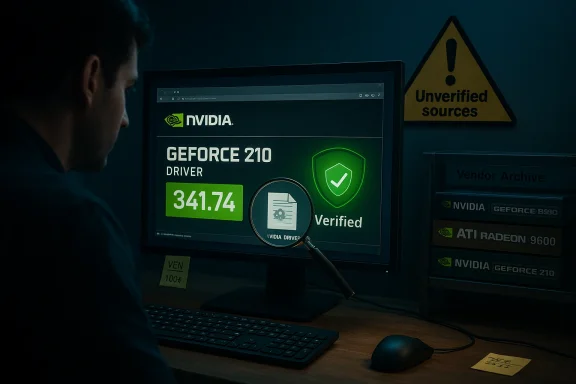 What the advert snippets actually are — and why they’re risky
The typical “cheap driver” pattern
- Short, SEO‑heavy copy claiming discounted or “clearance” GeForce drivers (the kind you pasted) usually lacks direct vendor links, checksums, or signed installer metadata.
- These pages often mirror or repack installers and are popular with ad networks and aated audits of the Born2Invest landing snippets found them unstable or unreachable; they do not provide the vendor provenance you need for kernel‑mode drivers.
Real risks of third‑party driver EXEs
- Kernel‑mode drivers run with high privilege. A repackaged installer can:
- Strip or alter digital signatures and INF files.
- Add unwanted software or PUPs (potentially unwanted programs).
- Carry malware, backdoors, or tampered binaries that survive simple scans.
- Practical consequences include persistent BSODs, boot failures, stealthy perssystem compromise that voids warranty and destroys trust in the machine. Do not run a vendor driver EXE unless you can confirm its origin.
The authoritative sources you should use
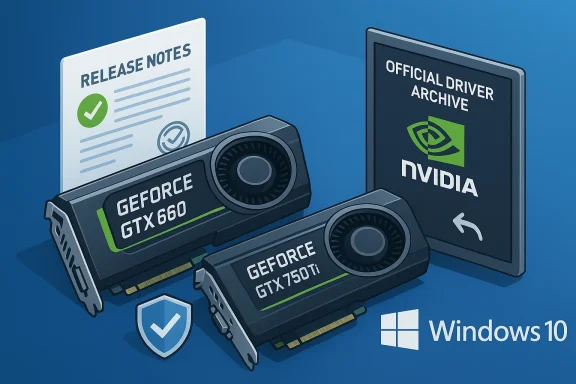
If you need a GeForce 210 driver for Windows 7 or Windows 10, rank your download sources in this order:- NVIDIA official driver archive — vendor‑signed, authoritative release notes and supported‑products tables are present here. For example, GeForce Windows 10 Driver 341.74 is documented on NVIDIA’s site as a Windows 10 64‑bit package released 2015‑07‑29.
- Your OEM / system vendor (MSI, Dell, HP, Lenovo) — if your GPU is an MSI‑branded board or came preinstalled in a branded system, check MSI’s support page for your card or system model first. OEM packages frequently include tailored INF entries and battery/thermal tuning for notebooks and prebuilt systems. See OEM driver repositories like Driverscape or MSI’s product pages for guidance, but treat third‑party aggregators cautiously and cross‑check with MSI’s official site.
- Microsoft Update Catalog — when vendor pages are unavailable, the Catalog sometimes holds WHQL‑signed legacy packages that are safer than anonymous mirrors. It’s less convenient but more authoritative than random download blogs.
Practical verification: which NVIDIA driver releases matter
- GeForce Windows 10 Driver 341.74 — canonical archived Windows 10 package (release date July 29, 2015). Use this when you need a proven vendor archive build for desktop GeForce 210 cards on Windows 10. Confirm the release date, file size and digital signature on NVIDIA’s download page before you run the installer.
- Later 341.x/342.x WHQL builds (for example 341.81, 342.01) may include additional security or compatibility fixes for specific device IDs. Always check the “Supported products” table inside the release notes or INF to confirm your exact hardware ID (VEN_xxxx&DEV_xxxx) is present before installing.
- The vendor’s release notes and supported product table on NVIDIA’s site.
- The file’s Authenticode digital signature and the exact file size listed on the vendor page.
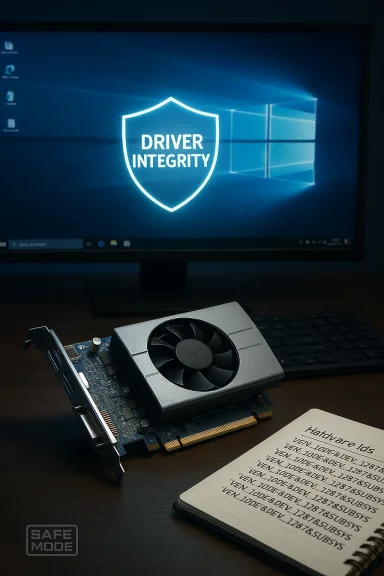
- Your Device Manager → Display adapters → Properties → Details → Hardware Ids (copy VEN/DEV and subsystem strings). If the INF does not list your subsystem/ver will not claim your hardware.
A safe, technician‑grade installation workflow (step‑by‑step)
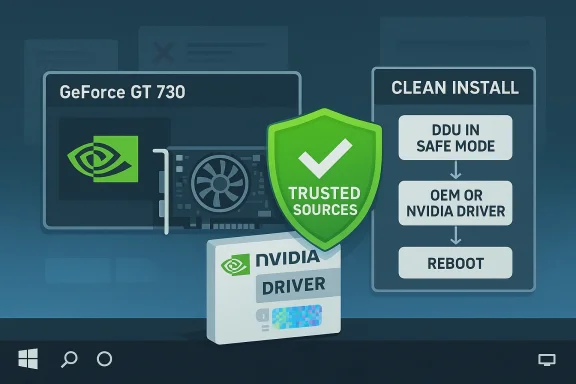
Follow this sequence exactly. It prioritizes evidence, rollback and minimal exposure when installing a legacy GPU de 210 driver for Windows 7 or Windows 10.- Backup first
- Create a full disk image (preferred) or at least a System Restore point. Driver installs can render a system unbootable; a full image is the fastest recovery path.
- Inventory the hardware
- Open Device Manager → Display adapters → right‑click → Properties → Details → Hardware Ids. Copy the VEN/DEV and subsystem strings. You will use these to confirm the INF lists your card.
- Download from the vendor or OEM
- Go to NVIDIA’s driver archive and search for the GeForce Windows 10 Driver or the Windows 7 driver you need (for Windows 7, the older 195.x or 258.x branches may be relevant for very old silicon). Cross‑check release date and file size before you run anything. For MSI‑branded cards, check MSI’s support/download page and the card model (N210‑MD512, N210‑MD512D3H, etc.) for any vendor package.
- Confirm digital signature ght‑click EXE → Properties → Digital Signatures; verify NVIDIA or MSI is the signer. If the page provides a checksum, verify it using CertUtil or another tool.
- Clean existing drivers (DDU)
- Boot to Safe Mode, run Display Driver Uninstaller (DDU) to remove leftover NVIDIA traces and registry entries. DDU is the community standard to avoid partir conflicts. After DDU, disconnect from the internet or block Windows Update so an automatic driver push doesn’t interfere.
- Install the vendor package as Administrator
- Run the NVIDIA installer → choose Custom (Advanced) → check **Perform a clean instauncheck GeForce Experience to avoid telemetry. Reboot. Verify the installed version in NVIDIA Control Panel → System Information and confirm Device Manager shows the card without warning icons.
- Verify behavior with representative workloads
- Check multi‑monitor, video decode and the application(s) that were failing. If DEO_TDR_FAILUREs, capture minidump files (C:\Windows\Minidump) and system event logs for later analysis.
- If problems persist, collect evidence and escalate
- Use MemTest86 for RAM, run GPU stress tests (Unigine, FurMark) with thermal monitoring, test with integrated graphics if present, and try a known‑good PSU. If the card repeatedly fails under load after a clean vendor install, assume hardware or power delivery issues.
Troubleshooting VIDEO_TDR_FAILURE and nvlddmkm.sys crashes
VIDEO_TDR_FAILURE (STOP 0x116) is a s OS timed out while waiting for the GPU driver to respond. Common root causes are driver incompatibility, hardware faults, power or thermal issues, and conflicts with leftover driver artifacts.- Start with the clean‑install workflow above (DDU → vendos implicate nvlddmkm.sys but the file timestamps do not match the vendor installer, you likely have a leftover artifact or wrong package.
- Temporarily increase the TDR timeout - reg add "HKLM\SYSTEM\CurrentControlSet\Control\GraphicsDrivers" /v TdrDelay /t REG_DWORD /d 8 /f
- Note: this hides symptoms and is not a fix; use it to collect diagnostic evidence only.
- Hardware diagnostics: run RAM tests, check GPU temps (the GT/210 should not exceed ~85 °C under stress), verify PSU rails, and swap to integrated graphics to isolate the GPU.
MSI‑specific notes (practicalities for a “Cheap MSI GeForce 210 driver Windows 7” search)
- MSI historically shipped many low‑profile N210 family cards (N210‑MD512, N210‑MD1G, etc.). If your card is MSI‑branded, start at MSI’s product page and search by model/part number — that is the only place you will find MSI‑customized installers for that board. Third‑party driver aggregators frequently list MSI cards and driver versions, but those downloads should be cross‑checkefirst.
- In practice, desktop GeForce 210 owners rarely need the MSI‑custom installer unless the vendor added a custom INF or utility. The NVIDIA reference 341.x/342.x desktop packages will usually install on MSI cards if the INF lists the device. Still: verify the INF and prefer the OEM/brand page where possible.
On driver‑updater tools (Driver Easy and friends)
Driver Easy and similar utilities can simplify driver identification and download, and Driver Easy specifically publishes step‑by‑step instructions for the GeForce 210. Use them for identification and convenience, but do not treat the tool’s download as definitive without cross‑checking:- If Driver Easy points you to an NVIDIA package, confirm that the EXE is the vendor file (signed by NVIDIA) and matches the vendor’s file size and release notes before running it.
- Avoid letting a third‑party updater install a kernel driver automatically without giving you the vendor link and signature details — that removes your ability to verify provenance and rollback cleanly.
Critical analysis: strengths, compromises and long‑term risk
Strengths of the legacy‑driver approach
- Provides a pragmatic and often successful way to restore basic desktop acceleration and display functionality on otherwise working legacy hardware.
- Vendor‑archived drivers (when obtained from NVIDIA or the OEM) are legitimate and can be verified by release notes, file size and digital signature.
Key compromises and risks
- Archived drivers do not receive ongoing security upy driver on Windows 10 after October 14, 2025 increases exposure since the OS itself is out of mainstream support. This is not a long‑term production posture for machines that handle sensitive data or remain internet‑connected. ([support.microsoft.com](Windows 10 support has ended on October 14, 2025 - Microsoft Support= systems may require a vendor‑signed INF; substituting a generic NVIDIA installer can break power/thermal controls or features like Optimus (on notebooks).
- Third‑party “cheap” driver pages are unreliable and can carry modified installers, telemetry or worse — always treat them as untrusted.
Quick actionable checklist (copy‑and‑paste)
- Do not run any EXE from a “clearance” or advertorial page until you verify source provenance.
- Backup: make a full disk image or at minimum create a System Restore point.
- Inventory: capture Device Manager → Display adapters → Details → Hardware Ids.
- Clean: boot to Safe Mode and run DDU to remove existing display drivers.
- Download: use NVIDIA’s driver archive or your OEM’s support page. Confirm digital signature and file size.
- Install: run vendor EXE as Administrator → Custom → Perform a clean installation → uncheck GeForce Experience if you want driver‑only.
- Test: validate multi‑monitor, video decode and the previously failing workload.
- If problems persist: collect minidumps and logs, test hardware (RAM/PSU/temps), and assume hardware replacement if the GPU fails stress tests.
What to do if the Born2Invest page (or similar) is the only place you can find a driver
- Do not run the installer. Treat it as unverified.
- Ask the seller or page owner for the vendor link and checksum; if they cannot provide a vendor URL pointing to NVIDIA or the OEM, walk away.
- Use the Microsoft Update Catalog or NVIDIA’s archive instead; if neither holds the exact package you need, request assistance from a reputable forum or the OEM support channel.
Conclusion
If your search was “cheap MSI GeForce 210 driver Windows 7” or “NVIDIA GeForce 210 Drivers Update for Windows 10 Driver Easy,” here’s the practical takeaway: the GeForce 210 can be made to work under Windows 7 or even Windows 10 using vendor‑archived drivers (the 341.x and related families are the canonical examples). However, do not trust advertorial or aggregator pages as a source for kernel drivers — instead, use the NVIDIA archive, your MSI/OEM support page, or the Microsoft Update Catalog; verify signatures, use DDU for clean installs, and treat any legacy driver deployment as a short‑term compatibility measure rather than a permanent, secure solution. Born2Invest‑style snippets are not a substitute for vendor provenance and were found to be unverified in automated checks. Plan for hardware or OS migration if you need stability and ongoing security.Stop, verify, and install from the vendor — your system’s kernel trust boundary depends on it.
Source: Born2Invest https://born2invest.com/?b=style-231096812/