

The NVIDIA GeForce 7025 — an integrated GPU found on many older nForce motherboards — can often be made to run under Windows 10, but success is patchy: installer packaging, INF/device‑ID matching, OEM signing and Windows driver‑model differences are the real obstacles, not the raw silicon. This feature brings together verified technical facts, practical step‑by‑step recovery methods, and risk‑aware guidance so owners of 7025‑class systems can make a safe, informed decision about upgrading to (or keeping) Windows 10.
The GeForce 7025 (often sold as GeForce 7025 / nForce 630a) is an integrated GeForce‑7‑generation IGP introduced in the mid‑2000s. It was designed for entry‑level desktop and OEM systems and lacks modern features such as unified shaders or contemporary hardware video decode blocks. Tech databases list the device and its PCI IDs (for example, PCI Vendor 10DE Device 03D6), confirming the hardware identity and making manual INF checks feasible. NVIDIA treats the 7025 family as legacy hardware. Legacy branches and driver archives still exist and contain packages that list the 7025 among supported devices, but these packages were written long before Windows 10's later releases and sometimes target older Windows driver models. That creates the common real‑world problem: the driver binary may work, but the installer refuses to run because the package metadata or INF doesn't match the OEM variant or target OS.
This article synthesizes vendor records, Microsoft update entries, hardware database facts and extensive community troubleshooting to present a verified, risk‑aware playbook for anyone wrestling with the GeForce 7025 and Windows 10. If troubleshooting proceeds, keep detailed notes (motherboard model, Device ID, BIOS, driver file versions) and always test changes with a full image backup so you can recover quickly if a legacy install goes wrong.
Source: Born2Invest https://born2invest.com/?b=style-230012912/
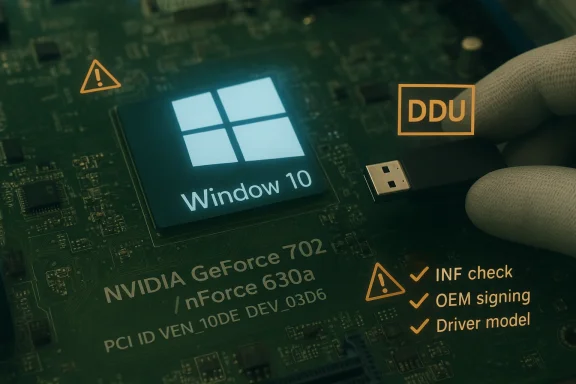 Background / Overview
The GeForce 7025 (often sold as GeForce 7025 / nForce 630a) is an integrated GeForce‑7‑generation IGP introduced in the mid‑2000s. It was designed for entry‑level desktop and OEM systems and lacks modern features such as unified shaders or contemporary hardware video decode blocks. Tech databases list the device and its PCI IDs (for example, PCI Vendor 10DE Device 03D6), confirming the hardware identity and making manual INF checks feasible. NVIDIA treats the 7025 family as legacy hardware. Legacy branches and driver archives still exist and contain packages that list the 7025 among supported devices, but these packages were written long before Windows 10's later releases and sometimes target older Windows driver models. That creates the common real‑world problem: the driver binary may work, but the installer refuses to run because the package metadata or INF doesn't match the OEM variant or target OS. Why users encounter “not compatible” and other installer errors
The technical root causes (short list)
- INF / Device‑ID mismatch — The package’s INF files may not include your exact hardware string (e.g., PCI\VEN_10DE&DEV_03D6 or a vendor‑subsystem variant), causing the installer to report “no compatible hardware.” This is the most common packaging issue.
- OEM signing and custom INFs — Many OEM systems shipped with vendor‑signed INF files. The generic NVIDIA installer may refuse on laptops or branded desktops where the OEM expects its own signed blobs.
- Driver model and manifest restrictions — Newer Windows 10 builds and the DCH driver model changed expectations for manifests and driver packaging; older packages sometimes lack those markers. The installer can therefore refuse even if the binary would operate.
- Windows driver signature enforcement — Unsigned or modified packages will be blocked unless signature enforcement is temporarily bypassed, which is risky.
- Windows Update conflicts — Microsoft Update can reapply a different driver (or re‑offer a generic driver), producing error codes like 0x80070103 and confusion during testing.
Verified evidence
NVIDIA’s legacy listings and independent hardware databases confirm the 7025 family and device IDs, while Microsoft’s Update Catalog and archived driver pages show historic Windows drivers for the device. These two independent kinds of records — vendor legacy lists and Microsoft’s update records — corroborate that the hardware once had formal driver support but that packaging and signatures vary between vendors and releases.Practical, technician‑grade workflow: get the 7025 running on Windows 10 (step‑by‑step)
Follow this order. Each step reduces risk and narrows the true cause.1. Inventory and backup (do this first)
- Record exact motherboard model, BIOS/UEFI version, and the GPU vendor/hardware ID from Device Manager → Properties → Details → Hardware Ids (copy the full string).
- Create a full disk image or at minimum a System Restore point and file backup. Legacy driver work can leave a system unbootable; a full image saves time.
2. Check OEM first
- Visit the motherboard or OEM vendor support page and search by model for Windows 10 drivers. OEM packages are the safest choice for branded systems.
- If the OEM lists a Windows 10 driver, download and test that first. Do not skip this.
3. If OEM has no Windows 10 driver, identify candidate legacy packages
- Use NVIDIA’s legacy pages and respected archives to identify driver packages that explicitly include your device (or the device family) in their supported‑products table. Nvidia’s legacy lists include 7025 IDs.
- Avoid random “driver pack” repackagers unless you can cryptographically verify them; they sometimes modify INF files or bundle extras.
4. Create a clean driver baseline
- Boot to Safe Mode and run Display Driver Uninstaller (DDU) to purge old driver artifacts. This lowers the chance that remnants trigger installer faults. DDU is the community standard for surgical driver removal.
5. Inspect the driver package (INF check)
- Extract the NVIDIA package (many are self‑extracting). Open the Display.Driver folder and search *.inf files for your exact hardware ID string.
- If the INF contains your Device ID (or vendor variation), a manual INF install via Device Manager can bypass some installer metadata checks. If not, INF edit is technically possible but increases risk and is not recommended for production machines.
6. Manual install via Device Manager (safe test path)
- Device Manager → Update driver → Browse my computer for drivers → Let me pick from a list → Have Disk… and point to the extracted INF.
- If the OS rejects signature verification, temporarily testing may require disabling signature enforcement — do this only on a test machine and with a recovery plan.
7. Use Microsoft Update Catalog and Windows Update controls
- If Windows Update keeps reapplying a different driver, use Microsoft’s Show or hide updates troubleshooter (wushowhide.diagcab) to hide the offending driver while you test a candidate. This prevents reversion during validation.
8. Test thoroughly and verify
- Validate the display, multi‑monitor behavior, hardware acceleration and, where relevant, video decode/DRM playback. Record objective metrics (FPS samples, capture a render/export) before and after. If you see corruption, revert.
9. Rollback plan
- Keep the last working installer locally and maintain a restore image. If the new driver breaks GPU behavior, use Device Manager → Roll Back Driver or reinstall the archived installer. If the system fails to boot, use the system image.
Which driver versions and sources have historically worked?
- Historic NVIDIA driver packages from the late 2000s and early 2010s explicitly included the 7025 in supported lists; Microsoft’s Update Catalog includes entries for NVIDIA drivers that reference the 7025 and show vendor/provider metadata for older Windows versions. That corroborates the device’s long‑standing presence in vendor archives.
- Independent community archives and driver mirrors list multiple driver variants (for example, 6.14.x and 8.17.x builds) that users have used successfully as manual installs. However, many of those packages predate Windows 10 and may lack the DCH metadata expected by later Windows 10 releases. Treat these as last‑resort options and verify checksums.
Risks, trade‑offs, and security considerations
- Security: Older drivers may contain unpatched vulnerabilities. NVIDIA’s legacy policy narrows active fixes on older lines; vendors prioritize newer GPUs. For security‑sensitive systems, relying on decade‑old driver binaries is increasingly risky.
- Stability: Manual INF edits or unsigned drivers can cause boot failures or BSODs. Always test on a spare system or with an image you can restore.
- OEM tuning lost on notebooks: Replacing an OEM vendor driver with a generic NVIDIA package on laptops can remove power/thermal tuning and produce battery or thermal regressions. OEM packages are always preferred on laptops.
- Telemetry and optional software: The NVIDIA app (GeForce Experience or unified apps) offers convenience but also includes telemetry; choose a driver‑only install if privacy is a priority.
- Third‑party repackagers: Many driver mirrors exist, but repackagers sometimes alter INFs or bundle extras. Rely on NVIDIA, OEM pages, or Microsoft Update Catalog entries where possible.
Decision tree: should you invest effort or replace hardware?
- Is this a production or security‑sensitive system?
- Yes → Replace hardware with a supported GPU or move that workload to a supported machine. The long‑term risk of running legacy drivers is high.
- No → Proceed to step 2.
- Does the OEM provide a Windows 10 driver for this exact motherboard model?
- Yes → Use OEM driver; test thoroughly.
- No → Proceed to step 3.
- Does a verified NVIDIA legacy package include your device ID?
- Yes → Use DDU, extract the package, confirm INF contains your ID, and install manually as described above. Test for stability.
- No → Accept Microsoft’s generic driver from Windows Update and plan a hardware refresh if required.
Quick troubleshooting checklist (condensed)
- Backup and image the system first.
- Confirm the Device ID string in Device Manager.
- Try OEM driver first; if unavailable, check NVIDIA legacy packages.
- Use DDU in Safe Mode to create a clean baseline before testing new drivers.
- Inspect INF files for your Hardware ID. Manual install via Device Manager can bypass installer restrictions.
- If Windows Update reverts changes, use the Show/hide updates tool to block drivers while testing.
- Avoid third‑party one‑click driver updaters.
What I verified for this feature and the cross‑checks
- NVIDIA’s legacy device lists show GeForce 7025/nForce 630a entries and device IDs, confirming vendor recognition of the family in legacy branches.
- TechPowerUp’s GPU database and BIOS/ID entries independently confirm the 7025 device IDs and the IGP’s technical limitations (DirectX 9 era, shared memory).
- Microsoft Update Catalog contains historical NVIDIA driver entries that reference the GeForce 7025, corroborating the driver archives and vendor records.
- Community and technician guidance in Windows‑forum archives provides tested workflows (DDU, INF inspection, OEM‑first policy) and documents the common failure modes and mitigations.
Practical recommendations — final, actionable guidance
- For hobbyists and legacy‑app users: If you only need Windows 10 for retro software or light desktop tasks, try the OEM driver first, then NVIDIA legacy packages that explicitly list your device, and follow the clean‑install workflow above. Keep a rollback image and consider running sensitive apps in a VM on a newer host.
- For everyday users on OEM laptops or branded desktops: Prioritize the OEM driver. If the OEM has no Win10 driver, prefer the Microsoft‑signed generic driver from Windows Update rather than installing unsigned or repackaged binaries.
- For production, security‑sensitive, or multimedia systems: Replace the hardware. The cost of a modest modern integrated GPU or a used discrete card is small compared with the risk and maintenance burden of unsigned legacy drivers.
- Privacy preference: Choose a driver‑only install and do not install GeForce Experience; disable NVIDIA telemetry services if needed.
Conclusion
The GeForce 7025 remains a supported entry in legacy driver archives and can often be made to operate under Windows 10 — but installation success depends far more on packaging and signing than on the silicon itself. The safest path for most users is: OEM driver if available, then vendor (NVIDIA) legacy driver with careful INF verification, then Microsoft’s generic driver, and finally consider hardware replacement if stability, security, or modern multimedia workloads matter.This article synthesizes vendor records, Microsoft update entries, hardware database facts and extensive community troubleshooting to present a verified, risk‑aware playbook for anyone wrestling with the GeForce 7025 and Windows 10. If troubleshooting proceeds, keep detailed notes (motherboard model, Device ID, BIOS, driver file versions) and always test changes with a full image backup so you can recover quickly if a legacy install goes wrong.
Source: Born2Invest https://born2invest.com/?b=style-230012912/
