

If you still own a GeForce 9600 GT and are trying to run it on Windows 10 in 2026, the practical reality is this: the last NVIDIA driver family that explicitly supported that card for Windows 10 is the Release 340 branch — specifically GeForce Windows 10 Driver 341.81 (Release 340 family), released on August 24, 2015 — and installing it today requires careful preparation, an awareness of security and compatibility trade‑offs, and a conservative installation workflow.
The GeForce 9600 GT is a mature, long‑serving product from NVIDIA’s older GeForce 9-series. NVIDIA organized support for these cards into legacy driver branches years ago, and the Release 340 family (including v341.81) documents explicit compatibility with the 9600 GT in its supported‑GPU table. That same official release notes PDF is the primary authoritative record for what 341.81 was intended to support and what limitations Windows 10 users would encounter. At the same time, Microsoft ended mainstream security support for Windows 10 on October 14, 2025. After that date, Windows 10 no longer receives routine platform security patches and support guidance, which meaningfully changes the risk profile for running legacy drivers and older OS builds on connected machines. If you are still on Windows 10 in 2026 you should treat any driver work as higher‑risk than it was before end‑of‑support.
Installing a legacy NVIDIA driver like GeForce Windows 10 Driver 341.81 for a GeForce 9600 GT is technically feasible in 2026 — the official release notes and driver pages document the compatibility — but it comes with real operational trade‑offs because Windows 10 has reached end of support and the driver family itself is no longer maintained. If the goal is short‑term functionality on an isolated or disposable machine, follow the conservative installation steps above. If the machine is critical, sensitive, or connected to production networks, plan a migration to supported hardware or OS as soon as practical.
Source: Born2Invest https://born2invest.com/?b=style-230041512/
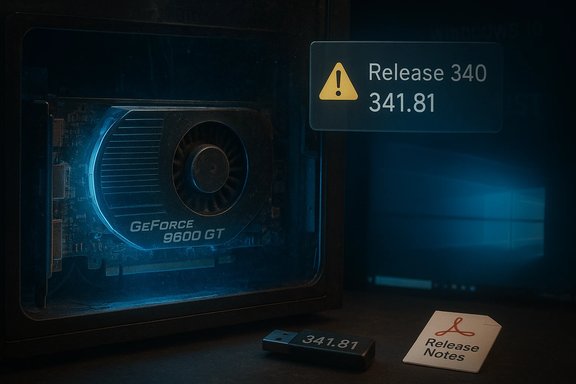 Background
The GeForce 9600 GT is a mature, long‑serving product from NVIDIA’s older GeForce 9-series. NVIDIA organized support for these cards into legacy driver branches years ago, and the Release 340 family (including v341.81) documents explicit compatibility with the 9600 GT in its supported‑GPU table. That same official release notes PDF is the primary authoritative record for what 341.81 was intended to support and what limitations Windows 10 users would encounter. At the same time, Microsoft ended mainstream security support for Windows 10 on October 14, 2025. After that date, Windows 10 no longer receives routine platform security patches and support guidance, which meaningfully changes the risk profile for running legacy drivers and older OS builds on connected machines. If you are still on Windows 10 in 2026 you should treat any driver work as higher‑risk than it was before end‑of‑support. What GeForce Windows 10 Driver 341.81 actually is
Release lineage and purpose
- Driver family: Release 340 (versions 340.xx – 342.xx).
- Specific package: GeForce Windows 10 Driver 341.81 (notebook/desktop release notes available).
- Release date: August 24, 2015.
- Notable intent: security updates for nvlddmkm.sys and nv4_mini.sys; DirectX optimizations and legacy-device maintenance.
Explicit device support
The official Release 340 release notes contain a table of supported desktop GPUs that lists GeForce 9600 GT among consumer products supported by the 340 family. That means NVIDIA validated the driver package to work with the 9600 GT in the context of the Release 340 engineering/QA, at least at the time of the release.Important limitations called out by NVIDIA
The Release 340 notes also document limitations under Windows 10 and caution that some older GPU features, Hybrid Power, and some surround/SLI cases are not supported or have restricted functionality. It explicitly notes that GeForce 6‑ and 7‑series were moved to older legacy support earlier, and that limitations may exist in this driver family for certain configurations. Read the release notes carefully before assuming feature parity with modern drivers.Why people still look for 341.81 in 2026
There are a handful of practical reasons someone in 2026 might want to install 341.81 on a Windows 10 64‑bit system:- The machine contains a GeForce 9600 GT (or other Release 340‑era GPUs) and the user needs a driver that enumerates and functions correctly in Device Manager. The 341.81 release is a documented match for that hardware.
- Some legacy applications or older games behave best with the driver behavior present when those titles were current; modern drivers sometimes change GPU behavior and break assumptions in older software. Community threads over many years show users rolling back to legacy drivers to recover original behavior.
- In rare cases, OEM systems (laptops or desktops) have vendors who validated a specific INF/driver package; users look for the driver that matches their OEM string to avoid “no compatible hardware” installer errors. Community troubleshooting guides repeatedly recommend OEM pages over one‑size‑fits‑all packages.
The security and lifecycle context you must consider
- Windows 10 EOL: Microsoft stopped regular security updates for Windows 10 on October 14, 2025. Machines still running Windows 10 after that date are not receiving OS security patches unless they are on a paid or limited Extended Security Updates (ESU) program. This changes your threat model: installing legacy drivers on an unsupported OS increases exposure to both kernel‑mode vulnerabilities and malware that targets outdated stacks.
- Legacy driver code is older: a driver package released in 2015 will not include newer driver‑architecture changes and may contain older code paths that were remedied in later families. While 341.81 included some security updates at the time, it is not a modern, actively maintained branch.
- Installer packaging and INF restrictions: many installer rejections (“no compatible hardware”) are caused by INF device‑ID mismatches or OEM‑signed expectations, not by the driver binary itself. Community threads explain that sometimes the INF must match the exact vendor/device ID or that an OEM driver is required for some laptops.
- Third‑party downloads and “one‑click” updater tools are an avoidable source of trouble. The community consensus is to use vendor archives (NVIDIA’s official archive or your OEM’s support page) and to avoid repackaged/unvetted packages.
Step‑by‑step: How to safely install GeForce driver 341.81 for a 9600 GT on Windows 10 x64 (recommended workflow)
Follow these steps exactly to reduce risk and maximize the chance of a clean install.- Backup first.
- Create a full disk image or at minimum a Windows System Restore point. For business or mission‑critical machines, image the drive so you can recover quickly if installer work corrupts the system. Community guides emphasize imaging as the fastest rollback approach.
- Confirm the GPU device ID and system details.
- In Device Manager: locate the GPU, open Properties → Details → Hardware Ids and record the VEN/PID strings. Also record the exact motherboard model and BIOS/UEFI version. These facts determine whether an OEM driver or a generic NVIDIA package will be accepted. The INF in the driver package must include your device ID for the packaged installer to proceed.
- Prefer official sources.
- Download 341.81 only from NVIDIA’s official driver archive (NVIDIA driver pages and the Release 340 release notes) or from your OEM’s support page if you have a branded laptop/desktop. Avoid third‑party repackages. The official release notes and driver page list 341.81 and the supported GPUs.
- Create a driver rollback plan.
- Have the driver you currently use saved and accessible; ensure you can boot into Safe Mode. Tools like Display Driver Uninstaller (DDU) are community‑recommended if you need a complete driver removal before reinstalling. It’s standard community practice to use DDU in Safe Mode when switching families or cleaning up driver artifacts.
- If installer rejects: try OEM package or manual INF install.
- If NVIDIA’s installer says “no compatible hardware,” check whether your OEM provides a validated package. If not, extract the NVIDIA package (it’s usually a self‑extracting archive) and verify whether the INF contains your Hardware Id string; if it does, you can install via Device Manager → Update Driver → Browse my computer → Let me pick → Have Disk… but only if you confirm the INF is an exact match. INF editing is risky and not recommended for general users.
- Clean install option.
- Run the NVIDIA installer as Administrator and choose Custom → Perform a clean install. This resets driver settings and removes many legacy artifacts that can create conflicts. Reboot when prompted.
- Validate functionality and stress test.
- After installation, verify Device Manager shows the driver version, run simple display tests, play a representative legacy game or application, and monitor for hangs, artifacts, or black screens. If issues occur, use your rollback plan. Community advice repeatedly prioritizes re‑testing with representative workloads.
Troubleshooting: common errors and fixes
- “Installer cannot find compatible hardware” (Error 182 or similar): Usually an INF/device‑ID mismatch or OEM‑signed expectation. Try vendor OEM package first; if unavailable, confirm INF contains your device string and install via Device Manager (Have Disk).
- Windows Update keeps reinstalling a different driver: Use the “Show or hide updates” Microsoft troubleshooter to block the driver or pause Windows Update while testing a candidate driver. Community threads show Windows Update can create confusing driver version loops.
- Boot hangs or black screens after install: Boot to Safe Mode, run DDU to fully remove drivers, then reinstall. Have a recovery USB or image available in case System Restore is necessary. Community posts show DDU is the common last resort.
- Missing control‑panel features or degraded functionality: The Release 340 notes list multiple Windows 10 limitations (for example, some Display/HDMI audio behaviors and reduced Control Panel options). These are documented in NVIDIA’s release notes — if you rely on a specific Control Panel feature, check the PDF before installing.
Where you can and cannot safely get the driver
- Safe sources:
- NVIDIA’s official driver archive and the Release 340 release notes PDF. These are the authoritative source for 341.81 and its supported product list.
- OEM vendor support pages when you have a branded laptop or desktop. OEM packages sometimes include OEM‑signed INF entries that the NVIDIA generic installer will not include.
- Avoid:
- Unvetted “discount” driver packs, repacked EXEs, or one‑click driver updaters that bundle adware or modify INF files without clear provenance. Community moderation and forum histories repeatedly flag these as sources of trouble.
Risk assessment and recommended policy (for home users and admins)
- Home users with a spare or non‑critical machine may accept the risk of running Windows 10 with driver 341.81 if: they can isolate the machine from sensitive accounts, they take full disk images before making changes, and they understand they trade modern security patches for legacy compatibility. Use local, isolated machines for legacy gaming or to run retired hardware.
- For machines that contain sensitive data or are connected to corporate networks, do not rely on Windows 10 + legacy drivers as a long‑term plan. Move to a supported OS (Windows 11) or replace hardware. Microsoft’s lifecycle guidance and the practical experience of IT pros shows EOL OS + old drivers increase attack surface significantly.
- If you must remain on Windows 10, evaluate Extended Security Updates (ESU) or other formal mitigation programs and restrict web access, avoid storing credentials locally, and keep software minimized on that device. Microsoft documented consumer ESU and other transition options for Windows 10 devices.
Alternatives to installing 341.81 on Windows 10 in 2026
- Upgrade the OS: If the hardware meets Windows 11 requirements, upgrading to Windows 11 is the safest long‑term move and minimizes exposure to unsupported platform vulnerabilities. Microsoft’s upgrade guidance and PC Health Check app are the starting point.
- Replace the GPU: Budget modern GPUs (or even second‑hand, more recent GTX/GT series cards) will give you active driver support and eliminate legacy INF/compatibility hurdles. For users investing in a new machine anyway, a new GPU is often the pragmatic choice.
- Use Linux for legacy hardware: Depending on your needs, modern Linux distributions often continue to support older GPUs via open drivers or legacy proprietary drivers. This is a valid option if you can accept a platform change from Windows. Community guidance suggests Linux can be a flexible path for long‑tail hardware preservation.
- Virtualize the legacy workload: Run the legacy game or app in a VM or on a separate machine that you only connect when needed; this isolates risk from your daily environment.
Final verdict: realistic, safe, and pragmatic steps
- Yes — GeForce 9600 GT is explicitly listed in NVIDIA’s Release 340 (v341.81) supported desktop GPUs, and the official release notes and NVIDIA driver page are the authoritative references. If your only goal is to have a functional driver for that GPU on Windows 10, 341.81 is the correct historical package.
- No — installing an eight‑to‑ten‑year‑old driver on a production or internet‑connected Windows 10 machine in 2026 is not recommended without compensating controls. Microsoft ended free support for Windows 10 on October 14, 2025, and the overall security posture of an EOL platform plus legacy drivers is weaker.
- Practical path forward: if you decide to proceed, do so from NVIDIA’s official archive or your OEM’s support site, make full system images, use DDU for a clean slate if necessary, and validate carefully with representative tests. Keep a rollback image ready and avoid third‑party repacks. Community troubleshooting workflows and the vendor’s release notes converge on precisely this cautious approach.
Appendix — Quick checklist before you begin
- Backup image (full disk) or at minimum a System Restore point.
- Record GPU hardware IDs and system model/BIOS.
- Download 341.81 from NVIDIA or OEM only (verify file size/checksum where possible).
- Prepare DDU in Safe Mode (optional but recommended for legacy switches).
- Install with “Custom → Perform a clean install” and reboot.
- Validate graphics, audio via HDMI/DP, and test representative apps/games.
Installing a legacy NVIDIA driver like GeForce Windows 10 Driver 341.81 for a GeForce 9600 GT is technically feasible in 2026 — the official release notes and driver pages document the compatibility — but it comes with real operational trade‑offs because Windows 10 has reached end of support and the driver family itself is no longer maintained. If the goal is short‑term functionality on an isolated or disposable machine, follow the conservative installation steps above. If the machine is critical, sensitive, or connected to production networks, plan a migration to supported hardware or OS as soon as practical.
Source: Born2Invest https://born2invest.com/?b=style-230041512/
