

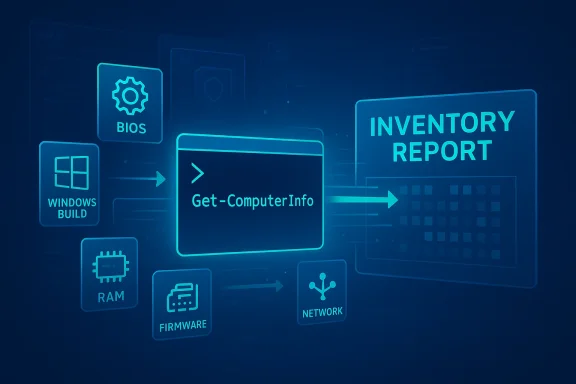
Windows hides a lot of useful detail behind polished panels and simplified views, and that’s why a single PowerShell command can feel almost unfairly powerful once you know it exists. The command is Get-ComputerInfo, and it turns Windows into its own one-shot inventory report instead of making you hunt through Settings, Task Manager, Device Manager, and System Information one screen at a time. Microsoft documents it as a Windows-only cmdlet introduced in Windows PowerShell 5.1 that returns a consolidated object of system and operating system properties, which is exactly why it has become such a favorite among troubleshooters.
For most people, Windows is experienced as a collection of separate apps and dialogs, each revealing only a slice of the machine. That design is fine for casual use, but it becomes a bottleneck the moment you need to answer a practical question quickly: What BIOS version am I on? When was Windows installed? Is Secure Boot enabled? What exact build am I running? The value of Get-ComputerInfo is that it collapses those questions into one output stream instead of forcing a scavenger hunt.
The command matters because Windows already knows the answers. They are not missing; they are simply distributed across system components and surfaced through different interfaces. Microsoft’s own documentation for systeminfo says it displays detailed configuration information including security information, product ID, RAM, disk space, and network cards, while msinfo32 provides a comprehensive hardware, system-component, and software-environment view. Get-ComputerInfo sits in the same ecosystem, but it does so in a form that is easier to script, filter, and reuse.
That distinction is what makes the command more than a party trick. In a support context, time matters, and the difference between opening a GUI utility and pulling a full object you can query is not trivial. Windows has long offered useful built-in diagnostics, but they were designed for different eras of administration. PowerShell changes the equation by making system metadata immediately consumable by both humans and automation.
In practical terms, that means you can surface a broad mix of information in one place. The command can show the system model, manufacturer, Windows version, installed build, BIOS and firmware details, memory, and security-related state such as virtualization and Secure Boot support, depending on what the platform exposes. The point is not that every property is equally interesting; the point is that they are all available in the same object model, which makes the data dramatically easier to work with.
It also matters because the command output is machine-readable. Once you have the data in PowerShell, you can pipe it into Select-Object, export it, compare it against another machine, or feed it into a broader troubleshooting script. That makes it much more valuable than a static screen of text, even if the raw output looks intimidating at first glance.
This is where the article’s core insight lands: the operating system has plenty of visibility, but its interfaces are optimized for different audiences. Settings favors simplicity, Task Manager favors live resource data, Device Manager favors hardware enumeration, System Information favors breadth, and PowerShell favors queryability. The problem is not absence; it is fragmentation.
This also explains why many Windows users underestimate what the OS already knows. If the answers live in different tools, people start assuming the information is unavailable or buried in some proprietary admin layer. In reality, the data is usually present; Windows just expects the user to know where to ask. PowerShell short-circuits that assumption.
A simple example is to ask for only the properties you care about. Microsoft’s documentation explicitly shows that the command supports a -Property parameter and can be used to request specific categories such as version-related fields. That means you can shift from “show me everything” to “show me exactly these values” with one small change.
Another useful strategy is pattern-based searching. PowerShell users often search the output for a keyword like “bios” or “version” rather than scrolling line by line. That approach turns a massive object dump into a targeted diagnostic tool, which is exactly how a command like this should be used in real life.
msinfo32 is still excellent if you want a GUI report or a text export. Microsoft documents options for opening specific categories, exporting to
The difference is subtle but important. A report tool tells you what happened at the moment you ran it. A PowerShell object can be inspected, reshaped, and reused. For administrators, help-desk staff, and enthusiasts who like repeatable workflows, that difference is the reason the command feels so compelling.
What makes it durable is that it is built into the platform. There is no install step, no separate download, and no concern about whether a third-party utility will be updated next year. It is simply there, waiting to be used by anyone with PowerShell access on Windows.
That is why the article resonates beyond the command itself. It reminds users that Windows often already has the answer; the real trick is learning how to ask more precisely. Once that clicks, PowerShell stops feeling like a niche admin shell and starts feeling like a better interface for the operating system you already own.
Microsoft’s own documentation around upgrade and assessment workflows reflects that reality. In Windows Server guidance, Microsoft uses Get-ComputerInfo to collect specific properties and pair them with other command-line tools during in-place upgrade planning and validation. That is a useful clue: Microsoft itself treats the cmdlet as a legitimate operational tool, not a novelty.
There is also a documentation benefit. A technician can capture a machine’s state before and after a change, then compare it against a baseline. That is often more persuasive than relying on memory or screenshots, and it helps cut down on vague “it changed somehow” troubleshooting. In other words, the cmdlet is not just informative; it is operationally useful.
That matters because ordinary users are often asked for information Windows does not present prominently. The machine model might be obvious on the shell, but the BIOS version, install date, or specific build number often are not. The command shortens the gap between what support asks for and what the user can realistically find on their own.
It also gives consumers a little more control over their own devices. Once people see how much information Windows keeps available, they tend to become more comfortable with basic troubleshooting and less reliant on guesswork. That is a subtle but important shift in how people use the platform.
It also does not fully replace other built-in utilities. msinfo32 remains better if you want a structured report or categories you can export, and systeminfo is still handy when you need a plain command-line summary. The smart approach is not to crown a universal winner, but to know which tool best matches the question you are asking.
Another limitation is expectations. Some users may assume that because the command is broad, it is also exhaustive in every possible area. It is not a replacement for specialized diagnostics, and it should not be treated that way. It is a snapshot tool with broad coverage, not a universal replacement for all investigation methods.
For users, that means learning a little PowerShell now pays off later. You do not need to become a full-time administrator to benefit from a command like Get-ComputerInfo; you only need to be willing to ask Windows for the data it already has. Once that habit forms, the operating system feels less mysterious and much more transparent.
Source: How-To Geek This one PowerShell command showed me everything Windows was hiding
 Overview
For most people, Windows is experienced as a collection of separate apps and dialogs, each revealing only a slice of the machine. That design is fine for casual use, but it becomes a bottleneck the moment you need to answer a practical question quickly: What BIOS version am I on? When was Windows installed? Is Secure Boot enabled? What exact build am I running? The value of Get-ComputerInfo is that it collapses those questions into one output stream instead of forcing a scavenger hunt.The command matters because Windows already knows the answers. They are not missing; they are simply distributed across system components and surfaced through different interfaces. Microsoft’s own documentation for systeminfo says it displays detailed configuration information including security information, product ID, RAM, disk space, and network cards, while msinfo32 provides a comprehensive hardware, system-component, and software-environment view. Get-ComputerInfo sits in the same ecosystem, but it does so in a form that is easier to script, filter, and reuse.
That distinction is what makes the command more than a party trick. In a support context, time matters, and the difference between opening a GUI utility and pulling a full object you can query is not trivial. Windows has long offered useful built-in diagnostics, but they were designed for different eras of administration. PowerShell changes the equation by making system metadata immediately consumable by both humans and automation.
What the command actually gives you
The first thing to understand is that Get-ComputerInfo is not a gimmicky alias or a wrapper around a single registry value. Microsoft describes it as returning a consolidated object of system and OS properties, and the example in the documentation shows it can return all properties or filtered subsets such as version-related fields. That is why it feels like a “tell me everything” button: it is built to aggregate, not to summarize.In practical terms, that means you can surface a broad mix of information in one place. The command can show the system model, manufacturer, Windows version, installed build, BIOS and firmware details, memory, and security-related state such as virtualization and Secure Boot support, depending on what the platform exposes. The point is not that every property is equally interesting; the point is that they are all available in the same object model, which makes the data dramatically easier to work with.
Why that matters in real troubleshooting
When you are diagnosing a flaky machine, the fastest path is often the one with the fewest context switches. If you need to verify a build number before testing a patch issue, or confirm a firmware version before chasing a boot problem, a single command beats bouncing through multiple utilities. That is especially true on consumer Windows systems, where many of the relevant details are hidden behind a friendlier surface that is optimized for average users rather than for diagnostics.It also matters because the command output is machine-readable. Once you have the data in PowerShell, you can pipe it into Select-Object, export it, compare it against another machine, or feed it into a broader troubleshooting script. That makes it much more valuable than a static screen of text, even if the raw output looks intimidating at first glance.
- It consolidates system and OS properties into one object.
- It is available only on Windows.
- It was introduced in Windows PowerShell 5.1.
- It can be filtered by property name instead of dumping everything.
Why Windows feels like it is hiding information
Windows is not really hiding data so much as it is distributing it across specialized tools. That design makes sense from a user-experience perspective, because a typical user does not need firmware details the same way a technician does. But it creates friction for anyone who wants a complete picture of a PC without spending ten minutes jumping between menus.This is where the article’s core insight lands: the operating system has plenty of visibility, but its interfaces are optimized for different audiences. Settings favors simplicity, Task Manager favors live resource data, Device Manager favors hardware enumeration, System Information favors breadth, and PowerShell favors queryability. The problem is not absence; it is fragmentation.
The legacy tool problem
Windows has accumulated many generations of management surfaces, and that history shows. msinfo32 remains a comprehensive utility, and Microsoft still supports it with command-line switches like/report, /nfo, and /categories. systeminfo remains useful for detailed configuration output. But neither is as naturally composable as PowerShell, which is why Get-ComputerInfo feels like a modern answer to an old problem.This also explains why many Windows users underestimate what the OS already knows. If the answers live in different tools, people start assuming the information is unavailable or buried in some proprietary admin layer. In reality, the data is usually present; Windows just expects the user to know where to ask. PowerShell short-circuits that assumption.
- Settings is great for everyday use but incomplete for diagnostics.
- Task Manager gives live performance data, not a full system dossier.
- Device Manager is hardware-centric, not holistic.
- msinfo32 is broad, but less flexible for automation.
- Get-ComputerInfo bridges the gap between visibility and scripting.
How to make the output usable
The biggest complaint about Get-ComputerInfo is also the reason it is useful: it returns a lot of data. On first run, the output can feel like a wall of text, and that is where many users stop. The better approach is to treat the command as a raw feed and then narrow it down to the fields that matter.A simple example is to ask for only the properties you care about. Microsoft’s documentation explicitly shows that the command supports a -Property parameter and can be used to request specific categories such as version-related fields. That means you can shift from “show me everything” to “show me exactly these values” with one small change.
Practical filtering strategies
The simplest strategy is to choose a handful of properties and display only those values. That is especially useful when you are helping someone remotely and need only a quick confirmation of model, build, memory, or BIOS version. Once you know the important property names, the command becomes much less overwhelming and far more repeatable.Another useful strategy is pattern-based searching. PowerShell users often search the output for a keyword like “bios” or “version” rather than scrolling line by line. That approach turns a massive object dump into a targeted diagnostic tool, which is exactly how a command like this should be used in real life.
- Use -Property to narrow the output to a manageable subset.
- Search for keywords when you only need one fact.
- Save the output when you are comparing multiple PCs.
- Pair it with formatting commands to make the output easier to read.
- Treat it as a data source, not just a display command.
How it compares with System Information and systeminfo
A lot of Windows power users already know about msinfo32 and systeminfo, so the question is not whether Get-ComputerInfo is unique in showing system details. The real question is whether it is better suited to modern troubleshooting. In many cases, the answer is yes, because the command is built for pipeline-driven workflows rather than fixed reports.msinfo32 is still excellent if you want a GUI report or a text export. Microsoft documents options for opening specific categories, exporting to
.nfo, and generating reports, and that makes it a good fit for support scenarios where a technician needs a comprehensive snapshot. But it is fundamentally a reporting utility, while Get-ComputerInfo is an object-oriented command that fits naturally into automation.Where each tool fits best
systeminfo is the most straightforward of the legacy tools. It gives detailed configuration information, including security data and hardware properties, and it is still easy to remember. For quick command-line checks, it remains a solid choice. But Get-ComputerInfo is more flexible because you can query, filter, and integrate it with other PowerShell logic.The difference is subtle but important. A report tool tells you what happened at the moment you ran it. A PowerShell object can be inspected, reshaped, and reused. For administrators, help-desk staff, and enthusiasts who like repeatable workflows, that difference is the reason the command feels so compelling.
- msinfo32 is best for a broad GUI report and exports.
- systeminfo is best for quick command-line snapshots.
- Get-ComputerInfo is best for scripting and selective querying.
- PowerShell wins when the next step is automation or comparison.
Why power users keep coming back to it
A lot of Windows tools are useful once, and then forgotten. Get-ComputerInfo is different because it scales from a casual check to a serious troubleshooting workflow. If you are helping family members, supporting coworkers, or documenting a system before an upgrade, the command becomes a fast first stop.What makes it durable is that it is built into the platform. There is no install step, no separate download, and no concern about whether a third-party utility will be updated next year. It is simply there, waiting to be used by anyone with PowerShell access on Windows.
The human factor
Most people do not think like technicians. They know that “something is wrong,” but not whether the root cause is a driver, a BIOS setting, a patch level, or a hardware configuration issue. A command like Get-ComputerInfo helps reduce ambiguity early, which is often half the battle in support work.That is why the article resonates beyond the command itself. It reminds users that Windows often already has the answer; the real trick is learning how to ask more precisely. Once that clicks, PowerShell stops feeling like a niche admin shell and starts feeling like a better interface for the operating system you already own.
- It is already installed on Windows systems with PowerShell 5.1 or newer.
- It reduces context switching during troubleshooting.
- It is useful for both one-off checks and repeatable workflows.
- It helps non-experts answer expert-level questions more quickly.
The enterprise angle
For home users, this command is a convenience. For enterprises, it is a standardization opportunity. The ability to query system data in a consistent object format makes it easier to build internal health checks, inventory scripts, audit workflows, and support playbooks. That is a much bigger deal when you are dealing with dozens or thousands of endpoints.Microsoft’s own documentation around upgrade and assessment workflows reflects that reality. In Windows Server guidance, Microsoft uses Get-ComputerInfo to collect specific properties and pair them with other command-line tools during in-place upgrade planning and validation. That is a useful clue: Microsoft itself treats the cmdlet as a legitimate operational tool, not a novelty.
Why IT teams should care
In managed environments, an operator does not just want the data once. They want the same data from every machine, in the same format, at the same time. That consistency is what makes automation valuable, and it is exactly where Get-ComputerInfo fits best. When paired with filtering and output redirection, it becomes a lightweight inventory mechanism.There is also a documentation benefit. A technician can capture a machine’s state before and after a change, then compare it against a baseline. That is often more persuasive than relying on memory or screenshots, and it helps cut down on vague “it changed somehow” troubleshooting. In other words, the cmdlet is not just informative; it is operationally useful.
- It supports consistent endpoint inventory workflows.
- It can be used alongside other PowerShell and command-line tools.
- It helps verify upgrade readiness and post-change state.
- It reduces dependency on manual UI inspection.
- It fits naturally into scripted support processes.
Consumer impact: why ordinary users should care
For consumers, the appeal is simpler. Get-ComputerInfo gives you the truth about your PC without forcing you to decode Windows’ many menus and labels. If you are trying to decide whether a machine is still worth upgrading, whether firmware needs updating, or whether a support rep is asking for the right version details, this command is a fast confidence check.That matters because ordinary users are often asked for information Windows does not present prominently. The machine model might be obvious on the shell, but the BIOS version, install date, or specific build number often are not. The command shortens the gap between what support asks for and what the user can realistically find on their own.
A better support conversation
If you are the “tech person” in your family, this is the kind of command that makes support conversations much easier. Instead of asking someone to navigate a maze of menus, you can have them run one command and read back the few values that matter. That reduces confusion, speeds up diagnosis, and lowers the chance of someone giving you the wrong screen entirely.It also gives consumers a little more control over their own devices. Once people see how much information Windows keeps available, they tend to become more comfortable with basic troubleshooting and less reliant on guesswork. That is a subtle but important shift in how people use the platform.
- It helps users verify their own PC details.
- It makes support calls more efficient.
- It reduces confusion caused by scattered interfaces.
- It can clarify whether a machine meets requirements.
- It gives users a quick snapshot before making upgrade decisions.
The limits you should not ignore
The command is useful, but it is not magic. Its biggest limitation is presentation: the output is raw, dense, and not built for beginners. That can make it feel more intimidating than the familiar GUI tools, even when it is technically more powerful.It also does not fully replace other built-in utilities. msinfo32 remains better if you want a structured report or categories you can export, and systeminfo is still handy when you need a plain command-line summary. The smart approach is not to crown a universal winner, but to know which tool best matches the question you are asking.
Why raw power can backfire
A long, unfiltered list is only helpful if the user can interpret it. For novice users, too much information can be almost as unhelpful as too little, because it raises the effort required to find the relevant field. That is why the best practice is to combine Get-ComputerInfo with property filtering or a search step.Another limitation is expectations. Some users may assume that because the command is broad, it is also exhaustive in every possible area. It is not a replacement for specialized diagnostics, and it should not be treated that way. It is a snapshot tool with broad coverage, not a universal replacement for all investigation methods.
- The output can be overwhelming.
- It does not replace specialized diagnostics.
- It is less intuitive than GUI tools.
- It still requires PowerShell familiarity.
- It works best when paired with filtering.
Strengths and Opportunities
The real strength of Get-ComputerInfo is that it exposes how much of Windows is already available to users who know where to look. It also hints at a broader opportunity: the more Windows can be interrogated through consistent, scriptable interfaces, the less users need to depend on hidden, fragmented menus. That is good for troubleshooting, documentation, and automation alike.- Fast system snapshot without menu-hopping.
- Built-in availability on Windows PowerShell 5.1 and newer.
- Filterable output for targeted checks.
- Useful for support and inventory in both homes and businesses.
- Works well with automation and repeatable scripts.
- Complements msinfo32 and systeminfo rather than competing with them directly.
Risks and Concerns
The downside of making PowerShell feel approachable is that users may overestimate what a single command can tell them. There is also a UX risk: when raw data is too exposed without explanation, many users will bounce off it and return to the comfort of click-driven tools. The command is powerful, but power without guidance can still be a barrier.- Information overload for casual users.
- Misinterpretation of fields without context.
- False sense of completeness if users treat it as an all-purpose diagnostic.
- Reliance on PowerShell familiarity can exclude beginners.
- Tool overlap can confuse users who do not know when to use msinfo32 or systeminfo instead.
Looking Ahead
The bigger story here is not just one command. It is the ongoing shift in Windows from GUI-first discovery to command-line-first precision for people who want it. Microsoft still supports legacy reporting tools, but the underlying direction is clear: PowerShell is where serious Windows inspection increasingly lives. That trend is especially visible when Microsoft’s own documentation uses the cmdlet in system-management and upgrade workflows.For users, that means learning a little PowerShell now pays off later. You do not need to become a full-time administrator to benefit from a command like Get-ComputerInfo; you only need to be willing to ask Windows for the data it already has. Once that habit forms, the operating system feels less mysterious and much more transparent.
- Learn the property names you check most often.
- Pair Get-ComputerInfo with filtering commands.
- Keep systeminfo and msinfo32 in your toolbox.
- Save output when troubleshooting recurring issues.
- Use the command as a baseline before making changes.
Source: How-To Geek This one PowerShell command showed me everything Windows was hiding
