

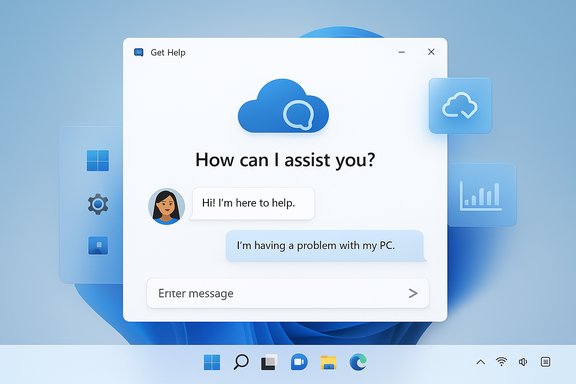
The Get Help app is now the fastest, most integrated route to official Windows support on modern PCs — a built‑in, chat‑first experience that walks users through diagnostics, runs cloud‑backed troubleshooters and, when automatic fixes aren’t enough, connects you to a live Microsoft agent for escalation. This feature replaces older contact flows and is surfaced from the Start menu, Settings and several context locations across Windows 11, making it the default “first stop” for many common issues.
Microsoft has been steadily moving troubleshooting and help toward a cloud‑driven, assistant‑style model. Legacy on‑device troubleshooters powered by the Microsoft Support Diagnostic Tool (MSDT) are being redirected or retired in favor of a centralized Get Help platform that mixes automated diagnostics, guided remediation and human chat support. The company’s documentation explains which legacy troubleshooters have already been redirected and which will be retired entirely, and outlines a transition plan for organizations and power users. Get Help ships as a Store‑updated app on Windows 11 and is reachable from several common entry points. Microsoft’s support guidance shows the canonical discovery paths: search for “Get Help” from Start, use the Settings > System > Troubleshoot > Other troubleshooters flow, or simply invoke the help key behavior (the F1 HelpPane path) that redirects to the help surfaces. These access points are now the most direct way to trigger the new support flows.
For IT professionals and organizations:
Source: Windows Report Learn How the Get Help App Works on Windows 11 PCs
 Background / Overview
Microsoft has been steadily moving troubleshooting and help toward a cloud‑driven, assistant‑style model. Legacy on‑device troubleshooters powered by the Microsoft Support Diagnostic Tool (MSDT) are being redirected or retired in favor of a centralized Get Help platform that mixes automated diagnostics, guided remediation and human chat support. The company’s documentation explains which legacy troubleshooters have already been redirected and which will be retired entirely, and outlines a transition plan for organizations and power users. Get Help ships as a Store‑updated app on Windows 11 and is reachable from several common entry points. Microsoft’s support guidance shows the canonical discovery paths: search for “Get Help” from Start, use the Settings > System > Troubleshoot > Other troubleshooters flow, or simply invoke the help key behavior (the F1 HelpPane path) that redirects to the help surfaces. These access points are now the most direct way to trigger the new support flows. How Get Help actually works on a modern Windows 11 PC
The Get Help app combines a few distinct capabilities into a single experience. Understanding each component yields a clearer picture of where it helps — and where it stops.1) Conversational intake and triage
- Users type a short description of the problem (for example, “Bluetooth not working” or “Windows activation error”).
- The app runs intent detection and presents tailored troubleshooting steps, relevant Settings deep‑links and quick repair actions when available.
- If automatic steps don’t resolve the issue, the flow offers to transfer the user to a live agent (chat) or a different support channel.
2) Cloud‑backed troubleshooters and diagnostic tooling
- Many traditional MSDT troubleshooters are being redirected to run via the Get Help platform; these are maintained server‑side and updated independently from OS servicing. Microsoft’s deprecated features page lists the redirected and retired troubleshooters. This lets Microsoft update diagnostic logic more frequently than OS feature updates would allow.
- Recommended troubleshooting can run automatically (with your consent settings) and will log actions to a troubleshooting history pane in Settings. This history helps users review what automated fixes were applied.
3) Live agent routing and escalation
- When the virtual agent can’t resolve the issue, users can request to “talk to a person.” The Get Help app will queue and connect the user to Microsoft support via chat; in many cases the agent can request additional diagnostics or remote assistance tools.
- Chat transcripts can be saved or copied for future reference — a practical detail that helps when opening a support case or escalating to enterprise help desks.
4) Contextual integration with Settings and Copilot
- Get Help is surfaced contextually from Settings pages and some Settings actions open Get Help directly for relevant topics (for example, “Open Get Help for Printer”). Newer Windows capabilities (Copilot and Settings agents) can deep‑link into the exact Settings page or even suggest immediate actions to take, improving the handoff between explanation and execution.
Ways to open Get Help (practical shortcuts)
Microsoft documents and community guides repeat the same set of entry points — useful for writing quick troubleshooting playbooks.- Start menu: Type “Get Help” into Start and launch the app.
- Settings: Go to Settings > System > Troubleshoot > Other troubleshooters and pick “Get Help.”
- F1 / Help key behavior: Historically the F1 key invoked HelpPane.exe; on modern builds that often opens a help page in Edge that points users toward the Get Help app or web support. If F1 triggers unwanted popups (common when gaming), there are registry and hotkey workarounds to disable or remap the key. Note that the F1 behavior varies by device and OEM customizations.
What the Get Help app can (and can’t) fix — a realistic inventory
Get Help is designed for common, high‑impact, everyday problems. Examples of categories it covers:- Windows activation and licensing errors — quick checks and steps to validate product keys or sign‑in states.
- Microsoft account sign‑in and syncing — guidance to fix account, credential and MSA/Entra issues.
- Networking and internet connectivity — guided diagnose-and-fix flows and redirection to network troubleshooters.
- Audio, printer, display and camera issues — many hardware troubleshooters have been redirected to the Get Help platform.
- Billing and subscription questions — routes users to the right Microsoft billing support node.
- Get Help is not a replacement for full‑blown enterprise remote‑management tools. For unattended or scripted mass remediation, Configuration Manager, Intune and other enterprise tooling remain necessary.
- Offline, disconnected troubleshooting is inherently limited. Some local diagnostics still run without internet, but live chat, cloud troubleshooters and updated diagnostic packages require connectivity.
- For highly sensitive or advanced kernel/firmware issues, Microsoft support will often escalate to more intrusive remote steps or request logs that require secure upload — Get Help is the intake, not the final diagnostic.
Strengths: why Microsoft is pushing Get Help
- Unified experience and discoverability. The Get Help app centralizes support paths so users have a single destination rather than bouncing between disparate pages or legacy troubleshooters. This reduces confusion and increases first‑contact resolution rates.
- Faster updates to diagnostic logic. Moving troubleshooters to a cloud/updatable platform lets Microsoft patch and improve diagnostics more frequently than OS feature updates allow. This is especially useful for newly discovered bugs or widely distributed regressions.
- AI and assistants speed routine fixes. Automated intent detection and recommended actions can fix many common issues without human interaction. When combined with deep‑links from Copilot or Settings agents, the path from problem description to the exact setting or command is short and clear.
- Seamless escalation. The app makes it easier to grab a chat transcript, attach diagnostics and connect with an agent in a single flow — useful for both consumers and support staff who need a standard intake format.
Risks and downsides — what to watch for
- Increased cloud dependency. As Microsoft redirects MSDT troubleshooters to cloud‑hosted flows, users in low‑bandwidth or restricted environments may lose the ability to run certain offline fixes. Administrators should plan for this when supporting remote sites or air‑gapped systems. The transition plan explicitly acknowledges the reduced offline availability of some legacy tools.
- Enterprise deployment friction. Organizations that block the Microsoft Store or outbound access to certain Microsoft endpoints can break the Get Help experience. Community threads show admins encountering blocked Store installs and troubles launching redirected troubleshooters when the Store is inaccessible. A fallback plan for managed estates is necessary.
- Transparency and trust questions. Automated “fixes” and cloud diagnostics are convenient, but they also raise legitimate questions about what data is collected and how it’s used. Microsoft documents data collection practices for support tooling, but administrators and privacy‑conscious users should review telemetry and consent settings before allowing automatic troubleshooting. Where possible, obtain explicit consent and retain logs locally when compliance requires it. (This is an area where organizations should create a policy.
- Edge cases and reliability. Community reports show the app or redirected troubleshooters can occasionally fail to run diagnostics (for example, when a specific diagnostic package cannot load). When that happens, Get Help often recommends escalation to a live agent — a usable fallback, but not a silent fix. These failures appear sporadic and environment‑dependent; verify connectivity and policy blocking before assuming a product bug.
How Get Help fits into an IT support playbook (recommended workflows)
- Triage: instruct end users to open Get Help as the first step for consumer‑facing issues (activation, sign in, basic peripherals).
- Capture: require users to save or copy chat transcripts and attach any system gather logs recommended by the app.
- Escalate: if Get Help fails or the issue is out of scope, create a ticket with the transcript and a list of steps already attempted.
- Admin fallback: maintain a local library of offline diagnostic tools (vendor utilities, WSUS/WSIM images) for environments that restrict Store access or outbound Microsoft domains.
- Audit network rules to ensure required Microsoft endpoints are reachable for relay and diagnostic services, or document acceptable offline alternatives.
- Keep a package for reinstalling Get Help (winget install Microsoft.GetHelp -e) where the Store is blocked or missing.
Common problems and fixes (practical troubleshooting)
- Problem: Get Help is missing after reinstall.
Fix: Reinstall from Microsoft Store or use winget: winget install --id Microsoft.GetHelp -e. Community Q&A confirms this flow works where the app is absent. - Problem: F1 keeps opening a help page or Microsoft Edge.
Fixes: - Remap or disable the F1 key via registry or AutoHotkey if accidental activation disrupts full‑screen workloads. Be careful with registry edits—back up first. Official guidance acknowledges F1 triggers HelpPane.exe which opens the help surface.
- Problem: A redirected troubleshooter fails because the Store is blocked.
Fix: Allow the Store (or deploy Get Help via the enterprise Store options), or run equivalent vendor/legacy troubleshooters offline while planning for long‑term migration to supported cloud flows. Community threads show admins currently using msdt.exe commands as temporary workarounds for blocked environments, but note MSDT’s eventual retirement.
Verification and cross‑checking: what the sources say
This article’s technical claims are validated against Microsoft’s own support pages and independent Windows coverage.- Microsoft’s “About Get Help” and “How to get help in Windows” support pages describe the app’s discovery paths, chat routing and links from Settings. These pages establish the canonical access points and are the definitive documentation for end users.
- The formal MSDT / deprecated features resource on Microsoft Learn lists the troubleshooters that have been redirected and those slated for retirement — an important clarification for power users and admins planning their support tooling. This page confirms the shift away from many legacy troubleshooters toward Get Help.
- Independent coverage and how‑to guides (Windows Central, Beebom, Lifewire) corroborate the practical steps to open Get Help from Settings and the Start menu, and they reproduce the common practical advice around F1 behavior and the Settings > Troubleshoot flow. These secondary sources match the official guidance and add real‑world usage notes that help readers follow exact steps.
Bottom line — should you use Get Help?
For everyday users and small businesses, yes: Get Help is the fastest route to fixes for common Windows problems. It bundles guided troubleshooting, direct links to Settings, and the convenience of escalation to Microsoft chat in one place. Its integration into Settings and the Start menu also increases discoverability, lowering the friction for non‑technical users to try self‑service before calling support.For IT professionals and organizations:
- Treat Get Help as the front line of user self‑help, but maintain a documented fallback plan for managed or disconnected environments.
- Verify that the organization’s network and Store policies permit necessary connectivity for redirected troubleshooters, or preserve offline tooling and runbooks until migration is complete.
Final notes and what to watch next
- Expect continued evolution: Microsoft is actively moving troubleshooting toward cloud‑updated flows and AI‑assisted agents (Copilot integrations and Settings agents). These shifts will improve fix latency but may widen functional differences between Copilot+ hardware and older devices. Monitor Microsoft support pages and enterprise guidance as these features are gradually enabled.
- If you require absolute offline troubleshooting guarantees or have strict compliance constraints, bake in alternate diagnostic tools and keep a local archive of vendor utilities. The phased deprecation of MSDT means some old favorites will not be available forever.
- When reporting problems to Microsoft via Get Help, save the chat transcript and any diagnostics the app offers — that record both speeds escalation and provides an audit trail if the issue reappears.
Source: Windows Report Learn How the Get Help App Works on Windows 11 PCs
