

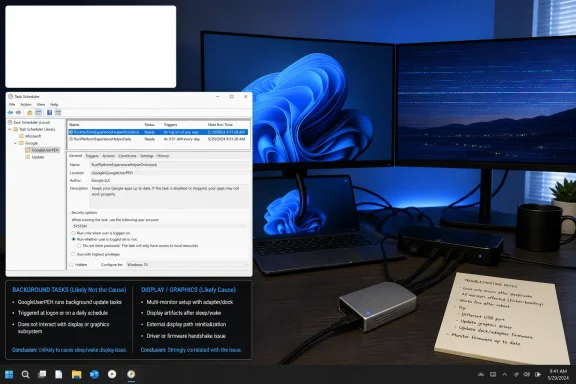
The blank white rectangle appearing near the upper-left corner of Windows desktops in July 2026 should be treated as a Google Chrome background-task problem only if it follows startup or unlock and maps to a GoogleUserPEH scheduled task. If it appears after sleep, after reconnecting displays, or alongside monitor corruption, test the display path first; the same visual symptom has existed for years and does not identify its owner by itself.
Reports posted between July 3 and July 16 describe the large, empty window on both Windows 10 and Windows 11. Microsoft Q&A users have connected recent cases to Chrome tasks named
The fastest useful test is not reinstalling Chrome, rolling back a graphics driver, or deleting folders. It is reproducing the rectangle while watching what Windows launches.
A screenshot can also separate two broad categories. If the rectangle appears in a Windows screenshot, the system is probably rendering a real window or desktop surface. If it is visible on the physical display but absent from the screenshot, attention should shift toward the graphics output, monitor, dock, adapter, or driver path.
Chromium’s public source code provides the more important technical connection. It contains a Windows PlatformExperienceHelper experiment and the
This distinction matters in managed environments. A Chrome installation can add components and scheduled work that run outside the browser window, so closing
The names also provide a practical inventory target. IT teams seeing the issue across multiple endpoints can check for the
Do not delete the task folder during the first test. Deletion makes comparison harder, and Chrome or its update mechanism may recreate components later. A temporary disable preserves the evidence and provides an easy rollback while Google’s intended behavior remains unclear.
The historical report is useful not because it identifies today’s root cause, but because it demonstrates the weakness of symptom-only troubleshooting. An empty rectangle can be an abandoned application window, a desktop overlay that failed to paint, or a stale display surface after Windows rebuilds the desktop following sleep.
Choose the display branch when one or more of these conditions apply:
A clean sleep-and-wake test is especially important because “after unlock” can describe two different sequences. Unlocking a running PC may trigger Chrome’s scheduled task, while unlocking immediately after wake also causes Windows, the GPU driver, docks, and monitor adapters to restore their state. Record whether the computer was merely locked or actually sleeping.
If the rectangle periodically returns while the machine is already in use, focus on software launched by another timer, startup entry, updater, hardware-control utility, or overlay. If it covers desktop icons and makes them unclickable but does not remain above normal application windows, it behaves more like an invisible or unpainted desktop-level window than damaged pixels.
Task Manager can help, but a short-lived process may disappear before it is identified. In that situation, repeatability matters more than guessing: note the exact event, time, connected displays, and whether Chrome was installed or updated on the system. Enterprise administrators should preserve those observations from at least one affected endpoint before applying a fleet-wide workaround.
Restarting Windows Explorer may clear an orphaned desktop surface temporarily, but that does not identify its creator. Likewise, rebooting may hide the problem until the same scheduled task, unlock event, or display transition occurs again.
The limitation is that neither Google nor Microsoft had publicly confirmed the root cause by July 18. Disabling the task could suppress behavior Chrome expects to perform, and the component may change or return through a later browser update. Administrators should document the original task state and periodically retest rather than treating the workaround as permanent policy.
If the evidence instead points to sleep or display restoration, isolate monitors, docks, and adapters before reinstalling or rolling back anything. Driver work should follow a reproducible hardware correlation, not the rectangle’s color or position.
For cases that match neither branch, investigate startup applications and vendor utilities. The correct classification is unknown owner, not automatically “Windows bug” or “Chrome bug.”
The next useful milestone is a public explanation or corrective update from Google, Microsoft, or both. Until then, the safest approach is to let the trigger decide the branch: startup or unlock plus
Reports posted between July 3 and July 16 describe the large, empty window on both Windows 10 and Windows 11. Microsoft Q&A users have connected recent cases to Chrome tasks named
RunPlatformExperienceHelperOnUnlock and, on some systems, RunPlatformExperienceHelper_Daily, but Google and Microsoft had not publicly confirmed a root cause as of July 18.
 Identify the Trigger Before Disabling Anything
The fastest useful test is not reinstalling Chrome, rolling back a graphics driver, or deleting folders. It is reproducing the rectangle while watching what Windows launches.- Restart the PC and note whether the rectangle appears after signing in.
- Lock Windows, unlock it, and check whether the rectangle returns immediately.
- Put the PC to sleep, wake it, and note whether that event triggers the box instead.
- If multiple monitors or a USB display adapter are connected, repeat the sleep-and-wake test with those devices disconnected.
- Open Task Manager with
Ctrl+Shift+Escwhile the rectangle is visible and look for a newly launched Chrome or Google-related process. - Open Task Scheduler by searching for it from Start.
- Expand Task Scheduler Library and look for the
GoogleUserPEHfolder. - Check whether it contains
RunPlatformExperienceHelperOnUnlock,RunPlatformExperienceHelper_Daily, or both. - Select the relevant task and review its recent run information rather than immediately deleting it.
- Temporarily disable the task, repeat the same startup or unlock event, and see whether the white window stops appearing.
GoogleUserPEH folder exists—move on rather than forcing the Chrome explanation onto a different failure.A screenshot can also separate two broad categories. If the rectangle appears in a Windows screenshot, the system is probably rendering a real window or desktop surface. If it is visible on the physical display but absent from the screenshot, attention should shift toward the graphics output, monitor, dock, adapter, or driver path.
The July Pattern Points Toward Chrome
The strongest clue in the current reports is timing. The rectangle appears after startup or unlock, while the task nameRunPlatformExperienceHelperOnUnlock explicitly describes an unlock trigger. Other affected users have instead found RunPlatformExperienceHelper_Daily, so administrators should not assume every installation has an identical task set.Chromium’s public source code provides the more important technical connection. It contains a Windows PlatformExperienceHelper experiment and the
InstallPlatformExperienceHelperWin feature, along with installer code for platform_experience_helper.exe. That makes Chrome a more credible owner than a generic Windows shell component, even though it does not prove that every upper-left rectangle comes from Chrome.This distinction matters in managed environments. A Chrome installation can add components and scheduled work that run outside the browser window, so closing
chrome.exe or changing Chrome’s “continue running background apps” preference may not test the same execution path. Task Scheduler is the better place to correlate the unlock event with the observed window.The names also provide a practical inventory target. IT teams seeing the issue across multiple endpoints can check for the
GoogleUserPEH folder and its PlatformExperienceHelper tasks before applying broad changes to display drivers or Windows images. A task that exists is not evidence of failure by itself, however; the useful evidence is that its execution time matches the appearance of the rectangle and that disabling it changes the result.Do not delete the task folder during the first test. Deletion makes comparison harder, and Chrome or its update mechanism may recreate components later. A temporary disable preserves the evidence and provides an easy rollback while Google’s intended behavior remains unclear.
Sleep and Multiple Displays Lead Down a Different Branch
A nearly identical white rectangle was discussed on WindowsForum on January 24, 2013. That case appeared after sleep and was investigated in a system using a DisplayLink multi-monitor adapter—long before the July 2026 Chrome reports.The historical report is useful not because it identifies today’s root cause, but because it demonstrates the weakness of symptom-only troubleshooting. An empty rectangle can be an abandoned application window, a desktop overlay that failed to paint, or a stale display surface after Windows rebuilds the desktop following sleep.
Choose the display branch when one or more of these conditions apply:
- The box appears after sleep or monitor reconnection rather than immediately after sign-in or unlock.
- Disconnecting a dock, USB graphics adapter, or secondary monitor changes the behavior.
- Changing the active monitor arrangement makes the rectangle move, vanish, or reappear.
- The affected area shows distortion, stale pixels, or other rendering artifacts rather than a uniformly blank application window.
- Disabling the matching Google task has no effect under a repeatable test.
A clean sleep-and-wake test is especially important because “after unlock” can describe two different sequences. Unlocking a running PC may trigger Chrome’s scheduled task, while unlocking immediately after wake also causes Windows, the GPU driver, docks, and monitor adapters to restore their state. Record whether the computer was merely locked or actually sleeping.
The Rectangle May Belong to a Third-Party Utility
Chrome and graphics drivers are not the only possibilities. WindowsForum has accumulated reports over the years involving white desktop boxes, brief black boxes, and areas of distortion in different screen positions. Their appearance is similar, but their timing and behavior differ.If the rectangle periodically returns while the machine is already in use, focus on software launched by another timer, startup entry, updater, hardware-control utility, or overlay. If it covers desktop icons and makes them unclickable but does not remain above normal application windows, it behaves more like an invisible or unpainted desktop-level window than damaged pixels.
Task Manager can help, but a short-lived process may disappear before it is identified. In that situation, repeatability matters more than guessing: note the exact event, time, connected displays, and whether Chrome was installed or updated on the system. Enterprise administrators should preserve those observations from at least one affected endpoint before applying a fleet-wide workaround.
Restarting Windows Explorer may clear an orphaned desktop surface temporarily, but that does not identify its creator. Likewise, rebooting may hide the problem until the same scheduled task, unlock event, or display transition occurs again.
Make the Smallest Reversible Change
For systems that consistently reproduce the box on unlock and contain the matchingGoogleUserPEH task, temporarily disabling that task is the narrowest available workaround. It targets the suspected trigger without uninstalling Chrome, altering Windows, or changing the graphics stack.The limitation is that neither Google nor Microsoft had publicly confirmed the root cause by July 18. Disabling the task could suppress behavior Chrome expects to perform, and the component may change or return through a later browser update. Administrators should document the original task state and periodically retest rather than treating the workaround as permanent policy.
If the evidence instead points to sleep or display restoration, isolate monitors, docks, and adapters before reinstalling or rolling back anything. Driver work should follow a reproducible hardware correlation, not the rectangle’s color or position.
For cases that match neither branch, investigate startup applications and vendor utilities. The correct classification is unknown owner, not automatically “Windows bug” or “Chrome bug.”
The next useful milestone is a public explanation or corrective update from Google, Microsoft, or both. Until then, the safest approach is to let the trigger decide the branch: startup or unlock plus
GoogleUserPEH points toward Chrome, while sleep, display changes, or absent Chrome tasks point toward the graphics path or another desktop utility.References
- Primary source: learn.microsoft.com
Loading…
learn.microsoft.com - Independent coverage: neowin.net
Windows 10 and 11 users are reporting a graphical bug, and Google Chrome may be to blame - Neowin
A strange blank white window is suddenly appearing on Windows PCs, and an unexpected culprit may be behind the annoying startup glitch. www.neowin.net
- Independent coverage: windowsreport.com
Windows 11 and Windows 10 Users Hit by Blank White Window Issue
Windows users report a blank white window after startup or unlock, with a Chrome Task Scheduler entry suspected as a possible cause. windowsreport.com
- Independent coverage: reddit.com
Loading…
www.reddit.com - Independent coverage: steamcommunity.com
Loading…
steamcommunity.com - Independent coverage: windowsphoneinfo.com
Loading…
www.windowsphoneinfo.com