

Microsoft’s Copilot has moved from optional experiment to a pervasive part of the Windows 11 experience, and in 2026 the ways to hide, block, or remove it have shifted again. If you want Copilot out of your taskbar, keyboard shortcuts, apps, or even off your device entirely, this guide collects the latest, tested methods — from the quick Settings toggle to enterprise-grade AppLocker rules — explains what each approach actually does, and warns where Microsoft’s evolving rollout can make “permanent” changes temporary.
Copilot is now embedded across Windows 11: the taskbar icon, the sidebar, integrations inside Notepad, File Explorer, Microsoft 365 apps, and the Microsoft Edge browsing experience. That deep integration means there are multiple launch paths (taskbar icon, Win+C or a hardware Copilot key, the Start menu search, Edge sidebar, and app-specific toggles). As a result, disabling Copilot cleanly requires a layered approach.
There are three practical outcomes most people want:
What this does:
Why:
What you lose when you disable/uninstall Copilot:
Source: thewincentral.com How to Disable Copilot in Windows 11 (2026 Updated Guide)
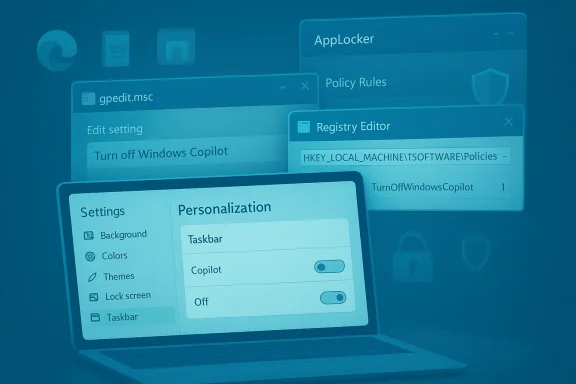 Background / Overview
Copilot is now embedded across Windows 11: the taskbar icon, the sidebar, integrations inside Notepad, File Explorer, Microsoft 365 apps, and the Microsoft Edge browsing experience. That deep integration means there are multiple launch paths (taskbar icon, Win+C or a hardware Copilot key, the Start menu search, Edge sidebar, and app-specific toggles). As a result, disabling Copilot cleanly requires a layered approach.There are three practical outcomes most people want:
- Hide Copilot from sight (quick, reversible)
- Disable Copilot so it cannot be launched by users on that PC (policy/registry)
- Remove the Copilot app entirely and block reinstallation (PowerShell/AppLocker/MDM)
Quick: Hide Copilot (Fast, reversible)
If you only want the Copilot icon gone from the Taskbar and want to stop accidental clicks, use the Settings toggle. This is safe, reversible, and requires no admin privileges.Steps (any modern Windows 11 build)
- Press Win + I to open Settings.
- Go to Personalization → Taskbar.
- Under Taskbar items, turn Copilot Off.
- Removes the Copilot button from the taskbar UI for the current user.
- Prevents accidental launches from clicking the taskbar.
- Does not always block keyboard shortcuts, deep links, or app-specific Copilot integrations.
- No risk to system stability.
- Instant visible result.
- Ideal for users who want a cleaner UI without system-wide changes.
Stronger: Disable Copilot System‑Wide with Group Policy (Pro / Enterprise / Education)
For managed PCs and users on Windows 11 Pro, Enterprise, or Education, the Local Group Policy Editor exposes a policy that disables Copilot more comprehensively.Where to find the setting
User Configuration → Administrative Templates → Windows Components → Windows Copilot → Turn off Windows CopilotSteps
- Press Win + R, type gpedit.msc and press Enter.
- Navigate to the policy path above.
- Double-click Turn off Windows Copilot and set it to Enabled.
- Click Apply and OK.
- Run gpupdate /force or restart the PC.
- Sets the official policy that disables Copilot for targeted user(s).
- Removes the taskbar icon and blocks primary normal launch paths (including the standard keyboard shortcut on most builds).
- Applies across all users affected by that policy object (when set at the appropriate scope).
- On some newer Windows releases, Microsoft is evolving Copilot experiences; the policy stops many but not necessarily every new Copilot behavior in preview builds. Test on your exact OS build before wide deployment.
- The policy writes a registry entry (policy-backed) so it is enforced until the policy is changed.
All Editions: Disable Copilot via Registry (Advanced, reversible if done correctly)
If you’re running Windows 11 Home (no gpedit.msc) or you want to script enforcement, set the registry policy value that the Group Policy toggles.Registry key & value (policy-backed)
- Path: HKEY_LOCAL_MACHINE\SOFTWARE\Policies\Microsoft\Windows\WindowsCopilot
- Value name: TurnOffWindowsCopilot
- Type: DWORD (32-bit)
- Value: 1 = disabled, 0 = enabled (or delete the value to revert)
Steps (admin privileges required)
- Make a full registry backup or create a System Restore point first.
- Press Win + R, type regedit and press Enter.
- Navigate to the path above. Create the WindowsCopilot key if it doesn’t exist.
- Create a new DWORD (32-bit) named TurnOffWindowsCopilot and set it to 1.
- Restart Windows (or run gpupdate /force and restart Explorer).
- Replicates the Group Policy setting by setting the policy registry key directly.
- Is suitable for scripting (deployment via PowerShell or deployment tools).
- Typically blocks the taskbar button and key launch paths.
- Microsoft documents that some CSP/policy settings related to Copilot have been deprecated or are being superseded by other management mechanisms in newer updates. That means registry enforcement may stop applying to some future Copilot variants. Always verify post-update behavior.
Remove the Copilot App (PowerShell) — When Uninstall Is Allowed
Contrary to early reports that Copilot cannot be removed, modern Windows builds often ship the Copilot experience as a provisioned or installable app that can be uninstalled. Use PowerShell to remove the app package from the current account or remove the package from the image for new users.PowerShell (local uninstall)
- Open PowerShell as an administrator.
- Find the Copilot package full name:
- Get-AppxPackage -Name "Microsoft.Copilot" | Select-Object PackageFullName
- Uninstall:
- Remove-AppxPackage -Package <PackageFullName>
To remove provisioned package for all new accounts (image-level)
- Use Remove-AppxProvisionedPackage or provisioning-specific commands (requires admin and care — only for administrators).
- If the Copilot experience is delivered as an Appx/MSIX package on your build, this removes that package for the current user (or removes provisioning so new user accounts don’t receive it).
- Not all installs will present an Uninstall option; OEM-presented or provisioned packages can behave differently.
- Future Windows feature updates may re-provision the Copilot app or reinstall it automatically. If you remove it manually, monitor updates and consider a blocking policy (AppLocker) for long-term prevention.
- Uninstalling system-provisioned app packages should be done carefully; always record what you remove and have a recovery plan.
Prevent Reinstallation: AppLocker and MDM / Intune Controls (Enterprise)
For organizations that need to block Copilot permanently across fleets, AppLocker or MDM policies are the recommended enterprise-grade approach.Why use AppLocker
- AppLocker can prevent the Copilot package from being installed or launched by blocking the publisher and package name.
- Microsoft recommends AppLocker over legacy TurnOffWindowsCopilot policy for some newer Windows releases.
Example AppLocker rule values (publisher/package ribbon)
- Publisher: CN=MICROSOFT CORPORATION, O=MICROSOFT CORPORATION, L=REDMOND, S=WASHINGTON, C=US
- Package name: MICROSOFT.COPILOT
- Package version: * (and above)
What this does:
- Prevents the Copilot app from being installed or launched.
- Produces a clear administrator-blocked message instead of a simple UI toggle.
- If AppLocker is deployed after a Copilot update, some users may see an “Administrator has blocked this app” message; combine AppLocker with a PowerShell uninstall where appropriate.
- AppLocker requires careful rule testing to avoid accidental blocking of legitimate packages.
Edge and App-Specific Copilot Controls
Some Copilot features are separate from the system-level Copilot app and live inside individual apps like Microsoft Edge, Notepad, or Office apps. If you only want to silence Copilot in the browser or an app, use the app’s own settings.Microsoft Edge (sidebar Copilot)
- Open Edge Settings → Sidebar (or open the Edge sidebar settings page).
- Find Copilot and disable Show Copilot button on the toolbar or turn off the sidebar integration.
Office / Notepad / Other apps
- Many Microsoft 365 and modern UWP apps offer their own Copilot toggle inside File → Options or app Settings. Disable Copilot per app if needed.
- Disabling system Copilot does not always remove every per-app Copilot integration; silence the app-level setting if you still see pop-ups inside specific applications.
Will Copilot Re‑Enable After Updates?
Short answer: it can — so verify after feature updates.Why:
- Major Windows feature updates or provisioning cycles may re-provision packages, re-add shortcuts, or change management mappings.
- Microsoft has changed the management story over multiple releases (policy mapping, deprecation notes, new Copilot app packaging), so what worked on one build may behave differently after a feature update.
- After a major Windows update, quickly re-check: Taskbar settings, Group Policy (gpedit), the policy registry key, and whether the Copilot package remains installed.
- If you need long-term blocking, deploy AppLocker or an MDM block rule and combine with an uninstall script.
- Consider monitoring update-preview or insider channels for upcoming management changes before large deployments.
Is It Safe to Disable Copilot?
For most users, yes — but there are tradeoffs.What you lose when you disable/uninstall Copilot:
- Integrated AI assistance in File Explorer, Notepad, and Start/Search.
- One-click AI actions inside apps like Word (if you used them).
- Single place to ask natural-language questions about system tasks.
- Disabling Copilot will not brick or destabilize Windows; core OS functions continue to work normally.
- Group Policy and CSP-backed registry changes are supported management paths, but remember that some policy settings are being deprecated or replaced on newer builds—stay current.
- Overaggressive AppLocker rules can accidentally block other Microsoft-signed packages if rules aren’t scoped carefully.
- Manual registry edits and app removals always carry a small risk; make a backup or system restore point first.
- On managed devices, admins must coordinate changes with support teams to avoid user confusion or helpdesk tickets.
Troubleshooting: Common Issues and Fixes
- Copilot Still Appears After Turning Off Taskbar Toggle
- Check for per-app Copilot toggles (Edge, Office, Notepad).
- Confirm the Group Policy or policy registry value is set if you intended a system-wide disable.
- Some builds still respond to ms-copilot: deep links — deploy an AppLocker block or remove the Copilot app.
- Win+C Shortcut Still Launches Copilot
- Verify Group Policy was applied (gpupdate /force).
- For per-user control, check Taskbar behaviors for a "keyboard shortcut for Copilot" toggle.
- If still present, the system may be using a new Copilot experience; check your Windows build notes and MDM guidance.
- Copilot Re-Installed After Windows Update
- Use an uninstall script combined with an AppLocker block to prevent reinstallation.
- Consider removing provisioning or removing the package from the image for future deployments.
Quick Reference: Commands and Keys
- Group Policy path:
- User Configuration → Administrative Templates → Windows Components → Windows Copilot → Turn off Windows Copilot
- Registry (policy-backed):
- HKEY_LOCAL_MACHINE\SOFTWARE\Policies\Microsoft\Windows\WindowsCopilot\TurnOffWindowsCopilot (DWORD) = 1
- PowerShell find/uninstall:
- Get-AppxPackage -Name "Microsoft.Copilot" | Select-Object PackageFullName
- Remove-AppxPackage -Package <PackageFullName>
- AppLocker rule identifiers (publisher/package):
- Publisher: CN=MICROSOFT CORPORATION, O=MICROSOFT CORPORATION, L=REDMOND, S=WASHINGTON, C=US
- Package name: MICROSOFT.COPILOT
Strategy Recommendations (Which Method to Use When)
- Home user, simple needs: Use Settings → Personalization → Taskbar and disable Copilot. Also check app-specific toggles (Edge and Office).
- Home user, stronger control: Use the registry method to set the TurnOffWindowsCopilot policy value (make backups first).
- Pro / Enterprise admin: Use Group Policy for straightforward enforcement; for long-term prevention, combine with AppLocker rules and PowerShell uninstall scripts where appropriate.
- Large fleets managed by Intune/MDE: Deploy AppLocker or MDM block policies pre-update, and have a scripted uninstall plan for devices already upgraded.
- Security-conscious orgs: Block Copilot’s app using AppLocker and audit block events; review Microsoft’s recommended CSP and AppLocker guidance for your Windows build.
Final Notes and Caveats
- Microsoft’s Copilot integration and management story continues to evolve. Policy names, CSPs, and recommended admin controls have shifted across Windows 11 releases.
- Some legacy policy mappings are marked deprecated; administrators should track Microsoft’s official management docs and test on current and preview builds before mass deployment.
- If you choose to edit the registry or remove packages, create a backup and a recovery plan. For enterprise deployments, stage changes and validate on pilot groups first.
Source: thewincentral.com How to Disable Copilot in Windows 11 (2026 Updated Guide)
