

Changing AutoPlay defaults in Windows 11 is a two‑minute fix that can save repetitive clicks when you connect USB drives, phones, SD cards, or insert discs — but the feature sits at the intersection of convenience and security, and understanding both the Settings UI and legacy recovery options will keep your workflow fast and your system safe.
AutoPlay is a long‑standing Windows feature that detects newly attached removable media and offers or runs an action — for example, opening File Explorer for a USB flash drive or launching the Photos import for a camera. In Windows 11 Microsoft shifted the primary controls into Settings under Bluetooth & devices → AutoPlay, while preserving the older Control Panel interface for finer‑grained or legacy options. The Settings route is the fastest path for most users, while Control Panel, Group Policy, and registry tweaks remain important for troubleshooting and enterprise management.
Computer Configuration → Administrative Templates → Windows Components → AutoPlay Policies
If your PC is managed, contact IT before attempting registry or policy edits.
HKCU\Software\Microsoft\Windows\CurrentVersion\Explorer\AutoplayHandlers\DisableAutoplay
set to 1 will disable AutoPlay at the user level; set it to 0 to re‑enable. This is useful on single machines where Group Policy isn’t available, but always export the key before changing it. Community posts show this method being used as a durable toggle, though some users report occasional changes after system updates. Label these as advanced and test on a spare machine if possible.
However, AutoPlay has inherent trade‑offs. Removable media is an established attack vector, and enterprise security guidance typically recommends disabling AutoPlay on managed endpoints. Inconsistencies — such as settings reverting after updates, interference from third‑party tools, or virtualization conflicts — mean you should document preferred settings and use Group Policy for durable enforcement where needed. For home users who value both convenience and safety, the best compromise is often to enable AutoPlay but set Ask me every time for unknown devices and use Open folder (File Explorer) or Import photos and videos only for devices you trust.
Cautionary note: some registry values and advanced service changes are version‑dependent and may behave differently across builds. If a specific registry key or Group Policy entry cannot be verified on your machine, treat it as potentially version‑dependent and test first on a spare system or virtual machine.
AutoPlay is simple to configure but worth treating with respect: change defaults quickly through Settings for convenience, use Control Panel to reset or recover when options misbehave, and apply Group Policy or registry controls when you need durable enforcement or enterprise‑grade security. Following the recovery checklist and the security best practices above will keep your Windows 11 experience both efficient and safe.
Source: Windows Report How To Change Autoplay Default Settings On Windows 11 Quickly
 Background
AutoPlay is a long‑standing Windows feature that detects newly attached removable media and offers or runs an action — for example, opening File Explorer for a USB flash drive or launching the Photos import for a camera. In Windows 11 Microsoft shifted the primary controls into Settings under Bluetooth & devices → AutoPlay, while preserving the older Control Panel interface for finer‑grained or legacy options. The Settings route is the fastest path for most users, while Control Panel, Group Policy, and registry tweaks remain important for troubleshooting and enterprise management.Quick overview: what you can set and why it matters
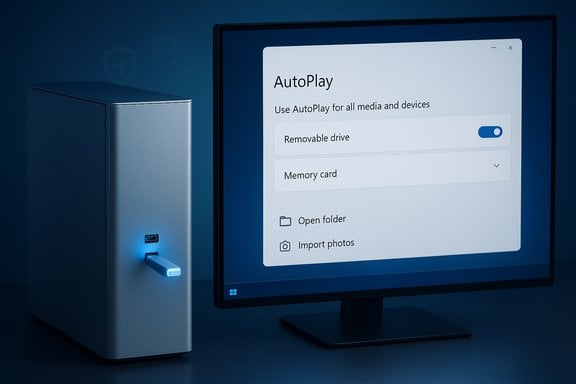
AutoPlay exposes two primary per‑device choices in Windows 11:- Removable drive — the default action Windows takes for USB sticks and external hard drives (for example, Open folder to view files (File Explorer) or Ask me every time).
- Memory card — the action when an SD card or similar is inserted (for example, Import photos and videos).
How to change AutoPlay defaults quickly (Settings method)
Follow these numbered steps for the fastest, built‑in method:- Press Windows + I to open Settings.
- Select Bluetooth & devices in the left column.
- Click AutoPlay.
- Toggle Use AutoPlay for all media and devices on or off.
- Under Choose AutoPlay defaults, open the dropdown for Removable drive and pick one of: Open folder (File Explorer), Import photos and videos, or Ask me every time.
- Repeat for Memory card with the option that fits your workflow.
Quick tip
If you prefer to always be asked before any action, choose Ask me every time for both Removable drive and Memory card — it gives you maximum control without disabling AutoPlay altogether.The legacy route: Control Panel and when to use it
Although Settings covers most needs, the legacy Control Panel → Hardware and Sound → AutoPlay page remains useful when:- A specific media type (Audio CD, DVD movie, etc. behaves oddly after changing Settings.
- You need the Reset all defaults button to undo many custom choices at once.
- You’re troubleshooting legacy optical media or older hardware that the Settings UI doesn’t list explicitly.
Troubleshooting: why AutoPlay changes might not apply
If the Settings toggles don’t seem to take effect, consider these common causes and fixes.1) System or service problems
AutoPlay relies on the Shell Hardware Detection service to detect device insertions. If that service is disabled AutoPlay won’t trigger. To start it manually:- Open Command Prompt as Administrator and run:
- net start shellhwdetection
- sc config shellhwdetection start= auto
- sc start shellhwdetection
2) Drivers and device recognition
Outdated or missing USB, SD, or optical drive drivers can prevent Windows from recognizing a device — and if Windows doesn’t correctly identify media, AutoPlay won’t run. Check Device Manager (Win + X → Device Manager), expand USB controllers or DVD/CD‑ROM drives, and update drivers. If a device isn’t listed, try another USB port or cable.3) Group Policy or enterprise management
On corporate or school machines AutoPlay is frequently disabled by Group Policy or MDM (Intune). If a policy is enforcing settings, local changes in the Settings app will be overridden. The Group Policy path administrators use is:Computer Configuration → Administrative Templates → Windows Components → AutoPlay Policies
If your PC is managed, contact IT before attempting registry or policy edits.
4) Registry flags or third‑party software
Older registry keys (like NoDriveTypeAutoRun) or third‑party security tools can disable AutoPlay. Advanced users sometimes inspect or change:- HKLM\SYSTEM\CurrentControlSet\Services\Cdrom (Autorun dword)
- HKEY_LOCAL_MACHINE\Software\Microsoft\Windows\CurrentVersion\Policies\Explorer\NoDriveTypeAutoRun
- HKCU\Software\Microsoft\Windows\CurrentVersion\Explorer\AutoplayHandlers\DisableAutoplay
Resetting AutoPlay when behavior is inconsistent
If you’ve experimented with several AutoPlay rules and behavior is unpredictable, reset everything with the Control Panel option:- Open Control Panel → Hardware and Sound → AutoPlay → Reset all defaults → Save.
Advanced and power‑user recipes
Use Task Scheduler as a deterministic fallback
If AutoPlay refuses to launch a specific app reliably, use Task Scheduler to run your chosen program when a device is connected. Create a task triggered by a device insertion event (or USB insertion Event ID) and set the action to launch File Explorer, Photos import, VLC, or another program. This method bypasses AutoPlay and is deterministic for power users.Registry toggle for durable control
On some systems, scripts or updates revert GUI settings. A registry DWORD at:HKCU\Software\Microsoft\Windows\CurrentVersion\Explorer\AutoplayHandlers\DisableAutoplay
set to 1 will disable AutoPlay at the user level; set it to 0 to re‑enable. This is useful on single machines where Group Policy isn’t available, but always export the key before changing it. Community posts show this method being used as a durable toggle, though some users report occasional changes after system updates. Label these as advanced and test on a spare machine if possible.
Security considerations and best practices
AutoPlay used to be a prolific malware vector because removable drives could carry autorun scripts. Microsoft and security experts have hardened AutoPlay over the years, but removable media remains a risk. Best practice depends on your environment:- Home users: If convenience matters, set AutoPlay to Ask me every time for unknown devices, or use Take no action and manually open trusted apps. Always run up‑to‑date antivirus and treat unfamiliar USBs with caution.
- Enterprise / public machines: Disable AutoPlay centrally via Group Policy or Intune. Security guidance from hardening guides recommends disabling AutoPlay on managed endpoints to reduce removable‑media risk.
Can I set different actions for each USB drive?
No — Windows uses a single rule for all removable drives. The AutoPlay dropdown for Removable drive applies to all USB mass storage devices; Windows does not remember individual preferences per‑device in typical consumer builds. Use the Ask me every time choice if you plug in many different devices and want per‑instance control. This limitation is part of the design in current Windows releases.Common pitfalls and how to avoid them
- Settings revert after updates: keep a note of your preferred configuration. If a major feature update seems to flip settings, re‑apply or enforce via Group Policy on business machines. Some users have reported AutoPlay toggles reverting when third‑party utilities reconfigure defaults.
- Virtualization or sandboxing software interference: VM tools like VirtualBox or VMware have been reported to interfere with device detection in rare cases. If AutoPlay stopped working after installing virtualization software, test on a host without those tools.
- Optical media quirks: DVDs and Audio CDs sometimes require additional default app associations; set the media type’s default app in Settings → Apps → Default apps if an audio CD won’t play automatically.
Step‑by‑step recovery checklist (if AutoPlay stops working)
- Verify Settings: Settings → Bluetooth & devices → AutoPlay — ensure Use AutoPlay for all media and devices is On.
- Test the Control Panel: Control Panel → Hardware and Sound → AutoPlay — confirm per‑media settings and use Reset all defaults if needed.
- Start Shell Hardware Detection: Open an elevated Command Prompt and run net start shellhwdetection, or use sc config / sc start to set it to Automatic.
- Update drivers: Device Manager → update USB host controller and DVD/CD‑ROM drivers. Reboot and re‑plug the device.
- Check Group Policy or MDM: Confirm no policy is prohibiting AutoPlay. If you are on a managed device, contact IT.
- If stubborn, use Task Scheduler as a fallback to launch the desired app when the device connects.
Advanced: Group Policy and registry specifics (for admins and power users)
- Group Policy path to control AutoPlay: Computer Configuration → Administrative Templates → Windows Components → AutoPlay Policies. Use Turn off AutoPlay with the scope you require (All drives or CD‑ROM and removable media drives). This is the preferred method for enterprise enforcement.
- Registry keys sometimes referenced in community solutions:
- HKCU\Software\Microsoft\Windows\CurrentVersion\Explorer\AutoplayHandlers\DisableAutoplay (DWORD 1 = disabled).
- HKLM\SYSTEM\CurrentControlSet\Services\Cdrom (Autorun dword may be 0/1).
- HKEY_LOCAL_MACHINE\Software\Microsoft\Windows\CurrentVersion\Policies\Explorer\NoDriveTypeAutoRun.
Final analysis: strengths, limitations, and practical recommendations
AutoPlay in Windows 11 remains a useful convenience for everyday tasks like opening a USB drive automatically or importing photos from an SD card. The strengths are clear: quick actions, fewer repetitive clicks, and smoother workflows for trusted devices. The Settings UI gives a simple, fast path for most users, and the legacy Control Panel retains recovery and reset options when things go wrong.However, AutoPlay has inherent trade‑offs. Removable media is an established attack vector, and enterprise security guidance typically recommends disabling AutoPlay on managed endpoints. Inconsistencies — such as settings reverting after updates, interference from third‑party tools, or virtualization conflicts — mean you should document preferred settings and use Group Policy for durable enforcement where needed. For home users who value both convenience and safety, the best compromise is often to enable AutoPlay but set Ask me every time for unknown devices and use Open folder (File Explorer) or Import photos and videos only for devices you trust.
Cautionary note: some registry values and advanced service changes are version‑dependent and may behave differently across builds. If a specific registry key or Group Policy entry cannot be verified on your machine, treat it as potentially version‑dependent and test first on a spare system or virtual machine.
Quick reference: essential commands and locations
- Settings route: Windows + I → Bluetooth & devices → AutoPlay.
- Control Panel route: Control Panel → Hardware and Sound → AutoPlay → Reset all defaults.
- Start Shell Hardware Detection service: net start shellhwdetection (Administrator).
- Group Policy: Computer Configuration → Administrative Templates → Windows Components → AutoPlay Policies.
AutoPlay is simple to configure but worth treating with respect: change defaults quickly through Settings for convenience, use Control Panel to reset or recover when options misbehave, and apply Group Policy or registry controls when you need durable enforcement or enterprise‑grade security. Following the recovery checklist and the security best practices above will keep your Windows 11 experience both efficient and safe.
Source: Windows Report How To Change Autoplay Default Settings On Windows 11 Quickly
