

Windows already includes a diagnostic that can tell you, in clear numbers, whether your laptop battery is merely tired or is approaching the end of its usable life — and it’s just one command away.
Laptop batteries are consumable components: their usable capacity declines with time, temperature exposure, and charge cycles. Windows exposes detailed battery telemetry via a built‑in tool (powercfg) that generates a human‑readable HTML battery report. That report consolidates manufacturer‑reported capacity, cycle counts, recent usage events, capacity history, and runtime estimates so you can replace a failing battery before it leaves you stranded. This capability is documented by Microsoft and described in mainstream how‑to guides, and it’s the same workflow used by technicians and power users to diagnose battery problems. This article explains, step by step, how to create the report on Windows 10 and Windows 11, how to read the crucial fields, what thresholds matter for replacement decisions, recommended troubleshooting steps if the report looks odd, and safe, practical follow‑ups if a replacement is required.
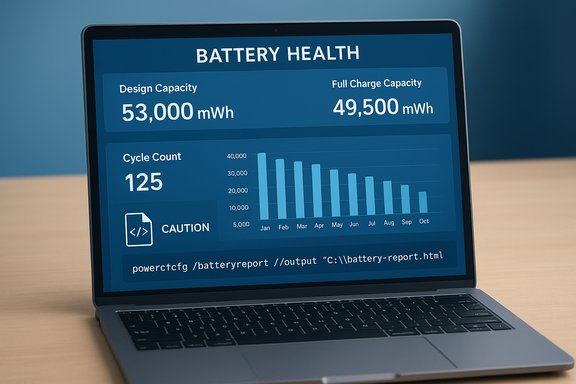
powercfg /batteryreport /output "C:\battery-report.html"
This single command tells Windows to write a battery report as an HTML file. The path in quotes determines where the file is saved; you can change C:\battery-report.html to any valid path and filename. Windows will print the full path when the report is created so you can open it straight away.
Run the command, read the Installed Batteries and Battery Capacity History blocks, and use the percentage of Full Charge Capacity vs Design Capacity as your primary health metric. If you need a quick checklist to paste into support requests or service tickets, the report’s HTML is ideal — it’s portable, machine‑readable, and supported by OEM help desks for warranty diagnostics. Checklist (copyable):
Source: PCMag Australia Is Your Laptop Battery Dying? Here's How to Check in Windows
 Background / Overview
Laptop batteries are consumable components: their usable capacity declines with time, temperature exposure, and charge cycles. Windows exposes detailed battery telemetry via a built‑in tool (powercfg) that generates a human‑readable HTML battery report. That report consolidates manufacturer‑reported capacity, cycle counts, recent usage events, capacity history, and runtime estimates so you can replace a failing battery before it leaves you stranded. This capability is documented by Microsoft and described in mainstream how‑to guides, and it’s the same workflow used by technicians and power users to diagnose battery problems. This article explains, step by step, how to create the report on Windows 10 and Windows 11, how to read the crucial fields, what thresholds matter for replacement decisions, recommended troubleshooting steps if the report looks odd, and safe, practical follow‑ups if a replacement is required.How to generate a battery report (the exact command)
Quick command — universal for Windows 10 and Windows 11
Open an elevated shell (Command Prompt, PowerShell, or Windows Terminal running as Administrator) and run:powercfg /batteryreport /output "C:\battery-report.html"
This single command tells Windows to write a battery report as an HTML file. The path in quotes determines where the file is saved; you can change C:\battery-report.html to any valid path and filename. Windows will print the full path when the report is created so you can open it straight away.
Step‑by‑step: Windows 11
- Right‑click the Start icon and select Terminal (Admin) (or search for Windows Terminal, right‑click and Run as administrator).
- Accept the UAC prompt. PowerShell is the default tab; paste or type the command above and press Enter.
- Open File Explorer, navigate to the drive and folder shown in the console output, and double‑click the generated battery‑report.html file to open it in your browser.
Step‑by‑step: Windows 10
- Right‑click the Start icon and choose Windows PowerShell (Admin) or search for Command Prompt and Run as administrator.
- Enter the same powercfg command and press Enter.
- Open the saved HTML file from the path printed by the shell.
What the battery report contains — guided tour
When you open the generated HTML report you’ll see a structured page with labeled sections. These are the parts to inspect first:- PC and System Information — basic host and Windows build data (useful when sharing the report with support).
- Installed Batteries — battery manufacturer/model, chemistry, Design Capacity (mWh), Full Charge Capacity (mWh), and cycle count. This is the most important block for health evaluation.
- Recent Usage — a time‑stamped table showing when the device last ran on battery vs AC power.
- Battery Usage — graphs/tables of battery drain over the last 72 hours, which help expose sudden spikes.
- Usage History — a longer history showing battery vs AC sessions (days, not just hours).
- Battery Capacity History — historical values of Design Capacity vs Full Charge Capacity to show long‑term degradation.
- Battery Life Estimates — calculated runtime based on Design Capacity versus observed Full Charge Capacity, plus a “current estimate” for how long the machine will run now.
How to read the key numbers (practical interpretation)
Design Capacity vs Full Charge Capacity
- Design Capacity is the energy (in milliwatt‑hours, mWh) the battery was rated for when new.
- Full Charge Capacity is what the battery can actually hold now at a reported “100%” charge. A shrinking Full Charge Capacity relative to Design Capacity is exactly what indicates battery wear.
Cycle count
The report reports a charge cycle count (if the battery exposes it). Many laptop batteries are designed for a finite number of cycles (commonly in the ~300–500 range for mainstream cells), after which capacity loss accelerates. Cycle count plus the capacity percentage gives a clearer picture than either alone.Battery Life Estimates
Windows computes two time‑based estimates: one derived from Design Capacity (what the laptop should be able to run) and one derived from observed Full Charge Capacity (what it actually does). Compare the two: a large gap is the easiest way to see real‑world impact.Practical thresholds — what to consider "bad"
- Above ~80% of design: generally healthy for consumer use.
- 60–80%: moderate degradation — consider whether the reduced runtime impacts daily workflows.
- Below ~60%: significant loss; many users replace the battery in this range to regain original portability.
A practical troubleshooting flow (run this before buying a replacement)
- Generate a battery report and record the Design Capacity, Full Charge Capacity, and cycle count.
- If Full Charge Capacity looks inconsistent (e.g., full charge > design, or wildly fluctuating values), reboot and re‑run the report, and ensure Windows and chipset drivers are up to date — reporting relies on firmware/ACPI telemetry.
- Disable OEM “conservation” modes temporarily (Lenovo Vantage, Dell Power Manager, HP Support Assistant) that cap charging to 60–80% — these skew the Full Charge Capacity reading if active. Re‑charge to 100% and re‑run the report for a fair comparison.
- Calibrate the battery meter if the percentage appears wrong: fully charge, discharge to near 0% while in a normal workload, then fully charge again uninterrupted. Re‑run powercfg /batteryreport and compare results. Calibration fixes gauge misreporting but does not restore lost capacity.
- If numbers still show steady, material capacity loss (and cycle count is high), factor in replacement. If the report looks inconsistent after these steps, contact OEM support for firmware/EC diagnostics or consider service center testing.
When to replace — safety, warranty, and replacement options
- Replace when capacity has fallen so far that your daily mobility is impaired (for many users that’s ~70% or below), or when the battery shows physical signs of failure (bulging, excessive heat), or when abrupt shutdowns occur despite a “full” reading. Microsoft explicitly warns that very degraded batteries can swell or develop faults that present safety risks — stop using and seek service if a battery noticeably deforms the case.
- Choose OEM or authorized spares when possible. OEM replacements maintain warranty alignment and are more likely to have the correct firmware integration so Windows sees accurate telemetry. Third‑party batteries vary in quality, can report incorrectly, and pose safety risks if poorly manufactured. For sealed ultrabooks, prefer authorized service to avoid damaging thin enclosures.
- If you buy a retail replacement, verify the seller, product reviews, and that the battery is specified for your exact model (not just the chassis family). For enterprise fleets, plan lifecycle replacement before batteries enter the steep decline zone to avoid productivity loss and service incidents.
Troubleshooting oddities and known pitfalls
Full Charge Capacity > Design Capacity
Occasionally the report shows Full Charge Capacity higher than Design Capacity. This is normally a telemetry/firmware artifact (or a replacement battery whose firmware reports atypically). Reboot, update platform drivers and ACPI firmware, verify OEM utility settings, and re‑run the report. If values remain odd, contact the vendor for clarification. Microsoft community discussion documents these cases and advises firmware/driver checks.Abrupt shutdowns despite “100%”
Two common causes: (a) severe capacity loss causing voltage collapse under load even though the reported percentage is high; (b) gauge miscalibration or EC firmware errors. The battery report helps distinguish these: a very low Full Charge Capacity relative to Design Capacity indicates the battery can’t sustain load even if Windows shows “100%.” Calibration and firmware updates are the usual first fixes; replacement is the fix for real capacity loss.Missing or empty fields
If the report omits cycle count or capacity history, the battery/firmware may not expose those values to Windows (common on some models). Check the OEM utility — some vendors offer deeper diagnostics — and update chipset/EC firmware. If telemetry is still missing, an authorized service evaluation may be needed.Tips to extend runtime and slow degradation (no hardware purchase)
- Use Battery Saver / Energy Saver modes and set the system to “best power efficiency” when mobile; this limits background work and visual effects.
- Lower screen brightness and cap refresh rate; displays are often the single largest power draw.
- Close unneeded background apps and disable unnecessary startup items. Use Task Manager’s “Power usage” and “Power usage trend” columns to spot resource hogs.
- Enable hibernation for long idle periods — hibernate writes RAM to disk and powers off, using effectively zero battery while idle. Prefer sleep for short breaks to keep the fast resume.
- Use OEM conservation/charge‑threshold modes if you primarily use the laptop on AC power (these modes typically limit maximum charge to ~60–80% and can slow long‑term degradation). Remember to temporarily disable conservation mode when you need full capacity for travel; it skews battery report readings while active.
- Avoid prolonged exposure to high temperatures; heat accelerates chemical aging. Store the battery at ~50% if you’ll keep the device idle for long periods. Microsoft documents these storage and safety recommendations.
Advanced diagnostics and complementary tools
- powercfg /energy — an advanced power analyzer that generates an HTML trace of driver and device power issues; useful if the battery report shows abnormal drain but not the cause.
- OEM utilities (Lenovo Vantage, Dell Power Manager, HP Support Assistant) — often provide additional battery tests, cycle life info, and charge‑limit modes. Use the OEM tool when available.
- Third‑party utilities (Battery Flyout and similar) — these can add historical charts, quick actions, and UI conveniences; they’re useful but do not replace powercfg as the authoritative OS‑level export for support inquiries. If you use third‑party apps, cross‑check their numbers against the powercfg report before making replacement decisions.
Real examples and decision‑making guidance
A useful way to turn the report into action is a short checklist you can follow after generating the HTML:- Record Design Capacity (mWh), Full Charge Capacity (mWh), and cycle count.
- Compute FullCharge ÷ Design as a percentage. If >=80% — monitor; if 60–80% — consider replacement based on mobility needs; if <60% — replacement recommended for portable users. Remember these are pragmatic ranges, not absolute rules.
- Inspect Battery Capacity History: steep declines over weeks/months indicate failing cells; gradual decline over years is aging.
- Check Recent Usage for software drains before assuming hardware failure: background sync, browser tabs, or runaway processes can shorten runtime. Use Task Manager and powercfg /energy to find culprits.
- Update firmware/drivers, disable conservation modes, calibrate battery (one full cycle), and re‑test before replacing.
Risks and cautions
- Don’t assume the battery report is infallible. It depends on the battery’s firmware and the system’s ACPI implementation. If you see impossible numbers or missing fields, verify drivers and OEM settings first.
- Avoid cheap, unbranded replacement batteries — they can be unsafe and may not expose accurate telemetry to Windows. Prioritize OEM or reputable replacement vendors. For sealed devices, DIY replacement risks damaging thin enclosures and may void warranty.
- When a battery physically bulges, emits heat, or the case is deformed, stop using the device and seek authorized service; swollen lithium packs are a safety hazard. Microsoft’s safety guidance covers storage and swollen battery warning signs.
Conclusion — put the numbers to work
The Windows battery report generated by powercfg is the single best first step when you suspect battery trouble. It converts opaque battery icons into measurable facts: mWh values, cycle counts, and runtime estimates you can use to decide between software fixes, firmware updates, or replacement. Follow the troubleshooting flow (update firmware, disable conservation modes, calibrate, re‑test) before replacing the pack, and prefer OEM/authorized replacements when a swap is necessary.Run the command, read the Installed Batteries and Battery Capacity History blocks, and use the percentage of Full Charge Capacity vs Design Capacity as your primary health metric. If you need a quick checklist to paste into support requests or service tickets, the report’s HTML is ideal — it’s portable, machine‑readable, and supported by OEM help desks for warranty diagnostics. Checklist (copyable):
- Run: powercfg /batteryreport /output "C:\battery-report.html".
- Open the generated battery-report.html and note Design Capacity, Full Charge Capacity, and cycle count.
- Update firmware/drivers, disable conservation mode, calibrate battery, re‑run report if numbers look inconsistent.
- If FullCharge ≤ ~60% of Design and cycle count is high, plan replacement (prefer OEM or authorized service).
Source: PCMag Australia Is Your Laptop Battery Dying? Here's How to Check in Windows
