

Microsoft’s Windows Recovery Environment remains the official path into Advanced startup on Windows 11 in 2026, and users can reach it through Settings, Shift-Restart, forced failed boots, recovery media, or Windows 11’s newer Quick Machine Recovery flow when normal startup is broken. The important point is not that WinRE exists; it is that Microsoft has quietly made it the control room for almost every serious boot repair. If Windows cannot reach the desktop, the recovery menu is no longer optional background plumbing. It is the operating system’s last working user interface.
A Windows 11 machine stuck on a black screen, a spinning-dots loop, or an endless “Preparing Automatic Repair” message presents a cruelly familiar problem: the tools needed to repair Windows are inside Windows, but Windows will not finish loading. That is why the first troubleshooting step is not
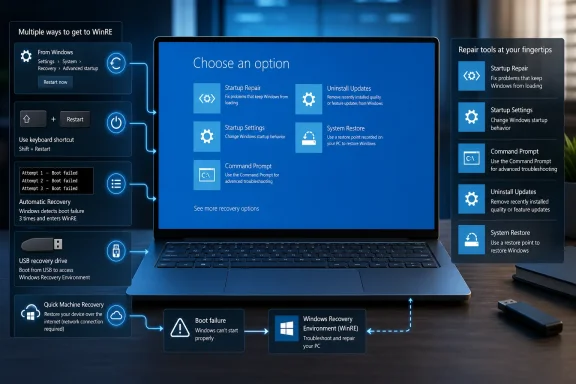
That screen is Windows Recovery Environment, usually shortened to WinRE. It hosts Startup Repair, Safe Mode, Uninstall Updates, System Restore, Command Prompt, Reset this PC, System Image Recovery, and, on newer Windows 11 builds, Microsoft’s cloud-assisted Quick Machine Recovery. The menu looks simple, but it is where Windows increasingly concentrates its self-repair strategy.
The good news is that WinRE has more than one entrance. If Windows still loads, the route is deliberate. If Windows does not load, the route becomes more primitive: interrupt boot enough times for Windows to conclude that normal startup has failed.
On Windows 10, the equivalent path is Settings > Update & Security > Recovery, then Restart now under Advanced startup. The menu that appears afterward is broadly the same recovery environment, even if the Settings path differs.
There is also a faster shortcut that every Windows troubleshooter should know. From either the Start menu or the sign-in screen, hold Shift while selecting Power > Restart. Keep Shift held through the restart action, and Windows jumps into Advanced startup without requiring a trip through Settings.
This matters because many “won’t boot” cases are not total failures. A machine may reach the sign-in screen, crash after login, or load the desktop for only a minute before failing. If you get even that much access, use the graceful route into WinRE rather than inducing forced shutdowns.
Windows tracks whether startup completed successfully. If the loader sees repeated failed attempts, it assumes startup is broken and diverts into Automatic Repair. From there, choose Advanced options to reach the full WinRE menu.
This is not elegant, but it is official behavior, and it works because Windows is designed to fail over into recovery after repeated startup failures. It is especially useful on consumer laptops and desktops where no recovery USB is available and the user cannot reach the sign-in screen.
There is one caveat. Timing matters. You are trying to interrupt Windows during boot, not after it has loaded. If you cut power too late, you may simply crash a partially running Windows session; if you cut power too early, the loader may not mark the attempt in the way you need. The practical target is the Windows logo, spinning dots, or the first visible sign that Windows is attempting to start.
That is when external recovery media becomes essential. A USB recovery drive created earlier can boot into the same family of repair tools. Windows installation media created with Microsoft’s Media Creation Tool can also do the job, provided you choose Repair your computer on the setup screen rather than installing Windows. Older systems may still support a repair disc, and some manufacturers provide dedicated recovery buttons or firmware-level recovery key combinations.
This is why sysadmins still keep known-good Windows installation media around even in a cloud-managed era. The USB stick is not just an installer. It is a portable entrance into recovery when the local copy of WinRE cannot be trusted.
The result is the same menu, but the route is different. Whether you entered through Settings, Shift-Restart, repeated failed boots, a recovery drive, or install media, the serious repair sequence begins once you land on “Choose an option.”
Startup Repair is not magic, and experienced users often skip it because they have seen it fail. That is a mistake. It is designed to address common boot blockers, including damaged startup files, failed boot attempts, and certain disk or configuration problems. It is also low-risk compared with manual boot-record surgery.
The best way to think about Startup Repair is as the triage nurse of WinRE. It will not solve every problem, but it can identify and correct enough routine failures that it deserves to run before you start renaming BCD stores or removing updates. If it succeeds, you avoid a more invasive repair path.
BitLocker is the common interruption here. If the Windows volume is encrypted, WinRE may ask for the BitLocker recovery key before it can inspect or repair the installation. For personal devices, that key is often tied to the user’s Microsoft account. In managed environments, it may live in Entra ID, Active Directory, Intune, or another key escrow process. Either way, the recovery key is not a formality; without it, the repair session may stop at the locked drive.
Safe Mode is not a repair by itself. It is a controlled environment for removing the thing that broke normal startup. That may be a display driver, endpoint security product, VPN client, storage driver, shell extension, or recently installed utility.
Safe Mode with Networking is useful when you need internet access, a remote support tool, or a driver package from a vendor. Safe Mode with Command Prompt is more useful when the graphical shell is part of the problem or when you already know the commands you need to run.
Startup Settings also exposes less glamorous but important toggles. Low-resolution video can help after a display configuration failure. Disabling automatic restart after failure can give you time to read a stop code. Disabling driver signature enforcement or early launch anti-malware protection should be treated as temporary diagnostic moves, not normal operating modes.
This is one of the most practical additions to modern Windows recovery. A quality update can include security fixes, servicing-stack changes, driver-related changes, and cumulative patches. If the timing lines up perfectly — the machine booted yesterday, installed an update, and now fails — rolling back the latest update is a rational next step.
There is a tradeoff. Removing a security update can reopen vulnerabilities that the update was meant to close. The right posture is not “never uninstall updates,” but “uninstall only to regain control, then patch again once Microsoft or the vendor has corrected the underlying problem.”
For enterprises, this is also where update rings and staged deployments prove their worth. A single broken consumer PC is an annoyance. A fleet caught in a boot loop is an incident. WinRE can rescue individual devices, but deployment hygiene prevents the same repair from becoming a thousand-machine exercise.
Its usefulness depends on whether restore points exist. Many users discover too late that no restore point was available, or that protection was not enabled for the relevant drive. On managed PCs, administrators may disable or replace the feature with more predictable backup and recovery tooling.
System Image Recovery is a more complete rewind. It restores a full system image, usually from an external drive or network location. That can be ideal for workstations with known-good images, but it is also more destructive than a targeted repair because the system returns to the state captured in the image.
Reset this PC is the option to treat with the most caution. It reinstalls Windows and may offer to keep personal files, but it is still a reinstall path, not a delicate repair. Before choosing Reset, recover what data you can, confirm BitLocker access, and understand which applications, drivers, and settings will need to be rebuilt afterward.
In a working Windows session, open Command Prompt as administrator and run:
Then run:
DISM repairs the underlying component store that SFC may rely on for clean copies of files. Running SFC first can still help in some cases, but if the component store itself is damaged, SFC may be trying to repair Windows with a compromised source.
From WinRE, drive letters may not match what you expect from a normal Windows session. The Windows partition may not be
If you have a known-good repair source, DISM can be pointed to it and blocked from using Windows Update with
If the target volume is in use, Windows may offer to run the check at the next restart. In WinRE, volumes are often easier to lock because the installed Windows instance is not actively running. That makes recovery mode a good place to run disk checks on a system volume.
But
This is especially important with SSDs, where failure can be less theatrical than on spinning disks. An SSD can move from intermittent weirdness to inaccessible data quickly. If the symptoms point to storage health, image the drive or copy critical data before running increasingly aggressive repairs.
Those commands are powerful precisely because they operate close to the boot path. They are appropriate when you see boot-manager errors, BCD errors, missing operating system messages, or a Windows installation that exists on disk but is not being found at startup. They are less appropriate as a generic “try this next” step after every crash.
If
Modern UEFI systems add another layer of complexity because the EFI System Partition may need attention, and drive letters in WinRE may differ from normal Windows. In many real-world cases,
That is a meaningful shift. Traditional Startup Repair can only work with what is on the device and what its local diagnostics understand. QMR turns recovery into a connected service, allowing Microsoft to respond to known, widespread boot failures without waiting for every user or administrator to perform manual repair steps.
The obvious use case is a bad update, driver interaction, or platform issue that affects many machines at once. Instead of every affected PC requiring desk-side support, the recovery environment can become a delivery mechanism for a targeted remediation. For enterprise IT, that is not just convenience; it is incident containment.
The limitation is just as important. QMR is not a universal cure for every broken Windows installation. It depends on supported Windows 11 versions, configuration, network access, and the existence of a Microsoft-provided remediation for the issue at hand. If no remediation is available, the machine falls back to the familiar WinRE toolbox.
Still, QMR tells us where Microsoft is taking Windows recovery. The operating system is being designed not only to repair itself locally, but to ask Microsoft’s cloud whether a known repair exists. That is sensible after years of update-related incidents, but it also makes recovery another part of the Windows servicing pipeline.
First, get into WinRE using the least destructive route available. If Windows still responds, use Settings or Shift-Restart. If it does not, use the interrupted-start method. If local recovery is broken, use external media.
Second, try automated and reversible repairs before manual surgery. Startup Repair, Safe Mode, update removal, and System Restore all preserve more options than boot-record rewrites or resets. They also align better with the most common causes of sudden boot failure: a bad driver, bad update, damaged system file, or corrupted startup state.
Third, distinguish between Windows damage and hardware damage. A machine that suddenly fails after an update is one kind of problem. A machine with disappearing drives, I/O errors, repeated corruption, or abnormal noises is another. WinRE can help diagnose both, but it cannot turn failing storage into reliable storage.
Finally, treat Reset this PC as a recovery path, not a troubleshooting shortcut. It is useful when Windows is too damaged to repair economically, but it should follow data protection, not precede it.
 The Door to Repair Is Often Hidden Behind the Failure
A Windows 11 machine stuck on a black screen, a spinning-dots loop, or an endless “Preparing Automatic Repair” message presents a cruelly familiar problem: the tools needed to repair Windows are inside Windows, but Windows will not finish loading. That is why the first troubleshooting step is not sfc, chkdsk, or a USB installer. It is getting into the blue “Choose an option” screen.That screen is Windows Recovery Environment, usually shortened to WinRE. It hosts Startup Repair, Safe Mode, Uninstall Updates, System Restore, Command Prompt, Reset this PC, System Image Recovery, and, on newer Windows 11 builds, Microsoft’s cloud-assisted Quick Machine Recovery. The menu looks simple, but it is where Windows increasingly concentrates its self-repair strategy.
The good news is that WinRE has more than one entrance. If Windows still loads, the route is deliberate. If Windows does not load, the route becomes more primitive: interrupt boot enough times for Windows to conclude that normal startup has failed.
If Windows Still Reaches the Desktop, Use the Clean Exit
The least dramatic way into Advanced startup is through Settings. On Windows 11, open Settings > System > Recovery, then select Restart now next to Advanced startup. The PC restarts into the “Choose an option” screen rather than booting back to the desktop.On Windows 10, the equivalent path is Settings > Update & Security > Recovery, then Restart now under Advanced startup. The menu that appears afterward is broadly the same recovery environment, even if the Settings path differs.
There is also a faster shortcut that every Windows troubleshooter should know. From either the Start menu or the sign-in screen, hold Shift while selecting Power > Restart. Keep Shift held through the restart action, and Windows jumps into Advanced startup without requiring a trip through Settings.
This matters because many “won’t boot” cases are not total failures. A machine may reach the sign-in screen, crash after login, or load the desktop for only a minute before failing. If you get even that much access, use the graceful route into WinRE rather than inducing forced shutdowns.
Three Interrupted Starts Remain the Field Trick That Saves the Day
When Windows will not load at all, the most useful built-in method is the three-interrupted-starts procedure. Turn the PC on, wait for the Windows logo or spinning dots, then hold the power button until the machine shuts off. Repeat that process a second time. On the third startup, let the system continue.Windows tracks whether startup completed successfully. If the loader sees repeated failed attempts, it assumes startup is broken and diverts into Automatic Repair. From there, choose Advanced options to reach the full WinRE menu.
This is not elegant, but it is official behavior, and it works because Windows is designed to fail over into recovery after repeated startup failures. It is especially useful on consumer laptops and desktops where no recovery USB is available and the user cannot reach the sign-in screen.
There is one caveat. Timing matters. You are trying to interrupt Windows during boot, not after it has loaded. If you cut power too late, you may simply crash a partially running Windows session; if you cut power too early, the loader may not mark the attempt in the way you need. The practical target is the Windows logo, spinning dots, or the first visible sign that Windows is attempting to start.
Recovery Media Is the Backup Plan for a Broken Recovery Partition
The three-start method assumes the local recovery environment is intact. Sometimes it is not. A damaged recovery partition, corrupted boot files, broken Boot Configuration Data store, or disk problem can prevent on-disk WinRE from launching even when Windows correctly detects startup failure.That is when external recovery media becomes essential. A USB recovery drive created earlier can boot into the same family of repair tools. Windows installation media created with Microsoft’s Media Creation Tool can also do the job, provided you choose Repair your computer on the setup screen rather than installing Windows. Older systems may still support a repair disc, and some manufacturers provide dedicated recovery buttons or firmware-level recovery key combinations.
This is why sysadmins still keep known-good Windows installation media around even in a cloud-managed era. The USB stick is not just an installer. It is a portable entrance into recovery when the local copy of WinRE cannot be trusted.
The result is the same menu, but the route is different. Whether you entered through Settings, Shift-Restart, repeated failed boots, a recovery drive, or install media, the serious repair sequence begins once you land on “Choose an option.”
Startup Repair Deserves the First Shot, Even When It Feels Too Simple
The first repair to run is Startup Repair. From WinRE, select Troubleshoot > Advanced options > Startup Repair and let Windows attempt the automated fix.Startup Repair is not magic, and experienced users often skip it because they have seen it fail. That is a mistake. It is designed to address common boot blockers, including damaged startup files, failed boot attempts, and certain disk or configuration problems. It is also low-risk compared with manual boot-record surgery.
The best way to think about Startup Repair is as the triage nurse of WinRE. It will not solve every problem, but it can identify and correct enough routine failures that it deserves to run before you start renaming BCD stores or removing updates. If it succeeds, you avoid a more invasive repair path.
BitLocker is the common interruption here. If the Windows volume is encrypted, WinRE may ask for the BitLocker recovery key before it can inspect or repair the installation. For personal devices, that key is often tied to the user’s Microsoft account. In managed environments, it may live in Entra ID, Active Directory, Intune, or another key escrow process. Either way, the recovery key is not a formality; without it, the repair session may stop at the locked drive.
Safe Mode Is Where You Undo the Last Bad Decision
If Startup Repair cannot fix the machine, the next goal is to boot Windows in a reduced state. From WinRE, go to Troubleshoot > Advanced options > Startup Settings > Restart. After the reboot, choose 4 or F4 for Safe Mode, 5 or F5 for Safe Mode with Networking, or 6 or F6 for Safe Mode with Command Prompt.Safe Mode is not a repair by itself. It is a controlled environment for removing the thing that broke normal startup. That may be a display driver, endpoint security product, VPN client, storage driver, shell extension, or recently installed utility.
Safe Mode with Networking is useful when you need internet access, a remote support tool, or a driver package from a vendor. Safe Mode with Command Prompt is more useful when the graphical shell is part of the problem or when you already know the commands you need to run.
Startup Settings also exposes less glamorous but important toggles. Low-resolution video can help after a display configuration failure. Disabling automatic restart after failure can give you time to read a stop code. Disabling driver signature enforcement or early launch anti-malware protection should be treated as temporary diagnostic moves, not normal operating modes.
Update Removal Is Now a First-Class Recovery Strategy
Windows updates are not the only cause of boot failures, but they are common enough that Microsoft gives update rollback its own WinRE path. From the recovery menu, select Troubleshoot > Advanced options > Uninstall Updates. Windows may offer to remove the latest quality update and, where applicable, the latest feature update.This is one of the most practical additions to modern Windows recovery. A quality update can include security fixes, servicing-stack changes, driver-related changes, and cumulative patches. If the timing lines up perfectly — the machine booted yesterday, installed an update, and now fails — rolling back the latest update is a rational next step.
There is a tradeoff. Removing a security update can reopen vulnerabilities that the update was meant to close. The right posture is not “never uninstall updates,” but “uninstall only to regain control, then patch again once Microsoft or the vendor has corrected the underlying problem.”
For enterprises, this is also where update rings and staged deployments prove their worth. A single broken consumer PC is an annoyance. A fleet caught in a boot loop is an incident. WinRE can rescue individual devices, but deployment hygiene prevents the same repair from becoming a thousand-machine exercise.
Restore Points and Images Are the Line Between Repair and Rewind
System Restore sits in the same Advanced options area and remains useful when the failure follows a driver, application, configuration change, or update. It returns system files and settings to an earlier restore point without intentionally deleting personal files. That distinction matters: System Restore is a rollback of Windows state, not a file backup.Its usefulness depends on whether restore points exist. Many users discover too late that no restore point was available, or that protection was not enabled for the relevant drive. On managed PCs, administrators may disable or replace the feature with more predictable backup and recovery tooling.
System Image Recovery is a more complete rewind. It restores a full system image, usually from an external drive or network location. That can be ideal for workstations with known-good images, but it is also more destructive than a targeted repair because the system returns to the state captured in the image.
Reset this PC is the option to treat with the most caution. It reinstalls Windows and may offer to keep personal files, but it is still a reinstall path, not a delicate repair. Before choosing Reset, recover what data you can, confirm BitLocker access, and understand which applications, drivers, and settings will need to be rebuilt afterward.
DISM Before SFC Is the Right Order for System File Repair
Once you can reach Command Prompt, either from WinRE or an elevated Windows session, the familiar system-file tools come into play. The order matters. Microsoft’s modern guidance is to use DISM to repair the Windows image/component store, then use System File Checker to repair protected system files.In a working Windows session, open Command Prompt as administrator and run:
DISM.exe /Online /Cleanup-image /RestorehealthThen run:
sfc /scannowDISM repairs the underlying component store that SFC may rely on for clean copies of files. Running SFC first can still help in some cases, but if the component store itself is damaged, SFC may be trying to repair Windows with a compromised source.
From WinRE, drive letters may not match what you expect from a normal Windows session. The Windows partition may not be
C:. Before running offline repairs, confirm the correct volume with diskpart, list volume, or directory checks. Many failed repair attempts are not failed repairs at all; they are commands aimed at the wrong partition.If you have a known-good repair source, DISM can be pointed to it and blocked from using Windows Update with
/Source and /LimitAccess. That is more common in enterprise or lab environments than on home PCs, but it is valuable when Windows Update is unavailable or when you need deterministic repair media.Check Disk Is Useful, but It Is Not a Cure for Dying Hardware
chkdsk remains the blunt instrument for file-system and disk-surface checks. From an elevated Command Prompt, chkdsk d: /f fixes file-system errors on the target volume, with d: replaced by the correct drive letter. Adding /r performs a deeper scan for bad sectors and attempts to recover readable information; /r includes /f.If the target volume is in use, Windows may offer to run the check at the next restart. In WinRE, volumes are often easier to lock because the installed Windows instance is not actively running. That makes recovery mode a good place to run disk checks on a system volume.
But
chkdsk should not be mistaken for a hardware repair tool. If a drive is failing, a successful pass may only buy time. Repeated file-system corruption, slow scans, bad-sector reports, clicking drives, or SMART warnings should move the priority from “repair Windows” to “preserve data and replace storage.”This is especially important with SSDs, where failure can be less theatrical than on spinning disks. An SSD can move from intermittent weirdness to inaccessible data quickly. If the symptoms point to storage health, image the drive or copy critical data before running increasingly aggressive repairs.
Bootrec Is the Scalpel, Not the Hammer
When Startup Repair fails and the machine appears to have boot-configuration damage,Bootrec.exe becomes relevant. It is available from the WinRE Command Prompt and provides commands such as /FixMbr, /FixBoot, /ScanOs, and /RebuildBcd.Bootrec /FixMbr writes a compatible master boot record without overwriting the existing partition table. Bootrec /FixBoot writes a new boot sector. Bootrec /ScanOs scans disks for Windows installations not currently in the Boot Configuration Data store. Bootrec /RebuildBcd scans for installations and lets you add them back to the BCD store.Those commands are powerful precisely because they operate close to the boot path. They are appropriate when you see boot-manager errors, BCD errors, missing operating system messages, or a Windows installation that exists on disk but is not being found at startup. They are less appropriate as a generic “try this next” step after every crash.
If
/RebuildBcd does not resolve the problem, Microsoft has long documented a more advanced sequence: export the existing BCD store, remove system/hidden/read-only attributes from the current BCD file, rename it, and rebuild it. The export is the safety line. Without a backup, you are not repairing the boot configuration so much as gambling with it.Modern UEFI systems add another layer of complexity because the EFI System Partition may need attention, and drive letters in WinRE may differ from normal Windows. In many real-world cases,
bcdboot is the cleaner tool for recreating EFI boot files, but that is also where the repair stops being a general-user procedure and becomes administrator work.Quick Machine Recovery Is Microsoft Admitting Local Repair Is Not Enough
The most interesting change in the Windows 11 recovery story is Quick Machine Recovery. Available on newer Windows 11 24H2 builds, QMR is designed to help devices recover from critical boot failures by entering WinRE, connecting to the network, checking Windows Update for remediations, and applying a cloud-delivered fix when one exists.That is a meaningful shift. Traditional Startup Repair can only work with what is on the device and what its local diagnostics understand. QMR turns recovery into a connected service, allowing Microsoft to respond to known, widespread boot failures without waiting for every user or administrator to perform manual repair steps.
The obvious use case is a bad update, driver interaction, or platform issue that affects many machines at once. Instead of every affected PC requiring desk-side support, the recovery environment can become a delivery mechanism for a targeted remediation. For enterprise IT, that is not just convenience; it is incident containment.
The limitation is just as important. QMR is not a universal cure for every broken Windows installation. It depends on supported Windows 11 versions, configuration, network access, and the existence of a Microsoft-provided remediation for the issue at hand. If no remediation is available, the machine falls back to the familiar WinRE toolbox.
Still, QMR tells us where Microsoft is taking Windows recovery. The operating system is being designed not only to repair itself locally, but to ask Microsoft’s cloud whether a known repair exists. That is sensible after years of update-related incidents, but it also makes recovery another part of the Windows servicing pipeline.
The Practical Repair Order Is Less Heroic Than the Internet Suggests
Online troubleshooting culture tends to reward dramatic commands. Rebuild the BCD. Rewrite the boot sector. Run a half-remembered sequence from an old forum post. The safer order is more boring, and that is the point.First, get into WinRE using the least destructive route available. If Windows still responds, use Settings or Shift-Restart. If it does not, use the interrupted-start method. If local recovery is broken, use external media.
Second, try automated and reversible repairs before manual surgery. Startup Repair, Safe Mode, update removal, and System Restore all preserve more options than boot-record rewrites or resets. They also align better with the most common causes of sudden boot failure: a bad driver, bad update, damaged system file, or corrupted startup state.
Third, distinguish between Windows damage and hardware damage. A machine that suddenly fails after an update is one kind of problem. A machine with disappearing drives, I/O errors, repeated corruption, or abnormal noises is another. WinRE can help diagnose both, but it cannot turn failing storage into reliable storage.
Finally, treat Reset this PC as a recovery path, not a troubleshooting shortcut. It is useful when Windows is too damaged to repair economically, but it should follow data protection, not precede it.
The WinRE Route Map Worth Remembering Before the Screen Goes Black
The best time to understand Advanced startup is before the machine is already failing. The second-best time is when the first sign of boot trouble appears. WinRE is less intimidating when you view it as an ordered decision tree rather than a pile of blue-menu options.- If Windows still reaches the desktop or sign-in screen, use Settings or Shift-Restart to enter Advanced startup cleanly.
- If Windows will not boot, interrupt startup twice at the Windows logo or spinning dots and let the third boot enter Automatic Repair.
- If the local recovery environment will not load, boot from a recovery USB or Windows installation media and choose the repair path instead of installing.
- Once inside WinRE, run Startup Repair before moving to Safe Mode, update removal, System Restore, or command-line repairs.
- Use DISM before SFC when repairing system files, and verify drive letters carefully when working from WinRE.
- Reserve Bootrec, BCD rebuilding, Reset this PC, and full image recovery for cases where simpler and more reversible repairs have failed.
References
- Primary source: Technobezz
Published: 2026-06-02T15:20:06.467129
How to Open Advanced Startup Options (WinRE) on Windows 11 When It Won't Boot (2026) | Technobezz
A black screen, a spinning dots loop, or an endless "Preparing Automatic Repair" message means you cannot reach the one place that fixes a broken Window.www.technobezz.com - Official source: support.microsoft.com
Quick Machine Recovery in Windows | Microsoft Support
Learn about Quick Machine Recovery in Windows.support.microsoft.com - Official source: learn.microsoft.com
Quick Machine Recovery | Microsoft Learn
Learn about quick machine recovery and how to configure it with the RemoteRemediation configuration service provider (CSP).learn.microsoft.com - Related coverage: tomshardware.com
Microsoft rushes out emergency Windows 11 patch after botched update breaks Recovery — restores USB keyboard and mouse input inside WinRE for Windows 11 versions 24H2 and 25H2 | Tom's Hardware
KB5070773 fixes a WinRE bug introduced by October’s cumulative update.www.tomshardware.com - Related coverage: windowscentral.com
How Windows 11 can now repair itself after a boot failure | Windows Central
Windows 11 now has Quick Machine Recovery to fix boot failures faster, and in this guide, I'll explain the steps to enable it.www.windowscentral.com - Official source: answers.microsoft.com
bootrec /rebuildbcd command returns 0 Windows installations found, Windows 10 laptop. - Microsoft Q&A
This is on Windows 10. My laptop won’t boot and I’ve tried auto repair with no success. Now I’m trying to repair my boot configuration following information from the internet and I’m running into a problem. So far I’ve been using the following commands…answers.microsoft.com
- Related coverage: gegeek.com
- Related coverage: der-windows-papst.de
