

The INACCESSIBLE_BOOT_DEVICE blue screen in Windows 11 and Windows 10 is a startup failure, usually marked by bug check 0x0000007B, that means Windows lost access to the system partition it needs in order to boot. In plain English, the operating system reached for the drive that contains Windows and could not talk to it reliably enough to continue. That makes the error frightening, but also unusually diagnosable: the usual suspects are storage mode changes, driver trouble, file-system corruption, botched updates, damaged boot records, or failing hardware. The right way to fix it is not to start reinstalling Windows, but to walk backward from the last change and let Windows’ recovery tools do their job before you reach for destructive options.
Few Windows errors feel as final as a blue screen before the desktop appears. There is no Start menu to click, no Settings app to open, and no obvious path from panic to repair. INACCESSIBLE_BOOT_DEVICE is particularly nasty because it arrives at the most vulnerable moment in the boot process, when Windows is assembling just enough storage, file-system, and boot configuration state to bring the rest of the operating system online.
Microsoft’s own definition is blunt: bug check 0x0000007B means Windows has lost access to the system partition during startup. That wording matters. The disk may not be dead, the data may not be gone, and the Windows installation may not be ruined. The boot process has simply reached a point where it cannot access the partition it depends on.
That distinction should shape the entire repair strategy. A user who treats the stop code as evidence of a dead drive may waste hours swapping hardware or reinstalling Windows. A user who treats it as an access problem will first ask what changed in the storage path: firmware settings, controller mode, disk cabling, SSD placement, update state, driver stack, encryption, and boot metadata.
Windows is not indifferent to these details. The drivers and boot settings it prepared under one controller mode may not match the world it sees after firmware is changed. That is why a machine can be perfectly healthy on Monday, receive a BIOS change on Tuesday, and refuse to boot on Wednesday.
If the error appeared after adding a drive, controller card, dock, enclosure, or replacement SSD, shut the system down and remove the new component. If the error followed a BIOS or UEFI change, return the storage settings to their previous state, especially SATA mode choices such as AHCI, RAID, or legacy IDE. Do not “optimize” settings during this step. The goal is to recreate the working configuration, not to build the theoretically best one.
This is also the moment to check the physical layer. Desktop users should reseat SATA and power cables, confirm the boot drive is still visible in firmware, and make sure the motherboard is not trying to boot from the wrong disk. Laptop users have fewer cables to inspect, but they can still check whether the internal SSD is detected in firmware and whether an external drive is confusing the boot order.
If Windows sometimes boots, the easiest path is through Settings. On Windows 11, Advanced startup lives under System and Recovery. On Windows 10, it lives under Update & Security and Recovery. The sign-in screen offers another route: hold Shift while choosing Restart from the power menu.
If Windows cannot start at all, repeated failed boots normally trigger WinRE automatically. After two unsuccessful startup attempts, many systems will present the recovery screen without further intervention. That behavior is useful because INACCESSIBLE_BOOT_DEVICE often leaves users with no working desktop from which to launch repairs.
There is one caveat that administrators and security-conscious users should take seriously: BitLocker. If the system drive is encrypted, recovery tools may ask for the BitLocker recovery key. That is by design, and it is also why every Windows user who enables device encryption should know where the recovery key is stored before trouble arrives.
The tool is not magic. It will not fix a dead SSD, repair every corrupted registry hive, or reverse every bad storage driver. But it can address common boot failures, damaged startup files, and configuration problems that would otherwise require manual commands. For most users, that makes it the right first automated attempt.
The key is to let it finish. Interrupting repair tools because they appear to hang can leave the system in a more ambiguous state. On older disks or damaged file systems, startup diagnostics can take longer than expected. If BitLocker prompts appear, provide the recovery key and continue.
If Startup Repair fails, that is useful information rather than a dead end. It suggests the problem may sit below the boot configuration, above it in a recent update or driver, or outside Windows entirely in firmware or hardware. The repair sequence should become more targeted from there.
From WinRE, the route is Troubleshoot, Advanced options, Startup Settings, then Restart. Pressing 4 or F4 starts Safe Mode; pressing 5 or F5 starts Safe Mode with Networking. If Windows reaches Safe Mode successfully, restart normally once before making the situation more complicated. Sometimes that single Safe Mode boot is enough for Windows to re-enumerate storage hardware and settle the driver state.
If Safe Mode opens reliably, Device Manager becomes useful again. Look for storage controllers, disk devices, or chipset-related entries with warning marks. Updating, rolling back, or uninstalling a suspect driver may resolve the boot path failure, particularly after a storage driver package or vendor utility was installed.
For administrators, Safe Mode is also a triage signal. A system that boots in Safe Mode but not normally is less likely to have catastrophic storage failure and more likely to have a driver, service, update, or filter-driver problem. That narrows the hunt considerably.
If the blue screen appeared immediately after an update, this is one of the cleanest fixes to try. It is less destructive than a reset, less manual than rebuilding boot records, and more directly related to the failure timeline than random command-line repairs. The update removal process may still require a BitLocker key on encrypted systems.
When Windows still boots intermittently, the same idea can be applied from inside the operating system through Windows Update history and the uninstall updates interface. That is often easier than doing the same work from recovery. But the recovery path exists precisely for the moments when the desktop is unreachable.
Advanced users may also encounter pending update states, where Windows is stuck between installation and rollback. The DISM command to revert pending actions from an offline Windows image can help in those scenarios, but it should not be used casually. Before running offline servicing commands, confirm the correct Windows drive letter in WinRE, because recovery environments do not always assign drive letters the same way a running Windows installation does.
From WinRE, System Restore appears under Advanced options. Choose a restore point from before the first INACCESSIBLE_BOOT_DEVICE crash and let Windows roll the system configuration back. Personal files are not the target of the operation, which makes it much less drastic than resetting or reinstalling the OS.
The catch is availability. System Restore must have restore points to use, and not every system has useful ones. Some OEM configurations, disk-cleanup habits, or enterprise policies reduce its usefulness. Still, when a restore point exists from the right date, it is one of the better risk-adjusted repairs in the Windows toolbox.
This is where keeping a timeline pays off. “It broke sometime last week” is less useful than “it broke after the storage driver update on Friday.” The more precise the failure window, the more confidently you can choose a restore point.
That step is not optional. In the recovery environment, the Windows installation that normally appears as C: may receive a different letter. Use DiskPart to list volumes, check labels, sizes, and file-system types, and confirm which volume contains the Windows folder. Running repair commands against the wrong partition wastes time at best and causes confusion at worst.
CHKDSK can repair file-system errors and scan for bad sectors. The familiar command uses the
System File Checker can also be run offline against the Windows directory. The offline form of SFC requires both the boot directory and Windows directory paths. If Windows can boot normally or in Safe Mode, DISM should usually run before SFC, because DISM repairs the component store that SFC relies on. From a running Windows installation, the standard sequence is DISM with RestoreHealth, followed by SFC.
These tools are not interchangeable. CHKDSK concerns the file system and disk surface; SFC concerns protected system files; DISM concerns the component store used to repair Windows. A good repair sequence understands the layers rather than throwing commands at the machine in random order.
DiskPart can confirm that the boot disk and relevant volumes are visible. On modern UEFI systems, a small EFI System Partition usually holds boot files, while the Windows partition holds the operating system. On older BIOS/MBR systems, the layout differs. A star in DiskPart’s GPT column indicates a GPT disk, which is common on UEFI installations.
BCDEdit lets users inspect boot entries, including the Windows Boot Manager and the default loader entry. Before changing the BCD store, export a backup. That small precaution can save considerable pain if a repair attempt goes sideways.
Bootrec remains the familiar recovery tool for scanning for Windows installations and rebuilding boot configuration data. Commands such as
This is also where the original source of the problem can resurface. If firmware storage mode is wrong, if the EFI partition is missing, or if the disk is not detected consistently, boot configuration repairs may appear to work and then fail again. Boot files cannot compensate for a storage path that keeps disappearing.
For home users, the recovery key is often associated with a Microsoft account. For business users, it may be escrowed in Entra ID, Active Directory, or an endpoint management platform. The important point is operational rather than philosophical: if you cannot retrieve the key, legitimate repair work may stop at the door.
This matters especially after BIOS changes. Updating firmware, toggling Secure Boot, altering TPM settings, or changing boot order can all make BitLocker more suspicious of the platform state. When storage troubleshooting already requires firmware inspection, encryption preparedness becomes part of the repair plan.
The lesson for IT shops is not to avoid encryption. It is to treat recovery key escrow as infrastructure, not paperwork. A boot failure is stressful enough without discovering that the one key needed to reach the disk was never backed up where support staff can access it.
For an individual user, the practical question is whether repairing Windows 10 is enough or whether the incident should accelerate a move to Windows 11, new hardware, or an Extended Security Updates arrangement where available. For businesses, the calculus is sharper. A boot failure on an unsupported operating system is not only a help-desk ticket; it is a reminder that recovery, patching, compliance, and hardware lifecycle are now intertwined.
This is where the clean install option becomes less straightforward. Reinstalling Windows 10 may get an older PC running again, but it does not solve the security-support problem. Reinstalling Windows 11 may be preferable, but only if the hardware meets requirements and the organization is ready for the migration.
For WindowsForum readers, this is likely to be the dividing line in 2026. Windows 10 recovery remains technically possible, and many of the tools are identical. But every serious Windows 10 repair now carries an extra question: are you restoring a supported workstation, or are you prolonging a platform that has already aged out of mainstream servicing?
Microsoft’s Media Creation Tool can create bootable installation media from another working PC. From that USB drive, users can reinstall Windows, delete or recreate partitions, and start fresh. That power is exactly why the step deserves caution: a clean install can erase applications, settings, and personal files if backups are not in place.
Before reinstalling, try to recover data. If WinRE Command Prompt can see the Windows volume, files may be copied to an external drive. If the disk is healthy but Windows is not, removing the drive and attaching it to another system may be an option for experienced users. In enterprise environments, standard backup and endpoint recovery procedures should take precedence over improvisation.
A clean install also will not fix bad hardware. If the SSD is failing, if the storage controller is unstable, or if firmware cannot reliably see the boot disk, a new Windows installation may fail during setup or crash again shortly afterward. Hardware validation belongs before the final reinstall, not after.
The larger lesson is that INACCESSIBLE_BOOT_DEVICE is less mysterious than it looks. It is Windows telling you that the chain between firmware, controller, driver, file system, boot configuration, and system partition has broken somewhere before the desktop can appear. In 2026, the best response is still disciplined troubleshooting: reverse the last change, use WinRE before third-party tools, respect BitLocker, verify the disk, and reserve the clean install for the moment when recovery has truly run out of road.
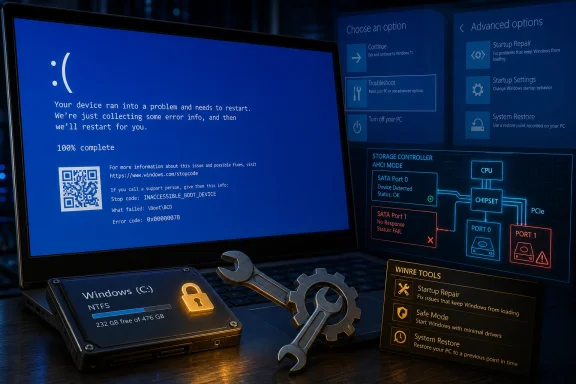 The Blue Screen Is Not the Disease, It Is the Symptom
Few Windows errors feel as final as a blue screen before the desktop appears. There is no Start menu to click, no Settings app to open, and no obvious path from panic to repair. INACCESSIBLE_BOOT_DEVICE is particularly nasty because it arrives at the most vulnerable moment in the boot process, when Windows is assembling just enough storage, file-system, and boot configuration state to bring the rest of the operating system online.Microsoft’s own definition is blunt: bug check 0x0000007B means Windows has lost access to the system partition during startup. That wording matters. The disk may not be dead, the data may not be gone, and the Windows installation may not be ruined. The boot process has simply reached a point where it cannot access the partition it depends on.
That distinction should shape the entire repair strategy. A user who treats the stop code as evidence of a dead drive may waste hours swapping hardware or reinstalling Windows. A user who treats it as an access problem will first ask what changed in the storage path: firmware settings, controller mode, disk cabling, SSD placement, update state, driver stack, encryption, and boot metadata.
The First Fix Is Remembering What You Changed
The safest fix is also the least glamorous: undo the last hardware or firmware change. INACCESSIBLE_BOOT_DEVICE often follows a storage-related modification that seemed harmless at the time. A SATA controller changed from AHCI to RAID, a new NVMe drive was added, a cloned disk was moved into a different slot, or a BIOS update quietly reset a storage option.Windows is not indifferent to these details. The drivers and boot settings it prepared under one controller mode may not match the world it sees after firmware is changed. That is why a machine can be perfectly healthy on Monday, receive a BIOS change on Tuesday, and refuse to boot on Wednesday.
If the error appeared after adding a drive, controller card, dock, enclosure, or replacement SSD, shut the system down and remove the new component. If the error followed a BIOS or UEFI change, return the storage settings to their previous state, especially SATA mode choices such as AHCI, RAID, or legacy IDE. Do not “optimize” settings during this step. The goal is to recreate the working configuration, not to build the theoretically best one.
This is also the moment to check the physical layer. Desktop users should reseat SATA and power cables, confirm the boot drive is still visible in firmware, and make sure the motherboard is not trying to boot from the wrong disk. Laptop users have fewer cables to inspect, but they can still check whether the internal SSD is detected in firmware and whether an external drive is confusing the boot order.
Recovery Starts Before Windows Starts
Once the obvious changes are reversed, the next stop is the Windows Recovery Environment, or WinRE. This is Microsoft’s built-in repair layer for machines that cannot complete startup. It is not a separate rescue product and it does not require a third-party utility; it is part of the Windows recovery design.If Windows sometimes boots, the easiest path is through Settings. On Windows 11, Advanced startup lives under System and Recovery. On Windows 10, it lives under Update & Security and Recovery. The sign-in screen offers another route: hold Shift while choosing Restart from the power menu.
If Windows cannot start at all, repeated failed boots normally trigger WinRE automatically. After two unsuccessful startup attempts, many systems will present the recovery screen without further intervention. That behavior is useful because INACCESSIBLE_BOOT_DEVICE often leaves users with no working desktop from which to launch repairs.
There is one caveat that administrators and security-conscious users should take seriously: BitLocker. If the system drive is encrypted, recovery tools may ask for the BitLocker recovery key. That is by design, and it is also why every Windows user who enables device encryption should know where the recovery key is stored before trouble arrives.
Startup Repair Is Boring Because It Is Supposed to Be
Startup Repair should usually be the first WinRE tool you try. It is automated, low-risk, and aimed directly at the class of problems that prevent Windows from starting. In WinRE, the path is Troubleshoot, Advanced options, then Startup Repair.The tool is not magic. It will not fix a dead SSD, repair every corrupted registry hive, or reverse every bad storage driver. But it can address common boot failures, damaged startup files, and configuration problems that would otherwise require manual commands. For most users, that makes it the right first automated attempt.
The key is to let it finish. Interrupting repair tools because they appear to hang can leave the system in a more ambiguous state. On older disks or damaged file systems, startup diagnostics can take longer than expected. If BitLocker prompts appear, provide the recovery key and continue.
If Startup Repair fails, that is useful information rather than a dead end. It suggests the problem may sit below the boot configuration, above it in a recent update or driver, or outside Windows entirely in firmware or hardware. The repair sequence should become more targeted from there.
Safe Mode Still Earns Its Keep
Safe Mode is easy to underestimate because it feels like a relic from an older Windows era. Yet for INACCESSIBLE_BOOT_DEVICE, it can still be decisive. Safe Mode starts Windows with a reduced set of drivers and services, which can allow the operating system to reach the disk when a recently added driver or service is getting in the way.From WinRE, the route is Troubleshoot, Advanced options, Startup Settings, then Restart. Pressing 4 or F4 starts Safe Mode; pressing 5 or F5 starts Safe Mode with Networking. If Windows reaches Safe Mode successfully, restart normally once before making the situation more complicated. Sometimes that single Safe Mode boot is enough for Windows to re-enumerate storage hardware and settle the driver state.
If Safe Mode opens reliably, Device Manager becomes useful again. Look for storage controllers, disk devices, or chipset-related entries with warning marks. Updating, rolling back, or uninstalling a suspect driver may resolve the boot path failure, particularly after a storage driver package or vendor utility was installed.
For administrators, Safe Mode is also a triage signal. A system that boots in Safe Mode but not normally is less likely to have catastrophic storage failure and more likely to have a driver, service, update, or filter-driver problem. That narrows the hunt considerably.
Updates Can Break Boot, So Windows Gives You an Escape Hatch
Windows updates are not the villain in every boot failure, but they are part of the chronology often enough that Microsoft provides a specific recovery option for removing them. In WinRE, Uninstall Updates lets users remove the latest quality update or the latest feature update. That difference matters: quality updates are the regular cumulative servicing releases, while feature updates are larger version moves.If the blue screen appeared immediately after an update, this is one of the cleanest fixes to try. It is less destructive than a reset, less manual than rebuilding boot records, and more directly related to the failure timeline than random command-line repairs. The update removal process may still require a BitLocker key on encrypted systems.
When Windows still boots intermittently, the same idea can be applied from inside the operating system through Windows Update history and the uninstall updates interface. That is often easier than doing the same work from recovery. But the recovery path exists precisely for the moments when the desktop is unreachable.
Advanced users may also encounter pending update states, where Windows is stuck between installation and rollback. The DISM command to revert pending actions from an offline Windows image can help in those scenarios, but it should not be used casually. Before running offline servicing commands, confirm the correct Windows drive letter in WinRE, because recovery environments do not always assign drive letters the same way a running Windows installation does.
System Restore Is the Undo Button Microsoft Never Properly Marketed
System Restore is not a backup. It will not protect a photo library, restore a deleted spreadsheet, or replace a proper image-based recovery plan. But for this particular failure class, it can be exactly the right tool because it targets system state: drivers, registry settings, installed applications, and update-related changes.From WinRE, System Restore appears under Advanced options. Choose a restore point from before the first INACCESSIBLE_BOOT_DEVICE crash and let Windows roll the system configuration back. Personal files are not the target of the operation, which makes it much less drastic than resetting or reinstalling the OS.
The catch is availability. System Restore must have restore points to use, and not every system has useful ones. Some OEM configurations, disk-cleanup habits, or enterprise policies reduce its usefulness. Still, when a restore point exists from the right date, it is one of the better risk-adjusted repairs in the Windows toolbox.
This is where keeping a timeline pays off. “It broke sometime last week” is less useful than “it broke after the storage driver update on Friday.” The more precise the failure window, the more confidently you can choose a restore point.
Disk Repair Comes After the Easy Reversals
File-system corruption remains one of the classic causes of boot trouble. Windows includes tools for this too, but they should be used carefully and in the right order. In WinRE, open Command Prompt from Advanced options and first identify the correct Windows partition.That step is not optional. In the recovery environment, the Windows installation that normally appears as C: may receive a different letter. Use DiskPart to list volumes, check labels, sizes, and file-system types, and confirm which volume contains the Windows folder. Running repair commands against the wrong partition wastes time at best and causes confusion at worst.
CHKDSK can repair file-system errors and scan for bad sectors. The familiar command uses the
/f and /r switches against the Windows volume. On large drives or unhealthy disks, it can take a long time. If the drive is physically failing, CHKDSK may reveal the problem indirectly by slowing dramatically, reporting bad sectors, or failing to complete.System File Checker can also be run offline against the Windows directory. The offline form of SFC requires both the boot directory and Windows directory paths. If Windows can boot normally or in Safe Mode, DISM should usually run before SFC, because DISM repairs the component store that SFC relies on. From a running Windows installation, the standard sequence is DISM with RestoreHealth, followed by SFC.
These tools are not interchangeable. CHKDSK concerns the file system and disk surface; SFC concerns protected system files; DISM concerns the component store used to repair Windows. A good repair sequence understands the layers rather than throwing commands at the machine in random order.
Boot Configuration Is Powerful Medicine
When the disk is detected and the file system is intact, attention shifts to boot configuration. This is the point where casual users should slow down and administrators should become methodical. Boot configuration tools can repair a system that has lost its way, but they can also make a confused system more confused if used blindly.DiskPart can confirm that the boot disk and relevant volumes are visible. On modern UEFI systems, a small EFI System Partition usually holds boot files, while the Windows partition holds the operating system. On older BIOS/MBR systems, the layout differs. A star in DiskPart’s GPT column indicates a GPT disk, which is common on UEFI installations.
BCDEdit lets users inspect boot entries, including the Windows Boot Manager and the default loader entry. Before changing the BCD store, export a backup. That small precaution can save considerable pain if a repair attempt goes sideways.
Bootrec remains the familiar recovery tool for scanning for Windows installations and rebuilding boot configuration data. Commands such as
/scanos and /rebuildbcd are often relevant when Windows installations are not being listed correctly. Older MBR-focused commands such as /fixmbr and /fixboot still appear in Microsoft documentation, but users should understand whether their system is UEFI/GPT or BIOS/MBR before assuming every legacy command applies cleanly to their machine.This is also where the original source of the problem can resurface. If firmware storage mode is wrong, if the EFI partition is missing, or if the disk is not detected consistently, boot configuration repairs may appear to work and then fail again. Boot files cannot compensate for a storage path that keeps disappearing.
BitLocker Turns Recovery Into a Preparedness Test
BitLocker is not the cause of most INACCESSIBLE_BOOT_DEVICE errors, but it changes the experience of fixing them. Recovery actions that touch boot state, firmware state, or encrypted system volumes can trigger key prompts. That is expected behavior from a security feature designed to protect data when the boot environment changes.For home users, the recovery key is often associated with a Microsoft account. For business users, it may be escrowed in Entra ID, Active Directory, or an endpoint management platform. The important point is operational rather than philosophical: if you cannot retrieve the key, legitimate repair work may stop at the door.
This matters especially after BIOS changes. Updating firmware, toggling Secure Boot, altering TPM settings, or changing boot order can all make BitLocker more suspicious of the platform state. When storage troubleshooting already requires firmware inspection, encryption preparedness becomes part of the repair plan.
The lesson for IT shops is not to avoid encryption. It is to treat recovery key escrow as infrastructure, not paperwork. A boot failure is stressful enough without discovering that the one key needed to reach the disk was never backed up where support staff can access it.
Windows 10 Makes the Same Error More Politically Charged
The steps still apply to Windows 10, but the context changed after October 14, 2025, when Microsoft ended general support for Windows 10. That does not make CHKDSK stop working or WinRE disappear. It does mean that an unrecoverable Windows 10 boot failure now lands in a different support landscape.For an individual user, the practical question is whether repairing Windows 10 is enough or whether the incident should accelerate a move to Windows 11, new hardware, or an Extended Security Updates arrangement where available. For businesses, the calculus is sharper. A boot failure on an unsupported operating system is not only a help-desk ticket; it is a reminder that recovery, patching, compliance, and hardware lifecycle are now intertwined.
This is where the clean install option becomes less straightforward. Reinstalling Windows 10 may get an older PC running again, but it does not solve the security-support problem. Reinstalling Windows 11 may be preferable, but only if the hardware meets requirements and the organization is ready for the migration.
For WindowsForum readers, this is likely to be the dividing line in 2026. Windows 10 recovery remains technically possible, and many of the tools are identical. But every serious Windows 10 repair now carries an extra question: are you restoring a supported workstation, or are you prolonging a platform that has already aged out of mainstream servicing?
Clean Install Is the Last Resort, Not the Shortcut
A clean install is sometimes the right answer. If the boot configuration is wrecked, the file system is damaged beyond repair, the installation has been through repeated failed update cycles, and the drive itself checks out, reinstalling Windows can be faster than endless surgery. But it should be treated as the end of the diagnostic path, not the first confident click.Microsoft’s Media Creation Tool can create bootable installation media from another working PC. From that USB drive, users can reinstall Windows, delete or recreate partitions, and start fresh. That power is exactly why the step deserves caution: a clean install can erase applications, settings, and personal files if backups are not in place.
Before reinstalling, try to recover data. If WinRE Command Prompt can see the Windows volume, files may be copied to an external drive. If the disk is healthy but Windows is not, removing the drive and attaching it to another system may be an option for experienced users. In enterprise environments, standard backup and endpoint recovery procedures should take precedence over improvisation.
A clean install also will not fix bad hardware. If the SSD is failing, if the storage controller is unstable, or if firmware cannot reliably see the boot disk, a new Windows installation may fail during setup or crash again shortly afterward. Hardware validation belongs before the final reinstall, not after.
The Eight-Step Repair Path Rewards Patience
The most useful INACCESSIBLE_BOOT_DEVICE playbook is ordered from least invasive to most invasive. That order is not bureaucratic tidiness; it is data protection. Each early step preserves more of the system and tells you something about where the failure lives.- Undo recent storage, hardware, BIOS, or UEFI changes before running commands or reinstalling Windows.
- Enter WinRE and start with Startup Repair because it is automated, built in, and designed for boot failures.
- Use Safe Mode and update removal when the timeline points to a driver, service, or Windows update.
- Try System Restore when a restore point exists from before the failure, because it can reverse system changes without targeting personal files.
- Run CHKDSK, DISM, and SFC only after confirming the correct Windows drive letter in the recovery environment.
- Rebuild boot configuration or perform a clean install only after simpler recovery options and hardware checks have failed.
The larger lesson is that INACCESSIBLE_BOOT_DEVICE is less mysterious than it looks. It is Windows telling you that the chain between firmware, controller, driver, file system, boot configuration, and system partition has broken somewhere before the desktop can appear. In 2026, the best response is still disciplined troubleshooting: reverse the last change, use WinRE before third-party tools, respect BitLocker, verify the disk, and reserve the clean install for the moment when recovery has truly run out of road.
References
- Primary source: Technobezz
Published: 2026-06-02T12:22:06.601101
INACCESSIBLE_BOOT_DEVICE Blue Screen on Windows 11 and 10? 8 Ways to Fix It (2026) | Technobezz
Your PC was working fine, then a blue screen appears with the words INACCESSIBLE_BOOT_DEVICE and your computer refuses to load Windows.www.technobezz.com - Related coverage: windowscentral.com
HP’s Windows 10 holdouts show just how hard Microsoft’s Windows 11 upgrade push really is | Windows Central
Three out of ten HP PCs are still running Windows 10.www.windowscentral.com - Official source: support.microsoft.com
Windows 10 support has ended on October 14, 2025 | Microsoft Support
Windows 10 support ends on October 14, 2025. Upgrade to Windows 11 now to ensure continued security and feature updates. Learn more about the transition.support.microsoft.com - Official source: learn.microsoft.com
Windows 10 reaching end of support - Microsoft Lifecycle | Microsoft Learn
Announcing Windows 10 reaching end of support.learn.microsoft.com - Related coverage: tomshardware.com
How to Fix an INACCESSIBLE BOOT DEVICE BSOD in Windows 11 or 10 | Tom's Hardware
Stop Code 7B means Windows can’t boot from its normal drivewww.tomshardware.com - Official source: techcommunity.microsoft.com
Windows Hardware Compatibility Program - Windows 10 Certification Deprecation Plan | Microsoft Community Hub
As part of our ongoing commitment to transparency and ecosystem readiness, we are sharing the Windows Hardware Compatibility Program (WHCP) and Hardware Lab... techcommunity.microsoft.com
- Related coverage: fixpedia.ru
Stop 0x0000007B: How to Quickly Fix Windows Boot Error — FixPedia
Seeing the 0x0000007B blue screen on startup? We break down 4 proven methods to restore Windows boot. Step-by-step instructions and ready-to-use commands. fixpedia.ru
- Official source: microsoft.com
- Related coverage: atomicdata.com
- Related coverage: transparity.com
