

When Microsoft Teams refuses to start and shows the message “We’ve run into an issue. We can’t find a required component to run Teams,” the culprit is very often the same thing: the Microsoft Edge WebView2 Runtime is missing, broken, mismatched for your architecture, or Windows is being tricked into thinking it’s already present. The symptom is straightforward and infuriating — a “Get Edge WebView2” button that does nothing, installers that say WebView2 is already installed, and Teams that simply will not launch. This guide walks you through why that happens, how the runtime is managed, safe step‑by‑step fixes you can apply now, and what to do if you’re an IT admin managing multiple machines.
Microsoft Teams (the desktop client) uses the Edge WebView2 Runtime to host the app’s web components. WebView2 is effectively a lightweight, managed instance of Edge (Chromium) that apps embed for HTML/JS UI features. Microsoft publishes two main ways to deliver WebView2 to a machine:
Starting in 2024–2025, a wave of reported failures appeared where Teams could not detect WebView2 even though the runtime was present. Users described exactly the same scenario: the Teams error instructing them to install WebView2, the in-app “Get Edge WebView2” button doing nothing, and manual installers reporting WebView2 is already installed. Community troubleshooting and Microsoft support investigations converged on a common set of causes — corrupt or stale EdgeUpdate registry entries, architecture mismatches (ARM vs x64), and update/auto‑update problems with the EdgeUpdate component.
Below you’ll find tested, practical fixes — from the least invasive (clear caches, repair) to surgical—but effective—registry edits and reinstallation steps. Follow them in order and always back up before editing the registry.
Steps:
Steps:
WARNING: Editing the registry can damage your system if done incorrectly. Export the registry key before deleting anything, and follow the steps exactly.
Step-by-step:
Caveat and safety:
If you’re an IT admin, script the checks and remediation carefully and verify Group Policy and EdgeUpdate settings before mass‑deploying registry edits. When in doubt, gather logs and escalate to Microsoft support with evidence — they’ve investigated intermittent incidents like this and will ask for update and EdgeUpdate logs.
Above all, make backups before you edit the registry, run installers as administrator when instructed, and match the runtime installer to the device’s architecture. Follow the ordered sequence outlined here, and you should have Teams back running on most affected machines within a maintenance window.
Source: Guiding Tech What to Do When Microsoft Teams Can’t Find a Required Component to Run
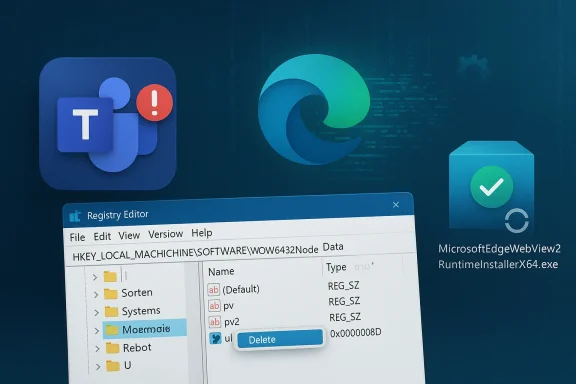 Background / Overview
Microsoft Teams (the desktop client) uses the Edge WebView2 Runtime to host the app’s web components. WebView2 is effectively a lightweight, managed instance of Edge (Chromium) that apps embed for HTML/JS UI features. Microsoft publishes two main ways to deliver WebView2 to a machine:- The Evergreen Bootstrapper (small downloader that fetches the runtime during setup).
- The Evergreen Standalone Installer (a platform-specific installer such as MicrosoftEdgeWebView2RuntimeInstallerX64.exe).
Starting in 2024–2025, a wave of reported failures appeared where Teams could not detect WebView2 even though the runtime was present. Users described exactly the same scenario: the Teams error instructing them to install WebView2, the in-app “Get Edge WebView2” button doing nothing, and manual installers reporting WebView2 is already installed. Community troubleshooting and Microsoft support investigations converged on a common set of causes — corrupt or stale EdgeUpdate registry entries, architecture mismatches (ARM vs x64), and update/auto‑update problems with the EdgeUpdate component.
Below you’ll find tested, practical fixes — from the least invasive (clear caches, repair) to surgical—but effective—registry edits and reinstallation steps. Follow them in order and always back up before editing the registry.
What is WebView2 and why Teams needs it
WebView2 in plain terms
- WebView2 is a runtime that allows Win32/.NET apps to host web content using the Edge (Chromium) engine.
- Apps like Microsoft Teams, Outlook (new), and many third‑party tools rely on WebView2 for rendering part or all of their UI.
- WebView2 can be installed per‑user or machine‑wide and is updated by the Microsoft Edge Update service.
Why Teams refuses to run without it
Teams performs a runtime check at startup. If the WebView2 runtime is absent, damaged, or its registry metadata is inconsistent, Teams will display a blocking error. Because the runtime is critical for rendering and internal browser features, Teams will not fall back — it requires a functioning WebView2 to run.Symptoms you will see
- Teams shows: “We’ve run into an issue. We can’t find a required component to run Teams. Download and install it, and then try opening Teams again.”
- A “Get Edge WebView2” button that doesn’t install anything.
- The WebView2 installer tells you: “WebView2 is already installed on this computer.”
- Teams refuses to launch even after repair, reset, or a full uninstall/reinstall.
- Event Viewer shows application-level failures referencing WebView or DLL load errors.
- On ARM devices, attempts to install the x64 runtime fail or the runtime appears but cannot be used by Teams.
Core fixes (from safe to advanced)
Important: Always try the non-destructive, user-level fixes first. If those fail, proceed to the registry removal + reinstall approach described later — and export a registry backup before you delete anything.1) Basic checks and quick fixes
- Restart Windows (seriously — some installers complete only after a reboot).
- Ensure Windows Update and Microsoft Edge are fully up to date; WebView2 updates are often distributed through Microsoft Edge Update.
- Open Task Manager and look for running instances of msedge.exe or msedgewebview2.exe. End those processes, then try launching Teams again.
- If your machine has both an ARM and x64 flavor of software installed (rare), confirm the architecture mismatch is not causing the problem.
2) Clear the Teams cache (safe, user-level)
Corrupt cache files can cause startup errors that mimic runtime problems.Steps:
- Press Win + R, paste: %appdata%\Microsoft\Teams and press Enter.
- Delete everything inside that folder.
- Press Win + R, paste: %localappdata%\Packages and press Enter. Find and delete Teams-related package folders (if you’re using the Teams Store app) or clear the app folder contents where appropriate.
- Restart the PC and re-open Teams.
3) Repair or reset Teams (Windows Settings)
- Open Settings (Win + I) → Apps → Installed apps.
- Search for Microsoft Teams → click the three dots → Advanced options.
- First try Repair. If that fails, try Reset.
- If Reset doesn’t help, choose Uninstall, then reinstall Teams using the desktop installer appropriate for your account (work/school vs personal).
4) Install (or reinstall) the WebView2 runtime properly
If Teams insists WebView2 is missing, the standard fix is to reinstall the Evergreen Standalone Installer for your architecture and run it elevated.Steps:
- Determine your system architecture: open System Information and check “System Type” (x64-based PC, ARM64, etc.).
- Use the Evergreen Standalone Installer that matches that architecture (file name example: MicrosoftEdgeWebView2RuntimeInstallerX64.exe for x64).
- Right‑click the downloaded installer and choose “Run as administrator.” If the installer completes and Teams still fails, reboot and recheck.
5) If installers say WebView2 is already installed — the registry fix (advanced)
If manual installers refuse to proceed because Windows reports WebView2 already exists, a known and effective workaround is to remove the stale EdgeUpdate registry key that identifies the WebView2 runtime to Windows, then reinstall the runtime. This is the fix most commonly reported in community threads and in enterprise troubleshooting logs.WARNING: Editing the registry can damage your system if done incorrectly. Export the registry key before deleting anything, and follow the steps exactly.
Step-by-step:
- Press Win + R, type regedit, and press Enter to open the Registry Editor.
- In Registry Editor use File → Export to save a copy of the entire registry, or at least export the key you will change.
- Navigate to:
HKEY_LOCAL_MACHINE\SOFTWARE\WOW6432Node\Microsoft\EdgeUpdate\Clients - Under the Clients key, find the subkey named:
{F3017226-FE2A-4295-8BDF-00C3A9A7E4C5} - Right‑click that subkey and choose Delete. Confirm the deletion.
- Close Registry Editor.
- Now run the appropriate WebView2 Evergreen Standalone Installer as Administrator (e.g., MicrosoftEdgeWebView2RuntimeInstallerX64.exe).
- Reboot if the installer prompts or if Teams still won’t start.
- Launch Teams.
Caveat and safety:
- Export the key before deletion so you can restore it if necessary.
- Do not delete other EdgeUpdate keys unless you understand their role — removing unrelated keys can disrupt Edge updates.
- In enterprise environments, ensure Group Policy or device management isn’t enforcing specific Edge/WebView2 installs before making changes.
Enterprise & Admin guidance
Group Policy and update policies
- WebView2 updates are handled by the Microsoft Edge Update service. If your organization has disabled or modified update policies, WebView2 may not auto-update.
- There are registry and Group Policy settings that can control the installation behavior for WebView2; check your EdgeUpdate policies before forcing a reinstall.
Mass remediation steps for admins
- Create a script that:
- Queries the registry key HKEY_LOCAL_MACHINE\SOFTWARE\WOW6432Node\Microsoft\EdgeUpdate\Clients{F3017226-FE2A-4295-8BDF-00C3A9A7E4C5}
- Exports it (backup) and removes it where broken
- Deploys the correct Evergreen runtime installer matching each device’s architecture
- Reboots as required
- Use standard software deployment tooling (SCCM, Intune, etc.) to schedule the remediation during maintenance windows.
- Monitor for devices that repeatedly re-create the bad key — that indicates a larger provisioning issue (third‑party installers or custom Edge builds may be involved).
What Microsoft has observed
Microsoft community support and enterprise threads have recorded similar incidents where an update caused Teams to fail to detect WebView2. In several cases, manually installing a specific Evergreen runtime version or reinstalling WebView2 after removing the offending registry key resolved the problem. If you manage many devices, collect update logs and EdgeUpdate logs if devices remain affected after remediation — these may be requested by Microsoft support for further investigation.Advanced troubleshooting & diagnostics
When simple fixes fail, dig into these diagnostic steps:- Check Event Viewer: Windows Logs → Application and Microsoft → Windows → EdgeUpdate for error entries that indicate why the runtime detection failed.
- Check Task Scheduler for the EdgeUpdate tasks:
- MicrosoftEdgeUpdateTaskMachineCore
- MicrosoftEdgeUpdateTaskMachineUA
If these tasks are disabled or failing, the runtime may not be updating. - Confirm the WebView2 runtime files exist under the Program Files location: typically Program Files (x86)\Microsoft\EdgeWebView\<version>\ if installed machine-wide.
- If you have an ARM64 device (Surface Pro X, Snapdragon-based Surface), make sure you are installing the ARM runtime and not the x64 installer. Using the wrong architecture can produce false “already installed” messages or runtime incompatibilities.
- Try a silent reinstall from an elevated command prompt:
MicrosoftEdgeWebView2RuntimeInstallerX64.exe /silent /install
This can be useful for scripted deployments, but watch the exit codes and logs for errors. - On servers or locked-down images, run installers as administrator and confirm there are no software restriction policies preventing the runtime from writing to Program Files.
Risks, side effects, and cautions
- Editing the registry is risky. Always export the key or full registry before changing anything, and restore if something goes wrong.
- Deleting the WebView2 registry key may impact other applications that rely on the same runtime until you reinstall it. That’s why reinstalling immediately after deletion is the recommended sequence.
- For managed environments, check with your security team and change-control process before pushing registry edits and runtime installs. An improperly configured update policy can cause repeated regressions.
- Never download and run installers from unofficial sources. Use the official WebView2 runtime installers provided by Microsoft and deploy them through your standard software distribution tooling.
- If devices are under a specific Windows build or custom image (e.g., LTSC, embedded), verify the distribution method (evergreen vs fixed) — certain fixed-version scenarios are not offered from the public download page and require different handling.
Prevention and best practices
- Keep Microsoft Edge updated — EdgeUpdate usually delivers WebView2 runtime updates automatically.
- Monitor and keep EdgeUpdate scheduled tasks healthy so WebView2 receives security and compatibility updates.
- For enterprise fleets:
- Choose a distribution strategy (Evergreen Standalone for per-machine installs is common).
- Use configuration management to ensure the correct architecture installer is applied to each device.
- Add a routine check for the EdgeUpdate registry key and WebView2 runtime presence as part of your health checks.
- When building custom Windows images, include the correct WebView2 runtime for the target architecture to avoid post-provisioning install errors.
- Document any manual registry changes and include rollback instructions.
When to escalate to Microsoft Support
Escalate if:- The registry removal + reinstall sequence does not restore Teams.
- You have large numbers of machines affected with the same symptoms after a Windows or Edge update.
- Event logs indicate deeper corruption or EdgeUpdate repeatedly recreates invalid records.
- Devices are running non-standard or OEM-customized Windows images where WebView2 distribution is part of the image and cannot be easily changed.
- Windows Update history and the approximate date/time the issue began.
- Edge and WebView2 version numbers (if visible), and the architecture of the device.
- Event Viewer logs from Application and EdgeUpdate channels.
- The contents of the EdgeUpdate Clients key (exported registry file) and evidence of the remediation steps you’ve tried.
Real-world notes and community observations
- Multiple community threads and Microsoft Q&A reports from early 2025 describe the exact same symptom and document successful remediation by removing the EdgeUpdate clients key for the WebView2 GUID and then reinstalling the runtime.
- ARM devices have surfaced as a recurring corner case; make sure you use the ARM64 installer where appropriate.
- Temporary workarounds such as reinstalling Teams alone often fail because they do not address the underlying WebView2 runtime metadata that the OS and install service use to validate presence.
Conclusion
The “We can’t find a required component to run Teams” error is frustrating, but it’s fixable. Start with non-destructive actions — clear the Teams cache, repair/reset Teams, update Edge and Windows — and escalate to reinstalling WebView2 if needed. When the system reports that WebView2 is already installed but Teams still fails, the most reliable fix in current practice is to back up and remove the stale EdgeUpdate registry key that references the WebView2 runtime, then reinstall the appropriate Evergreen Standalone Installer for your system architecture and reboot.If you’re an IT admin, script the checks and remediation carefully and verify Group Policy and EdgeUpdate settings before mass‑deploying registry edits. When in doubt, gather logs and escalate to Microsoft support with evidence — they’ve investigated intermittent incidents like this and will ask for update and EdgeUpdate logs.
Above all, make backups before you edit the registry, run installers as administrator when instructed, and match the runtime installer to the device’s architecture. Follow the ordered sequence outlined here, and you should have Teams back running on most affected machines within a maintenance window.
Source: Guiding Tech What to Do When Microsoft Teams Can’t Find a Required Component to Run
