

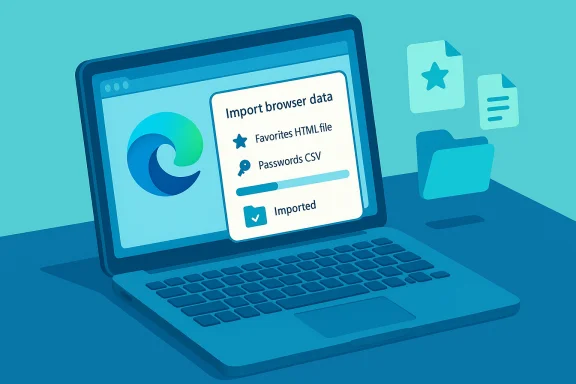
Microsoft’s step-by-step guidance for bringing bookmarks and passwords into Microsoft Edge simplifies a painful part of switching browsers — but the reality on the ground is more nuanced. The official procedure for importing favorites (bookmarks) from an HTML file or passwords from a CSV is straightforward: open Edge, go to Settings and more > Settings, choose Profiles > Import browser data, pick “Other import locations” and click Import next to the appropriate “Import browser data now” control, then select either “Favorites or bookmarks HTML file” or “Passwords CSV file,” point Edge at the exported file and complete the import. The imported favorites land in an Imported folder on the Favorites bar and passwords merge into Edge’s saved-password vault. These instructions are the canonical path Microsoft documents for Windows 10 and Windows 11.
Switching browsers is a common task for power users, IT admins, and anyone buying a new PC. Bookmarks and saved credentials are the most valuable pieces of browsing state, and losing them is a major friction point. Microsoft Edge includes multiple import paths: direct import from other installed browsers (Chrome, IE11, etc. and file-based import via standard formats — Bookmarks/Favorites HTML for bookmarks and Passwords CSV for credentials. These formats are the de facto interchange standards supported by most major browsers, so Edge’s file import feature plugs into a long-standing ecosystem of export/import tools. The capability is simple in principle: if your old browser can export favorites to an HTML file or passwords to CSV, Edge can accept those files and add the entries to its own favorites and password store. In practice, however, real-world behavior shows edge cases — very large bookmark files, differences in CSV structure for passwords between browsers, and policy or platform restrictions that block import — that complicate a one-click expectation. Community reports and troubleshooting threads over the years document those edge cases and practical workarounds.
Meanwhile, Microsoft has been consolidating credential functionality: passkeys, password sync, and Microsoft Password Manager are increasingly integrated into Edge and Microsoft Account experiences. That consolidation affects import/export workflows because Microsoft expects users to adopt its password manager and cloud-backed passkey vault — another reason to limit exposure of plaintext CSVs and consider moving credentials into the managed vault instead. Community discussions show varied experiences as Microsoft iterates on the UI and backend services.
Microsoft Edge’s built-in import tools are a practical bridge for moving bookmarks and credentials into the browser, and the official steps are clean and well-documented. However, effective migration in the real world requires preparation, security-conscious handling of exported files, and a readiness to use workarounds for large or malformed exports. When handled carefully, the process is fast and reliable; when ignored, the pitfalls can be time-consuming and risky.
Source: Microsoft Support Import your favorites and passwords in Microsoft Edge - Microsoft Support
 Background and overview
Switching browsers is a common task for power users, IT admins, and anyone buying a new PC. Bookmarks and saved credentials are the most valuable pieces of browsing state, and losing them is a major friction point. Microsoft Edge includes multiple import paths: direct import from other installed browsers (Chrome, IE11, etc. and file-based import via standard formats — Bookmarks/Favorites HTML for bookmarks and Passwords CSV for credentials. These formats are the de facto interchange standards supported by most major browsers, so Edge’s file import feature plugs into a long-standing ecosystem of export/import tools. The capability is simple in principle: if your old browser can export favorites to an HTML file or passwords to CSV, Edge can accept those files and add the entries to its own favorites and password store. In practice, however, real-world behavior shows edge cases — very large bookmark files, differences in CSV structure for passwords between browsers, and policy or platform restrictions that block import — that complicate a one-click expectation. Community reports and troubleshooting threads over the years document those edge cases and practical workarounds. How the import process works (official steps, clarified)
Favorites (bookmarks) from an HTML file — official flow
- Open Microsoft Edge and select Settings and more > Settings.
- In Profiles, choose Import browser data.
- Under Other import locations, click the Import button next to Import browser data now.
- In the Import from list, select Favorites or bookmarks HTML file.
- Click Choose file, locate the HTML file you exported from the other browser, and select Open.
- When the import completes you’ll see a notification; imported favorites appear in an Imported folder on your Favorites bar.
Passwords from a CSV file — official flow
- Open Edge and go to Settings and more > Settings > Profiles > Import browser data.
- Under Other import locations, click the Import button next to Import passwords now.
- Choose Passwords CSV file from the Import from menu.
- Click Choose file and select the CSV you exported from your previous browser’s password export tool.
- Confirm; imported passwords are added to Microsoft Edge’s saved-password list.
What can go wrong — common issues and realistic limits
- Large HTML files can hang or crash Edge. Several community reports show Edge becoming unresponsive or crashing when importing very large bookmark HTML files (tens of megabytes, hundreds or thousands of entries). When that happens, the import dialog may show a spinning “Importing Bookmarks…” message and the browser may lock up. Users have successfully worked around this by splitting a large HTML file into smaller parts and importing them incrementally.
- Password CSV format differences. Password exports are not strictly standardized across all browsers. Chrome and some password managers produce CSVs with slightly different column names or ordering. Edge’s import expects a standard CSV layout (username, password, origin). If your CSV deviates, the import may silently fail or ignore rows. Pre-check and reformat the CSV in a spreadsheet app if the import does nothing. Community threads include reports where the file chooser returns but import does not proceed, often linked to CSV formatting or policy restrictions.
- Enterprise or policy blocks. Managed devices (Intune/Group Policy) may have password-importing and credential-sync features disabled for security reasons. On corporate machines, IT may intentionally block import of CSV passwords or disallow password export from the device. If you see no error but nothing happens, check with your admin or review local device policies.
- Missing UI or bugs. In some Edge versions there have been UI bugs where the profile settings page does not surface the expected import dialog directly, or the import dialog redirects unexpectedly. Opening edge://favorites and using the three-dot menu’s Import option is an alternate path that bypasses some of those UI problems. If the Settings > Profiles > Import path fails to show the expected import dialog, try the Favorites page directly.
Practical, step-by-step best practices for a smooth import
- Export from the source browser first:
- Bookmarks: export to a standard bookmarks HTML (often called “Bookmarks HTML file”).
- Passwords: export to a CSV using the source browser’s password manager export (recognize security implications; CSV is plaintext).
- Back up Edge’s current data before importing:
- Export Edge favorites and passwords first so you can restore if something goes wrong.
- If you have a very large bookmarks file:
- Open the HTML in a text editor or browser and split it into smaller files (search for <DT> markers or top-level folders) and import in pieces.
- Validate the passwords CSV:
- Open in Excel or another spreadsheet app and confirm column headings (URL, username, password). Adjust column order/headers to match Edge expectations if necessary.
- Use the native import path in Edge:
- Settings and more > Settings > Profiles > Import browser data > Other import locations > Import browser data now > Choose the correct file type and select your file.
- If import stalls:
- Close other tabs, restart Edge, retry, and if problems persist try importing from a clean Edge profile or a different machine as a bridge (e.g., import into Firefox first and then into Edge if direct import fails).
- After import, verify:
- Check the Imported folder on the Favorites bar for bookmarks and visit several sites to ensure the URLs work.
- Visit edge://settings/passwords to confirm passwords appear and spot-check credentials.
Security and privacy analysis
Importing credentials is inherently sensitive because the password CSV format is plaintext. Treat exported CSVs as high-risk artifacts:- Minimize exposure: Export the CSV to a folder that’s not shared on the network, immediately complete the import, and then securely delete the CSV (do a secure overwrite if possible).
- Use built-in managers where possible: If both browsers support cloud-synced password managers, using those built-in sync features is safer than a plaintext CSV transfer. Microsoft’s Edge password vault and Microsoft Password Manager aim to centralize credentials and reduce the need for local CSVs, but moving passwords via CSV is sometimes necessary for migrations.
- Be wary on managed devices: Corporate policies may restrict import/export to avoid unmanaged credential sprawl. Confirm that imports comply with your workplace policy before transferring corporate credentials to a personal account.
- Audit after import: Use Edge’s Password Monitor and built-in password health checks to audit imported credentials for re-used or compromised passwords and rotate weak or leaked credentials quickly. Edge includes features to flag compromised passwords and to encourage updates.
Edge-specific nuances and historical context
Edge’s import features evolved as the browser transitioned to Chromium. Early in that transition Microsoft introduced import tools to ease migration from legacy Edge/Internet Explorer and other Chromium browsers. The import-from-other-browser option is an old capability that Microsoft has repeatedly refined; in earlier builds users were explicitly instructed to back up favorites before switching builds, and the modern import UI is a refinement of that legacy workflow. These historical notes explain why Edge supports both direct imports from installed browsers and file-based imports for unsupported or legacy scenarios.Meanwhile, Microsoft has been consolidating credential functionality: passkeys, password sync, and Microsoft Password Manager are increasingly integrated into Edge and Microsoft Account experiences. That consolidation affects import/export workflows because Microsoft expects users to adopt its password manager and cloud-backed passkey vault — another reason to limit exposure of plaintext CSVs and consider moving credentials into the managed vault instead. Community discussions show varied experiences as Microsoft iterates on the UI and backend services.
Troubleshooting checklist (quick reference)
- If the Choose file dialog returns but import never proceeds:
- Confirm file format and content (HTML for favorites, CSV for passwords).
- Open the CSV in a text editor to make sure it contains rows with URL, username, password entries.
- Try a small sample file (e.g., export only a handful of bookmarks/passwords) to test the import mechanism.
- If Edge locks or crashes during import of a large HTML file:
- Split the HTML into smaller parts and import each piece separately.
- Try importing into another Chromium browser and then re-export a smaller HTML for Edge.
- If passwords do not import:
- Check browser policy settings (Intune/GPO) that might block password imports.
- Ensure you used a CSV format compatible with Edge; if necessary, reformat columns to match Edge’s expected headers.
- If you see UI inconsistencies:
- Navigate directly to edge://favorites and use the three-dot menu import option or edge://settings/profiles/importBrowsingData as alternate entry points.
Enterprise and IT considerations
For IT administrators migrating users at scale, file-based imports are not a scalable or secure long-term strategy for passwords. Enterprises should:- Prefer enterprise-grade provisioning of credentials (managed identity, hardware FIDO2 keys, Entra ID controls).
- Use tools and scripts for bulk favorites/bookmarks migration only where necessary, and ensure secure handling of any exported artifacts.
- Be aware that cloud-synced passkeys and password managers represent a shift in Microsoft’s recommended flow; some organizations will continue to require hardware-backed authenticators for high-assurance accounts. Microsoft’s documentation and community discussions outline that the passkey/password manager integration targets consumer and some enterprise workflows but may not replace hardware-bound policy requirements.
Alternatives and third-party tools
- Use an intermediate browser as a bridge: import the exported data into Firefox or Chrome and then use that browser’s native exporter to produce a smaller or better-structured file that Edge accepts more reliably.
- Use a dedicated password manager (1Password, Bitwarden, LastPass) to import credentials and then reinstall into Edge via an extension or built-in sync; this avoids using plaintext CSVs in a transient fashion.
- For bookmarks, consider syncing with a cloud bookmark service or using extensions that synchronize across browsers if you regularly migrate between environments.
Strengths and limitations — critical appraisal
Strengths- Edge supports the standard, widely used interchange formats (Bookmarks HTML, Passwords CSV), so nearly any browser can produce data Edge will accept.
- The UI consolidates migration tools into Profiles > Import browser data, which is easy for novices to find.
- When it works, the import flow is quick and brings bookmarks into a single Imported folder for straightforward cleanup and reorganization.
- The plaintext nature of password CSV export is an acute security risk; mishandling can expose credentials.
- Real-world reliability varies: Edge has known trouble with very large HTML imports and sometimes silently fails on CSV imports due to format differences or policy blocks. Community threads indicate these remain persistent pain points.
- Enterprise policy and device management can block or complicate imports in ways consumers won’t anticipate.
- Microsoft’s broader credential strategy (passkeys and cloud-backed sync) reduces reliance on CSV but also makes import/export workflows more complex for hybrid, unmanaged, or cross-platform scenarios.
Final recommendations
- For personal users migrating a manageable number of bookmarks and passwords, follow Microsoft’s documented steps, but prepare backups: export Edge’s current data and securely store the password CSV only briefly.
- If working with a very large bookmarks HTML, split it into smaller files before importing to avoid crashes.
- For passwords, when possible prefer a password manager with secure import/export tools and cloud sync rather than plaintext CSV exchange.
- Enterprise IT should evaluate Microsoft’s cloud-backed credential strategies and align migrations with security policies — for highly sensitive accounts continue to use hardware-backed authenticators and managed provisioning.
- If imports fail, try alternate entry points (edge://favorites, edge://settings/profiles/importBrowsingData), test with small sample files, and check device policy restrictions or known version-specific bugs.
Microsoft Edge’s built-in import tools are a practical bridge for moving bookmarks and credentials into the browser, and the official steps are clean and well-documented. However, effective migration in the real world requires preparation, security-conscious handling of exported files, and a readiness to use workarounds for large or malformed exports. When handled carefully, the process is fast and reliable; when ignored, the pitfalls can be time-consuming and risky.
Source: Microsoft Support Import your favorites and passwords in Microsoft Edge - Microsoft Support
