

Windows 11 can be made largely ad‑free by flipping a handful of built‑in toggles — take a few minutes to adjust Settings, File Explorer, Search, Widgets, and the Advertising ID and you’ll remove the bulk of Microsoft’s in‑OS promotions while keeping the system stable and fully supported.
Microsoft has steadily increased the number of promotional surfaces inside Windows: the Start menu, File Explorer, the Lock Screen (Windows Spotlight), the Settings app, Search highlights, and the Widgets feed are all used to surface product recommendations, tips, and offers. Some of these behaviors arrived with specific updates (for example, a Start‑menu recommendation behavior tied to an April 2024 update is widely reported), while others are controlled by toggles that ship enabled by default on many machines.
These promotions are not full‑screen ads in the way websites or games show ads, but they are persistent UI elements and notifications that nudge users toward Microsoft services (OneDrive, Microsoft 365, Microsoft Store apps, Edge, Xbox, Rewards, etc.. For users who bought Windows rather than a subsidized ad platform, this represents a usability and privacy annoyance that can be remedied quickly through settings changes.
A note on price claims: some consumer articles mention Windows edition prices (for example, suggested retail prices for Windows Home or Pro). Those figures fluctuate and are region‑specific; they should be verified against Microsoft’s official store or an authorized reseller before relying on them. Treat any specific dollar amounts found in community posts as potentially outdated unless backed by Microsoft’s current pricing. (This article therefore avoids definitive price statements for that reason.
If you want a step‑by‑step, copy‑and‑paste checklist for your tech team or a small script for a one‑time migration, follow the Quick checklist above and test changes against a representative machine image before rolling them out broadly. The result: a cleaner, less promotional Windows 11 that behaves like a productivity OS rather than a marketing platform.
Conclusion
Most Windows 11 promotions are optional and controlled by visible settings; disabling a short list of toggles restores a quiet, focused environment without resorting to risky hacks or third‑party blockers. The steps are quick, reversible, and documented consistently across community sources — flip the switches, reboot if needed, and reclaim your desktop.
Source: How-To Geek Windows 11 won't show any ads if you disable these settings
 Background
Microsoft has steadily increased the number of promotional surfaces inside Windows: the Start menu, File Explorer, the Lock Screen (Windows Spotlight), the Settings app, Search highlights, and the Widgets feed are all used to surface product recommendations, tips, and offers. Some of these behaviors arrived with specific updates (for example, a Start‑menu recommendation behavior tied to an April 2024 update is widely reported), while others are controlled by toggles that ship enabled by default on many machines.These promotions are not full‑screen ads in the way websites or games show ads, but they are persistent UI elements and notifications that nudge users toward Microsoft services (OneDrive, Microsoft 365, Microsoft Store apps, Edge, Xbox, Rewards, etc.. For users who bought Windows rather than a subsidized ad platform, this represents a usability and privacy annoyance that can be remedied quickly through settings changes.
Overview — what you can remove and why it matters
- Start menu “Recommended” promotions — suggestions and app recommendations that appear in the Recommended section. These can be hidden or the entire Recommended area removed.
- File Explorer banners and sync prompts — OneDrive and sync provider notifications often appear in Explorer; they can be silenced.
- Tips and pop‑ups from Windows — “Get tips and suggestions” notifications and welcome experiences can be turned off.
- Lock Screen / Windows Spotlight promotions — Windows Spotlight may surface promotional cards; switching to Picture or Slideshow removes them.
- Settings app recommendations & Advertising ID — the Settings app shows personalized suggestions; disabling Recommendations & Offers and the Advertising ID limits in‑OS personalization.
- Microsoft Store personalized experiences — the Store can tailor recommendations; there’s a toggle to disable personalized experiences.
- Windows Search highlights — the Search panel may include trending/promoted content; turning off Search Highlights cleans the view.
- Widgets feed — the Widgets board is a news and content feed; you can clear or disable feeds.
Disable Start menu promotions
Why this matters
The Start menu is the first UI many users see after booting; Microsoft has used its “Recommended” area to promote apps and content. Reports tie at least one change that increased such recommendations to an April 2024 update (commonly referenced as KB5036980 in community write‑ups), which nudged more content into the Start experience.How to turn it off
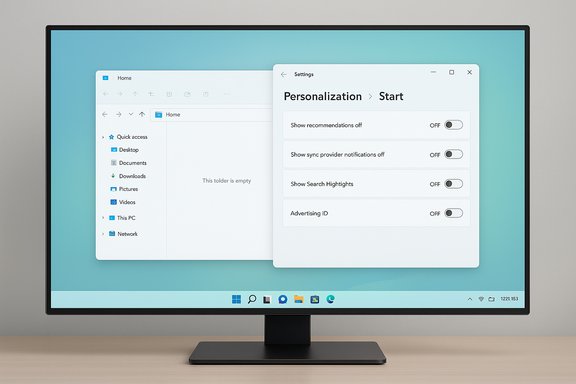
- Open Settings (Win + I) and go to Personalization → Start.
- Turn off Show recommended files in Start, recent files in File Explorer, and items in Jump Lists (or in some builds Show recommendations for tips, shortcuts, new apps, and more).
- Restart if the UI does not refresh immediately.
Remove File Explorer banners and sync provider notifications
The issue
File Explorer has been used to promote cloud features (notably OneDrive) via banners and sync suggestions. Users report these elements since 2022 and the struggle to silence them without removing OneDrive entirely.The fix
- Open File Explorer, click the ellipsis (three dots) on the toolbar, choose Options.
- Switch to the View tab, uncheck Show sync provider notifications, then click Apply and OK.
Turn off tips, suggestions and welcome experiences
What to change
Windows uses notifications to present tips and “finish setup” suggestions that often double as promotional nudges for Microsoft services.- Open Settings → System → Notifications.
- Under Notifications from apps and other senders click Additional settings (or expand Additional settings).
- Turn off Get tips and suggestions when using Windows and Suggest ways to get the most out of Windows and finish setting up this device. Also disable the Windows welcome experience if present.
Remove lock screen ads (Windows Spotlight)
Windows Spotlight rotates lock‑screen imagery and sometimes injects promotional content and tips into the lock screen experience.- Open Settings → Personalization → Lock screen.
- Change Personalize your lock screen from Windows Spotlight to Picture or Slideshow.
- If using Picture, turn off Get fun facts, tips, tricks, and more on your lock screen.
Clean up the Settings app (Recommendations & Offers)
The Settings app itself shows recommendations and offers at the top of various pages. To remove these:- Open Settings → Privacy & security → Recommendations & Offers (on some builds this appears under Privacy & security → General).
- Turn off toggles for Personalized Offers, Improve Start and Search Results, Recommendations and Offers in Settings, and Advertising ID.
Stop Microsoft Store and Search personalization
Microsoft Store
The Store uses a “Personalized experiences” toggle to shape recommendations and app promos based on activity. Open the Microsoft Store, go to your profile → Store settings, and turn off Personalized experiences to reduce tailored suggestions and ad‑style recommendations. Guides show this as an immediate, reversible setting.Windows Search highlights
Windows Search can show curated content, trending searches, and promotional cards.- Open Search (Win + S), click the ellipsis and choose Search Settings.
- Turn off Show Search Highlights and restart if needed.
Widgets — clear the feed or turn widgets off
The Widgets panel surfaces news, sponsored content, and many feeds that users may find noisy.- Open Widgets (Win + W), click the gear icon → Show or hide feeds, then toggle Feeds to OFF.
- Alternatively, right‑click the taskbar → Taskbar settings and turn Widgets OFF to remove the panel entirely.
Deeper controls: Advertising ID, diagnostics and account prompts
To further reduce personalization and ad targeting:- Open Settings → Privacy & security → General (or Privacy & security → Diagnostics & feedback).
- Turn off the Advertising ID and any Tailored experiences toggles.
- Under Diagnostics & feedback set diagnostic data to Required only where available, and turn off optional data and tailored experiences.
- Consider using a local account (Settings → Accounts → Your info → Sign in with a local account instead) to reduce Microsoft account‑related nudges — note this affects cloud sync and some Microsoft services.
Registry and Group Policy options (power‑user methods and caveats)
For enterprise admins and advanced users there are Group Policy and registry keys that can suppress specific surfaces (for example, disabling Copilot, Search Highlights, or Bing web results in Search). These approaches are version‑dependent and can be reverted by Windows Feature Updates, so they should be used with caution and only when you understand the maintenance implications. Community write‑ups provide exact keys and policy paths; always back up the registry and test on a non‑critical machine before applying widely.Trade‑offs and potential risks
- Disabling recommendations and personalization reduces targeted offers but also hides potentially useful tips and feature prompts that could improve productivity for new users.
- Some toggles are build‑dependent: names and locations can change across Windows 11 feature updates. Periodically re‑check these settings after major updates.
- Registry and Group Policy changes carry risk: incorrect edits can break Search, Settings, or other functionality. Always back up and use official documentation or tested scripts for enterprise deployment.
- Third‑party tools that promise to “remove all ads” can be convenient but introduce trust and security considerations; prefer manual toggles or well‑established open‑source tools and confirm what exactly they change. Community posts list reputable tools but also caution about potential side effects.
Quick checklist — the exact toggles to flip (do this now)
- Personalization → Start: Turn off recommended files / recommendations toggle.
- File Explorer → Options → View: Uncheck Show sync provider notifications.
- System → Notifications → Additional settings: Turn off Get tips and suggestions, Suggest ways to get the most out of Windows, and Windows welcome experience.
- Personalization → Lock screen: Set away from Windows Spotlight, and disable lock screen tips.
- Privacy & security → Recommendations & Offers (or General): Turn off Personalized Offers, Recommendations in Settings, and Advertising ID.
- Microsoft Store: Profile → Store settings → Turn off Personalized Experiences.
- Search (Win + S) → ellipsis → Search Settings: Turn off Show Search Highlights.
- Widgets → Show or Hide Feeds: Toggle Feeds off (or disable Widgets on the Taskbar).
Why Microsoft does this — and whether that’s reasonable
From Microsoft’s perspective, surfacing services inside the OS drives adoption of cloud services and subscriptions that are central to its business model. For many users those nudges are helpful (free trials, cloud backup prompts), but for others they’re intrusive. The friction here is between product monetization and a frictionless, privacy‑respecting OS experience. That tension explains why Microsoft leaves these toggles available — and why communities have converged on a common set of changes to reclaim a quieter desktop.Final thoughts and practical recommendations
Making Windows 11 largely ad‑free is straightforward and reversible: most changes are simple toggles in Settings. For mainstream users the recommended approach is to apply the in‑UI toggles listed in the checklist above, restart once, and continue using the system. Enterprise environments and power users can consider Group Policy or registry controls for centralized enforcement, but those require testing and a maintenance plan for feature updates.A note on price claims: some consumer articles mention Windows edition prices (for example, suggested retail prices for Windows Home or Pro). Those figures fluctuate and are region‑specific; they should be verified against Microsoft’s official store or an authorized reseller before relying on them. Treat any specific dollar amounts found in community posts as potentially outdated unless backed by Microsoft’s current pricing. (This article therefore avoids definitive price statements for that reason.
If you want a step‑by‑step, copy‑and‑paste checklist for your tech team or a small script for a one‑time migration, follow the Quick checklist above and test changes against a representative machine image before rolling them out broadly. The result: a cleaner, less promotional Windows 11 that behaves like a productivity OS rather than a marketing platform.
Conclusion
Most Windows 11 promotions are optional and controlled by visible settings; disabling a short list of toggles restores a quiet, focused environment without resorting to risky hacks or third‑party blockers. The steps are quick, reversible, and documented consistently across community sources — flip the switches, reboot if needed, and reclaim your desktop.
Source: How-To Geek Windows 11 won't show any ads if you disable these settings
