

The HP OfficeJet Pro 9015e usually fails to connect to Wi-Fi because the printer, computer, and router have lost a shared network state, often after a router change, password update, band mismatch, stuck queue, firmware issue, or old wireless profile. That makes the problem feel like a printer failure when it is more often a discovery problem. The repair path is not dramatic: confirm the network, restart the chain, let HP Smart repair what it can, and only then reset the printer’s network settings.
For home offices and small businesses, that distinction matters. A printer that is “offline” may still be powered, inked, and mechanically healthy, but Windows, macOS, iOS, Android, or the router can no longer find it in the way they expect. The OfficeJet Pro 9015e is capable enough to recover from most of these failures, but it asks users to think like a network admin for ten minutes.
The OfficeJet Pro 9015e sits in the awkward middle of modern home networking. It is not a simple USB appliance, and it is not a managed enterprise endpoint with a sysadmin watching logs. It is a wireless all-in-one that depends on a consumer router, mobile apps, desktop print queues, firmware, IP addressing, and the user remembering which Wi-Fi name they actually joined.
That is why the first fix is not a reset. It is confirmation. The printer and the device sending the job need to be on the same usable network, not merely in the same house or connected to the same internet service.
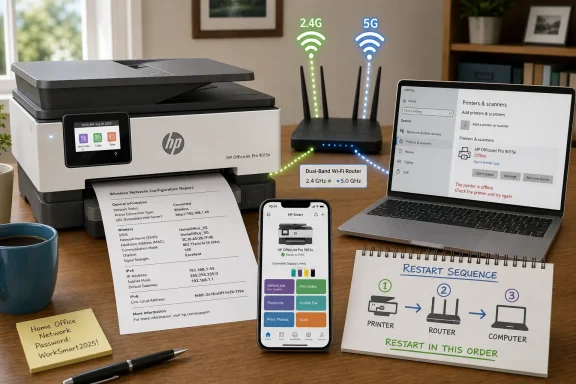
Dual-band Wi-Fi makes this more confusing than it should be. The OfficeJet Pro 9015e supports 2.4 GHz and 5 GHz wireless operation, but many routers still expose those bands as separate network names. If the printer is on “HomeWiFi-2G” and the laptop is on “HomeWiFi-5G,” discovery may fail depending on the router configuration, client isolation settings, and how the operating system is trying to find the printer.
The most useful test is the least glamorous one: print the printer’s own wireless or network configuration report. If the SSID listed on the page does not match the network used by the computer or phone, the printer has not failed. It is simply listening in the wrong room.
There is also a physical gotcha that catches users because it seems too obvious to matter. On this class of HP printer, connecting an Ethernet cable disables wireless capability. If someone plugged the printer into the router temporarily, or left an old cable in the back, Wi-Fi troubleshooting will go nowhere until that cable is removed.
The useful version of “turn it off and on again” is not a quick tap of the power button. Disconnect the printer from power while it is on, unplug it from the wall, wait at least 15 seconds, reconnect the wall outlet first, and then reconnect the printer. That sequence forces the printer to rebuild its network state instead of merely waking from a confused low-power condition.
The router deserves the same patience. Many people restart the printer and immediately test again while the router is still booting, rebuilding radios, or handing out fresh addresses. Give the network a few minutes to settle before judging the result.
The computer or phone also belongs in the loop. Windows and macOS can hold stale printer status in queues and services, while mobile devices can cling to the wrong Wi-Fi band after roaming. Restarting the sender may feel unrelated, but offline printer reports often live on the client side long after the printer has recovered.
The catch is that HP Smart is not magic. It still depends on the printer being discoverable enough for setup or diagnosis, and it still runs inside the operating system’s permissions, network rules, and account model. If the app cannot see the printer because the printer is on the wrong SSID, or because the network profile is broken, it may only tell you what you already know.
Platform support also matters in 2026. HP Smart expects reasonably modern operating systems, including Windows 10 or later, macOS 10.14 or later, iOS 14 or later, and Android 7.0 or later. An old laptop may be able to browse the web and open documents, but still be a poor candidate for current printer setup workflows.
For Windows users, the app’s value is especially high because print failure can be split between network discovery and the local spooler. A printer may be reachable from HP Smart while the Windows queue remains stuck, paused, or pointed at the wrong printer object. Diagnose & Fix is useful precisely because it treats “offline” as a symptom rather than a single cause.
From the printer dashboard, the path runs through the Wireless icon, Settings, Wireless Settings, and then Wireless Setup Wizard. The exact wording may vary slightly by firmware, but the idea is straightforward: choose the network name and enter the current password from the printer itself. If Wi-Fi Protected Setup is available and configured safely on the router, it may also appear as an option.
This is the fix to use after a router upgrade. New routers often reuse an old network name, but not always with the same band behavior, encryption mode, or steering logic. The printer may appear to remember the network while failing to complete the connection behind the scenes.
It is also the fix to use when the printer has been moved. A printer that worked in one corner of the house may not maintain a stable link in another, especially on 5 GHz, which generally has shorter range and weaker wall penetration than 2.4 GHz. The wizard cannot change physics, but it can reveal whether the printer is seeing the intended network at all.
This is where setting up the printer again through HP Smart makes sense. On Windows, use the option to set up a new printer from the app’s home screen. On iOS or Android, turn on Bluetooth for setup, open HP Smart, tap the plus button, and add the printer again to the network.
Bluetooth in this process is often misunderstood. It is used for setup discovery, not as the normal print transport. The actual printing still happens over Wi-Fi, Wi-Fi Direct, AirPrint, Mopria, or the relevant HP path depending on the device and environment.
Re-adding the printer can create a fresh route without forcing a full printer reset. That is an important difference. Many users reach for factory defaults too early, when the real fix is simply to remove a stale printer object and let the operating system create a clean one.
On the OfficeJet Pro 9015e, the report can be printed from the Wireless icon, then Settings, then Print Reports. Choose either the Network Configuration Page or the Wireless Test Report. The page is worth reading slowly rather than treating it as a ritual.
The SSID is the first clue. If the printer reports a network name different from the one used by the laptop or phone, the fix is to run the Wireless Setup Wizard again and join the correct network. If there is no IP address, the printer may be associated with Wi-Fi but not receiving a usable address from the router.
A healthy report also helps separate printer trouble from application trouble. If the printer is on the right SSID with a valid IP address, yet only one computer cannot print, the next investigation belongs on that computer. That is when queue clearing, default printer settings, driver cleanup, or adding the printer again become more persuasive than another router restart.
The old Control Panel path remains useful because it exposes the queue plainly. Open Devices and Printers, double-click the OfficeJet Pro 9015e, and cancel all documents from the Printer menu. If documents refuse to leave, restart the PC and check the queue again.
Setting the right default printer is equally mundane and equally important. Windows can route jobs to an old copy of the printer, a virtual PDF printer, or a printer object created during a previous setup. Right-clicking the correct OfficeJet Pro 9015e and making it the default removes one more layer of ambiguity.
There is a broader lesson here for IT pros supporting family members, small offices, or remote workers. “Printer offline” is not a diagnosis. It is a user-interface label applied after several possible failures, some in hardware, some in Wi-Fi, and some entirely in the client operating system.
Updating the OfficeJet Pro 9015e firmware through HP Smart or the printer’s embedded web server can resolve stability and compatibility problems. The embedded web server route requires the printer’s IP address, which is another reason the network configuration page is useful. Once the printer is reachable in a browser, the advanced settings and update options become available.
The key warning is simple: do not turn the printer off during a firmware update. Interrupting firmware is one of the few ways to turn a recoverable connection problem into a more serious support case. Let the update complete fully, even if the printer appears idle for a while.
Firmware should not be treated as the first fix for a wrong password or wrong SSID. But when the printer connects, drops, reconnects, and drops again on a modern router, updating becomes more than housekeeping. It is part of keeping an older office device fluent in a changing wireless environment.
On the printer, open the dashboard, go to Setup, then Network Setup, and choose Restore Network Settings. Confirm the action. Afterward, the printer’s network defaults are restored, previously configured wireless and Ethernet details are removed, and the IP address mode returns to automatic.
That reset does not solve the problem by itself. It clears the bad memory so setup can work cleanly again. After restoring network settings, run the Wireless Setup Wizard or HP Smart setup again and join the current Wi-Fi network from scratch.
This is the step that often fixes printers moved between homes, routers, or offices. It is also the step that helps when a router was replaced with the same SSID and password but the printer still behaves as though the old network exists. Sometimes the cleanest repair is to make the printer forget.
The OfficeJet Pro 9015e’s restore path runs through the dashboard, Setup, Printer Maintenance, Restore, and Restore Factory Defaults. Once complete, the printer should be treated as a new device for setup purposes. Use the Wireless Setup Wizard or HP Smart to reconnect it to Wi-Fi and re-add it to your computers and phones.
There is also a Cold Reset option, and that is the one to avoid during ordinary troubleshooting. A cold reset is meant for selling, transferring, or disposing of the printer because it removes user-configured data such as network configuration, passwords, stored jobs, regional and language settings, address book information, and web services details. That is a privacy and handoff tool, not a normal Wi-Fi fix.
If factory defaults and a fresh setup still fail, the evidence starts pointing away from routine configuration. At that point, the likely suspects include router settings, wireless signal quality, account or app problems, firmware failure, or hardware trouble in the printer’s wireless subsystem. That is when HP support, router logs, or a temporary USB/Ethernet workaround become more rational than repeating the same reset.
For home offices and small businesses, that distinction matters. A printer that is “offline” may still be powered, inked, and mechanically healthy, but Windows, macOS, iOS, Android, or the router can no longer find it in the way they expect. The OfficeJet Pro 9015e is capable enough to recover from most of these failures, but it asks users to think like a network admin for ten minutes.
 The Printer Is Usually Innocent, but the Network Is Not
The OfficeJet Pro 9015e sits in the awkward middle of modern home networking. It is not a simple USB appliance, and it is not a managed enterprise endpoint with a sysadmin watching logs. It is a wireless all-in-one that depends on a consumer router, mobile apps, desktop print queues, firmware, IP addressing, and the user remembering which Wi-Fi name they actually joined.That is why the first fix is not a reset. It is confirmation. The printer and the device sending the job need to be on the same usable network, not merely in the same house or connected to the same internet service.
Dual-band Wi-Fi makes this more confusing than it should be. The OfficeJet Pro 9015e supports 2.4 GHz and 5 GHz wireless operation, but many routers still expose those bands as separate network names. If the printer is on “HomeWiFi-2G” and the laptop is on “HomeWiFi-5G,” discovery may fail depending on the router configuration, client isolation settings, and how the operating system is trying to find the printer.
The most useful test is the least glamorous one: print the printer’s own wireless or network configuration report. If the SSID listed on the page does not match the network used by the computer or phone, the printer has not failed. It is simply listening in the wrong room.
There is also a physical gotcha that catches users because it seems too obvious to matter. On this class of HP printer, connecting an Ethernet cable disables wireless capability. If someone plugged the printer into the router temporarily, or left an old cable in the back, Wi-Fi troubleshooting will go nowhere until that cable is removed.
A Clean Restart Still Beats a Clever Theory
Power cycling is mocked because it is basic, but basic is not the same as useless. A home print path has at least three devices negotiating state: the printer, the router, and the computer or phone. Any one of them can hold stale information long after the visible symptom appears.The useful version of “turn it off and on again” is not a quick tap of the power button. Disconnect the printer from power while it is on, unplug it from the wall, wait at least 15 seconds, reconnect the wall outlet first, and then reconnect the printer. That sequence forces the printer to rebuild its network state instead of merely waking from a confused low-power condition.
The router deserves the same patience. Many people restart the printer and immediately test again while the router is still booting, rebuilding radios, or handing out fresh addresses. Give the network a few minutes to settle before judging the result.
The computer or phone also belongs in the loop. Windows and macOS can hold stale printer status in queues and services, while mobile devices can cling to the wrong Wi-Fi band after roaming. Restarting the sender may feel unrelated, but offline printer reports often live on the client side long after the printer has recovered.
HP Smart Is the Shortcut, Not the Whole Strategy
HP’s Smart app is often the fastest way out because it tries to repair several layers at once. Its Diagnose & Fix feature can detect offline status, clear some queue problems, resume paused jobs, and attempt to reconnect the printer. For a user who does not want to pick through Windows printer ports or macOS print systems, that is the right first software move.The catch is that HP Smart is not magic. It still depends on the printer being discoverable enough for setup or diagnosis, and it still runs inside the operating system’s permissions, network rules, and account model. If the app cannot see the printer because the printer is on the wrong SSID, or because the network profile is broken, it may only tell you what you already know.
Platform support also matters in 2026. HP Smart expects reasonably modern operating systems, including Windows 10 or later, macOS 10.14 or later, iOS 14 or later, and Android 7.0 or later. An old laptop may be able to browse the web and open documents, but still be a poor candidate for current printer setup workflows.
For Windows users, the app’s value is especially high because print failure can be split between network discovery and the local spooler. A printer may be reachable from HP Smart while the Windows queue remains stuck, paused, or pointed at the wrong printer object. Diagnose & Fix is useful precisely because it treats “offline” as a symptom rather than a single cause.
The Touchscreen Wizard Is Still the Most Direct Route Back
The OfficeJet Pro 9015e’s 2.7-inch touchscreen is small, but for Wi-Fi repair it has one major advantage over the computer: it talks directly to the printer. If the wireless password changed, the router was replaced, or the printer joined the wrong SSID, the built-in Wireless Setup Wizard is the cleanest way to correct that.From the printer dashboard, the path runs through the Wireless icon, Settings, Wireless Settings, and then Wireless Setup Wizard. The exact wording may vary slightly by firmware, but the idea is straightforward: choose the network name and enter the current password from the printer itself. If Wi-Fi Protected Setup is available and configured safely on the router, it may also appear as an option.
This is the fix to use after a router upgrade. New routers often reuse an old network name, but not always with the same band behavior, encryption mode, or steering logic. The printer may appear to remember the network while failing to complete the connection behind the scenes.
It is also the fix to use when the printer has been moved. A printer that worked in one corner of the house may not maintain a stable link in another, especially on 5 GHz, which generally has shorter range and weaker wall penetration than 2.4 GHz. The wizard cannot change physics, but it can reveal whether the printer is seeing the intended network at all.
Re-Adding the Printer Treats the Computer as Part of the Failure
If the printer is back on Wi-Fi but the computer still insists it is offline, the fault may have shifted from the printer to the client. That is common after IP address changes. The printer can be connected, the router can be happy, and Windows or macOS can still be trying to print to an old instance.This is where setting up the printer again through HP Smart makes sense. On Windows, use the option to set up a new printer from the app’s home screen. On iOS or Android, turn on Bluetooth for setup, open HP Smart, tap the plus button, and add the printer again to the network.
Bluetooth in this process is often misunderstood. It is used for setup discovery, not as the normal print transport. The actual printing still happens over Wi-Fi, Wi-Fi Direct, AirPrint, Mopria, or the relevant HP path depending on the device and environment.
Re-adding the printer can create a fresh route without forcing a full printer reset. That is an important difference. Many users reach for factory defaults too early, when the real fix is simply to remove a stale printer object and let the operating system create a clean one.
The Wireless Test Report Turns Guesswork Into Evidence
When the printer keeps “searching” or appears connected but unreachable, the wireless report is the closest thing most users will get to a diagnostic log. It is not written like a sysadmin trace, but it gives enough information to stop guessing. The important fields are the current network name, wireless status, IP address, and any failed tests.On the OfficeJet Pro 9015e, the report can be printed from the Wireless icon, then Settings, then Print Reports. Choose either the Network Configuration Page or the Wireless Test Report. The page is worth reading slowly rather than treating it as a ritual.
The SSID is the first clue. If the printer reports a network name different from the one used by the laptop or phone, the fix is to run the Wireless Setup Wizard again and join the correct network. If there is no IP address, the printer may be associated with Wi-Fi but not receiving a usable address from the router.
A healthy report also helps separate printer trouble from application trouble. If the printer is on the right SSID with a valid IP address, yet only one computer cannot print, the next investigation belongs on that computer. That is when queue clearing, default printer settings, driver cleanup, or adding the printer again become more persuasive than another router restart.
Windows Can Make a Connected Printer Look Dead
Windows printing has improved over the years, but it still carries decades of legacy behavior. A job stuck in the queue can block later jobs. The wrong default printer can silently absorb print attempts. A printer object can remain “offline” even after the actual hardware has rejoined the network.The old Control Panel path remains useful because it exposes the queue plainly. Open Devices and Printers, double-click the OfficeJet Pro 9015e, and cancel all documents from the Printer menu. If documents refuse to leave, restart the PC and check the queue again.
Setting the right default printer is equally mundane and equally important. Windows can route jobs to an old copy of the printer, a virtual PDF printer, or a printer object created during a previous setup. Right-clicking the correct OfficeJet Pro 9015e and making it the default removes one more layer of ambiguity.
There is a broader lesson here for IT pros supporting family members, small offices, or remote workers. “Printer offline” is not a diagnosis. It is a user-interface label applied after several possible failures, some in hardware, some in Wi-Fi, and some entirely in the client operating system.
Firmware Is the Quiet Variable in Router Compatibility
Firmware updates do not make for satisfying troubleshooting because they rarely produce an obvious before-and-after story. Still, they matter. Printers negotiate with routers using firmware, and routers in 2026 are more likely than ever to be running mesh systems, band steering, WPA3 transition modes, and automatic channel management.Updating the OfficeJet Pro 9015e firmware through HP Smart or the printer’s embedded web server can resolve stability and compatibility problems. The embedded web server route requires the printer’s IP address, which is another reason the network configuration page is useful. Once the printer is reachable in a browser, the advanced settings and update options become available.
The key warning is simple: do not turn the printer off during a firmware update. Interrupting firmware is one of the few ways to turn a recoverable connection problem into a more serious support case. Let the update complete fully, even if the printer appears idle for a while.
Firmware should not be treated as the first fix for a wrong password or wrong SSID. But when the printer connects, drops, reconnects, and drops again on a modern router, updating becomes more than housekeeping. It is part of keeping an older office device fluent in a changing wireless environment.
Network Reset Is the Right Kind of Destructive
When a printer keeps clinging to old credentials, network-only reset is the sane escalation. It wipes the wireless and Ethernet configuration without erasing everything else about the printer. That is exactly the level of destruction you want when the problem is stale network identity.On the printer, open the dashboard, go to Setup, then Network Setup, and choose Restore Network Settings. Confirm the action. Afterward, the printer’s network defaults are restored, previously configured wireless and Ethernet details are removed, and the IP address mode returns to automatic.
That reset does not solve the problem by itself. It clears the bad memory so setup can work cleanly again. After restoring network settings, run the Wireless Setup Wizard or HP Smart setup again and join the current Wi-Fi network from scratch.
This is the step that often fixes printers moved between homes, routers, or offices. It is also the step that helps when a router was replaced with the same SSID and password but the printer still behaves as though the old network exists. Sometimes the cleanest repair is to make the printer forget.
Factory Defaults Are the Last Door, Not the First Tool
A full factory-default restore has its place, but it should be treated as a last resort. It is broader than a network reset and requires setting the printer up again from the beginning. For a simple Wi-Fi mismatch, that is unnecessary collateral damage.The OfficeJet Pro 9015e’s restore path runs through the dashboard, Setup, Printer Maintenance, Restore, and Restore Factory Defaults. Once complete, the printer should be treated as a new device for setup purposes. Use the Wireless Setup Wizard or HP Smart to reconnect it to Wi-Fi and re-add it to your computers and phones.
There is also a Cold Reset option, and that is the one to avoid during ordinary troubleshooting. A cold reset is meant for selling, transferring, or disposing of the printer because it removes user-configured data such as network configuration, passwords, stored jobs, regional and language settings, address book information, and web services details. That is a privacy and handoff tool, not a normal Wi-Fi fix.
If factory defaults and a fresh setup still fail, the evidence starts pointing away from routine configuration. At that point, the likely suspects include router settings, wireless signal quality, account or app problems, firmware failure, or hardware trouble in the printer’s wireless subsystem. That is when HP support, router logs, or a temporary USB/Ethernet workaround become more rational than repeating the same reset.
The 9015e Fix Path Rewards Patience, Not Panic
The most concrete way to repair an OfficeJet Pro 9015e Wi-Fi failure is to move from least destructive to most destructive. Each step should answer a narrow question before the next one begins. If you skip straight to factory defaults, you may erase useful clues and still leave the real problem untouched.- The printer and the device sending the job must be on the same network name, and the wireless report is the fastest way to verify that instead of guessing.
- An Ethernet cable connected to the printer disables Wi-Fi, so wireless troubleshooting should start with a quick look at the back of the device.
- A full restart of the printer, router, and computer clears stale state across the entire print path, not just the printer itself.
- HP Smart’s Diagnose & Fix tool is worth running early because it can repair offline status, queue problems, and some reconnection failures automatically.
- Restoring network settings is the preferred reset for stubborn Wi-Fi problems because it clears old network credentials without performing a full factory wipe.
- A Cold Reset should be reserved for selling or giving away the printer, not for routine connection troubleshooting.
References
- Primary source: Technobezz
Published: 2026-06-23T02:20:41.591709
HP OfficeJet Pro 9015e Not Connecting to WiFi? 10 Fixes (2026) | Technobezz
You sent a document to your HP OfficeJet Pro 9015e and nothing came out, and the 2.7-inch touchscreen is showing the printer as disconnected or stuck se.www.technobezz.com - Related coverage: hp.com
- Related coverage: support.hp.com
- Related coverage: manualzz.com
