

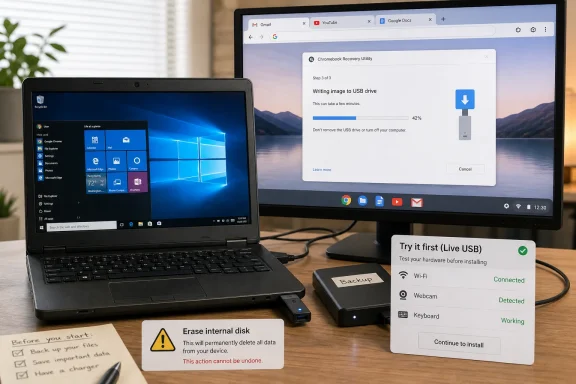
ChromeOS Flex can be installed on many older Windows 10 PCs by creating a USB installer with Google’s Chromebook Recovery Utility, booting the aging machine from that USB drive, testing hardware compatibility in live mode, and then wiping the internal disk for a permanent installation. That simple workflow now sits inside a much larger decision: what to do with perfectly usable PCs that Microsoft’s modern Windows roadmap has stranded. For many WindowsForum readers, ChromeOS Flex is not a magical Chromebook conversion kit, but it may be the most practical exit ramp for hardware that cannot officially move to Windows 11.
Windows 10’s end of support on October 14, 2025, turned an abstract lifecycle date into a household and small-business problem. Microsoft’s consumer Extended Security Updates program buys time into October 2026, but it does not change the basic shape of the issue: a huge number of working PCs are too old for Windows 11’s official hardware requirements and too exposed to run indefinitely on an unsupported Windows 10 install.
That is where ChromeOS Flex earns attention. It is not trying to preserve the old Windows experience. It replaces it with a browser-first operating system that assumes most work happens in web apps, cloud storage, streaming services, and collaboration tools.
For some users, that is a deal-breaker. For many others, it is an uncomfortable truth: the “Windows PC” they think they need has already become a Gmail, YouTube, WhatsApp Web, Google Docs, Teams-in-a-browser, and banking-portal machine. ChromeOS Flex succeeds precisely where the old laptop’s identity has already drifted away from traditional desktop computing.
That distinction matters. A real Chromebook includes hardware and firmware integration that ChromeOS Flex cannot fully reproduce on a random Dell, HP, Lenovo, Acer, or Asus laptop from 2012. Flex does not turn an old PC into a certified Chromebook in the strict sense.
But for day-to-day use, the experience can be surprisingly close. You get a fast boot, the Chrome browser, Google account sync, automatic updates, web apps, Google Drive integration, and a simplified desktop that is much harder for casual users to break than a neglected Windows installation.
The trade-off is equally blunt. You do not get native Windows applications. You do not get the Google Play Store or Android app support. You do not get a supported dual-boot story. You are choosing a lighter, narrower, safer computing model because the old broader one has become too slow, too risky, or too expensive to maintain.
A 64-bit Intel or AMD processor, 4GB of RAM, 16GB of internal storage, and a working USB port are the baseline. In practice, 8GB of RAM and an SSD make the experience far better, but ChromeOS Flex can still feel dramatically lighter than Windows 10 on hardware that is ten or more years old.
The use case matters more than the spec sheet. If the machine is for browsing, email, schoolwork, video calls, Google Docs, YouTube, online forms, cloud storage, and basic office tasks, Flex is a serious option. If it is for Tally, Photoshop, AutoCAD, local Office macros, Windows-only printer utilities, games, or specialist business software, Flex will disappoint quickly.
Google maintains a certified models list, and that list should be treated as the first checkpoint. Certified hardware gives you more confidence that Wi-Fi, touchpad, audio, sleep, graphics, and updates will behave properly. Uncertified hardware may still work, but it belongs in the “test thoroughly before wiping anything” category.
ChromeOS Flex lets you boot from the installer and choose a “try it first” style mode before touching the internal drive. That is your compatibility audit. You should connect to Wi-Fi, test the keyboard and touchpad, play audio, open several websites, join a test video call if the webcam matters, close and reopen the lid, and check whether the machine wakes cleanly.
This is where old hardware reveals its grudges. Some touchpads behave oddly. Some Wi-Fi adapters work until sleep. Some webcams are too poor to justify using the laptop for calls. Some aging hard drives are not worth trusting even with a lighter OS.
The live test also helps reset expectations. ChromeOS Flex running from a USB stick can be slower than a full install, especially on old USB 2.0 ports. But if key hardware fails in live mode, installing to the internal drive is unlikely to magically fix it.
On many laptops, that means F12, Esc, F9, F2, or Del during startup. Dell commonly uses F12. HP often uses Esc or F9. Lenovo frequently uses F12. Asus may use Esc or F8. The exact key is less important than the principle: you need to interrupt the normal Windows boot and choose the USB device.
Once ChromeOS Flex loads, test first. If the machine passes, you can begin the permanent installation from the ChromeOS Flex interface. At that point the warning deserves to be read slowly: the internal drive will be erased.
This is not a Windows installer where you carefully pick a partition and preserve a data drive. ChromeOS Flex takes over the physical disk and creates its own layout. If your Windows laptop shows C:, D:, and E: drives, those are often partitions on the same physical drive. They will all be wiped.
Windows users often treat drive letters as if they represent separate disks. Sometimes they do. Very often they do not. A single 500GB hard drive may have a C: partition for Windows, a D: partition for personal files, a recovery partition, and hidden system partitions. ChromeOS Flex does not politely install beside those.
That means the backup step must include everything. Documents, photos, downloads, desktop files, browser bookmarks, accounting files, WhatsApp exports, local PST files, license keys, saved installers, and anything sitting on D: or E: must be copied elsewhere before installation.
The simplest rule is the safest: if it matters, back it up to an external drive or cloud storage before booting the installer. Once Flex is installed, recovery becomes a forensic exercise, not a normal undo button.
An unsupported Windows 10 PC becomes more dangerous with every unpatched vulnerability. Antivirus can reduce risk, but it cannot replace operating system security updates. By contrast, ChromeOS Flex is built around automatic updates, sandboxing, and a reduced attack surface.
That does not make users invincible. Phishing still works. Fake login pages still work. Malicious browser extensions still exist. Weak passwords and reused passwords remain a problem.
But ChromeOS Flex removes many of the maintenance failures that make old Windows PCs so painful. There are no random driver updater scams required to keep the machine alive. There is no traditional Win32 software sprawl. There is no expectation that the user will manually police a decade of installers, startup items, and background services.
In that context, the zero-price argument is not cosmetic. No Windows license, no antivirus subscription, and no new laptop purchase can be the difference between a working computer and e-waste.
The web-first model also maps well to how many people already compute. Government portals, online banking, YouTube learning, Google Classroom, Gmail, Google Meet, Zoom in the browser, Microsoft Teams web, WhatsApp Web, Canva, and Google Docs cover a large slice of everyday work.
But the Indian small-business caveat is just as important: Tally, Marg, legacy accounting tools, local tax utilities, and industry-specific Windows applications are often non-negotiable. For those users, ChromeOS Flex is not a replacement. It is a second machine, a front-office browser terminal, or not useful at all.
ChromeOS Flex does not support Android apps through the Google Play Store. A buyer choosing a Chromebook may reasonably expect Android app support, depending on model and policy. A user installing ChromeOS Flex on an old PC should not.
There are unofficial projects and workarounds in the wider enthusiast world, but they are not the answer for a parent, student, shop owner, or office manager who wants a reliable daily computer. If Android apps are central to the plan, buy a Chromebook or an Android tablet. Do not build a support burden around an unsupported hack.
Linux app support is more nuanced. ChromeOS Flex can offer a Linux development environment on supported devices, which opens the door to tools like LibreOffice, GIMP, editors, terminals, and some development workflows. But this is not where Flex is strongest on old hardware. If you are counting on Linux apps to replace a full desktop environment, a conventional Linux distribution may be the more honest choice.
If your old Windows 10 machine can officially run Windows 11, that is usually the cleaner upgrade path for users who still need Windows. If it cannot, the choice becomes more strategic: buy new hardware, pay for temporary ESU coverage where available, move to Linux, or switch the machine’s purpose with ChromeOS Flex.
ChromeOS Flex is strongest when the question is not “How do I keep doing everything I did on Windows?” but “What is the safest, simplest way to keep this hardware useful?” That is a different question, and often a better one.
For families, schools, and community labs, that reframing can matter. A slow Windows laptop that frustrates everyone may become a perfectly usable web terminal. A machine unsuitable for modern Windows may still be fast enough for writing assignments, video lectures, and online forms.
That narrower life has advantages. Updates are less intrusive. The interface is simpler. The user is less likely to install dubious utilities. The machine is easier to hand to a child, parent, student, or volunteer without becoming the family help desk’s weekend project.
There are still practical checks to make after installation. Confirm printing before declaring victory. Test video calls with the actual service the user needs. Check whether the old battery can survive a class or meeting. Replace a failing hard drive with an SSD if the machine is otherwise worth saving.
The operating system can rescue bad software performance. It cannot rescue broken hinges, dying panels, swollen batteries, or storage devices on the edge of failure.
That should temper long-term planning. ChromeOS Flex is a practical way to extract more life from old hardware, not a guarantee that a 2013 laptop will remain a first-class citizen into the next decade. Certified model dates matter, and users deploying fleets should check them before standardizing.
For an individual PC, the calculation is simpler. If ChromeOS Flex gives a machine three more useful years, that is a win. If it keeps a student online, a household bankable, or a training room functional without buying hardware, the project has already justified itself.
The platform uncertainty is not a reason to avoid Flex. It is a reason to avoid pretending Flex is a permanent replacement for every PC use case.
For WindowsForum readers, the recommendation is not ideological. Test it. Boot from USB. Verify hardware. Audit the user’s real applications. Back up the whole disk. Then decide.
If the old PC is mostly a browser machine, ChromeOS Flex deserves to be near the top of the list. If the old PC is a Windows workstation, it does not.
 Windows 10’s Afterlife Has Become a Hardware Triage Problem
Windows 10’s end of support on October 14, 2025, turned an abstract lifecycle date into a household and small-business problem. Microsoft’s consumer Extended Security Updates program buys time into October 2026, but it does not change the basic shape of the issue: a huge number of working PCs are too old for Windows 11’s official hardware requirements and too exposed to run indefinitely on an unsupported Windows 10 install.That is where ChromeOS Flex earns attention. It is not trying to preserve the old Windows experience. It replaces it with a browser-first operating system that assumes most work happens in web apps, cloud storage, streaming services, and collaboration tools.
For some users, that is a deal-breaker. For many others, it is an uncomfortable truth: the “Windows PC” they think they need has already become a Gmail, YouTube, WhatsApp Web, Google Docs, Teams-in-a-browser, and banking-portal machine. ChromeOS Flex succeeds precisely where the old laptop’s identity has already drifted away from traditional desktop computing.
ChromeOS Flex Is a Rescue Plan, Not a Windows Clone
ChromeOS Flex is Google’s free operating system for repurposing older PCs and Macs. It shares much of the look and feel of ChromeOS on Chromebooks, but it is designed for generic hardware rather than machines built with Google’s Chromebook security model from the factory.That distinction matters. A real Chromebook includes hardware and firmware integration that ChromeOS Flex cannot fully reproduce on a random Dell, HP, Lenovo, Acer, or Asus laptop from 2012. Flex does not turn an old PC into a certified Chromebook in the strict sense.
But for day-to-day use, the experience can be surprisingly close. You get a fast boot, the Chrome browser, Google account sync, automatic updates, web apps, Google Drive integration, and a simplified desktop that is much harder for casual users to break than a neglected Windows installation.
The trade-off is equally blunt. You do not get native Windows applications. You do not get the Google Play Store or Android app support. You do not get a supported dual-boot story. You are choosing a lighter, narrower, safer computing model because the old broader one has become too slow, too risky, or too expensive to maintain.
The Right Candidate Is the Laptop Already Living in the Browser
The best ChromeOS Flex candidate is not the power user’s workstation. It is the old laptop sitting in a cupboard because Windows takes five minutes to boot, the battery is tired, the hard drive thrashes, and nobody trusts it for banking anymore.A 64-bit Intel or AMD processor, 4GB of RAM, 16GB of internal storage, and a working USB port are the baseline. In practice, 8GB of RAM and an SSD make the experience far better, but ChromeOS Flex can still feel dramatically lighter than Windows 10 on hardware that is ten or more years old.
The use case matters more than the spec sheet. If the machine is for browsing, email, schoolwork, video calls, Google Docs, YouTube, online forms, cloud storage, and basic office tasks, Flex is a serious option. If it is for Tally, Photoshop, AutoCAD, local Office macros, Windows-only printer utilities, games, or specialist business software, Flex will disappoint quickly.
Google maintains a certified models list, and that list should be treated as the first checkpoint. Certified hardware gives you more confidence that Wi-Fi, touchpad, audio, sleep, graphics, and updates will behave properly. Uncertified hardware may still work, but it belongs in the “test thoroughly before wiping anything” category.
The USB Test Is the Step Nobody Should Skip
The most important part of the installation is not the installation. It is the live USB test.ChromeOS Flex lets you boot from the installer and choose a “try it first” style mode before touching the internal drive. That is your compatibility audit. You should connect to Wi-Fi, test the keyboard and touchpad, play audio, open several websites, join a test video call if the webcam matters, close and reopen the lid, and check whether the machine wakes cleanly.
This is where old hardware reveals its grudges. Some touchpads behave oddly. Some Wi-Fi adapters work until sleep. Some webcams are too poor to justify using the laptop for calls. Some aging hard drives are not worth trusting even with a lighter OS.
The live test also helps reset expectations. ChromeOS Flex running from a USB stick can be slower than a full install, especially on old USB 2.0 ports. But if key hardware fails in live mode, installing to the internal drive is unlikely to magically fix it.
The Install Process Is Simple Because It Is Ruthless
Creating the installer requires a working computer with Chrome and an 8GB or larger USB drive. Google’s Chromebook Recovery Utility writes the ChromeOS Flex image to the USB drive, after which the old PC must be booted from that drive using the manufacturer’s boot menu key.On many laptops, that means F12, Esc, F9, F2, or Del during startup. Dell commonly uses F12. HP often uses Esc or F9. Lenovo frequently uses F12. Asus may use Esc or F8. The exact key is less important than the principle: you need to interrupt the normal Windows boot and choose the USB device.
Once ChromeOS Flex loads, test first. If the machine passes, you can begin the permanent installation from the ChromeOS Flex interface. At that point the warning deserves to be read slowly: the internal drive will be erased.
This is not a Windows installer where you carefully pick a partition and preserve a data drive. ChromeOS Flex takes over the physical disk and creates its own layout. If your Windows laptop shows C:, D:, and E: drives, those are often partitions on the same physical drive. They will all be wiped.
The Partition Trap Will Burn the Unprepared
The most dangerous assumption in any ChromeOS Flex migration is that “my data is on D:, so it is safe.” On many consumer laptops, it is not safe at all.Windows users often treat drive letters as if they represent separate disks. Sometimes they do. Very often they do not. A single 500GB hard drive may have a C: partition for Windows, a D: partition for personal files, a recovery partition, and hidden system partitions. ChromeOS Flex does not politely install beside those.
That means the backup step must include everything. Documents, photos, downloads, desktop files, browser bookmarks, accounting files, WhatsApp exports, local PST files, license keys, saved installers, and anything sitting on D: or E: must be copied elsewhere before installation.
The simplest rule is the safest: if it matters, back it up to an external drive or cloud storage before booting the installer. Once Flex is installed, recovery becomes a forensic exercise, not a normal undo button.
Security Is the Real Upgrade, Even More Than Speed
The first thing most users notice after moving to ChromeOS Flex is speed. The more important change is the security model.An unsupported Windows 10 PC becomes more dangerous with every unpatched vulnerability. Antivirus can reduce risk, but it cannot replace operating system security updates. By contrast, ChromeOS Flex is built around automatic updates, sandboxing, and a reduced attack surface.
That does not make users invincible. Phishing still works. Fake login pages still work. Malicious browser extensions still exist. Weak passwords and reused passwords remain a problem.
But ChromeOS Flex removes many of the maintenance failures that make old Windows PCs so painful. There are no random driver updater scams required to keep the machine alive. There is no traditional Win32 software sprawl. There is no expectation that the user will manually police a decade of installers, startup items, and background services.
India Shows Why This Category Matters
ChromeOS Flex has particular relevance in markets where old hardware is not junk; it is inventory. A ten-year-old laptop may be a student’s only computer, a shop’s billing terminal, a family’s video-call machine, or an NGO’s training-room workstation.In that context, the zero-price argument is not cosmetic. No Windows license, no antivirus subscription, and no new laptop purchase can be the difference between a working computer and e-waste.
The web-first model also maps well to how many people already compute. Government portals, online banking, YouTube learning, Google Classroom, Gmail, Google Meet, Zoom in the browser, Microsoft Teams web, WhatsApp Web, Canva, and Google Docs cover a large slice of everyday work.
But the Indian small-business caveat is just as important: Tally, Marg, legacy accounting tools, local tax utilities, and industry-specific Windows applications are often non-negotiable. For those users, ChromeOS Flex is not a replacement. It is a second machine, a front-office browser terminal, or not useful at all.
The Missing Play Store Is Not a Footnote
One of the easiest ways to oversell ChromeOS Flex is to blur it with Chromebook marketing. That is a mistake.ChromeOS Flex does not support Android apps through the Google Play Store. A buyer choosing a Chromebook may reasonably expect Android app support, depending on model and policy. A user installing ChromeOS Flex on an old PC should not.
There are unofficial projects and workarounds in the wider enthusiast world, but they are not the answer for a parent, student, shop owner, or office manager who wants a reliable daily computer. If Android apps are central to the plan, buy a Chromebook or an Android tablet. Do not build a support burden around an unsupported hack.
Linux app support is more nuanced. ChromeOS Flex can offer a Linux development environment on supported devices, which opens the door to tools like LibreOffice, GIMP, editors, terminals, and some development workflows. But this is not where Flex is strongest on old hardware. If you are counting on Linux apps to replace a full desktop environment, a conventional Linux distribution may be the more honest choice.
Windows 11 Still Wins Where Windows Apps Matter
There is a reason Microsoft wants users on Windows 11 rather than a browser appliance. Windows remains the default home for local desktop software, PC gaming, peripheral utilities, enterprise management tools, and decades of business workflows.If your old Windows 10 machine can officially run Windows 11, that is usually the cleaner upgrade path for users who still need Windows. If it cannot, the choice becomes more strategic: buy new hardware, pay for temporary ESU coverage where available, move to Linux, or switch the machine’s purpose with ChromeOS Flex.
ChromeOS Flex is strongest when the question is not “How do I keep doing everything I did on Windows?” but “What is the safest, simplest way to keep this hardware useful?” That is a different question, and often a better one.
For families, schools, and community labs, that reframing can matter. A slow Windows laptop that frustrates everyone may become a perfectly usable web terminal. A machine unsuitable for modern Windows may still be fast enough for writing assignments, video lectures, and online forms.
The Old PC Gets a Narrower Life, But Often a Better One
A successful ChromeOS Flex conversion changes the role of the computer. It becomes less flexible in the traditional PC sense, but more dependable for ordinary tasks.That narrower life has advantages. Updates are less intrusive. The interface is simpler. The user is less likely to install dubious utilities. The machine is easier to hand to a child, parent, student, or volunteer without becoming the family help desk’s weekend project.
There are still practical checks to make after installation. Confirm printing before declaring victory. Test video calls with the actual service the user needs. Check whether the old battery can survive a class or meeting. Replace a failing hard drive with an SSD if the machine is otherwise worth saving.
The operating system can rescue bad software performance. It cannot rescue broken hinges, dying panels, swollen batteries, or storage devices on the edge of failure.
Google’s Roadmap Adds Uncertainty, Not Urgency
ChromeOS itself is not frozen in time. Google has been working on deeper convergence between ChromeOS and Android foundations, and future platform changes may not benefit every old ChromeOS Flex device equally.That should temper long-term planning. ChromeOS Flex is a practical way to extract more life from old hardware, not a guarantee that a 2013 laptop will remain a first-class citizen into the next decade. Certified model dates matter, and users deploying fleets should check them before standardizing.
For an individual PC, the calculation is simpler. If ChromeOS Flex gives a machine three more useful years, that is a win. If it keeps a student online, a household bankable, or a training room functional without buying hardware, the project has already justified itself.
The platform uncertainty is not a reason to avoid Flex. It is a reason to avoid pretending Flex is a permanent replacement for every PC use case.
The Practical Verdict for a Windows 10 Refugee
ChromeOS Flex is best understood as a disciplined downgrade that often feels like an upgrade. You surrender legacy Windows software, Android apps, and deep hardware guarantees. In return, you get speed, updates, simplicity, and a security model better suited to non-technical users.For WindowsForum readers, the recommendation is not ideological. Test it. Boot from USB. Verify hardware. Audit the user’s real applications. Back up the whole disk. Then decide.
If the old PC is mostly a browser machine, ChromeOS Flex deserves to be near the top of the list. If the old PC is a Windows workstation, it does not.
The Decision Comes Down to Five Hard Checks
Before wiping Windows 10, treat the machine like a small migration project rather than a weekend experiment. The goal is not to install a new OS for its own sake; it is to avoid turning a slow but familiar PC into a fast but useless one.- The PC should have a 64-bit Intel or AMD processor, at least 4GB of RAM, at least 16GB of storage, and preferably an SSD.
- The user should be able to do most daily work in Chrome, web apps, Google Workspace, Microsoft web apps, or browser-based services.
- The live USB session should confirm that Wi-Fi, sound, touchpad, webcam, sleep, display brightness, and any essential peripherals work acceptably.
- Every partition on the internal drive should be treated as disposable, because the permanent installation wipes the physical disk.
- Users who need Windows-only software, Android apps, PC games, or specialist local utilities should choose Windows 11 hardware, ESU as a temporary bridge, or another platform instead.
- Certified models are safer bets for long-term reliability, while uncertified machines should be considered experimental even when they appear to work today.
References
- Primary source: TechMitra
Published: 2026-06-25T20:20:08.845964
Install Chrome OS Flex on Windows 10 End Of Life PC (Full Guide)
Learn how to install Chrome OS Flex on Windows 10 or Windows 11 PC. Step-by-step guide to replace Windows with Google’s free, lightweight OS.techmitra.in - Official source: learn.microsoft.com
Windows 10 - release information | Microsoft Learn
Learn release information for Windows 10 releaseslearn.microsoft.com - Official source: microsoft.com
End of support for Windows 10, Windows 8.1, and Windows 7 | Microsoft Windows
Make a smooth transition to Windows 11 from your unsupported operating system with help from Microsoft. Enjoy the benefits of upgrading to a Windows 11 PC.www.microsoft.com - Official source: support.google.com

Differences between ChromeOS Flex and ChromeOS - Chrome Enterprise and Education Help
ChromeOS and ChromeOS Flex share underlying technology and management tools. When you install ChromeOS Flex on Windows, Mac, or Linux devices, you get most of the features and benefits of ChromeOS. Ho
support.google.com
- Official source: techcommunity.microsoft.com
Windows 10's extended support ends in eight months | Microsoft Community Hub
Windows 10’s extended support ends in eight months, but users are still rejecting Windows 11, at least in Germany.Windows 10 support officially ended on... techcommunity.microsoft.com
- Related coverage: windowscentral.com
How to join Windows 10 ESU for extended security updates | Windows Central
Windows 10 Extended Security Updates (ESU) lets PCs get security patches until October 13, 2026, since main support ends October 14. Here's how to enroll.www.windowscentral.com
- Official source: support.microsoft.com
KB5066587: Servicing stack update for Windows 10: October 14, 2025 - Microsoft Support
 support.microsoft.com
- Related coverage: tomshardware.com
Microsoft no longer permits local Windows 10 accounts if you want Consumer Extended Security Updates — support beyond EOL requires a Microsoft Account link-up even if you pay $30 | Tom's Hardware
$30 covers up to 10 machines for one yearwww.tomshardware.com - Related coverage: tomsguide.com
Windows 10 support officially ends — are you upgrading to Windows 11? | Tom's Guide
Windows 10 has reached its end of life, but millions of PCs are still using Microsoft's older OS. Tell us if you're upgrading to Windows 11 or keeping your Windows 10 PC!www.tomsguide.com - Related coverage: techradar.com
Hate Windows 11 and don't want to upgrade? You can now extend the life of Windows 10 until October 2026 – here's how | TechRadar
Free updates for another year with Microsoft's ESU schemewww.techradar.com - Related coverage: atomicdata.com
- Related coverage: transparity.com
- Related coverage: causeofamerica.org
