

Google’s official way to create a bootable ChromeOS Flex USB on Windows 11 or Windows 10 is to use the Chromebook Recovery Utility in Chrome, select Google ChromeOS Flex, choose an 8GB-or-larger USB drive, and let the tool download and write the installer. That is the simplest path because ChromeOS Flex is not installed from Windows like a normal app. It is booted from external media, tested on the target machine, and then installed in a way that can erase the internal drive. The real lesson is not that the process is difficult; it is that the USB stick is where most ChromeOS Flex success or failure is decided.
Windows users are trained to expect setup files, ISO images, wizards, upgrade assistants, and repair tools that run inside the operating system they already have. ChromeOS Flex breaks that habit. You do not double-click your way into it from Windows 11 or Windows 10; you build a bootable installer, restart the machine, and let the firmware hand control to Google’s operating system before Windows loads.
That distinction matters because ChromeOS Flex is designed less like a Windows app and more like a replacement operating system. The USB drive is both the delivery mechanism and the safety net. It lets you try ChromeOS Flex before you commit, and it gives you a controlled way to wipe and repurpose old hardware if the test goes well.
Google’s recommended tool for this job is the Chromebook Recovery Utility, a Chrome extension that can run on a Windows PC with the Chrome browser installed. The utility downloads the appropriate ChromeOS Flex image, verifies it, partitions the USB drive, and writes the installer. In practice, that removes most of the ambiguity that usually surrounds bootable media creation.
That does not mean nothing can go wrong. It means the process has been narrowed to a small number of predictable failure points: the browser, the USB drive, the internet connection, and the target PC’s boot settings.
The Chromebook Recovery Utility does not ask you to choose between partition schemes, file systems, cluster sizes, boot modes, or image-writing methods. You tell it that you want Google ChromeOS Flex, you select the USB drive, and it does the rest. That is not merely user friendliness; it is risk reduction.
Bootable USB problems often come from tiny mismatches that are invisible until restart. A drive may appear to write correctly but fail to boot because it was formatted incorrectly. A downloaded image may be stale or corrupt. A user may pick the wrong ISO, the wrong target disk, or the wrong boot mode. Google’s utility exists to collapse those choices into one supported path.
For WindowsForum readers, that may feel restrictive. Many of us are comfortable with Rufus, diskpart, ISO extraction, UEFI settings, and third-party boot managers. But ChromeOS Flex is not a project where cleverness is automatically rewarded. If the goal is to revive a laptop quickly and reliably, the official tool wins precisely because it gives you fewer ways to be clever.
You also need a USB flash drive of at least 8GB. A 16GB USB 3.0 drive is a better practical choice, not because ChromeOS Flex needs enormous capacity, but because cheap or aging USB 2.0 sticks tend to make the process slower and less predictable. Google also warns that some USB drives may not work reliably as installers, so if the process repeatedly fails on one stick, the drive itself should be treated as a suspect.
The USB drive will be erased. That warning is easy to skim past, but it deserves more attention than most installer warnings because the utility repartitions the drive into a layout Windows may not recognize afterward. If the drive contains files you need, copy them somewhere else first.
You also need a stable internet connection. The recovery utility downloads the ChromeOS Flex image during the creation process, so this is not a good job for a flaky Wi-Fi connection, a captive portal, or a VPN that occasionally drops. If you are doing this for someone else’s old laptop, create the installer somewhere with a reliable connection rather than trying to troubleshoot download failures on the target machine.
Launch the extension and click through the opening screen. When asked to identify the Chromebook model, do not type in a serial number or search for a laptop brand. Choose the option to select a model from a list.
In the manufacturer dropdown, select Google ChromeOS Flex. In the product dropdown, select ChromeOS Flex. This is the step that tells the utility to fetch the Flex installer rather than a recovery image for a specific Chromebook model.
Insert the USB drive only after you are ready to select it, and remove other removable drives or SD cards first. This is old-fashioned caution, but it remains good practice. The recovery utility writes directly to the selected removable drive, and the wrong selection means the wrong device gets erased.
Choose the USB drive, continue, and click Create now. Windows may show a permission prompt allowing Chrome or the utility to write to the drive. Approve it. Missing or dismissing that prompt is one of the easiest ways to turn a simple process into a confusing failure.
The utility will download, unpack, verify, and write the image. On a decent USB 3.0 flash drive and a good connection, the process may finish in under 10 minutes. On slower media, 15 minutes or more is not unusual. Google notes that unusual progress percentages can appear during creation, so do not assume the process has failed just because the progress indicator behaves oddly for a moment.
Ignore those messages. Do not format the drive.
Windows is reacting to a disk layout it does not understand in normal File Explorer terms. ChromeOS Flex installer media is not meant to look like a tidy FAT32 thumb drive full of visible setup files. If Windows complains after the utility successfully finishes, that is not proof of failure. It is often proof that the drive has been rewritten into the expected installer structure.
Use the system tray to eject the USB drive safely. This is not superstition. Pulling a just-written installer out of a Windows machine while the OS still has pending writes or cached metadata is a needless way to corrupt the thing you just made.
The key point is that you want the one-time boot menu, not a normal Windows restart. If the machine simply boots back into Windows, nothing has gone wrong with the USB installer. The firmware just never tried to boot from it.
If the USB drive does not appear in the boot menu, enter BIOS or UEFI setup and check the boot configuration. USB boot may be disabled. Fast Boot may be skipping external device initialization. On some older hardware, Secure Boot may interfere, although modern systems often boot ChromeOS Flex with Secure Boot enabled.
This is also where old PCs reveal their personality. A laptop that looks ordinary from the outside may have a finicky UEFI implementation, a tired USB port, or a firmware setting buried under a vendor-specific name. If one USB port does not work, try another. If a front-panel desktop port fails, use a rear motherboard port. If the machine is very old, a USB 2.0 port may actually be more reliable for booting than a USB 3.x controller initialized later in firmware.
Choose the option to try ChromeOS Flex first. Live mode runs the operating system from the USB drive without modifying the internal storage. It will be slower than a full installation, but speed is not the first thing you are testing. Compatibility is.
Check Wi-Fi. Check the keyboard, trackpad, touchscreen if present, audio, webcam, Bluetooth, sleep and wake behavior, and display brightness controls. These are the mundane pieces of a laptop that turn an operating system from “it boots” into “I can actually live with it.”
ChromeOS Flex works best on Google-certified models. On non-certified hardware, it can still work well, but Google does not guarantee performance, functionality, or stability. That distinction is especially important for old consumer laptops with unusual wireless chipsets, hybrid graphics, fingerprint readers, or vendor-specific hotkeys.
This is where ChromeOS Flex is both generous and unforgiving. It gives aging PCs a second act, but it does not bring the driver culture of Windows with it. If a critical component does not work in live mode, there may not be a convenient driver package waiting on a manufacturer support page.
That includes Windows, recovery partitions, user folders, forgotten downloads, and anything else on the target drive. If the machine contains data you might need, back it up before installing. Do not treat the ChromeOS Flex installer as a reversible experiment unless you have already made recovery media or a full backup for the old system.
Google recommends fully installing ChromeOS Flex rather than using live USB mode long-term. That recommendation makes sense. Live mode is useful for testing, but it is slower, more fragile, and not the intended daily operating environment. Once installed internally, ChromeOS Flex behaves much more like the managed, update-driven operating system Google wants it to be.
For home users, that means a simpler browser-first machine. For schools, nonprofits, and small businesses, it can mean extending the useful life of fleets that would otherwise be retired. For Windows administrators, it also means accepting a different management model and a different set of trade-offs.
But “old laptop” is not a hardware specification. Google lists minimum requirements around a 64-bit Intel or AMD x86 processor, 4GB of RAM, 16GB of internal storage, USB boot support, and sufficient BIOS or UEFI access. Machines using very old processor or graphics components may be unsupported or unreliable.
There are also product differences between ChromeOS Flex and ChromeOS on a real Chromebook. ChromeOS Flex is designed for PCs and Macs, not for every Chromebook feature or Android-heavy use case. If your mental model is “free Chromebook conversion,” you will be mostly right for web work and potentially wrong for app expectations.
That is why the USB creation process deserves a proper how-to rather than a casual “just flash it” shrug. The installer is the easy part. The decision to entrust an old but functional PC to a cloud-first operating system is the larger bet.
But for the mainstream Windows user, third-party tools add more surface area for mistakes. They also make troubleshooting less clean. If the official utility fails, the failure is likely in the USB drive, browser permissions, download path, or target firmware. If an unofficial tool fails, you first have to ask whether the image, extraction method, write mode, partitioning, or tool configuration caused the problem.
That does not make Rufus bad. It makes it the wrong default. ChromeOS Flex is not a Windows ISO, and the easiest installer is the one Google expects ordinary users to make.
The same logic applies to Ventoy. It is excellent for multi-boot troubleshooting kits, but ChromeOS Flex is not primarily a live ISO to keep in a general-purpose toolkit forever. It is an installer and compatibility test medium. Once the target machine is installed, you can erase the recovery media and return the USB drive to normal use.
If creation fails during writing, watch for Windows permission prompts and try again with Chrome reopened cleanly. Security software that interferes with raw disk writes can also cause trouble, though the simpler explanation is often that the prompt was missed or the drive is unreliable.
If the download fails, blame the network before blaming ChromeOS Flex. The utility has to download the installer image, and an unstable connection can force a restart. A wired connection, a stronger Wi-Fi signal, or temporarily disabling a problematic VPN may solve the issue.
If the target computer refuses to boot the USB, shift attention to firmware settings. Use the one-time boot menu. Enable USB boot. Disable Fast Boot if necessary. Consider Secure Boot only after the simpler settings have been checked.
If ChromeOS Flex begins loading but hangs, recreate the installer, preferably on a different USB drive. A bad write can produce symptoms that look like hardware incompatibility. Testing with a second USB stick is often faster than spelunking through firmware menus for an hour.
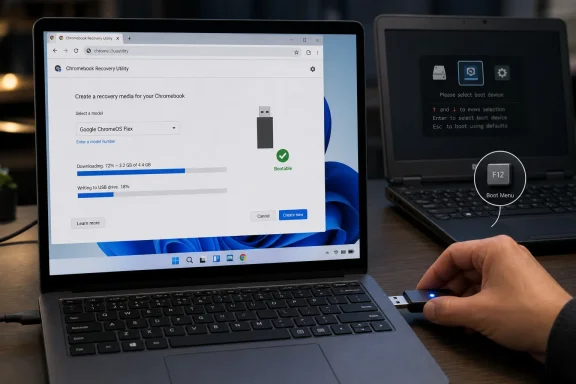 ChromeOS Flex Starts With a USB Stick, Not an Installer Window
Windows users are trained to expect setup files, ISO images, wizards, upgrade assistants, and repair tools that run inside the operating system they already have. ChromeOS Flex breaks that habit. You do not double-click your way into it from Windows 11 or Windows 10; you build a bootable installer, restart the machine, and let the firmware hand control to Google’s operating system before Windows loads.That distinction matters because ChromeOS Flex is designed less like a Windows app and more like a replacement operating system. The USB drive is both the delivery mechanism and the safety net. It lets you try ChromeOS Flex before you commit, and it gives you a controlled way to wipe and repurpose old hardware if the test goes well.
Google’s recommended tool for this job is the Chromebook Recovery Utility, a Chrome extension that can run on a Windows PC with the Chrome browser installed. The utility downloads the appropriate ChromeOS Flex image, verifies it, partitions the USB drive, and writes the installer. In practice, that removes most of the ambiguity that usually surrounds bootable media creation.
That does not mean nothing can go wrong. It means the process has been narrowed to a small number of predictable failure points: the browser, the USB drive, the internet connection, and the target PC’s boot settings.
The Official Tool Is Boring, Which Is Exactly the Point
There are flashier ways to write operating system images. Rufus, Ventoy,dd, and other tools all have their place, especially for IT pros who maintain multi-boot drives or need repeatable deployment workflows. But ChromeOS Flex is one of those cases where the boring official tool is the right recommendation for most users.The Chromebook Recovery Utility does not ask you to choose between partition schemes, file systems, cluster sizes, boot modes, or image-writing methods. You tell it that you want Google ChromeOS Flex, you select the USB drive, and it does the rest. That is not merely user friendliness; it is risk reduction.
Bootable USB problems often come from tiny mismatches that are invisible until restart. A drive may appear to write correctly but fail to boot because it was formatted incorrectly. A downloaded image may be stale or corrupt. A user may pick the wrong ISO, the wrong target disk, or the wrong boot mode. Google’s utility exists to collapse those choices into one supported path.
For WindowsForum readers, that may feel restrictive. Many of us are comfortable with Rufus, diskpart, ISO extraction, UEFI settings, and third-party boot managers. But ChromeOS Flex is not a project where cleverness is automatically rewarded. If the goal is to revive a laptop quickly and reliably, the official tool wins precisely because it gives you fewer ways to be clever.
What You Need Before You Touch the Extension
The requirements are modest, but they are not optional. You need a Windows 11 or Windows 10 PC with the current Google Chrome browser installed. The machine creating the USB installer does not have to be the machine that will eventually run ChromeOS Flex.You also need a USB flash drive of at least 8GB. A 16GB USB 3.0 drive is a better practical choice, not because ChromeOS Flex needs enormous capacity, but because cheap or aging USB 2.0 sticks tend to make the process slower and less predictable. Google also warns that some USB drives may not work reliably as installers, so if the process repeatedly fails on one stick, the drive itself should be treated as a suspect.
The USB drive will be erased. That warning is easy to skim past, but it deserves more attention than most installer warnings because the utility repartitions the drive into a layout Windows may not recognize afterward. If the drive contains files you need, copy them somewhere else first.
You also need a stable internet connection. The recovery utility downloads the ChromeOS Flex image during the creation process, so this is not a good job for a flaky Wi-Fi connection, a captive portal, or a VPN that occasionally drops. If you are doing this for someone else’s old laptop, create the installer somewhere with a reliable connection rather than trying to troubleshoot download failures on the target machine.
The Chrome Extension Does the Heavy Lifting
Open Google Chrome on the Windows PC and install the Chromebook Recovery Utility from the Chrome Web Store. After adding it, open Chrome’s Extensions menu and confirm that the utility is enabled. Pinning it is optional, but useful if you expect to reuse it.Launch the extension and click through the opening screen. When asked to identify the Chromebook model, do not type in a serial number or search for a laptop brand. Choose the option to select a model from a list.
In the manufacturer dropdown, select Google ChromeOS Flex. In the product dropdown, select ChromeOS Flex. This is the step that tells the utility to fetch the Flex installer rather than a recovery image for a specific Chromebook model.
Insert the USB drive only after you are ready to select it, and remove other removable drives or SD cards first. This is old-fashioned caution, but it remains good practice. The recovery utility writes directly to the selected removable drive, and the wrong selection means the wrong device gets erased.
Choose the USB drive, continue, and click Create now. Windows may show a permission prompt allowing Chrome or the utility to write to the drive. Approve it. Missing or dismissing that prompt is one of the easiest ways to turn a simple process into a confusing failure.
The utility will download, unpack, verify, and write the image. On a decent USB 3.0 flash drive and a good connection, the process may finish in under 10 minutes. On slower media, 15 minutes or more is not unusual. Google notes that unusual progress percentages can appear during creation, so do not assume the process has failed just because the progress indicator behaves oddly for a moment.
Windows May Think the Finished Installer Is Broken
When the utility reports that the recovery media is ready, the ChromeOS Flex USB installer is complete. At that point, Windows may immediately become unhelpful. It may say the drive needs to be formatted, that it cannot be read, or that one of the partitions is inaccessible.Ignore those messages. Do not format the drive.
Windows is reacting to a disk layout it does not understand in normal File Explorer terms. ChromeOS Flex installer media is not meant to look like a tidy FAT32 thumb drive full of visible setup files. If Windows complains after the utility successfully finishes, that is not proof of failure. It is often proof that the drive has been rewritten into the expected installer structure.
Use the system tray to eject the USB drive safely. This is not superstition. Pulling a just-written installer out of a Windows machine while the OS still has pending writes or cached metadata is a needless way to corrupt the thing you just made.
Booting the Target PC Is Where Windows Habits Get in the Way
The next step happens on the computer you actually want to run ChromeOS Flex on. Shut it down fully, insert the USB drive, and power it on while pressing the machine’s boot menu key. F12 is common on Dell, Lenovo, and Acer systems; Esc is common on HP; F9, F10, F11, F12, Del, and F2 all appear across different vendors.The key point is that you want the one-time boot menu, not a normal Windows restart. If the machine simply boots back into Windows, nothing has gone wrong with the USB installer. The firmware just never tried to boot from it.
If the USB drive does not appear in the boot menu, enter BIOS or UEFI setup and check the boot configuration. USB boot may be disabled. Fast Boot may be skipping external device initialization. On some older hardware, Secure Boot may interfere, although modern systems often boot ChromeOS Flex with Secure Boot enabled.
This is also where old PCs reveal their personality. A laptop that looks ordinary from the outside may have a finicky UEFI implementation, a tired USB port, or a firmware setting buried under a vendor-specific name. If one USB port does not work, try another. If a front-panel desktop port fails, use a rear motherboard port. If the machine is very old, a USB 2.0 port may actually be more reliable for booting than a USB 3.x controller initialized later in firmware.
The Smart Move Is to Try Before You Wipe
Once the ChromeOS Flex installer boots, you will reach the welcome screen. The temptation is to install immediately, especially if the whole point is to rescue a laptop that Windows has made unbearable. Resist that urge for a few minutes.Choose the option to try ChromeOS Flex first. Live mode runs the operating system from the USB drive without modifying the internal storage. It will be slower than a full installation, but speed is not the first thing you are testing. Compatibility is.
Check Wi-Fi. Check the keyboard, trackpad, touchscreen if present, audio, webcam, Bluetooth, sleep and wake behavior, and display brightness controls. These are the mundane pieces of a laptop that turn an operating system from “it boots” into “I can actually live with it.”
ChromeOS Flex works best on Google-certified models. On non-certified hardware, it can still work well, but Google does not guarantee performance, functionality, or stability. That distinction is especially important for old consumer laptops with unusual wireless chipsets, hybrid graphics, fingerprint readers, or vendor-specific hotkeys.
This is where ChromeOS Flex is both generous and unforgiving. It gives aging PCs a second act, but it does not bring the driver culture of Windows with it. If a critical component does not work in live mode, there may not be a convenient driver package waiting on a manufacturer support page.
Installation Is Simple Because It Is Destructive
If ChromeOS Flex behaves properly in live mode, you can proceed with installation. The installer is straightforward, but the decision is not small. Installing ChromeOS Flex to the internal drive erases the existing operating system and local files.That includes Windows, recovery partitions, user folders, forgotten downloads, and anything else on the target drive. If the machine contains data you might need, back it up before installing. Do not treat the ChromeOS Flex installer as a reversible experiment unless you have already made recovery media or a full backup for the old system.
Google recommends fully installing ChromeOS Flex rather than using live USB mode long-term. That recommendation makes sense. Live mode is useful for testing, but it is slower, more fragile, and not the intended daily operating environment. Once installed internally, ChromeOS Flex behaves much more like the managed, update-driven operating system Google wants it to be.
For home users, that means a simpler browser-first machine. For schools, nonprofits, and small businesses, it can mean extending the useful life of fleets that would otherwise be retired. For Windows administrators, it also means accepting a different management model and a different set of trade-offs.
The Old Laptop Revival Story Has Fine Print
ChromeOS Flex is often sold as a way to make old hardware useful again, and that pitch is broadly fair. Many laptops that struggle under Windows 10 or Windows 11 still have enough CPU, RAM, and storage for a browser-centric operating system. If the workload is email, docs, web apps, streaming, remote desktops, and light administration portals, ChromeOS Flex can feel like a dramatic improvement.But “old laptop” is not a hardware specification. Google lists minimum requirements around a 64-bit Intel or AMD x86 processor, 4GB of RAM, 16GB of internal storage, USB boot support, and sufficient BIOS or UEFI access. Machines using very old processor or graphics components may be unsupported or unreliable.
There are also product differences between ChromeOS Flex and ChromeOS on a real Chromebook. ChromeOS Flex is designed for PCs and Macs, not for every Chromebook feature or Android-heavy use case. If your mental model is “free Chromebook conversion,” you will be mostly right for web work and potentially wrong for app expectations.
That is why the USB creation process deserves a proper how-to rather than a casual “just flash it” shrug. The installer is the easy part. The decision to entrust an old but functional PC to a cloud-first operating system is the larger bet.
Rufus and Ventoy Belong in the Footnotes, Not the First Step
Advanced users can manually download a ChromeOS Flex image and write it using other tools. In some environments, that may be desirable. A technician who already maintains a Ventoy drive, a Linux admin comfortable withdd, or a deployment workflow built around repeatable imaging may prefer a manual path.But for the mainstream Windows user, third-party tools add more surface area for mistakes. They also make troubleshooting less clean. If the official utility fails, the failure is likely in the USB drive, browser permissions, download path, or target firmware. If an unofficial tool fails, you first have to ask whether the image, extraction method, write mode, partitioning, or tool configuration caused the problem.
That does not make Rufus bad. It makes it the wrong default. ChromeOS Flex is not a Windows ISO, and the easiest installer is the one Google expects ordinary users to make.
The same logic applies to Ventoy. It is excellent for multi-boot troubleshooting kits, but ChromeOS Flex is not primarily a live ISO to keep in a general-purpose toolkit forever. It is an installer and compatibility test medium. Once the target machine is installed, you can erase the recovery media and return the USB drive to normal use.
Most Failures Are Not Mysterious
When Chromebook Recovery Utility cannot detect the USB drive, start with the boring fixes. Try a different port, avoid hubs, reseat the drive, and use another flash drive if available. Old or promotional USB sticks are disproportionately likely to waste your time.If creation fails during writing, watch for Windows permission prompts and try again with Chrome reopened cleanly. Security software that interferes with raw disk writes can also cause trouble, though the simpler explanation is often that the prompt was missed or the drive is unreliable.
If the download fails, blame the network before blaming ChromeOS Flex. The utility has to download the installer image, and an unstable connection can force a restart. A wired connection, a stronger Wi-Fi signal, or temporarily disabling a problematic VPN may solve the issue.
If the target computer refuses to boot the USB, shift attention to firmware settings. Use the one-time boot menu. Enable USB boot. Disable Fast Boot if necessary. Consider Secure Boot only after the simpler settings have been checked.
If ChromeOS Flex begins loading but hangs, recreate the installer, preferably on a different USB drive. A bad write can produce symptoms that look like hardware incompatibility. Testing with a second USB stick is often faster than spelunking through firmware menus for an hour.
The Five-Minute Checklist That Saves the Afternoon
The ChromeOS Flex USB process is simple enough that people rush it, and that is when they erase the wrong drive, miss the permissions prompt, or discover too late that the target laptop’s Wi-Fi does not work. The best practice is not complicated; it is disciplined.- Use Google Chrome and the Chromebook Recovery Utility if this is your first ChromeOS Flex installer.
- Choose a blank 8GB-or-larger USB drive, preferably a reliable 16GB USB 3.0 stick.
- Remove other removable drives before clicking Create now so you do not wipe the wrong device.
- Ignore Windows format warnings after the recovery utility says the media is ready.
- Boot the target PC from the one-time boot menu and test ChromeOS Flex in live mode before installing.
- Back up the target computer before installation because ChromeOS Flex replaces the existing operating system.
References
- Primary source: H2S Media
Published: 2026-07-02T08:12:13.224073
How to Create a Bootable ChromeOS Flex USB on Windows 11 or 10 - H2S Media
Build a ChromeOS Flex USB installer on Windows 11 or 10 using Google's Chromebook Recovery Utility. Step-by-step guide, fixes for failed drives, and boot tips.www.how2shout.com - Related coverage: chromeos.google
Install ChromeOS Flex: Fast, Secure OS for PCs & Macs
Transform your existing devices with ChromeOS Flex. Experience a cloud-first, secure operating system that modernizes your hardware for free.chromeos.google
- Related coverage: techadvisor.com
How to Install ChromeOS Flex - Tech Advisor
There is no better way to breathe a new life into an old, slow laptop than by installing ChromeOS Flexwww.techadvisor.com - Related coverage: colourmytech.com
Step-by-Step Guide on Installing ChromeOS Flex by Google - Colour My Tech
Facebook Twitter LinkedIn Email Copy Link As laptops age, they often slow down, struggle with software updates or become too sluggish to run modern applications efficiently. Instead of discarding an old device, ChromeOS Flex offers a lightweight, cloud-based alternative that can breathe new life... www.colourmytech.com
- Related coverage: androidcentral.com
How to turn an old PC or Mac into a Chromebook with ChromeOS Flex | Android Central
What was once old is new again.www.androidcentral.com - Related coverage: techradar.com
Google's $3 USB stick for revamping old laptops with ChromeOS Flex has sold out — and proves I was right about Chromebooks | TechRadar
The ChromeOS Flex flexwww.techradar.com
- Related coverage: cms-b-assets.familysearch.org
</rdf:Alt> </dc:title> <dc:description> <rdf:Alt> <rdf:li xml:lang="x-default"/> </rdf:Alt> </dc:description> <dc:creator> <rdf:Seq> <rdf:li>Product
</rdf:Alt> </dc:description> <dc:creator> <rdf:Seq> <rdf:li>Product/Topiccms-b-assets.familysearch.org
