

Google’s Gemini CLI can still be installed on Windows 11 in June 2026 by installing Node.js 20 or newer, using npm to add
Gemini CLI began as one of the clearest signs that AI coding tools were escaping the browser tab. Instead of asking a chatbot to explain a file you had to paste manually, you could invoke an agent directly from the terminal, let it inspect the project, and ask it to edit, run, test, and explain in the same place where development actually happens.
That still matters on Windows 11. For many users, Windows Terminal has become the central workbench for PowerShell, Git, WSL, package managers, cloud CLIs, and local development servers. Dropping Gemini into that environment turns the command line into an AI-assisted workspace rather than a prompt-only interface.
But the timing changes the advice. A traditional install guide would treat Google sign-in as the obvious happy path because it is quick and free. In June 2026, that is only half true: it is still quick, but it is no longer the path you should build workflows around unless you are comfortable migrating almost immediately.
The durable path is API-key or enterprise authentication. That does not make the free login useless; it makes it a trial mode. If you are experimenting, use it. If you are wiring Gemini CLI into scripts, build steps, documentation workflows, or an internal developer environment, treat the API key as part of the installation rather than an optional later step.
The practical requirement is Node.js 20 or newer. On a fresh Windows 11 machine, the safest route is to download the current LTS installer from Node.js, run the Windows
After installation, close any terminal window that was already open. This sounds like ritual, but it is really just how Windows environment variables work. A terminal session started before Node was installed will not necessarily know where the new executables are.
Open Windows Terminal or PowerShell and run:
If Windows returns a version number beginning with
Then check npm:
You do not need to install npm separately if you used the standard Node.js installer. It is bundled with Node, and Gemini CLI depends on it.
The
After the install completes, verify it:
If a version number appears, the CLI is installed. If PowerShell says
If it still fails, ask npm where global packages are being installed:
The returned path points to the global npm location. On Windows, the executable shim for globally installed tools often lives under that prefix. If that location is missing from your user or system PATH, Windows cannot find
For most users, the cleaner fix is to add the relevant npm global folder to PATH through Windows’ environment variable editor, then open a new terminal. Running the install repeatedly usually does not fix a PATH problem; it only creates the illusion of progress.
The first run asks how you want to authenticate. This is now the most consequential choice in the whole setup because the consumer Google login and the long-term API-key path no longer have the same shelf life.
The easiest option is signing in with Google. Gemini CLI opens a browser login flow, you approve access, and credentials are cached locally. For a personal Windows 11 machine, this remains the least painful way to test the tool.
The problem is that Google is ending consumer access for free individual users and Google AI Pro or Ultra users on June 18, 2026. After that date, the
The more durable option is an API key. In PowerShell, you can set it for the current session like this:
That works until the terminal closes. For a persistent setup, add
Treat the key like a password. Do not paste it into screenshots, commit it to Git, hardcode it into shared scripts, or leave it sitting in a transcript. Agentic CLI tools are powerful because they connect local context to remote models; that same convenience becomes expensive if a credential leaks.
The
From inside a project folder, you can ask it to summarize local context:
Or ask it to explain a file:
The difference between this and a browser chatbot is not the wording of the prompt. It is the working context. Gemini CLI can inspect files, reason across a directory, and, with permission, run commands or modify content.
That is also why the first real test should be read-only. Ask it to summarize, explain, or inspect before asking it to edit. You want to confirm that it sees the right directory, respects your instructions, and is not about to operate in the wrong tree.
That does not make it unsafe by default, but it does change the trust model. When Gemini CLI asks whether to trust a folder, it is really asking whether this directory is a place where an AI agent should be allowed to read context and propose actions. For your own project folder, that may be reasonable. For a random repository cloned from the internet, it deserves more caution.
The riskiest mode is any auto-approve or “yolo” style workflow that lets the agent run commands without stopping for confirmation. That can be useful in a disposable sandbox, a clean VM, or a throwaway test project. It is a bad default for a workstation containing credentials, SSH keys, work documents, or production configuration files.
Windows users should also remember that PowerShell is not a toy shell. It has access to the filesystem, registry-adjacent tooling, environment variables, package managers, cloud CLIs, and whatever developer credentials are already configured. An agent operating through PowerShell inherits much of the practical reach of the user running it.
That keeps the agent’s attention on the right files and reduces accidental context sprawl. It also makes the session easier to reason about: when Gemini proposes running a command, you know which working directory it is operating from.
For developers using Git, this pairs naturally with a clean branch. Before asking an agent to edit code, create a new branch and make sure your working tree is clean. If Gemini makes a mess, Git becomes the undo button.
For sysadmins, the equivalent is a lab folder or a copied configuration set. Do not point an AI agent at live production scripts and ask it to “clean things up” unless you have review, backup, and rollback discipline in place. The command line is a powerful interface precisely because it does not ask many questions once something is authorized.
This is where Windows 11’s modern terminal environment helps. Tabs, profiles, split panes, PowerShell, Command Prompt, WSL, and cloud shells can coexist in one application. Keep Gemini sessions visually separate from administrative shells, and you reduce the odds of confusing a local project assistant with an elevated maintenance session.
The first troubleshooting command remains:
If that fails, fix Node before touching Gemini. The second is:
That tells you where npm is placing global packages. If
Permission errors during global npm installation are also common. On Windows, the blunt workaround is to open PowerShell or Windows Terminal as Administrator and rerun the install. That works, although it is not always the cleanest long-term npm setup. For a personal machine, it is often good enough; for managed enterprise devices, IT policy may require a user-local npm prefix or a sanctioned software deployment route.
PowerShell execution policy can produce a
That should be run only if you understand the policy change and preferably in an elevated PowerShell window. It relaxes script execution for the current user, not the entire machine, which is the more appropriate scope for most developer workstations.
Network failures are the other major category. Gemini CLI needs to reach Google’s services, and corporate firewalls or proxies can interfere. On a managed Windows laptop, a timeout may have less to do with Gemini and more to do with outbound TLS inspection, proxy configuration, or a blocked endpoint.
That distinction matters. Gemini CLI is open source under Apache 2.0, which made it attractive to developers who wanted to inspect the code, fork behavior, or build internal habits around a transparent tool. Antigravity CLI is being positioned as the successor terminal experience tied to Google’s newer agent-first development platform.
From Google’s point of view, consolidation makes sense. A single backend for terminal, IDE, multi-agent workflows, plugins, and orchestration is easier to evolve than a patchwork of overlapping tools. From a user’s point of view, it is more complicated. The replacement may be more capable, but it also asks users to accept a different product boundary.
That is why Gemini CLI still deserves an install guide. A tool does not stop being useful the moment a vendor announces its successor. It becomes a tool with a migration horizon. For the next stretch, Windows users may need both: Gemini CLI for existing workflows and Antigravity CLI for whatever comes next.
The practical advice is simple. If you are learning, install Gemini CLI and understand the model. If you are standardizing, test Antigravity CLI before the cutoff. If you are an enterprise user or API-key user, verify which authentication path your organization actually depends on rather than assuming the June 18 change affects everyone equally.
The comparison with Claude Code is especially natural because both tools present themselves as coding agents rather than mere prompt boxes. They can read files, propose edits, run commands, and participate in multi-step development tasks. For users, the choice often comes down to model preference, ecosystem alignment, price, policy, and trust.
Gemini CLI’s strongest argument has been its Google integration: Gemini models, Google Search grounding, Google Cloud and Vertex AI paths, and an open-source CLI implementation. Claude Code’s strongest argument has often been developer enthusiasm around coding quality and multi-file refactoring. Those reputations shift as models and products change, so the only honest benchmark is the one you run against your own repositories.
On Windows 11, the installation experience is similar enough that setup should not be the deciding factor. Both live comfortably in npm-driven workflows. Both require careful credential handling. Both become more dangerous as you grant them more autonomy.
The deeper distinction is strategic. Claude Code is a terminal product built around Anthropic’s model ecosystem. Gemini CLI is now also a bridge away from itself, pointing users toward Antigravity. That makes Google’s option feel less like a stable endpoint and more like a chapter in a platform migration.
That means the installation question is not just “does it run?” It is “where does data go, who can authorize actions, how are credentials stored, what logging exists, and what happens when the vendor changes the service behind the command?” The June 18 transition is a reminder that cloud-backed CLIs are not static utilities in the old Unix sense. They are local clients for services whose terms, tiers, and endpoints can change.
For managed Windows fleets, API keys should not be scattered across user profiles without policy. Enterprise identity, Vertex AI routing, secrets management, proxy controls, and audit expectations all matter. If Gemini CLI is allowed at all, it should be introduced as part of a governed developer tooling story rather than as an npm command copied from a blog post.
There is also the question of repository trust. AI agents can be manipulated by instructions hidden in files, comments, documentation, or issue text. That is not science fiction; it is the natural consequence of letting language models consume untrusted text and then decide what action to propose. The safest default is to review commands before execution and avoid auto-running agent suggestions in unfamiliar codebases.
For WindowsForum readers who wear both hats — developer on Monday, admin on Tuesday — this is the uncomfortable truth: Gemini CLI is useful precisely because it is powerful enough to deserve controls. If your organization already restricts arbitrary scripts, package installs, or cloud CLIs, an AI agent in the terminal belongs in the same conversation.
That removes the global package. It may not remove cached credentials, shell history, environment variables, or project-level context files. If you used an API key, rotate or revoke it if the machine is being repurposed, shared, or decommissioned.
You should also check whether you added
If you tested Gemini CLI in a project, inspect any files it created. Agent tools may add memory files, configuration files, generated notes, or modified source. Git will show code changes, but it may not show ignored files, local config, or artifacts outside the repository.
This is the boring housekeeping that separates experimentation from operational hygiene. AI tooling makes it easy to try things quickly. Windows systems have a long memory for environment variables, cached credentials, npm folders, and shell history.
@google/gemini-cli globally, and authenticating through Google sign-in, an API key, or Vertex AI. That simple install story now comes with a deadline attached. Google is steering individual users toward Antigravity CLI on June 18, 2026, but Gemini CLI remains relevant for developers, sysadmins, enterprise users, and anyone who wants to understand what is being replaced before it disappears from the free consumer lane. The right way to install it today is therefore not just to paste a command, but to install it with an exit plan.
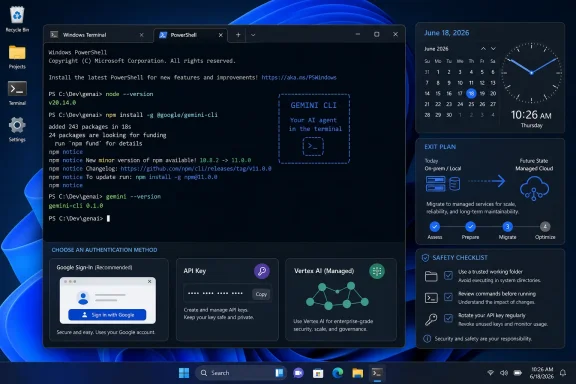 Gemini CLI Is Still Useful, but the Clock Now Matters
Gemini CLI began as one of the clearest signs that AI coding tools were escaping the browser tab. Instead of asking a chatbot to explain a file you had to paste manually, you could invoke an agent directly from the terminal, let it inspect the project, and ask it to edit, run, test, and explain in the same place where development actually happens.That still matters on Windows 11. For many users, Windows Terminal has become the central workbench for PowerShell, Git, WSL, package managers, cloud CLIs, and local development servers. Dropping Gemini into that environment turns the command line into an AI-assisted workspace rather than a prompt-only interface.
But the timing changes the advice. A traditional install guide would treat Google sign-in as the obvious happy path because it is quick and free. In June 2026, that is only half true: it is still quick, but it is no longer the path you should build workflows around unless you are comfortable migrating almost immediately.
The durable path is API-key or enterprise authentication. That does not make the free login useless; it makes it a trial mode. If you are experimenting, use it. If you are wiring Gemini CLI into scripts, build steps, documentation workflows, or an internal developer environment, treat the API key as part of the installation rather than an optional later step.
Windows 11 Needs Node First, Not Gemini First
The most common Gemini CLI installation failure on Windows is not a Gemini problem at all. It is a Node.js problem. Gemini CLI is distributed through npm, which means Windows needs a working Node.js installation before thegemini command can exist.The practical requirement is Node.js 20 or newer. On a fresh Windows 11 machine, the safest route is to download the current LTS installer from Node.js, run the Windows
.msi, and accept the default options. Those defaults matter because they add both node and npm to the system path, which is what lets PowerShell find them later.After installation, close any terminal window that was already open. This sounds like ritual, but it is really just how Windows environment variables work. A terminal session started before Node was installed will not necessarily know where the new executables are.
Open Windows Terminal or PowerShell and run:
node --versionIf Windows returns a version number beginning with
v20, v22, v24, or newer, the foundation is ready. If it says the command is not recognized, reopening the terminal is the first fix. If that fails, Node either did not install correctly or its install directory did not land in your PATH.Then check npm:
npm --versionYou do not need to install npm separately if you used the standard Node.js installer. It is bundled with Node, and Gemini CLI depends on it.
The Install Command Is Simple Because npm Does the Heavy Lifting
Once Node and npm are working, Gemini CLI installation is a single global npm command:npm install -g @google/gemini-cliThe
-g flag is the important part. It tells npm to install Gemini CLI globally so that the gemini command can be launched from any folder. Without it, npm installs the package only into the current directory, which is not what most Windows users want from a terminal assistant.After the install completes, verify it:
gemini --versionIf a version number appears, the CLI is installed. If PowerShell says
gemini is not recognized, do not reinstall immediately. First close the terminal, open a new one, and run the command again.If it still fails, ask npm where global packages are being installed:
npm config get prefixThe returned path points to the global npm location. On Windows, the executable shim for globally installed tools often lives under that prefix. If that location is missing from your user or system PATH, Windows cannot find
gemini even though npm installed it successfully.For most users, the cleaner fix is to add the relevant npm global folder to PATH through Windows’ environment variable editor, then open a new terminal. Running the install repeatedly usually does not fix a PATH problem; it only creates the illusion of progress.
Authentication Is Where This Install Guide Stops Being Timeless
Launch Gemini CLI with:geminiThe first run asks how you want to authenticate. This is now the most consequential choice in the whole setup because the consumer Google login and the long-term API-key path no longer have the same shelf life.
The easiest option is signing in with Google. Gemini CLI opens a browser login flow, you approve access, and credentials are cached locally. For a personal Windows 11 machine, this remains the least painful way to test the tool.
The problem is that Google is ending consumer access for free individual users and Google AI Pro or Ultra users on June 18, 2026. After that date, the
gemini command may still launch, but that consumer authentication route stops serving requests. In plain English: the binary can be present, the open-source code can still exist, and your terminal can still recognize the command, while the cloud service behind that login refuses to answer.The more durable option is an API key. In PowerShell, you can set it for the current session like this:
$env:GEMINI_API_KEY="YOUR_API_KEY_HERE"That works until the terminal closes. For a persistent setup, add
GEMINI_API_KEY to your Windows user environment variables or use the configuration approach documented by Google for your preferred workflow.Treat the key like a password. Do not paste it into screenshots, commit it to Git, hardcode it into shared scripts, or leave it sitting in a transcript. Agentic CLI tools are powerful because they connect local context to remote models; that same convenience becomes expensive if a credential leaks.
The First Prompt Should Be Boring on Purpose
Once authenticated, resist the urge to immediately ask Gemini CLI to rewrite a project. Start with a harmless prompt:gemini -p "Explain what this tool can do in two sentences."The
-p flag sends a one-off prompt without dropping you into a full interactive session. That makes it useful for quick questions, shell scripting, or checking that authentication and network access are working.From inside a project folder, you can ask it to summarize local context:
gemini -p "Summarize the purpose of this project based on the README and package files."Or ask it to explain a file:
gemini -p "Explain what main.py does and point out any risky assumptions."The difference between this and a browser chatbot is not the wording of the prompt. It is the working context. Gemini CLI can inspect files, reason across a directory, and, with permission, run commands or modify content.
That is also why the first real test should be read-only. Ask it to summarize, explain, or inspect before asking it to edit. You want to confirm that it sees the right directory, respects your instructions, and is not about to operate in the wrong tree.
Trusting a Folder Is a Security Decision, Not a Convenience Click
Terminal AI agents blur a boundary Windows users have spent decades relying on. A normal chatbot can give bad advice, but it cannot runnpm install, delete a file, edit a configuration, or execute a build command unless you copy its instructions manually. Gemini CLI can sit much closer to the keyboard.That does not make it unsafe by default, but it does change the trust model. When Gemini CLI asks whether to trust a folder, it is really asking whether this directory is a place where an AI agent should be allowed to read context and propose actions. For your own project folder, that may be reasonable. For a random repository cloned from the internet, it deserves more caution.
The riskiest mode is any auto-approve or “yolo” style workflow that lets the agent run commands without stopping for confirmation. That can be useful in a disposable sandbox, a clean VM, or a throwaway test project. It is a bad default for a workstation containing credentials, SSH keys, work documents, or production configuration files.
Windows users should also remember that PowerShell is not a toy shell. It has access to the filesystem, registry-adjacent tooling, environment variables, package managers, cloud CLIs, and whatever developer credentials are already configured. An agent operating through PowerShell inherits much of the practical reach of the user running it.
The Best Windows Setup Is a Clean Project Terminal
Gemini CLI works best when launched from the folder you want it to understand. In Windows Terminal, usecd to move into the project directory before starting an interactive session:
Code:
cd C:\Users\YourName\Projects\example-app
geminiFor developers using Git, this pairs naturally with a clean branch. Before asking an agent to edit code, create a new branch and make sure your working tree is clean. If Gemini makes a mess, Git becomes the undo button.
For sysadmins, the equivalent is a lab folder or a copied configuration set. Do not point an AI agent at live production scripts and ask it to “clean things up” unless you have review, backup, and rollback discipline in place. The command line is a powerful interface precisely because it does not ask many questions once something is authorized.
This is where Windows 11’s modern terminal environment helps. Tabs, profiles, split panes, PowerShell, Command Prompt, WSL, and cloud shells can coexist in one application. Keep Gemini sessions visually separate from administrative shells, and you reduce the odds of confusing a local project assistant with an elevated maintenance session.
Common Windows Failures Are Usually PATH, Policy, or Permissions
When Gemini CLI fails on Windows, the error message often points to the layer below it. Ifnode is missing, Gemini cannot be installed. If npm’s global bin directory is not in PATH, Gemini can be installed but not launched. If PowerShell script policy blocks npm shims, the command may exist but fail at execution.The first troubleshooting command remains:
node --versionIf that fails, fix Node before touching Gemini. The second is:
npm config get prefixThat tells you where npm is placing global packages. If
gemini --version fails after a successful install, PATH is the prime suspect.Permission errors during global npm installation are also common. On Windows, the blunt workaround is to open PowerShell or Windows Terminal as Administrator and rerun the install. That works, although it is not always the cleanest long-term npm setup. For a personal machine, it is often good enough; for managed enterprise devices, IT policy may require a user-local npm prefix or a sanctioned software deployment route.
PowerShell execution policy can produce a
PSSecurityException if script wrappers are blocked. The usual user-scoped fix is:Set-ExecutionPolicy -ExecutionPolicy RemoteSigned -Scope CurrentUserThat should be run only if you understand the policy change and preferably in an elevated PowerShell window. It relaxes script execution for the current user, not the entire machine, which is the more appropriate scope for most developer workstations.
Network failures are the other major category. Gemini CLI needs to reach Google’s services, and corporate firewalls or proxies can interfere. On a managed Windows laptop, a timeout may have less to do with Gemini and more to do with outbound TLS inspection, proxy configuration, or a blocked endpoint.
The Antigravity Transition Turns a Tool Choice Into a Platform Choice
Google’s Antigravity push changes the meaning of Gemini CLI. The old story was “Google has a terminal AI agent.” The new story is “Google wants its terminal agent to be part of a broader agentic development platform.”That distinction matters. Gemini CLI is open source under Apache 2.0, which made it attractive to developers who wanted to inspect the code, fork behavior, or build internal habits around a transparent tool. Antigravity CLI is being positioned as the successor terminal experience tied to Google’s newer agent-first development platform.
From Google’s point of view, consolidation makes sense. A single backend for terminal, IDE, multi-agent workflows, plugins, and orchestration is easier to evolve than a patchwork of overlapping tools. From a user’s point of view, it is more complicated. The replacement may be more capable, but it also asks users to accept a different product boundary.
That is why Gemini CLI still deserves an install guide. A tool does not stop being useful the moment a vendor announces its successor. It becomes a tool with a migration horizon. For the next stretch, Windows users may need both: Gemini CLI for existing workflows and Antigravity CLI for whatever comes next.
The practical advice is simple. If you are learning, install Gemini CLI and understand the model. If you are standardizing, test Antigravity CLI before the cutoff. If you are an enterprise user or API-key user, verify which authentication path your organization actually depends on rather than assuming the June 18 change affects everyone equally.
Gemini CLI and Claude Code Are Competing for the Same Terminal Habit
Gemini CLI is not alone in trying to colonize the terminal. Claude Code, OpenAI-flavored command-line agents, and IDE-native assistants all chase the same behavior change: stop copying context into chat and let the model work where the project lives.The comparison with Claude Code is especially natural because both tools present themselves as coding agents rather than mere prompt boxes. They can read files, propose edits, run commands, and participate in multi-step development tasks. For users, the choice often comes down to model preference, ecosystem alignment, price, policy, and trust.
Gemini CLI’s strongest argument has been its Google integration: Gemini models, Google Search grounding, Google Cloud and Vertex AI paths, and an open-source CLI implementation. Claude Code’s strongest argument has often been developer enthusiasm around coding quality and multi-file refactoring. Those reputations shift as models and products change, so the only honest benchmark is the one you run against your own repositories.
On Windows 11, the installation experience is similar enough that setup should not be the deciding factor. Both live comfortably in npm-driven workflows. Both require careful credential handling. Both become more dangerous as you grant them more autonomy.
The deeper distinction is strategic. Claude Code is a terminal product built around Anthropic’s model ecosystem. Gemini CLI is now also a bridge away from itself, pointing users toward Antigravity. That makes Google’s option feel less like a stable endpoint and more like a chapter in a platform migration.
The Windows Admin’s View Is More Cautious Than the Developer’s View
A solo developer can install Gemini CLI, sign in, and start experimenting in five minutes. An IT department has a longer checklist. Agentic tools touch source code, local files, credentials, logs, proprietary documentation, and sometimes production-adjacent scripts.That means the installation question is not just “does it run?” It is “where does data go, who can authorize actions, how are credentials stored, what logging exists, and what happens when the vendor changes the service behind the command?” The June 18 transition is a reminder that cloud-backed CLIs are not static utilities in the old Unix sense. They are local clients for services whose terms, tiers, and endpoints can change.
For managed Windows fleets, API keys should not be scattered across user profiles without policy. Enterprise identity, Vertex AI routing, secrets management, proxy controls, and audit expectations all matter. If Gemini CLI is allowed at all, it should be introduced as part of a governed developer tooling story rather than as an npm command copied from a blog post.
There is also the question of repository trust. AI agents can be manipulated by instructions hidden in files, comments, documentation, or issue text. That is not science fiction; it is the natural consequence of letting language models consume untrusted text and then decide what action to propose. The safest default is to review commands before execution and avoid auto-running agent suggestions in unfamiliar codebases.
For WindowsForum readers who wear both hats — developer on Monday, admin on Tuesday — this is the uncomfortable truth: Gemini CLI is useful precisely because it is powerful enough to deserve controls. If your organization already restricts arbitrary scripts, package installs, or cloud CLIs, an AI agent in the terminal belongs in the same conversation.
Installing It the Right Way Means Planning the Uninstall Too
Because Gemini CLI is installed through npm, removal is straightforward:npm uninstall -g @google/gemini-cliThat removes the global package. It may not remove cached credentials, shell history, environment variables, or project-level context files. If you used an API key, rotate or revoke it if the machine is being repurposed, shared, or decommissioned.
You should also check whether you added
GEMINI_API_KEY as a persistent Windows environment variable. Removing the npm package does not remove that variable. Search for “Edit environment variables for your account” from Start, inspect user variables, and delete anything you no longer need.If you tested Gemini CLI in a project, inspect any files it created. Agent tools may add memory files, configuration files, generated notes, or modified source. Git will show code changes, but it may not show ignored files, local config, or artifacts outside the repository.
This is the boring housekeeping that separates experimentation from operational hygiene. AI tooling makes it easy to try things quickly. Windows systems have a long memory for environment variables, cached credentials, npm folders, and shell history.
The Practical Path Before June 18 Is Narrow but Clear
The Gemini CLI install on Windows 11 is easy; the decision around it is the part that needs discipline. If you are using it before the consumer cutoff, make the authentication choice match the seriousness of the work.- Install Node.js 20 or newer first, then verify both
nodeandnpmfrom a fresh PowerShell or Windows Terminal session. - Install Gemini CLI globally with
npm install -g @google/gemini-cli, then confirm the command works withgemini --version. - Use Google sign-in only if you understand that consumer access ends on June 18, 2026.
- Use an API key or enterprise authentication for workflows you expect to survive beyond the cutoff.
- Run Gemini CLI from the project folder you want it to inspect, and review proposed file edits or shell commands before approving them.
- Begin testing Antigravity CLI now if your current Gemini CLI workflow depends on the free individual or Google AI Pro or Ultra path.
References
- Primary source: H2S Media
Published: 2026-06-09T07:58:15.238959
How to Install Google Gemini CLI on Windows 11 - H2S Media
Installing Gemini CLI on Windows 11 comes down to four real steps: get Node.js, open PowerShell, run the npm command, and authenticate with an API key.www.how2shout.com - Related coverage: ebisuda.net
Google、Gemini CLIを2026年6月18日に終了——後継「Antigravity CLI」への移行期限が迫る | ebisuda.net
GoogleがGemini CLIを6月18日で終了し、マルチエージェント対応の新プラットフォーム「Antigravity CLI」への移行を発表したwww.ebisuda.net
- Related coverage: kucoin.com
Google to Deprecate the Old Gemini CLI by June 18, 2026, Promotes Antigravity CLI | KuCoin
AIMPACT Notice, May 20 (UTC+8): According to monitoring by Beating, Google’s developer website has announced a detailed timeline for migrating from the Gemini Cwww.kucoin.com - Official source: github.com
gemini-cli/docs/get-started/authentication.mdx at main · google-gemini/gemini-cli · GitHub
An open-source AI agent that brings the power of Gemini directly into your terminal. - gemini-cli/docs/get-started/authentication.mdx at main · google-gemini/gemini-cli github.com
- Related coverage: ostechnix.com
Google is Replacing Gemini CLI with Its New Antigravity Platform - OSTechNix
Google is replacing the Gemini CLI and Gemini Code Assist IDE extensions with its new Antigravity platform. Here's what you need to know.ostechnix.com - Related coverage: smhn.info
Google、Gemini CLIをAntigravity CLIへ移行。6月18日に個人向け停止 - すまほん!!
さらばGemini CLI。Googleは2026年5月19日、開発者向けターミナルツール「Gemini CLI」の利用者を後継の「Antigravity CLI」へ移行させる方針を発表しました。Antigravity CLIは同日から全ユーザー向けに提供を開始。一方、Googl... smhn.info
- Related coverage: phemex.com
Google stellt Gemini CLI bis 18. Juni 2026 ein | Phemex News
Google stellt die Gemini CLI bis zum 18. Juni 2026 ein und empfiehlt den Umstieg auf die schnellere Antigravity CLI mit asynchroner Verarbeitung.phemex.com
- Related coverage: thenewstack.io
Google pushes Pro, Ultra, and free users from open-source Gemini CLI to closed-source Antigravity CLI
“Built for today’s multi-agent reality,” says Google, but the new platform is already frustrating some developers with usage limits. thenewstack.io
- Related coverage: techenet.com
- Related coverage: google-gemini.github.io
Gemini CLI | gemini-cli
An open-source AI agent that brings the power of Gemini directly into your terminal.google-gemini.github.io - Related coverage: techradar.com
Google is making Gemini CLI users switch to its new Antigravity 2.0 - so what will it mean for you? | TechRadar
Google launches Antigravity 2.0, says Gemini CLI users will need to migratewww.techradar.com - Related coverage: itpro.com
A flaw in Google’s new Gemini CLI tool could’ve allowed hackers to exfiltrate data | IT Pro
Security researchers have discovered a vulnerability in Google's Gemini command line interface (CLI) that enables malicious command execution and silent data infiltration.www.itpro.com - Related coverage: labs.cloudsecurityalliance.org
CSA research note gemini cli cvss10 rce sandbox bypass 20260501 csa styled
PDF documentlabs.cloudsecurityalliance.org
- Related coverage: xoserve.com
