

For most Microsoft Intune-managed RHEL 8 desktops, WindowsForum recommends RHEL 9 because it is on Microsoft’s current enrollment list and introduces fewer compatibility variables than RHEL 10; Linux enrollment is user-assisted rather than bulk, so migration capacity is constrained by scheduled user sign-in appointments.
This is not simply a Red Hat operating-system upgrade. Microsoft’s supported Linux management model combines Microsoft Intune, Microsoft Entra ID, Microsoft Edge, and Microsoft Identity Broker. Device-based Conditional Access for Linux web access depends on that stack.
WindowsForum’s editorial recommendation is to move the broad RHEL 8 desktop population to RHEL 9 and reserve RHEL 10 for clean-image, new-hardware, or otherwise fully validated cohorts. Microsoft currently lists RHEL 9 and RHEL 10 for enrollment, but not RHEL 8. RHEL 9 is therefore the conservative default when existing applications, drivers, authentication components, or peripherals still need validation on RHEL 10.
The operational challenge reported by Linux endpoint teams is broader than installing a newer OS. Enrollment, identity, policy evaluation, applications, and access must all be verified on the replacement build. Because enrollment requires the assigned user to sign in, each migration batch needs enough appointment capacity to complete that interaction.
Do not broadly exclude Linux devices from Conditional Access to get around migration problems. Any temporary exception should be narrowly scoped, documented, owned, and time-limited.
“Intune supports RHEL 10” answers the management-platform question only. It does not certify every VPN client, security agent, printer driver, development toolchain, middleware package, or line-of-business application.
Treat hardware and firmware approval as the organization’s vendor-validation gate. Confirm support with the relevant hardware and software vendors; do not assume that Microsoft or Red Hat has certified every component in a workstation.
Record the Red Hat Application Streams required by each workload and verify their individual lifecycles. The RHEL major version alone is not a complete application-compatibility test.
Use a reimage when:
After migration or broker-driven re-enrollment:
Migration is complete only after user-assisted enrollment, device-identity reconciliation, policy delivery, access, applications, authentication, and peripherals have been verified. Move the broad fleet to RHEL 9 and use RHEL 10 only where the complete target configuration is ready for production.
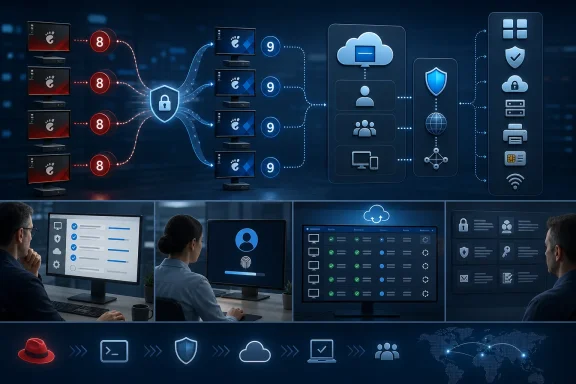 Why this requires a managed migration
This is not simply a Red Hat operating-system upgrade. Microsoft’s supported Linux management model combines Microsoft Intune, Microsoft Entra ID, Microsoft Edge, and Microsoft Identity Broker. Device-based Conditional Access for Linux web access depends on that stack.WindowsForum’s editorial recommendation is to move the broad RHEL 8 desktop population to RHEL 9 and reserve RHEL 10 for clean-image, new-hardware, or otherwise fully validated cohorts. Microsoft currently lists RHEL 9 and RHEL 10 for enrollment, but not RHEL 8. RHEL 9 is therefore the conservative default when existing applications, drivers, authentication components, or peripherals still need validation on RHEL 10.
The operational challenge reported by Linux endpoint teams is broader than installing a newer OS. Enrollment, identity, policy evaluation, applications, and access must all be verified on the replacement build. Because enrollment requires the assigned user to sign in, each migration batch needs enough appointment capacity to complete that interaction.
Identify the migration population
Start with a named device list rather than an estimate from the Linux team.- Review the Linux device information available in the Microsoft Intune admin center.
- Compare it with asset records, the configuration-management database, procurement records, and support lists.
- Confirm the installed RHEL major version directly or through an established systems-management tool.
- Associate each device with its assigned user, business owner, hardware model, and primary workload.
- Investigate devices found in one inventory source but not another.
- Group the fleet by application, identity, hardware, and peripheral requirements.
- Assign an owner, target release, migration method, user appointment, and target date to every active RHEL 8 endpoint.
Understand the support boundary
Microsoft’s documentation defines supported operating systems and enrollment components. It does not guarantee how an unsupported RHEL 8 endpoint will check in, report compliance, retain access, or appear in the administrative console. Plan around documented support rather than anticipated unsupported behavior.| Area | Documented requirement or constraint | Administrator action |
|---|---|---|
| Operating system | Microsoft’s current enrollment list includes RHEL 9 and RHEL 10, not RHEL 8 | Select RHEL 9 or RHEL 10 |
| Desktop | GNOME is required for the supported scenario | Include GNOME in the target image |
| Enrollment | Linux bulk enrollment is not supported; the user must sign in | Schedule an appointment with each assigned user |
| Microsoft stack | Enrollment and supported access use Intune, Entra ID, Edge, and Microsoft Identity Broker | Test the complete stack on the target image |
| Conditional Access | Device-based Linux web access depends on the supported stack | Test the organization’s actual policies and resources |
| Workloads | Intune OS support does not validate third-party applications or hardware | Apply an organizational vendor-validation gate |
Choose RHEL 9 or RHEL 10
Use this decision matrix before building migration waves.| Target | Use it when | No-go conditions |
|---|---|---|
| RHEL 9 — default | Migrating an established RHEL 8 fleet; preserving compatibility is important; application or peripheral validation on RHEL 10 is incomplete | A required workload is unsupported on RHEL 9 or the organization has approved only a validated RHEL 10 standard |
| RHEL 10 — selected cohorts | Deploying new hardware or a clean standard image; required applications, authentication, drivers, and peripherals have passed testing | Any critical component remains untested or requires an unapproved workaround |
Treat hardware and firmware approval as the organization’s vendor-validation gate. Confirm support with the relevant hardware and software vendors; do not assume that Microsoft or Red Hat has certified every component in a workstation.
Record the Red Hat Application Streams required by each workload and verify their individual lifecycles. The RHEL major version alone is not a complete application-compatibility test.
Migration decision checklist
A device or cohort is a go only when every applicable item is complete:- Target release selected: RHEL 9 by default, or RHEL 10 with documented validation.
- GNOME is present in the approved image.
- Assigned user is identified and scheduled to sign in.
- Edge, Intune, Entra ID, and Microsoft Identity Broker have been tested together.
- Required applications and Application Streams are identified and validated.
- Authentication, drivers, and peripherals have passed representative testing.
- Device-ID-dependent assignments, filters, automation, and Entra group memberships have been reviewed.
- Backup, recovery, and rollback procedures have been tested.
Use this RHEL 8 migration runbook
1. Classify every endpoint
For each workstation, document:- Assigned user and business owner.
- Corporate or personal ownership.
- Hardware model, firmware, and attached peripherals.
- Installed business applications.
- Required repositories and Application Streams.
- Certificates, security keys, smart cards, and other authentication components.
- Organizational resources the user must access.
- Available asset and management identifiers.
- Local data, scripts, keys, and configuration that must be preserved.
2. Select upgrade or reimage
Use an in-place upgrade only when Red Hat supports the exact starting configuration and application owners approve the transition.Use a reimage when:
- A clean, repeatable corporate baseline is required.
- The existing state is poorly documented.
- Hardware is being replaced.
- RHEL 10 is part of an approved standard-image project.
- Recovery is easier with a known build.
- Back up user and application data.
- Record locally stored certificates, keys, repositories, scripts, and settings.
- Test restoration of required recovery material.
- Verify installation media and rollback procedures.
- Record pre-migration asset, Intune, and Entra information.
- Obtain application-owner approval for the target release.
3. Build a representative pilot
Include:- Standard office and browser-based work.
- Every major hardware model.
- Required authentication methods.
- VPN and endpoint-security software.
- Printing, scanning, graphics, and specialist USB devices.
- Development tools and middleware.
- Business-critical Application Streams.
- Users subject to representative management and access policies.
4. Install and enroll the supported stack
This is a migration-planning runbook; Microsoft’s current enrollment page remains the authority for package installation and any UI changes. The documented user workflow is:- Install the approved RHEL 9 or RHEL 10 image with GNOME.
- Install the required Microsoft Intune and identity components by following Microsoft’s current instructions.
- Ensure Microsoft Edge is installed and configured where required for managed web access.
- Sign in to the GNOME desktop as the assigned user.
- Launch Microsoft Intune from the GNOME applications menu.
- Sign in to the Intune app with the user’s organization account.
- Review the pre-enrollment information and select Next to start enrollment.
- Follow the displayed prompts and allow registration, enrollment, and initial policy processing to finish.
- Address any requirements shown through the supported Intune workflow.
- Confirm completion in the app, then test the organizational resources required by the user.
5. Reconcile device identity
Microsoft Identity Broker 2.0.2 and later can automatically re-register and re-enroll a device. That process can produce new Intune and Entra device IDs, even when the hostname and physical computer are unchanged.After migration or broker-driven re-enrollment:
- Compare the old and new Intune and Entra device records.
- Review device-targeted assignments.
- Review filters that refer to device properties or IDs.
- Verify Entra group memberships, including dynamically generated results.
- Check automation or reporting that uses a device ID.
- Confirm that intended policies reach the replacement identity.
- Test required Conditional Access paths and organizational resources.
- Retain the old record until verification is complete.
- Remove stale records through the normal retirement process.
Verify the migration
Approve a workstation for production only after completing these steps:- Confirm the approved RHEL 9 or RHEL 10 build.
- Confirm GNOME and the required Microsoft components are installed.
- Verify that the assigned user completed Intune sign-in and enrollment.
- Record the current Intune and Entra device IDs.
- Confirm that intended policies and assignments reach the device.
- Test access to resources required for the user’s role.
- Test business applications and Application Streams.
- Test certificates, smart cards, security keys, and other authentication workflows.
- Test VPN, printing, scanning, graphics, and attached peripherals as applicable.
- Verify backup and recovery.
- Record approval before retiring superseded records.
Troubleshoot failed migrations
Work through the stack in order:- Operating system: Confirm that the installed RHEL release is on Microsoft’s current supported list.
- Desktop: Confirm that GNOME is installed and used for the supported scenario.
- User: Verify the correct organization account and enrollment eligibility.
- Microsoft components: Compare package installation and configuration with the current Microsoft page.
- Network: Confirm that required Microsoft and organizational services are reachable.
- Identity: Check whether Identity Broker created new Intune or Entra device IDs.
- Assignments: Review policies, filters, automation, and Entra group membership for the current identity.
- Access: Determine whether failure occurs during enrollment, policy processing, authentication, Conditional Access, or resource authorization.
- Applications: Separate Intune failures from library, driver, repository, or Application Stream problems.
- Escalation: Preserve logs, device IDs, timestamps, and migration records before contacting Microsoft, Red Hat, or another vendor.
Frequently Asked Questions
Will existing RHEL 8 devices stop working immediately?
Microsoft does not define one universal shutdown behavior for unsupported endpoints. The actionable fact is that RHEL 8 is absent from the current supported enrollment list. Move active devices to a supported release rather than relying on unverified behavior.Can we automate enrollment after reimaging?
Do not plan on Linux bulk enrollment. The documented workflow requires the assigned user to launch Intune and sign in with an organization account, so schedule user participation for every workstation.Does Intune support a KDE-only RHEL desktop?
Microsoft requires GNOME for its supported Linux desktop-enrollment scenario. Do not treat a KDE-only deployment as equivalent without separate confirmation from Microsoft.Can re-enrollment change the device identity?
Yes. Microsoft Identity Broker 2.0.2 and later can automatically re-register and re-enroll devices, creating new Intune and Entra device IDs. Recheck assignments, filters, automation, and Entra group memberships.Should we remove the old device record immediately?
No. Retain it long enough to compare identities and verify the replacement. Remove stale records only after production checks pass.Should every RHEL 8 device move directly to RHEL 10?
No. Use RHEL 9 as the default. Select RHEL 10 for new-hardware, clean-image, or other cohorts whose applications, authentication components, drivers, and peripherals have passed the organization’s validation gate.Migration is complete only after user-assisted enrollment, device-identity reconciliation, policy delivery, access, applications, authentication, and peripherals have been verified. Move the broad fleet to RHEL 9 and use RHEL 10 only where the complete target configuration is ready for production.
References
- Primary source: learn.microsoft.com
What's new in Microsoft Intune - Microsoft Intune | Microsoft Learn
Find out what's new in Microsoft Intune.learn.microsoft.com - Primary source: WindowsForum
RHEL 8 Intune Support Ends July 2026: Move Most Devices to RHEL 9 | Windows Forum
Linux endpoint teams should move most Intune-managed RHEL 8 desktops to RHEL 9, reserve RHEL 10 for hardware and workloads already certified for it, and...windowsforum.com
