

I paid for a screenshot tool because I got tired of fighting the last mile between capture and publish — and for anyone who produces documentation, tutorials, or fast-paced visual help, that removed friction is often worth the price.
Background
Windows has steadily improved its built‑in capture tools, adding features that used to be exclusive to third‑party apps: OCR/Text Extractor, light markup, basic screen recording, and a color picker. These additions have narrowed the gap for casual users but still leave meaningful pain points for professional workflows: persistent libraries, robust editors, repeatable presets, scrolling/step captures, and high‑quality export workflows. Recent community analysis and feature roundups make this evolution clear while still recommending dedicated tools for heavy users.At the same time, the commercial landscape shifted: TechSmith’s Snagit — long the de facto paid screenshot + editor for documentation teams — moved to a subscription‑oriented model starting with the Snagit 2025 release, while older versions (including Snagit 2019) remain usable as perpetual purchases for users who bought them before that transition. TechSmith documents the shift and its rationale: continuous delivery of features, new AI tools, and ongoing support via annual subscriptions. This piece examines why paying for a tool like Snagit can be a defensible investment, what the product actually provides (historically and now), which workflows benefit most, and what risks or trade‑offs to consider before buying — including the subscription question.
Why the “good enough” trap matters
The built‑in tools are good enough — until they’re notMost people get by with Print Screen, Win + Shift + S, or the Snipping Tool for occasional screenshots. Those utilities are fast, require no extra installs, and now include convenient features such as Text Extractor (OCR) and quick markups. For low‑volume or casual use this is excellent value.
But capture is only one part of the chain. When your deliverable is polished documentation, a step‑by‑step tutorial, or internal troubleshooting notes, you repeatedly hit the same frictions:
- Fragmented workflow: capture in one app, paste into another, edit, export, re‑import.
- Lack of templates: repeated tasks (annotated bug reports, branded screenshots) require manual work each time.
- Limited capture modes: not all built‑ins support reliable scrolling or timed step captures.
- Weak asset management: locating past captures across folders and cloud backups is tedious.
What a paid tool (Snagit) actually gives you
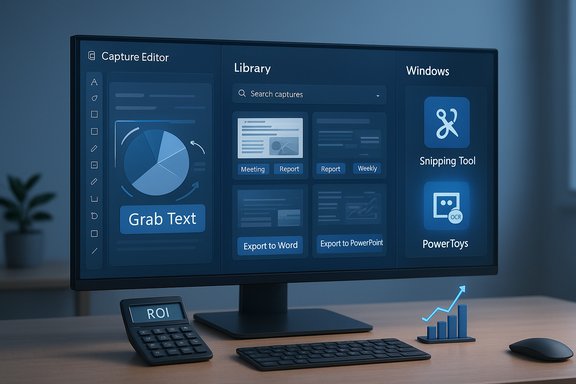
A consolidated capture + editor + library that respects timeSnagit’s value proposition is simple: it turns capture → edit → share into one, efficient flow rather than a chain of fragile handoffs. The 2019 release added core features that power users still rely on — Simplify, Grab Text (OCR), scrolling/panoramic captures, a robust editor with callouts, blur/redaction, and a searchable library — and subsequent versions have iterated deep into video and AI features. Independent summaries and product documentation list these capabilities and how they speed documentation workflows. Key practical advantages:
- Capture precision: automatic window detection, region snapping, and pixel‑perfect manual selection reduce retakes.
- Scrolling and panoramic capture: long webpages and overflowing windows can be captured and stitched automatically.
- Immediate editor: every capture opens into a built‑in editor with presets for annotations, callouts, arrows, and Step tools to build quick tutorials.
- Simplify / UI abstraction: a fast way to remove interface noise and highlight relevant elements — invaluable for clean documentation.
- OCR / Grab Text: copy text from images directly, saving transcription time.
- Library & timeline: Snagit stores captures in a searchable library so you can find previous screenshots without hunting folders.
- Direct sharing outputs: export directly to Word, PowerPoint, OneNote, Google Drive, Dropbox, FTP, or third‑party programs without manual export/import steps.
The editor is where you get the ROI
From a screenshot to publishable content in minutesWhere free tools often fall short is in the editor that follows capture. Snagit’s editor is purpose‑built for documentation tasks rather than general photo retouching. It provides:
- Annotation primitives (arrows, callouts, text, shapes) tuned for clarity and scale.
- Blur and redaction tools with both manual and intelligent options.
- Combine Images / Cut Out tools to create simplified step guides.
- Effects (drop shadows, borders, page curl) and quick image adjustments (opacity, greyscale, sharpen).
- OCR with copy/edit capability (Grab Text), plus text replacement in images.
How the product evolved: 2019 → 2025 (and why that matters)
From perpetual‑license polish to subscription + AI featuresSnagit 2019 delivered a broadly useful, perpetual‑license product with many features that remain relevant. Many professionals still run 2019 (or similar older perpetual releases) because the core capture + editor functionality met their needs and didn’t require ongoing payments. Reviews and feature lists from the era document Simplify, Grab Text, scrolling capture, library search, and export outputs as the central benefits. Starting in 2025 TechSmith shifted to a subscription model for new major releases. The company frames this as enabling continuous updates, faster delivery of features (including AI tools), and better long‑term support. Snagit 2025 added features that are relevant to creators who also work with video and automation: Smart Redact (automatic detection and redaction of sensitive data), 1‑2‑3 Step Capture for automatic step screenshots, background noise removal for recordings, and other AI‑adjacent tools. TechSmith’s version history and support documentation explain the transition and list the 2025 features. What this means pragmatically:
- If you own a perpetual Snagit license acquired prior to the 2025 transition, you keep access to that version indefinitely (subject to OS compatibility), but you won’t get new subscription‑only features without upgrading to the subscription.
- The subscription unlocks newer AI/automation workflows and higher‑end video features (4K capture, PiP modes, automatic redaction, background removal) useful to creators who need more than static captures.
Strengths: when paying makes sense
Who benefits most from buying Snagit (or similar paid tools)- Technical writers and documentation teams: repeated, templated screenshots, step numbers, and branded exports save hours per week.
- Support and QA personnel: quick capture → annotate → share with reproducible presets reduces back‑and‑forth.
- Educators and trainers: simplified UI screenshots and step guides improve learners’ comprehension and reduce update friction.
- Product marketing and blog authors: polished images, combined captures, and direct export to slide decks or Word streamline publishing.
- Small agencies and consultants: single‑seat cost amortized across billable hours spent producing help content.
- Faster throughput: one polished capture replaces multiple manual edits.
- Fewer retakes: intelligent window detection and pixel‑level control reduce mistakes.
- Consistency: templates and shared styles ensure uniform visuals across team outputs.
- Reduced tooling overhead: consolidating capture, edit, and share reduces app sprawl.
Risks and trade‑offs
What to watch for before you pay- Subscription vs perpetual license
- TechSmith’s move to subscription‑first for Snagit 2025 means ongoing costs for new features and AI capabilities. Perpetual users retain old versions but miss subscription additions unless they convert to a subscription. Evaluate whether you need those new features enough to justify annual fees.
- Vendor lock‑in and platform compatibility
- A proprietary capture library and integrated editor mean moving to another product can be messy. If your team standardizes on a vendor, consider how to export or archive assets in an open format.
- Privacy and automatic sharing
- Many screenshot apps include cloud destinations and auto‑upload features. Be careful enabling public or third‑party uploads for captures containing PII or proprietary data. Configure outputs to local storage or secure enterprise locations by default.
- Feature overlap with built‑ins and free tools
- Windows Snipping Tool and PowerToys Text Extractor now cover a surprising amount of functionality (OCR, light editing). PowerToys is actively evolving and adds features such as Advanced Paste and OCR utilities that can replace parts of a paid workflow. If your needs are basic, combine built‑ins with a free editor and avoid the cost.
- Cost vs volume calculus
- The ROI favors heavy users. If you take one or two screenshots per week, the payback period is long. If you produce dozens daily, automation and templates pay for themselves quickly.
Practical comparison: Snagit vs free alternatives
High‑level decision map- When to choose Snagit (paid)
- You produce structured documentation or tutorials daily.
- You need a searchable visual library with consistent export presets.
- You value an integrated editor that speeds the last mile to publishable screenshots.
- You need integrated sharing outputs to Office, cloud storage, or LMS systems.
- When to stick with free tools
- You take casual screenshots or occasional annotated images.
- You’re comfortable composing quick edits across Paint, PowerToys, and a free GIF/screen recorder.
- You prefer open‑source or completely free solutions (ShareX, Greenshot, OBS for recording).
- ShareX — power user automation (scripting, upload destinations), steep learning curve.
- Greenshot — quick annotated stills with Office integration.
- OBS Studio — premier free screen recorder for complex video capture, multiple inputs, and streaming; not a screenshot editor.
- PowerToys — Text Extractor (OCR) and utilities that plug small holes in a free workflow.
Cost justification: how to measure value
A simple ROI checklist- Measure your baseline: estimate the time spent per screenshot right now (capture, paste into editor, annotate, export, import into destination).
- Estimate time saved per capture with an integrated tool (conservative: 30–60 seconds; aggressive: 2–5 minutes depending on complexity).
- Multiply by weekly capture volume to compute weekly hours saved; convert to dollars using your hourly rate or team cost.
- Compare annualized savings to the purchase or subscription price.
- Time saved per capture: 2 minutes.
- Captures per week: 100.
- Weekly saved time: 200 minutes = 3.33 hours.
- If your hourly rate is $50, weekly savings = $166.5; annualized ≈ $8,658. Buying a $50 perpetual tool or a modest subscription would be trivial in comparison.
Workflow recommendations (practical)
How to integrate a paid screenshot tool without disruption- Define outputs and destinations up front (Word, PowerPoint, Confluence, internal SharePoint).
- Create a modest set of templates/styles (logos, callout style, step numbering).
- Set default capture profiles (region, window, full screen) with hotkeys.
- Train teammates on library and tagging so captures are discoverable.
- Keep a local backup strategy for the capture library (avoid reliance on auto‑cloud unless it meets your security policies).
- For video work, continue using OBS for complex recordings and use Snagit only for short, tightly edited clips unless you need PiP or 4K recording built into Snagit.
The AI and video angle: why subscription matters now
Newer Snagit versions add AI and video features that are time‑savers for creatorsSnagit 2025 and onward introduced AI features (Smart Redact, background removal), step capture automation, and improved recording options (4K, Picture‑in‑Picture, noise removal). These are the type of features that justify an annual fee for creators who also produce video or need fast, automated redaction for sensitive content. TechSmith’s release notes and support FAQ highlight these capabilities as part of the subscription shift. If your work increasingly involves narrated videos, PiP demos, or handling potentially sensitive screenshots that must be redacted automatically, the subscription unlocks tools that bring measurable time savings and risk reduction.
Caveats and verification notes
- Product details, pricing and exact feature sets evolve: TechSmith documented the move to subscription and lists feature rollouts, but feature availability may vary by platform and build. Evaluate trial versions and read the current release notes before making a purchase.
- Built‑in Windows features (Snipping Tool, PowerToys) have improved substantially and may cover many low‑volume needs. Test the native tools first if your workflows are occasional.
- If you’re buying for a team, check seat‑management and offline activation options (TechSmith documents differences between Individual and Business License subscriptions and migration paths for maintenance customers).
Conclusion — is a paid screenshot tool worth it?
For creators who publish visual content regularly, the answer is often yes.A paid, integrated screenshot application like Snagit converts recurring manual steps into a repeatable, low‑friction workflow. The productivity gains come from reduced context switching, searchable capture history, export presets, and a focused editor optimized for documentation tasks. For high‑volume users — technical writers, support engineers, educators, and marketers — the time saved quickly offsets the cost, and the polished outputs reduce revision cycles.
If your needs are light, if you prefer open‑source tools, or if tight budgets rule, there are excellent free alternatives that handle many capture and recording scenarios. PowerToys’ Text Extractor now covers practical OCR tasks and OBS remains the gold standard for free screen recording, while ShareX and Greenshot cover advanced automation and rapid annotations. Finally, be deliberate: run a short trial (or amortize your past time savings) and evaluate whether the paid tool actually saves you the last mile time it promises. For many professionals producing polished visual documentation every day, paying for the right tool isn’t a luxury — it’s an efficiency multiplier.
Key takeaways
- Buy if you produce screenshots and tutorials daily and want a single, polished pipeline.
- Stick with free tools if you take occasional screenshots and don’t need templates, library search, or advanced redaction.
- Consider subscription only if the new AI/redaction/video features matter to your workflow; perpetual versions remain usable but won’t receive subscription‑only updates.
Source: MakeUseOf I paid for a screenshot tool and it's worth every penny
