

On July 1, 2026, Microsoft’s Windows printer driver ranking changes so Windows 11 and Windows Server 2025 and later always prefer the Microsoft IPP inbox class driver over third-party printer drivers when choosing a driver for a compatible printer. Admins should treat that as the real migration deadline. The question is no longer whether legacy V3 and V4 drivers vanish overnight; Microsoft says they do not. The operational risk is subtler: Windows may stop choosing the vendor driver you assumed it would choose.
The practical move is straightforward. Before July 1, build a representative test group, add each printer as Windows would discover it, confirm whether it binds to the Microsoft IPP Class Driver, and then test the print behaviors your users actually depend on: trays, duplexing, stapling, color control, secure release, accounting, scanning, faxing, and any vendor workflow software. If those behaviors require OEM-specific driver logic, you need a documented exception path before the ranking flip arrives.
Microsoft’s printer roadmap has three dates that matter, but only one of them changes day-to-day behavior for many Windows admins. January 15, 2026 stopped new printer drivers from being published to Windows Update for Windows 11 and later, and for Windows Server 2025 and later. July 1, 2027 is when third-party printer driver updates stop except for security-related fixes.
July 1, 2026 is the hinge. That is when Microsoft says printer driver ranking order is modified to always prefer the Windows IPP inbox class driver. In plain English, if Windows can use its built-in IPP class driver for a printer, that driver wins the selection contest.
That matters because driver ranking is not the same thing as driver removal. Existing third-party drivers can still be installed, and users can still use installation packages provided by print device manufacturers. But default selection has a politics of its own: the driver Windows chooses automatically is the driver most users and many deployment workflows will end up living with.
For home users, that may look like a printer being re-added with fewer visible knobs than before. For IT, it can look like a quietly changed queue, a help desk ticket about finishing options, or a line-of-business workflow that suddenly prints but not correctly. Printing failures are rarely glamorous; they are expensive because they happen at the boundary between software assumptions and physical work.
Admins should start by identifying printer models that are likely to be touched by the ranking change. That means devices currently installed with OEM V3 or V4 drivers, printers deployed through Windows Update discovery, queues that users add themselves, and multifunction devices where print, scan, and fax are part of a single operational workflow. If the device is Mopria-certified and speaks IPP cleanly, it is exactly the kind of device Microsoft wants the IPP inbox driver to handle.
Then rebuild the deployment in a clean Windows 11 or Windows Server 2025 test environment. Do not merely inspect an already-working workstation that has years of driver history. Add the printer the way a new PC would encounter it after the ranking change: through Windows discovery, through your print server path, or through your normal provisioning workflow. Confirm the chosen driver name, then test the real use cases.
The core validation list should include ordinary output, duplex defaults, color and grayscale behavior, paper sizes, tray mapping, finishing hardware, secure print, PIN release, watermarking, booklet or label output, accounting codes, print management agents, and any vendor-specific configuration utility. For multifunction devices, scan and fax deserve their own tests, because Microsoft’s modern print model treats those endpoints differently from a traditional all-in-one vendor package.
The pass/fail standard should be brutally practical: can a new Windows 11 client, without a legacy driver preloaded, do the same work the current queue does? If the answer is “yes, except for a feature nobody uses,” you may have found a modernization win. If the answer is “yes, except for the tray logic used by payroll,” that is a production blocker with a calendar attached.
The company’s modern print platform is built around IPP, eSCL scanning, Universal Print, and Mopria-certified devices. Microsoft’s argument is that Windows should rely less on vendor-supplied driver packages and more on a common inbox path that works across devices. The IPP class driver is the centerpiece of that shift.
There is a good reason Microsoft is doing this. Printer drivers have long been one of Windows’ least lovable subsystems: opaque packages, kernel-adjacent history, brittle vendor utilities, and a deployment model that asks admins to trust code they would never tolerate elsewhere. The modern print push is an attempt to make printing more boring, more standardized, and less dependent on bespoke software.
But standardization always has a tradeoff. OEM drivers exist because printers are not all the same, and business printing is full of edge cases. A warehouse label printer, a finance department MFP, a law office finishing workflow, and a school fleet copier may all be “printers” in Windows, but they are not interchangeable operationally.
That is why this change deserves more attention than the January 2026 publication cutoff. The January milestone affects the supply of new drivers through Windows Update. The July milestone affects the decision Windows makes when multiple paths exist. Supply-chain changes are important, but ranking changes are what users feel.
A successful IPP install can still produce a regression. A device may print normal documents but lose vendor-specific finishing controls. A queue may appear cleanly but expose different defaults. A multifunction printer may still print while scanning depends on a separate path. A print server may continue serving queues while newly added clients behave differently from existing ones.
That asymmetry is what makes fleet testing essential. Old machines may keep working because they already have the vendor driver and configuration. New machines, rebuilt machines, or freshly joined Windows 11 clients may take the modern route. The estate then splits into two realities: the old queue that behaves the way departments expect, and the new queue that follows Microsoft’s preferred model.
Start with how printers enter the environment. If users add printers through Settings, discovery, or Windows-managed flows, assume the IPP inbox class driver may become the default where applicable. If printers are provisioned through scripts, imaging, endpoint management, print servers, or vendor packages, verify whether those workflows explicitly install and bind the intended driver or merely rely on Windows to choose one.
Next, review the boundary between printer installation and printer configuration. Many organizations treat installation as the whole job, but printing fleets are defined by defaults: duplex on or off, color restricted or allowed, secure print enabled, trays mapped to letterhead or labels, accounting codes required, and finishing options exposed. The IPP driver may be perfectly adequate for some of this, but you need to prove it against your configuration baseline.
Finally, document the exception path. If a model must stay on an OEM driver, decide how that driver will be packaged, installed, updated, and supported after Microsoft’s roadmap advances. Microsoft says manufacturer installation packages remain an option, but that is not the same as a frictionless Windows Update experience. Exceptions need ownership.
The cleanest organizations will end up with three buckets. One group of printers moves to IPP without drama. A second group works with IPP after queue and default changes. A third group needs OEM drivers until hardware replacement or workflow redesign catches up.
But certification should begin the test, not end it. Mopria can tell you the device belongs in the modern print universe. It does not tell you that every accessory, finishing option, departmental template, or accounting workflow behaves the same way through the inbox driver as it did through the vendor package.
This is especially important for multifunction printers. Microsoft’s roadmap says network print and fax endpoints can work through IPP and IPP Fax Out, while scanning uses WS-Scan or eSCL. For USB devices, endpoints are accessible when the USB interface is in IPP over USB mode, with eSCL for scan. That is useful guidance, but it also tells admins where to test carefully: print, scan, and fax are not one monolithic feature.
For enthusiasts and small offices, the advice is simpler. If your printer is modern, network-connected, and Mopria-certified, Windows is increasingly likely to handle it through the inbox path. If you depend on a vendor utility for scanning, ink management, maintenance, or specialty media, keep that installer available and test before you wipe a working setup.
ARM64 is the most interesting case for new Windows hardware. As more Windows devices move beyond traditional x86 assumptions, native ARM64 printer support becomes a practical compatibility issue rather than an edge curiosity. If your organization is buying ARM64 Windows devices, printer validation belongs in the pilot, not in the post-deployment complaint queue.
Windows 10 is different. Driver packages specifying a ceiling of Windows 10 or lower can continue to be signed, according to Microsoft’s roadmap. That helps environments still running Windows 10, but it does not solve the future Windows 11 and Windows Server 2025 deployment question. Treat it as a support boundary, not a strategic refuge.
The decision tree is therefore fairly clear. Mopria-certified, IPP-capable devices should be tested first for inbox-driver adoption. Non-Mopria devices or devices with irreplaceable vendor features should be marked for exception handling. ARM64 clients should get their own validation pass. Windows 10-only driver paths should be documented as legacy dependencies, not as evidence that the Windows 11 migration problem has gone away.
Centralized print management gives admins more control over queues, naming, defaults, and deployment. It can also hide assumptions that only surface when a new client is provisioned. If a queue depends on a particular vendor package, the server and client behavior must be tested together under the post-July selection reality.
The key question is not “Do we have a print server?” The key question is “Can we rebuild this client from scratch and get the same printer behavior without relying on accidental driver history?” That is the difference between a managed service and a lucky one.
This is also where many organizations should revisit stale queues. Printer fleets accrete over time: old names, retired models, duplicate queues, department-specific hacks, and vendor packages nobody remembers installing. The IPP ranking change is a forcing function to separate what is still required from what merely survived.
Build a small lab or pilot ring with clean Windows 11 clients and, where relevant, Windows Server 2025. Add printers through the same path users or IT normally use. Record the selected driver, the exposed capabilities, and the defaults. Then compare results against an existing production client using the OEM driver.
If the IPP class driver passes, update your standard deployment documentation. Make the modern path intentional rather than accidental. If it fails, preserve the OEM package, document why it is still required, and decide whether the exception is temporary or tied to hardware replacement.
For device and queue migration, the safest sequence is conservative. Create or identify a test queue using the IPP inbox path. Apply the defaults users need. Pilot it with a department that prints real work, not just test pages. Only then retire or demote the legacy queue. Where both queues must coexist, name them clearly enough that users and support staff know which path they are using.
The biggest mistake is silent substitution. If a queue changes behavior, tell the users who rely on it. Printing is one of the few IT services where a small defaults change can waste physical supplies, expose confidential output, or stop a front-desk workflow cold.
The July 1 ranking change sharpens the argument. The real story is not “your old printer dies.” The real story is “Windows chooses differently.” For admins, that is often the more dangerous change, because it can slip through normal change-control language as a default behavior update rather than a migration project.
The community angle matters because printing is where Windows theory meets messy reality. Microsoft can define a cleaner platform, vendors can certify devices, and administrators can still discover that a payroll form pulls from the wrong tray or a clinical workstation no longer exposes the finishing option staff expect. Those are not anti-modernization arguments. They are reasons to test modernization like a production change.
This is where Windows enthusiasts can help their own households and small offices, too. If you are the unofficial IT department for a family business, church, club, or workshop, now is the time to find the printer model, check whether it behaves under the IPP class driver, and keep the vendor installer handy if a special feature matters.
The practical move is straightforward. Before July 1, build a representative test group, add each printer as Windows would discover it, confirm whether it binds to the Microsoft IPP Class Driver, and then test the print behaviors your users actually depend on: trays, duplexing, stapling, color control, secure release, accounting, scanning, faxing, and any vendor workflow software. If those behaviors require OEM-specific driver logic, you need a documented exception path before the ranking flip arrives.
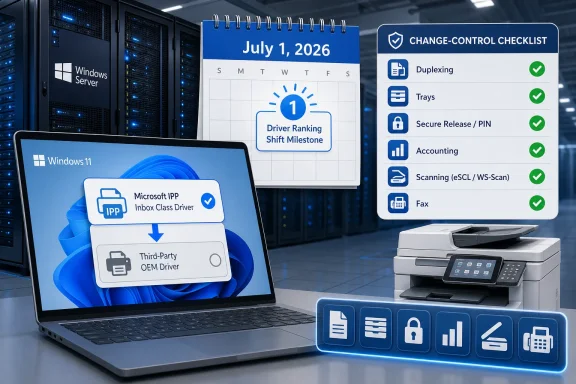 July 1 Turns Preference Into Policy
Microsoft’s printer roadmap has three dates that matter, but only one of them changes day-to-day behavior for many Windows admins. January 15, 2026 stopped new printer drivers from being published to Windows Update for Windows 11 and later, and for Windows Server 2025 and later. July 1, 2027 is when third-party printer driver updates stop except for security-related fixes.July 1, 2026 is the hinge. That is when Microsoft says printer driver ranking order is modified to always prefer the Windows IPP inbox class driver. In plain English, if Windows can use its built-in IPP class driver for a printer, that driver wins the selection contest.
That matters because driver ranking is not the same thing as driver removal. Existing third-party drivers can still be installed, and users can still use installation packages provided by print device manufacturers. But default selection has a politics of its own: the driver Windows chooses automatically is the driver most users and many deployment workflows will end up living with.
For home users, that may look like a printer being re-added with fewer visible knobs than before. For IT, it can look like a quietly changed queue, a help desk ticket about finishing options, or a line-of-business workflow that suddenly prints but not correctly. Printing failures are rarely glamorous; they are expensive because they happen at the boundary between software assumptions and physical work.
The Test Is Not “Can It Print?” but “Can It Print Your Job?”
The wrong July 1 test is a single Windows test page. The right test is a miniature version of your real print estate.Admins should start by identifying printer models that are likely to be touched by the ranking change. That means devices currently installed with OEM V3 or V4 drivers, printers deployed through Windows Update discovery, queues that users add themselves, and multifunction devices where print, scan, and fax are part of a single operational workflow. If the device is Mopria-certified and speaks IPP cleanly, it is exactly the kind of device Microsoft wants the IPP inbox driver to handle.
Then rebuild the deployment in a clean Windows 11 or Windows Server 2025 test environment. Do not merely inspect an already-working workstation that has years of driver history. Add the printer the way a new PC would encounter it after the ranking change: through Windows discovery, through your print server path, or through your normal provisioning workflow. Confirm the chosen driver name, then test the real use cases.
The core validation list should include ordinary output, duplex defaults, color and grayscale behavior, paper sizes, tray mapping, finishing hardware, secure print, PIN release, watermarking, booklet or label output, accounting codes, print management agents, and any vendor-specific configuration utility. For multifunction devices, scan and fax deserve their own tests, because Microsoft’s modern print model treats those endpoints differently from a traditional all-in-one vendor package.
The pass/fail standard should be brutally practical: can a new Windows 11 client, without a legacy driver preloaded, do the same work the current queue does? If the answer is “yes, except for a feature nobody uses,” you may have found a modernization win. If the answer is “yes, except for the tray logic used by payroll,” that is a production blocker with a calendar attached.
Microsoft Is Moving the Default, Not Pulling the Floor Away
The nuance matters because the public conversation around Windows printing often turns into a panic about old printers being killed. That is not what Microsoft’s roadmap says. It says the legacy third-party printer driver model is entering staged end-of-servicing, not that existing drivers become unusable on July 1, 2026.The company’s modern print platform is built around IPP, eSCL scanning, Universal Print, and Mopria-certified devices. Microsoft’s argument is that Windows should rely less on vendor-supplied driver packages and more on a common inbox path that works across devices. The IPP class driver is the centerpiece of that shift.
There is a good reason Microsoft is doing this. Printer drivers have long been one of Windows’ least lovable subsystems: opaque packages, kernel-adjacent history, brittle vendor utilities, and a deployment model that asks admins to trust code they would never tolerate elsewhere. The modern print push is an attempt to make printing more boring, more standardized, and less dependent on bespoke software.
But standardization always has a tradeoff. OEM drivers exist because printers are not all the same, and business printing is full of edge cases. A warehouse label printer, a finance department MFP, a law office finishing workflow, and a school fleet copier may all be “printers” in Windows, but they are not interchangeable operationally.
The New Failure Mode Is a Successful Install
The July 2026 risk is not that Windows refuses to install a printer. It is that Windows installs it successfully with a driver that is technically correct and operationally incomplete.That is why this change deserves more attention than the January 2026 publication cutoff. The January milestone affects the supply of new drivers through Windows Update. The July milestone affects the decision Windows makes when multiple paths exist. Supply-chain changes are important, but ranking changes are what users feel.
A successful IPP install can still produce a regression. A device may print normal documents but lose vendor-specific finishing controls. A queue may appear cleanly but expose different defaults. A multifunction printer may still print while scanning depends on a separate path. A print server may continue serving queues while newly added clients behave differently from existing ones.
That asymmetry is what makes fleet testing essential. Old machines may keep working because they already have the vendor driver and configuration. New machines, rebuilt machines, or freshly joined Windows 11 clients may take the modern route. The estate then splits into two realities: the old queue that behaves the way departments expect, and the new queue that follows Microsoft’s preferred model.
Deployment Workflows Need a Driver-Choice Audit
For sysadmins, the most important work is not philosophical. It is a deployment audit.Start with how printers enter the environment. If users add printers through Settings, discovery, or Windows-managed flows, assume the IPP inbox class driver may become the default where applicable. If printers are provisioned through scripts, imaging, endpoint management, print servers, or vendor packages, verify whether those workflows explicitly install and bind the intended driver or merely rely on Windows to choose one.
Next, review the boundary between printer installation and printer configuration. Many organizations treat installation as the whole job, but printing fleets are defined by defaults: duplex on or off, color restricted or allowed, secure print enabled, trays mapped to letterhead or labels, accounting codes required, and finishing options exposed. The IPP driver may be perfectly adequate for some of this, but you need to prove it against your configuration baseline.
Finally, document the exception path. If a model must stay on an OEM driver, decide how that driver will be packaged, installed, updated, and supported after Microsoft’s roadmap advances. Microsoft says manufacturer installation packages remain an option, but that is not the same as a frictionless Windows Update experience. Exceptions need ownership.
The cleanest organizations will end up with three buckets. One group of printers moves to IPP without drama. A second group works with IPP after queue and default changes. A third group needs OEM drivers until hardware replacement or workflow redesign catches up.
Mopria Is the Default Answer, Not a Magic Wand
Microsoft’s modern print documentation points toward Mopria-certified printers as the intended happy path. That is the right starting assumption: if the device is Mopria-certified and supports IPP, it is aligned with the direction Windows is taking.But certification should begin the test, not end it. Mopria can tell you the device belongs in the modern print universe. It does not tell you that every accessory, finishing option, departmental template, or accounting workflow behaves the same way through the inbox driver as it did through the vendor package.
This is especially important for multifunction printers. Microsoft’s roadmap says network print and fax endpoints can work through IPP and IPP Fax Out, while scanning uses WS-Scan or eSCL. For USB devices, endpoints are accessible when the USB interface is in IPP over USB mode, with eSCL for scan. That is useful guidance, but it also tells admins where to test carefully: print, scan, and fax are not one monolithic feature.
For enthusiasts and small offices, the advice is simpler. If your printer is modern, network-connected, and Mopria-certified, Windows is increasingly likely to handle it through the inbox path. If you depend on a vendor utility for scanning, ink management, maintenance, or specialty media, keep that installer available and test before you wipe a working setup.
ARM64 and Windows 10 Are Exceptions With Different Meanings
Microsoft’s roadmap leaves room for certain driver-signing cases, including printers that cannot be Mopria-certified, driver packages capped at Windows 10 or lower, and native ARM64 printer drivers. Those exceptions are not loopholes that cancel the strategy. They are signals about where Microsoft knows the transition is uneven.ARM64 is the most interesting case for new Windows hardware. As more Windows devices move beyond traditional x86 assumptions, native ARM64 printer support becomes a practical compatibility issue rather than an edge curiosity. If your organization is buying ARM64 Windows devices, printer validation belongs in the pilot, not in the post-deployment complaint queue.
Windows 10 is different. Driver packages specifying a ceiling of Windows 10 or lower can continue to be signed, according to Microsoft’s roadmap. That helps environments still running Windows 10, but it does not solve the future Windows 11 and Windows Server 2025 deployment question. Treat it as a support boundary, not a strategic refuge.
The decision tree is therefore fairly clear. Mopria-certified, IPP-capable devices should be tested first for inbox-driver adoption. Non-Mopria devices or devices with irreplaceable vendor features should be marked for exception handling. ARM64 clients should get their own validation pass. Windows 10-only driver paths should be documented as legacy dependencies, not as evidence that the Windows 11 migration problem has gone away.
Print Servers Do Not Make This Someone Else’s Problem
It is tempting to assume print servers absorb the change. In some environments, they may soften it. But they do not eliminate the need to know which driver a client ultimately uses and which capabilities are exposed to the user.Centralized print management gives admins more control over queues, naming, defaults, and deployment. It can also hide assumptions that only surface when a new client is provisioned. If a queue depends on a particular vendor package, the server and client behavior must be tested together under the post-July selection reality.
The key question is not “Do we have a print server?” The key question is “Can we rebuild this client from scratch and get the same printer behavior without relying on accidental driver history?” That is the difference between a managed service and a lucky one.
This is also where many organizations should revisit stale queues. Printer fleets accrete over time: old names, retired models, duplicate queues, department-specific hacks, and vendor packages nobody remembers installing. The IPP ranking change is a forcing function to separate what is still required from what merely survived.
The Migration Runbook Should Start With Fresh Clients
A useful migration plan begins with inventory, but it cannot end there. Inventory tells you what models you own. It does not tell you what your workflows require.Build a small lab or pilot ring with clean Windows 11 clients and, where relevant, Windows Server 2025. Add printers through the same path users or IT normally use. Record the selected driver, the exposed capabilities, and the defaults. Then compare results against an existing production client using the OEM driver.
If the IPP class driver passes, update your standard deployment documentation. Make the modern path intentional rather than accidental. If it fails, preserve the OEM package, document why it is still required, and decide whether the exception is temporary or tied to hardware replacement.
For device and queue migration, the safest sequence is conservative. Create or identify a test queue using the IPP inbox path. Apply the defaults users need. Pilot it with a department that prints real work, not just test pages. Only then retire or demote the legacy queue. Where both queues must coexist, name them clearly enough that users and support staff know which path they are using.
The biggest mistake is silent substitution. If a queue changes behavior, tell the users who rely on it. Printing is one of the few IT services where a small defaults change can waste physical supplies, expose confidential output, or stop a front-desk workflow cold.
WindowsForum’s Earlier Printing Threads Were Pointing at the Right Fight
WindowsForum readers have already been circling this issue from several angles: the January 2026 cutoff for new legacy driver publication, the move toward IPP and Mopria, and Microsoft’s attempt to clarify that existing drivers are not being summarily removed. That conversation was useful because it separated the panic from the policy.The July 1 ranking change sharpens the argument. The real story is not “your old printer dies.” The real story is “Windows chooses differently.” For admins, that is often the more dangerous change, because it can slip through normal change-control language as a default behavior update rather than a migration project.
The community angle matters because printing is where Windows theory meets messy reality. Microsoft can define a cleaner platform, vendors can certify devices, and administrators can still discover that a payroll form pulls from the wrong tray or a clinical workstation no longer exposes the finishing option staff expect. Those are not anti-modernization arguments. They are reasons to test modernization like a production change.
This is where Windows enthusiasts can help their own households and small offices, too. If you are the unofficial IT department for a family business, church, club, or workshop, now is the time to find the printer model, check whether it behaves under the IPP class driver, and keep the vendor installer handy if a special feature matters.
The Calendar Now Belongs in the Change-Control Packet
There are only a few facts admins need to carry into planning meetings, but they should be stated plainly.- January 15, 2026 was the Windows Update publication cutoff for new printer drivers on Windows 11 and later, and on Windows Server 2025 and later.
- July 1, 2026 is the driver-ranking change that makes Windows prefer the Microsoft IPP inbox class driver.
- July 1, 2027 is when third-party printer driver updates stop except for security-related fixes.
- Existing third-party drivers can still be installed, including through manufacturer installation packages.
- Mopria-certified, IPP-capable printers are the intended modern path, but business-critical features still need real workflow testing.
- The safest migration test is a clean client, a freshly added printer, and a comparison against the production queue users depend on.
References
- Primary source: learn.microsoft.com
End of Servicing Plan for Third-Party Printer Drivers on Windows - Windows drivers | Microsoft Learn
This article provides information on the end of servicing plan for third-party printer drivers on Windows.learn.microsoft.com - Independent coverage: support.microsoft.com
Can't print to a multifunction printer when v3 and v4 drivers are installed on the same USB port - Microsoft Support
Describes an issue that triggers a printing problem from applications that are running in Windows. Occurs when a V3 and V4 printer driver are installed on the same USB port. A resolution is provided.support.microsoft.com - Primary source: WindowsForum
Windows Printer Drivers Move to IPP Inbox First with Mopria | Windows Forum
Microsoft has quietly begun rewiring how Windows handles printers — not by ripping out support for your old devices overnight, but by changing the plumbing...windowsforum.com
