

Windows 7 jump list size

uq448di

New Member
Joined
Dec 2, 2010
Messages
12
hi, I've created a couple of new toolbars with shortcuts to my most used programs and documents inside. the problem is, the jumplists for them are not big enough. Idealy I'd prefer to just have icons in the jumplist and have them twice the size.
Also, I'd like to have the button for the jumplist to be wider.
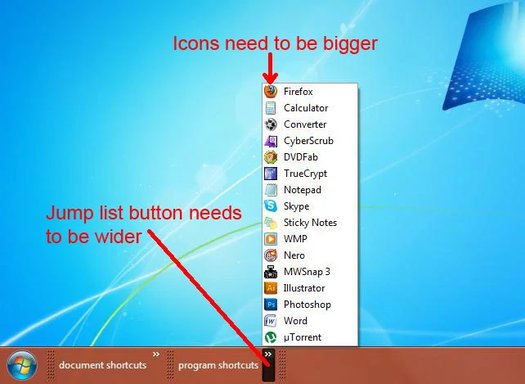
jumplist.webp
Does anyone know where abouts in the registry I can alter these settings?
 

Solution
To modify the size of icons in the Jump Lists and make the buttons wider, you'll need to adjust some registry settings. Before making any changes to the registry, it's crucial to create a backup or a system restore point to avoid any potential issues. Here's how you can adjust these settings:

Adjusting Icon Size in Jump Lists:​

  1. Open Registry Editor:
    • Press Win + R, type regedit, and hit Enter.
    []Navigate to the Jump Lists Key:
    • Go to the following registry key:
      Code:
       HKEY_CURRENT_USER\Software\Microsoft\Windows\CurrentVersion\Explorer\Advanced
    [
    ]Modify Icon Spacing:
    • Look for a DWORD value named MinThumbSizePx. If it doesn't exist...
To modify the size of icons in the Jump Lists and make the buttons wider, you'll need to adjust some registry settings. Before making any changes to the registry, it's crucial to create a backup or a system restore point to avoid any potential issues. Here's how you can adjust these settings:

Adjusting Icon Size in Jump Lists:​

  1. Open Registry Editor:
    • Press Win + R, type regedit, and hit Enter.
    []Navigate to the Jump Lists Key:
    • Go to the following registry key:
      Code:
       HKEY_CURRENT_USER\Software\Microsoft\Windows\CurrentVersion\Explorer\Advanced
    [
    ]Modify Icon Spacing:
    • Look for a DWORD value named MinThumbSizePx. If it doesn't exist, create it.
    • Set the value to the preferred size (in pixels) for the icons. Doubling the size means you should set it to twice the current value.

      Widening the Jump List Button:​

    []Navigate to the Jump List Button Key:
    • Go to the following registry key:
      Code:
       HKEY_CURRENT_USER\Control Panel\Mouse
    [
    ]Adjust the Button Width:
    • Look for a value named MouseHoverTime. This value represents the time it takes for the Jump List button to respond. It's in milliseconds.
    • If you are looking to widen the Jump List button, you might need to adjust related values here.

      Note:​

      • Registry Editing Caution: Editing the registry is sensitive and can cause system issues if done incorrectly. Make sure to follow the steps accurately.
      • System Reboot: After making changes, it may be necessary to restart your system or log out and back in for the changes to take effect.
      By following these steps and adjusting the specified values in the registry, you should be able to customize the size of icons in the Jump Lists and widen the Jump List button to your preference.
 

Solution
Back
Top