KB5079391 Windows 11 24H2/25H2 Release: Narrator AI, Smart App Control, File Explorer

  • Thread Author
Microsoft’s latest Windows 11 servicing wave is now moving from preview to public release, and the result is a broad quality update that touches accessibility, security controls, File Explorer, Settings, display handling, and device management. Reportedly arriving as KB5079391 for Windows 11 24H2 and 25H2, the package continues Microsoft’s pattern of shipping the same monthly improvements across both branches, which share a servicing model introduced with the 25H2 rollout. That shared branch matters because it keeps feature parity tighter than the old “major version” cadence, while also making every monthly patch more consequential for both home users and enterprises.

A digital visualization related to the article topic.Overview​

The most important thing about this update is not any single headline feature, but the way Microsoft is refining Windows 11 as a living platform. The preview version that preceded this release, KB5077241, was framed by Microsoft as a non-security update focused on functionality, performance, and reliability, and this public release appears to carry that same philosophy forward. In other words, the update is part of the broader continuous innovation model Microsoft has been pushing across Windows 11, where smaller changes arrive more frequently rather than being reserved for one giant annual event.
That model gives Microsoft more flexibility, but it also raises the stakes for monthly servicing. Users no longer evaluate Windows updates only by whether they patch vulnerabilities; they now judge them by whether they improve the daily feel of the OS, whether they break workflows, and whether new controls behave predictably. The latest release seems designed to show progress on all three fronts, especially in areas that affect routine use: accessibility, shell behavior, display reliability, and policy management.
There is also a strategic layer here. Windows 11 version 25H2 was announced as an enablement-style release built on the same branch as 24H2, which means Microsoft can deliver many of the same innovations to both versions without forcing users into a dramatic migration cycle. That lowers the friction for IT departments, but it also means the servicing pipeline becomes the real product experience for a large share of the Windows base. For users, the monthly update is no longer background maintenance; it is part of the platform itself.

Why this update matters​

The update lands at a time when Microsoft is trying to balance three separate priorities: polish for consumers, manageability for enterprises, and confidence for accessibility-first workflows. The same patch touches Narrator, Smart App Control, File Explorer, Settings, and Windows Recovery Environment behavior, which is a sign that Microsoft is targeting the full stack rather than isolated bug fixes. That breadth is useful, but it also means organizations will want to test the update carefully before blanket deployment.
  • It reinforces Microsoft’s shift toward monthly platform refinement.
  • It keeps 24H2 and 25H2 aligned on the same servicing train.
  • It brings visible improvements to everyday Windows 11 workflows.
  • It also adds or adjusts features that administrators may need to govern.

From Preview to Public Release​

Microsoft’s release pattern has become increasingly familiar: an optional preview update appears first, feedback arrives from Insiders and early adopters, and then the same code path is folded into the broader public rollout. In this case, the preview cadence for March 2026 builds on earlier Release Preview updates that delivered quality improvements before the security cumulative update cycle. That approach gives Microsoft a chance to surface compatibility problems before the update becomes the default path for the mainstream audience.
The public release also helps explain why the build numbers matter so much. According to Microsoft’s March servicing line, 26100 remains the base for Windows 11 24H2, while 26200 tracks 25H2, and both branches have been advancing in parallel. That parallelism is useful because it reduces drift between the consumer and enterprise fleets, but it also means a single servicing issue can span two widely deployed releases almost immediately.

What changed from the preview build​

The earlier preview emphasized features such as Cross-Device Resume, Smart App Control, and MIDI support, while also refining storage cleanup presentation and fixing usability problems like Start menu glitches and File Explorer freezing. Public release notes typically keep much of that groundwork intact, which is why early testing is so important to Microsoft’s monthly rhythm. Even when the final package is mostly the same, the rollout to general users marks a shift from controlled validation to real-world scale.
  • Preview builds act as dress rehearsals for the public servicing channel.
  • Microsoft uses them to catch compatibility regressions before broad deployment.
  • The public release usually confirms the broader feature direction.
  • Any preview bugs that survive testing become far more important once the patch hits real devices.
The key takeaway is that Microsoft is no longer treating these updates as minor housekeeping. Instead, monthly servicing has become a mechanism for shipping meaningful operating system improvements, and that makes release quality just as important as feature ambition. The company’s challenge is obvious: make Windows feel more modern without making it feel less predictable. That is a harder problem than it looks.

Narrator Gets a Stronger AI-Driven Push​

One of the most visible additions in the update is the expanded Narrator experience. Microsoft is pushing richer image descriptions and tighter integration with Copilot, aiming to improve how blind and low-vision users interpret on-screen visuals. On Copilot+ PCs, the descriptions are generated on-device, which is a meaningful detail because it affects both latency and privacy perception.
This is not just a cosmetic accessibility change. Richer descriptions can make screenshots, diagrams, and interface-heavy applications more usable for people who depend on assistive tech, while Copilot integration offers a second layer of context when the local model is not enough. The bigger strategic point is that Microsoft is trying to make accessibility a showcase for its AI platform rather than a separate silo of features. That is smart product positioning, though it also creates expectations that these AI-assisted tools will be consistently accurate.

Accessibility and AI as a combined story​

The combination of Narrator and Copilot shows where Microsoft wants Windows accessibility to go next. Instead of merely reading interface elements aloud, the OS is trying to interpret what a user is seeing and provide a more human explanation. That can be transformative for image-heavy content, but it must be handled carefully because the wrong description can be more confusing than no description at all.
  • Rich image descriptions improve visual context.
  • Copilot integration adds interactive follow-up.
  • On-device generation lowers latency on Copilot+ PCs.
  • Accuracy and consistency will determine whether the feature feels trustworthy.
It is also notable that Microsoft is extending the feature to all Windows 11 devices, not just its newest hardware. That broad availability suggests the company wants accessibility improvements to be seen as core Windows capabilities, not premium extras. Still, the best experience will likely remain on the newer Copilot+ class of hardware, which keeps the performance advantage as a differentiator.

Smart App Control Becomes Less Inflexible​

The update’s Smart App Control change may matter more to administrators than to average consumers, but it is one of the most important quality-of-life refinements in the release. Microsoft is allowing users to turn Smart App Control on or off without requiring a clean install, removing one of the feature’s biggest practical annoyances. That matters because security tools are only useful when people can actually manage them without rebuilding a machine.
Smart App Control has always represented a tension in Windows design. On one hand, it aims to block untrusted or potentially harmful apps and reduce attack surface; on the other, its earlier deployment model made it feel rigid and hard to revisit once a system state changed. Loosening that requirement makes the feature more usable, but it also suggests Microsoft understands that security controls work best when they are reversible and transparent.

Security posture without the friction​

This change is especially meaningful for power users who test software, developers who spin up tools frequently, and organizations that pilot apps before approving them broadly. A control that can be enabled or disabled from Settings > Windows Security > App & Browser Control is easier to document, support, and explain. That sounds mundane, but in endpoint management, mundane usability often decides whether a security feature is adopted or ignored.
  • Smart App Control is now easier to toggle.
  • The feature remains focused on blocking risky apps.
  • The new model reduces the need for a clean install.
  • Admins get a more practical path for testing and support.
The broader lesson is that Microsoft is trying to make Windows security feel less like a one-way door. That may not sound dramatic, but it is a real product improvement because it gives users a way to experiment without permanent commitment. If Microsoft can keep doing that across more security features, adoption will likely improve.

File Explorer and Shell Reliability Continue to Improve​

For many users, the most welcome changes in this update will be the subtle ones inside File Explorer and the shell. Microsoft says file unblocking is now more reliable for previews, and it has also improved handling around renaming files with Voice Typing using Win + H. Those are not flashy features, but they are exactly the sort of paper cuts that can turn Windows from efficient to irritating.
File Explorer has long been one of the most sensitive parts of Windows because it sits at the intersection of file security, shell extensions, preview panes, and user expectations. Even small regressions can cascade into user-visible freezes or odd permission behavior, which is why Microsoft repeatedly returns to this area in quality updates. The new release also includes more flexible sorting for permissions in Advanced Security Settings, which shows the company is still paying attention to management workflows.

Small fixes with large daily impact​

These changes are easy to overlook in a marketing summary, but they can materially improve confidence in the OS. File unblocking issues in preview workflows are the kind of thing that frustrates users who regularly download tools, installers, or documents from shared environments. Voice Typing in rename flows is another example of a feature that looks minor but can be a genuine productivity boost for users with mobility limitations or just busy hands.
  • More reliable file unblocking reduces workflow friction.
  • Win + H support in renaming improves hands-free use.
  • Security settings sorting makes audits easier.
  • Shell fixes often prevent broader stability complaints.
The interesting part is how often these shell-level refinements become the update’s real value, even if they barely register in a headline. Users do not always notice when File Explorer works correctly; they notice when it does not. That makes these reliability fixes strategically important, even if they are not the sexiest parts of the release.

Settings, Account Management, and the Consumer Experience​

Microsoft is also polishing the Settings app and account-related workflows. The About page now has a clearer layout, the Home page device card is more structured, and opening Settings Home appears more reliable. Microsoft 365 Family users can now upgrade plans directly from Settings > Accounts, which is a strong sign that the company wants the OS to be a place where subscription and device management intersect more naturally.
That last detail is significant because it shows how Windows is increasingly serving as a storefront for Microsoft services as well as a desktop platform. Consumers may appreciate convenience, but they may also see it as another reminder that the operating system is deeply tied to Microsoft’s ecosystem strategy. The redesigned dialog boxes in Other users, including dark mode support, fit the same pattern: the company is trying to make account management feel more modern and less fragmented.

The line between useful and intrusive​

There is a thin line between making Settings more helpful and turning it into a promotional surface. Microsoft seems aware of this tension, which is why the update also includes the ability to disable suggested upgrade prompts. That is a good sign, because the best subscription workflows are the ones that help without feeling coercive.
  • The About page is easier to scan.
  • The Home card is more structured.
  • Microsoft 365 Family upgrades are more direct.
  • Suggested prompts can be disabled.
This area of the update also reflects a broader design shift in Windows 11: the company is trying to consolidate system, device, and account information into a single readable layer. That is useful for casual users, but enterprise admins will still need separate tooling. The consumer-facing polish is real, yet it should not be mistaken for deeper administrative simplification.

Display, Input, and Hardware Behavior​

The update contains a set of display and input refinements that matter more than they might initially appear. Microsoft says it now supports monitors reporting refresh rates above 1000 Hz, improves USB4 monitor sleep behavior, and enhances auto-rotation after sleep. It also claims better HDR reliability and more accurate monitor size reporting through WMI APIs, which should help both end users and device inventory tools.
These kinds of changes often fly under the radar until they fail. High-refresh displays, multi-monitor setups, and USB4 peripherals are precisely where edge-case bugs tend to surface, and Windows has to work across a wild range of hardware quality levels. By investing in these scenarios, Microsoft is signaling that it wants Windows 11 to stay credible on premium hardware as well as mainstream laptops.

Why these changes matter for power users​

For enthusiasts, gamers, and creative professionals, display reliability can be the difference between a smooth desktop and a constant troubleshooting cycle. Better HDR behavior and auto-rotation after sleep are not glamorous changes, but they improve confidence that the OS will behave correctly after suspend, dock, or reconnect events. On the enterprise side, more accurate WMI reporting also helps device management and inventory systems make better decisions.
  • High-refresh support is important for premium panels.
  • USB4 sleep improvements reduce dock-related annoyances.
  • Auto-rotation fixes help convertibles and tablets.
  • Accurate WMI display data benefits asset management.
It is worth noting that Microsoft has spent years trying to reduce the “it worked before sleep” class of bug reports, and this update is clearly part of that effort. The more heterogeneous the Windows hardware ecosystem becomes, the more valuable these reliability fixes are. That diversity is a strength of Windows, but it also makes perfection impossible.

Enterprise, Policy, and Manageability Changes​

A number of the update’s most practical changes are aimed at managed environments. Microsoft added support for DisableSeamlessLanguageBar in Remote Desktop PowerShell, improved start menu layout application via Group Policy, and tightened Application Control for Business ID tagging. It also updated printer support baselines and improved how updates behave when run from certain network locations.
These are the kinds of details that never generate social media excitement, but they matter enormously in enterprise environments where consistency is more important than novelty. Group Policy reliability, printer baselines, and policy tagging directly affect the ability of IT teams to standardize behavior across fleets. If those controls are weak, the cost shows up later in help desk tickets, compliance issues, and deployment delays.

The hidden enterprise value​

There is a reason Microsoft keeps polishing these backstage mechanisms. Enterprises are the customers most likely to delay updates if they suspect instability, and the company knows that predictable policy behavior is part of what keeps Windows viable in managed fleets. In that sense, the enterprise fixes here are not auxiliary; they are central to keeping trust intact.
  • Policy application is more reliable.
  • Remote Desktop administration gets a useful update.
  • Printer support remains a major compatibility focus.
  • Network-path update handling improves deployment resilience.
The same logic applies to the improved Application Control for Business tagging. Better tagging means policies are more likely to map correctly to real applications, which can reduce false positives or enforcement ambiguity. That is a quiet but important step if Microsoft wants Windows security policy to be both strong and administratively sane.

Reliability, Recovery, and Under-the-Hood Stability​

Beyond the visible features, Microsoft is also cleaning up the plumbing. The update improves stability in Windows Recovery Environment when running x64 apps on ARM64 devices, and it fixes an issue where .msu updates could fail with ERROR_BAD_PATHNAME from certain network locations. Those sorts of fixes are the backbone of a healthy update cycle because they affect recovery, installation, and maintenance.
The fact that Microsoft is still adjusting WinRE behavior underscores how complex Windows servicing has become in a mixed architecture world. ARM64 is no longer an experimental niche; it is a real production platform for some users, and recovery workflows must work there as reliably as they do on x86 systems. The network-location update fix is equally important because enterprise deployments often depend on non-local update sources and scripted delivery paths.

Recovery is a feature, not just a fallback​

A lot of users only think about recovery tools after something goes wrong, but Microsoft has to design them as first-class components. If WinRE fails or update install paths behave unpredictably, the entire servicing model becomes less trustworthy. In that sense, these fixes are foundational rather than optional.
  • WinRE stability helps when systems are under stress.
  • ARM64 support remains a strategic priority.
  • Update installation reliability is essential for admins.
  • Recovery issues can erode confidence in the whole release train.
This is also why the update’s handling of sfc /scannow matters, even if the change is just the removal of an unnecessary error message. Small cleanups in diagnostics help reduce noise during troubleshooting, which in turn makes support processes more efficient. Less confusion in repair workflows is a real win.

Strengths and Opportunities​

This update’s biggest strength is its breadth. It makes Windows 11 feel more coherent by touching the places users encounter every day, while also improving the less visible systems that keep enterprise deployments stable. Microsoft is clearly trying to make monthly servicing feel like ongoing product refinement rather than a chore, and that is a promising direction.
  • Narrator becomes more capable and more AI-aware.
  • Smart App Control becomes easier to manage.
  • File Explorer and shell reliability get practical improvements.
  • Settings becomes clearer and more structured.
  • Display support improves for high-end and complex setups.
  • Enterprise policy handling gets more predictable.
  • Recovery and update reliability improve.
  • Microsoft keeps 24H2 and 25H2 aligned on one servicing path.

Risks and Concerns​

The main concern is that the update is so broad that it could expose edge-case regressions across multiple subsystems at once. Microsoft has already seen testing-stage reports tied to camera behavior and lock screen quirks in the preview cycle, and that is a reminder that broad servicing releases can create new instability even when their intent is to improve quality. Users and admins will want to watch the first days of rollout closely.
  • Preview-stage bugs can survive into public rollout.
  • Accessibility AI features may face accuracy questions.
  • Smart App Control changes could confuse less technical users.
  • Display and docking fixes may vary by hardware vendor.
  • Enterprise policy changes can behave differently across managed images.
  • Any broad monthly update carries a risk of unintended regressions.
  • Rollout timing can make troubleshooting harder if issues appear gradually.

Looking Ahead​

What happens next will depend less on the feature list itself and more on how the update behaves in the real world. If the rollout is clean, Microsoft gets a much-needed validation of its continuous innovation strategy, especially for accessibility and manageability features. If problems emerge, the same breadth that makes the update attractive will also make remediation more complicated.
The next milestone is likely the usual split between early adopter feedback and broader enterprise adoption. Home users will notice whether Narrator feels smarter, whether File Explorer stops behaving oddly, and whether display and sleep behavior improve. IT teams, meanwhile, will care more about Group Policy consistency, update installation reliability, and whether Smart App Control is now easier to govern at scale.
  • Watch for any camera or lock screen regressions during rollout.
  • Monitor whether Narrator’s image descriptions are consistently accurate.
  • Check whether Smart App Control’s new toggle model behaves cleanly.
  • Validate display sleep and HDR behavior on multi-monitor systems.
  • Confirm policy and Remote Desktop changes in managed environments.
If Microsoft has gotten this one right, KB5079391 may not be remembered for one marquee feature, but for something more valuable: making Windows 11 feel a little more stable, a little more usable, and a little more deliberate. That is often how a mature operating system earns trust—not through spectacle, but through the accumulation of small, well-judged fixes that quietly improve the everyday experience.

Source: Windows Report https://windowsreport.com/kb5079391...trol-narrator-and-file-explorer-improvements/
 

Microsoft’s latest Windows 11 servicing wave is finally giving the operating system something users have been asking for for years: less friction in the places they touch every day. The update package reportedly arriving as KB5079391 for Windows 11 24H2 and 25H2 brings a mixed bag of refinements, but the real story is not any single feature. It is that Microsoft appears to be shifting from flashy platform messaging toward practical repair, especially around File Explorer, Smart App Control, and a less intrusive overall Windows experience. That is exactly the kind of change that can restore a little faith in the product, even if it does not solve every complaint at once.

Windows File Explorer window open on blue desktop, with “Smart App Control” enabled and a build ID KB5079391.Background​

Windows 11 has spent much of its life in an awkward position. Microsoft launched it as a polished, modern desktop, but many users experienced it as a tradeoff: cleaner visuals on top, fewer controls underneath. The taskbar became less flexible, File Explorer remained a frequent pain point, and Windows Update continued to feel like an interruption rather than an invisible service. That tension has shaped how the platform is discussed, especially by enthusiasts and IT pros who care less about marketing and more about daily usability.
The current update cycle matters because it suggests Microsoft is finally acknowledging that platform quality matters as much as platform ambition. Insider-era improvements have increasingly focused on responsiveness, control, and consistency rather than just new surfaces for Copilot. In the file search material, the Windows 11 roadmap is described as a kind of public apology tour, with Microsoft trying to address the everyday friction points that make people feel the OS is working against them. That framing may sound dramatic, but it captures the mood well.
One of the more interesting signals is that Microsoft is not only fixing bugs; it is changing the tone of the product. The company has spent years pushing AI features deeper into the shell, yet the newer Insider work appears more selective and restrained. That does not mean Copilot is going away. It means Microsoft seems to be accepting that ubiquity is not the same as usefulness, and that users are more likely to trust AI if it appears intentionally rather than everywhere at once.
The timing also matters because Windows 11 has long been compared with earlier versions of Windows that gave users more freedom. Taskbar positioning, shell behavior, and update timing all became symbols of a broader concern: that the modern Windows experience was becoming more prescriptive. Microsoft appears to be correcting course by restoring some of the lost agency while also working on the basics that never should have regressed in the first place.
In that sense, the latest preview is less about one build and more about a broader philosophy. If the company keeps following through, Windows 11 could become a platform defined by less noise, fewer surprises, and better defaults rather than by a constant stream of features no one asked for. That is still a work in progress, but it is the first time in a while that the direction feels constructive.

What KB5079391 Actually Changes​

The headline changes in the latest preview are not revolutionary, but they are meaningful in context. The build reportedly adds support for 1000Hz refresh rates, improves Smart App Control behavior, and begins rolling out a set of File Explorer fixes that target long-standing usability complaints. Microsoft is also staging many of the changes gradually, which means not everyone will see them immediately after installing the update.

The 1000Hz detail matters less than the precedent​

Support for 1000Hz refresh rates will not affect most people today. Ultra-high-refresh monitors remain niche, and even the first wave of such displays is still just emerging. But the software side matters because Windows has to be ready before the hardware becomes mainstream. That makes the change less about bragging rights and more about ensuring the OS does not become the bottleneck when new display tech arrives.
Smart App Control is a better example of the kind of improvement that can actually change everyday workflow. Microsoft had already said it wanted to improve SAC earlier in the year, and this update finally begins turning that promise into a usability win by letting users toggle it without restarting the computer. That sounds minor, but in Windows terms it is a real quality-of-life improvement because it removes unnecessary friction from a security feature that should feel seamless.
The File Explorer side is where the update starts to feel more important. Microsoft has been criticized for years because Explorer sits at the center of the Windows desktop experience, yet it has often felt sluggish, inconsistent, and awkward in ordinary use. Any update that makes trusted-file handling easier and reduces annoying prompts is immediately more relevant than a spec-sheet display tweak.

Why gradual rollout is both smart and frustrating​

Microsoft’s phased rollout model makes technical sense. It lets the company collect telemetry, catch regressions, and avoid shipping all changes at once if something breaks. But for users, the gradual approach also creates a familiar annoyance: the feeling that Windows improvements are always coming soon rather than simply being available.
That tension has become part of the Windows 11 story. Enthusiasts want visible progress, while Microsoft wants a controlled release process that minimizes risk. The result is a product that often improves in pieces, which can make the overall experience feel slower than the engineering work behind it actually is.
  • 1000Hz support is mostly about future-proofing.
  • Smart App Control gains real usability value.
  • File Explorer remains the most important daily signal.
  • Gradual rollout protects stability but delays gratification.
  • Small fixes can matter more than flashy features.
  • Windows quality is increasingly the real headline.

File Explorer: The Real Test​

If Microsoft wants people to believe Windows 11 is improving, File Explorer is the place to prove it. That app is one of the most frequently used surfaces in the entire OS, which makes its responsiveness a direct measure of whether Windows feels polished or merely decorated. The latest preview’s Explorer-related changes are small on paper, but they matter because they address the exact layer where users feel friction most often.

A daily workflow problem, not a feature problem​

The old criticism of File Explorer is not that it lacks enough features. It is that it often feels slower and less coherent than it should for something so central. That is why many power users have turned to third-party tools or alternatives over the years. Those workarounds are useful, but they are also a sign that Microsoft has left room for others to solve a basic part of the desktop experience.
The recent preview work appears to be aimed at that pain point. Earlier Insider builds already tested things like background preloading to reduce the familiar “cold start” lag, and the newer update continues the theme by making trusted-file handling less cumbersome. Those are not headline features. They are the sort of fixes that users notice only after they stop being annoyed by them.
That distinction matters because Explorer is not just another app. It is the operating system’s file-organizing nerve center, the place where downloads are opened, projects are managed, and routine work gets done. If Microsoft can make Explorer feel snappier and less defensive, the whole OS benefits. If not, Windows 11 will keep carrying the same reputation for polish on the surface and friction underneath.

Trusted-file handling and the “safety versus annoyance” problem​

One of the more practical changes in the update is the improvement to whitelisting trusted files that were downloaded from the internet. In theory, Windows is trying to protect users from risky downloads. In practice, the old behavior often overcorrected and created extra annoyance for people who already knew what they were opening. That is a classic Windows problem: security controls that are technically sensible but operationally irritating.
The value of the new approach is not just convenience. It is trust. When the OS makes a user jump through too many hoops to confirm something they already know is safe, the system starts to feel like an obstacle course. Microsoft seems to be learning that protection works best when it is visible only when needed, not when it gets in the way of routine work.
  • Explorer speed shapes perception of the whole OS.
  • Trusted-file prompts should protect without overblocking.
  • Background preload is a practical, not glamorous, fix.
  • Power users notice Explorer pain first.
  • Third-party utilities exist because Windows left a gap.
  • Usability wins here may matter more than new features elsewhere.

Smart App Control Gets a More Sensible Feel​

Smart App Control has always been one of those features that sounds more compelling in a security briefing than in day-to-day use. Its job is important: help prevent suspicious or untrusted apps from running. But the user experience has historically been clumsy enough that many people only notice the feature when it gets in the way. The latest preview’s ability to toggle SAC without restarting is a small change with outsized practical value.

Security should not feel like a reboot tax​

The core improvement here is obvious once you say it out loud. If a security setting can be turned on or off without restarting, then the feature becomes much easier to test, compare, and live with. That lowers the mental cost of enabling protection, which is exactly what a good Windows security control should do.
It also makes SAC more approachable for both consumers and IT staff. Home users often avoid security features they associate with inconvenience, while administrators tend to care about deployment simplicity and predictable behavior. Removing a restart requirement helps both groups because it reduces the chance that the feature will be treated like a maintenance chore rather than a normal part of the platform.
There is a bigger story here too. Microsoft has been trying to position Windows 11 as more secure without making it feel more restrictive. That balance is hard, and it often breaks down when security features are technically sound but operationally annoying. The SAC update suggests the company is at least trying to solve that tension in a more humane way.

Enterprise and consumer impact are not the same​

For consumers, this is mostly about convenience and confidence. A security feature that can be toggled cleanly is easier to understand and less likely to be disabled forever out of frustration. For enterprises, it is about operational control and reducing the weird edge cases that complicate deployment and support. That is a modest change, but the best enterprise improvements often are.
This is also why the feature matters beyond its immediate scope. Microsoft is learning that the best security posture is not one that demands the most clicks. It is one that users are willing to keep turned on because it respects their time. That may be the most important lesson in the current Windows 11 refresh.
  • No-restart toggles make security easier to adopt.
  • Consumers benefit from less disruption.
  • IT admins benefit from cleaner workflows.
  • Usability is part of security adoption.
  • Respect for time matters in enterprise design.
  • Good controls should feel almost invisible.

Copilot: Less Intrusion, More Intent​

The broader Windows 11 story right now is not just about fixes. It is about restraint. Microsoft appears to be acknowledging that Copilot and related AI features work better when they are intentional rather than omnipresent. That is an important shift because many users have not been opposed to AI in principle; they have been annoyed by the feeling that it was being layered onto everything whether it helped or not.

Why “intentional” is the key word​

The company’s current language is telling. In the file search results, Windows leadership is described as wanting to be more intentional about where Copilot appears. That usually means fewer forced touchpoints, fewer pop-ups, and fewer AI surfaces attached to ordinary tasks that do not need them. In a desktop OS, that restraint can matter as much as the feature itself.
There is a practical reason this matters. When AI is everywhere, it can begin to feel like branding rather than assistance. Users then stop seeing the feature as a tool and start seeing it as a layer they have to work around. Microsoft is better off treating Copilot like a contextual helper than like a banner ad with a chat window.
That does not mean Microsoft is abandoning its AI strategy. It means the company is trying to match the tool to the task. In product terms, that is a healthier place to be, especially for an operating system that still has to serve users who simply want a quiet, reliable desktop.

The competitive angle​

This matters because Windows no longer competes only against old versions of Windows. It competes against macOS, ChromeOS, and even Linux desktops that increasingly appeal to users who want control and predictability. A noisy, overdesigned Windows weakens Microsoft’s argument that the platform is the most flexible productivity environment. A more restrained one strengthens it.
The challenge is obvious: Microsoft needs AI to feel useful without letting it become clutter. That is a delicate balance, and it will require more than one preview build to get right. But the direction is at least promising, because it suggests the company understands that less intrusion can be a feature.
  • Intentional Copilot placement reduces fatigue.
  • Context beats ubiquity in desktop workflows.
  • AI clutter can undermine trust.
  • Restraint may improve adoption more than promotion.
  • Competitors benefit when Windows feels heavy-handed.
  • A calmer shell is a competitive advantage.

1000Hz Support: Important, But Not the Main Event​

The support for 1000Hz refresh rates is the sort of change that generates headlines because the number is easy to understand and easy to overstate. In practical terms, it will matter to a very small slice of users for now. But it is still worth noting because it shows Microsoft making sure the Windows display stack does not become a bottleneck for future hardware.

Why display support matters before adoption​

The point is not that most people need 1000Hz gaming today. The point is that the operating system has to be capable of handling emerging display modes before those modes become more common. That is how platforms stay relevant: by clearing the software path ahead of the hardware curve.
There is also a broader ecosystem effect. Once Windows supports the new modes cleanly, monitor vendors, GPU makers, and display engineers can build around a more predictable baseline. That does not mean every ultra-high-refresh claim will be meaningful in the real world. It does mean the OS will not be the thing holding the industry back.
In that sense, the 1000Hz change is a good example of infrastructure work. It is not sexy, and it will not change how most people use their PCs. But it does show Microsoft paying attention to the next layer of the hardware stack instead of just the current one.

A reminder that specs are not the same as value​

It is easy to get carried away by large numbers in display marketing. A monitor advertising 1000Hz sounds futuristic, but practical user value depends on panel quality, input latency, cable bandwidth, GPU capability, and the actual workload. The operating system supporting the mode is necessary; it is not sufficient.
That is why this update should be read as groundwork, not as proof that the whole ecosystem has leapt forward. Microsoft is removing one barrier. The industry still has to justify the rest.
  • Future-proofing is the real value here.
  • Most users will never notice the change directly.
  • Vendors need OS support before wider adoption.
  • Specs alone do not equal better experiences.
  • Infrastructure work is easy to overlook.
  • The ecosystem moves faster when the OS gets out of the way.

Consumer vs. Enterprise Impact​

Windows changes always land differently depending on who is using the machine. A home user notices whether File Explorer feels snappier and whether a security prompt is less annoying. An enterprise admin cares more about deployment consistency, policy controls, reboot behavior, and how much support overhead a change creates. The latest preview is interesting because it speaks to both groups at once, even if not equally.

Consumers want calm, not just capability​

For consumers, the strongest message is that Windows 11 is becoming less intrusive. Fewer restart headaches, easier file handling, and less friction around security controls are exactly the kinds of improvements that make a PC feel nicer to use. Most users do not want to manage the operating system; they want it to disappear into the background.
That is why the “small” fixes matter so much. A cleaner Explorer interaction or a no-restart security toggle may sound unglamorous, but those details accumulate. Over time, they can change whether a user sees Windows 11 as polished or simply opinionated.

Enterprises care about predictability​

For IT departments, the value lies in reducing unnecessary interruption without weakening control. Better update behavior, clearer security controls, and fewer edge-case annoyances all translate into support savings. Microsoft knows that enterprise trust is earned through consistency, not announcements.
The enterprise challenge is also why Microsoft must be careful. If it gives too much freedom without enough policy structure, it can create security and compliance headaches. If it keeps the experience too rigid, users and administrators alike will keep looking for workarounds. The trick is to build a system that is flexible in the right places and firm in the right ones.
  • Consumers want quiet improvements.
  • Enterprises want controllable change.
  • Support burden falls when friction drops.
  • Policy clarity matters as much as feature richness.
  • Windows trust is built in small interactions.
  • The best update is one people barely notice.

Strengths and Opportunities​

The biggest strength of this update direction is that it targets real pain points instead of pretending Windows 11’s problems are mostly cosmetic. If Microsoft keeps following through, it has a chance to improve the everyday reputation of the platform in ways that matter to both casual users and power users. That would be a meaningful shift from novelty-driven messaging to trust-driven product design.
  • File Explorer improvements address a central workflow.
  • Smart App Control becomes easier to live with.
  • Copilot restraint may reduce user fatigue.
  • 1000Hz support future-proofs the platform.
  • Security and usability are being reconciled better.
  • Gradual repair can rebuild trust over time.
  • Small wins can have an outsized cumulative effect.

Risks and Concerns​

The biggest risk is that Microsoft will continue to make sensible changes that arrive too slowly or too unevenly to change the broader perception of Windows 11. Users have seen enough previews and staged rollouts to know that promising updates do not always translate into meaningful public improvements. If that pattern repeats, this renewed optimism could fade quickly.
  • Partial rollout can blunt the impact.
  • Overpromising can damage credibility.
  • Security controls could become too permissive if mishandled.
  • Copilot placement could still feel inconsistent.
  • Explorer fixes may need deeper work than previews reveal.
  • Gradual delivery can feel like delay, not progress.
  • Enterprise policy conflicts could limit how far changes go.

Looking Ahead​

What happens next will tell us whether Microsoft is truly re-centering Windows 11 around quality or merely smoothing the rough edges while leaving the bigger design philosophy unchanged. The next Insider and preview builds should show whether the Explorer fixes hold up, whether Smart App Control stays easier to manage, and whether the company continues trimming down unnecessary AI clutter. That is where the real proof will be found.
The other thing to watch is whether Microsoft treats these improvements as isolated patches or as the start of a broader pattern. If the company keeps prioritizing usability, predictability, and user control, then Windows 11 may finally begin to feel like a mature operating system rather than a platform still trying to justify itself. That would not solve every complaint overnight, but it would be a real step toward repair.
  • Rollout speed will shape user perception.
  • Explorer performance remains the key benchmark.
  • Copilot restraint must stay consistent.
  • Security UX should keep getting simpler.
  • Update behavior needs to become less disruptive.
  • Enterprise controls will decide how broadly changes can scale.
Windows 11 still has a long way to go before it earns universal confidence, but this update is at least evidence that Microsoft understands the assignment better than it did a year ago. If the company keeps choosing practical improvements over cosmetic noise, the platform could become easier to recommend not because it is trendy, but because it is finally getting out of the way and letting people work.

Source: MakeUseOf The latest Windows 11 update gives me hope Microsoft might actually fix things
 

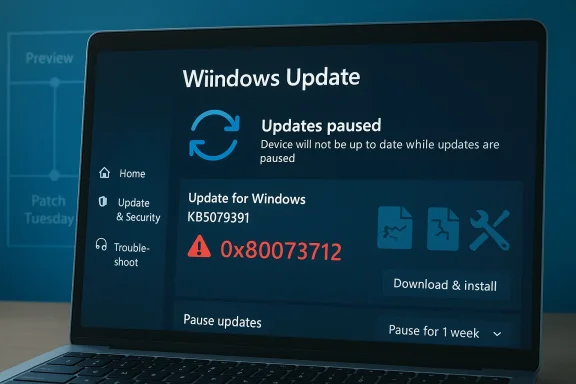
Microsoft’s decision to pull the Windows 11 KB5079391 preview update is a reminder that servicing quality still matters more than ambitious roadmaps. The optional March 2026 release reportedly triggered install failures and an error loop on some systems running Windows 11 24H2 and 25H2, with Microsoft temporarily limiting availability while it investigates the root cause. That kind of rollback is unusual, and it lands at exactly the wrong moment for a company trying to convince users that Windows Update is becoming less frustrating, not more. Microsoft’s own support guidance still frames Windows Update as something you can pause, schedule, and manage, but the company’s recent behavior shows how fragile trust can be when a bad package slips through.

A digital visualization related to the article topic.Background​

Windows Update has always lived under a peculiar tension. On one hand, it is the delivery system for security fixes, quality improvements, and the occasional new feature; on the other, it is the place where many users first encounter the cost of imperfect engineering. The KB5079391 incident fits squarely into that long-running story, because preview updates are meant to be low-risk, optional servicing releases that help Microsoft validate fixes before a broader rollout. When even that layer falters, the problem is not just one update but the confidence behind the entire servicing pipeline.
Windows 11’s current servicing model has been especially complex because Microsoft is supporting multiple active branches at once, including 24H2 and 25H2. Those releases often share a common foundation while still moving through different deployment and validation phases, which makes update stability even more important. Microsoft’s own Insider communications repeatedly describe release waves in terms of gradual rollout and normal rollout, underscoring how carefully staged modern Windows servicing is supposed to be. In practice, that also means a defect can spread through a release train quickly if it is not caught early.
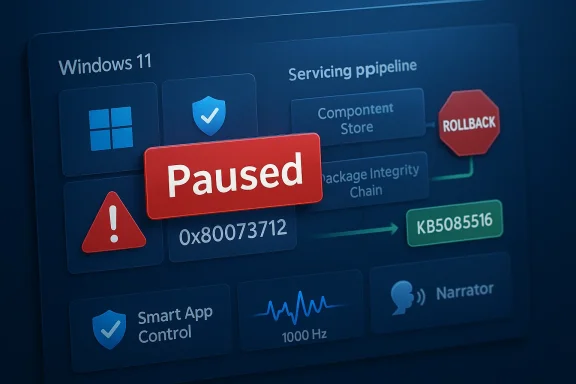
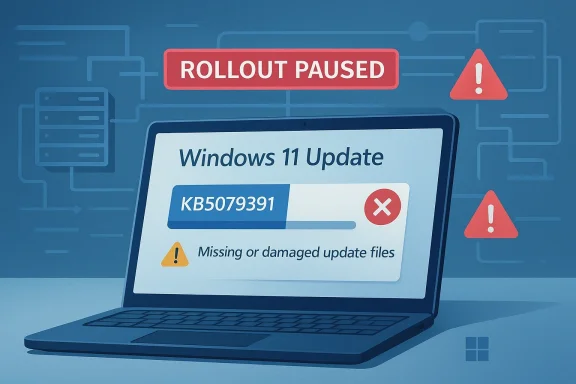
The error cited in this case, 0x80073712, is particularly telling because it points to missing or damaged assembly components, not a simple download hiccup. Microsoft’s language around the issue says some update files are missing or problematic, and that the update rollout was paused to prevent additional impact while the issue is investigated. That is the kind of phrasing you expect when the servicing stack itself is intact, but the payload or its dependency chain is not. It also explains why this problem can produce a loop: the system keeps trying, keeps failing, and keeps returning to the same blocked state.
The timing makes the story more interesting. Microsoft has publicly emphasized improvements to Windows in 2026, including usability work, faster core experiences, and more control over update behavior. At the same time, the company is still dealing with the reality that even a preview patch can knock some PCs into an error state. That tension is not new, but it is becoming more visible because Windows 11 is increasingly marketed as a platform that should feel modern, predictable, and responsive. A broken optional update cuts directly against that message.

What Happened With KB5079391​

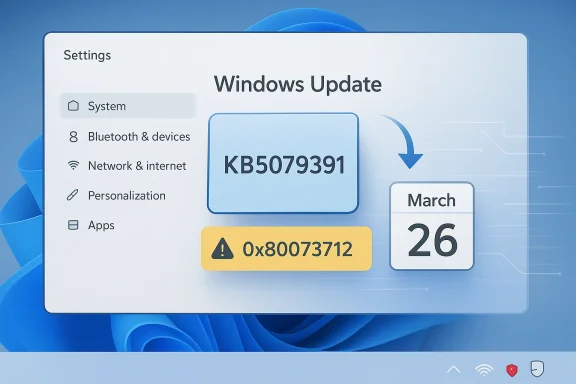
The core story is straightforward: Microsoft temporarily pulled KB5079391, an optional preview update for Windows 11, after some users encountered install failures and error loops. The update was briefly offered on March 26, 2026, then became unavailable again while Microsoft investigated reports of installation problems. Microsoft has said the update’s rollout is limited for now, and that it may not be offered again until the underlying issue is understood.

The error code matters​

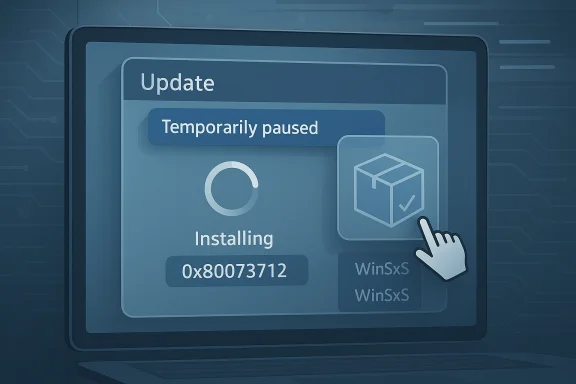
The most visible failure mode appears to be 0x80073712, a code associated with missing assembly files in the WinSxS component store. That detail matters because it suggests the failure is not merely cosmetic; it affects the servicing framework Windows uses to assemble and maintain system components. In plain English, Windows was trying to apply the update, but something essential in the component chain was absent or malformed.
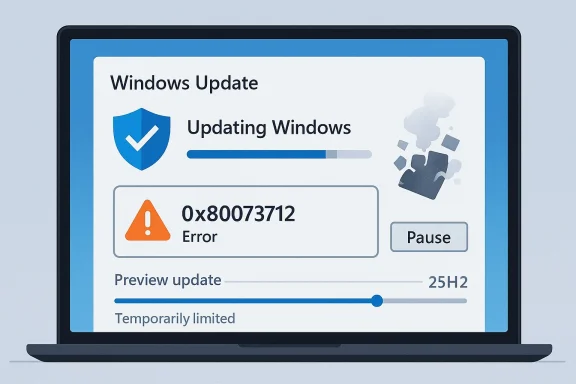
Microsoft’s own wording is unusually blunt for a preview release: “Rollout of this update is temporarily paused due to installation error 0x80073712.” It also warns that some devices may see a message indicating that update files are missing or corrupted, and that Windows will retry later. Those are the kinds of messages users often associate with cumulative updates, but seeing them in an optional preview build is a reminder that preview status does not guarantee preview-grade isolation from real-world frustration.

Why a temporary pull is notable​

Microsoft does not usually yank Windows updates unless the problem is significant enough to justify breaking normal availability. That is why the temporary pause is newsworthy even beyond the specific defect. It suggests the issue was serious enough to outweigh the inconvenience of limiting a release that had already started to reach users.
A pulled preview update also creates a practical split between transparency and trust. On one hand, Microsoft is admitting the problem and stopping the bleed. On the other hand, users who were counting on the update, or who were already stuck in the install loop, are left waiting for a fix with little detail about what went wrong. That is a familiar pattern in Windows servicing, but it never feels good on the receiving end.
  • The update was optional, not mandatory.
  • The rollout appears to have been brief.
  • Microsoft limited availability after the defect surfaced.
  • The company has not yet shared a technical root-cause explanation.
  • Affected devices may repeatedly fail during installation.

Why Preview Updates Still Break Trust​

Preview updates are supposed to absorb risk before a fix reaches everyone, yet they are also the updates enthusiasts often install first because they want new features early. That creates a tricky expectation gap: users understand they are testing the bleeding edge, but they still expect the release to be stable enough to install. When a preview patch fails to install at all, it undercuts the point of preview distribution.

Optional does not mean harmless​

This distinction is important. An optional update may not be required for security compliance, but it can still alter system state, update components, or prepare the device for future servicing. That means a bad preview can have outsized consequences even if it is never marked as critical. In enterprise environments, optional updates are often treated cautiously for exactly this reason.
For consumers, the pain is different. A home user usually wants one thing: click install, walk away, come back to a working PC. When that turns into a loop of failures and retries, the promise of Windows as an automatic platform begins to feel like a burden. The issue is not just the error code, but the loss of control that comes with it.

The servicing stack is part of the product​

A lot of users think of an update as a single file or single patch, but Windows servicing is a layered system involving component manifests, dependency checks, the update engine, and the component store. If one of those layers is inconsistent, the update can fail in ways that are difficult to diagnose without deeper logs. The WinSxS mention is a clue that this was likely a component-assembly problem rather than a simple network issue.
That matters because servicing reliability is not a side feature. It is the mechanism by which every other improvement gets delivered. If Microsoft wants users to accept more frequent refinements, faster feature drops, and more ambitious Windows evolution, it has to make the update plumbing feel invisible. When the plumbing leaks, everything else looks less impressive.
  • Preview status should lower expectations, but not destroy them.
  • Optional updates still influence system reliability.
  • Component-store failures are harder for users to recover from.
  • Repeated failures can erode confidence in future updates.
  • Servicing quality is part of the Windows brand, not just an IT detail.

Microsoft’s 2026 Windows Messaging​

Microsoft has been publicly talking about making Windows faster, cleaner, and more predictable. That includes user-interface changes, performance work, and updates to Windows Update behavior. The company’s message is that it wants Windows to feel less intrusive and more controllable, with improvements that make the operating system easier to live with day to day.

A better update experience is part of the promise​

Microsoft has said users should get more control over the update process, including the ability to skip updates during device setup, restart or shut down without installing updates, and pause updates for longer when needed. That is a meaningful acknowledgment that update friction is one of Windows’ most visible pain points. If the company can deliver those controls without increasing support complexity, the payoff could be real.
But a promise is not a product. If the current update pipeline still produces failures severe enough to force a temporary pull, users will judge Microsoft on the lived experience, not the roadmap language. The irony is hard to miss: the company is talking about reducing annoyance while users are seeing evidence of the exact opposite.

Why the UI story and the servicing story are linked​

It is tempting to treat interface changes and update reliability as separate conversations. They are not. A faster Start menu, a more responsive File Explorer, and a more configurable taskbar are all only valuable if the platform remains trustworthy during upkeep. If Windows Update is flaky, then even the best UI improvements arrive under a cloud.
That is why preview update failures can have strategic weight. They shape how users interpret the entire platform narrative. Microsoft is trying to sell a version of Windows that feels modern and calm, but moments like this remind people of the old Windows stereotype: powerful, yes, but occasionally temperamental.
  • Microsoft is pitching a less frustrating update experience.
  • User control is being positioned as a major theme.
  • Performance and servicing are being marketed as connected goals.
  • Reliability incidents can overshadow feature improvements.
  • Trust in updates is as important as new functionality.

Consumer Impact Versus Enterprise Reality​

For consumers, the KB5079391 issue is mainly an inconvenience unless the install loop blocks a machine from moving forward normally. Most home users simply want the update to disappear, or at least stop retrying endlessly. The average person will not care whether the root cause is in the servicing stack, the component store, or the payload chain; they will care that the PC is acting stuck.

Home users feel the problem first​

Home users often have fewer tools to diagnose an update failure, so the failure reads as a general system problem rather than a specific servicing defect. That distinction matters because a bad update can shake confidence in the whole OS, not just in the updater. Once that happens, users become more hesitant about optional releases, and sometimes even cautious about security updates.
Some will simply wait. Others will retry manually, search for workarounds, or look for advice in forums. The deeper issue is that Windows’ automatic maintenance model depends on user trust, and trust is easiest to lose when the machine appears to be broken by the system that is supposed to maintain it.

Enterprises judge different metrics​

Enterprise admins look at failure rates, rollback behavior, support burden, and whether an issue can be contained through rings or deferrals. A preview update that is quickly limited by Microsoft is less likely to become a broad enterprise outage, but it still creates noise for pilots and test pools. If the defect touches 24H2 and 25H2 broadly enough, it can also complicate validation work for organizations preparing future deployment waves.
This is where the distinction between optional and mandatory updates becomes very practical. Enterprises may never deploy this preview broadly, but they still monitor it because preview behavior often foreshadows quality issues in later cumulative releases. Even when the direct blast radius is small, the reputational cost can be large.
  • Consumers see inconvenience and lost confidence.
  • Enterprises see deployment risk and validation overhead.
  • Optional updates still influence future patch planning.
  • Repeated failures can increase helpdesk pressure.
  • Even isolated defects can shape update policy.

The Error Loop Problem​

An installation error loop is worse than a one-time failure because it creates the impression that the system is trapped. Instead of simply declining to install, Windows retries or reports that it will retry later, making the user feel like progress is always just out of reach. That is why loop behavior tends to generate more frustration than a clean failure screen.

Why loops are so irritating​

A loop implies motion without resolution. The user sees activity, but not closure, and each retry carries the possibility of another failure message. In practical terms, this can waste time, complicate troubleshooting, and make the machine feel unstable even if the rest of the operating system is fine. Perception matters here almost as much as the technical defect.
A broken loop can also discourage users from trying standard repair paths. If Windows Update itself cannot complete an optional package, some users assume deeper repair actions will be equally unreliable. That may not be technically true, but it is psychologically understandable.

0x80073712 is more than a number​

The specific error code is useful because it narrows the class of problem. Microsoft’s description points to missing assembly files, and that hints at inconsistency in system components required for installation. For power users, that is a clue to look at servicing health, but for most people it simply confirms that the update mechanism failed for reasons they cannot see.
The broader lesson is that error codes still matter in Windows because they bridge user experience and engineering reality. A readable explanation can help the right people troubleshoot, but it can also expose the awkward fact that the platform occasionally trips over its own maintenance layers.
  • Error loops amplify frustration.
  • Retry behavior can feel like false progress.
  • Code 0x80073712 points to servicing inconsistency.
  • Missing assemblies are not a casual bug.
  • Simple user-facing messages often mask complex root causes.

Windows Update Control Is Becoming a Bigger Story​

Microsoft has been pushing the idea that Windows Update should be more manageable, less disruptive, and easier to time around real life. Support documentation already explains how to pause updates in Windows 11, and Microsoft’s more recent messaging goes further by suggesting longer pauses and more flexible restart behavior. That is a notable shift in tone from the old “just let Windows do its thing” approach.

More control, but not full control​

Microsoft still does not give users indefinite freedom to ignore updates forever, at least in the current mainstream support model. The support page for Windows 11 describes pausing updates, but also notes that once the pause time limit is reached, the latest updates must be installed. That keeps devices from drifting too far out of date, but it also means users cannot fully escape servicing pressure.
The new message appears to be that Windows should be less disruptive without becoming optional in a broad sense. That is sensible, but it only works if the update mechanism itself becomes more dependable. The moment a bad package gets pulled, the argument for more control becomes stronger, not weaker.

Why pausing matters more now​

When update reliability is inconsistent, pausing becomes a form of risk management rather than procrastination. Many users will now treat optional updates as something to hold back until they see evidence that the release is clean. That does not help Microsoft’s adoption curve, but it is a rational response to repeated servicing surprises.
The irony is that Microsoft’s own platform changes may encourage this behavior. If users are told they can pause longer, skip some update prompts, or avoid awkward restarts, they will naturally become more selective about what they install and when. Good update behavior can build goodwill, while bad update behavior can teach caution very quickly.
  • Windows Update is becoming more configurable.
  • Pausing is increasingly part of normal user strategy.
  • Longer pause windows signal a softer stance on scheduling.
  • Reliability is a prerequisite for earning flexibility.
  • Trust and control are now tightly linked.

Competitive and Market Implications​

The KB5079391 episode does not change the competitive landscape overnight, but it reinforces an old truth: Windows’ strengths and weaknesses are both highly visible because of its scale. Microsoft competes not only with rival desktop ecosystems, but with its own historical reputation for update instability. Every servicing stumble reminds users why “it just works” is such a powerful slogan in operating systems.

Scale magnifies every defect​

A bug that would be a footnote in a niche platform becomes a headline when it affects Windows 11’s mainstream update channel. Microsoft knows this, which is why limiting availability quickly is better than letting a bad update spread. Even so, the optics are hard to avoid: a company promising smoother updates is still having to pull a patch days after release.
That creates an opening, however small, for alternative computing narratives. Platforms that emphasize stability, controlled rollouts, or fewer disruptive updates gain rhetorical advantage whenever Windows has a visible servicing problem. It does not mean users will switch en masse, but it does keep the pressure on Microsoft to improve.

The upside of fast reversals​

To be fair, pulling the update is also evidence of operational maturity. It shows Microsoft is willing to halt distribution rather than insist on a flawed package. In the long run, that kind of response is healthier than pretending a bad release is fine. The real competitive test is whether such reversals become less frequent over time.
Microsoft would likely prefer users focus on feature velocity, AI integration, and productivity improvements. But for many customers, especially IT administrators, the more decisive measure is whether updates can be trusted to land cleanly. If not, every other pitch loses some of its force.
  • Scale makes Windows update failures highly visible.
  • Quick pullbacks can preserve credibility.
  • Stability is a competitive feature, not just a support metric.
  • Rival platforms benefit when Windows looks messy.
  • Microsoft must improve both perception and mechanics.

Strengths and Opportunities​

Even with this setback, Microsoft still has a real opportunity to reshape how Windows servicing works, and there are signs the company understands that. The response to KB5079391 shows the update pipeline is monitored closely, and the broader 2026 messaging suggests Windows is heading toward a more user-conscious maintenance model. If executed well, that could make update management far less adversarial than it has been in the past.
  • Microsoft acted quickly enough to limit further exposure.
  • The company acknowledged the error code and paused rollout.
  • Windows 11 is still receiving ongoing user-experience improvements.
  • More flexible update controls could reduce frustration.
  • Preview channels can still help catch defects earlier.
  • Better servicing could strengthen Windows’ long-term reputation.
  • A more predictable update story would help both consumers and IT teams.

Risks and Concerns​

The downside is that each incident like this chips away at the idea that Windows Update is becoming simpler and safer. If users see a pattern of preview failures, repair loops, or temporarily withdrawn packages, they may become more reluctant to install anything that is not strictly necessary. That hurts adoption of new features and can make Microsoft’s own rollout strategy more conservative over time.
  • Repeated update defects reduce trust in optional releases.
  • Error loops create support burden and user anger.
  • Technical root causes may remain opaque to most customers.
  • Preview issues can affect later cumulative release confidence.
  • More pause flexibility may increase update deferral.
  • Enterprises may tighten validation, slowing feature uptake.
  • Microsoft’s improvement narrative can be weakened by visible servicing misses.

What to Watch Next​

The key question now is not whether KB5079391 was pulled, but how Microsoft handles the investigation and whether the problem resurfaces in a revised package. If the company identifies a packaging defect or servicing-chain issue, it will need to prove the fix is durable and not just a temporary patch to the rollout problem. The answer will also shape how cautious users become around the next optional release.
The broader story is even bigger than one preview update. Microsoft is trying to make Windows feel more polished, faster, and easier to manage, while still relying on a servicing system that occasionally surprises users in exactly the wrong way. That tension will keep defining the Windows 11 experience until the company can make update behavior feel truly routine.
  • Watch for Microsoft to publish a revised technical explanation.
  • Monitor whether KB5079391 returns to availability later.
  • Look for related fixes in the next monthly cumulative update.
  • Pay attention to whether 24H2 and 25H2 are affected in similar ways again.
  • Track whether Microsoft’s longer-update-pause changes arrive on schedule.
  • Observe how quickly the update reliability narrative improves or slips again.
Microsoft’s best path forward is to treat servicing reliability as a first-class product feature, not a background task. If the company can pair its promised Windows 11 refinements with fewer update failures, it will have a stronger story than any single feature launch can provide. If not, each new enhancement will continue to arrive with an asterisk, and Windows users will keep asking the same uncomfortable question: can the operating system modernize without tripping over its own update machinery?

Source: Windows Latest Microsoft pulls Windows 11 KB5079391 preview after it causes install error loop on 25H2 and 24H2
 

Back
Top