

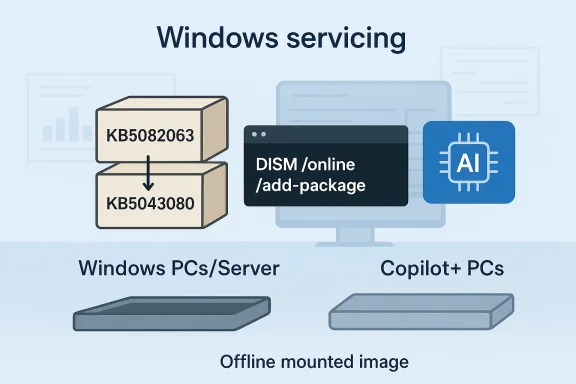
Microsoft’s April 2026 Windows servicing cycle is drawing attention for a very specific reason: KB5082063 is not a simple one-file patch, but a package set that must be installed in the right order. Microsoft’s own instructions say the update is available as standalone MSU files from the Microsoft Update Catalog, and that administrators can either install all of them together with DISM or install each package individually in sequence. The release also includes AI component updates, but Microsoft says those AI pieces only apply to Windows Copilot+ PCs and will not install on ordinary Windows PCs or Windows Server systems.
KB5082063 sits in a servicing environment that has become much more procedural than the old “click Update and wait” model. Microsoft now leans on catalog-delivered packages, DISM-based deployment, and explicit sequencing when a fix depends on earlier MSUs. That is why the support note reads like a deployment runbook rather than a standard consumer update page. It is not just telling you what to install; it is telling you how to preserve the install state so the rest of the chain works correctly.
The important context is that Windows servicing has moved toward layered delivery. A single KB can contain prerequisite packages, target packages, and sometimes component-specific updates that are not universal to every machine. In KB5082063’s case, Microsoft explicitly says the package contains one or more MSU files that require a specific installation order. That is a strong signal that the update is intended for controlled deployment, especially in enterprise and image-management workflows.
Microsoft’s documentation also makes a distinction between live system servicing and offline image servicing. For a running PC, the company gives DISM and PowerShell examples; for installation media or mounted images, it points administrators to offline servicing commands and Dynamic Update guidance. That tells us KB5082063 is not only about patching existing machines, but also about refreshing deployment media and recovery images so future installs start from a cleaner baseline.
There is also an important platform-specific wrinkle: the update includes AI component updates, but Microsoft says those are only applicable to Windows Copilot+ PCs. That means the release is broader than a traditional cumulative patch, but not every payload is meant for every device. In other words, the KB is universal at the packaging level, selective at the component level, and operationally sensitive at the servicing level.
The broader Windows ecosystem in 2026 helps explain why Microsoft is being so careful. The company has been issuing more targeted servicing instructions and more out-of-band-style guidance as the platform becomes increasingly image-driven, policy-driven, and trust-chain sensitive. Even when a release looks narrow, the support note often anticipates enterprise administrators rather than casual users. KB5082063 fits that pattern exactly.
Microsoft gives two supported ways to do this. Method 1 is to download all MSUs into the same folder and let DISM discover prerequisites automatically. Method 2 is to install each MSU individually, in order, which gives administrators more control but also more room to make a mistake. Microsoft’s wording clearly favors the first approach when practical.
It also makes sense from an operational standpoint. A single controlled install is easier to script, document, audit, and repeat across fleets. For organizations with standard imaging or patch orchestration workflows, Method 1 reduces the chance that a person or tool will accidentally break the sequence and leave a device in a partial state. That is a small detail on paper and a big deal in production.
The practical difference between the two methods is simple. Method 1 lets servicing resolve the dependency chain for you; Method 2 asks you to preserve that chain manually. That matters because Windows servicing problems are often not obvious at the point of install. They become visible later, when a reboot, repair, or component validation step reveals that the baseline is not what Microsoft expected.
That staged model is one reason enterprise administrators pay close attention to Microsoft’s wording. When a vendor specifies order, it is usually because the packages are not interchangeable, and because the servicing stack needs to see a particular state before applying the next piece. If you invert the order, you can end up with a system that looks updated on the surface but is not fully consistent underneath.
That is why Microsoft’s guidance is more than a nice-to-have. It is a guardrail against exactly the kinds of errors that make patching expensive: inconsistent machine state, hard-to-reproduce install failures, and deployment drift across devices that should have been identical. In practice, a sequencing requirement is Microsoft asking admins to treat the KB as a controlled change, not a casual update.
This matters because DISM is the tool administrators use when they need repeatable, auditable package servicing. A live system command is more than a way to install a patch; it is a way to bring a machine into compliance under controlled conditions. KB5082063’s support language assumes the person doing the work understands servicing logs, package states, and the possibility of prerequisite discovery.
PowerShell’s Add-WindowsPackage gives similar control with scripting-friendly syntax. That is useful in environments where patching is automated, logged, and perhaps embedded in a larger configuration-management process. The common theme is the same: Microsoft wants administrators to treat the update as a servicing action, not a consumer click-through.
That matters because many organizations rely on refreshed install media to reduce post-deployment cleanup. If the media starts from a newer baseline, there are fewer immediate updates to apply after setup, fewer reboots, and fewer interruptions before a device becomes usable. For IT teams, that can mean real time savings across a fleet.
This is where servicing gets more nuanced than most users realize. A clean install today may depend on setup components, recovery components, and runtime components all being in sync. If one layer is stale, the whole experience can feel rougher than it should, even if the core operating system is technically up to date.
That is especially true in enterprises that rebuild devices frequently or use standardized recovery media. A sequence-aware package is easy to ignore if you only care about one machine, but it becomes important when you are curating the starting point for many machines. The hidden cost of stale media is that every install begins a little behind.
This is a subtle but meaningful sign of where Windows is headed. Microsoft is increasingly using the same servicing pipeline to deliver both mainstream fixes and device-class-specific features. The effect is that a single KB can serve several hardware generations and feature tiers without forcing them all to absorb the same payload. That is efficient, but it also adds complexity to the servicing story.
For administrators, the practical effect is that update inventories may diverge by device class. A standard x64 Windows system and a Copilot+ PC may both receive KB5082063, but only one of them will have the AI component portion installed. That is not a bug; it is Microsoft using the same delivery channel to target different capabilities.
The strongest enterprise benefit is predictability. If the prerequisite and target packages are installed properly, Microsoft’s model should allow a clean, repeatable update path. That is especially valuable in environments where reliability matters more than convenience, such as regulated sectors, VDI fleets, or image-based deployment systems.
It also gives admins more control over timing. A catalog-delivered update is easier to test in a lab, stage to a pilot group, and validate before wider release. That control is particularly valuable when a KB is not a single, self-contained cumulative package.
That burden will be felt most by smaller IT shops, where patching is often done with lean staffing and little time for bespoke servicing. In those environments, a package-order requirement can slow rollout and increase the odds of a missed dependency. The patch itself may be sound, but the deployment process becomes the real risk surface.
Still, the consumer experience depends on the enterprise servicing model more than many people realize. A cleaner deployment pipeline usually means fewer post-install quirks, fewer incomplete updates, and fewer recovery problems later. Consumers may never see the package order, but they will feel the results if Microsoft and administrators handle it properly.
For users who do not manage images or use the catalog directly, the main takeaway is simpler: this is not the kind of KB you casually double-click and forget. The release is built around package order and servicing tools, so the average consumer is better off letting managed update systems handle it.
A second thing to watch is whether Microsoft adds more guidance around prerequisite handling, especially if organizations report install-order issues in the field. The more teams test this update across live systems and offline images, the more likely Microsoft is to clarify edge cases or revise its instructions. That is how modern Windows servicing tends to evolve: through documentation as much as through code.
The third item is device-class behavior. Because the KB includes AI component updates only for Copilot+ PCs, it will be worth watching how consistently Microsoft continues separating hardware-specific payloads from general Windows servicing. That distinction is likely to matter more, not less, as Windows keeps integrating feature tiers into the same delivery framework.
Source: Microsoft - Message Center April 14, 2026—KB5082063(OS Build 26100.32690) - Microsoft Support
 Background
KB5082063 sits in a servicing environment that has become much more procedural than the old “click Update and wait” model. Microsoft now leans on catalog-delivered packages, DISM-based deployment, and explicit sequencing when a fix depends on earlier MSUs. That is why the support note reads like a deployment runbook rather than a standard consumer update page. It is not just telling you what to install; it is telling you how to preserve the install state so the rest of the chain works correctly.The important context is that Windows servicing has moved toward layered delivery. A single KB can contain prerequisite packages, target packages, and sometimes component-specific updates that are not universal to every machine. In KB5082063’s case, Microsoft explicitly says the package contains one or more MSU files that require a specific installation order. That is a strong signal that the update is intended for controlled deployment, especially in enterprise and image-management workflows.
Microsoft’s documentation also makes a distinction between live system servicing and offline image servicing. For a running PC, the company gives DISM and PowerShell examples; for installation media or mounted images, it points administrators to offline servicing commands and Dynamic Update guidance. That tells us KB5082063 is not only about patching existing machines, but also about refreshing deployment media and recovery images so future installs start from a cleaner baseline.
There is also an important platform-specific wrinkle: the update includes AI component updates, but Microsoft says those are only applicable to Windows Copilot+ PCs. That means the release is broader than a traditional cumulative patch, but not every payload is meant for every device. In other words, the KB is universal at the packaging level, selective at the component level, and operationally sensitive at the servicing level.
The broader Windows ecosystem in 2026 helps explain why Microsoft is being so careful. The company has been issuing more targeted servicing instructions and more out-of-band-style guidance as the platform becomes increasingly image-driven, policy-driven, and trust-chain sensitive. Even when a release looks narrow, the support note often anticipates enterprise administrators rather than casual users. KB5082063 fits that pattern exactly.
What Microsoft Actually Requires
The most important fact in the KB5082063 note is not the build number itself, but the fact that Microsoft has broken the release into multiple MSU files with a documented order. The file names listed in the support note show a prerequisite package followed by the target update: windows11.0-kb5043080-x64 must be installed before windows11.0-kb5082063-x64. That sequence is not advisory; it is the supported order.Microsoft gives two supported ways to do this. Method 1 is to download all MSUs into the same folder and let DISM discover prerequisites automatically. Method 2 is to install each MSU individually, in order, which gives administrators more control but also more room to make a mistake. Microsoft’s wording clearly favors the first approach when practical.
Method 1: Install Everything Together
Method 1 is the cleanest model for managed environments. Administrators place the MSU files in one directory and run DISM against the target package, allowing Windows servicing logic to pull in what it needs. That reduces the risk of a missed prerequisite and is the most resilient path when the update chain is more than a single package.It also makes sense from an operational standpoint. A single controlled install is easier to script, document, audit, and repeat across fleets. For organizations with standard imaging or patch orchestration workflows, Method 1 reduces the chance that a person or tool will accidentally break the sequence and leave a device in a partial state. That is a small detail on paper and a big deal in production.
Method 2: Install in Sequence
Method 2 exists for administrators who need the packages applied one by one. Microsoft’s note is explicit: the files must be installed individually and in the documented order. That makes this route useful, but also fragile, because a mistake in sequencing can produce an incomplete or failed servicing state.The practical difference between the two methods is simple. Method 1 lets servicing resolve the dependency chain for you; Method 2 asks you to preserve that chain manually. That matters because Windows servicing problems are often not obvious at the point of install. They become visible later, when a reboot, repair, or component validation step reveals that the baseline is not what Microsoft expected.
- Download both packages if you are using the catalog workflow.
- Keep them in the same folder when using DISM.
- Install the prerequisite package first if you are doing manual sequencing.
- Verify the final servicing state after installation.
- Test the process on a non-production system before broad rollout.
Why the Ordering Matters
Package order matters because Windows servicing is stateful. A prerequisite package can establish the baseline that the next package expects, and if that baseline is missing, the later install may fail or partially apply. Microsoft’s requirement for a documented order is therefore a clue that KB5082063 is not a flat rollup but a staged servicing event.That staged model is one reason enterprise administrators pay close attention to Microsoft’s wording. When a vendor specifies order, it is usually because the packages are not interchangeable, and because the servicing stack needs to see a particular state before applying the next piece. If you invert the order, you can end up with a system that looks updated on the surface but is not fully consistent underneath.
What Can Go Wrong
If the prerequisite package is skipped, the target update may fail outright. If the packages are applied out of sequence, the result can be a partial install or a servicing baseline that does not match Microsoft’s assumptions. If the update is automated incorrectly, the failure can be subtle enough to escape notice until a later validation step or reboot.That is why Microsoft’s guidance is more than a nice-to-have. It is a guardrail against exactly the kinds of errors that make patching expensive: inconsistent machine state, hard-to-reproduce install failures, and deployment drift across devices that should have been identical. In practice, a sequencing requirement is Microsoft asking admins to treat the KB as a controlled change, not a casual update.
- Partial installs can be harder to diagnose than outright failures.
- Manual sequencing increases human error risk.
- Automation scripts can break the order if not carefully designed.
- Recovery from a bad state may take longer than the original deployment.
- Inconsistent baselines complicate support and compliance.
Deployment Paths for Live Systems
For a running Windows PC, Microsoft gives the classic elevated-command-line route. The support note says administrators can use DISM /Online /Add-Package with the target MSU or use Add-WindowsPackage from PowerShell. That is a clear sign the release is designed for managed servicing, not for casual consumer installation through a settings toggle.This matters because DISM is the tool administrators use when they need repeatable, auditable package servicing. A live system command is more than a way to install a patch; it is a way to bring a machine into compliance under controlled conditions. KB5082063’s support language assumes the person doing the work understands servicing logs, package states, and the possibility of prerequisite discovery.
Command-Line Servicing
Microsoft’s example for a running system uses the target MSU directly, with DISM expected to find the prerequisite if the packages are staged together. That is elegant from a workflow standpoint because the folder contents become part of the install logic. It also makes the folder itself an operational object, which is why administrators need to keep package placement tidy.PowerShell’s Add-WindowsPackage gives similar control with scripting-friendly syntax. That is useful in environments where patching is automated, logged, and perhaps embedded in a larger configuration-management process. The common theme is the same: Microsoft wants administrators to treat the update as a servicing action, not a consumer click-through.
What Enterprises Should Check First
Before rolling KB5082063 broadly, organizations should confirm whether their deployment tooling respects the documented package order. They should also verify that their update staging directories contain the right files and that any automation does not rename, omit, or reorder them in a way that breaks dependency discovery. In short, this is a patch that rewards process discipline.- Validate the exact command path on a pilot machine.
- Review logs for prerequisite package resolution.
- Confirm the final build after reboot.
- Test rollback behavior in case of failure.
- Make sure automation preserves package order.
Offline Images and Installation Media
KB5082063 is also relevant to people who maintain installation media, recovery images, or custom deployment baselines. Microsoft’s note includes commands for adding the update to a mounted image, which means the update is not just for already-running Windows installations. It is part of the servicing story for devices that will be built later.That matters because many organizations rely on refreshed install media to reduce post-deployment cleanup. If the media starts from a newer baseline, there are fewer immediate updates to apply after setup, fewer reboots, and fewer interruptions before a device becomes usable. For IT teams, that can mean real time savings across a fleet.
Dynamic Update Coordination
Microsoft also reminds administrators that Dynamic Update packages should match the same month as the KB whenever possible. If the matching SafeOS or Setup Dynamic Update is not available, Microsoft says to use the most recently published version. That is a useful detail because it shows Microsoft treats setup media as a living artifact rather than a fixed image.This is where servicing gets more nuanced than most users realize. A clean install today may depend on setup components, recovery components, and runtime components all being in sync. If one layer is stale, the whole experience can feel rougher than it should, even if the core operating system is technically up to date.
Why Image Teams Should Care
For imaging teams, a KB like this is not merely a patch to apply after the fact. It is an opportunity to refresh the factory baseline and avoid repeating the same update steps across dozens or hundreds of devices. The support instructions are essentially telling image owners: if you care about predictable deployments, service the media too.That is especially true in enterprises that rebuild devices frequently or use standardized recovery media. A sequence-aware package is easy to ignore if you only care about one machine, but it becomes important when you are curating the starting point for many machines. The hidden cost of stale media is that every install begins a little behind.
- Refresh deployment media when the servicing baseline changes.
- Match Dynamic Update packages by month where possible.
- Test mounted-image servicing before publishing new media.
- Rebuild recovery images after major servicing changes.
- Verify that setup and runtime packages align.
AI Components and Device Targeting
The note about AI components is easy to miss, but it is important. Microsoft says the cumulative update includes AI component updates, yet those components are only applicable to Windows Copilot+ PCs and will not install on ordinary Windows PCs or Windows Server. That means the package has a shared outer shell but a selective inner payload.This is a subtle but meaningful sign of where Windows is headed. Microsoft is increasingly using the same servicing pipeline to deliver both mainstream fixes and device-class-specific features. The effect is that a single KB can serve several hardware generations and feature tiers without forcing them all to absorb the same payload. That is efficient, but it also adds complexity to the servicing story.
Why It Matters for Copilot+ PCs
Copilot+ PCs sit in a different servicing lane because they are expected to consume feature-specific updates that older machines cannot use. If you manage such devices, KB5082063 is not just a Windows patch; it is also one more part of the emerging AI-feature distribution model. That model depends on hardware qualification as much as operating-system versioning.For administrators, the practical effect is that update inventories may diverge by device class. A standard x64 Windows system and a Copilot+ PC may both receive KB5082063, but only one of them will have the AI component portion installed. That is not a bug; it is Microsoft using the same delivery channel to target different capabilities.
Why It Does Not Affect Most Systems
Microsoft’s note makes clear that the AI pieces are not meant for regular PCs or servers. So while the KB is available broadly, the AI-specific content is effectively inert on systems that cannot use it. That distinction should reduce concern for most enterprise fleets, but it does not remove the need to verify servicing order and package integrity.- Copilot+ PCs may receive additional AI-related payloads.
- Non-Copilot+ PCs will skip those components.
- Windows Server will not install the AI pieces.
- The KB still matters operationally even without the AI payload.
- Device class now influences servicing outcomes more than before.
Enterprise Impact
For enterprises, KB5082063 is best understood as a deployment control exercise. The release is clearly designed for administrators who can stage packages, preserve order, and validate the result. That is good news for organizations with mature patch-management tooling and a careful change-control process.The strongest enterprise benefit is predictability. If the prerequisite and target packages are installed properly, Microsoft’s model should allow a clean, repeatable update path. That is especially valuable in environments where reliability matters more than convenience, such as regulated sectors, VDI fleets, or image-based deployment systems.
Fleet Management Advantages
The update can be folded into existing servicing pipelines, which means enterprises do not need a special consumer-facing workflow to get it done. DISM and PowerShell support also make it easier to script and audit. In a world where patching is increasingly part of a broader compliance process, that is a meaningful strength.It also gives admins more control over timing. A catalog-delivered update is easier to test in a lab, stage to a pilot group, and validate before wider release. That control is particularly valuable when a KB is not a single, self-contained cumulative package.
The Hidden Cost
The hidden cost is that more control means more responsibility. Sequencing-aware updates demand documentation, monitoring, and careful automation. If a team treats the package like a generic monthly cumulative update, it may discover too late that KB5082063 needed more hands-on handling than expected.That burden will be felt most by smaller IT shops, where patching is often done with lean staffing and little time for bespoke servicing. In those environments, a package-order requirement can slow rollout and increase the odds of a missed dependency. The patch itself may be sound, but the deployment process becomes the real risk surface.
- Better fit for mature IT operations.
- Easier to script into deployment pipelines.
- More predictable than ad hoc manual installation.
- Requires stronger documentation discipline.
- Creates extra work for small teams without automation.
Consumer Impact
For most consumers, KB5082063 should be mostly invisible once deployed correctly. The AI component portion does not apply to standard Windows PCs, and the main update path is clearly aimed at administrators and image maintainers. That means ordinary users are unlikely to interact with the package as a manual download-and-install task.Still, the consumer experience depends on the enterprise servicing model more than many people realize. A cleaner deployment pipeline usually means fewer post-install quirks, fewer incomplete updates, and fewer recovery problems later. Consumers may never see the package order, but they will feel the results if Microsoft and administrators handle it properly.
The Practical Home-User View
Home users who build their own installation media may benefit indirectly from the same servicing rules. If the media is updated with the right Dynamic Update components, a fresh install can land much closer to the current baseline. That means less waiting, fewer updates after setup, and a generally cleaner first boot.For users who do not manage images or use the catalog directly, the main takeaway is simpler: this is not the kind of KB you casually double-click and forget. The release is built around package order and servicing tools, so the average consumer is better off letting managed update systems handle it.
Why Ordinary PCs Are Less Likely to Notice
Microsoft’s note on AI components makes clear that most regular PCs will not receive that portion of the update. In addition, the package order requirement is much more relevant to deployment tooling than to everyday home use. So while the release is technically broad, the operational burden is concentrated elsewhere.- Most home users will not install the MSU files manually.
- The AI components are not meant for standard PCs.
- Fresh install media may benefit indirectly from the update.
- Managed update channels should absorb most of the complexity.
- Consumer impact is likely to be indirect rather than visible.
Strengths and Opportunities
KB5082063 has a few clear strengths that make it more interesting than a standard patch note. It is explicit, flexible, and written in a way that gives administrators a real choice between automation-friendly bulk servicing and surgical manual installation. That sort of clarity is valuable in an ecosystem where deployment mistakes can be costlier than the update itself.- Clear installation order reduces guesswork.
- DISM support fits enterprise workflows.
- Offline image support helps imaging teams.
- Catalog availability improves deployment control.
- AI payloads are scoped to the right hardware.
- Method 1 is efficient for larger environments.
- Method 2 gives experts a fallback when needed.
Risks and Concerns
The biggest risk is complexity. A package that depends on a specific installation order is inherently more fragile than a single cumulative update, especially when admins are working under time pressure or rely on scripts that were written for simpler servicing patterns. One wrong assumption can turn a routine patch into a support issue.- Sequencing mistakes can break installs.
- Manual steps increase the chance of human error.
- Automation may not preserve the expected order.
- Partial installs are harder to diagnose.
- Small IT teams may struggle to validate the workflow.
- Version drift can persist across the fleet.
- Recovery from a failed deployment may take longer than expected.
What to Watch Next
The immediate thing to watch is whether Microsoft leaves KB5082063 as a catalog-driven, sequence-sensitive release or folds it into a broader servicing rollup later. If it remains standalone, administrators will need to keep handling the package order carefully. If Microsoft later broadens distribution, the deployment burden may ease for mainstream users.A second thing to watch is whether Microsoft adds more guidance around prerequisite handling, especially if organizations report install-order issues in the field. The more teams test this update across live systems and offline images, the more likely Microsoft is to clarify edge cases or revise its instructions. That is how modern Windows servicing tends to evolve: through documentation as much as through code.
The third item is device-class behavior. Because the KB includes AI component updates only for Copilot+ PCs, it will be worth watching how consistently Microsoft continues separating hardware-specific payloads from general Windows servicing. That distinction is likely to matter more, not less, as Windows keeps integrating feature tiers into the same delivery framework.
- Watch for any broader rollup of the same fix.
- Monitor whether Microsoft revises the install-order guidance.
- Check whether deployment tools preserve the prerequisite chain.
- Confirm how Copilot+ payloads behave across different device classes.
- Look for follow-up servicing notes tied to the same KB family.
Source: Microsoft - Message Center April 14, 2026—KB5082063(OS Build 26100.32690) - Microsoft Support
