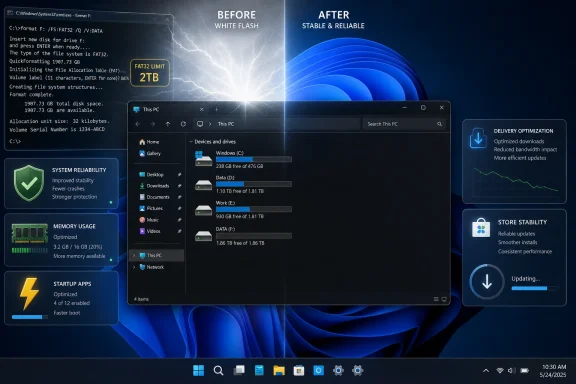
Microsoft is preparing one of the more meaningful Windows 11 quality updates in recent memory, and the center of gravity is not a flashy new app or an AI gimmick but the parts of the OS people touch every day. The latest Release Preview work tied to KB5083631 points to faster File Explorer launch times, cleaner shell behavior, lower memory pressure in background update plumbing, and better responsiveness in settings pages that have long felt sluggish on larger systems . That may sound incremental on paper, but for a platform judged by muscle memory and routine tasks, these are the kinds of fixes that can change how Windows 11 feels. If Microsoft lands this cleanly in the April 2026 optional update and the May 2026 Patch Tuesday cycle, it could be remembered as a quality-of-life turning point rather than just another servicing release .
Windows 11 has spent much of its life carrying two stories at once. On one hand, Microsoft has pushed a modern interface, Copilot integration, and a steady stream of new shell features. On the other, users have continued to complain that core workflows still feel too heavy, too inconsistent, or too fragile for an operating system meant to be the centerpiece of modern PC computing. File Explorer in particular has become a symbol of that tension because it is not a niche utility; it is the front door to nearly every routine on the platform .
That context makes the current KB5083631 story more important than the raw changelog might suggest. Microsoft is not merely adding new archive support or tweaking a few settings screens. It is targeting the mechanisms that shape perceived responsiveness: launch speed, explorer.exe reliability, dark mode consistency, startup behavior, and memory use in servicing components like Delivery Optimization . These are the kinds of improvements that users feel before they can measure them.
The Release Preview channel is also significant. Microsoft typically uses it as the last broad validation stage before changes hit general availability, which means the company is not experimenting in the abstract here. It is signaling that these performance and polish fixes are close to shipping, and likely stable enough to move into the mainstream servicing path .
There is also a broader strategic backdrop. Over the past several Insider cycles, Microsoft has shown more interest in reducing friction than in adding visual clutter. That includes efforts around startup app performance, File Explorer responsiveness, storage settings navigation, and shell reliability. In other words, the company appears to be treating basic Windows quality as a product priority again, rather than assuming that polish can wait until after feature work is done .
For everyday users, that matters because the complaints are cumulative. A slower Explorer launch here, a dark mode flash there, a memory-hungry background process somewhere else, and suddenly the platform feels less “modern” even if the underlying issue is minor. Microsoft’s new release appears to address exactly that type of death-by-a-thousand-cuts experience .
The File Explorer work is the clearest example. Microsoft says it is improving folder view consistency, speeding up Explorer launch, removing the white flash in dark mode in specific workflows, adding a “preview anyway” button for certain downloaded files, expanding archive support, and improving the reliability of explorer.exe after windows are closed . That is not a random list. It is a systematic attempt to make the shell behave more predictably under common stress points.
There is also a subtle but important architectural message. Microsoft is not relying solely on background preloading or cosmetic masking. The release notes suggest the app itself is being tuned, especially around launch responsiveness and process cleanup, which is a better long-term answer than papering over delays with clever staging .
The changelog points to improved folder view consistency, which means customized settings such as sorting or icon size should now persist more reliably across different ways of opening the same folder. Microsoft explicitly calls out the Downloads folder and scenarios involving other apps, such as browsers, which is a sensible place to start because downloads are one of the most common entry points into Explorer workflows .
That is especially true on older hardware or budget systems, where Explorer has often felt more sluggish than it should. Microsoft’s update should help users who experience Windows as “heavy” rather than “broken.” Those are different problems, and the former often gets ignored because it does not produce dramatic crashes. It just wears people down.
The startup-app improvement is similarly important. Microsoft says it is improving performance when launching apps listed under Settings > Apps > Startup. That may not excite casual users, but it matters because startup behavior is one of the first things people experience after login. If that early-session experience feels slow or congested, the whole operating system feels less ready for work .
That is why Microsoft’s work here should be read as quality engineering rather than convenience tuning. A Windows login sequence that reaches “usable” sooner can change how users judge the whole machine. If startup apps initialize more gracefully, and if the system becomes productive faster, the OS earns trust in the first few seconds.
This kind of change matters most on constrained machines. If a background service consumes less memory, the system has more headroom for the browser, office apps, creative software, or whatever else the user is actively running. It also makes Windows feel less like a platform that permanently reserves a chunk of itself for housekeeping.
Microsoft’s emphasis on memory efficiency also reflects a broader Windows 11 challenge. Over time, modern operating systems accumulate services, overlays, telemetry, sync behaviors, security layers, and update mechanisms. Each one is defensible. Taken together, they can create the impression that the platform is too busy even when it is not technically broken.
This matters especially for developers and technically inclined users who regularly encounter package formats outside the ordinary ZIP and 7z world. NuGet packages, in particular, are part of a broader developer workflow, so having them visible in Explorer reduces friction and shortens the path between a downloaded file and an inspection step.
It also fits with Microsoft’s broader strategy of making Windows a more capable default environment. The more the shell can handle directly, the fewer dead ends users face. That is especially useful for people who do not want to install multiple utility apps just to inspect a package or peek inside an archive.
That is a smart move. Security warnings lose effectiveness if they are too easy to ignore, but they also become counterproductive if they block ordinary workflows completely. Microsoft seems to be aiming for a middle ground where the system warns clearly but does not trap the user in an awkward detour.
In that sense, the preview change is less about a single button and more about Microsoft’s willingness to trust users while still nudging them toward safer habits. That is a better posture for a mature desktop platform than blanket restriction.
For IT teams, the implications are even more interesting. A more reliable shell means fewer calls about odd desktop behavior, fewer complaints about “Windows being slow,” and fewer mysterious resource spikes tied to background services. That kind of improvement does not always show up in glossy product marketing, but it absolutely matters in fleet management.
That said, enterprises will still want to validate these changes carefully. A faster Explorer is great, but it must not create compatibility surprises with extensions, scripts, or workflow tools. As always, the devil is in the ecosystem.
There is also the familiar danger of partial execution. If Microsoft fixes File Explorer but leaves other rough edges intact, the broader impression may remain unchanged. Likewise, if new features keep arriving while the company says it is reducing clutter, users could read that as mixed messaging rather than restraint.
The other thing to watch is consistency. Microsoft has a history of making good progress in one area while another team introduces fresh friction somewhere else. If the company is serious about a quality-first turn, it will need to keep the shell, servicing stack, and update experience moving in the same direction. That is harder than it sounds, which is why it matters so much.
Windows has always been at its best when it feels invisible in the right ways: quick to respond, consistent in its behavior, and quiet about the machinery beneath the surface. KB5083631 points toward that older, more disciplined ideal, and if Microsoft follows through, the result could be one of the most welcome improvements the platform has seen in years.
Source: Neowin KB5083631: Microsoft explains how Windows 11 will get significantly faster soon
 Background
Windows 11 has spent much of its life carrying two stories at once. On one hand, Microsoft has pushed a modern interface, Copilot integration, and a steady stream of new shell features. On the other, users have continued to complain that core workflows still feel too heavy, too inconsistent, or too fragile for an operating system meant to be the centerpiece of modern PC computing. File Explorer in particular has become a symbol of that tension because it is not a niche utility; it is the front door to nearly every routine on the platform .That context makes the current KB5083631 story more important than the raw changelog might suggest. Microsoft is not merely adding new archive support or tweaking a few settings screens. It is targeting the mechanisms that shape perceived responsiveness: launch speed, explorer.exe reliability, dark mode consistency, startup behavior, and memory use in servicing components like Delivery Optimization . These are the kinds of improvements that users feel before they can measure them.
The Release Preview channel is also significant. Microsoft typically uses it as the last broad validation stage before changes hit general availability, which means the company is not experimenting in the abstract here. It is signaling that these performance and polish fixes are close to shipping, and likely stable enough to move into the mainstream servicing path .
There is also a broader strategic backdrop. Over the past several Insider cycles, Microsoft has shown more interest in reducing friction than in adding visual clutter. That includes efforts around startup app performance, File Explorer responsiveness, storage settings navigation, and shell reliability. In other words, the company appears to be treating basic Windows quality as a product priority again, rather than assuming that polish can wait until after feature work is done .
For everyday users, that matters because the complaints are cumulative. A slower Explorer launch here, a dark mode flash there, a memory-hungry background process somewhere else, and suddenly the platform feels less “modern” even if the underlying issue is minor. Microsoft’s new release appears to address exactly that type of death-by-a-thousand-cuts experience .
What KB5083631 Is Really About
At the surface level, KB5083631 is a Windows 11 quality update with a lot of familiar plumbing fixes. Dig a little deeper, though, and it reads like a statement of intent: Microsoft wants Windows 11 to feel faster, more coherent, and less visually or operationally awkward. The company is trying to improve the lived experience of the shell, not just the benchmark numbers .The File Explorer work is the clearest example. Microsoft says it is improving folder view consistency, speeding up Explorer launch, removing the white flash in dark mode in specific workflows, adding a “preview anyway” button for certain downloaded files, expanding archive support, and improving the reliability of explorer.exe after windows are closed . That is not a random list. It is a systematic attempt to make the shell behave more predictably under common stress points.
Why this is more than a cosmetic patch
One of the strongest signals here is that Microsoft is fixing visible friction in places users encounter all the time. A white flash in dark mode may seem trivial in isolation, but it breaks the visual contract of the interface. Similarly, a delay in Explorer launch or a lingering shell process after closing a window affects trust because the user is left wondering whether the system is responsive or merely pretending to be .There is also a subtle but important architectural message. Microsoft is not relying solely on background preloading or cosmetic masking. The release notes suggest the app itself is being tuned, especially around launch responsiveness and process cleanup, which is a better long-term answer than papering over delays with clever staging .
- Explorer launch speed is being improved at the shell level.
- Dark mode visual consistency is being repaired in common workflows.
- explorer.exe reliability is being tightened after window close events.
- Folder customization preferences are becoming more consistent across launch paths.
- Archive handling is becoming more capable without extra tools.
File Explorer Finally Gets the Attention It Needed
File Explorer has long been one of the most scrutinized pieces of Windows because it touches everything from downloads to document sorting to removable storage. When it misbehaves, users do not blame a peripheral component; they blame Windows itself. That is why this update feels bigger than a normal feature bullet list .The changelog points to improved folder view consistency, which means customized settings such as sorting or icon size should now persist more reliably across different ways of opening the same folder. Microsoft explicitly calls out the Downloads folder and scenarios involving other apps, such as browsers, which is a sensible place to start because downloads are one of the most common entry points into Explorer workflows .
Speed, consistency, and the cost of tiny delays
The real story is performance. Explorer is one of the most frequently launched apps in the OS, so even small gains add up quickly. A fraction of a second saved on each launch is not just a technical metric; it is a practical reduction in friction that compounds over a day, a week, and a month .That is especially true on older hardware or budget systems, where Explorer has often felt more sluggish than it should. Microsoft’s update should help users who experience Windows as “heavy” rather than “broken.” Those are different problems, and the former often gets ignored because it does not produce dramatic crashes. It just wears people down.
- Faster launch behavior should be most noticeable after boot.
- Folder settings should behave more consistently across open paths.
- Dark mode should feel less broken in everyday use.
- Process cleanup should reduce lingering resource use.
- Better responsiveness should help lower-end PCs disproportionately.
The Storage and Startup Changes Matter More Than They Sound
Microsoft is also improving the responsiveness of Settings navigation for storage, especially when browsing large volumes through Settings > System > Storage > Advanced Storage Settings > Disks & Volumes. That sounds niche, but on machines with multiple drives, big NVMe arrays, or complex storage setups, this is the sort of page users and administrators actually visit when they need answers quickly .The startup-app improvement is similarly important. Microsoft says it is improving performance when launching apps listed under Settings > Apps > Startup. That may not excite casual users, but it matters because startup behavior is one of the first things people experience after login. If that early-session experience feels slow or congested, the whole operating system feels less ready for work .
Startup is where perception is won or lost
A slow boot is not always the result of a bad CPU or weak SSD. Sometimes it is the cumulative effect of shell components, background services, and startup apps fighting for attention. Better startup performance can make a system feel newer than it is, especially on machines that are otherwise perfectly adequate .That is why Microsoft’s work here should be read as quality engineering rather than convenience tuning. A Windows login sequence that reaches “usable” sooner can change how users judge the whole machine. If startup apps initialize more gracefully, and if the system becomes productive faster, the OS earns trust in the first few seconds.
- Better startup app launching shortens the path to productivity.
- Faster storage navigation helps with troubleshooting and capacity planning.
- Lower UI lag in Settings makes the system feel less bureaucratic.
- Improvements benefit both consumers and IT admins.
- Early-session speed often shapes the user’s entire opinion of the PC.
Delivery Optimization and Memory Pressure
One of the quieter but more practical changes in the update is the improvement to Delivery Optimization, which Microsoft says should use less RAM when handling Windows update downloads. On paper that sounds minor. In practice, it can be surprisingly valuable because Delivery Optimization runs in the background and competes with the applications users actually care about .This kind of change matters most on constrained machines. If a background service consumes less memory, the system has more headroom for the browser, office apps, creative software, or whatever else the user is actively running. It also makes Windows feel less like a platform that permanently reserves a chunk of itself for housekeeping.
A small optimization with broad consequences
Background resource use is easy to ignore until the system starts paging or becomes less responsive under load. At that point, even a modest reduction in RAM usage can improve the experience in ways the user can feel but not necessarily quantify. That is part of why this fix is strategically smarter than it looks .Microsoft’s emphasis on memory efficiency also reflects a broader Windows 11 challenge. Over time, modern operating systems accumulate services, overlays, telemetry, sync behaviors, security layers, and update mechanisms. Each one is defensible. Taken together, they can create the impression that the platform is too busy even when it is not technically broken.
- Lower background RAM use improves multitasking headroom.
- Update downloads should interfere less with active work.
- Constrained systems benefit the most.
- Memory savings can reduce perceived sluggishness.
- The change reinforces a “lighter Windows” narrative.
The New Archive Support Is a Welcome Bonus
Microsoft is expanding File Explorer’s native archive support to include uu, cpio, xar, and NuGet packages, adding to the platform’s built-in handling of compressed formats. On its own, this is not the kind of change that makes headlines. But it is a useful sign of where the shell is headed: more capable, more self-contained, and less dependent on third-party tools for common packaging tasks .This matters especially for developers and technically inclined users who regularly encounter package formats outside the ordinary ZIP and 7z world. NuGet packages, in particular, are part of a broader developer workflow, so having them visible in Explorer reduces friction and shortens the path between a downloaded file and an inspection step.
Utility over spectacle
The best shell improvements are often the least glamorous. A broader archive list does not sell upgrades by itself, but it reduces the number of times users have to stop and ask, “What app do I need for this?” That is genuine quality-of-life work.It also fits with Microsoft’s broader strategy of making Windows a more capable default environment. The more the shell can handle directly, the fewer dead ends users face. That is especially useful for people who do not want to install multiple utility apps just to inspect a package or peek inside an archive.
- More archive formats mean fewer external tools.
- Developers gain faster access to package contents.
- Technical users benefit from a richer default shell.
- Everyday users get fewer “can’t open this” moments.
- The shell becomes more self-sufficient over time.
Preview Safety and User Control
The new “preview anyway” button in File Explorer’s preview pane is one of the more interesting additions because it tries to balance security and convenience instead of choosing one at the expense of the other. Microsoft is keeping the warning for files downloaded from the internet, but it is giving users a sanctioned way to proceed if they still want to preview the file .That is a smart move. Security warnings lose effectiveness if they are too easy to ignore, but they also become counterproductive if they block ordinary workflows completely. Microsoft seems to be aiming for a middle ground where the system warns clearly but does not trap the user in an awkward detour.
Guardrails, not dead ends
This approach reflects a broader UX lesson that more software companies are slowly learning: users want informed friction, not absolute obstruction. A system that constantly says no tends to train people to work around it. A system that says “be careful, but you decide” is usually more credible.In that sense, the preview change is less about a single button and more about Microsoft’s willingness to trust users while still nudging them toward safer habits. That is a better posture for a mature desktop platform than blanket restriction.
- Warnings remain visible and meaningful.
- Users can proceed without hacky workarounds.
- The experience stays safer than disabling protections.
- Productivity improves for quick inspection tasks.
- The UI acknowledges informed decision-making.
What This Means for Consumers and IT Teams
Consumer impact is straightforward: the update should make Windows 11 feel smoother, less visually jarring, and less annoying to live with. File Explorer starts faster, dark mode behaves better, storage pages are more responsive, and startup app management feels less like a wait state. For anyone who spends hours a day in the shell, these improvements are not abstract .For IT teams, the implications are even more interesting. A more reliable shell means fewer calls about odd desktop behavior, fewer complaints about “Windows being slow,” and fewer mysterious resource spikes tied to background services. That kind of improvement does not always show up in glossy product marketing, but it absolutely matters in fleet management.
Enterprise value is about support load
The biggest enterprise benefit may simply be fewer small incidents. When Explorer reliability improves and startup apps launch more cleanly, support teams spend less time chasing vague frustration reports. When Delivery Optimization uses less memory, there is less chance of background processes getting blamed for performance problems they merely amplify.That said, enterprises will still want to validate these changes carefully. A faster Explorer is great, but it must not create compatibility surprises with extensions, scripts, or workflow tools. As always, the devil is in the ecosystem.
- Fewer helpdesk tickets about sluggish shells.
- Better behavior on shared or older hardware.
- Less background memory pressure on managed devices.
- Cleaner startup sessions for end users.
- More predictable troubleshooting in Settings and Storage.
Strengths and Opportunities
Microsoft’s approach here has real upside because it targets the most visible friction points first. That is better than chasing novelty while leaving the operating system to feel unfinished. If the company sustains this quality-first discipline, Windows 11 could end up feeling more coherent and more premium than it has in a while .- File Explorer improvements hit an app people use constantly.
- Dark mode consistency strengthens the sense of polish.
- Startup performance gains shorten the path to productivity.
- Lower memory use in Delivery Optimization helps constrained systems.
- Broader archive support reduces reliance on extra utilities.
- Settings responsiveness makes system management less frustrating.
- Explorer reliability can improve the feel of the whole desktop.
Risks and Concerns
The obvious risk is overpromising and underdelivering. Windows users have seen quality campaigns before, and they will not be impressed by a changelog alone. They will care about whether the next several updates actually make the OS feel better in everyday use, and whether the improvements hold up across different hardware classes .There is also the familiar danger of partial execution. If Microsoft fixes File Explorer but leaves other rough edges intact, the broader impression may remain unchanged. Likewise, if new features keep arriving while the company says it is reducing clutter, users could read that as mixed messaging rather than restraint.
- Credibility depends on sustained improvements, not one good build.
- Hardware variation may produce uneven results.
- Enterprise compatibility could complicate rollout.
- Security safeguards must not be weakened for convenience.
- Patch rollout timing may leave some users waiting longer.
- Regression risk is always real in shell and servicing work.
- Perception risk remains if AI surfaces continue expanding elsewhere.
Looking Ahead
The real test now is not whether Microsoft can describe these improvements well, but whether users can feel them after rollout. The April 2026 optional update and the May 2026 Patch Tuesday cycle will tell us whether KB5083631 is merely a polished Release Preview package or the beginning of a broader shift toward a faster, calmer Windows 11 .The other thing to watch is consistency. Microsoft has a history of making good progress in one area while another team introduces fresh friction somewhere else. If the company is serious about a quality-first turn, it will need to keep the shell, servicing stack, and update experience moving in the same direction. That is harder than it sounds, which is why it matters so much.
- Watch for broader rollout of the Explorer fixes.
- Watch for measurable startup and storage navigation improvements.
- Watch for user reports on dark mode behavior after install.
- Watch for any regressions in archive handling or preview actions.
- Watch for whether Delivery Optimization memory use truly drops.
- Watch for whether Microsoft keeps emphasizing core performance over surface novelty.
Windows has always been at its best when it feels invisible in the right ways: quick to respond, consistent in its behavior, and quiet about the machinery beneath the surface. KB5083631 points toward that older, more disciplined ideal, and if Microsoft follows through, the result could be one of the most welcome improvements the platform has seen in years.
Source: Neowin KB5083631: Microsoft explains how Windows 11 will get significantly faster soon