

Microsoft released KB5089573 on May 26, 2026, as an optional preview update for Windows 11 versions 24H2 and 25H2, moving PCs to builds 26100.8524 and 26200.8524 while adding a visible responsiveness boost to Start, Search, Action Center, and app launches. That sounds like the sort of small servicing note most users ignore. It is not. KB5089573 is Microsoft admitting, in update form, that Windows 11’s problem has never only been speed — it has been hesitation.
For years, Windows performance conversations have been trapped between two unsatisfying poles. Benchmarks told one story, while the daily experience of opening Start, searching for an app, invoking Quick Settings, or waiting for a shell flyout told another. Windows 11 could be fast in synthetic tests and still feel oddly reluctant when a user asked it to do something simple.
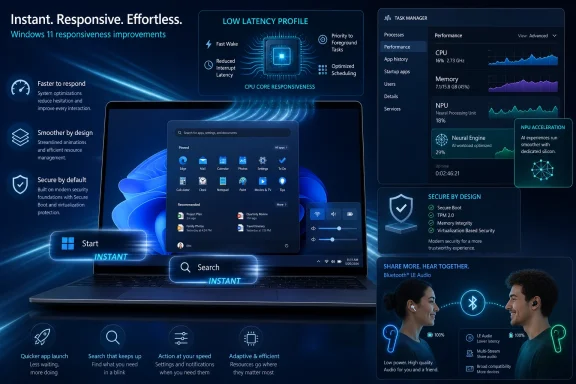
KB5089573 goes after that gap. Microsoft’s official wording is restrained: the update “accelerates app launch and core shell experiences such as Start menu, Search, and Action Center.” The more interesting reporting around the update identifies the mechanism as a Low Latency Profile, a scheduler-level behavior that briefly asks the CPU to wake up and run harder during moments when the shell needs to respond immediately.
That distinction matters. Microsoft is not claiming that KB5089573 turns a low-end laptop into a workstation, nor that it fixes every source of Windows 11 sluggishness. The claim is narrower and more useful: Windows can feel faster if it spends more urgency on the first second of interaction.
This is the right target. Most users do not experience operating-system performance as an average frame time or a benchmark score. They experience it as the delay between pressing the Windows key and seeing Start, the lag between typing a query and getting a result, or the awkward pause before a flyout becomes usable.
That is important because the obvious criticism writes itself: why should a modern operating system need to goose the CPU just to open the Start menu? It is a fair jab. Windows 11’s shell is heavier than many users would like, and Microsoft has spent years layering web-connected search, recommendations, richer UI surfaces, Copilot hooks, and account-driven experiences into places that used to be more direct.
But the more practical view is that modern Windows is what it is: composited, service-connected, telemetry-aware, security-hardened, and increasingly AI-adjacent. If Microsoft cannot make every layer disappear, it can at least make the most common moments feel less lazy. KB5089573 is not an architectural confession, but it is an engineering concession.
The trade-off is also more subtle than “speed versus battery.” A short boost at the right moment may be less wasteful than leaving users to poke, retry, and wait through a sluggish interface. Responsiveness is not just about raw compute; it is about delivering power precisely when delay is most visible.
That is why this update has drawn attention disproportionate to its changelog entry. A Start menu that opens immediately is not a feature in the marketing sense. It is the baseline expectation of a desktop operating system.
The frustration is sharper because Windows users have long memories. Windows 7, for all its age, is still remembered by many enthusiasts as direct and predictable. Windows 10 had its own problems, but its interface often felt less performative. Windows 11, by contrast, has sometimes made simple actions feel like they are passing through a committee.
KB5089573 does not erase that history. It does, however, suggest Microsoft has decided that perceived latency is now worth treating as a primary defect. That is overdue, but welcome.
That distinction matters for IT departments. Optional preview updates are useful for early validation, but they are not usually where enterprises want to discover regressions at scale. The right move for most admins is to test KB5089573 on representative hardware, especially laptops with aggressive power management, devices with USB-C docks, Copilot+ PCs, and systems with older EFI layouts.
Microsoft also says features in this release use both gradual and normal rollout models. In practice, that means two machines with the same build number may not expose every behavior at the same time. This is now standard Windows servicing reality, but it remains irritating for administrators trying to confirm whether a fix is present.
For enthusiasts, the temptation is obvious: install now, see if the desktop feels better, and enjoy the improvement before Patch Tuesday. For businesses, the more boring answer is still the better one: validate first, then let the cumulative security update carry the change into production.
The catch is hardware. Shared Audio requires supported Bluetooth LE Audio devices, both on the PC side and the headset side. Newer Copilot+ PCs and recent laptops are more likely to qualify, but this is not a universal Bluetooth feature that magically appears on every Windows 11 machine.
Still, the arrival of Shared Audio is a useful reminder that Microsoft is trying to make Windows feel less like a purely corporate endpoint and more like a modern personal device platform. Phones have normalized this kind of audio sharing. Windows is late, but late is better than absent.
The feature also fits a broader pattern. Microsoft is leaning on newer hardware capabilities — NPUs, LE Audio, better standby behavior, presence sensors, and modern camera pipelines — to make Windows 11 feel more contemporary. The risk is that the experience becomes fragmented: excellent on new machines, uneven on everything else.
That sounds like plumbing, and in a way it is. But Task Manager has always been where Windows turns invisible platform bets into visible user reality. CPU, memory, disk, GPU, and now NPU: if it appears there, Microsoft is telling users and developers that the component matters.
The timing is not accidental. Windows 11 is absorbing more AI-adjacent features, from local image and semantic components to Copilot+ experiences. Some of those features require specific hardware. Some run locally. Some lean on cloud services. Users and administrators need a way to see what is actually consuming resources.
NPU monitoring will not settle every AI privacy or performance argument, but it gives the platform a necessary layer of accountability. If Windows is going to sell users dedicated AI silicon, Task Manager should show whether that silicon is doing useful work, sitting idle, or becoming another opaque background drain.
AppContainer isolation is part of Windows’ modern application security model. It limits what an app can touch and helps wall off processes from the broader system. The problem is that isolation has often been invisible to normal users, buried in documentation and developer tooling rather than surfaced in everyday diagnostics.
Putting isolation status in Task Manager makes the security boundary more legible. An administrator troubleshooting an app can more quickly see whether it is running with a more constrained model. A power user can distinguish between traditional Win32 processes and more tightly contained modern app behavior.
This is the kind of change Windows needs more of. Security features are strongest when they are not only present, but observable. If Microsoft wants users to trust the platform, it should keep making the invisible mechanics of containment, identity, and hardware-backed protection easier to inspect.
KB5089573 starts to treat shared camera access as a platform capability rather than an accident to be handled by third-party utilities. Microsoft is also adding Basic Camera Mode, a simplified operating mode intended for troubleshooting and stability when a camera misbehaves.
The enterprise angle is notable. Microsoft says administrators can configure Multi-App Camera mode and Basic Camera mode through Group Policy. That matters in schools, call centers, healthcare environments, and locked-down corporate fleets where camera behavior is not just a convenience issue.
This is the kind of unglamorous work that makes Windows better in the real world. The PC is no longer just a keyboard, mouse, and monitor. It is a camera endpoint, audio hub, authentication device, AI client, and remote-work appliance. The operating system needs to arbitrate those devices cleanly.
Modern Standby remains one of Windows’ most contentious “modern PC” technologies. In theory, it gives laptops phone-like connected sleep behavior. In practice, users have complained for years about battery drain, heat in bags, unreliable wake behavior, and inconsistent hardware implementation.
KB5089573 does not solve Modern Standby as a whole. But the update’s Windows Hello and sensor-hub changes show Microsoft is still shaving down the rough edges. The sensor fix is particularly relevant for battery life, because apps that keep sensor hardware awake can quietly erode standby endurance.
There is also an HID and input-stack battery improvement aimed at failed Human Interface Device peripherals and standby transfers. That is deeply unsexy, which is often where the most useful battery fixes live. A laptop does not need a dramatic bug to disappoint users; it only needs one misbehaving device path that refuses to sleep properly.
This is classic Windows servicing archaeology. Modern cumulative updates increasingly assume that older partition layouts, OEM decisions, and years of upgrade history have left enough room for new boot-related material. Sometimes they have not.
For home users, the visible symptom is simple: an update gets partway through, fails, and rolls back. For administrators, the issue is more annoying because it can affect older fleets unevenly. Two machines with the same OS version may have different recovery partitions, EFI partition sizes, OEM tooling, and upgrade histories.
KB5089573’s fix reduces the immediate pain, but it does not eliminate the broader lesson. Windows’ servicing model is only as clean as the disk layouts it inherits. As Secure Boot certificate updates become more urgent in 2026, administrators should treat boot partitions as part of update readiness, not as forgotten installation debris.
That places KB5089573 in a different category. The faster Start menu is the headline users will feel, but the Secure Boot work is the sort of background maintenance that keeps fleets from falling into avoidable boot and trust-chain problems.
Microsoft says this update adds more device-targeting data to help eligible devices automatically receive new Secure Boot certificates, with controlled rollout based on successful update signals. It also adds a policy to limit certain Secure Boot service data sent to Microsoft, relevant for organizations using restricted traffic baselines.
In other words, this is both a consumer polish update and a platform hygiene update. That combination is very Windows: the same cumulative package can contain a user-visible animation improvement, a Bluetooth feature, an AI telemetry surface, a camera pipeline change, and boot-chain preparation for certificate expiration.
Early user reports around any Windows preview update should be read carefully. Some users report obvious responsiveness gains. Others report regressions, gaming instability, install failures, or device-specific weirdness. The noisy middle is normal for Windows, because the installed base is effectively a hardware museum with Wi-Fi.
The most important thing is not to confuse anecdote with absence of risk. If a gaming PC, workstation, or business laptop is currently stable and mission-critical, waiting for the next security update is the sensible choice. If a user is comfortable uninstalling updates, reading build numbers, and tolerating preview friction, KB5089573 is a tempting install.
There is also the staged rollout issue. Installing the KB does not necessarily mean every highlighted feature appears instantly. That can make troubleshooting maddening, especially when online discussions assume the update behaves identically everywhere.
The Low Latency Profile acknowledges that users judge performance at the edges. They judge the moment they press a key. They judge the animation that stutters. They judge the search box that waits just long enough to make them wonder whether they clicked the wrong thing.
That is why a brief CPU boost can be more meaningful than a larger benchmark improvement hidden elsewhere. It aligns system behavior with human attention. Windows does not need to be at maximum speed all the time; it needs to stop looking asleep when summoned.
This is also where Microsoft’s AI-era ambitions meet desktop reality. Users may tolerate Copilot experiments, NPU marketing, and cloud-connected features if the basics feel sharp. They will be far less forgiving if the Start menu hesitates while the company talks about agents.
If K2 is real in the way it matters, KB5089573 should be the beginning, not the victory lap. Start and Search responsiveness are obvious targets, but Windows 11 still has other rough edges: context menu latency, File Explorer reliability, Settings sprawl, inconsistent dark-mode surfaces, upgrade friction, notification clutter, and the eternal mystery of why some shell experiences feel web-heavy on powerful local machines.
The optimistic reading is that Microsoft has found a productive framework: identify the moments users complain about most, instrument them, and fix the underlying latency path rather than merely changing the animation. The cynical reading is that Windows has become heavy enough that Microsoft now needs special profiles to make basic interactions feel normal.
Both readings can be true. Engineering progress often arrives wrapped in tacit admission. KB5089573 makes Windows 11 better while also reminding everyone why that improvement was necessary.
 Microsoft Finally Treats Responsiveness as a Feature, Not a Side Effect
For years, Windows performance conversations have been trapped between two unsatisfying poles. Benchmarks told one story, while the daily experience of opening Start, searching for an app, invoking Quick Settings, or waiting for a shell flyout told another. Windows 11 could be fast in synthetic tests and still feel oddly reluctant when a user asked it to do something simple.KB5089573 goes after that gap. Microsoft’s official wording is restrained: the update “accelerates app launch and core shell experiences such as Start menu, Search, and Action Center.” The more interesting reporting around the update identifies the mechanism as a Low Latency Profile, a scheduler-level behavior that briefly asks the CPU to wake up and run harder during moments when the shell needs to respond immediately.
That distinction matters. Microsoft is not claiming that KB5089573 turns a low-end laptop into a workstation, nor that it fixes every source of Windows 11 sluggishness. The claim is narrower and more useful: Windows can feel faster if it spends more urgency on the first second of interaction.
This is the right target. Most users do not experience operating-system performance as an average frame time or a benchmark score. They experience it as the delay between pressing the Windows key and seeing Start, the lag between typing a query and getting a result, or the awkward pause before a flyout becomes usable.
The Three-Second Sprint Is a Bigger Deal Than It Sounds
The Low Latency Profile is conceptually simple. When the user triggers certain common shell actions, Windows briefly boosts CPU responsiveness, reportedly for up to a few seconds, so the system can bring interface elements forward without the familiar half-beat delay. It is not a permanent performance mode and not a blanket “high performance” power plan.That is important because the obvious criticism writes itself: why should a modern operating system need to goose the CPU just to open the Start menu? It is a fair jab. Windows 11’s shell is heavier than many users would like, and Microsoft has spent years layering web-connected search, recommendations, richer UI surfaces, Copilot hooks, and account-driven experiences into places that used to be more direct.
But the more practical view is that modern Windows is what it is: composited, service-connected, telemetry-aware, security-hardened, and increasingly AI-adjacent. If Microsoft cannot make every layer disappear, it can at least make the most common moments feel less lazy. KB5089573 is not an architectural confession, but it is an engineering concession.
The trade-off is also more subtle than “speed versus battery.” A short boost at the right moment may be less wasteful than leaving users to poke, retry, and wait through a sluggish interface. Responsiveness is not just about raw compute; it is about delivering power precisely when delay is most visible.
Windows 11’s Reputation Was Damaged by the Small Pauses
Windows 11’s performance reputation has always been complicated. Many users moved from Windows 10 onto newer processors and faster SSDs, only to find that the desktop did not always feel more immediate. The issue was rarely catastrophic. It was death by small pauses.That is why this update has drawn attention disproportionate to its changelog entry. A Start menu that opens immediately is not a feature in the marketing sense. It is the baseline expectation of a desktop operating system.
The frustration is sharper because Windows users have long memories. Windows 7, for all its age, is still remembered by many enthusiasts as direct and predictable. Windows 10 had its own problems, but its interface often felt less performative. Windows 11, by contrast, has sometimes made simple actions feel like they are passing through a committee.
KB5089573 does not erase that history. It does, however, suggest Microsoft has decided that perceived latency is now worth treating as a primary defect. That is overdue, but welcome.
The Update Is Optional, but the Direction Is Not
KB5089573 is an optional preview update, which means cautious users and administrators are not required to install it immediately. It is available through Windows Update’s optional update flow and through the Microsoft Update Catalog. Its changes are expected to roll into the next monthly security update cycle, which is the route most managed environments will prefer.That distinction matters for IT departments. Optional preview updates are useful for early validation, but they are not usually where enterprises want to discover regressions at scale. The right move for most admins is to test KB5089573 on representative hardware, especially laptops with aggressive power management, devices with USB-C docks, Copilot+ PCs, and systems with older EFI layouts.
Microsoft also says features in this release use both gradual and normal rollout models. In practice, that means two machines with the same build number may not expose every behavior at the same time. This is now standard Windows servicing reality, but it remains irritating for administrators trying to confirm whether a fix is present.
For enthusiasts, the temptation is obvious: install now, see if the desktop feels better, and enjoy the improvement before Patch Tuesday. For businesses, the more boring answer is still the better one: validate first, then let the cumulative security update carry the change into production.
Shared Audio Shows Windows Still Wants the Consumer Living Room
The other user-facing feature in KB5089573 is Shared Audio, which lets two people listen to audio from one Windows 11 PC using Bluetooth LE Audio broadcast technology. The use case is easy to understand: two people watching a movie on a plane, studying together, or sharing music from a single laptop without passing around earbuds or using a splitter from another decade.The catch is hardware. Shared Audio requires supported Bluetooth LE Audio devices, both on the PC side and the headset side. Newer Copilot+ PCs and recent laptops are more likely to qualify, but this is not a universal Bluetooth feature that magically appears on every Windows 11 machine.
Still, the arrival of Shared Audio is a useful reminder that Microsoft is trying to make Windows feel less like a purely corporate endpoint and more like a modern personal device platform. Phones have normalized this kind of audio sharing. Windows is late, but late is better than absent.
The feature also fits a broader pattern. Microsoft is leaning on newer hardware capabilities — NPUs, LE Audio, better standby behavior, presence sensors, and modern camera pipelines — to make Windows 11 feel more contemporary. The risk is that the experience becomes fragmented: excellent on new machines, uneven on everything else.
Task Manager Becomes an AI Dashboard by Stealth
Task Manager’s new NPU visibility may not excite everyone today, but it is one of the more strategically important changes in KB5089573. The update adds optional NPU and NPU Engine columns in Task Manager, along with memory-related NPU columns on the Details page. It also surfaces GPU neural engines on the Performance page.That sounds like plumbing, and in a way it is. But Task Manager has always been where Windows turns invisible platform bets into visible user reality. CPU, memory, disk, GPU, and now NPU: if it appears there, Microsoft is telling users and developers that the component matters.
The timing is not accidental. Windows 11 is absorbing more AI-adjacent features, from local image and semantic components to Copilot+ experiences. Some of those features require specific hardware. Some run locally. Some lean on cloud services. Users and administrators need a way to see what is actually consuming resources.
NPU monitoring will not settle every AI privacy or performance argument, but it gives the platform a necessary layer of accountability. If Windows is going to sell users dedicated AI silicon, Task Manager should show whether that silicon is doing useful work, sitting idle, or becoming another opaque background drain.
The Isolation Column Is Quietly More Important Than It Looks
KB5089573 also adds an optional Isolation column in Task Manager, showing which apps are running inside an AppContainer sandbox. This is not as flashy as a faster Start menu, but security-minded users should pay attention.AppContainer isolation is part of Windows’ modern application security model. It limits what an app can touch and helps wall off processes from the broader system. The problem is that isolation has often been invisible to normal users, buried in documentation and developer tooling rather than surfaced in everyday diagnostics.
Putting isolation status in Task Manager makes the security boundary more legible. An administrator troubleshooting an app can more quickly see whether it is running with a more constrained model. A power user can distinguish between traditional Win32 processes and more tightly contained modern app behavior.
This is the kind of change Windows needs more of. Security features are strongest when they are not only present, but observable. If Microsoft wants users to trust the platform, it should keep making the invisible mechanics of containment, identity, and hardware-backed protection easier to inspect.
Camera Sharing Moves From Workaround to Platform Feature
The new Multi-App Camera support is another feature that sounds minor until you remember how many modern workflows involve a webcam. A user may be on a Teams call while also recording, streaming, using a virtual camera tool, running transcription software, or testing a second communications app. Historically, camera access on Windows has too often been a one-app-at-a-time fight.KB5089573 starts to treat shared camera access as a platform capability rather than an accident to be handled by third-party utilities. Microsoft is also adding Basic Camera Mode, a simplified operating mode intended for troubleshooting and stability when a camera misbehaves.
The enterprise angle is notable. Microsoft says administrators can configure Multi-App Camera mode and Basic Camera mode through Group Policy. That matters in schools, call centers, healthcare environments, and locked-down corporate fleets where camera behavior is not just a convenience issue.
This is the kind of unglamorous work that makes Windows better in the real world. The PC is no longer just a keyboard, mouse, and monitor. It is a camera endpoint, audio hub, authentication device, AI client, and remote-work appliance. The operating system needs to arbitrate those devices cleanly.
Windows Hello and Modern Standby Get Another Round of Damage Control
Windows Hello improvements in KB5089573 focus on reducing unexpected sign-in blocks and improving behavior after Modern Standby. That may sound like routine polish, but anyone who has opened a laptop expecting instant authentication and instead met a stubborn lock screen knows why it matters.Modern Standby remains one of Windows’ most contentious “modern PC” technologies. In theory, it gives laptops phone-like connected sleep behavior. In practice, users have complained for years about battery drain, heat in bags, unreliable wake behavior, and inconsistent hardware implementation.
KB5089573 does not solve Modern Standby as a whole. But the update’s Windows Hello and sensor-hub changes show Microsoft is still shaving down the rough edges. The sensor fix is particularly relevant for battery life, because apps that keep sensor hardware awake can quietly erode standby endurance.
There is also an HID and input-stack battery improvement aimed at failed Human Interface Device peripherals and standby transfers. That is deeply unsexy, which is often where the most useful battery fixes live. A laptop does not need a dramatic bug to disappoint users; it only needs one misbehaving device path that refuses to sleep properly.
The EFI Partition Issue Is a Warning From Windows’ Past
One of the more practical deployment notes around this release involves the EFI System Partition. Microsoft says KB5089573 addresses an issue where some devices could fail to complete installation with error 0x800f0922 when the EFI System Partition had very limited free space, especially 10 MB or less. That issue was associated with the May 2026 security update and could cause installs to fail and roll back.This is classic Windows servicing archaeology. Modern cumulative updates increasingly assume that older partition layouts, OEM decisions, and years of upgrade history have left enough room for new boot-related material. Sometimes they have not.
For home users, the visible symptom is simple: an update gets partway through, fails, and rolls back. For administrators, the issue is more annoying because it can affect older fleets unevenly. Two machines with the same OS version may have different recovery partitions, EFI partition sizes, OEM tooling, and upgrade histories.
KB5089573’s fix reduces the immediate pain, but it does not eliminate the broader lesson. Windows’ servicing model is only as clean as the disk layouts it inherits. As Secure Boot certificate updates become more urgent in 2026, administrators should treat boot partitions as part of update readiness, not as forgotten installation debris.
Secure Boot Turns This From Convenience Update Into Risk Management
The Secure Boot certificate note in KB5089573 deserves more attention than the average user will give it. Microsoft warns that Secure Boot certificates used by most Windows devices are set to expire starting in June 2026, and that some personal and business devices could be affected if they are not updated in time.That places KB5089573 in a different category. The faster Start menu is the headline users will feel, but the Secure Boot work is the sort of background maintenance that keeps fleets from falling into avoidable boot and trust-chain problems.
Microsoft says this update adds more device-targeting data to help eligible devices automatically receive new Secure Boot certificates, with controlled rollout based on successful update signals. It also adds a policy to limit certain Secure Boot service data sent to Microsoft, relevant for organizations using restricted traffic baselines.
In other words, this is both a consumer polish update and a platform hygiene update. That combination is very Windows: the same cumulative package can contain a user-visible animation improvement, a Bluetooth feature, an AI telemetry surface, a camera pipeline change, and boot-chain preparation for certificate expiration.
The Preview Label Still Carries Real Risk
Optional preview updates are not beta builds, but they are also not the conservative default path. They contain production-quality improvements, but they arrive before the next security update bundles them for broad deployment. That timing makes them useful for testing and risky for impatience.Early user reports around any Windows preview update should be read carefully. Some users report obvious responsiveness gains. Others report regressions, gaming instability, install failures, or device-specific weirdness. The noisy middle is normal for Windows, because the installed base is effectively a hardware museum with Wi-Fi.
The most important thing is not to confuse anecdote with absence of risk. If a gaming PC, workstation, or business laptop is currently stable and mission-critical, waiting for the next security update is the sensible choice. If a user is comfortable uninstalling updates, reading build numbers, and tolerating preview friction, KB5089573 is a tempting install.
There is also the staged rollout issue. Installing the KB does not necessarily mean every highlighted feature appears instantly. That can make troubleshooting maddening, especially when online discussions assume the update behaves identically everywhere.
The Real Story Is Microsoft Optimizing for Feeling
KB5089573 is interesting because it shifts the Windows performance conversation from throughput to feel. For decades, PC performance was easy to narrate: faster CPU, more RAM, better GPU, quicker SSD. But modern operating systems can squander those gains with layers of indirection, cloud-connected UI, background indexing, security checks, and inefficient shell code.The Low Latency Profile acknowledges that users judge performance at the edges. They judge the moment they press a key. They judge the animation that stutters. They judge the search box that waits just long enough to make them wonder whether they clicked the wrong thing.
That is why a brief CPU boost can be more meaningful than a larger benchmark improvement hidden elsewhere. It aligns system behavior with human attention. Windows does not need to be at maximum speed all the time; it needs to stop looking asleep when summoned.
This is also where Microsoft’s AI-era ambitions meet desktop reality. Users may tolerate Copilot experiments, NPU marketing, and cloud-connected features if the basics feel sharp. They will be far less forgiving if the Start menu hesitates while the company talks about agents.
The K2 Question Hanging Over Windows 11
Reporting around KB5089573 connects the performance work to Microsoft’s broader internal Windows K2 initiative, described as an effort to address major Windows 11 user criticisms through foundational improvements. Microsoft has not turned K2 into a consumer brand, and that is probably wise. Users do not need another slogan. They need the OS to behave.If K2 is real in the way it matters, KB5089573 should be the beginning, not the victory lap. Start and Search responsiveness are obvious targets, but Windows 11 still has other rough edges: context menu latency, File Explorer reliability, Settings sprawl, inconsistent dark-mode surfaces, upgrade friction, notification clutter, and the eternal mystery of why some shell experiences feel web-heavy on powerful local machines.
The optimistic reading is that Microsoft has found a productive framework: identify the moments users complain about most, instrument them, and fix the underlying latency path rather than merely changing the animation. The cynical reading is that Windows has become heavy enough that Microsoft now needs special profiles to make basic interactions feel normal.
Both readings can be true. Engineering progress often arrives wrapped in tacit admission. KB5089573 makes Windows 11 better while also reminding everyone why that improvement was necessary.
The May Preview Gives Windows 11 a Sharper Edge
For users and administrators deciding what to do next, KB5089573 is not a mystery so much as a timing decision. The update is meaningful, but it is still a preview. The fastest path is to install it manually; the safer path is to test or wait for the next security update cycle.- KB5089573 applies to Windows 11 versions 24H2 and 25H2 and moves systems to builds 26100.8524 and 26200.8524.
- The most visible performance change is improved responsiveness for Start, Search, Action Center, and app launches, widely associated with the Low Latency Profile.
- Shared Audio requires Bluetooth LE Audio support on both the PC and the paired listening devices, so older headphones and laptops may not qualify.
- Task Manager now exposes more NPU and neural-engine activity, which makes AI workloads easier to observe on supported hardware.
- Administrators should pay attention to Secure Boot certificate preparation, EFI System Partition history, and staged rollout behavior before broad deployment.
- Users who value stability over early access can wait for the next security update rather than installing the optional preview manually.
References
- Primary source: Memeburn
Published: Sun, 31 May 2026 07:24:41 GMT

Windows 11 Just Got a Real Speed Boost Update KB5089573 - Memeburn
Windows 11 KB5089573 update features bring a low-latency performance boost, shared Bluetooth audio, and smarter AI monitoring — here's what you're getting. memeburn.com
- Related coverage: windowslatest.com

Windows 11 KB5089573 just made PCs more responsive, direct download links (.msu)
Windows 11 KB5089573 is a major update that bumps the OS to Build 26200.8524 and adds multiple new features. www.windowslatest.com
- Related coverage: windowsreport.com
- Related coverage: windowsforum.com

Windows 11 KB5089573 Low Latency Profile: Faster Start, Search & Task Manager
Microsoft released Windows 11 preview update KB5089573 on May 26, 2026, for Windows 11 versions 24H2 and 25H2, bringing systems to builds 26100.8524 and 26200.8524 with a performance change widely described as the new Low Latency Profile. The short version is that Windows is learning to sprint... windowsforum.com
- Official source: techcommunity.microsoft.com
KB5089573 forced install + Lenovo network stack degradation (HTTPS latency, build 26200.8524) | Microsoft Community Hub
KB5089573 installed automatically on a Lenovo system despite updates being paused and no preview updates enabled. After installation, the system jumped to... techcommunity.microsoft.com
- Related coverage: windowscentral.com
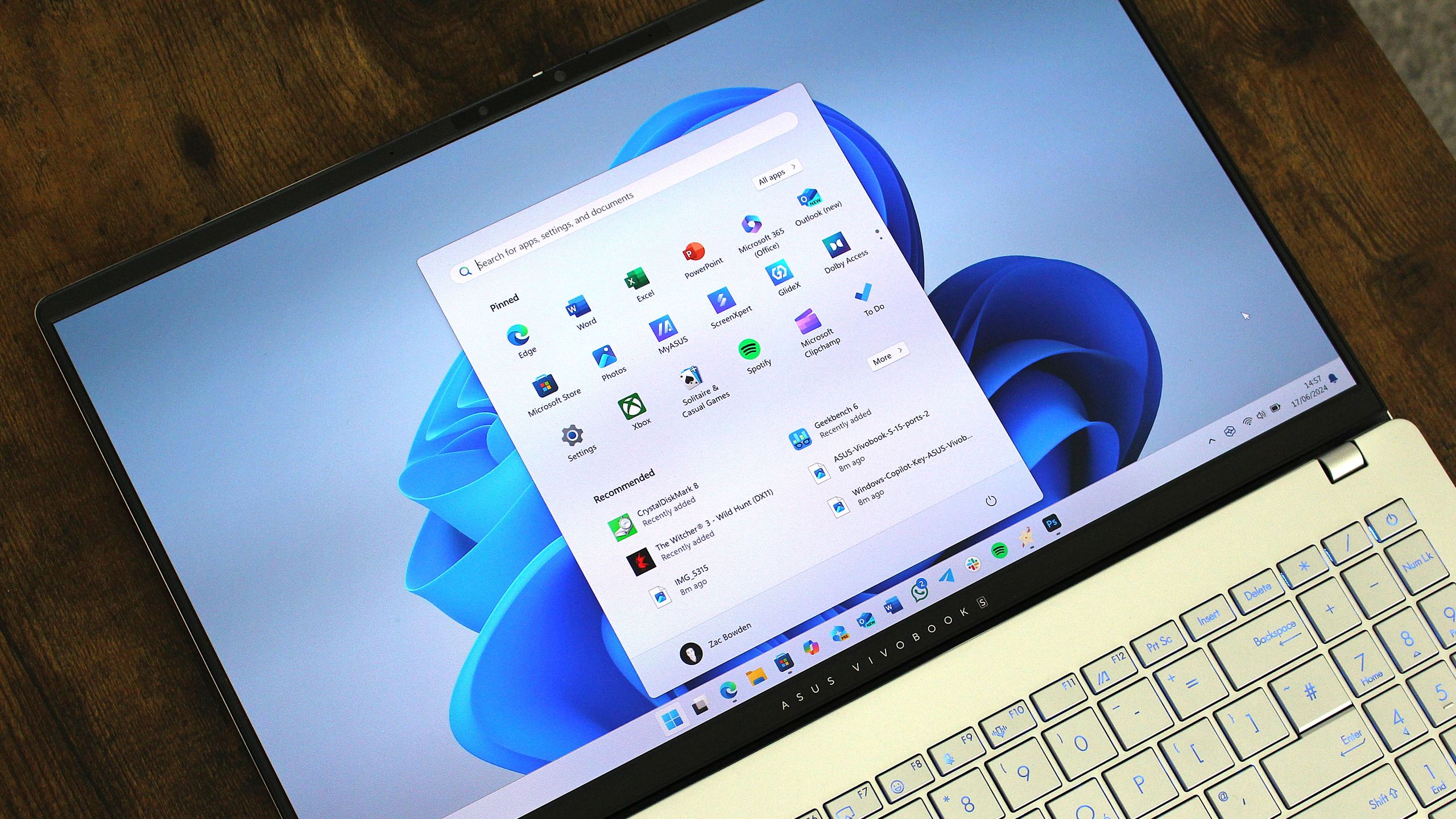
Windows 11's latest OS update is packing serious performance gains
Windows 11 update KB5089573 is now generally available as Microsoft's non-security preview update for May, and is packing genuinely notable performance improvements. www.windowscentral.com
- Official source: support.microsoft.com
May 26, 2026—KB5089573 (OS Builds 26200.8524 and 26100.8524) Preview - Microsoft Support
 support.microsoft.com
- Related coverage: technobezz.com
Windows 11 KB5089573 update speeds up system flyouts by 70 percent and app launches by 40 percent
Windows 11's KB5089573 update boosts system flyouts by 70% and app launches by 40% under a new performance initiative. www.technobezz.com
- Related coverage: ddxgroup.com
- Related coverage: techrounder.com
