Microsoft is expanding Windows 11’s Low Latency Profile to more PCs with the June 2026 optional preview update, KB5095093, after initially tying the performance feature to this month’s broader Windows 11 update wave for versions 24H2 and 25H2. The change is small in code but large in symbolism: Microsoft is trying to make Windows feel faster without asking users to buy faster hardware. That is not the same as making Windows lighter, and the distinction matters. Low Latency Profile is Microsoft’s admission that modern Windows responsiveness is now as much about scheduling moments of attention as it is about raw benchmark throughput.
Windows performance has always had two faces. There is the measurable kind, the one reviewers capture with encode times, frame rates, compile jobs, and synthetic CPU scores. Then there is the kind users actually complain about: the half-second hitch when Start opens, the sticky animation when Quick Settings appears, the search panel that seems to think before it draws.
Low Latency Profile is aimed squarely at the second problem. It does not promise to turn a Core i3 into a Core Ultra, nor does it magically reduce the memory footprint of Windows 11. Instead, it briefly raises CPU activity around interactive shell events so that visible interface components appear with less hesitation.
That makes it both practical and slightly embarrassing. Practical, because operating systems should prioritize the foreground interaction the user is waiting on. Embarrassing, because Microsoft has spent years selling Windows 11 as refined and modern while ordinary UI surfaces have too often felt heavier than they should on perfectly serviceable PCs.
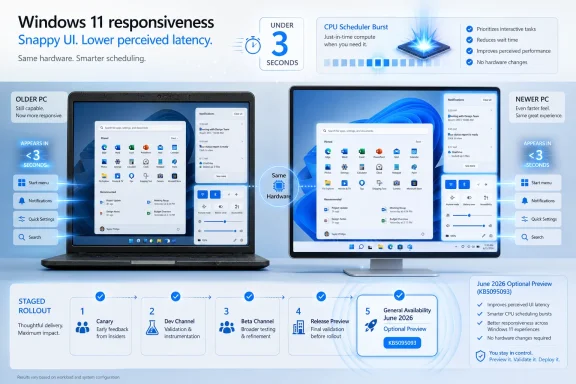
The reported behavior is straightforward: when users open Start, Notifications, Quick Settings, or similar Windows shell components, Windows can briefly push CPU utilization higher for a very short window, reportedly under three seconds. The goal is not sustained speed but perceived latency, the time between a click and the system visibly responding.
That is why this feature attracts so much attention. Nobody buys a PC to admire a scheduler. But everyone notices when the Start menu feels like it has stopped dragging an anchor.
That phrasing is important. Microsoft’s Windows feature delivery is no longer a clean line between “installed” and “available.” Controlled Feature Rollout means two machines can have the same cumulative update, the same build family, and different visible behavior.
For users, this creates the familiar Windows 11 fog. You install the update, read that a feature has arrived, reboot, and still cannot find a toggle, banner, or confirmation screen. In this case, that is partly by design: Low Latency Profile is not presented as a user-facing setting.
The optional preview update also sits in the usual Windows servicing rhythm. Optional preview releases often carry fixes and feature enablement ahead of the next mandatory security update. Enthusiasts install them early; cautious administrators usually treat them as a preview of next month’s Patch Tuesday payload unless a specific fix is urgently needed.
That makes KB5095093 a widening lane rather than a finish line. More PCs may receive Low Latency Profile now, but “more” is not “all,” and Microsoft’s staged rollout model means the practical answer to “Do I have it?” remains irritatingly machine-specific.
That distinction matters because Microsoft’s own performance language around Windows updates can sometimes blur the line between OS responsiveness and application performance. A faster Start menu is useful. It is not the same as making Photoshop, Teams, Chrome, or a line-of-business ERP client launch dramatically faster.
There are indications that app-launch improvements may arrive later, or at least be expanded separately. If that happens, the stakes rise. Boosting the shell for a second or two is one thing; changing how Windows schedules third-party application launch paths across diverse hardware, drivers, and enterprise policies is a wider blast radius.
For now, the best way to understand Low Latency Profile is as a foreground-interaction assist. Windows sees a user-triggered shell action and gives the CPU a short burst of attention. It is closer to a doorman opening the entrance quickly than to a full renovation of the building.
That also explains why high-end desktops may show little visible difference. If your system already opens Start instantly, there is not much latency left to hide. The feature’s natural constituency is the aging laptop, the low-cost desktop, the education fleet machine, and the office PC that technically meets Windows 11 requirements but does not feel enthusiastic about it.
Windows 11’s minimum requirements created a hard compatibility line, but inside the supported world there remains a huge range of actual experience. An 8GB RAM laptop with a low-tier Intel Core processor can run Windows 11 and still make routine interactions feel like negotiations. That is the gap Microsoft is trying to narrow.
If Low Latency Profile works as described, it is a rare Windows feature that may matter more to the least glamorous PCs than the newest ones. That is good engineering politics. Most performance features are marketed with flagship hardware in mind; this one sounds most useful where every click competes with background services, browser tabs, security tooling, and the general weight of a modern desktop OS.
But the old-PC angle also exposes the limits of the fix. A brief CPU burst cannot compensate for insufficient memory, slow storage, bad drivers, thermal throttling, or OEM bloat. It can make the visible response faster at the moment of interaction, but it cannot turn a constrained system into an unconstrained one.
That is why “feels faster” is the right phrase and also the danger zone. Feeling faster is valuable. Feeling faster can also become a substitute for the harder work of reducing baseline overhead.
But the criticism misses the practical point. If macOS and Linux already use similar ideas, the scandal is not that Windows is doing it now. The scandal is that Windows has needed more of this polish for years.
Modern CPUs are built around shifting states: boosting, sleeping, moving work across cores, balancing heat, battery life, and responsiveness. The operating system’s job is to make those transitions invisible. If the user clicks Start, the system should act like that click matters more than the background housekeeping currently nibbling at the machine.
In that sense, Low Latency Profile is less a gimmick than a belated correction. Windows has become extraordinarily capable, but capability has accumulated weight. Widgets, search indexing, cloud hooks, security layers, app frameworks, telemetry, virtualization-based protections, and compatibility scaffolding all coexist on the same consumer and business desktops.
The operating system therefore has to be more opinionated about attention. It must know when to conserve and when to sprint. Low Latency Profile is one more sign that Microsoft understands responsiveness is not just a benchmark category; it is the first impression users get hundreds of times a day.
For enthusiasts and administrators, however, the invisibility is frustrating. Windows 11 already suffers from feature opacity: capabilities appear through staged rollouts, Moment updates, enablement packages, servicing stack changes, and server-side flags. Low Latency Profile adds another behavior that users may experience without a clear indication of whether it is active.
That opacity is why third-party tools are already part of the conversation. Users are checking CPU behavior with monitoring tools such as HWiNFO and, in some cases, force-enabling feature IDs with ViveTool. This is classic Windows enthusiast culture: where Microsoft provides no switch, the community finds the lever behind the wall.
But this is also where caution belongs. ViveTool is useful, but it is not a supported deployment mechanism for production systems. Flipping internal feature IDs can enable code paths Microsoft has not activated for a specific device, configuration, or rollout cohort.
For a hobby PC, that is part of the fun. For a managed fleet, it is a change-control violation wearing a performance hat.
Microsoft’s reported design keeps the boost brief, which should limit collateral impact. A sub-three-second burst during shell interactions is unlikely to transform energy usage by itself. Still, enterprise reality is made of edge cases: older docks, aggressive endpoint security, thermal-constrained mini PCs, virtual desktop sessions, shared workstations, and line-of-business software that reacts badly to changes most users never notice.
The staged rollout model cuts both ways here. It lets Microsoft observe telemetry and limit exposure if something goes wrong. But it also means administrators may find behavior changing unevenly across similar machines unless they have strong update rings and reporting in place.
For business users, KB5095093 should be treated like any optional preview update: useful for validation, not something to rush blindly onto every production endpoint. If Low Latency Profile lands broadly in a future mandatory cumulative update, the right preparation is not panic. It is testing representative hardware and watching for the boring metrics that become important only when they move.
Battery life deserves special attention on laptops. Even if the boost is brief, interactive bursts happen often. Opening Start, Search, Notifications, system flyouts, and settings panes are small events individually, but mobile computing is a game of accumulated small events. Microsoft’s job is to make the responsiveness gain visible while keeping the energy cost forgettable.
Task Manager may show some of this behavior, but third-party monitoring tools can expose per-core activity more clearly. If the CPU briefly jumps when a shell surface opens, Low Latency Profile may be active. If nothing obvious happens, it may not be enabled, the machine may already be fast enough that the effect is hard to distinguish, or another power-management behavior may be masking the signal.
That uncertainty is the problem. CPU spikes are not unique fingerprints. Many normal system actions produce transient CPU activity. Observing a spike after opening Start is suggestive, not courtroom evidence.
Microsoft could solve this with a simple status indicator or PowerShell-readable state for administrators. It does not need to give everyone a toggle. It could at least let technical users confirm whether the feature is active without treating performance monitoring like a séance.
Until then, the verification ritual will remain messy. Users will compare screenshots, forum posts, feature IDs, build numbers, and subjective impressions. That is fun for enthusiasts and terrible as a communication model.
But force-enabling is not the same as receiving. Microsoft’s staged rollouts exist because Windows runs across an absurdly broad hardware and software universe. A feature withheld from a machine may be withheld for boring reasons, experimental reasons, or no reason visible outside Microsoft’s telemetry systems.
This creates a trust gap. Users see the feature, see the ID, see others enabling it, and conclude Microsoft is arbitrarily holding back performance. Sometimes that conclusion may be fair. Sometimes the delay may be protecting them from a bug they would rather not meet.
The better answer is transparency. Microsoft does not need to reveal every rollout rule, but it should more clearly say whether a feature is present, enabled, staged, or not yet applicable. Windows Update already asks users to tolerate a servicing model of great complexity. The least it can offer in return is intelligible state.
In the meantime, ViveTool remains what it has long been: a useful enthusiast instrument and an unsupported production risk. It is a flashlight, not a policy framework.
Some of it is architectural. Windows carries decades of compatibility while layering in new security models, app platforms, cloud integration, and AI-adjacent services. The result can be a desktop that is powerful but not always crisp.
A scheduler boost can hide some of that roughness. It cannot resolve every cause. If File Explorer stalls because of network locations, shell extensions, cloud sync overlays, or storage latency, a short CPU burst may help only at the margins. If Search is slow because indexing or ranking is messy, a boost does not make the model elegant.
That does not make Low Latency Profile unimportant. It makes it one piece of a larger obligation. Microsoft should improve the moment of interaction, but it should also reduce the amount of work required to satisfy that interaction.
The danger is that performance theater can become a substitute for performance engineering. Users will welcome a snappier Start menu. They should still expect Microsoft to keep slimming, simplifying, and debugging the shell underneath it.
For years, Windows development often seemed to prioritize visible features over tactile quality. New panels, new integrations, new account prompts, new cloud surfaces, new widgets, new AI entry points. The shell gained things, but the basic feel did not always gain polish at the same pace.
A responsiveness initiative is therefore welcome precisely because it is unglamorous. It is not a new app store pitch. It is not an assistant button. It is the operating system trying to reduce the friction between intent and response.
The best version of this work would be cumulative and boring. Start opens faster. Search draws sooner. Notifications stop hitching. File Explorer feels less temperamental. App launches become more predictable. Users stop thinking about it.
That is what success looks like for system performance: not applause, but silence.
That role has become more important as Windows 11 feature delivery has become more continuous. The old mental model of a big annual release containing the new stuff is no longer adequate. Features now arrive through cumulative updates, controlled rollouts, app updates, store components, and server-side switches.
For WindowsForum readers, that means optional previews are worth watching even when they are not worth installing immediately. They reveal Microsoft’s direction. They also reveal which bugs and behavioral changes may become next month’s mainstream problem.
Low Latency Profile’s expansion through KB5095093 fits that pattern. Microsoft is not merely patching defects; it is shaping how Windows behaves under the user’s hand. That is exactly the kind of change that deserves attention before it fades into the servicing stream.
The practical advice remains conservative. Test optional previews on non-critical systems, especially if you manage multiple PCs. If the feature matters to you, observe it carefully. If stability matters more, wait for the cumulative update path to mature.
Windows 11’s Start menu has carried an unusual burden. It is visually simpler than some predecessors, but it is bound into a more complex shell, recommendation system, search experience, account layer, and modern UI stack. When it hesitates, users interpret that hesitation as Windows itself being slow.
That is why a few hundred milliseconds matter. Nobody writes a procurement memo about Start latency, but everyone feels it. A PC that responds instantly seems healthy. A PC that pauses at the launcher seems tired.
Notifications and Quick Settings occupy the same category. They are not heavy workloads. They are interruptions, controls, and status surfaces. If they stutter, they break the illusion that the system is ready.
Low Latency Profile is therefore aimed at Windows’ public face. It may not improve your benchmark score, but it targets the interactions that define whether the OS feels alive.
For that to happen, Microsoft has to get three things right. First, it must avoid regressions in battery life and thermals, especially on thin laptops and older machines. Second, it must communicate rollout status better to administrators and power users. Third, it must keep improving the shell itself rather than leaning forever on transient CPU boosts.
There is also a competitive angle Microsoft rarely says out loud. Windows is increasingly judged against devices that feel instant: iPads, Macs, Chromebooks, phones, handheld gaming systems, and locked-down appliances. Those systems may be less flexible, but their responsiveness shapes user expectations.
Windows cannot win that comparison by pointing to its legacy compatibility. Compatibility is a reason to choose Windows, not a reason to forgive lag. Low Latency Profile is Microsoft acknowledging that the world’s most flexible desktop OS still has to feel quick at the point of touch.
That is a healthy admission. It should lead to more work like this, not a declaration of mission accomplished.
Latency is intimate. It lives in the gap between click and response. It is why two systems with similar specs can feel completely different. It is why a lightweight animation can seem luxurious on one machine and infuriating on another.
By targeting those gaps, Microsoft is moving toward a more modern understanding of desktop performance. The scheduler, power manager, shell, and UI frameworks all have to cooperate around the user’s current intent. The operating system has to know when to stop being fair to every background task and briefly become biased toward the human at the keyboard.
That bias is not cheating. It is design. The question is whether Microsoft can apply it consistently enough that Windows 11 stops feeling like a high-spec OS waiting for permission to be responsive.
The feature will not solve every complaint, and it should not be oversold. It will not add RAM, replace an SSD, fix a bad driver, or undo years of shell complexity. But it may reduce the visible penalty of using Windows 11 on hardware that is good enough on paper but weary in practice.
That is a meaningful target. Microsoft’s AI PC campaign may dominate the marketing, but the Windows installed base is full of ordinary machines doing ordinary work. Improving those machines is less glamorous than selling new silicon, but it is better stewardship of the platform.
If Low Latency Profile helps keep older supported PCs feeling viable, it also softens one of Windows 11’s roughest edges. Users do not only resent hardware requirements when they block upgrades. They resent upgrades that make machines feel worse afterward.
A performance feature that gives some of that responsiveness back is worth taking seriously.
 Microsoft Is Finally Optimizing the Moment You Notice
Windows performance has always had two faces. There is the measurable kind, the one reviewers capture with encode times, frame rates, compile jobs, and synthetic CPU scores. Then there is the kind users actually complain about: the half-second hitch when Start opens, the sticky animation when Quick Settings appears, the search panel that seems to think before it draws.Low Latency Profile is aimed squarely at the second problem. It does not promise to turn a Core i3 into a Core Ultra, nor does it magically reduce the memory footprint of Windows 11. Instead, it briefly raises CPU activity around interactive shell events so that visible interface components appear with less hesitation.
That makes it both practical and slightly embarrassing. Practical, because operating systems should prioritize the foreground interaction the user is waiting on. Embarrassing, because Microsoft has spent years selling Windows 11 as refined and modern while ordinary UI surfaces have too often felt heavier than they should on perfectly serviceable PCs.
The reported behavior is straightforward: when users open Start, Notifications, Quick Settings, or similar Windows shell components, Windows can briefly push CPU utilization higher for a very short window, reportedly under three seconds. The goal is not sustained speed but perceived latency, the time between a click and the system visibly responding.
That is why this feature attracts so much attention. Nobody buys a PC to admire a scheduler. But everyone notices when the Start menu feels like it has stopped dragging an anchor.
The June Optional Update Widens the Gate, But It Does Not Open It for Everyone
The latest development is not that Low Latency Profile suddenly exists. It has been visible in testing, reporting, and the June 2026 Windows 11 update cycle already. The newer point is that KB5095093, the June 23 optional preview update, is reportedly expanding rollout to more PCs.That phrasing is important. Microsoft’s Windows feature delivery is no longer a clean line between “installed” and “available.” Controlled Feature Rollout means two machines can have the same cumulative update, the same build family, and different visible behavior.
For users, this creates the familiar Windows 11 fog. You install the update, read that a feature has arrived, reboot, and still cannot find a toggle, banner, or confirmation screen. In this case, that is partly by design: Low Latency Profile is not presented as a user-facing setting.
The optional preview update also sits in the usual Windows servicing rhythm. Optional preview releases often carry fixes and feature enablement ahead of the next mandatory security update. Enthusiasts install them early; cautious administrators usually treat them as a preview of next month’s Patch Tuesday payload unless a specific fix is urgently needed.
That makes KB5095093 a widening lane rather than a finish line. More PCs may receive Low Latency Profile now, but “more” is not “all,” and Microsoft’s staged rollout model means the practical answer to “Do I have it?” remains irritatingly machine-specific.
This Is a Shell Responsiveness Feature First, Not a Universal App Accelerator
The most important caveat is also the easiest to miss: the current implementation appears focused on Windows shell experiences, not a blanket acceleration layer for every app launch. Reports around the update suggest Start, Notifications, Quick Settings, Search, and related system surfaces are where users should expect the clearest change.That distinction matters because Microsoft’s own performance language around Windows updates can sometimes blur the line between OS responsiveness and application performance. A faster Start menu is useful. It is not the same as making Photoshop, Teams, Chrome, or a line-of-business ERP client launch dramatically faster.
There are indications that app-launch improvements may arrive later, or at least be expanded separately. If that happens, the stakes rise. Boosting the shell for a second or two is one thing; changing how Windows schedules third-party application launch paths across diverse hardware, drivers, and enterprise policies is a wider blast radius.
For now, the best way to understand Low Latency Profile is as a foreground-interaction assist. Windows sees a user-triggered shell action and gives the CPU a short burst of attention. It is closer to a doorman opening the entrance quickly than to a full renovation of the building.
That also explains why high-end desktops may show little visible difference. If your system already opens Start instantly, there is not much latency left to hide. The feature’s natural constituency is the aging laptop, the low-cost desktop, the education fleet machine, and the office PC that technically meets Windows 11 requirements but does not feel enthusiastic about it.
The Old PC Is the Real Test Bench
The most interesting claim around Low Latency Profile is not that it helps premium machines. It is that it can make lower-end and older PCs feel less stale. A 10-year-old machine with 8GB of RAM is not the hardware Microsoft advertises when it talks about AI PCs, but it is exactly the sort of system many users still live with.Windows 11’s minimum requirements created a hard compatibility line, but inside the supported world there remains a huge range of actual experience. An 8GB RAM laptop with a low-tier Intel Core processor can run Windows 11 and still make routine interactions feel like negotiations. That is the gap Microsoft is trying to narrow.
If Low Latency Profile works as described, it is a rare Windows feature that may matter more to the least glamorous PCs than the newest ones. That is good engineering politics. Most performance features are marketed with flagship hardware in mind; this one sounds most useful where every click competes with background services, browser tabs, security tooling, and the general weight of a modern desktop OS.
But the old-PC angle also exposes the limits of the fix. A brief CPU burst cannot compensate for insufficient memory, slow storage, bad drivers, thermal throttling, or OEM bloat. It can make the visible response faster at the moment of interaction, but it cannot turn a constrained system into an unconstrained one.
That is why “feels faster” is the right phrase and also the danger zone. Feeling faster is valuable. Feeling faster can also become a substitute for the harder work of reducing baseline overhead.
Microsoft’s Scheduler Trick Is Not New, But Windows Needed It
Critics have mocked Low Latency Profile as a crude CPU boost masquerading as innovation. That criticism is not entirely wrong in the narrow sense. Operating systems have long used power and scheduling policies to make interactive work feel immediate, and Microsoft is not discovering a new law of computing in 2026.But the criticism misses the practical point. If macOS and Linux already use similar ideas, the scandal is not that Windows is doing it now. The scandal is that Windows has needed more of this polish for years.
Modern CPUs are built around shifting states: boosting, sleeping, moving work across cores, balancing heat, battery life, and responsiveness. The operating system’s job is to make those transitions invisible. If the user clicks Start, the system should act like that click matters more than the background housekeeping currently nibbling at the machine.
In that sense, Low Latency Profile is less a gimmick than a belated correction. Windows has become extraordinarily capable, but capability has accumulated weight. Widgets, search indexing, cloud hooks, security layers, app frameworks, telemetry, virtualization-based protections, and compatibility scaffolding all coexist on the same consumer and business desktops.
The operating system therefore has to be more opinionated about attention. It must know when to conserve and when to sprint. Low Latency Profile is one more sign that Microsoft understands responsiveness is not just a benchmark category; it is the first impression users get hundreds of times a day.
The Missing Toggle Is Both Sensible and Infuriating
There is no obvious Settings switch for Low Latency Profile, and that is probably the right product decision for most users. Normal people should not need to manage CPU boost behavior just to make the Start menu open smoothly. A modern OS should choose sane defaults.For enthusiasts and administrators, however, the invisibility is frustrating. Windows 11 already suffers from feature opacity: capabilities appear through staged rollouts, Moment updates, enablement packages, servicing stack changes, and server-side flags. Low Latency Profile adds another behavior that users may experience without a clear indication of whether it is active.
That opacity is why third-party tools are already part of the conversation. Users are checking CPU behavior with monitoring tools such as HWiNFO and, in some cases, force-enabling feature IDs with ViveTool. This is classic Windows enthusiast culture: where Microsoft provides no switch, the community finds the lever behind the wall.
But this is also where caution belongs. ViveTool is useful, but it is not a supported deployment mechanism for production systems. Flipping internal feature IDs can enable code paths Microsoft has not activated for a specific device, configuration, or rollout cohort.
For a hobby PC, that is part of the fun. For a managed fleet, it is a change-control violation wearing a performance hat.
The Enterprise Case Is Less About Speed Than Predictability
Low Latency Profile sounds like a user-experience feature, but IT departments will evaluate it through a different lens. The question is not only whether Start opens faster. The question is whether this behavior changes power draw, fan noise, battery life, thermal patterns, helpdesk reports, or application stability in ways that matter across thousands of endpoints.Microsoft’s reported design keeps the boost brief, which should limit collateral impact. A sub-three-second burst during shell interactions is unlikely to transform energy usage by itself. Still, enterprise reality is made of edge cases: older docks, aggressive endpoint security, thermal-constrained mini PCs, virtual desktop sessions, shared workstations, and line-of-business software that reacts badly to changes most users never notice.
The staged rollout model cuts both ways here. It lets Microsoft observe telemetry and limit exposure if something goes wrong. But it also means administrators may find behavior changing unevenly across similar machines unless they have strong update rings and reporting in place.
For business users, KB5095093 should be treated like any optional preview update: useful for validation, not something to rush blindly onto every production endpoint. If Low Latency Profile lands broadly in a future mandatory cumulative update, the right preparation is not panic. It is testing representative hardware and watching for the boring metrics that become important only when they move.
Battery life deserves special attention on laptops. Even if the boost is brief, interactive bursts happen often. Opening Start, Search, Notifications, system flyouts, and settings panes are small events individually, but mobile computing is a game of accumulated small events. Microsoft’s job is to make the responsiveness gain visible while keeping the energy cost forgettable.
The Verification Problem Turns Users Into Amateur Performance Analysts
The suggested way to verify Low Latency Profile is inelegant: open a monitoring tool, watch CPU utilization or frequency behavior, trigger Start or Notifications, and look for a short spike. That is useful for enthusiasts, but it is not a clean answer for normal users.Task Manager may show some of this behavior, but third-party monitoring tools can expose per-core activity more clearly. If the CPU briefly jumps when a shell surface opens, Low Latency Profile may be active. If nothing obvious happens, it may not be enabled, the machine may already be fast enough that the effect is hard to distinguish, or another power-management behavior may be masking the signal.
That uncertainty is the problem. CPU spikes are not unique fingerprints. Many normal system actions produce transient CPU activity. Observing a spike after opening Start is suggestive, not courtroom evidence.
Microsoft could solve this with a simple status indicator or PowerShell-readable state for administrators. It does not need to give everyone a toggle. It could at least let technical users confirm whether the feature is active without treating performance monitoring like a séance.
Until then, the verification ritual will remain messy. Users will compare screenshots, forum posts, feature IDs, build numbers, and subjective impressions. That is fun for enthusiasts and terrible as a communication model.
The ViveTool Escape Hatch Is a Symptom of Windows’ Rollout Culture
The reported feature ID associated with Low Latency Profile has made force-enabling the feature part of the story. The command-line path is simple enough for enthusiasts: enable the ID, reboot, and see whether shell interactions feel different. That simplicity is exactly why it will spread.But force-enabling is not the same as receiving. Microsoft’s staged rollouts exist because Windows runs across an absurdly broad hardware and software universe. A feature withheld from a machine may be withheld for boring reasons, experimental reasons, or no reason visible outside Microsoft’s telemetry systems.
This creates a trust gap. Users see the feature, see the ID, see others enabling it, and conclude Microsoft is arbitrarily holding back performance. Sometimes that conclusion may be fair. Sometimes the delay may be protecting them from a bug they would rather not meet.
The better answer is transparency. Microsoft does not need to reveal every rollout rule, but it should more clearly say whether a feature is present, enabled, staged, or not yet applicable. Windows Update already asks users to tolerate a servicing model of great complexity. The least it can offer in return is intelligible state.
In the meantime, ViveTool remains what it has long been: a useful enthusiast instrument and an unsupported production risk. It is a flashlight, not a policy framework.
Faster Menus Do Not Erase Windows 11’s Larger Performance Debt
Low Latency Profile arrives against a long-running complaint: Windows 11 often feels heavier than Windows 10 on the same class of hardware. Some of that perception is aesthetic. Newer animations, web-backed components, and modern UI frameworks can make latency more visible even when work completes quickly.Some of it is architectural. Windows carries decades of compatibility while layering in new security models, app platforms, cloud integration, and AI-adjacent services. The result can be a desktop that is powerful but not always crisp.
A scheduler boost can hide some of that roughness. It cannot resolve every cause. If File Explorer stalls because of network locations, shell extensions, cloud sync overlays, or storage latency, a short CPU burst may help only at the margins. If Search is slow because indexing or ranking is messy, a boost does not make the model elegant.
That does not make Low Latency Profile unimportant. It makes it one piece of a larger obligation. Microsoft should improve the moment of interaction, but it should also reduce the amount of work required to satisfy that interaction.
The danger is that performance theater can become a substitute for performance engineering. Users will welcome a snappier Start menu. They should still expect Microsoft to keep slimming, simplifying, and debugging the shell underneath it.
Windows K2 Looks Like a Course Correction, Not a Victory Lap
Low Latency Profile is being discussed as part of Microsoft’s broader push to improve Windows responsiveness and reliability. Whether branded internally or externally, the direction is clear: Microsoft knows Windows 11 needs to feel better in everyday use. That alone is notable.For years, Windows development often seemed to prioritize visible features over tactile quality. New panels, new integrations, new account prompts, new cloud surfaces, new widgets, new AI entry points. The shell gained things, but the basic feel did not always gain polish at the same pace.
A responsiveness initiative is therefore welcome precisely because it is unglamorous. It is not a new app store pitch. It is not an assistant button. It is the operating system trying to reduce the friction between intent and response.
The best version of this work would be cumulative and boring. Start opens faster. Search draws sooner. Notifications stop hitching. File Explorer feels less temperamental. App launches become more predictable. Users stop thinking about it.
That is what success looks like for system performance: not applause, but silence.
The Update Also Shows Why Optional Previews Matter
KB5095093 is not only a Low Latency Profile story. Optional preview updates are where Microsoft often stages the next wave of fixes and feature refinements. They give enthusiasts and IT teams a chance to see what is coming before those changes become harder to avoid.That role has become more important as Windows 11 feature delivery has become more continuous. The old mental model of a big annual release containing the new stuff is no longer adequate. Features now arrive through cumulative updates, controlled rollouts, app updates, store components, and server-side switches.
For WindowsForum readers, that means optional previews are worth watching even when they are not worth installing immediately. They reveal Microsoft’s direction. They also reveal which bugs and behavioral changes may become next month’s mainstream problem.
Low Latency Profile’s expansion through KB5095093 fits that pattern. Microsoft is not merely patching defects; it is shaping how Windows behaves under the user’s hand. That is exactly the kind of change that deserves attention before it fades into the servicing stream.
The practical advice remains conservative. Test optional previews on non-critical systems, especially if you manage multiple PCs. If the feature matters to you, observe it carefully. If stability matters more, wait for the cumulative update path to mature.
The Start Menu Becomes the Performance Battleground Again
It is fitting that Start is one of the main beneficiaries. The Start menu has always been more than a launcher. It is the emotional center of Windows, the place where users decide whether the system feels immediate or sluggish.Windows 11’s Start menu has carried an unusual burden. It is visually simpler than some predecessors, but it is bound into a more complex shell, recommendation system, search experience, account layer, and modern UI stack. When it hesitates, users interpret that hesitation as Windows itself being slow.
That is why a few hundred milliseconds matter. Nobody writes a procurement memo about Start latency, but everyone feels it. A PC that responds instantly seems healthy. A PC that pauses at the launcher seems tired.
Notifications and Quick Settings occupy the same category. They are not heavy workloads. They are interruptions, controls, and status surfaces. If they stutter, they break the illusion that the system is ready.
Low Latency Profile is therefore aimed at Windows’ public face. It may not improve your benchmark score, but it targets the interactions that define whether the OS feels alive.
The Real Win Would Be Making This Boring
The best future for Low Latency Profile is that nobody talks about it six months from now. It should become a default behavior of Windows, tuned well enough that users benefit without learning its name. The feature should disappear into the baseline expectation that the shell responds quickly.For that to happen, Microsoft has to get three things right. First, it must avoid regressions in battery life and thermals, especially on thin laptops and older machines. Second, it must communicate rollout status better to administrators and power users. Third, it must keep improving the shell itself rather than leaning forever on transient CPU boosts.
There is also a competitive angle Microsoft rarely says out loud. Windows is increasingly judged against devices that feel instant: iPads, Macs, Chromebooks, phones, handheld gaming systems, and locked-down appliances. Those systems may be less flexible, but their responsiveness shapes user expectations.
Windows cannot win that comparison by pointing to its legacy compatibility. Compatibility is a reason to choose Windows, not a reason to forgive lag. Low Latency Profile is Microsoft acknowledging that the world’s most flexible desktop OS still has to feel quick at the point of touch.
That is a healthy admission. It should lead to more work like this, not a declaration of mission accomplished.
The Patch Notes Hide a Bigger Shift in Windows Performance Thinking
The concrete lesson from KB5095093 is not simply “install this update and Start may feel faster.” The bigger shift is that Microsoft is treating latency as a first-class user experience problem. That is a different frame from the traditional Windows performance story, which often emphasized throughput, compatibility, and hardware enablement.Latency is intimate. It lives in the gap between click and response. It is why two systems with similar specs can feel completely different. It is why a lightweight animation can seem luxurious on one machine and infuriating on another.
By targeting those gaps, Microsoft is moving toward a more modern understanding of desktop performance. The scheduler, power manager, shell, and UI frameworks all have to cooperate around the user’s current intent. The operating system has to know when to stop being fair to every background task and briefly become biased toward the human at the keyboard.
That bias is not cheating. It is design. The question is whether Microsoft can apply it consistently enough that Windows 11 stops feeling like a high-spec OS waiting for permission to be responsive.
The Windows 11 Speed Story Now Belongs to the Machines Left Behind
The most interesting audience for Low Latency Profile is not the buyer of a 2026 flagship laptop. It is the person holding on to an older Windows 11-compatible PC and wondering why the basics feel heavier than they used to. For that user, a snappier Start menu is not cosmetic. It is daily relief.The feature will not solve every complaint, and it should not be oversold. It will not add RAM, replace an SSD, fix a bad driver, or undo years of shell complexity. But it may reduce the visible penalty of using Windows 11 on hardware that is good enough on paper but weary in practice.
That is a meaningful target. Microsoft’s AI PC campaign may dominate the marketing, but the Windows installed base is full of ordinary machines doing ordinary work. Improving those machines is less glamorous than selling new silicon, but it is better stewardship of the platform.
If Low Latency Profile helps keep older supported PCs feeling viable, it also softens one of Windows 11’s roughest edges. Users do not only resent hardware requirements when they block upgrades. They resent upgrades that make machines feel worse afterward.
A performance feature that gives some of that responsiveness back is worth taking seriously.
The Few Things Windows Users Should Actually Carry Away
Low Latency Profile is easy to overcomplicate because Microsoft has made its rollout opaque and enthusiasts have filled the gap with feature IDs, monitoring tools, and subjective testing. The practical picture is simpler: this is a staged Windows 11 responsiveness feature, expanded through the June 2026 optional preview update, with the clearest current gains in the shell.- KB5095093 appears to expand Low Latency Profile availability, but staged rollout means two updated PCs may not behave the same way immediately.
- The most visible improvements today should be in Windows shell surfaces such as Start, Notifications, Quick Settings, Search, and system flyouts.
- High-end PCs may show little obvious change because they already have enough headroom to mask the latency this feature targets.
- Older or lower-end Windows 11 PCs are the machines most likely to benefit from the short CPU bursts behind the feature.
- Force-enabling the feature with unofficial tools may work for enthusiasts, but it is not a supported approach for managed or mission-critical systems.
- Administrators should treat the optional preview update as a validation opportunity rather than a mandate for broad deployment.
References
- Primary source: Windows Latest
Published: Sun, 28 Jun 2026 17:04:05 GMT
Windows 11's Low latency performance boost rolls out to more PCs, making Start menu, Notifications load faster
Microsoft told me that it's rolling out Windows 11's Low Latency Profile (LLP) to more PCs with the June 2026 optional update. www.windowslatest.com
- Related coverage: windowscentral.com
Here are the 6 biggest features and improvements coming to Windows 11 in the June 2026 update on Tuesday | Windows Central
Microsoft's June 2026 Windows 11 update boosts responsiveness, adds Shared Audio, expands NPU metrics, and improves OOBE.www.windowscentral.com - Related coverage: pcworld.com
Windows 11 brings big Bluetooth improvements with optional June update | PCWorld
In one of the biggest Bluetooth updates for Windows 11, Microsoft has fixed bugs and introduced improvements all around.www.pcworld.com - Related coverage: anavem.com
KB5095093: Windows 11 Preview Update – Builds 26200/26100 (2026)
KB5095093 is the June 23, 2026 Preview Cumulative Update for Windows 11 (Builds 26200.8737 & 26100.8737). Fixes taskbar, File Explorer, DirectX, Search, andwww.anavem.com - Related coverage: allthings.how
Turn on Windows 11’s Low Latency Profile CPU Boost (June 2026 Update)
Install the June 2026 update or use ViVeTool to switch on the short CPU bursts that speed up the Start menu, Search, and Action Center.allthings.how - Related coverage: notebookcheck.net
Windows 11 KB5095093 Preview adds Point-in-time restore - Notebookcheck News
Microsoft launches Windows 11 optional preview update KB5095093 for versions 24H2 and 25H2, introducing Point-in-time restore and a Recycle Bin display patch. www.notebookcheck.net
- Related coverage: techbullion.com
Windows 11’s Low Latency Profile can make the UI feel faster, but it may be off by default - TechBullion
Microsoft’s June 2026 Windows 11 update (KB5094126) adds a Low Latency Profile to make Start, search, and Action Center feel snappier, but it may be disabled on some PCs. Users on 24H2 or 25H2 can verify via HWiNFO or enable it with ViVeTool using IDs 58989092, 60716524, 48433719, and 61391826.techbullion.com - Related coverage: techradar.com
Windows 11's June update is here — these are the 3 most important features, including a huge move to make apps and menus load much faster | TechRadar
Low Latency Profile, shared audio, and a boost for searchwww.techradar.com - Related coverage: pcgamer.com
Microsoft rolls out Windows Low Latency Profile, giving older PCs a bit more snap when opening the Start Menu and apps | PC Gamer
Every little helps, even if it really is very little.www.pcgamer.com - Related coverage: tomshardware.com
Microsoft staunchly defends its new 'Low Latency Profile' for Windows 11 after community backlash — says every other OS already boosts CPU speeds for quicker load times | Tom's Hardware
The quest to fix Windows 11 is a bumpy one.www.tomshardware.com - Related coverage: techrounder.com
how to fix nvidia gpu performance drop and low fps in windows 11 24h2 and 25h2
PDF documentwww.techrounder.com