

Windows 11’s July 2026 Patch Tuesday update, KB5101650, is now rolling out to version 24H2 and 25H2 PCs with a rare combination of meaningful recovery tooling, quieter defaults, File Explorer improvements, and security hardening. The headline is not a new Copilot surface or another AI-first workflow: it is a monthly update that makes the operating system easier to live with—and, in several important ways, easier to recover when something goes wrong.
As reported by PCMag, the update moves a substantial set of quality-of-life features out of Microsoft’s optional June preview release and into the mainstream servicing channel. Microsoft’s own release notes confirm the July 14 package carries forward the June feature set, though several user-facing additions remain subject to the company’s gradual rollout system. That means installing KB5101650 does not guarantee every new switch or interface will appear immediately.
For Windows administrators, there is also a caveat worth taking seriously: Microsoft has temporarily withheld KB5101650 from a limited set of Dell systems using Intel Innovation Platform Framework drivers because of a compatibility issue that can affect performance, power consumption, and general device behavior. The company says it is preparing a fix.
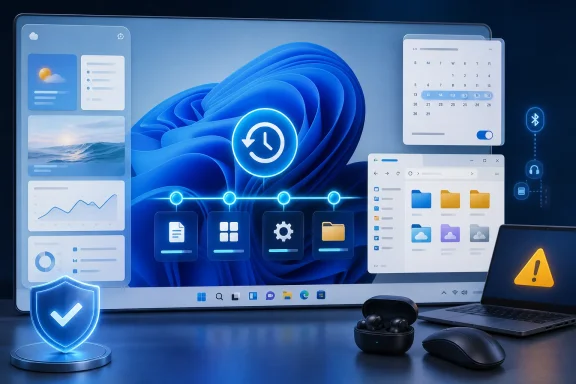
The most consequential addition is Point-in-Time Restore for Windows, now generally available after a period in the Insider channels. It gives Windows 11 a modern local rollback mechanism capable of restoring the OS, installed apps, settings, and local user files to a recent automatically created restore point.
That last point distinguishes it from classic System Restore, which has long been useful for undoing driver or registry trouble but does not include personal files. Microsoft says Point-in-Time Restore is designed to recover a device in minutes rather than requiring prolonged troubleshooting, reset procedures, or a full reimage.
The feature is available across Windows 11 Home, Pro, Enterprise, and Education, but its defaults are not uniform. Microsoft’s documentation says unmanaged Home PCs and unmanaged Pro devices may have it enabled by default when the OS drive is at least 200GB. Managed Pro machines, along with Enterprise and Education systems, remain disabled by default until Windows 11 version 26H2 arrives. Local administrators can configure the feature from Settings under System, Recovery, and Point-in-Time Restore.
That makes the tool particularly interesting for small businesses and power users who have historically lived between consumer-friendly recovery features and heavyweight endpoint-management products. It is not a replacement for a tested backup strategy—its restore data is local, and its standard retention window is limited—but it could substantially reduce downtime after a bad driver, troublesome application deployment, damaged configuration, or failed update.
On first use, Widgets now opens to the widget dashboard rather than putting the Discover feed front and center. Users can still turn proactive behavior back on, and Microsoft says some defaults may adapt based on usage. But the direction is unmistakable. The company is trying to separate practical glanceable information—weather, calendar, traffic, and similar widgets—from a feed that has often felt like an unsolicited layer of web content attached to the taskbar.
Microsoft had previewed this “quiet by default” direction in its March and May Windows quality updates. Shipping it through the mainstream monthly update is more significant than the feature itself. It suggests Windows engineering is treating annoyance as a product defect rather than an inevitable side effect of a free-content and engagement strategy.
The change will be welcome on both personal and managed devices. In enterprise environments, fewer unexpected panels, badges, and distractions mean fewer support tickets from users wondering why a taskbar icon suddenly looks urgent. On personal PCs, it means the Widgets button can behave more like a button and less like a tripwire.
This is a better interface for a capability Windows users have long requested: the ability to defer change during travel, a critical project, or a known application freeze. It should not be confused with a recommendation to avoid security updates indefinitely.
The July release contains Microsoft’s latest security fixes and includes a networking hardening change around Transport Driver Interface registrations. Microsoft warns that applications using sockets over unregistered third-party TDI transports may stop working after installation. Most modern Windows deployments will never encounter that scenario, but it is exactly the sort of compatibility edge case that makes staged deployment and pilot rings essential for organizations with legacy networking software.
For consumers, the calendar pause control makes Windows Update feel less adversarial. For IT teams, it changes little about the core discipline: patch quickly, validate against business-critical applications, and use management tooling rather than asking users to manage exposure one PC at a time.
The update also addresses an issue in which the OneDrive shortcut could stop working when File Explorer was launched with administrative privileges. That is a narrowly targeted repair, but it matters to the users most likely to encounter it: administrators working across elevated and standard contexts while troubleshooting storage, deployment, or permissions problems.
Microsoft’s quality pledge has repeatedly highlighted File Explorer, and for good reason. It remains one of the most-used Windows surfaces, yet its recent redesign cycles have too often introduced sluggishness, flicker, or inconsistent behavior. Faster launch time and better reliability are not glamorous release-note material; they are the kinds of changes users notice only when Windows stops getting in the way.
The package also improves Bluetooth stability and compatibility, including faster pairing behavior for AirPods, improved microphone reliability on Beats Studio Pro headphones, and better reconnection behavior after hibernation. Explorer reliability, Start-menu taskbar interaction, notification badges, Remote Desktop settings, and the built-in HD Audio driver also receive attention.
Those Insider changes remove promotional content from web results, simplify the search home screen, better identify result sources, prioritize local apps, files, and settings when they are the stronger match, and introduce controls under Settings > Privacy & Security > Search for web and Microsoft Store suggestions. Microsoft also says search is improving typo tolerance, file discovery, Settings ranking, and reliability.
That is promising, particularly because it acknowledges that Windows Search should primarily help a user open a program, find a document, or change a system setting—not funnel attention into trending searches and product promotions. But it remains a controlled Insider rollout. Administrators should not plan around it, and consumers should not expect it to arrive alongside KB5101650.
The immediate milestone is simpler: install KB5101650 through normal update channels, watch for the Dell safeguard if applicable, and verify the build number—26100.8875 for Windows 11 24H2 or 26200.8875 for 25H2. The more revealing test will come over the next few months, when Microsoft must show whether this quality-first Windows 11 cycle can remain consistent after the novelty of quieter widgets and better recovery tools has worn off.
As reported by PCMag, the update moves a substantial set of quality-of-life features out of Microsoft’s optional June preview release and into the mainstream servicing channel. Microsoft’s own release notes confirm the July 14 package carries forward the June feature set, though several user-facing additions remain subject to the company’s gradual rollout system. That means installing KB5101650 does not guarantee every new switch or interface will appear immediately.
For Windows administrators, there is also a caveat worth taking seriously: Microsoft has temporarily withheld KB5101650 from a limited set of Dell systems using Intel Innovation Platform Framework drivers because of a compatibility issue that can affect performance, power consumption, and general device behavior. The company says it is preparing a fix.
 The useful feature is recovery, not spectacle
The most consequential addition is Point-in-Time Restore for Windows, now generally available after a period in the Insider channels. It gives Windows 11 a modern local rollback mechanism capable of restoring the OS, installed apps, settings, and local user files to a recent automatically created restore point.That last point distinguishes it from classic System Restore, which has long been useful for undoing driver or registry trouble but does not include personal files. Microsoft says Point-in-Time Restore is designed to recover a device in minutes rather than requiring prolonged troubleshooting, reset procedures, or a full reimage.
The feature is available across Windows 11 Home, Pro, Enterprise, and Education, but its defaults are not uniform. Microsoft’s documentation says unmanaged Home PCs and unmanaged Pro devices may have it enabled by default when the OS drive is at least 200GB. Managed Pro machines, along with Enterprise and Education systems, remain disabled by default until Windows 11 version 26H2 arrives. Local administrators can configure the feature from Settings under System, Recovery, and Point-in-Time Restore.
That makes the tool particularly interesting for small businesses and power users who have historically lived between consumer-friendly recovery features and heavyweight endpoint-management products. It is not a replacement for a tested backup strategy—its restore data is local, and its standard retention window is limited—but it could substantially reduce downtime after a bad driver, troublesome application deployment, damaged configuration, or failed update.
Widgets finally stops demanding attention
Microsoft’s most visible design change may also be its least dramatic: Widgets is becoming less intrusive by default. The panel will no longer open merely because a cursor passes over the taskbar icon, and notifications and taskbar badges are minimized until the user chooses to engage with the experience.On first use, Widgets now opens to the widget dashboard rather than putting the Discover feed front and center. Users can still turn proactive behavior back on, and Microsoft says some defaults may adapt based on usage. But the direction is unmistakable. The company is trying to separate practical glanceable information—weather, calendar, traffic, and similar widgets—from a feed that has often felt like an unsolicited layer of web content attached to the taskbar.
Microsoft had previewed this “quiet by default” direction in its March and May Windows quality updates. Shipping it through the mainstream monthly update is more significant than the feature itself. It suggests Windows engineering is treating annoyance as a product defect rather than an inevitable side effect of a free-content and engagement strategy.
The change will be welcome on both personal and managed devices. In enterprise environments, fewer unexpected panels, badges, and distractions mean fewer support tickets from users wondering why a taskbar icon suddenly looks urgent. On personal PCs, it means the Widgets button can behave more like a button and less like a tripwire.
Windows Update offers more control, but not a free pass
KB5101650 also adds a calendar-based update pause experience in Settings > Windows Update. Instead of selecting a blunt preset interval, users can choose an end date up to 35 days away, then extend the pause by selecting another date and pausing again.This is a better interface for a capability Windows users have long requested: the ability to defer change during travel, a critical project, or a known application freeze. It should not be confused with a recommendation to avoid security updates indefinitely.
The July release contains Microsoft’s latest security fixes and includes a networking hardening change around Transport Driver Interface registrations. Microsoft warns that applications using sockets over unregistered third-party TDI transports may stop working after installation. Most modern Windows deployments will never encounter that scenario, but it is exactly the sort of compatibility edge case that makes staged deployment and pilot rings essential for organizations with legacy networking software.
For consumers, the calendar pause control makes Windows Update feel less adversarial. For IT teams, it changes little about the core discipline: patch quickly, validate against business-critical applications, and use management tooling rather than asking users to manage exposure one PC at a time.
File Explorer gets fixes where they matter
The June feature payload carried into July includes several File Explorer improvements that are more practical than flashy. Microsoft lists faster File Explorer launch performance, better responsiveness while mounting disk images, more reliable address-bar suggestions, fixes for duplicated OneDrive Favorites entries, and refinements to rename behavior.The update also addresses an issue in which the OneDrive shortcut could stop working when File Explorer was launched with administrative privileges. That is a narrowly targeted repair, but it matters to the users most likely to encounter it: administrators working across elevated and standard contexts while troubleshooting storage, deployment, or permissions problems.
Microsoft’s quality pledge has repeatedly highlighted File Explorer, and for good reason. It remains one of the most-used Windows surfaces, yet its recent redesign cycles have too often introduced sluggishness, flicker, or inconsistent behavior. Faster launch time and better reliability are not glamorous release-note material; they are the kinds of changes users notice only when Windows stops getting in the way.
The package also improves Bluetooth stability and compatibility, including faster pairing behavior for AirPods, improved microphone reliability on Beats Studio Pro headphones, and better reconnection behavior after hibernation. Explorer reliability, Start-menu taskbar interaction, notification badges, Remote Desktop settings, and the built-in HD Audio driver also receive attention.
The Start-menu ad retreat is real, but it is not in this patch
One important distinction in the PCMag report needs to be kept clear: Microsoft’s new Windows Search Box changes are not part of the stable July Patch Tuesday rollout. They entered the Windows Insider Experimental channel on July 13.Those Insider changes remove promotional content from web results, simplify the search home screen, better identify result sources, prioritize local apps, files, and settings when they are the stronger match, and introduce controls under Settings > Privacy & Security > Search for web and Microsoft Store suggestions. Microsoft also says search is improving typo tolerance, file discovery, Settings ranking, and reliability.
That is promising, particularly because it acknowledges that Windows Search should primarily help a user open a program, find a document, or change a system setting—not funnel attention into trending searches and product promotions. But it remains a controlled Insider rollout. Administrators should not plan around it, and consumers should not expect it to arrive alongside KB5101650.
The immediate milestone is simpler: install KB5101650 through normal update channels, watch for the Dell safeguard if applicable, and verify the build number—26100.8875 for Windows 11 24H2 or 26200.8875 for 25H2. The more revealing test will come over the next few months, when Microsoft must show whether this quality-first Windows 11 cycle can remain consistent after the novelty of quieter widgets and better recovery tools has worn off.
References
- Primary source: PCMag
Published: 2026-07-15T15:00:00+00:00
More Stable, Less Annoying: A Massive Patch Tuesday Update Arrives Just When Windows Needs It | PCMag
A brand-new recovery tool, a quieter Widgets board, and an indefinite pause button for system updates are among the welcome features rolling out to Windows 11 PCs.www.pcmag.com - Official source: blogs.windows.com
Improving Windows Search Box, with less clutter and more control
Hello Windows Insiders, You’ve been asking for search that is faster, more relevant, and easier to use—whether you’re opening an app, finding a file, or changing a setting. Because the Windows Search Box is where many people start, we focusedblogs.windows.com
