

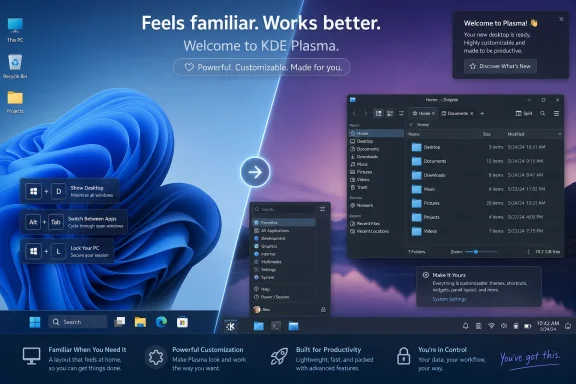
KDE Plasma has become the easiest Linux desktop to recommend to Windows 10 and Windows 11 users in 2026, not because it impersonates Windows perfectly, but because a few targeted changes can preserve familiar muscle memory while removing much of Microsoft’s modern desktop baggage. That is the useful lesson hiding inside MakeUseOf’s recent tweak guide. The bigger story is not that KDE can be made to look like Windows; it is that Windows refugees increasingly want continuity without surrendering control. Plasma’s pitch is that the old desktop bargain — local files, predictable panels, configurable shortcuts, and a taskbar that behaves — still has a future.
For years, Linux desktop advocacy suffered from an awkward contradiction. New users were told they could escape Windows, then immediately handed a desktop that punished nearly every Windows habit they had spent decades learning. GNOME had philosophical clarity, macOS had commercial polish, and tiling window managers had austere efficiency, but none of them felt like a soft landing for someone who simply wanted their PC back.
KDE Plasma takes the opposite bet. It starts from a layout that Windows users understand: an application launcher at the lower left, running apps in a panel, system indicators at the lower right, and windows that minimize, maximize, snap, and stack in recognizable ways. That does not make Plasma less “Linux.” It makes it one of the few Linux desktops honest enough to admit that familiarity is a feature.
The MakeUseOf piece captures this well, even when its tone is enthusiastically personal. The author’s core claim is that KDE Plasma already behaves enough like Windows 11 to be usable on day one, but that a handful of changes — launcher style, shortcuts, snap behavior, notifications, panel opacity, and Dolphin file-manager settings — make the switch feel less like emigration and more like renovation. That is the right frame for 2026, when many Windows users are not looking for an ideological conversion. They are looking for a desktop that stops interrupting them.
This is where Plasma’s configurability matters. KDE has long been accused of having too many knobs, too many settings, and too many ways to produce a messy desktop. For a Windows user escaping forced cloud prompts, AI sidebars, account nudges, Start menu ads, and opaque design churn, those knobs suddenly look less like clutter and more like due process.
Microsoft has spent years turning that front door into contested space. Windows 11’s Start menu is cleaner than some of its Windows 10-era experiments, but it is also less flexible, more web-aware, and more tightly bound to Microsoft’s preferred services. The company sees the Start menu as distribution, discovery, search, and identity. Users often see it as a button that should open programs and get out of the way.
KDE’s launcher alternatives are a quiet repudiation of the one-true-interface model. If the default launcher feels too Plasma-ish, use the Application Menu. If you prefer a dashboard, use that. If you want a compact app list, choose accordingly. None of this requires a registry hack, a third-party shell replacement, or a prayer that the next feature update does not undo your preferences.
The MakeUseOf author’s preference for the classic Windows 7-style search bar is telling. Windows 7 remains a cultural reference point not because it was perfect, but because it represented a desktop whose compromises were legible. Search searched. Menus opened. Local files felt local. Plasma can recreate enough of that rhythm without pretending the last decade of desktop computing did not happen.
There is a lesson here for Linux advocates, too. New users do not need to be told that their habits are obsolete. They need a system that lets them carry those habits forward long enough to build new ones. Plasma’s launcher switch is not just a tweak; it is a migration strategy.
Compatibility is usually discussed in terms of application support. Can Linux run Office? Can it run Photoshop? Can it run that weird VPN client required by an employer that last updated its documentation in 2018? Those questions matter, but the daily experience of computing is often governed by lower-level reflexes. If a user presses Win+D and nothing expected happens, the desktop has broken a contract before any application launches.
Plasma’s advantage is that it treats shortcuts as user-owned. Windows allows some remapping, but the overall experience remains more constrained, especially as Microsoft folds more system behavior into cloud-connected surfaces. KDE’s settings model is messier, but it is also more candid: the desktop is composed of parts, and the user can change how those parts respond.
That matters particularly for power users. The person willing to leave Windows is often the same person who has already customized Windows heavily, installed PowerToys, disabled startup junk, adjusted Explorer options, and memorized every useful keyboard combination. KDE gives that person a place to land without demanding they abandon the efficiency they built.
It also lowers the support burden for families and small offices experimenting with Linux. When the lock shortcut, task switcher, desktop reveal, and launcher key behave as expected, fewer things need to be explained. A familiar shortcut map turns Plasma from “a different operating system” into “a slightly different PC,” and that distinction is enormous.
That concession is important because it keeps the Plasma argument honest. Linux desktop partisans sometimes talk as though every Windows feature is either bloat or theft from earlier ideas. Snap layouts are not revolutionary, but Microsoft packaged them in a way normal users understand. Hover, choose a layout, and work. That is good interface design.
The suggested workaround is KZones, a KWin script intended to bring a Windows 11-like snap layout experience to Plasma. It supports snapping workflows and keyboard-driven placement, and it integrates through KDE’s window-management settings. In other words, Plasma’s answer to a missing default feature is not “wait for the vendor.” It is “extend the window manager.”
That extensibility is both strength and warning. On the one hand, KWin scripts are exactly the kind of community-driven customization that makes KDE attractive. A user can add a missing workflow without replacing the entire desktop or waiting for a corporate roadmap. On the other hand, extensions are another moving part, and moving parts can break across desktop releases, display-server changes, or distribution packaging differences.
For Windows users, the practical advice is simple: treat KZones as a productivity enhancement, not a foundation stone. If your work depends on a precise tiling workflow, test it before committing your daily machine. If you just want Windows 11-style snapping because it feels civilized, it may be one of the most valuable additions you can make to Plasma.
KDE Plasma is not a single product in the way Windows 11 is a single product. It arrives through distributions: Fedora KDE, KDE neon, Kubuntu, openSUSE, EndeavourOS, Manjaro, Debian, and many others. Each packages Plasma differently, updates it on a different cadence, and exposes a different level of friction when users go hunting for add-ons.
That means a tweak guide written on an Arch-based system may not translate cleanly to a Kubuntu user or someone testing Fedora KDE.
This is where Windows still has a structural advantage. A guide for Windows 11 can usually assume Windows 11. A guide for KDE Plasma must account for distribution choice, package names, update channels, and the user’s tolerance for community repositories. That is not a reason to avoid Plasma, but it is a reason to choose the distribution carefully.
For Windows users, the best Plasma experience is rarely the most exotic one. A rolling Arch-based system may provide the newest KDE features quickly, but it also expects users to understand what they are updating. Fedora KDE, openSUSE Tumbleweed, KDE neon, and Kubuntu all make different tradeoffs between freshness, stability, and familiarity. The desktop may be KDE in all cases, but the operating system underneath determines how adventurous the ride feels.
Windows has its own visual inconsistencies, and Windows 11 is hardly immune to dialogs that look like they escaped from several eras ago. Still, a Windows user expects most mainstream software to follow the same basic visual grammar. On Linux, especially after heavy customization, the illusion can break quickly. One app respects the theme, another ignores it, a third has oversized padding, and a fourth looks like it was built for a different desktop entirely.
KDE has improved substantially here, particularly in the Plasma 6 era, and modern distributions do more work to make mixed-toolkit desktops coherent. But the recommendation to install control tools for Qt 5 and Qt 6 is a reminder that Plasma’s beauty can depend on plumbing most users would rather never see. The same system that gives you deep control can also ask you to understand why two versions of a toolkit need separate configuration.
The healthy way to present this to Windows users is not to pretend the problem does not exist. It is to explain that theming consistency is optional polish, not a prerequisite for productivity. A user can run KDE happily without perfect visual uniformity. But for the kind of person bothered by mismatched title bars and inconsistent file dialogs, Plasma at least offers tools to chase the problem down.
That is the recurring KDE bargain. You may see the seams, but you can usually tug on them.
Dolphin is one of KDE’s strongest applications because it understands that file management is still serious work. Tabs, split views, integrated terminal panels, network locations, service menus, previews, and configurable density all serve users who manipulate files rather than merely consume cloud-synced abstractions. Windows File Explorer has improved in some areas, including tabs, but it remains oddly constrained for power users given its centrality to the operating system.
The Compact view recommendation is especially revealing. Windows 11 often prioritizes touch-friendly spacing and visual simplicity, even on machines used with keyboards, mice, multiple monitors, and dense project folders. KDE lets the user decide whether density is clutter or efficiency. For many sysadmins and developers, more visible files per pane is not a nostalgic preference; it is workflow.
The suggestion to install a root-access plugin should be handled with care. Windows users are accustomed to elevation prompts, administrator accounts, and UAC interruptions, but Linux’s permission model is different enough that casual root file browsing can become dangerous. Dolphin can be a powerful tool for system maintenance, but the ability to open privileged locations should be treated like a utility knife, not a convenience toggle.
Still, the broader point stands. Dolphin gives Windows migrants a familiar file-manager shape while exposing Unix-like power underneath. That is exactly what a migration desktop should do: meet users where they are, then quietly show them what else is possible.
A desktop panel is not just decoration. It is the user’s map of running work. It tells them what is open, what needs attention, what background services are alive, and where to go next. When that surface is constrained or redesigned without consent, users feel it immediately.
Windows 11’s taskbar has recovered some features since launch, but its early limitations damaged trust among the very users most likely to care about desktop ergonomics. Plasma’s panel editor may look busy by comparison, but it sends a different message: the layout belongs to you. Height, opacity, widgets, alignment, hiding behavior, and multiple panels are all negotiable.
That sense of ownership is central to why KDE appeals to Windows power users more than some Linux alternatives. It does not ask them to accept a designer’s theory of how computing should work. It gives them a toolkit and assumes they can make reasonable choices. Sometimes they will make ugly choices. That is fine. Ugly and self-directed is often preferable to polished and imposed.
The bottom-right notification recommendation fits the same pattern. Windows users expect transient system messages near the tray because that is where status already lives. Plasma can do that. More importantly, it lets the user decide that notifications belong there rather than treating placement as part of a sacred design doctrine.
This does not mean every Windows user hates AI features. Some find Copilot useful, and Microsoft is hardly alone in pushing AI into every available surface. The problem is consent, defaults, and reversibility. A feature can be powerful and still feel invasive if it arrives as a corporate inevitability rather than a user choice.
KDE’s user-feedback and services model is far from perfect, and Linux distributions can ship their own defaults, telemetry choices, and commercial integrations. But the culture around Plasma is different. Features tend to be framed as capabilities. If you want widgets, scripts, themes, panels, activities, effects, and alternate launchers, they are there. If you do not, Plasma does not need to turn every idle pixel into a sales funnel.
That distinction matters more as Windows becomes more cloud-account-centric. Microsoft has strong business reasons to tie Windows to Microsoft 365, OneDrive, Edge, Bing, Copilot, and identity services. Those integrations can be convenient in managed environments, but they can also make a personal PC feel less personal. Plasma benefits from being boring in the best possible way: it is a desktop environment, not a customer-acquisition surface.
This is why the Windows-like framing works. KDE is not offering to clone Windows 11’s strategy. It is offering to preserve the parts of Windows users liked before the operating system became a battleground for subscriptions, search, ads, and AI placement.
The good news is that Plasma today is not the fragile, overloaded caricature some old Linux users still remember. It is fast, visually coherent, and often surprisingly light for the amount of functionality it exposes. On many systems, it feels more responsive than Windows 11, especially on hardware burdened by OEM utilities, background services, antivirus overhead, and Microsoft account integrations.
The less-good news is that Wayland maturity remains uneven depending on hardware, drivers, applications, and workflows. NVIDIA users have had a very different historical experience from Intel and AMD users. Remote desktop, color management, screen sharing, global shortcuts, drawing tablets, and niche utilities can still expose differences between theory and daily use. Plasma is better than it was, but “better” is not the same as “invisible.”
That is why Windows users should test Plasma on their actual hardware before replacing a working installation. A live USB can prove basic compatibility, but it may not reveal suspend issues, dock behavior, printer quirks, VPN requirements, or the one proprietary app that matters. Dual-booting, spare SSD testing, or trying Plasma on a secondary machine remains prudent.
The MakeUseOf piece is right to celebrate KDE’s snappiness and configurability. The WindowsForum caveat is that migration advice should never confuse a delightful desktop session with a complete platform audit. The desktop is the front door; drivers, apps, firmware, and support policies are the foundation.
A successful migration should preserve muscle memory while allowing the new system to become itself. KDE’s strength is not that it can cosplay Windows. It is that it can keep the launcher, taskbar, shortcuts, and file-manager density familiar while adding capabilities Windows either hides, weakens, or refuses to provide. Activities, KRunner, deep window rules, service menus, virtual desktops, clipboard tools, and customizable panels are not Windows replacements. They are reasons to stop judging Plasma only by Windows standards.
That is why the MakeUseOf tweaks are best understood as scaffolding. Set the shortcuts so your hands stop stumbling. Adjust the launcher so you can find apps quickly. Add KZones if snap layouts are part of your workflow. Move notifications where your eyes expect them. Tune Dolphin so files feel manageable. Then, once the desktop fades into the background, start exploring what Plasma does differently.
The danger is endless tweaking. KDE makes it easy to spend hours perfecting corners, shadows, themes, animations, menu styles, and widgets instead of doing work. For some users, that is part of the fun. For others, it becomes the Linux equivalent of reorganizing a garage to avoid repairing the car.
The best advice for Windows migrants is to make only the changes that reduce friction in the first week. After that, let annoyances justify tweaks, not the other way around.
But KDE’s appeal should still worry Redmond because it exposes a gap in Microsoft’s desktop strategy. There is a class of user that does not want a simplified computing appliance. They want a powerful local desktop with sane defaults, deep customization, and minimal nagging. Windows used to be the natural home for that user. Increasingly, Windows asks that user to fight the system.
PowerToys is evidence that Microsoft understands part of the problem. Its FancyZones feature, launcher, keyboard manager, and other utilities restore some of the power-user flexibility that Windows itself does not always prioritize. But the need for PowerToys also underlines the issue. Many of the users who install it are trying to make Windows behave like a more respectful desktop.
KDE bakes that premise into the environment. Window rules are not an afterthought. Shortcut editing is not a hack. Panel customization is not a forbidden ritual. Alternate launchers are not shell replacements from a risky download site. The operating assumption is that users may know what they want.
If Microsoft wants to keep enthusiasts loyal, it does not need to copy KDE’s settings sprawl. It does need to rediscover the value of user agency. The more Windows treats local customization as a legacy concern and cloud integration as destiny, the more credible Plasma becomes as the sane desktop for people who still care how their computers behave.
That distinction matters because many Linux migration stories collapse under their own enthusiasm. The first day is all liberation: no forced Microsoft account, no Copilot button, no Edge nags, no mysterious OEM utilities eating RAM. The second week is where reality arrives: a missing app, an unfamiliar package manager, a printer driver, a game anti-cheat system, or a work document that does not render quite right.
KDE helps most when it reduces the number of changes users must absorb at once. If the desktop behaves predictably, the user has more patience for learning repositories, Flatpak, permissions, software centers, and the Linux filesystem. If the desktop itself feels alien, every other difference becomes more exhausting.
That is why Plasma is arguably the best Linux desktop to recommend to Windows users today. Not because it eliminates migration costs, but because it spends familiarity wisely. It saves novelty for places where Linux is genuinely different, rather than wasting it on a launcher, taskbar, and shortcuts that did not need reinvention.
 Plasma Wins by Refusing to Treat Familiarity as Failure
For years, Linux desktop advocacy suffered from an awkward contradiction. New users were told they could escape Windows, then immediately handed a desktop that punished nearly every Windows habit they had spent decades learning. GNOME had philosophical clarity, macOS had commercial polish, and tiling window managers had austere efficiency, but none of them felt like a soft landing for someone who simply wanted their PC back.KDE Plasma takes the opposite bet. It starts from a layout that Windows users understand: an application launcher at the lower left, running apps in a panel, system indicators at the lower right, and windows that minimize, maximize, snap, and stack in recognizable ways. That does not make Plasma less “Linux.” It makes it one of the few Linux desktops honest enough to admit that familiarity is a feature.
The MakeUseOf piece captures this well, even when its tone is enthusiastically personal. The author’s core claim is that KDE Plasma already behaves enough like Windows 11 to be usable on day one, but that a handful of changes — launcher style, shortcuts, snap behavior, notifications, panel opacity, and Dolphin file-manager settings — make the switch feel less like emigration and more like renovation. That is the right frame for 2026, when many Windows users are not looking for an ideological conversion. They are looking for a desktop that stops interrupting them.
This is where Plasma’s configurability matters. KDE has long been accused of having too many knobs, too many settings, and too many ways to produce a messy desktop. For a Windows user escaping forced cloud prompts, AI sidebars, account nudges, Start menu ads, and opaque design churn, those knobs suddenly look less like clutter and more like due process.
The Start Menu Is Really a Trust Exercise
One of the article’s first recommendations is deceptively small: right-click the KDE launcher, choose “Show Alternatives,” and switch to the Application Menu for a more traditional launcher experience. That sounds cosmetic, but it gets at the emotional center of desktop migration. The Start menu is not merely an app list. It is the front door to the machine.Microsoft has spent years turning that front door into contested space. Windows 11’s Start menu is cleaner than some of its Windows 10-era experiments, but it is also less flexible, more web-aware, and more tightly bound to Microsoft’s preferred services. The company sees the Start menu as distribution, discovery, search, and identity. Users often see it as a button that should open programs and get out of the way.
KDE’s launcher alternatives are a quiet repudiation of the one-true-interface model. If the default launcher feels too Plasma-ish, use the Application Menu. If you prefer a dashboard, use that. If you want a compact app list, choose accordingly. None of this requires a registry hack, a third-party shell replacement, or a prayer that the next feature update does not undo your preferences.
The MakeUseOf author’s preference for the classic Windows 7-style search bar is telling. Windows 7 remains a cultural reference point not because it was perfect, but because it represented a desktop whose compromises were legible. Search searched. Menus opened. Local files felt local. Plasma can recreate enough of that rhythm without pretending the last decade of desktop computing did not happen.
There is a lesson here for Linux advocates, too. New users do not need to be told that their habits are obsolete. They need a system that lets them carry those habits forward long enough to build new ones. Plasma’s launcher switch is not just a tweak; it is a migration strategy.
Keyboard Shortcuts Are the Real Compatibility Layer
The article’s most important recommendation is also the least glamorous: change KDE’s keyboard shortcuts so they match Windows expectations. Set the launcher to the Meta key, show the desktop with Meta+D, lock the screen with Meta+L, and use Alt+Tab for task switching. These are the tiny rituals that decide whether a desktop feels natural or hostile.Compatibility is usually discussed in terms of application support. Can Linux run Office? Can it run Photoshop? Can it run that weird VPN client required by an employer that last updated its documentation in 2018? Those questions matter, but the daily experience of computing is often governed by lower-level reflexes. If a user presses Win+D and nothing expected happens, the desktop has broken a contract before any application launches.
Plasma’s advantage is that it treats shortcuts as user-owned. Windows allows some remapping, but the overall experience remains more constrained, especially as Microsoft folds more system behavior into cloud-connected surfaces. KDE’s settings model is messier, but it is also more candid: the desktop is composed of parts, and the user can change how those parts respond.
That matters particularly for power users. The person willing to leave Windows is often the same person who has already customized Windows heavily, installed PowerToys, disabled startup junk, adjusted Explorer options, and memorized every useful keyboard combination. KDE gives that person a place to land without demanding they abandon the efficiency they built.
It also lowers the support burden for families and small offices experimenting with Linux. When the lock shortcut, task switcher, desktop reveal, and launcher key behave as expected, fewer things need to be explained. A familiar shortcut map turns Plasma from “a different operating system” into “a slightly different PC,” and that distinction is enormous.
Windows 11’s Best Windowing Idea Still Needs Help on Linux
The MakeUseOf guide is blunt about one area where Windows 11 remains ahead: snap tiling. Microsoft’s snap layouts are one of the genuinely good Windows 11 features, giving ordinary users a quick, visible way to place windows into useful arrangements without learning a tiling window manager. KDE has manual tiling, but the article argues that it does not yet match the immediacy of Windows’ snap interface.That concession is important because it keeps the Plasma argument honest. Linux desktop partisans sometimes talk as though every Windows feature is either bloat or theft from earlier ideas. Snap layouts are not revolutionary, but Microsoft packaged them in a way normal users understand. Hover, choose a layout, and work. That is good interface design.
The suggested workaround is KZones, a KWin script intended to bring a Windows 11-like snap layout experience to Plasma. It supports snapping workflows and keyboard-driven placement, and it integrates through KDE’s window-management settings. In other words, Plasma’s answer to a missing default feature is not “wait for the vendor.” It is “extend the window manager.”
That extensibility is both strength and warning. On the one hand, KWin scripts are exactly the kind of community-driven customization that makes KDE attractive. A user can add a missing workflow without replacing the entire desktop or waiting for a corporate roadmap. On the other hand, extensions are another moving part, and moving parts can break across desktop releases, display-server changes, or distribution packaging differences.
For Windows users, the practical advice is simple: treat KZones as a productivity enhancement, not a foundation stone. If your work depends on a precise tiling workflow, test it before committing your daily machine. If you just want Windows 11-style snapping because it feels civilized, it may be one of the most valuable additions you can make to Plasma.
The AUR Detail Reveals the Distribution Problem
The article’s commands useparu, an Arch User Repository helper, to install packages such as qt5ct, qt6ct, and KZones. For the intended MakeUseOf audience, that may be reasonable shorthand. For actual Windows migrants, it is also the point where the Linux story gets complicated.KDE Plasma is not a single product in the way Windows 11 is a single product. It arrives through distributions: Fedora KDE, KDE neon, Kubuntu, openSUSE, EndeavourOS, Manjaro, Debian, and many others. Each packages Plasma differently, updates it on a different cadence, and exposes a different level of friction when users go hunting for add-ons.
That means a tweak guide written on an Arch-based system may not translate cleanly to a Kubuntu user or someone testing Fedora KDE.
paru -S kwin-scripts-kzones is not universal Linux advice. It is Arch-family advice. On another distribution, the same component may live in a different repository, require manual installation, or not be packaged at all.This is where Windows still has a structural advantage. A guide for Windows 11 can usually assume Windows 11. A guide for KDE Plasma must account for distribution choice, package names, update channels, and the user’s tolerance for community repositories. That is not a reason to avoid Plasma, but it is a reason to choose the distribution carefully.
For Windows users, the best Plasma experience is rarely the most exotic one. A rolling Arch-based system may provide the newest KDE features quickly, but it also expects users to understand what they are updating. Fedora KDE, openSUSE Tumbleweed, KDE neon, and Kubuntu all make different tradeoffs between freshness, stability, and familiarity. The desktop may be KDE in all cases, but the operating system underneath determines how adventurous the ride feels.
Theming Consistency Is Where Linux Still Shows Its Seams
MakeUseOf recommends installingqt5ct and qt6ct to keep theming consistent. That small suggestion points to one of Linux’s oldest desktop annoyances: toolkit fragmentation. KDE is built around Qt, but Linux desktops commonly run a mix of Qt apps, GTK apps, Electron apps, browser-contained web apps, and legacy utilities that each interpret theming with varying degrees of obedience.Windows has its own visual inconsistencies, and Windows 11 is hardly immune to dialogs that look like they escaped from several eras ago. Still, a Windows user expects most mainstream software to follow the same basic visual grammar. On Linux, especially after heavy customization, the illusion can break quickly. One app respects the theme, another ignores it, a third has oversized padding, and a fourth looks like it was built for a different desktop entirely.
KDE has improved substantially here, particularly in the Plasma 6 era, and modern distributions do more work to make mixed-toolkit desktops coherent. But the recommendation to install control tools for Qt 5 and Qt 6 is a reminder that Plasma’s beauty can depend on plumbing most users would rather never see. The same system that gives you deep control can also ask you to understand why two versions of a toolkit need separate configuration.
The healthy way to present this to Windows users is not to pretend the problem does not exist. It is to explain that theming consistency is optional polish, not a prerequisite for productivity. A user can run KDE happily without perfect visual uniformity. But for the kind of person bothered by mismatched title bars and inconsistent file dialogs, Plasma at least offers tools to chase the problem down.
That is the recurring KDE bargain. You may see the seams, but you can usually tug on them.
Dolphin Shows Why “Like Windows” Should Not Mean “Limited Like Windows”
The MakeUseOf article’s Dolphin recommendations are practical: always show the tab bar, enable hidden files, consider a root-access plugin, and switch to Compact view for denser file browsing. This is where Plasma stops merely imitating Windows and starts making the case that a traditional desktop can be more capable than Microsoft’s current one.Dolphin is one of KDE’s strongest applications because it understands that file management is still serious work. Tabs, split views, integrated terminal panels, network locations, service menus, previews, and configurable density all serve users who manipulate files rather than merely consume cloud-synced abstractions. Windows File Explorer has improved in some areas, including tabs, but it remains oddly constrained for power users given its centrality to the operating system.
The Compact view recommendation is especially revealing. Windows 11 often prioritizes touch-friendly spacing and visual simplicity, even on machines used with keyboards, mice, multiple monitors, and dense project folders. KDE lets the user decide whether density is clutter or efficiency. For many sysadmins and developers, more visible files per pane is not a nostalgic preference; it is workflow.
The suggestion to install a root-access plugin should be handled with care. Windows users are accustomed to elevation prompts, administrator accounts, and UAC interruptions, but Linux’s permission model is different enough that casual root file browsing can become dangerous. Dolphin can be a powerful tool for system maintenance, but the ability to open privileged locations should be treated like a utility knife, not a convenience toggle.
Still, the broader point stands. Dolphin gives Windows migrants a familiar file-manager shape while exposing Unix-like power underneath. That is exactly what a migration desktop should do: meet users where they are, then quietly show them what else is possible.
The Panel Is a Political Object Now
MakeUseOf’s panel tweaks are simple: set the panel height around 44 pixels, make it translucent, and optionally enable auto-hide. This is the kind of advice that sounds trivial until you remember how much fighting has taken place over taskbars, docks, panels, centered icons, ungrouping behavior, clocks, seconds, tray icons, and where Microsoft thinks the Start button belongs.A desktop panel is not just decoration. It is the user’s map of running work. It tells them what is open, what needs attention, what background services are alive, and where to go next. When that surface is constrained or redesigned without consent, users feel it immediately.
Windows 11’s taskbar has recovered some features since launch, but its early limitations damaged trust among the very users most likely to care about desktop ergonomics. Plasma’s panel editor may look busy by comparison, but it sends a different message: the layout belongs to you. Height, opacity, widgets, alignment, hiding behavior, and multiple panels are all negotiable.
That sense of ownership is central to why KDE appeals to Windows power users more than some Linux alternatives. It does not ask them to accept a designer’s theory of how computing should work. It gives them a toolkit and assumes they can make reasonable choices. Sometimes they will make ugly choices. That is fine. Ugly and self-directed is often preferable to polished and imposed.
The bottom-right notification recommendation fits the same pattern. Windows users expect transient system messages near the tray because that is where status already lives. Plasma can do that. More importantly, it lets the user decide that notifications belong there rather than treating placement as part of a sacred design doctrine.
The Copilot Backlash Is Really About Consent
The MakeUseOf article opens with a jab at “Copilot-infested” Windows 11. The phrase is loaded, but it reflects a real sentiment among a subset of Windows users: Microsoft’s desktop increasingly feels like a delivery vehicle for services the user did not explicitly ask for. Copilot is only the most visible symbol.This does not mean every Windows user hates AI features. Some find Copilot useful, and Microsoft is hardly alone in pushing AI into every available surface. The problem is consent, defaults, and reversibility. A feature can be powerful and still feel invasive if it arrives as a corporate inevitability rather than a user choice.
KDE’s user-feedback and services model is far from perfect, and Linux distributions can ship their own defaults, telemetry choices, and commercial integrations. But the culture around Plasma is different. Features tend to be framed as capabilities. If you want widgets, scripts, themes, panels, activities, effects, and alternate launchers, they are there. If you do not, Plasma does not need to turn every idle pixel into a sales funnel.
That distinction matters more as Windows becomes more cloud-account-centric. Microsoft has strong business reasons to tie Windows to Microsoft 365, OneDrive, Edge, Bing, Copilot, and identity services. Those integrations can be convenient in managed environments, but they can also make a personal PC feel less personal. Plasma benefits from being boring in the best possible way: it is a desktop environment, not a customer-acquisition surface.
This is why the Windows-like framing works. KDE is not offering to clone Windows 11’s strategy. It is offering to preserve the parts of Windows users liked before the operating system became a battleground for subscriptions, search, ads, and AI placement.
Plasma 6 Makes the Recommendation Easier, but Not Risk-Free
KDE Plasma’s modern reputation has improved dramatically. Plasma 6 moved the project deeper into the Qt 6 era and made Wayland the default session in many contexts, marking a major architectural shift from the long Plasma 5 period. That work matters because desktop migration is not just about menus and panels; it is about whether displays, scaling, input devices, sleep, screen recording, and multi-monitor setups behave.The good news is that Plasma today is not the fragile, overloaded caricature some old Linux users still remember. It is fast, visually coherent, and often surprisingly light for the amount of functionality it exposes. On many systems, it feels more responsive than Windows 11, especially on hardware burdened by OEM utilities, background services, antivirus overhead, and Microsoft account integrations.
The less-good news is that Wayland maturity remains uneven depending on hardware, drivers, applications, and workflows. NVIDIA users have had a very different historical experience from Intel and AMD users. Remote desktop, color management, screen sharing, global shortcuts, drawing tablets, and niche utilities can still expose differences between theory and daily use. Plasma is better than it was, but “better” is not the same as “invisible.”
That is why Windows users should test Plasma on their actual hardware before replacing a working installation. A live USB can prove basic compatibility, but it may not reveal suspend issues, dock behavior, printer quirks, VPN requirements, or the one proprietary app that matters. Dual-booting, spare SSD testing, or trying Plasma on a secondary machine remains prudent.
The MakeUseOf piece is right to celebrate KDE’s snappiness and configurability. The WindowsForum caveat is that migration advice should never confuse a delightful desktop session with a complete platform audit. The desktop is the front door; drivers, apps, firmware, and support policies are the foundation.
The Best Windows Alternative Is Not Always the Most Windows-Like One
There is a trap in recommending KDE to Windows users: the temptation to turn Plasma into a Windows costume. Themes that mimic Windows 10 or Windows 11, icon packs that reproduce Microsoft’s look, and panels arranged pixel-for-pixel like a familiar taskbar can make the first hour less intimidating. They can also miss the point.A successful migration should preserve muscle memory while allowing the new system to become itself. KDE’s strength is not that it can cosplay Windows. It is that it can keep the launcher, taskbar, shortcuts, and file-manager density familiar while adding capabilities Windows either hides, weakens, or refuses to provide. Activities, KRunner, deep window rules, service menus, virtual desktops, clipboard tools, and customizable panels are not Windows replacements. They are reasons to stop judging Plasma only by Windows standards.
That is why the MakeUseOf tweaks are best understood as scaffolding. Set the shortcuts so your hands stop stumbling. Adjust the launcher so you can find apps quickly. Add KZones if snap layouts are part of your workflow. Move notifications where your eyes expect them. Tune Dolphin so files feel manageable. Then, once the desktop fades into the background, start exploring what Plasma does differently.
The danger is endless tweaking. KDE makes it easy to spend hours perfecting corners, shadows, themes, animations, menu styles, and widgets instead of doing work. For some users, that is part of the fun. For others, it becomes the Linux equivalent of reorganizing a garage to avoid repairing the car.
The best advice for Windows migrants is to make only the changes that reduce friction in the first week. After that, let annoyances justify tweaks, not the other way around.
Where Microsoft Should Be Paying Attention
Microsoft does not need to fear a sudden mass migration from Windows 11 to KDE Plasma. The inertia around Windows remains enormous: enterprise management, application compatibility, gaming support, OEM bundling, user familiarity, and decades of institutional process all favor Microsoft. Even frustrated users often stay because the cost of leaving is higher than the irritation of remaining.But KDE’s appeal should still worry Redmond because it exposes a gap in Microsoft’s desktop strategy. There is a class of user that does not want a simplified computing appliance. They want a powerful local desktop with sane defaults, deep customization, and minimal nagging. Windows used to be the natural home for that user. Increasingly, Windows asks that user to fight the system.
PowerToys is evidence that Microsoft understands part of the problem. Its FancyZones feature, launcher, keyboard manager, and other utilities restore some of the power-user flexibility that Windows itself does not always prioritize. But the need for PowerToys also underlines the issue. Many of the users who install it are trying to make Windows behave like a more respectful desktop.
KDE bakes that premise into the environment. Window rules are not an afterthought. Shortcut editing is not a hack. Panel customization is not a forbidden ritual. Alternate launchers are not shell replacements from a risky download site. The operating assumption is that users may know what they want.
If Microsoft wants to keep enthusiasts loyal, it does not need to copy KDE’s settings sprawl. It does need to rediscover the value of user agency. The more Windows treats local customization as a legacy concern and cloud integration as destiny, the more credible Plasma becomes as the sane desktop for people who still care how their computers behave.
The Migration Advice That Survives the Honeymoon
The practical takeaway from the MakeUseOf guide is not that every Windows user should install Arch, runparu, and immediately start adding KWin scripts. It is that KDE Plasma can be shaped into a familiar, efficient, Windows-adjacent desktop quickly, provided users make a small number of high-impact changes rather than disappearing into customization tourism.That distinction matters because many Linux migration stories collapse under their own enthusiasm. The first day is all liberation: no forced Microsoft account, no Copilot button, no Edge nags, no mysterious OEM utilities eating RAM. The second week is where reality arrives: a missing app, an unfamiliar package manager, a printer driver, a game anti-cheat system, or a work document that does not render quite right.
KDE helps most when it reduces the number of changes users must absorb at once. If the desktop behaves predictably, the user has more patience for learning repositories, Flatpak, permissions, software centers, and the Linux filesystem. If the desktop itself feels alien, every other difference becomes more exhausting.
That is why Plasma is arguably the best Linux desktop to recommend to Windows users today. Not because it eliminates migration costs, but because it spends familiarity wisely. It saves novelty for places where Linux is genuinely different, rather than wasting it on a launcher, taskbar, and shortcuts that did not need reinvention.
The Tweaks That Turn Familiarity Into Momentum
A Windows user approaching KDE Plasma should treat the MakeUseOf recipe as a starting kit, not scripture. The goal is not to build a perfect clone of Windows 11. The goal is to remove enough friction that Plasma’s strengths can show up before old habits send the user back.- Set the launcher, desktop, lock-screen, and task-switching shortcuts to match Windows muscle memory before judging how natural Plasma feels.
- Choose a launcher style that prioritizes speed and clarity over novelty, especially during the first week of migration.
- Add a Windows-like snap layout tool only if snapping is already part of your workflow, and test it across updates before relying on it professionally.
- Tune Dolphin for density, tabs, and hidden-file visibility, but treat root file access as an administrative tool rather than a normal browsing mode.
- Pick a mainstream KDE distribution whose update model matches your risk tolerance instead of assuming every Plasma guide applies equally to every Linux system.
- Stop tweaking once the desktop stops getting in your way, because the real test is whether you can do your work without thinking about the operating system.
References
- Primary source: MakeUseOf
Published: Mon, 18 May 2026 19:30:19 GMT
KDE Plasma is the Linux desktop I recommend to Windows users, but only after these tweaks
Better customization and saner defaults. www.makeuseof.com
- Related coverage: eosl.date
KDE Plasma End of Life (EOL) Dates and End of Support (EOS) Dates | 6.7.3 - July 2026 Release
KDE Plasma end of life dates across 14 release cycles. KDE Plasma 6.7.3 is the latest supported version (July 2026). 6.6 reached EOL on 2026-06-16. Covers EOL, EOS and EOSL dates.eosl.date
- Related coverage: community.kde.org

Schedules/Plasma 6 - KDE Community Wiki
community.kde.org
- Related coverage: kde.org
KDE Plasma 6.4.5, Bugfix Release for September - KDE Community
Today KDE releases a bugfix update to KDE Plasma 6.kde.org - Related coverage: endoflife.date
KDE Plasma | endoflife.date
Check end-of-life, release policy and support schedule for KDE Plasma.endoflife.date - Related coverage: discuss.kde.org
KDE Plasma 6.4 released - Community - KDE Discuss
Share your thoughts about the release ! Full lengthy changelog: discuss.kde.org
- Related coverage: windowsforum.com
KDE Plasma: The Gentle, Familiar Linux Desktop for Windows 10 Switchers | Windows Forum
If you’re thinking about leaving Windows 10 behind, KDE Plasma is the gentlest, most familiar-looking way to land — and for a growing number of Windows...windowsforum.com - Related coverage: maketecheasier.com
KDE Plasma Review: The Swiss Army Knife of Desktops
KDE Plasma is one of the most popular Linux desktop environments. This KDE Plasma review will cover its user interface, performance and who should use it.www.maketecheasier.com - Related coverage: opensource.com
Customize your Linux desktop with KDE Plasma
The Plasma desktop by the KDE community is a pinnacle among open source desktops.opensource.com - Related coverage: howtogeek.com
7 Ways I Get the Most Out of My KDE Plasma Linux Desktop
Turn KDE Plasma into a personal desktop. www.howtogeek.com
- Related coverage: fixes.brecht-schule.hamburg
