

Shutting down a laptop using only the keyboard is a small skill with outsized value — it can save unsaved work, rescue you from a frozen touchpad, and give you immediate control when the GUI stops responding, and the methods below work reliably across modern Windows versions like Windows 10 and Windows 11.
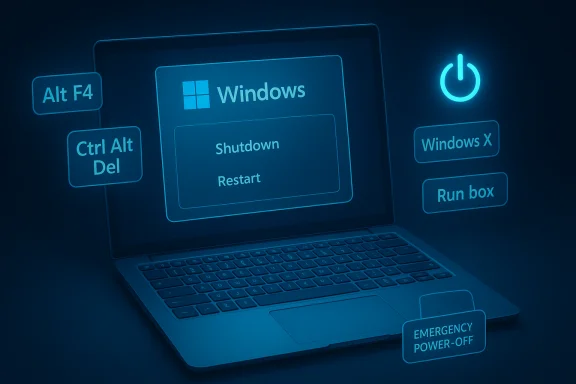
Shutting down a Windows PC has historically been a GUI-driven activity, but Windows also exposes numerous keyboard-driven paths that are fast, predictable, and available even when the mouse is not. These include shortcut sequences that bring up the classic shutdown dialog, the Windows Security screen, the Quick Access (Power User) menu, and command-line shutdown commands — each serves a different use case from graceful shutdown to emergency restart.
Modern guidance emphasizes a hierarchy of approaches: prefer graceful shutdowns that let applications close normally, use command-based shutdowns for administrative or scripted operations, and reserve hardware forced-power-offs for true last-resort situations because of the risk to data and system integrity.
Example commands:
Start-Sleep -Seconds 0; Stop-Computer
This is useful when constructing scripts or scheduled tasks that must run entirely via keyboard or automation.
Source: qoo10.co.id How to Shut Down Your Laptop Using Only the Keyboard: A Simple Step-by-Step Guide
 Background
Shutting down a Windows PC has historically been a GUI-driven activity, but Windows also exposes numerous keyboard-driven paths that are fast, predictable, and available even when the mouse is not. These include shortcut sequences that bring up the classic shutdown dialog, the Windows Security screen, the Quick Access (Power User) menu, and command-line shutdown commands — each serves a different use case from graceful shutdown to emergency restart.Modern guidance emphasizes a hierarchy of approaches: prefer graceful shutdowns that let applications close normally, use command-based shutdowns for administrative or scripted operations, and reserve hardware forced-power-offs for true last-resort situations because of the risk to data and system integrity.
Why keyboard-only shutdowns matter
- They work when the mouse/touchpad fails or is disconnected.
- They are faster for power users who prefer keyboard workflows.
- They provide recovery paths when Windows UI elements are unresponsive.
- They enable automation or scripting (useful for remote sessions or kiosks).
Quick reference: the safe, fast, and emergency options
- Safe and common: Alt + F4 on the desktop → choose Shutdown.
- Emergency GUI: Ctrl + Alt + Del → Power icon → Shutdown/Restart.
- Power user menu: Windows + X → U → U (Shutdown) or U → R (Restart).
- Command-line immediate: Windows + R, type shutdown /s /t 0, press Enter.
- Last resort: hold the laptop power button (can cause data loss; avoid if possible).
How to shut down using Alt + F4 (the universal desktop method)
What it does and when to use it
When you're on the desktop (no application window selected), pressing Alt + F4 opens the classic Shut Down Windows dialog where you can choose Shutdown, Restart, Sleep, or Sign out. This is the friendliest keyboard-only shutdown because it gives you the option to close apps cleanly and avoid data loss.Step-by-step
- Save your work in any open applications.
- Press Windows + D (or Windows + M) to show the desktop.
- Press Alt + F4.
- Use the arrow keys to select Shutdown.
- Press Enter.
Using Ctrl + Alt + Del when the system is sluggish or partially unresponsive
Why this helps
Ctrl + Alt + Del opens the secure Windows screen, which is often available even when parts of the shell are frozen. From there you can reach the Power icon and select Shutdown or Restart with only the keyboard. This route is ideal when a frozen app prevents normal interaction.Step-by-step
- Press Ctrl + Alt + Del.
- If the Task Manager or lock screen appears, press Tab or use the arrow keys to focus the Power icon at the bottom right.
- Press Enter to open the power menu.
- Use the arrow keys to select Shutdown or Restart, then press Enter.
The Windows + X (Power User) menu: fastest for power users
What it is
Pressing Windows + X opens the Quick Access (Power User) menu — a keyboard-friendly menu with shortcuts to Device Manager, Task Manager, Settings, and the power options. This is a fast route for users who want to avoid the desktop step.Step-by-step
- Press Windows + X.
- Press U to open the "Shut down or sign out" submenu.
- Press U to Shutdown, or press R to Restart.
Command-line and Run dialog shutdowns (scriptable and immediate)
shutdown.exe and the Run box
For administrators or situations where you need an immediate, scriptable shutdown, Windows exposes shutdown.exe with parameters. It’s keyboard-only friendly and works from Run, Command Prompt, or PowerShell.Example commands:
- Immediate shutdown: shutdown /s /t 0
- Immediate restart: shutdown /r /t 0
- Abort a pending shutdown during the timeout: shutdown /a
Step-by-step using the Run box
- Press Windows + R to open Run.
- Type shutdown /s /t 0 and press Enter.
PowerShell alternative
Open PowerShell (keyboard: Windows + R → type powershell → Enter) and run:Start-Sleep -Seconds 0; Stop-Computer
This is useful when constructing scripts or scheduled tasks that must run entirely via keyboard or automation.
Forced shutdowns and the hardware power button: use only as last resort
Why this is risky
Forcing power off by holding the laptop's physical power button interrupts all running processes immediately. This can corrupt files, damage open databases, or cause system file errors and should be reserved for situations where the OS is completely unresponsive and the other keyboard methods fail.Safer alternatives before forcing power off
- Try Ctrl + Alt + Del to access the secure screen.
- Use the shutdown command from Run or Task Manager's Run new task.
- If Task Manager is available, end the unresponsive process first.
Common pitfalls, edge cases, and corrections to popular claims
The "Windows + U then U" claim
Some articles suggest pressing Windows + U followed by U will shut down the PC. That sequence is not the standard Quick Access shutdown path. The reliable sequence is Windows + X, then U, then U to shut down. Be cautious when following secondhand advice; small differences in key sequences can produce different results.Fast startup, hybrid hibernation, and shutdown behavior
On systems with Fast Startup (hybrid hibernation) enabled, a normal shutdown may not fully power off hardware in the same way as a full shutdown, because Windows writes kernel session data to disk to speed boot time. If you need a complete power cycle, consider using shutdown /s /t 0 or disabling Fast Startup in Power Options. These behaviors are driven by Windows power settings and may differ by OEM defaults.When a "shutdown" seems to hang and the machine restarts instead
This can be caused by drivers, device firmware, or misconfigured power-management settings. Steps include updating chipset and storage drivers, running DISM and SFC to repair system files, and performing a clean boot to isolate third-party services. These are troubleshooting steps that should be followed if keyboard shutdown commands do not behave as expected.Practical tips to avoid unsaved work and safeguard data
- Enable autosave and recovery features in productivity apps (Office, editing suites).
- Save open documents before initiating shutdown sequences.
- Avoid using /f with shutdown unless you absolutely must (it forces app closure and can discard unsaved work).
How to add a keyboard shortcut for one-key shutdown (advanced convenience)
If you want a dedicated keyboard shortcut that triggers shutdown without typing commands, create a desktop shortcut that runs the shutdown command and then bind a hotkey to it.- Right-click the desktop → New → Shortcut.
- Enter: C:\Windows\System32\shutdown.exe /s /t 0
- Name the shortcut (e.g., "Shutdown Now") and finish.
- Right-click the shortcut → Properties → Shortcut key → press the desired combo (e.g., Ctrl + Alt + S) → Apply.
Troubleshooting: if a keyboard method fails
- Confirm the keyboard is responsive (try typing in Notepad or pressing Caps Lock).
- If the system ignores keystrokes during boot/lock screens, try an external USB keyboard.
- Use Ctrl + Alt + Del to access Task Manager; then run a new task (shutdown /s /t 0) if the Run box is unavailable.
Security and enterprise considerations
In managed environments, rapid-shutdown or fastkill methods can interfere with monitoring agents, backups, and endpoint protection. Administrators should consider policy controls and endpoint-hardening rules that prevent unauthorized quick-shutdown sequences from bypassing corporate monitoring. Additionally, scriptable shutdown commands can be used in automated maintenance, but they should be governed by role-based permissions and logging.Quick checklist: choose the right method
- Normal, responsive desktop: use Alt + F4 on the desktop.
- Shell partially unresponsive / frozen apps: use Ctrl + Alt + Del → Power icon.
- Fast, power-user shutdown: Windows + X, U, U.
- Scripted/remote/admin shutdown: shutdown /s /t 0 via Run, CMD, or PowerShell.
- System fully unresponsive: hardware power button (last resort); expect to run repairs after reboot.
Final analysis: strengths, weaknesses, and recommended best practices
- Strengths: Keyboard shutdown methods are reliable, fast, and widely compatible across Windows 10 and Windows 11. They provide multiple fallbacks so that mouse or touchpad failures won't prevent you from powering down or restarting.
- Weaknesses and risks: Forced shutdowns (holding power button) and commands that force-close apps (/f) risk data loss and file corruption. Mis-typed or misremembered key sequences can produce different results — for example, confusing Win + U with Win + X leads to unexpected behavior. Enterprise environments must also consider security and monitoring implications.
- Recommendations:
- Always save work and prefer graceful shutdown paths (Alt + F4, Win + X).
- Reserve command-line or forced closures for administrative or emergency use.
- If shutdown is unreliable, update drivers and run system integrity checks before employing forceful methods.
Short takeaway (keep this on hand)
- Best everyday method: Windows + D → Alt + F4 → Enter (Shutdown).
- If GUI is sluggish: Ctrl + Alt + Del → Power icon → Shutdown.
- For scripted or immediate shutdowns: Windows + R → shutdown /s /t 0 → Enter.
- Avoid power-button shutdowns unless all else fails because of the risk to files and system health.
Source: qoo10.co.id How to Shut Down Your Laptop Using Only the Keyboard: A Simple Step-by-Step Guide
