

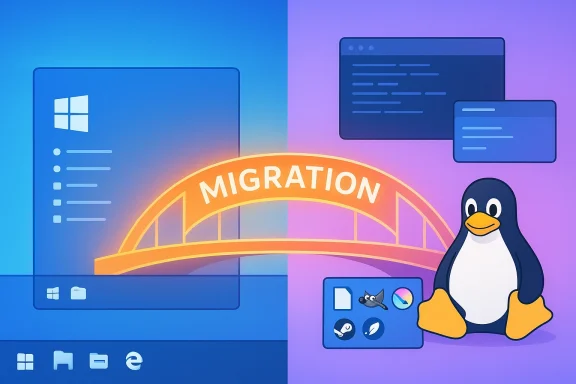
Linux isn’t a drop‑in replacement for Windows — it’s a different operating system with different priorities, strengths, and trade‑offs, and the best outcomes come from accepting those differences rather than forcing Linux to imitate Windows. rview
The debate “Linux versus Windows” is older than most readers. For newcomers it often reduces to a single question: “Can I do everything on Linux that I do on Windows today?” The practical answer is: usually you can accomplish the same tasks, but not always with the same apps, user interface, or workflow. Expecting Linux to behave exactly like Windows sets you up for frustrations that are avoidable with a change in mindset.
Linux is an ecosyst dozens of distributions, several desktop environments (GNOME, KDE Plasma, XFCE, Cinnamon, and more), multiple packaging systems (deb, rpm, flatpak, snap), and thousands of independent projects. That diversity is Linux’s advantage — and its principal source of friction for people who want a “Windows clone.”
The core differences that matter
Different user interfaces — skins versus behavior
- Appearance can be copied; behavior usually cannot. You can theme GNOME or KDE to look like Windows 10/11, and distributions such as Zorin OS and Linux Mint intentionally ship familiar layouts. But visual similarity largely stops at icons, panel placement, and menu layout. System apps, settings panels, file managers, and many window‑management behaviors remain different under the skin. Expect to re‑learn where things live and how they behave.
- *Desktop environments are design phila (and its Activities* feature) encourages powerful, workspace‑oriented workflows that go beyond Windows’ virtual desktops; GNOME favors simplicity and a different model for multitasking. The official KDE documentation explains how Activities let you create multiple tailored desktop “containments” with distinct widgets and workflows — a capability that’s powerful but not identical to Windows’ virtual desktop concept.
- Some “Windows‑like” distros attempt a deeper imitation — be cautious. Small projects that aggressively mimic Windows’ interface can look compelling at first, but they often have smaller development teams, fewer contributors, and less rigorous security/audit practices than mainstream distributions. Past incidents (for example with repackaged Windows‑like spins) show that a pretty skin does not guarantee safety or long‑term maintainability. If you’re evaluating a “Windows lookalike,” check project activity, update cadence, and community trust before committing.
Software compatibility — different apps, same goals
- Microsoft Office and Adobe CC are the large exceptions. Most of the mainstream Windows‑only productivity and creative apps — particularly the Adobe Creative Cloud suite — do not have native Linux builds. That is a major friction point for many professionals. Adobe’s official position remains that most Creative Cloud apps target Windows and macOS; Linux support is limited or unofficial. Workarounds exist, but they often require technical effort or patched compatibility layers.
- There are high‑quality replacements and bridges.
- For office work, LibreOffice is a mature, feature‑rich open‑source suite that supports common Microsoft formats and offers Writer, Calc, and Impress. It won’t be a pixel‑perfect match for advanced Microsoft 365 features in every case, but for most users it covers core needs. SoftMaker FreeOffice and commercial variants provide a more Microsoft‑familiar UI and stronger DOCX/XLSX compatibility for those who prioritize visual parity.
- For creative work, GIMP, Krita, and Darktable cover many imaging workflows; professional studios still often rely on Adobe tools, but community work and Wine patches are narrowing the gap (developers and contributors have recently advanced Wine so it can install some Adobe installers — progress that is meaningful but not yet universal).
- Many modern cross‑platform apps exist natively on Linux. Slack, Discord, and Spotify all provide Linux clients (or officially supported install methods), so common communication and media workflows are well supported. The native availability of those everyday apps reduces the friction for most users moving from Windows.
- Compatibility layers and translation stacks are mature but not perfect.
- Wine is a long‑standing compatibility layer that translates Windows API calls so many Windows apps run on Linux; WineHQ remains the authoritative project site.
- Proton (Valve’s gaming fork of Wine) enables a large catalog of Windows games to run on Linux through Steam Play; community resources like ProtonDB help you understand which titles work and which do not. For gaming, anti‑cheat systems remain the largest blocker for certain titles.
Command line, package management and system philosophy
- Linux historically favors the terminal for system tasks. GUI tools are now very capable, but power users and administrators still expect to use the shell for package management, system configuration, and troubleshooting. This is not a limitation — it’s a design choice that gives you greater transparency and automation possibilities. Expect to learn a few terminal routines; they repay you with speed and control.
- Package management is centralized and trustable — but fragmented. Each distribution tends to use its own package format and repositories: Debian/Ubuntu use apt and deb packages, Fedora/RHEL use dnf/rpm, Arch uses pacman, and Flatpak/Snap provide cross‑distro sandboxes. Learning the packaging model for your distro will save a lot of confusion.
How to approach Linux (a practical migration playbook)
If you’re serious about testing or moving to Linux, treat the transition as a small project. The following roadmap compresses the practical advice experienced users give into actionable steps.1. Inventory and categorize your apps
Start by making a list of the software you use every day, categorized iacceptable alternative)- Replaceable (an equivalent exists)
- Nice‑to‑have (optional)
- Games (note titles with anti‑cheat)
2. Pick the right distribution for your goals
- If you want the gentlest learning curve and a Windows‑like layout: try Linux Mint (Cinnamon) or Zorin OS. They prioritize familiarity and ship with preconfigured UIs and codecs.
- If you’re a Windows power user who likes KDE’s flexibility: consider Kubuntu or any distro with KDE Plasma (KDE’s Activities and Plasma customizations rews Activities let you shape workflows differently from Windows’ virtual desktops.
- If you want a stable, widely supported base: Ubuntu LTS, Fedora, or Debian provide predictable updates and big communities.
3. Try before you commit
- Virtual machines (VMs) let you test distributions without touching your disk. Tools such as VirtualBox, QEMU, or Quickemu make spinning up test systems straightforward. VMs are excellent for learning, but expect slightly reduced graphics performance.
- Live USBs let you boot many distros and test hardware support quickly.
- Dual‑boot is the bridge that keeps Windows intact while you learn Linux. It’s a bit more advanced but recommended if you rely on Windows apps that you can’t replace.
4. Map your app replacements, then test them
- Office: LibreOffice or FreeOffice; for collaboration, consider browser‑based Microsoft 365 or Collabora Online if you self‑host.
- Creative: GIMP, Krita, Inkscape for graphics; Darktable and RawTherapee for photos. For Adobe‑only workflows, test Wine/Proton patches but be prepared for edge cases.
- Games: consult ProtonDB for each title; be ready that titles using certain anti‑cheat systems may be blocked. Steam’s Proton and the broader Valve ecosystem have dramatically improved Linux gaming compatibility in recent years.
5. Learn a few core Linux skills (short list)
- How to use your package manager to install and remove apps.
- How to check system logs (journalctl) and view dmesg for hardware issues.
- How to add and manage Flatpak/Snap/third‑party repositories.
- How to use sudo, change file ownership, and edit simple text files with a terminal text editor.
- How to back up and restore your home directory and system images.
6. Use hybrid strategies when needed
- WSL on Windows lets you run Linux command‑line tools inside Windows without dual‑booting; developers often use it for Linux‑native toolchains while keeping Windows for desktop apps. Microsoft’s WSL project is actively developed and is the official path for many workflows.
- Run Windows in a VM on Linux (QEMU, virt‑manager, Parallels, etc.) when you require a Windows app that won’t run under Wine or Proton.
The strengths that make Linux worth learning
- Customization and workflows. Linux lets you design environments for the way you work, from tiling window managers to KDE Activities that isolate projects.
- Open‑source toolchain and package ecosystems. For developers, sysadmins, and privacy‑conscious users, Linux offers unmatched transparency and tooling.
- Performance on older hardware. Linux can give aging machines a new lease on life when Windows cannot.
- Server and cloud parity. Linux knowledge aligns well with server administration, cloud deployments, containers, and modern devops practices — the same stack you’ll encounter in backend services and many enterprise environments.
Risks, realistic limits, and red flags
- Professional app requirements. If your work depends on industry‑standard Windows/macOS apps (certain Adobe suite features, specialized engineering or video editing tools), moving entirely to Linux may not be feasible right now; plan for hybrid setups or continued Windows use in a VM.
- **Gaming ed improved gaming a lot, but titles with aggressive anti‑cheat systems may be unplayable on Linux; some developers explicitly choose not to support Proton for these reasons. Check compatibility before switching gaming rigs.
- Third‑party “Windows clones” and obscure spins. Small distributions that promise to perfectly replicate Windows can harbor maintenance and security issues; pick distros with active communities, clear upstream sources, and frequent updates. Historical incidents with poorly maintained Windows‑style spins show why vetting matters.
- Perception and support. If you share documents with many Windows‑only users, make sure you default to compatible file formats (DOCX, XLSX, PDF) or keep a Windows option available to avoid interoperability problems. Community help is abundant, but corporate IT teams may not support Linux desktops.
Quick reference: distro and tool cheat‑sheet
- Beginner, Windows‑familiar: Linux Mint (Cinnamon), Zorin OS.
- Windows power users / KDE fans: Kubuntu, KDE Neon, any distro running KDE Plasma.
- Development and servers: Ubuntu LTS, Fedora, Debian, AlmaLinux/Rocky for RHEL compatibility.
- Office alternatives: LibreOffice, FreeOffice (SoftMaker).bility: Wine, Proton (Steam), CrossOver (commercial), and Quickemu/QEMU for VMs.
Final analysis — why “Linux is not Windows” is not a criticism but an advantage
The truth in the headline — “Linux is not a Windows substitute” — is a useful reframing, not a condemnation. When people use that sentence to mean, “Linux won’t be a perfect 1:1 clone of Windows,” they’re giving readers a gift: the permission to evaluate Linux on its own terms.- If you want the same buttons in the same places and full, transparent vendor support for every feature, Windows is still the right choice for many people and organizations.
- If you value control, lightweight systems, custom workflows, and the broader open‑source ecosystem, Linux becomes extremely attractive — and in many cases superior.
If you’re ready to try it, pick a friendly distro, make a realistic app map, and try the workflow for a few weeks in a VM or side‑by‑side environment. You’ll learn where Linux shines — and where the bridges back to Windows are still necessary.
Conclusion
Linux’s value is not in being a perfect Windows facsimile; it’s in offering alternative ways to solve the same problems. Approach it as a new tool with its own language, and you’ll avoid the common mistakes that derail many first‑time migrants. When you accept the differences and adopt Linux for its strengths — not for what it isn’t — you’ll understand why people stick with the Penguin for work, creativity, and tinkering.
Source: How-To Geek Linux is not a Windows substitute: Here's how you should approach it
