

Windows 11 Widgets can be made far less irritating and more useful by disabling hover activation, trimming the MSN-style Discover feed, following preferred sources, blocking unwanted publishers, customizing information cards, and arranging the actual widget dashboard into a compact glanceable panel. The trick is not discovering a hidden power feature; it is treating Widgets as a noisy default experience that must be edited before it earns space on the taskbar. Lance Whitney’s ZDNET walkthrough lands because it reframes a feature many users reflexively disable as something closer to an RSS-era dashboard with modern Microsoft baggage. That baggage still matters, but so does the fact that Windows 11’s most maligned flyout is slowly becoming more controllable.
The Windows 11 Widgets pane has always suffered from a category error. Microsoft presented it as a place for quick, personal information, but the first thing many users saw was a news feed that felt less like productivity and more like a portal page that had escaped from 2006.
That tension explains why so many Windows 11 users learned one setting before any other: hide the Widgets icon. In Settings, under Personalization and Taskbar, the Widgets switch can be turned off entirely. For a large share of users, that was the beginning and end of the story.
But ZDNET’s guide makes a more interesting argument: the Widgets pane is not useless so much as badly introduced. Its defaults emphasize interruption and content discovery, while its value lives in narrow, repeated glances — weather, stocks, calendar-like information, sports, traffic, headlines from selected sources, and lightweight shortcuts into Microsoft-connected services.
That distinction matters because Windows 11 is full of features that are tolerable only after you disable their most promotional behavior. The Start menu becomes better when recommendations are tamed. Edge becomes less distracting when its new tab page is stripped down. Widgets follows the same pattern: the feature improves dramatically once it stops acting like it owns your attention.
That is not a minor interaction problem. In desktop operating systems, accidental UI activation is one of the fastest ways to turn a feature into an enemy. Users forgive a hidden feature they rarely need; they do not forgive a panel that slides out when they are aiming for another taskbar target.
Changing Widgets from hover-to-open to click-to-open restores the basic contract of a desktop interface. The user acts, then the system responds. Once that change is made, the Widgets icon becomes less of a tripwire and more of a deliberate dashboard button.
Microsoft’s own support material treats Widgets as something available through multiple entry points, including the taskbar icon, Windows key + W, and touch gestures. That flexibility is useful, but the hover behavior has always been the most contentious because it violates the difference between preview and launch. A quick weather readout on the taskbar is one thing; a full pane flying over the desktop is another.
That starts with the Discover feed. The feed is where Microsoft places news, video, games, recommendations, and personalized content drawn from its consumer services. Depending on region, Windows build, account state, and rollout timing, the layout may vary, with some users seeing older menu divisions and others seeing a newer design that consolidates navigation.
This variability is part of the problem. Widgets does not behave like a classic Windows utility with one stable surface and a predictable set of controls. It behaves like a cloud-fed experience, which means Microsoft can alter the presentation independently of major Windows version upgrades.
For enthusiasts and administrators, that makes Widgets harder to evaluate. A feature that looks tolerable on one machine may look cluttered on another. A pane that is mostly weather and stocks today may become more aggressive after a server-side change. That uncertainty is why control settings matter more than any one layout.
The other kind is feed training. Like or dislike stories, follow publishers, block channels, manage topics, and adjust notification categories. This is not dashboard customization in the old Windows sense; it is algorithm management.
That second job is where users may reasonably disagree. Some people enjoy a trained news feed and will happily nudge it toward the sources and subjects they care about. Others see the whole exercise as unpaid moderation labor performed on behalf of a platform they never asked to invite into the OS.
The practical compromise is simple: personalize only enough to reduce the annoyance. Follow sources you actually want. Block publishers that repeatedly produce irrelevant or low-quality stories. Turn off notification categories that make Widgets feel like a second inbox. If the Discover feed still feels like a fight after that, the feature has probably failed your use case.
This is where resizing and rearranging matter. A useful dashboard is not merely a collection of available cards; it is a visual hierarchy. Weather may deserve a medium card at the top. Stocks might sit below it. A sports card may be useful during a season and irrelevant after it. A widget that requires interaction every time you open it is probably not earning its place.
The best version of Widgets is therefore intentionally boring. It should be a glance, not a destination. If you open the pane and spend ten minutes scrolling, Microsoft’s feed has won, but your dashboard has lost.
That is also why the ZDNET advice to remove unwanted widgets is more important than it sounds. A cluttered widget board recreates the same problem as a cluttered Start menu: the user stops trusting it as a fast surface. Once trust is gone, the keyboard shortcut or taskbar icon becomes dead weight.
Those goals are not always incompatible. A weather card on the taskbar is convenient. A calendar summary can save a click. A personalized sports score can be delightful. The trouble begins when utility becomes a delivery mechanism for engagement metrics.
That is why recent reports about Microsoft making Widgets quieter by default are notable. If the board opens first to actual widgets rather than a news feed, Microsoft is implicitly acknowledging what users have complained about for years: the feed was too loud, too prominent, and too entangled with advertising and publisher promotion.
The change also fits a larger pattern. Microsoft has been under pressure, particularly in Europe, to give users more control over default apps, browser behavior, and integrated services. Widgets is not just a design issue; it sits in the same policy neighborhood as bundled experiences, default content channels, and platform self-preferencing.
Enterprise administrators tend to view feed-driven OS features through a risk lens. Is the content appropriate? Does it distract users? Does it create privacy questions? Does it depend on Microsoft account sign-in? Does it generate help desk tickets when it fails, changes appearance, or shows irrelevant material?
Those concerns do not mean Widgets has no place in managed environments. A properly governed widget surface could theoretically expose company announcements, security reminders, service health, ticket queues, or business dashboards. But the consumer implementation is not primarily built around that enterprise story.
Until Widgets becomes a more mature administrative surface, many organizations will continue to disable it or leave it unmanaged and ignored. In business computing, a feature that requires each employee to individually train a feed is not a platform strategy. It is a personalization hobby.
First, remove accidental activation. Then decide whether the taskbar icon deserves to stay. After that, inspect the pane’s two personalities: the Discover content stream and the widget card dashboard. Each should be judged separately.
The feed can be improved by following sources, blocking unwanted publishers, liking individual stories, and managing topic notifications. The dashboard can be improved by adding only the cards that provide repeated value, customizing supported cards, changing sizes, and dragging widgets into a sensible order.
That work does not turn Widgets into a must-have feature. It turns it into something rarer in Windows 11: a built-in experience that can be made tolerable without registry edits, Group Policy spelunking, or third-party replacement tools.
For Windows 11 users who have not already banished Widgets, the practical path is narrow but workable:
Source: ZDNET How I made my Windows 11 widgets truly useful: 8 simple tweaks to try before you hide them
 Microsoft Built a Dashboard, Then Buried It Under a Feed
The Windows 11 Widgets pane has always suffered from a category error. Microsoft presented it as a place for quick, personal information, but the first thing many users saw was a news feed that felt less like productivity and more like a portal page that had escaped from 2006.That tension explains why so many Windows 11 users learned one setting before any other: hide the Widgets icon. In Settings, under Personalization and Taskbar, the Widgets switch can be turned off entirely. For a large share of users, that was the beginning and end of the story.
But ZDNET’s guide makes a more interesting argument: the Widgets pane is not useless so much as badly introduced. Its defaults emphasize interruption and content discovery, while its value lives in narrow, repeated glances — weather, stocks, calendar-like information, sports, traffic, headlines from selected sources, and lightweight shortcuts into Microsoft-connected services.
That distinction matters because Windows 11 is full of features that are tolerable only after you disable their most promotional behavior. The Start menu becomes better when recommendations are tamed. Edge becomes less distracting when its new tab page is stripped down. Widgets follows the same pattern: the feature improves dramatically once it stops acting like it owns your attention.
The Hover Trigger Is the Original Sin
The single most important tweak is also the least glamorous one: turn off “Open Widgets board on hover.” By default, the Widgets board can appear when the pointer drifts over the taskbar icon, which means the feature often announces itself at exactly the wrong moment.That is not a minor interaction problem. In desktop operating systems, accidental UI activation is one of the fastest ways to turn a feature into an enemy. Users forgive a hidden feature they rarely need; they do not forgive a panel that slides out when they are aiming for another taskbar target.
Changing Widgets from hover-to-open to click-to-open restores the basic contract of a desktop interface. The user acts, then the system responds. Once that change is made, the Widgets icon becomes less of a tripwire and more of a deliberate dashboard button.
Microsoft’s own support material treats Widgets as something available through multiple entry points, including the taskbar icon, Windows key + W, and touch gestures. That flexibility is useful, but the hover behavior has always been the most contentious because it violates the difference between preview and launch. A quick weather readout on the taskbar is one thing; a full pane flying over the desktop is another.
The Real Choice Is Not Widgets or No Widgets
The most common Windows power-user response to Widgets is binary: disable it or tolerate it. Whitney’s article suggests a third option, which is to keep the pane but refuse Microsoft’s default editorial judgment.That starts with the Discover feed. The feed is where Microsoft places news, video, games, recommendations, and personalized content drawn from its consumer services. Depending on region, Windows build, account state, and rollout timing, the layout may vary, with some users seeing older menu divisions and others seeing a newer design that consolidates navigation.
This variability is part of the problem. Widgets does not behave like a classic Windows utility with one stable surface and a predictable set of controls. It behaves like a cloud-fed experience, which means Microsoft can alter the presentation independently of major Windows version upgrades.
For enthusiasts and administrators, that makes Widgets harder to evaluate. A feature that looks tolerable on one machine may look cluttered on another. A pane that is mostly weather and stocks today may become more aggressive after a server-side change. That uncertainty is why control settings matter more than any one layout.
Personalization Is Doing Two Jobs at Once
There are two kinds of personalization inside Widgets, and Microsoft does not always make the difference feel obvious. One kind is genuinely practical: pick the widgets you want, set your weather location, resize cards, and arrange the board so the most useful information appears first.The other kind is feed training. Like or dislike stories, follow publishers, block channels, manage topics, and adjust notification categories. This is not dashboard customization in the old Windows sense; it is algorithm management.
That second job is where users may reasonably disagree. Some people enjoy a trained news feed and will happily nudge it toward the sources and subjects they care about. Others see the whole exercise as unpaid moderation labor performed on behalf of a platform they never asked to invite into the OS.
The practical compromise is simple: personalize only enough to reduce the annoyance. Follow sources you actually want. Block publishers that repeatedly produce irrelevant or low-quality stories. Turn off notification categories that make Widgets feel like a second inbox. If the Discover feed still feels like a fight after that, the feature has probably failed your use case.
The Widget Dashboard Is Better Than the News Feed
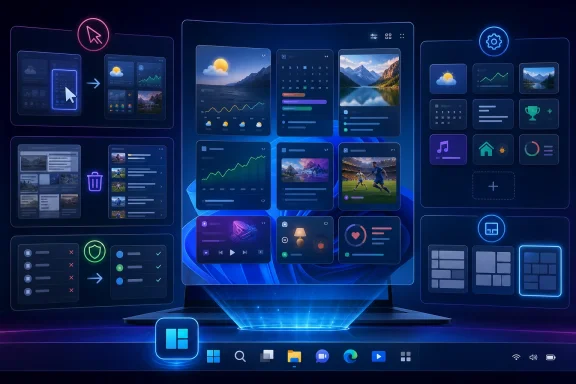
The stronger part of the experience is the actual widget dashboard. Small cards for weather, watchlists, sports, traffic, photos, Microsoft To Do-style tasks, Outlook-adjacent information, and other app-linked snippets fit the original promise of Widgets better than a river of headlines ever did.This is where resizing and rearranging matter. A useful dashboard is not merely a collection of available cards; it is a visual hierarchy. Weather may deserve a medium card at the top. Stocks might sit below it. A sports card may be useful during a season and irrelevant after it. A widget that requires interaction every time you open it is probably not earning its place.
The best version of Widgets is therefore intentionally boring. It should be a glance, not a destination. If you open the pane and spend ten minutes scrolling, Microsoft’s feed has won, but your dashboard has lost.
That is also why the ZDNET advice to remove unwanted widgets is more important than it sounds. A cluttered widget board recreates the same problem as a cluttered Start menu: the user stops trusting it as a fast surface. Once trust is gone, the keyboard shortcut or taskbar icon becomes dead weight.
Windows 11 Keeps Testing the Boundary Between Utility and Promotion
Widgets is part of a broader Windows 11 argument that has been running since launch. Microsoft wants Windows to be not only an operating system but also a services surface. Users want the OS to launch applications, manage files, stay secure, and otherwise get out of the way.Those goals are not always incompatible. A weather card on the taskbar is convenient. A calendar summary can save a click. A personalized sports score can be delightful. The trouble begins when utility becomes a delivery mechanism for engagement metrics.
That is why recent reports about Microsoft making Widgets quieter by default are notable. If the board opens first to actual widgets rather than a news feed, Microsoft is implicitly acknowledging what users have complained about for years: the feed was too loud, too prominent, and too entangled with advertising and publisher promotion.
The change also fits a larger pattern. Microsoft has been under pressure, particularly in Europe, to give users more control over default apps, browser behavior, and integrated services. Widgets is not just a design issue; it sits in the same policy neighborhood as bundled experiences, default content channels, and platform self-preferencing.
The Enterprise Case Is Still Weak
For home users, Widgets can be a personal nuisance or a small convenience. For IT departments, it is mostly another surface to evaluate, support, and possibly suppress.Enterprise administrators tend to view feed-driven OS features through a risk lens. Is the content appropriate? Does it distract users? Does it create privacy questions? Does it depend on Microsoft account sign-in? Does it generate help desk tickets when it fails, changes appearance, or shows irrelevant material?
Those concerns do not mean Widgets has no place in managed environments. A properly governed widget surface could theoretically expose company announcements, security reminders, service health, ticket queues, or business dashboards. But the consumer implementation is not primarily built around that enterprise story.
Until Widgets becomes a more mature administrative surface, many organizations will continue to disable it or leave it unmanaged and ignored. In business computing, a feature that requires each employee to individually train a feed is not a platform strategy. It is a personalization hobby.
The Best Tweaks Are Defensive, Not Transformational
The eight tweaks in the ZDNET piece are useful because they are realistic. They do not pretend Widgets will replace a proper RSS reader, monitoring dashboard, Outlook calendar, Teams panel, or browser homepage. They simply reduce friction.First, remove accidental activation. Then decide whether the taskbar icon deserves to stay. After that, inspect the pane’s two personalities: the Discover content stream and the widget card dashboard. Each should be judged separately.
The feed can be improved by following sources, blocking unwanted publishers, liking individual stories, and managing topic notifications. The dashboard can be improved by adding only the cards that provide repeated value, customizing supported cards, changing sizes, and dragging widgets into a sensible order.
That work does not turn Widgets into a must-have feature. It turns it into something rarer in Windows 11: a built-in experience that can be made tolerable without registry edits, Group Policy spelunking, or third-party replacement tools.
A Feature Worth Editing Is Still a Feature on Probation
The most telling part of the Widgets debate is that the first good advice is not “try this great feature,” but “stop it from interrupting you.” That is a warning sign for any operating-system component. Still, once the noise is reduced, the remaining dashboard has enough utility to justify a second look.For Windows 11 users who have not already banished Widgets, the practical path is narrow but workable:
- Turn off hover activation so the Widgets board opens only when you deliberately click it or use the keyboard shortcut.
- Hide the taskbar icon entirely if you never use glanceable cards or the Windows key + W shortcut.
- Treat the Discover feed as optional content that must be trained, trimmed, or ignored.
- Follow trusted publishers and block low-value sources if you want the news feed to become less random.
- Remove widgets that do not provide immediate value and resize the remaining cards around the information you check most often.
- Revisit the board after major Windows updates, because Microsoft continues to change the Widgets experience through both OS updates and service-side rollouts.
Source: ZDNET How I made my Windows 11 widgets truly useful: 8 simple tweaks to try before you hide them
Last edited:
