

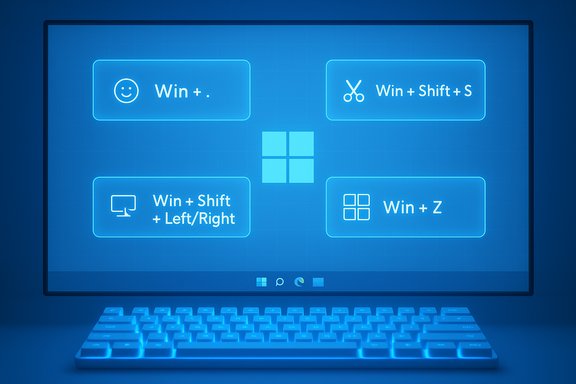
Windows 11 hides small time-savers behind familiar key presses — the TechRadar piece you supplied condenses that idea into a practical, ten-shortcut cheat sheet I find useful enough to keep on my desk.
Background / Overview
Windows has carried keyboard shortcuts for decades, but Windows 11 added a set of modern shortcuts that are specifically designed to speed common desktop tasks: Snap Layouts, the modern Snipping Tool, Clipboard history, and tighter integration with the Xbox Game Bar. The TechRadar list focuses on a compact set of shortcuts the author uses daily — a pragmatic approach that favors real-world utility over an encyclopedic catalog of obscure combos.This article summarizes those ten shortcuts, verifies the technical claims against Microsoft documentation and independent how‑to guides, highlights practical use cases, and flags behavior that can vary across builds, browser settings, or OEM keyboard overlays. The goal is to give Windows 11 users an accurate, verified, and actionable reference they can put into practice immediately.
Quick cheat sheet (as presented in the original article)
- Windows + . (period) — Opens the Emoji and more panel (emoji, kaomoji, GIFs, and symbols).
- Windows + Shift + S — Opens the Snipping Tool/overlay for screenshots, region capture, and some recording features.
- Windows + Alt + Arrow keys — Snap the active window to certain positions (top/bottom halves and other zone behaviors added in Windows 11).
- Windows + Shift + Arrow keys — Move the active window between multiple displays (Win + Shift + Left/Right).
- Alt + Tab — Cycle through open windows quickly.
- Windows + Alt + G — Record the last 30 seconds of gameplay (Xbox Game Bar background capture) if background recording is enabled.
- Ctrl + Arrow keys — Jump word-by-word through text (Ctrl + Shift + Arrow to select).
- Ctrl + F — Open the Find box in browsers and many apps.
- Ctrl + R — Refresh the current browser tab (or F5).
- Ctrl + Shift + T — Reopen the most recently closed browser tab (browser-dependent behavior).
Windows + . (period): Emoji and more — fast symbols and clipboard access
What it does and why it matters
Pressing Win + . opens the Emoji and more panel, a compact overlay that provides:- Emoji (standard Unicode emoji),
- Kaomoji (ASCII faces),
- GIFs (where supported in text fields),
- Symbols and special characters (arrows, currency symbols, em dashes).
Verification and notes
Microsoft documents the emoji panel and confirms Win + . (and Win + ;) open the picker. Independent guides show the same behavior and discuss ways to disable or remap it through registry edits if it conflicts with other software. Users have reported occasional search-related bugs tied to specific updates, so expect intermittent issues if you rely on the emoji search box.Practical tip
If you want consistent access to symbols (e.g., em dash — or different currency signs), the emoji/symbol picker is a fast, cross‑app solution — no need to open a character map utility.Windows + Shift + S: Snip, annotate, and (sometimes) record
What it does and why it matters
Win + Shift + S opens the current Snipping Tool overlay so you can capture:- a rectangular region,
- a freeform region,
- the active window,
- the entire screen,
- and — depending on Snipping Tool version — options for short screen recordings, a color picker, and a text grabber (OCR).
Verification and notes
Microsoft’s Snipping Tool documentation confirms that Win + Shift + S launches the snip overlay and that captured images are copied to the clipboard and available for editing in the Snipping Tool window. The overlay can show recording options in newer Snipping Tool builds, but the video-record shortcut behavior can vary by Snipping Tool update and platform. Community reports show some users experiencing the overlay but not the video shortcut until the app is updated.Caveat
Contrary to some casual reporting, Win + Shift + S does not automatically save a PNG file to your Downloads folder. It places the capture on the clipboard and notifies you; saving to Pictures\Screenshots or another folder requires using the Snipping Tool editor or pressing the Save option in the notification. If you want automatic file saves, Win + PrtScn saves a full-screen PNG to Pictures\Screenshots.Windows + Alt + Arrow keys: modern snapping (including top/bottom halves)
What it does and why it matters
Windows 11 expanded snapping behavior beyond left/right halves. Win + Alt + Up/Down snaps the active window to the top or bottom half of the screen, enabling quick vertical splits and tiling that were previously awkward. Combined with the primary directional snap keys (Win + Left/Right/Up/Down) and Snap Layouts (Win + Z), you can tile windows into complex arrangements without touching the mouse. The TechRadar list references Win + Alt + Arrow for quick cycling through snap positions; that general intent is accurate.Verification and notes
Technical lists and Windows shortcut compilations document Win + Alt + Up/Down as snapping the active window into top/bottom half zones (a Windows 11 addition), and Win + Left/Right/Up/Down remain the canonical left/right/maximize/minimize snap keys. Guides such as the WinHelpOnline master list and popular how‑tos confirm this arrangement and note that Snap Layouts via Win + Z offer preset tiling templates.Practical tip
If you use an ultrawide or tall display, combining Win + Z (choose a layout) and Win + Alt + Up/Down for fine vertical splits is a fast way to organize reading panes, chat windows, and note editors.Windows + Shift + Arrow keys: move windows between screens
What it does and why it matters
For multi‑monitor setups the shortcut Win + Shift + Left/Right moves the active window to the next monitor while keeping it focused. This is a huge time-saver compared to dragging the title bar with a mouse, especially when a window is maximized or you want to move a full-screen video/game between displays. The TechRadar piece calls this out for multi-monitor productivity and gaming fixes.Verification and notes
Multiple Windows 11 cheat sheets and Microsoft guidance show Win + Shift + Left/Right as the supported shortcut to transfer windows across displays. Independent how‑to guides advise enabling Snap settings and ensuring display order is correct in Settings → System → Display if the window doesn't land where expected.Caveat for gamers
Moving a game window between monitors can trigger a resolution or display-mode change inside the game — expect that some titles will require toggling fullscreen/borderless or adjusting in-game settings after moving between screens.Alt + Tab: quick switching that still outpaces the mouse
What it does and why it matters
Alt + Tab remains the fastest, simplest way to flip between running windows. Windows 11 also offers Win + Tab for a persistent Task View overview with virtual desktop management. Alt + Tab is muscle memory for many users and remains an indispensable navigation keystroke.Verification and notes
This behavior is fundamental and unchanged: Alt + Tab cycles open windows; Ctrl + Alt + Tab keeps the view open; Win + Tab shows Task View and desktops. Independent practical guides reiterate this as a core shortcut to learn first.Windows + Alt + G: Xbox Game Bar — instant highlight capture
What it does and why it matters
Win + Alt + G triggers the Xbox Game Bar’s record the last X seconds feature — in other words, it saves a short highlight clip of gameplay (typically the last 15–30 seconds by default), assuming background recording is enabled. This is great for clipping surprise moments or reviewing potential cheating behavior. The TechRadar item tells readers to enable background recording via Xbox Game Bar settings; that is required.Verification and notes
Microsoft’s Xbox Game Bar documentation confirms that Win + Alt + G saves the most recent few seconds of gameplay to your Captures folder and that background recording must be enabled in the Game Bar settings first. Win + Alt + R starts/stops an on‑the‑fly recording. You can choose whether to capture game audio only or system + mic audio together.Privacy and storage considerations
Background recording uses CPU, GPU, and disk I/O; enable it only if you need it. Also, recorded clips are saved under Videos\Captures, which can fill your drive if you record long sessions — check capture quality and clip length settings before enabling.Ctrl + Arrow keys: fast text navigation and selection
What it does and why it matters
Ctrl + Left/Right Arrow jumps the caret across words rather than letters; combined with Shift (Ctrl + Shift + Arrow) it selects whole words at a time. This is the most efficient keyboard way to edit or select text blocks without touching the mouse or resorting to Ctrl + A. The TechRadar piece lists it as a daily writing tool, and that’s accurate.Verification and notes
This behavior is standard across editors, word processors, and many form fields. It’s documented in Windows shortcut collections and widely supported across applications such as Notepad, Word, web browsers, and IDEs. If a specific app overrides or customizes key handling (some remote desktop clients or terminal emulators do), expect slightly different behavior.Ctrl + F: the universal Find
What it does and why it matters
Ctrl + F opens the find/search box in browsers, document editors, and many apps. This is a core navigational shortcut that saves huge time when hunting a name, date, or code snippet. TechRadar’s endorsement — “saved my friends countless hours” — is a fair, practical observation.Verification and notes
Every major browser and editor supports Ctrl + F for quick page search; documentation and help pages reiterate this as an essential editing shortcut. Use the find field’s controls to jump between matches and see the total count on long pages.Ctrl + R (or F5): refresh the current tab
What it does and why it matters
Ctrl + R refreshes your active browser tab (same as F5). It’s handy for live pages, auction sites, or fast‑changing store pages. TechRadar recommends it for keeping pages updated during limited‑time events.Verification and notes
This behavior is universal across browsers (Chrome, Edge, Firefox) and is listed in official browser keyboard shortcuts documentation. Be mindful of form resubmissions on some pages — use the browser’s reload controls when form data is at risk.Ctrl + Shift + T: reopen closed tabs — browser-dependent caveats
What it does and why it matters
Ctrl + Shift + T reopens the most recently closed tab on browsers like Chrome, Edge, and Firefox. It’s indispensable when you accidentally close a tab or the entire browser. The TechRadar author correctly recommends repeating the key to restore multiple closed tabs.Verification and important caveats
Most browsers implement this shortcut, but behavior varies:- In Chrome and Edge it typically reopens closed tabs and can also restore a closed browser session if the session restoration feature is enabled.
- Firefox historically had nuanced behavior: in some configurations it may reopen closed windows rather than individual tabs, and certain about:config preferences (or sessionstore settings) can change whether a closed-tab stack is preserved. The Firefox support community documents situations where Ctrl + Shift + T reopens windows or fails depending on session store settings. If your shortcut doesn't behave as expected, check browser settings for session restore and the "recently closed" history.
Practical tip
If you depend on this feature, enable session restore and avoid running privacy settings that clear recent tabs on exit.What the TechRadar article got right — strengths of this mini‑cheat sheet
- Practical curation: The list prioritizes shortcuts with high day‑to‑day ROI — windowing, screenshots, clipboard, and basic editing — instead of an exhaustive catalog. That aligns with learning principles: pick a small number of high-value behaviors and make them habits.
- Modern Windows 11 focus: Calling out Win + Z (Snap Layouts), Win + V (Clipboard history), and the Snipping Tool highlights features many users don’t discover on their own.
- Gaming-aware suggestions: Including Xbox Game Bar clipping shortcuts is useful for gamers and streamers who want quick evidence capture or highlights.
Risks, caveats, and platform variability (what to watch for)
- Build and OEM differences: Some shortcuts or features are build-dependent. Corporate or vendor-customized Windows images sometimes remove or remap features like Copilot or certain Snap behaviors. Always confirm on your machine.
- Clipboard privacy: Enabling Win + V clipboard history stores recent clips and (if enabled) can sync them across devices tied to your Microsoft account. Avoid copying passwords or sensitive strings while history/sync is enabled. Microsoft documents the sync behavior and community threads report intermittent issues tied to updates.
- Browser and app differences: Shortcuts like Ctrl + Shift + T depend on browser session settings and may behave differently if session restore is disabled. Ctrl + Left/Right and other navigation shortcuts may be overridden by specific apps or remote‑session clients.
- Background recording resource costs: Game Bar’s background capture uses CPU/GPU and disk space. Use it only when needed and configure capture length/quality to prevent large storage usage.
- Occasional glitches: The Snipping Tool and emoji panel have seen occasional regressions after updates (documented in support threads and news reports). If a shortcut stops working after an update, check for Snipping Tool/Xbox Game Bar updates, toggle the feature off and on, and consult Microsoft’s release-health channels.
How to make these shortcuts stick — a four‑week learning plan
- Week 1 — Core editing and navigation:
- Make Ctrl + C / V / Z / A / F your daily law.
- Practice Alt + Tab to switch apps without reaching for the mouse.
- Week 2 — Windowing:
- Use Win + Left/Right and Win + Z to arrange two or three apps.
- Add Win + Alt + Up/Down for vertical splits.
- Week 3 — Capture and clipboard:
- Use Win + Shift + S for screenshots and try Win + V clipboard history (enable it in Settings → System → Clipboard).
- Try Win + PrtScn to auto-save full-screen shots.
- Week 4 — Desktops and power:
- Add Win + Ctrl + D / Win + Ctrl + Left/Right to create and switch virtual desktops.
- If you game, enable Game Bar and test Win + Alt + G for highlights.
Advanced extensions and when to escalate
- PowerToys FancyZones — If Snap Layouts are too coarse, FancyZones gives programmable, persistent tiling. Use this when you need repeatable, named layouts across sessions.
- AutoHotkey — For repeated multi-step actions, AHK offers scripting power. Only use scripts you trust and keep a disable hotkey handy.
- Keyboard macros / firmware — High‑end keyboards can store macros and layers. Use hardware macros for frequently repeated app sequences, but avoid binding destructive actions (like Delete or Shift+Delete) to single keys.
Final assessment and practical verdict
The TechRadar list is a compact, high‑value primer: it highlights shortcuts that genuinely speed everyday work, browsing, and gaming. Its strengths are practical focus, easily adoptable actions, and emphasis on Windows 11 additions like Snap Layouts, Clipboard history, and the modern Snipping Tool.Verified claims:
- The emoji panel launches with Win + .; it includes symbols and is customizable but has seen occasional update-related bugs.
- Win + Shift + S reliably opens the Snipping Tool overlay; full-file automatic saving only occurs with different shortcuts (Win + PrtScn) or explicit save actions.
- Win + Alt + Up/Down adds vertical snapping on Windows 11; Win + Shift + Left/Right moves windows between monitors.
- Win + Alt + G saves a short gameplay highlight when background recording is enabled.
- Ctrl + Shift + T is broadly supported by major browsers but can vary by browser session settings; check browser docs if it behaves differently.
Memorize the small set that fits your daily work: editing (Ctrl shortcuts), switching (Alt + Tab), windowing (Win + Arrow / Win + Z), capture (Win + Shift + S), and clipboard (Win + V). Those six to ten shortcuts will repay hours of small-time savings every week — and you’ll find the rest of the list a pragmatic set of extras to add as needed.
In short: the TechRadar list is useful, accurate in its essentials, and a good starting point for getting more keyboard-first in Windows 11 — use the verification notes above to tune expectations for your particular PC and Windows build.
Source: TechRadar https://www.techradar.com/computing...re-10-keyboard-shortcuts-i-cant-live-without/
